

Twinmotion Render: Free Downloadable Assets and PBR Materials for Simpler 3D Workflows
A practical guide to producing architectural visualizations with Twinmotion using its built-in PBR material library, free Quixel Megascans assets, and the latest 2026 rendering features including volumetric clouds, Virtual Shadow Maps, and interactive Configurations for client presentations.
 Elif Ayse Sen4 May 202614 Mins read352
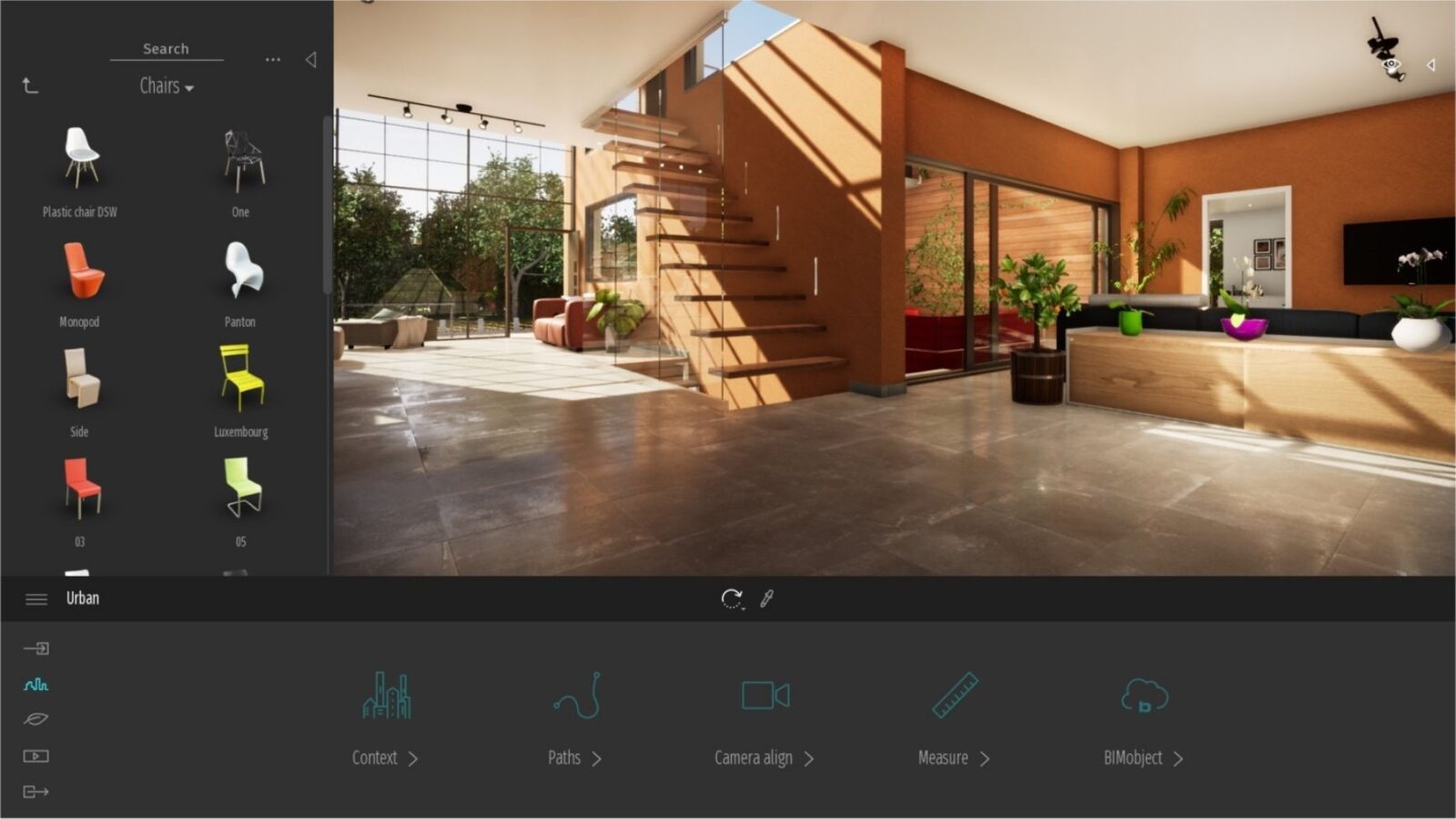
Table of Contents Show
A Twinmotion render uses Unreal Engine’s real-time visualization technology to produce architectural images, videos, and VR walkthroughs in seconds rather than hours. Combined with over 600 built-in PBR materials and access to Quixel Megascans, Twinmotion gives architects a direct path from 3D model to presentation-ready visuals without complex rendering setups.
If you have ever spent an entire afternoon setting up lights, tweaking material maps, and waiting for a single image to finish processing, Twinmotion offers a different approach. Built by Epic Games on Unreal Engine 5, this real-time visualization tool turns your CAD or BIM model into polished stills, cinematic walkthrough videos, and immersive VR experiences with a drag-and-drop interface that takes minutes to learn. The software syncs directly with Revit, SketchUp, Rhino, and ArchiCAD through Datasmith plugins, which means your model stays linked to the visualization as the design evolves. Change a wall thickness in Revit, and the Twinmotion scene updates to match.
What makes Twinmotion particularly useful for architects is its combination of speed and visual quality. You are not choosing between a fast preview tool and a polished rendering engine. With path tracing, physically based lighting, and a material library built from real-world scans, a single Twinmotion render can serve both as a quick design check and a client-ready deliverable. The software is free for students, educators, hobbyists, and companies earning under $1 million USD in annual gross revenue, removing one of the biggest barriers to high-quality architectural visualization.
What Is Twinmotion and Why Do Architects Use It?
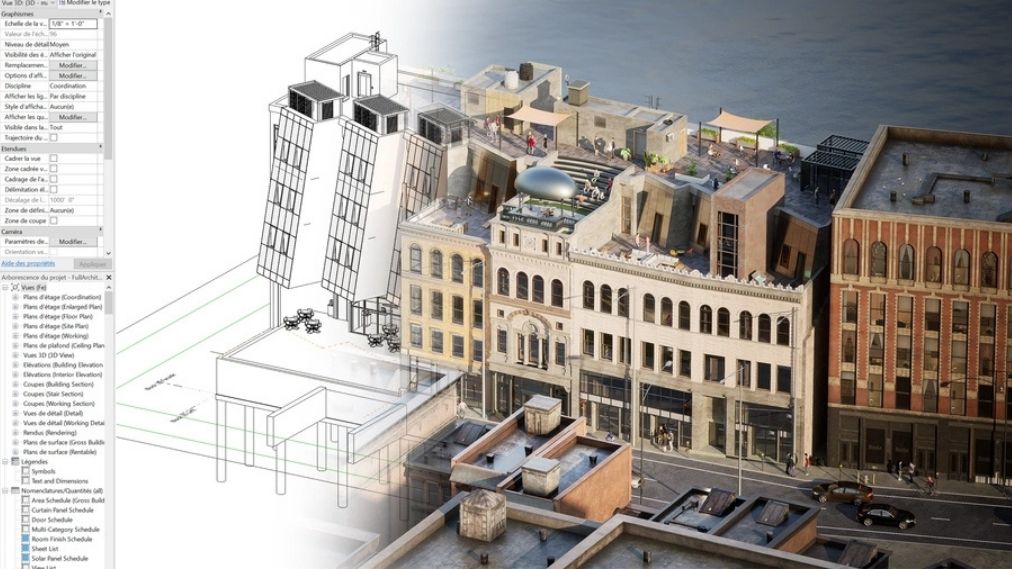
Twinmotion is a real-time 3D visualization application developed by Epic Games, originally created by French software company Abvent before Epic acquired it in 2019. It is built on Unreal Engine, the same technology behind major film visual effects and AAA video games, but wrapped in an interface designed specifically for architecture, construction, urban planning, and landscape professionals. You do not need game engine experience to use it.
The core idea is straightforward: import your 3D model, apply materials, set the lighting and weather conditions, and produce your output. The rendering happens in real time, so what you see in the viewport is essentially what you get in the final image. This eliminates the traditional render queue entirely. Architects use Twinmotion because it collapses the gap between design iteration and visual communication. During a client meeting, you can change the facade material, adjust the sun angle to show afternoon shadows, switch the season from summer to winter, and capture a new image on the spot. For a detailed comparison of how Twinmotion stacks up against other popular real-time renderers, our Lumion vs Enscape vs Twinmotion comparison breaks down the differences across rendering quality, BIM integration, and pricing.
💡 Pro Tip
When you first import a model into Twinmotion, set the geographic location before adjusting any lighting. Twinmotion calculates sun position based on real-world coordinates, and starting with an accurate location prevents hours of manual light repositioning later. You can set this through the Environment panel under the Sun Position settings.
Twinmotion supports direct synchronization with major design software through the Datasmith exporter plugin. This plugin is available for Revit, SketchUp Pro, Rhino, ArchiCAD, and several other platforms. The live-link feature means you can keep both applications open simultaneously: edit geometry in your modeling tool, and the Twinmotion viewport refreshes automatically. For firms that work through rapid design iterations with frequent client feedback, this workflow eliminates the repetitive export-import cycle that slows down traditional rendering pipelines. If you want to understand how Twinmotion fits into broader architectural rendering trends, that guide covers the shift toward real-time workflows in more depth.
How Twinmotion’s Free Downloadable Assets Speed Up Your Scenes
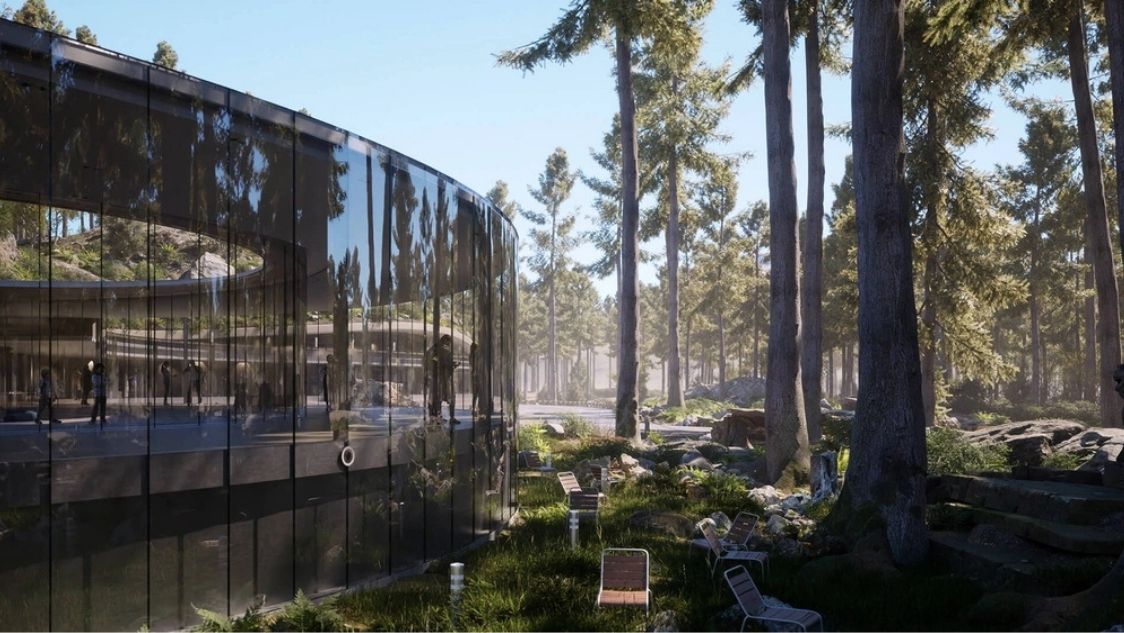
One of the strongest practical advantages of Twinmotion is the built-in asset library. The software ships with access to over one million objects through its integration with the Epic Games ecosystem, including Quixel Megascans and the Fab marketplace. These are not placeholder models. They include high-resolution 3D-scanned vegetation, furniture, vehicles, animated people, and environmental elements that you can drag directly into your scene.
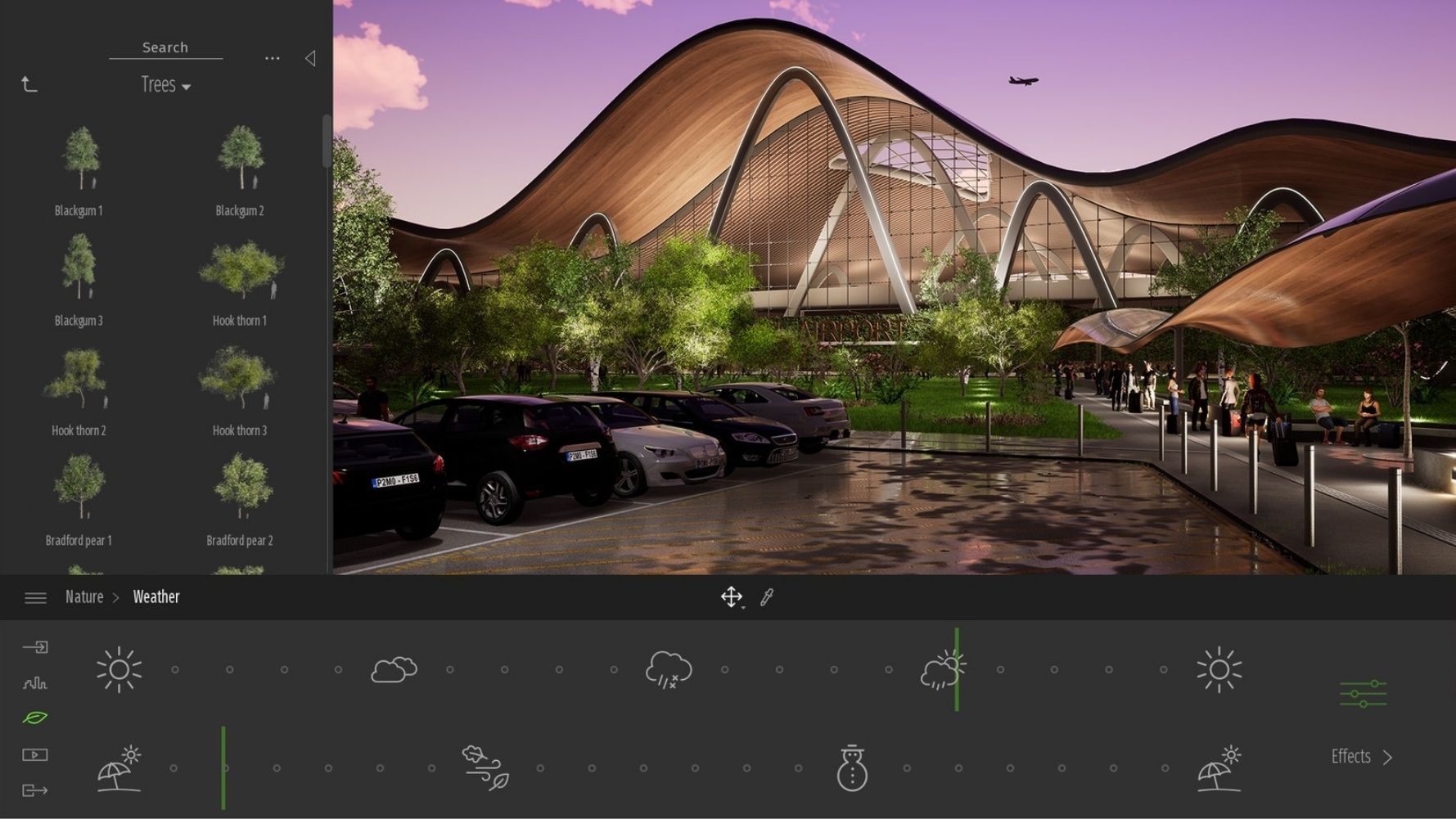
For architects, this matters because populating a scene with context (trees, pedestrians, cars, street furniture) traditionally takes as much time as setting up the building model itself. Twinmotion’s downloadable assets for Twinmotion remove that bottleneck. You browse the library by category, pick the asset, and place it with a click. The vegetation library alone includes hundreds of tree species with animated foliage that responds to the wind settings in your scene. The 2026.1.1 update added a 3D Grass material that populates any surface with five different grass types, adjustable in scale, color, and density.
The Quixel Megascans integration deserves special attention. Megascans is a library of photogrammetry-captured real-world surfaces and objects, the same library used in film production and game development. Since Epic Games owns both Twinmotion and Quixel, these assets are available at no additional cost within the software. This gives architects access to terrain surfaces, stone textures, ground cover, and architectural surfaces scanned at extremely high resolution. For studios that previously relied on stock 3D asset libraries with separate licensing, this alone can save hundreds of dollars per project.
📌 Did You Know?
Epic Games released a free pack of nearly 500 Twinmotion-based PBR materials on the Unreal Engine Marketplace, totaling roughly 8 GB of textures. The pack includes bricks, concrete, fabrics, glass, grass, dirt, wood, and plastics, all optimized with advanced shading techniques like parallax occlusion mapping. These materials are available to any Unreal Engine user at no cost.
The 2026.2 release introduced parallax windows, a feature that simulates realistic interior views behind glass surfaces without requiring modeled interiors. The library includes 27 pre-built interior scenes covering office, residential, gym, and retail themes. This single addition can save hours on exterior renders where window reflections previously looked flat or required separately modeled rooms behind every pane of glass.
Understanding PBR Materials for Twinmotion Rendering
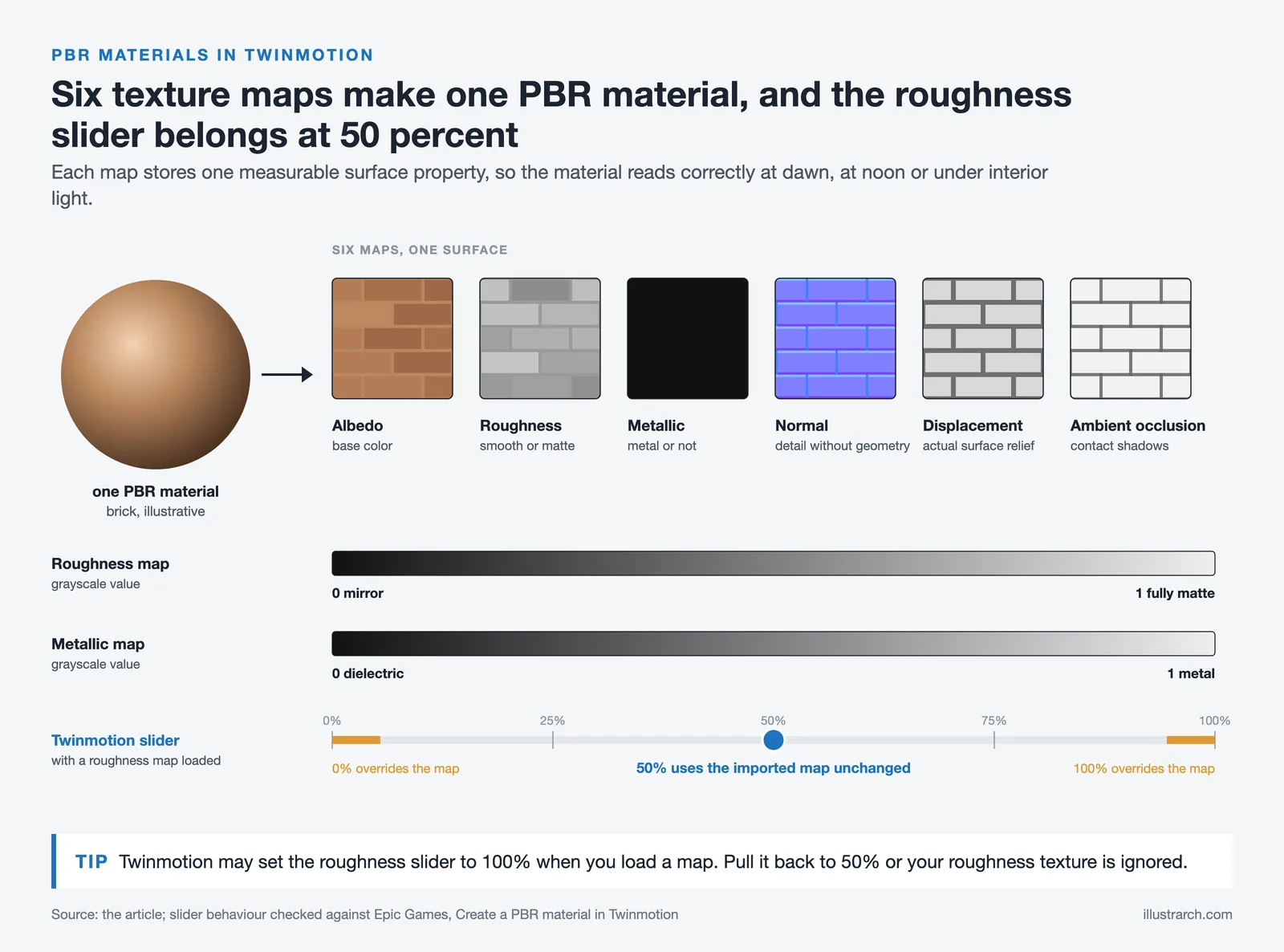
PBR stands for Physically Based Rendering, a shading model that simulates how light interacts with surfaces based on their real-world physical properties. Instead of manually adjusting brightness and color until something looks right, PBR materials use a standardized set of texture maps (albedo, roughness, metallic, normal, displacement, and ambient occlusion) that describe measurable surface characteristics. The result is materials that look correct under any lighting condition, whether your scene is set at dawn, midday, or under artificial interior lighting.
Twinmotion includes over 600 PBR materials in its built-in library. These cover common architectural surfaces: concrete in dozens of variations, brick patterns, wood species, metals, glass types, fabrics, stone, tile, and ground materials. Each material reacts to the scene lighting and environment settings automatically, which is what makes PBR materials for Twinmotion fundamentally different from basic texture images. A polished marble floor will reflect ceiling lights, produce soft caustic patterns near windows, and shift in appearance as the sun angle changes through the day. A matte concrete wall will absorb light and show subtle surface variation. None of this requires manual adjustment per scene.
For architects who source materials from external libraries like Poliigon or DNA Materials, Twinmotion supports importing custom PBR texture sets. The process involves assigning each map (color, roughness, normal, height) to the corresponding slot in the material editor. Twinmotion’s material system supports parallax occlusion mapping, which adds visual depth to surfaces like stone walls and brick facades without increasing the polygon count. If you are interested in how PBR workflows compare across different rendering platforms, our guide on architectural visualization with Blender covers the same PBR fundamentals applied in a different engine.
📐 Technical Note
A standard PBR material set for architectural visualization includes five to six texture maps: Albedo (base color), Roughness (surface smoothness, 0 = mirror, 1 = fully matte), Metallic (0 = dielectric, 1 = metal), Normal (surface detail without geometry), Displacement/Height (actual surface relief), and Ambient Occlusion (contact shadows). In Twinmotion, the roughness slider at 50% uses the imported map unchanged. Setting it to 0% or 100% overrides the map entirely.
How to Import Custom PBR Materials into Twinmotion
Importing your own PBR materials into Twinmotion follows a consistent process. First, download a PBR texture set from your preferred library. Unzip the files to a local folder. In Twinmotion, select the surface you want to apply the material to, then open the material editor. Click on each texture slot (color, roughness, normal, height) and navigate to the corresponding map file from your downloaded set. For the roughness map, Twinmotion may set the roughness slider to 100% by default, which overrides the imported texture. Set it to 50% to use the map values as intended. For normal maps, you may need to check the “invert” option to correct the green channel orientation depending on the source library. The displacement (parallax) feature is activated by enabling the “Parallax” checkbox in the normal map section, then assigning the height map to the corresponding slot.
Once applied, adjust the real-world scale setting to match the actual dimensions of the material. A brick texture designed at 1:1 scale will look wrong if applied to a wall at a different ratio. Twinmotion supports tri-planar mapping, which automatically aligns textures on objects that lack proper UV coordinates. This is especially useful for imported models from BIM software where UV mapping was not explicitly set during modeling.
Twinmotion 2026: Key Rendering Features for Architects
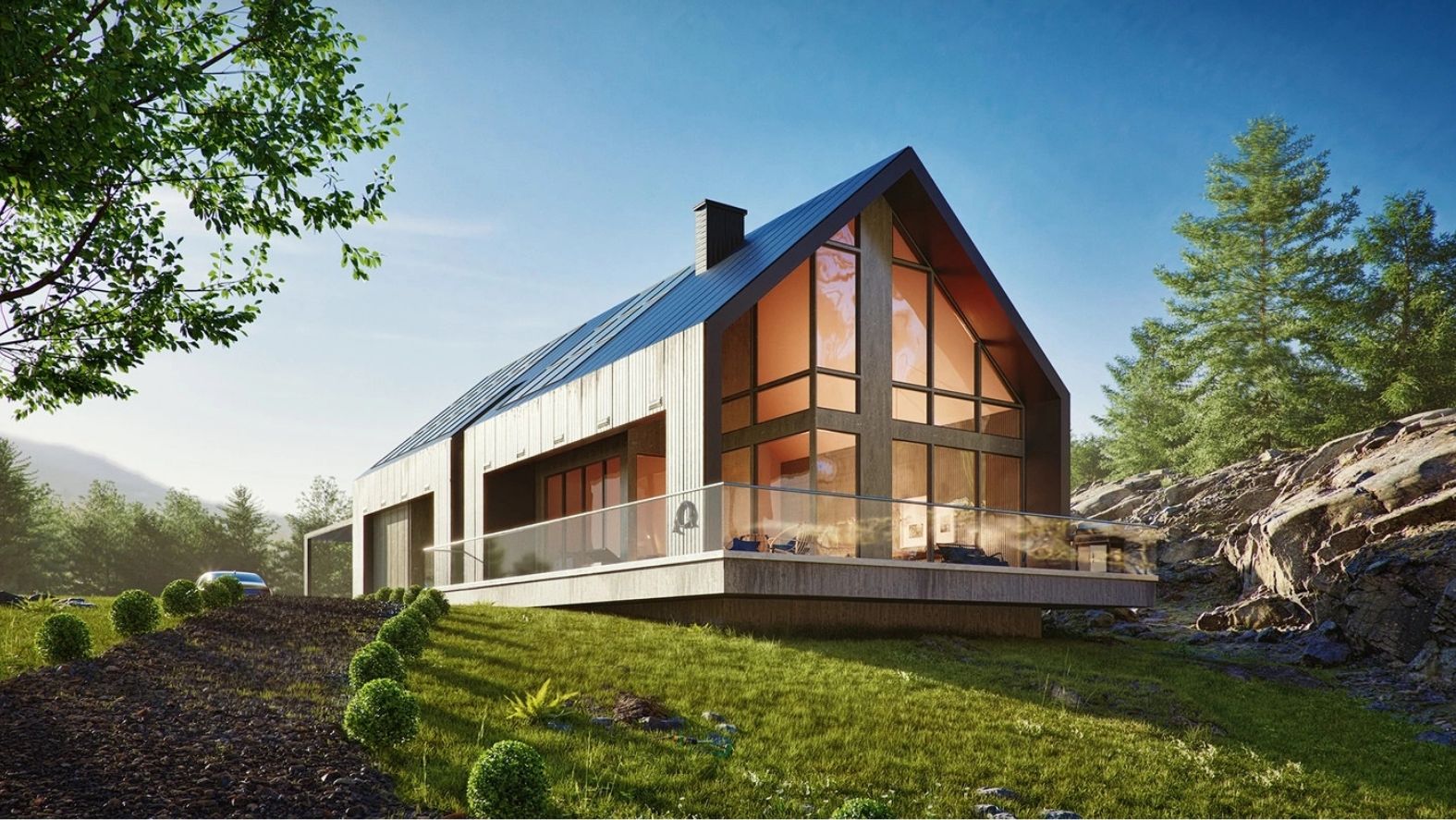
The 2026 release cycle has brought significant upgrades to Twinmotion rendering capabilities. These updates close much of the visual quality gap between Twinmotion and more established offline rendering engines, while keeping the real-time workflow intact.
The 2026.1 update introduced volumetric clouds, a feature that adds physically accurate cloud formations to exterior scenes. You can control altitude, coverage, density, color, and puffiness, and the clouds cast real shadows onto the scene below. They also react to wind settings, so animated walkthroughs show natural cloud movement. Several cloud presets are included, and you can save custom presets for reuse across projects.
Virtual Shadow Maps (VSM) arrived in the same update, offering a new shadow rendering method that produces results much closer to path-traced shadows while maintaining real-time performance. Standard shadow maps in real-time engines often show visible artifacts at long distances or inconsistent quality between interior and exterior shots. VSM technology reduces these issues significantly, making a single Twinmotion render more consistent across different viewing angles. The feature is currently Windows-only.
🎓 Expert Insight
“We share a common goal with Autodesk, giving customers more time to be innovative. By tapping into Epic’s ecosystem of real-time 3D tools and libraries, users can spend more time bringing their designs to life and less time handling complex data.”
Marc Petit, Vice President, Unreal Engine Ecosystem, Epic Games
This statement reflects Twinmotion’s core design philosophy: reducing the technical overhead of visualization so architects can focus on the design itself rather than the rendering process.
Twinmotion 2026.2 pushed things further with Nanite virtualized geometry support, which automatically manages mesh complexity based on camera distance. For architectural scenes with millions of polygons, this keeps performance smooth without requiring manual optimization. The same update added non-photorealistic rendering modes for situations where a hand-drawn or sketch-style output is more appropriate than photorealism, and LUT import support for color grading consistency across projects.
Projector Lights and Orthographic View Improvements
Projector lights, introduced in 2026.1, allow you to project any image or video texture onto a surface within your scene. This has direct applications for architectural presentations: simulating patterned light through decorative screens, showing branded signage on building facades, or creating caustic light effects on surfaces near water features. For event and exhibition design, projector lights let you preview how projected visuals will look on architectural surfaces before the physical installation.
Orthographic view rendering also received a significant upgrade. Previous versions lacked shadow support in orthographic mode and produced black outlines around objects, which made plan and elevation views less useful for professional documentation. The 2026.1 update added real-time shadow rendering to orthographic views in both Standard and Lumen lighting modes, and removed the outline artifacts. This means architects can now produce usable plan views, section cuts, and elevation drawings directly from the real-time engine, which can supplement traditional CAD documentation with rendered context.
Setting Up a Twinmotion Render: Practical Workflow Steps
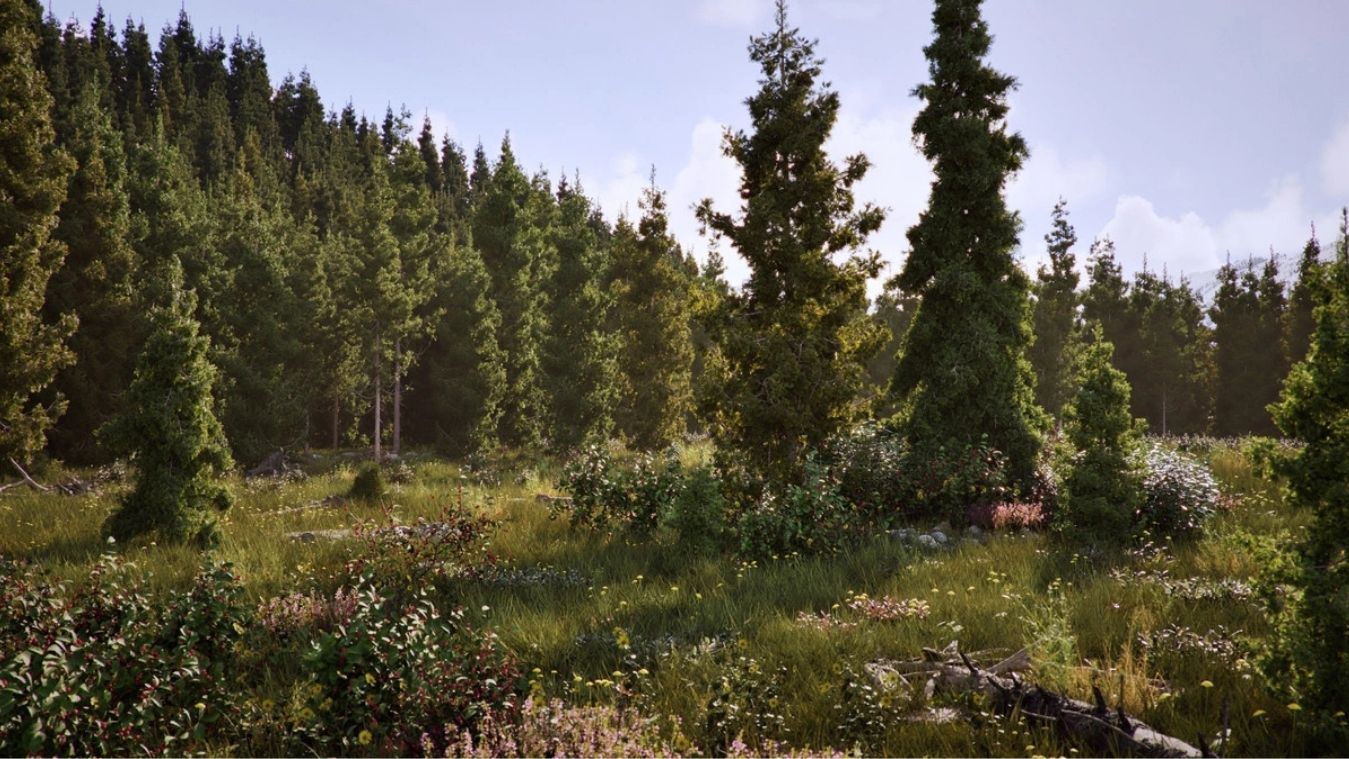
Getting a production-quality Twinmotion render follows a predictable sequence. Understanding each step helps avoid the common mistakes that lead to flat, unconvincing output.
Start by importing your model through the Datasmith plugin for your CAD software. If you use Revit, SketchUp, Rhino, or ArchiCAD, install the latest Datasmith exporter from the Epic Games website and enable live sync. This maintains a persistent connection between your modeling software and Twinmotion. For FBX, OBJ, or C4D imports, use the standard import dialog and set tessellation parameters to match your project’s detail requirements.
Next, address materials. Twinmotion assigns generic materials during import, so your first pass should replace these with appropriate PBR materials from the library. Work from large surfaces to small: facade first, then floors, then furniture and details. For glass, use Twinmotion’s dedicated glass material type rather than a transparent standard material, as it handles reflections and refraction more accurately. The Twinmotion overview on illustrarch covers the basics of the software’s material and lighting systems for those starting from scratch.
💡 Pro Tip
For exterior Twinmotion renders, set the sun angle between 15 and 35 degrees above the horizon (early morning or late afternoon) rather than directly overhead. Low sun angles produce longer shadows that add depth and dimension to facades, and the warmer light temperature creates more visually appealing images. Directly overhead sunlight flattens surfaces and reduces the three-dimensional quality of architectural details.
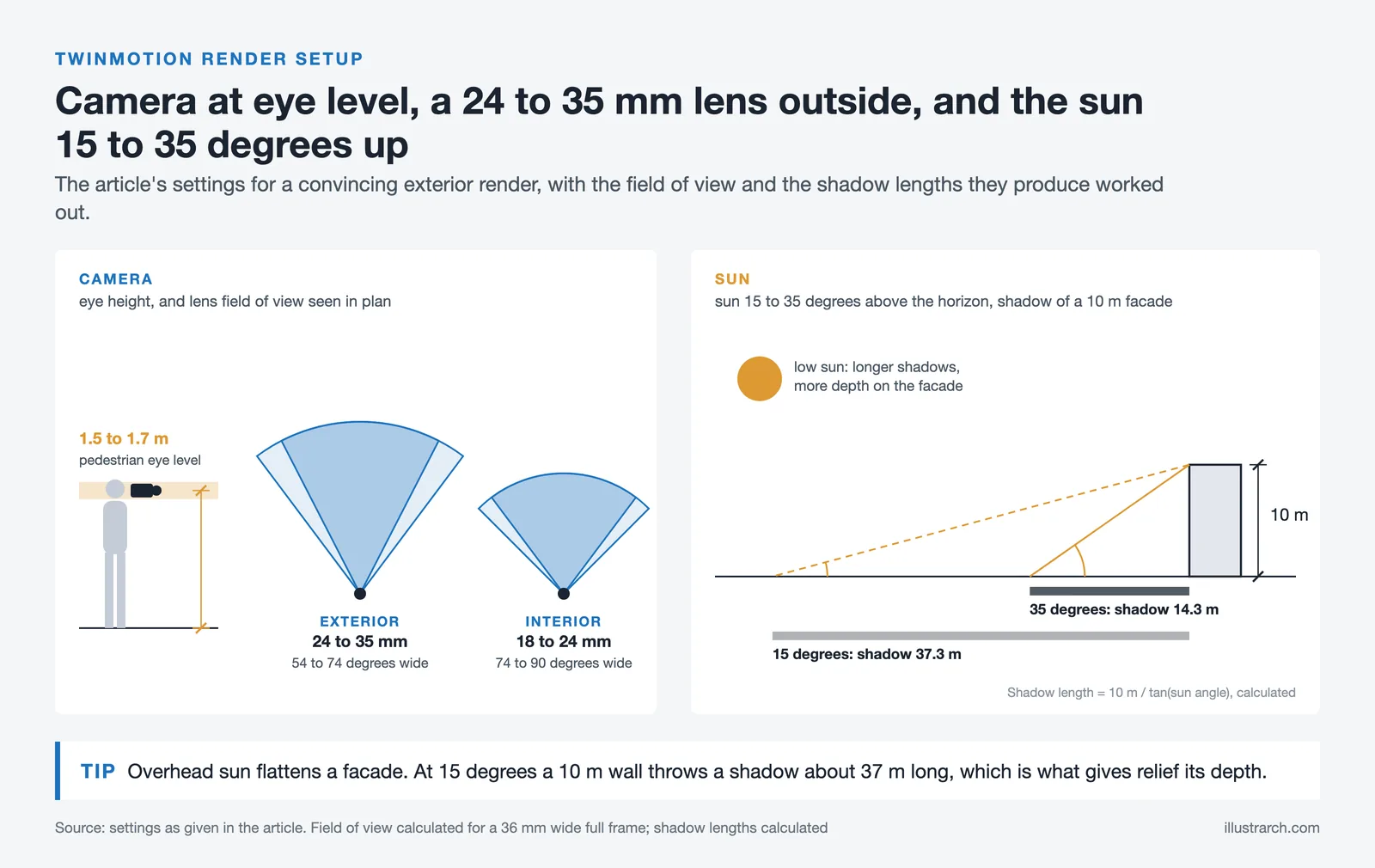
After materials, set up the environment. Adjust the time of day, weather conditions, and season. Add context with vegetation, people, and vehicles from the asset library. Place the camera at a realistic eye level (roughly 1.5 to 1.7 meters above ground for pedestrian views) and set the focal length between 24mm and 35mm for exterior shots or 18mm to 24mm for interiors. Avoid extreme wide angles unless you are specifically aiming for a dramatic composition, as they distort architectural proportions.
For the final output, choose between real-time mode (faster, suitable for design reviews) and path tracing mode (slower but significantly more accurate lighting). Path tracing produces physically correct global illumination, soft shadows, and realistic reflections, making it the better choice for hero images and client-facing deliverables. Export at the resolution you need. Twinmotion supports output up to 8K for stills.
How Twinmotion Renders Compare to Lumion and Enscape
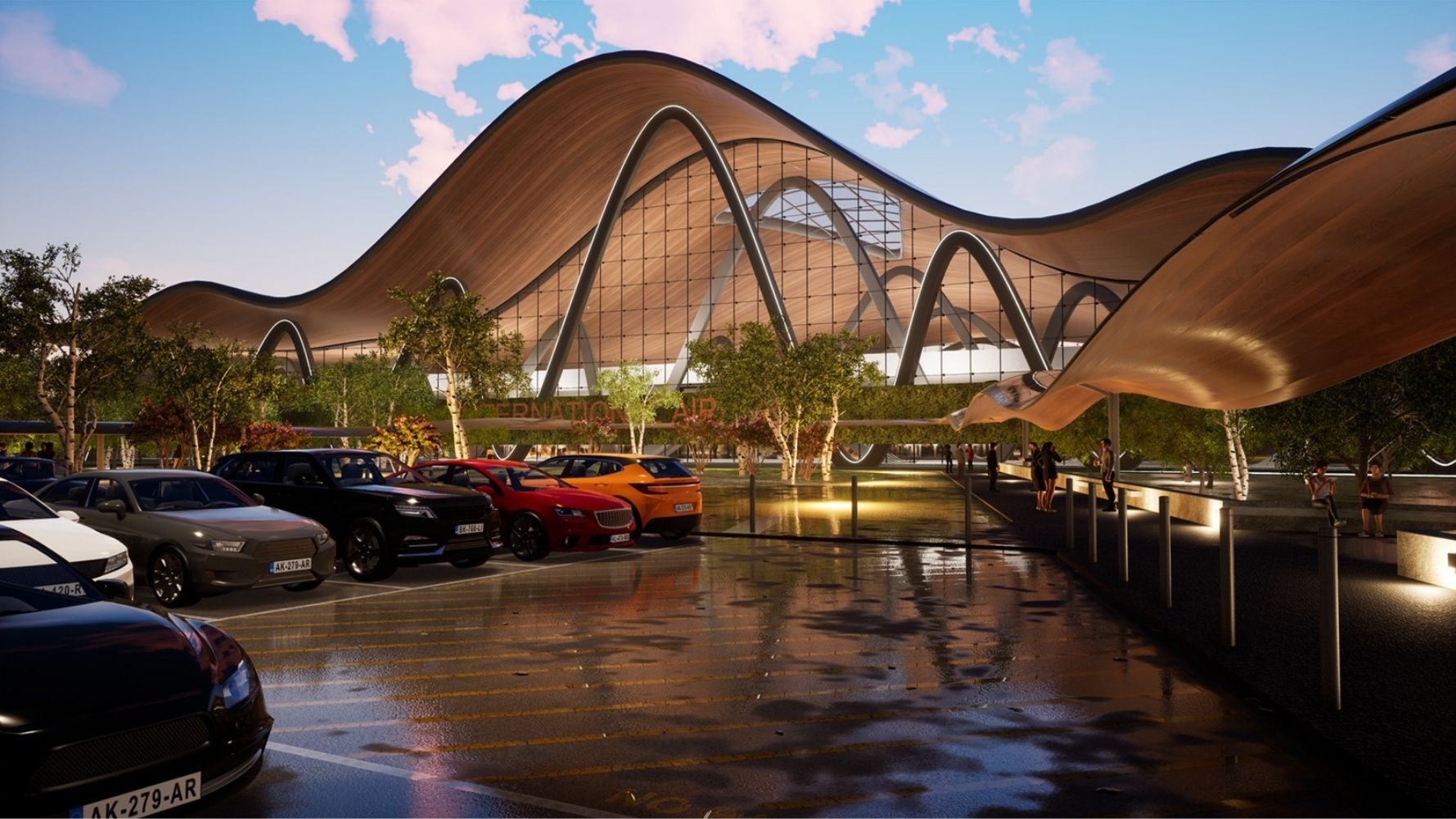
The three most widely used real-time rendering tools in architecture are Twinmotion, Lumion, and Enscape. Each takes a different approach to the same problem, and the right choice depends on your workflow, budget, and output requirements.
Comparison of Twinmotion, Lumion, and Enscape for Architecture
The following table summarizes how the three platforms differ across the features architects care about most:
| Feature | Twinmotion | Lumion | Enscape |
|---|---|---|---|
| Workflow Type | Standalone with live sync plugins | Standalone with LiveSync plugins | Plugin inside CAD software |
| Rendering Engine | Unreal Engine 5 (path tracing + real-time) | Custom engine (ray tracing) | Custom GPU ray tracing |
| Free Tier | Free for students and firms under $1M revenue | Free for students only | No free version |
| PBR Material Library | 600+ built-in, plus Quixel Megascans | 1,200+ built-in | Managed through host CAD software |
| Platform | Windows and macOS | Windows only | Windows (Mac for some hosts) |
| CAD Integration | Revit, SketchUp, Rhino, ArchiCAD | Revit, SketchUp, Rhino, ArchiCAD, others | Revit, SketchUp, Rhino, ArchiCAD, Vectorworks |
| VR Output | Built-in VR walkthrough | Panorama-based VR | Built-in VR walkthrough |
Lumion has the largest asset library and produces polished exterior renders with minimal setup. Enscape’s plugin approach keeps you inside your CAD software, making it the fastest option for design-phase iteration. Twinmotion sits between the two: it offers Unreal Engine’s rendering power and Quixel Megascans access at a price point that undercuts both competitors significantly. For practices running on Apple hardware, Twinmotion is the only one of the three that runs natively on macOS as a standalone application, which can be a decisive factor for Mac-based studios.
For a practical look at how Enscape handles the same PBR material workflow in a plugin-based approach, the Enscape architectural render guide on illustrarch covers the differences in detail. If you are considering Lumion for exterior visualization specifically, the Lumion rendering overview explains its strengths in atmospheric and landscape rendering.
⚖️ Pros & Cons at a Glance
✔️ Pros: Free tier for students and small firms, Unreal Engine rendering quality, cross-platform (Windows + macOS), Quixel Megascans access included
✖️ Cons: Standalone app needs a Datasmith plugin or file export to bring models in, VSM shadows currently Windows-only, steeper GPU requirements than Enscape, smaller built-in material library than Lumion

Twinmotion Configurations: Interactive Design Presentations
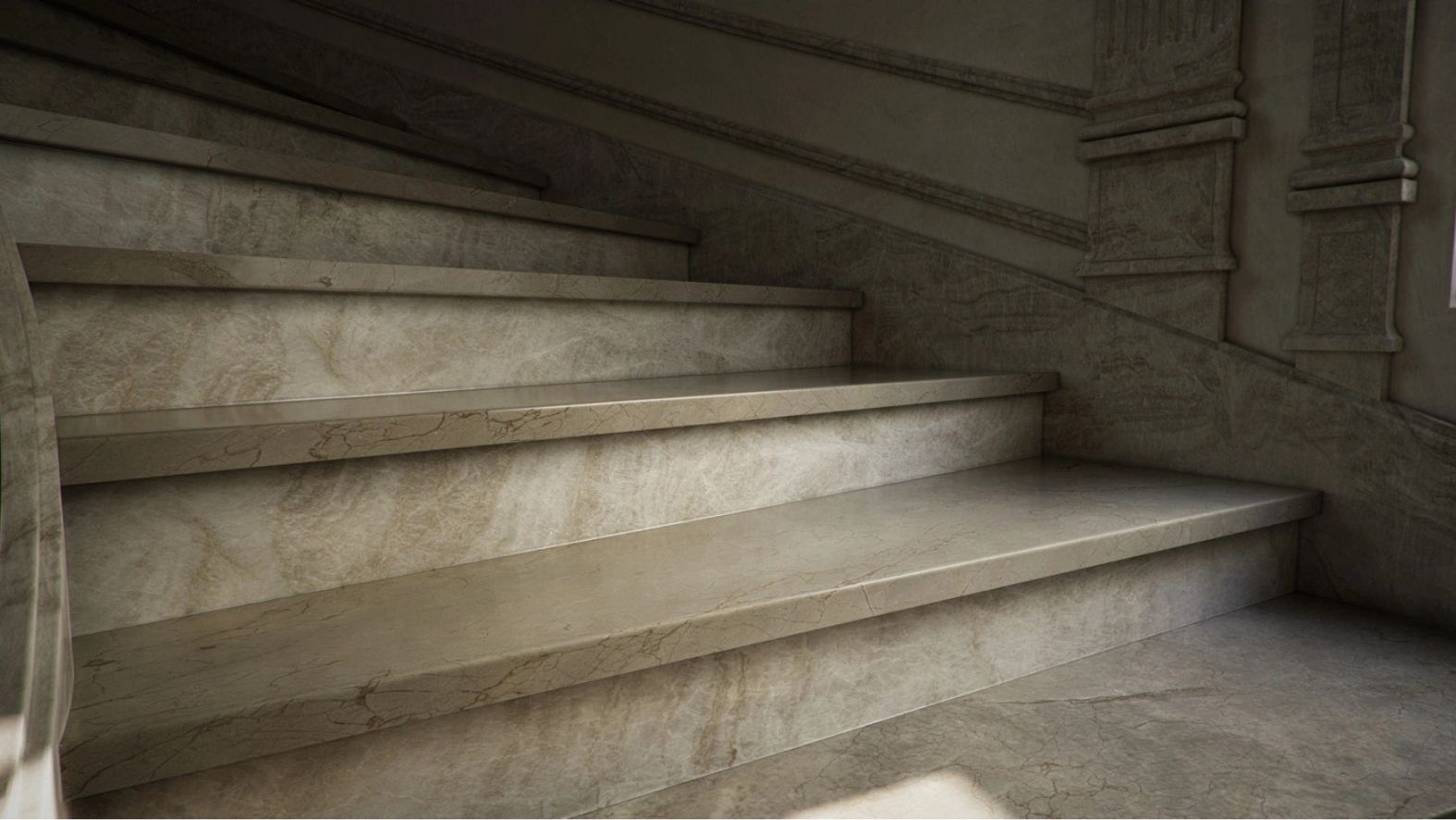
The Configurations feature, introduced in 2026.1, is one of the most practical additions for architects who present design options to clients. Configurations let you build interactive 3D presentations that toggle between different design variations within a single scene. You set up trigger points, and during a fullscreen presentation or cloud-shared viewer, a client can click to switch between options: different facade materials, furniture layouts, landscaping approaches, or interior finishes.
This replaces the traditional workflow of preparing multiple separate render sets for each design option. Instead of exporting six different images showing six different kitchen finishes, you set up a single Twinmotion scene with all six options as configuration states. The client switches between them in real time. The 2026.2 update added batch export for all configuration states, so you can still produce individual images of each option when needed. Configurations can now be exported to Twinmotion Cloud for remote sharing, allowing clients anywhere in the world to explore design options through a web browser.
The practical value here is significant for practices that work in residential design, retail interior fit-outs, or any project type where the client needs to compare material or layout options side by side. Rather than scheduling a follow-up meeting to show revised renders, you share a cloud link and let the client explore on their own schedule.
Video: PBR Materials in Twinmotion 2025 Tutorial
This tutorial from SB. ARCHITECT walks through the fundamentals of working with PBR materials in Twinmotion 2025, covering material types, map assignments, and practical application techniques.
Where to Find Free Downloadable Assets for Twinmotion
Beyond the built-in library, several external sources provide high-quality downloadable assets for Twinmotion that expand your scene-building options. The most important sources include:
Fab (formerly Unreal Engine Marketplace) hosts the official Twinmotion Material Pack, a free collection of architecture-focused PBR materials optimized for Unreal Engine with parallax occlusion mapping and tri-planar projection support. The pack is roughly 8 GB and covers common architectural surface categories.
Twinmotion’s official site provides documentation on the full built-in library, including how to access Quixel Megascans directly through the Twinmotion interface. The Megascans collection includes thousands of photogrammetry-scanned 2D and 3D assets available at no additional cost to Twinmotion users.
Third-party libraries like Poliigon and Texture Haven offer PBR texture sets compatible with Twinmotion. When downloading from external sources, look for texture sets that include at minimum an albedo, roughness, and normal map. Displacement maps add visual depth but increase rendering cost, so use them selectively on surfaces that are close to the camera.
⚠️ Common Mistake to Avoid
Many users apply high-resolution 4K or 8K PBR textures to every surface in the scene, which tanks viewport performance without a visible benefit. Reserve 4K textures for hero surfaces that will be close to the camera (a featured wall, a countertop, a floor in the foreground). For background surfaces, 1K or 2K textures are visually indistinguishable in the final render and keep the scene running smoothly.
The Twinmotion User Library feature lets you save configured materials, assets, and even scene elements for reuse across projects. Once you have imported and tuned a custom PBR material set, save it to your User Library folder so you do not need to repeat the setup process. The path to your User Library can be found under Edit > Preferences > Settings > Custom paths. Building a personal material library over time is one of the most effective ways to speed up future Twinmotion renders. For those comparing rendering tools across different workflows, our article on AI render tools vs traditional rendering covers where real-time engines like Twinmotion fit within the broader visualization landscape.
Twinmotion Licensing and Pricing
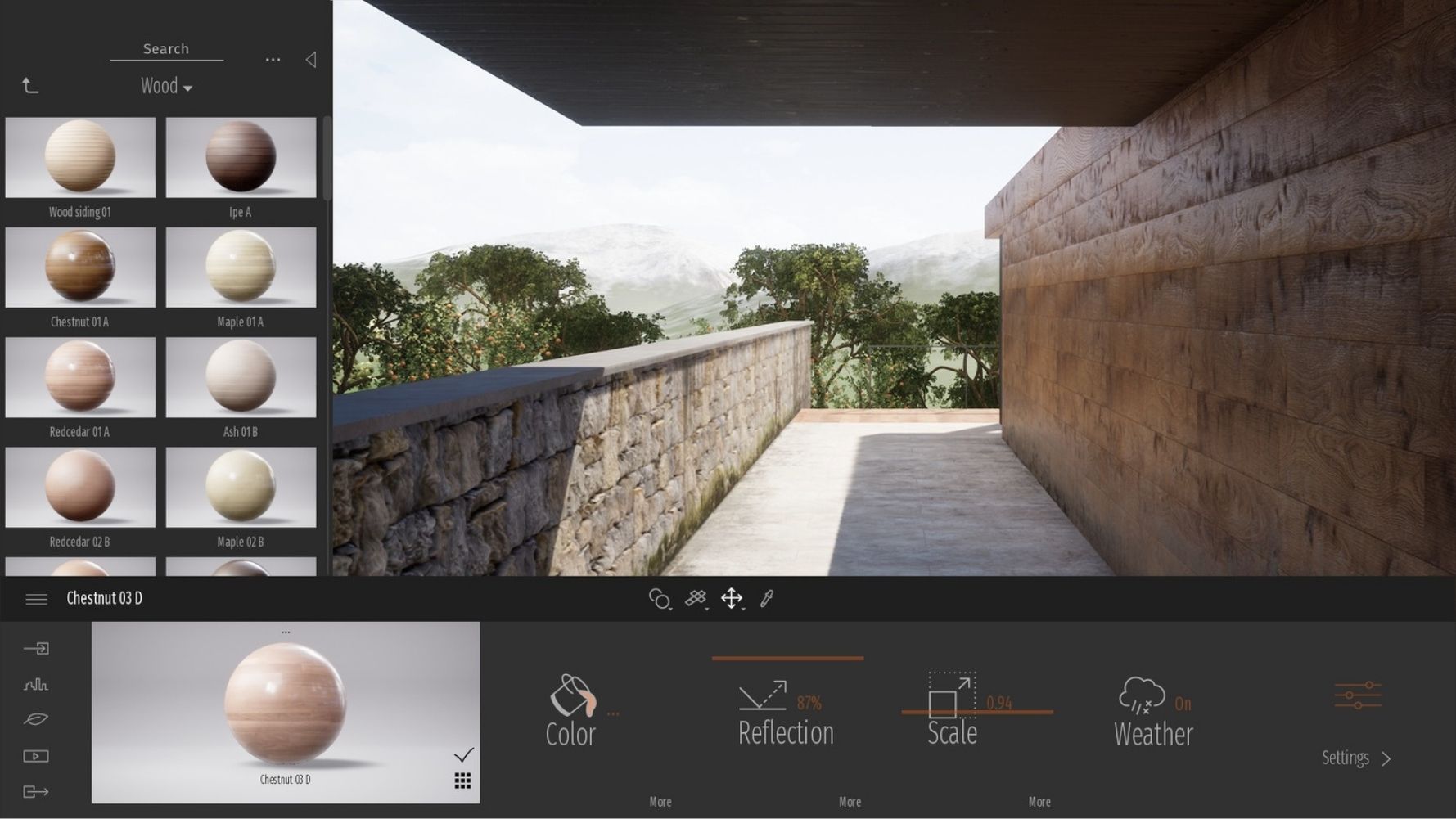
Twinmotion’s licensing model is straightforward. The software is free for students, educators, hobbyists, and companies earning under $1 million USD in annual gross revenue. This makes it the most accessible professional-grade rendering tool available for small practices and freelance architects. Above the $1 million threshold, a paid subscription is required, with pricing structured as an annual license.
The free tier is not a stripped-down version. It provides full access to all features, including path tracing, the complete asset library, Quixel Megascans, VR capabilities, and all export options. The only restriction is the revenue qualification. This is a significant difference from Lumion and Enscape, neither of which offers a free commercial tier at any revenue level (Lumion is free only for students). For architecture students and recent graduates building their portfolios, the best architectural software for students guide on illustrarch covers Twinmotion alongside other accessible tools.
A free 30-day trial is also available for anyone who wants to evaluate the software before committing to a paid subscription. The application is downloaded through the Epic Games launcher, which manages updates and library access.
✅ Key Takeaways
- A Twinmotion render produces real-time architectural visualizations powered by Unreal Engine 5, with both standard and path-traced output modes for different quality needs.
- The software includes over 600 built-in PBR materials and free access to Quixel Megascans, eliminating the need for expensive third-party texture libraries.
- PBR materials use physically measured texture maps (albedo, roughness, metallic, normal, displacement) that react correctly under any lighting condition.
- Twinmotion 2026 added volumetric clouds, Virtual Shadow Maps, projector lights, and Configurations for interactive client presentations.
- The software is free for students, educators, and firms earning under $1M annual revenue, making it the most cost-accessible professional rendering tool for architects.
Final Thoughts
Twinmotion has matured from a quick preview tool into a production-capable rendering platform that handles the full range of architectural visualization tasks. The combination of Unreal Engine’s rendering power, a massive free asset library, built-in PBR materials, and direct BIM software integration creates a workflow where the gap between design changes and visual output is measured in seconds rather than hours. For architects and designers who need to produce client-ready visuals without maintaining a separate visualization specialist on staff, Twinmotion renders offer a practical and increasingly powerful solution. The free licensing tier for students and small firms makes it an easy recommendation for anyone building a visualization toolkit from scratch.






Python or Grasshopper: Which Should Architecture Students Learn First?
Grasshopper teaches parametric logic through visual feedback, while Python handles data, repetition,...
 Sinan Ozen6 Mins read

Parafin 3D Review: AI-Driven Site Acquisition That Generates Budgets and Proformas Instantly
Parafin 3D now trades as Parafin and sells only to hotel developers....
Elif Ayse Sen7 Mins read
Cloud Rendering vs Local Rendering: What Actually Costs Less for Architects?
Architects weighing cloud rendering vs local rendering face a real tradeoff between...
Sinan Ozen9 Mins read

AI Render Tools vs Traditional Rendering: Speed, Cost, and Quality Compared
This article compares AI render tools with traditional architectural rendering engines like...
Sinan Ozen6 Mins read


Leave a comment