

Procreate vs Photoshop: Should Architects and Designers Use Them for Architecture Work?
Procreate vs Photoshop for architects: see when to sketch on iPad and when to render in desktop. Expert workflow tips, print-ready control, and hybrid guidance.
 Sinan Ozen8 January 20269 Mins read381
Table of Contents Show
We get this question a lot: Procreate vs Photoshop, should architects and designers use one, the other, or both? The short answer: they shine at different moments in an architecture workflow. Procreate excels at speed, sketching, and mobility on iPad: Photoshop dominates in rendering, compositing, and print-ready control. Here’s how we decide which tool to open, and why a hybrid approach often wins.
At-A-Glance Comparison for Architecture Workflows
| Feature | Procreate | Photoshop |
|---|---|---|
| Platform | iPad only | macOS, Windows, iPad (lite version) |
| Stylus Support | Apple Pencil (optimized) | Wacom, XPPen, Huion, Apple Pencil (iPad) |
| Pricing | One-time ~$12.99 USD | Subscription ~$22.99/mo (Creative Cloud) |
| Color Modes | RGB, CMYK (at canvas creation) | RGB, CMYK, Lab, Grayscale, 16/32-bit |
| Max Layers | Depends on iPad RAM & canvas size (up to 999) | Up to 8,000 layers |
| Max Canvas Size | Up to 16,384 × 8,192 px (M-chip iPads) | Up to 300,000 × 300,000 px |
| Vector Support | No | Limited (vector shapes, smart objects) |
| Adjustment Layers | No (destructive adjustments only) | Yes (non-destructive) |
| Smart Objects | No | Yes |
| Export Formats | PSD, PNG, TIFF, PDF, JPEG, Procreate | PSD, PNG, TIFF, PDF, JPEG, EPS, SVG, and more |
| Learning Curve | Low — intuitive gestures | Steep — powerful but complex |
| Best For (Architecture) | Concept sketching, markups, diagrams | Rendering, compositing, print production |
Platforms, Hardware, and Stylus Support
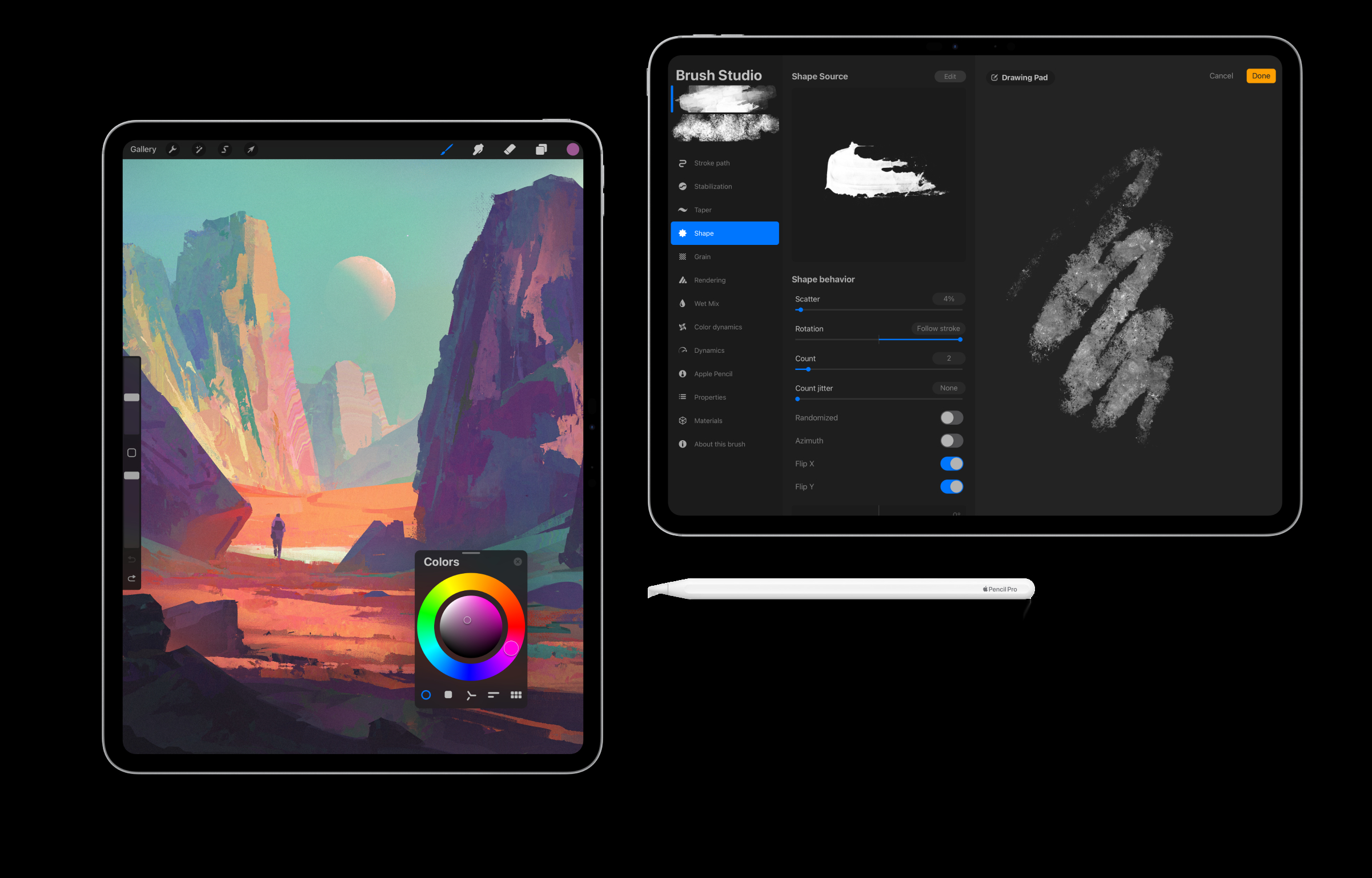
Procreate runs exclusively on iPad and is optimized for Apple Pencil, low latency, rock-solid pressure/tilt, and gestures that feel like drawing on paper. Photoshop runs on macOS/Windows (full desktop) and a lighter iPad app: the desktop version supports Wacom and other pen displays with professional drivers and customization. If we’re on a site walk or in a studio pin-up, iPad + Procreate is unbeatable for immediacy. For production rendering on a calibrated workstation, Photoshop is still our anchor.
File Types, Color Modes, and Print Readiness
Both handle PSDs with layers, but Photoshop is the standard for complex, multi-GB files, smart objects, and color-managed workflows (RGB, CMYK, Lab, 16/32‑bit). Procreate supports RGB and CMYK profiles at canvas creation and exports layered PSDs, TIFFs, and PDFs, but soft-proofing and deep prepress controls are limited. For high-stakes print, boards with precise CMYK targets, bleed, and profiles, we keep final prep in Photoshop.
| File & Color Feature | Procreate | Photoshop |
|---|---|---|
| Bit Depth | 8-bit | 8-bit, 16-bit, 32-bit |
| Color Profiles | sRGB, P3, CMYK (set at canvas creation) | Full ICC profile management, custom profiles |
| Soft-Proofing | Not available | Yes — simulate CMYK/spot colors on screen |
| Spot Color Channels | Not available | Yes — for specialty inks (Pantone, metallic) |
| EXR / HDR Support | Not available | Yes — 32-bit HDR compositing |
| Bleed & Trim Marks | Not available (manual workaround) | Yes — configurable bleed, trim, and crop marks |
| PDF/X Compliance | No | Yes — PDF/X-1a, PDF/X-4 for press-ready output |
Concept Sketching and Diagramming
Speed, Gestures, and Natural Media Feel
When we need to capture a massing gesture before it evaporates, Procreate is the fastest tool we own. Two-finger undo, QuickShape, and responsive brushes make ideation frictionless. Photoshop’s brush engine is excellent, but the desktop setup (opening files, configuring workspaces) can slow early sketch energy.
Line Quality, Brushes, and Scale Control
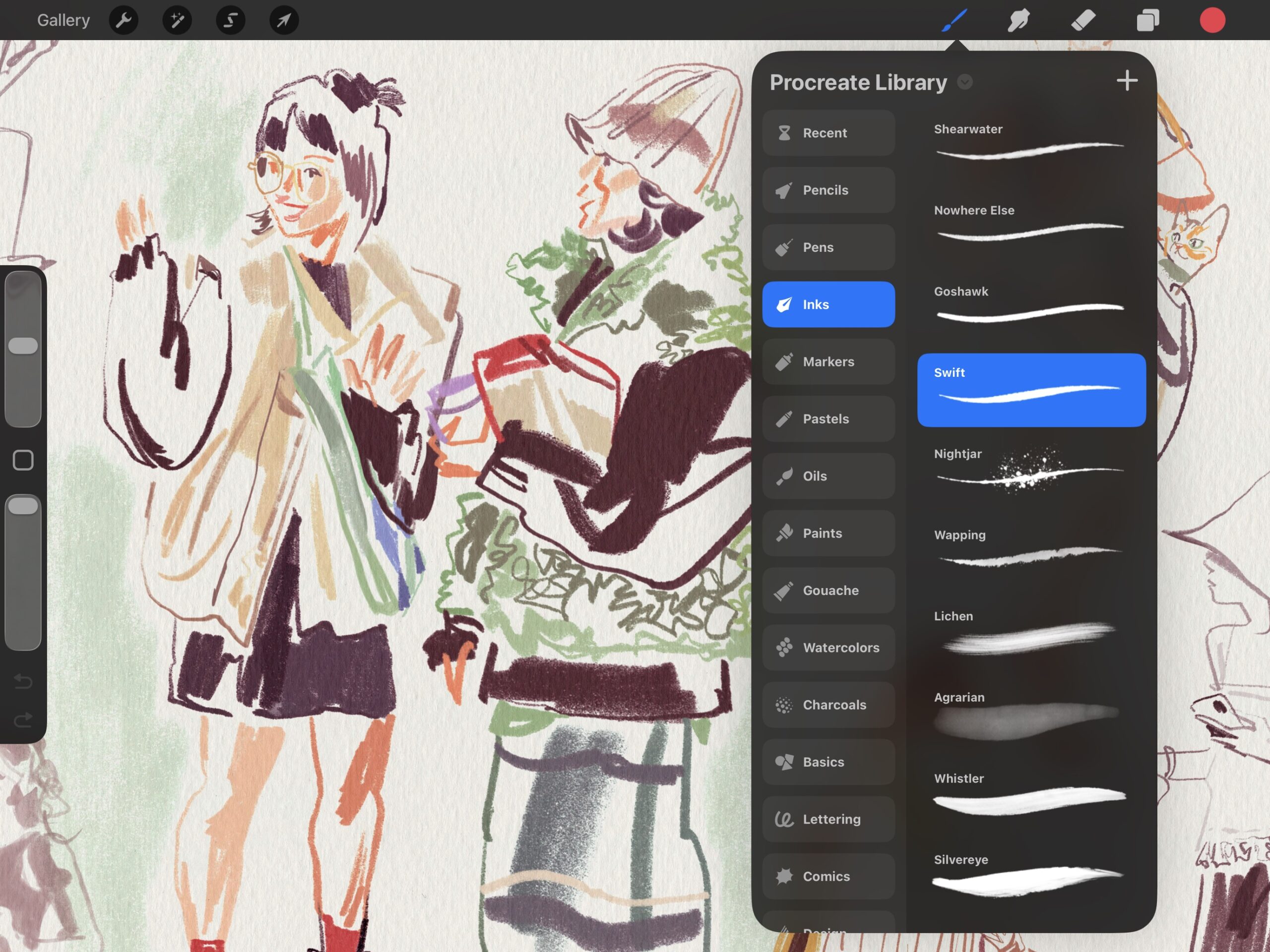
Procreate’s pencil brushes, taper controls, and pressure curves produce confident lines with minimal setup. We love it for bubble diagrams, parti studies, and quick façade iterations. Photoshop offers more extensible brush systems, custom dynamics, and smoothing, amazing for inking and detailed linework, though it takes more dialing in. For measured drawings or scale-sensitive overlays, Photoshop offers crisper pixel control at massive resolutions, but Procreate’s QuickMeasure, DPI settings, and drawing assist keep diagram scale believable.
Layers, Grids, and Perspective Guides
Both support layers, blend modes, and masks. Procreate’s Drawing Guide, isometric/2‑point perspective, and assisted drawing make architectural sketching intuitive. Photoshop counters with precise grids, vanishing point filters, vector shapes, and more robust text styles. For a fast axon sketch with perspective assist, we reach for Procreate: for technical overlays mixing linework, labels, and image assets, Photoshop wins.
| Sketching & Diagramming Feature | Procreate | Photoshop |
|---|---|---|
| Undo/Redo | Two-finger tap (instant, up to 250 steps) | Ctrl/Cmd+Z (configurable history states) |
| QuickShape / Shape Snap | Yes — draw & hold to snap | Shape tools & vector paths |
| Perspective Guides | 1-point, 2-point, isometric, Drawing Assist | Vanishing Point filter, manual guides |
| Brush Library | 200+ built-in, Brush Studio for custom | 1,000+ built-in, multiple brush engines |
| Pressure & Tilt Sensitivity | Excellent (Apple Pencil native) | Excellent (Wacom/pen display drivers) |
| StreamLine / Smoothing | StreamLine per brush | Adjustable smoothing (0–100%) |
| Text & Typography | Basic — limited text tools | Advanced — full type engine, paragraph styles |
| Grid & Symmetry | Drawing Guide with symmetry options | Precise grids, custom guides, symmetry paint |
| Time-lapse Recording | Yes — built-in (exports 4K video) | No (requires screen recording software) |
Rendering, Post-Production, and Image Compositing
Photorealistic Composites, Masking, and Selections
Photoshop’s selection tools (Select Subject, object selection, channels) and refined masking are best-in-class for façade swaps, entourage, and sky replacements. Smart Objects let us non-destructively update exports from Rhino/Revit renders. Procreate can mask and composite well for concept images, but intricate cutouts and multi-source composites are faster and cleaner in Photoshop.
Tone Mapping, LUTs, and Advanced Color Control
For final-grade post, Photoshop provides Camera Raw, curve precision, luminosity masks, gradient maps, and LUTs for cohesive looks across a full presentation set. Procreate’s Curves, HSL, Color Balance, and blend modes handle mood painting and quick tonal work, but it lacks Photoshop’s depth for consistent, color-managed deliverables.
Textures, Overlays, and Effects for Atmosphere
We often build atmosphere, fog, grain, light bloom, and material textures, in Photoshop using overlays, custom brushes, and displacement maps. Procreate is fantastic for hand-painted texture passes and vignette washes on top of clay renders. For hero images where realism matters, Photoshop carries the last 20% that sells the scene.
| Rendering & Post-Production Feature | Procreate | Photoshop |
|---|---|---|
| Selection Tools | Freehand, automatic, ColorDrop | Select Subject, Object Selection, Quick Selection, Channels, Pen Tool |
| Masking | Layer masks, clipping masks | Layer masks, clipping masks, vector masks, channel masks, luminosity masks |
| Smart Objects | Not available | Yes — non-destructive linked/embedded |
| Adjustment Layers | Not available (destructive only) | Curves, Levels, Hue/Sat, Color Balance, Gradient Map, LUTs, etc. |
| Camera Raw / RAW Editing | Not available | Full Camera Raw integration |
| Blend Modes | ~27 blend modes | ~27 blend modes + advanced blending options |
| Batch Processing / Actions | Not available | Yes — Actions, scripts, droplets |
| AI-Powered Tools | Not available | Generative Fill, Neural Filters, Content-Aware |
| Atmosphere & Effects | Hand-painted overlays, basic blur/noise | Displacement maps, advanced filters, custom overlays, fog/bloom effects |
Integrations with CAD/BIM and Presentation Deliverables
Importing from Revit, Rhino, SketchUp, and CAD
Our typical pipeline: export linework (DWG to PDF/SVG) and renders (PNG/TIFF/EXR) from Revit/Rhino/SketchUp. Photoshop ingests high-res renders, vector PDFs (as smart objects), and layered PSDs from rendering tools. We keep entourage and material libraries synced. Procreate comfortably accepts flattened exports (PNG/TIFF) for redlines and paint-overs: it’s the quickest way to iterate on massing or daylight studies during reviews.
Exporting Boards, Sheets, and Print Sets
For multi-board sets with consistent type, bleeds, and CMYK profiles, Photoshop (often paired with InDesign) gives us predictable, print-safe PDFs. Procreate can export high-res images and multi-page PDFs, great for concept packs and client markups. If a deliverable must align with office templates and print standards, we bring it home in Adobe apps.
| CAD/BIM Integration | Procreate | Photoshop |
|---|---|---|
| Import Formats | PNG, JPEG, TIFF, PSD (flattened best) | PSD, PNG, TIFF, EXR, PDF (vector), SVG, RAW |
| Vector PDF Import | Rasterized on import | As Smart Object (scalable) |
| DWG/DXF Support | No (convert to PDF/PNG first) | No direct (convert to PDF/SVG first) |
| Multi-Asset Compositing | Manageable for simple composites | Best-in-class for multi-source workflows |
| Entourage Libraries | Manual import per file | Linked Smart Objects, library panels |
| Print Output (CMYK, Bleed) | Basic CMYK export, no bleed settings | Full CMYK, bleed, soft-proofing, ICC profiles |
| Multi-Page PDF Export | Yes (from canvas stacks) | Yes (also paired with InDesign for boards) |
| Adobe Ecosystem Integration | Export PSD to continue in Adobe | Native — Illustrator, InDesign, After Effects, CC Libraries |
Mobility, Performance, and Ergonomics
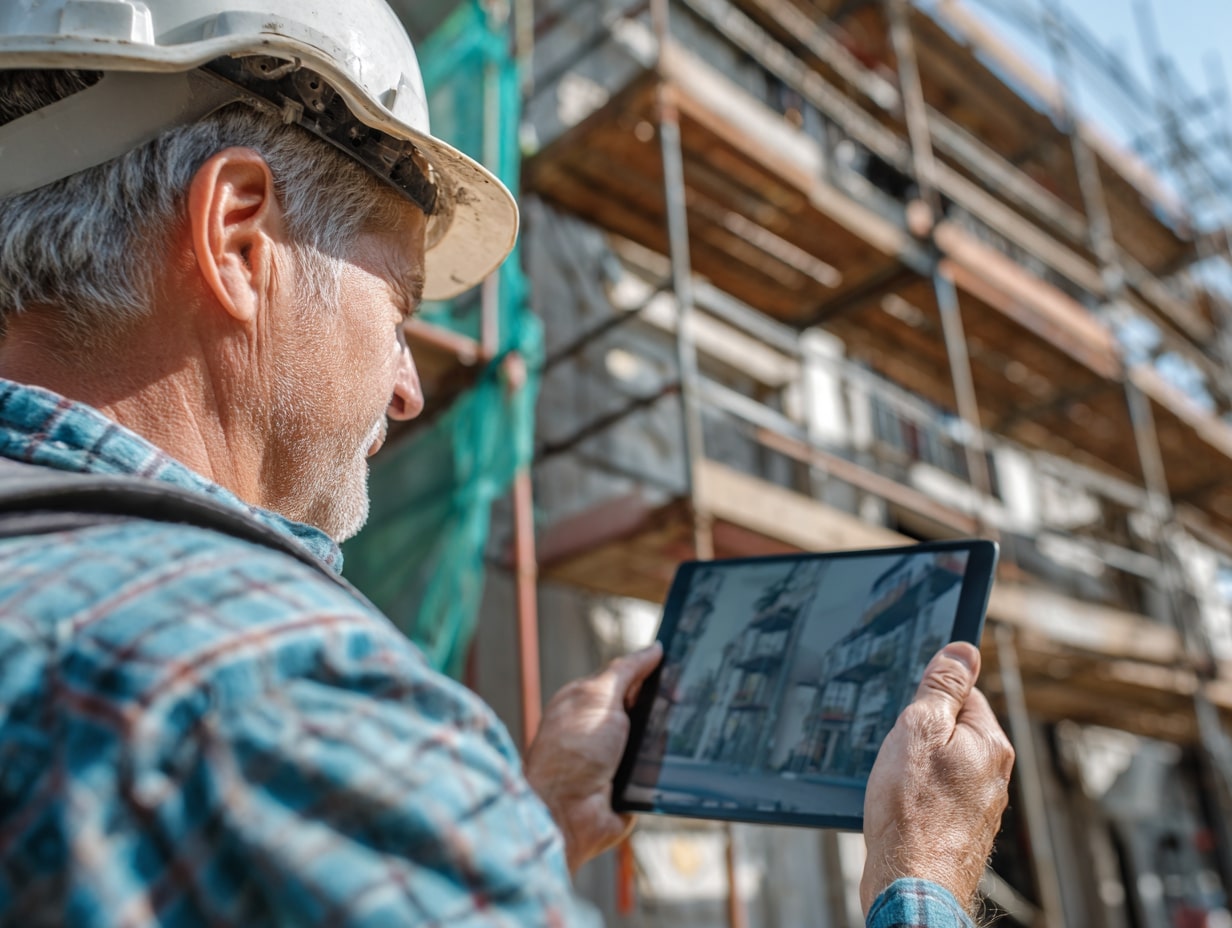
On-Site Markups and Client Meetings
Walking a site with an iPad, snapping photos, and marking directly in Procreate is a game changer. We layer notes, color-code issues, and export a quick PDF before we leave the site. Photoshop on iPad works for light edits, but for rapid markups and live sketch sessions with clients, Procreate’s immediacy and gestures feel natural.
Large Canvas Performance and File Sizes
Photoshop handles billboard-scale canvases, 16/32-bit workflows, and hundreds of layers on a workstation. Procreate’s canvas size and layer count scale with iPad RAM, more than enough for concept boards and many finals, but ultra-large composites can hit limits. Our rule: concept and medium-res iterations in Procreate: massive, multi-asset finals in Photoshop.
| Mobility & Performance | Procreate | Photoshop |
|---|---|---|
| Primary Device | iPad (portable, ~450–680 g) | Desktop/laptop workstation (+ iPad lite version) |
| Startup Time | Instant — open app and draw | Longer — launch app, open file, configure workspace |
| Battery-Powered Use | Yes — 8–10 hrs typical iPad battery life | Laptop only (limited); desktop requires power |
| Touch & Gesture Controls | Full — pinch, rotate, two-finger undo, swipe menus | Limited on desktop; basic gestures on iPad version |
| Max Layers at 4K Canvas | ~60–120 layers (varies by iPad model) | Thousands of layers (limited by system RAM) |
| Large File Handling (1 GB+) | Sluggish — iPad RAM becomes a bottleneck | Smooth — scratch disk and 32+ GB RAM support |
| GPU Acceleration | Metal (Apple GPU) | Metal (Mac) / DirectX, OpenCL (Windows), CUDA (NVIDIA) |
| Cloud Sync | Manual via iCloud, AirDrop, Files app | Adobe Creative Cloud auto-sync, cloud documents |
| On-Site Usability | Excellent — one-hand hold, draw with other | Impractical on-site without desk/table setup |
Cost, Learning Curve, and Tool Pairings
Licensing Models and Total Cost of Ownership
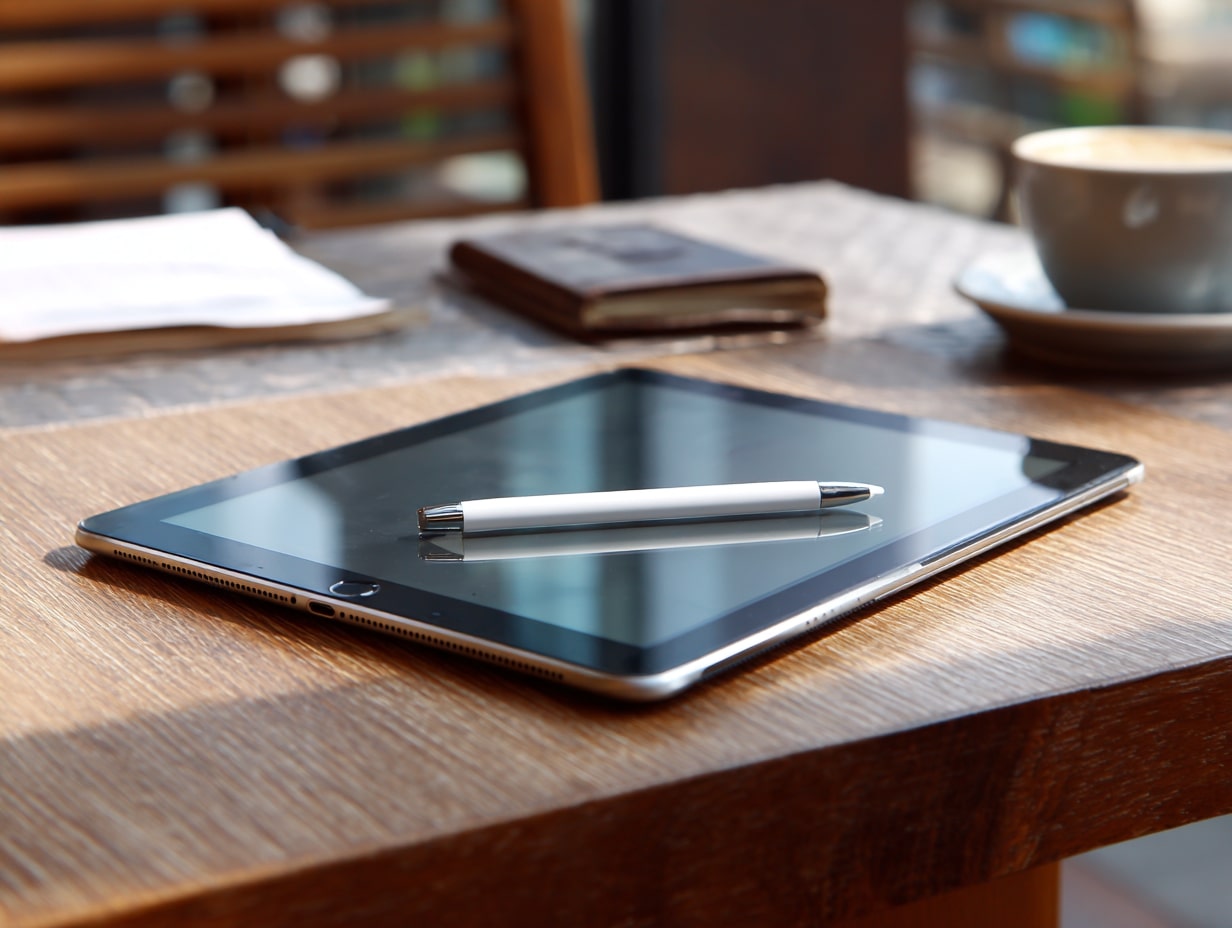
Procreate is a one-time, low-cost iPad app (plus the price of the iPad and Apple Pencil). Photoshop is subscription-based via Adobe Creative Cloud: costs vary by plan and business licensing. For teams that already rely on Adobe (InDesign, Illustrator, Acrobat), Photoshop’s cost is easier to justify for production work.
| Cost & Licensing | Procreate | Photoshop |
|---|---|---|
| Purchase Model | One-time purchase | Monthly / annual subscription |
| App Price | ~$12.99 USD (lifetime, free updates) | ~$22.99/mo (Photography Plan ~$9.99/mo) |
| Required Hardware | iPad ($329–$1,299+) + Apple Pencil ($79–$129) | Mac or PC (varies) + pen display optional ($50–$3,000+) |
| Estimated Year 1 Cost | ~$420–$1,440 (iPad + Pencil + app) | ~$120–$276 (subscription only, hardware separate) |
| Estimated 3-Year Software Cost | ~$12.99 (one-time) | ~$360–$828 (subscription) |
| Team / Enterprise Licensing | Per device (volume purchase via Apple) | Adobe Creative Cloud for Teams / Enterprise |
| Bundled Apps | None (standalone) | Lightroom included with Photography Plan; full CC suite available |
Training, Onboarding, and Classroom Use
We can onboard interns to Procreate in an afternoon, gestures are intuitive and fun. Photoshop requires more formal training, but it pays off in consistency and print reliability. In academic studios, we often see ideas start in Procreate and finish in Photoshop or InDesign.
| Training & Learning | Procreate | Photoshop |
|---|---|---|
| Beginner Onboarding Time | 1–2 hours to start creating | 1–2 weeks for core competency |
| Intermediate Proficiency | 1–2 weeks | 1–3 months |
| Interface Complexity | Minimal — hidden menus, gesture-based | High — toolbars, panels, nested menus, multiple workspaces |
| Official Learning Resources | Procreate Handbook, YouTube community | Adobe Learn tutorials, Certified Professional exams |
| Community & Brush Marketplace | Active — Gumroad, Creative Market, Reddit | Massive — decades of plugins, actions, presets, tutorials |
| Architecture-Specific Tutorials | Growing — YouTube, ArchDaily features | Extensive — dedicated arch-viz courses on multiple platforms |
| Keyboard Shortcuts | Limited (gesture-first design) | Hundreds — fully customizable shortcut sets |
| Plugin / Extension Ecosystem | None — closed system | Large — scripts, plugins, third-party panels (e.g., TKActions, Nik) |
Best-Fit Scenarios and Hybrid Workflow Recommendations
- Use Procreate for: concept sketching, markups, quick diagramming, early mood paint-overs, and live client sessions.
- Use Photoshop for: photorealistic composites, final color management, large-format boards, and multi-source post-production.
- Hybrid we like: sketch and annotate in Procreate on top of a clay render, then export layered PSD to Photoshop for selections, textures, typography, and print prep.
| Architecture Task | Recommended Tool | Why |
|---|---|---|
| Early concept / massing sketch | ✏️ Procreate | Fastest ideation with Apple Pencil gestures |
| Site visit markups & redlines | ✏️ Procreate | Portable, instant photo annotation on iPad |
| Bubble diagrams & parti studies | ✏️ Procreate | Drawing Assist + QuickShape for quick diagrams |
| Client meeting live sketches | ✏️ Procreate | Natural gestures, no setup time |
| Clay render paint-over (mood) | ✏️ Procreate → Photoshop | Start hand-painted in Procreate, refine in PS |
| Photorealistic rendering post-production | 🖥️ Photoshop | Advanced selections, Smart Objects, Camera Raw |
| Sky replacement & entourage compositing | 🖥️ Photoshop | Best-in-class masking and multi-source composites |
| Final color grading & LUTs | 🖥️ Photoshop | Luminosity masks, adjustment layers, ICC profiles |
| Presentation board layout (print) | 🖥️ Photoshop + InDesign | CMYK, bleed, consistent typography across boards |
| Competition / portfolio sheets | 🖥️ Photoshop + InDesign | Print-safe PDFs with precise color management |
| Aspect | Procreate Pros ✅ | Procreate Cons ❌ | Photoshop Pros ✅ | Photoshop Cons ❌ |
|---|---|---|---|---|
| Speed | Instant startup, zero friction | Slower with complex multi-layer files | Powerful batch processing saves time at scale | Slower setup and file configuration |
| Portability | Full power on a single iPad | iPad-only — no desktop version | Available on Mac, Windows, and iPad | Desktop version requires stationary setup |
| Cost | One-time $12.99 — no recurring fees | Requires iPad + Apple Pencil investment | Part of Creative Cloud ecosystem | Ongoing subscription ($120–$276/year) |
| Precision | Great for freehand and conceptual work | Limited pixel control at massive resolutions | Unmatched for pixel-perfect composites | Overkill for quick sketches |
| Print Production | Exports PSD, PDF, TIFF for handoff | No bleed, limited CMYK, no soft-proofing | Full CMYK, ICC, bleed, press-ready output | Steep learning curve for prepress settings |
| Ecosystem | Simple, self-contained app | No plugin support, no extensions | Deep integration with Adobe suite | Dependent on subscription for continued access |
Conclusion
So, Procreate vs Photoshop, should architects and designers use them? We say yes, but for different reasons. Procreate gives us speed, touch-first sketching, and mobility that keeps ideas moving. Photoshop delivers the precision, compositing power, and color control our final images demand. If we had to pick one for concept phases on the go, it’s Procreate. For production-grade deliverables and print, it’s Photoshop. Most studios will get the best results, and fewer late nights, by pairing both.
- Architecture Design Softwares
- best software for architects
- Photoshop architectural rendering
- Photoshop for designers
- Photoshop vs Procreate for creatives
- Procreate architectural visualization
- Procreate vs Photoshop drawing
- Procreate vs Photoshop for architects
- Procreate vs Photoshop for design
- using Procreate for architecture design


1 Comment
Futuro House Production Revived in Finland After Decades-Long Hiatus
A Facebook listing for abandoned moulds led to the first new Futuro...
 illustrarch Editoral Team3 Mins read
Building Your Dream Home in NSW: What You Should Know About Montgomery Homes
Montgomery Homes has been building across Sydney, Newcastle, the Hunter, Wollongong and...
illustrarch Editoral Team4 Mins read
Designing a Home Theater: Where Drapery Fits Into the Plan
In a media room the curtains are a performance layer, not decoration....
illustrarch Editoral Team3 Mins read
Oscar Niemeyer’s Cathedral of Brasília: The Hyperboloid Concrete Hymn
The Cathedral of Brasília reads as a single gesture, yet it stood...
 Furkan Sen7 Mins read


Honestly, this article feels overly optimistic about Procreate. Sure, it’s good for quick sketches, but when it comes to serious projects, Photoshop clearly outshines it in every way. The lack of layers and proper color management in Procreate is a huge drawback for anyone looking to produce high-quality work. I can’t imagine relying on it for anything more than doodling.