

Best Courses for Learning Procreate iPad App
Savage Interactive's Procreate is a raster graphics editing tool for digital drawing for iOS and iPadOS. Procreate is an iPad-only award-winning illustration, drawing, and painting app. Other programs, such as Adobe Illustrator and Adobe Photoshop, may be more known to you. The primary distinction between Procreate and Illustrator is that Procreate is a raster graphics editor, whereas Illustrator is a vector-based program.
 illustrarch Editoral Team31 August 202211 Mins read502

Table of Contents Show
Procreate is a raster graphics editor developed by Savage Interactive for iPad and iPadOS that has become the top-selling creative app on the App Store. Available as a one-time purchase of $12.99 with no subscription fees, Procreate gives artists, architects, and designers a full digital studio with over 300 brushes, advanced layering, Apple Pencil support, and animation tools. Below, you will find the best online courses for learning Procreate on iPad, along with practical tips for getting started.
What Is Procreate and Why Should You Learn It?
Savage Interactive’s Procreate is a raster graphics editing tool for digital drawing for iOS and iPadOS. Procreate is an iPad-only award-winning illustration, drawing, and painting app. Other programs, such as Adobe Illustrator and Adobe Photoshop, may be more known to you. The primary distinction between Procreate and Illustrator is that Procreate is a raster graphics editor, whereas Illustrator is a vector-based program. The key distinction between Procreate and Photoshop is that Procreate is used to create original art, whereas Photoshop’s primary use is photo editing, though it does have many other functions.
First released in 2011 by the Tasmanian software company Savage Interactive, Procreate quickly grew into one of the most popular creative tools on the market. By 2018, it became the overall best-selling iPad app on the App Store. The current version (5.4.9 as of March 2026) includes features like 3D painting, Animation Assist, a Brush Studio with 14 customizable brush attributes, and support for canvases up to 16K pixels in one direction, depending on your iPad model.
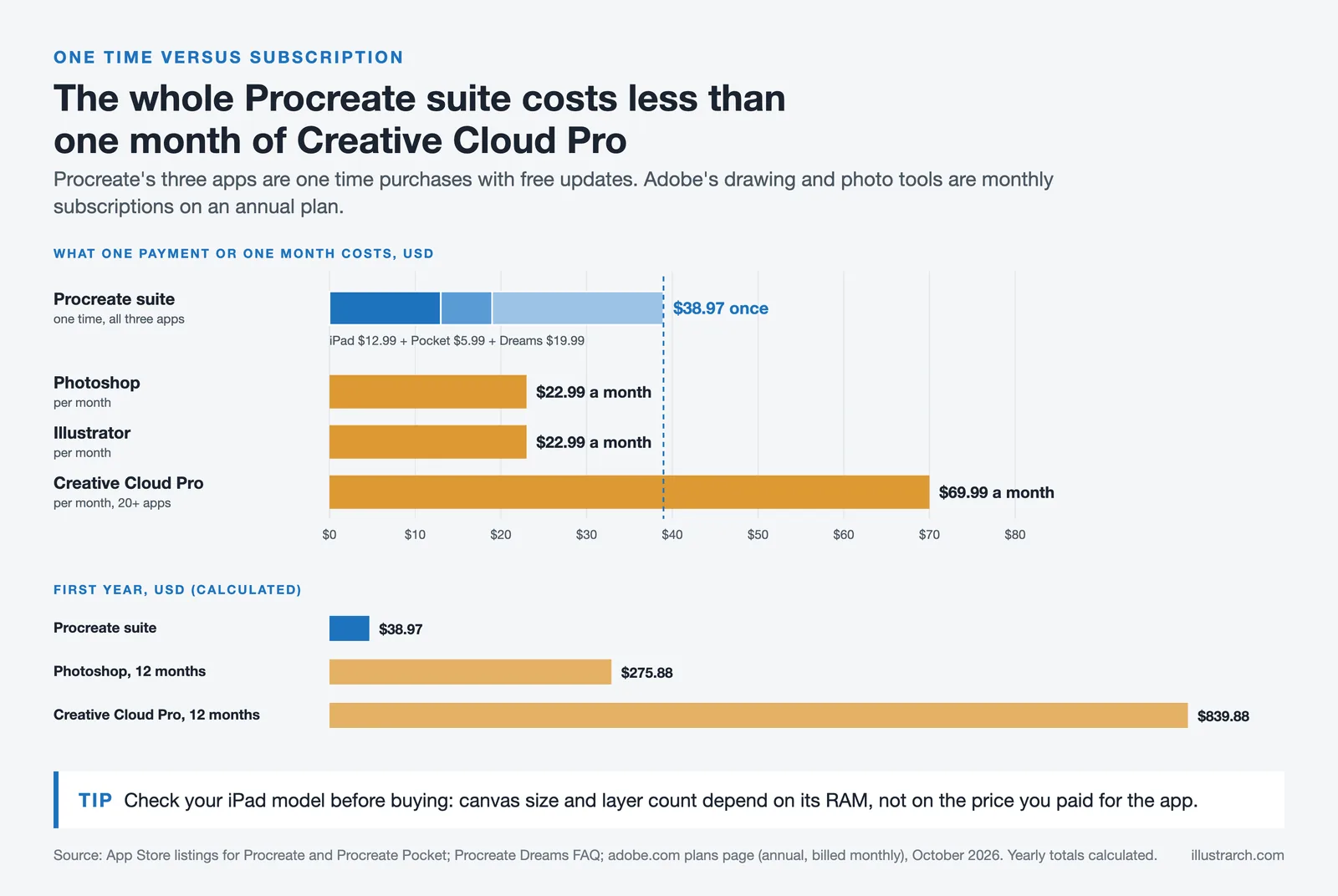
Unlike Adobe’s subscription model, Procreate uses a one-time purchase pricing structure. The iPad app costs $12.99, Procreate Pocket for iPhone costs $5.99, and Procreate Dreams (the animation-focused companion app) is $19.99. All three are one-time payments with free lifetime updates, making the entire Procreate suite ($38.97 total) less expensive than a single month of Adobe Creative Cloud Pro ($69.99/month, annual plan billed monthly, as of October 2026).
💡 Pro Tip
Before buying Procreate, check which iPad model you own. Procreate runs on most iPads, but canvas size and layer count depend on your device’s RAM. An iPad Pro with the M-series chip handles large canvases (8K+) and dozens of layers, while older iPads may limit you to smaller canvases with fewer layers. Always check Procreate’s official device compatibility page before planning complex projects.
Procreate vs Photoshop vs Illustrator: Key Differences
Choosing between Procreate, Photoshop, and Illustrator depends on your creative goals. Each program serves a different purpose, and understanding those differences will help you pick the right learning path.
| Feature | Procreate | Adobe Photoshop | Adobe Illustrator |
|---|---|---|---|
| Graphics Type | Raster (pixel-based) | Raster (pixel-based) | Vector (path-based) |
| Primary Use | Digital drawing, painting, illustration | Photo editing, compositing, rendering | Logo design, vector art, typography |
| Platform | iPad only | Desktop + iPad (limited) | Desktop + iPad (limited) |
| Pricing Model | One-time $12.99 | $22.99/month subscription | $22.99/month subscription |
| Best For | Freehand sketching, concept art, illustration | Photo retouching, post-production renders | Scalable graphics, branding, print |
For architects and designers looking to compare Procreate and Photoshop in more detail for architecture-specific workflows, see our Procreate vs Photoshop for Architects guide.
What You Need Before Learning Procreate
Getting started with Procreate requires minimal setup compared to desktop software. Here is what you need:
An iPad is the only hardware requirement. Procreate runs on most iPad models, including the iPad, iPad Air, iPad Mini, and iPad Pro. For the best experience with pressure sensitivity and tilt recognition, pair your iPad with an Apple Pencil (1st generation, 2nd generation, USB-C or Pro, depending on your iPad model). While you can draw with your finger, the Apple Pencil dramatically improves precision and control.
A complete beginner setup (iPad + Apple Pencil + Procreate app) typically costs between $400 and $600 if purchasing new hardware. If you already own a compatible iPad, the only cost is the $12.99 app purchase from the App Store.
Do you want to download Procreate that is one of the most preferred digital drawing applications, learn to draw and develop your creativity through this application?

How to Get Started After Downloading Procreate
Once you download and open Procreate, you will see the Gallery view where all your canvases are stored. Tap the “+” icon in the top right to create a new canvas. You can choose from preset sizes or create a custom canvas with specific pixel dimensions and DPI settings.
Spend your first session exploring the interface. The brush library sits in the top right toolbar, the layers panel is next to it, and color selection tools are in the top right corner. Procreate uses gesture-based controls: two-finger tap to undo, three-finger tap to redo, and pinch to zoom or rotate the canvas. These gestures feel natural after a few minutes of practice and speed up your workflow significantly.
⚠️ Common Mistake to Avoid
Many beginners create canvases at very high resolutions without realizing it reduces the available number of layers. On older iPad models, a 4K canvas might only allow 12 to 15 layers, which can be limiting for complex illustrations. Start with a 3000 x 3000 pixel canvas at 300 DPI for most projects. This gives you enough resolution for printing while keeping layer counts manageable.
Essential Procreate Features Every Beginner Should Learn
Before jumping into courses, understanding a few core features will make your learning faster and more effective.
The Brush Library comes with over 300 handcrafted brushes organized into categories like sketching, inking, painting, and textures. Each brush is fully customizable through the Brush Studio, where you can adjust settings across 14 attributes, including size, opacity, taper, and pressure curves. You can also import brushes from other artists or even import Adobe Photoshop brushes directly.
Procreate’s layering system works similarly to Photoshop. You can create multiple layers, group them into folders, apply blend modes, set opacity levels, and use clipping masks and layer masks for non-destructive editing. Understanding layers is essential for organized, editable artwork.
QuickShape is a time-saving feature that automatically straightens your hand-drawn lines, circles, rectangles, and other shapes when you hold your stylus at the end of a stroke. For architects and designers, this is especially useful when sketching floor plans, elevations, or geometric patterns.
Drawing Guides offer perspective grids, isometric grids, symmetry tools, and 2D grids. You can set up one-point, two-point, or isometric perspective directly on your canvas, which is extremely useful for architectural sketching and spatial drawings.
Animation Assist turns Procreate into a simple frame-by-frame animation tool. Each layer becomes a frame, and you can preview animations with onion skinning (seeing previous and next frames as transparent overlays). For more advanced animation work, Savage Interactive offers the dedicated Procreate Dreams app.
Best Online Courses for Learning Procreate App
Are you excited for the amazing sketches and illustrations you will create with Procreate? You can make professional digital drawings with Procreate, an advanced brush studio and rich color and painting library for your illustrations. Our suggestion is to follow online courses for learning Procreate through Domestika. If you are new to drawing on Procreate App, it is best for you to master all the features of Procreate with online courses. If you know all the features in Procreate, you will work in a much freer space for your digital illustrations and sketches. Learn Procreate and start making your drawings with the list of the best online courses listed below.
There are dozens of different course options in Domestika, depending on the areas you want to work with with Procreate and your drawing styles. We recommend that you review the online courses in Domestika to find the course that suits you best.

Procreate for Beginners: Digital Illustration 101
This beginner-level course by Brad Woodard covers the fundamentals of Procreate’s interface, brush tools, color theory, and layering system. It is one of the best starting points if you have never opened the app before. You will create simple illustrations from scratch while learning how each tool works in practice. The course includes downloadable resources and step-by-step projects that build your confidence before moving to more advanced techniques.

Colorful Digital Illustration in Procreate
Creating colorful digital drawings, animations or great sketches is possible with Procreate App. We recommend that you join this course on how to create colorful illustrations and then produce great content with Procreate. Featuring many illustration courses from beginner to advanced, this colorful illustration course at Domestika appeals to all levels. You will learn color palette creation, blending techniques, and how to apply vibrant colors to your artwork using Procreate’s color tools including Color Harmony, Color History, and the Eyedropper.

Retrofuturistic Illustration with Procreate
In Domestika, it is possible to find courses according to your own style and the areas you are close to. If you want to improve yourself in a retrofuturistic way from among the many illustration courses available, this course at Domestika is for you. You can easily learn how to make retrofuturistic illustrations and create original illustrations. The course covers composition techniques, sci-fi color palettes, and texture application that give your work a distinct retro-futuristic aesthetic.

Manga Illustration with Procreate
Domestika includes courses on Manga illustrations that have become popular in recent years. By participating in this course, you can have practical and important information before creating your own Manga illustrations. You will learn character proportions, expressive line work, inking techniques, and the specific brush settings that replicate the look and feel of traditional manga art in a digital environment.

Illustration Fantastical Animals with Procreate
Are you interested in fantastic animal illustrations? Especially if you are improving yourself in children’s books and animations, you must be good at animal illustrations. Check out this course on Domestika to learn the best fantasy animal illustrations!

Artistic Architectural Sketching with Procreate
For architects and design students, the Artistic Architectural Sketching with Procreate course by Ehab Alhariri on Domestika is specifically tailored to architectural illustration. You will learn how to digitize architectural drawings, create renders through perspective, lighting, shadow, and texture, and use Procreate’s drawing guides for isometric and two-point perspective views. This course bridges the gap between traditional architectural sketching and digital workflows.
🎓 Expert Insight
“I recently discovered the value of Procreate for that famous thing that all of us architects are supposed to do when we travel: sketch.” — James Akers, Registered Architect and Professor of iPad Drawing at UCLAx
Akers, who has over 30 years of experience in architectural rendering, transitioned from pencil and watercolor to Procreate with the advent of Apple Pencil. His experience highlights how Procreate reduces the friction of on-site sketching while preserving the hand-drawn quality that clients respond to.
How to Use Procreate for Architectural Drawing
Procreate has become a go-to tool for architects who want to create quick concept sketches, presentation illustrations, and design explorations on the go. The app’s Drawing Guide feature includes built-in perspective grids (one-point, two-point, and isometric) that let you sketch spatially accurate drawings directly on your iPad.
Architects typically use Procreate for bubble diagrams, parti studies, facade iterations, site analysis sketches, and presentation-quality renderings. The ability to import a CAD drawing or photograph as a base layer and sketch over it makes Procreate a natural complement to traditional digital architectural sketching tools. You can export your work as PSD (preserving layers for further editing in Photoshop), PDF, PNG, JPEG, or TIFF.
If you are interested in using your iPad for more than just sketching, check out our guide to the best architecture apps for iPad, which covers CAD, 3D modeling, and presentation tools alongside Procreate.
Free Resources for Learning Procreate
If you are not ready to invest in a paid course, several high-quality free resources can get you started. Procreate’s official Beginner Series is the best place to start. Created by Savage Interactive, this free video series walks you through the basics of brushes, colors, layers, gestures, editing tools, and Animation Assist across four structured lessons.
YouTube channels like iPad For Architects (by James Akers) and School of Sketching (by Olga Sorokina) offer free tutorials specifically focused on architectural and interior sketching in Procreate. For general digital illustration tutorials, creators like Lisa Bardot and Art with Flo provide project-based walkthroughs that cover everything from basic shapes to complete illustrations.
Procreate’s official education portal also provides downloadable lesson plans, workbooks, and step-by-step guides that teachers and self-learners can use.
📌 Did You Know?
Professional artists have used Procreate to create the official posters for films like Logan and Blade Runner 2049, as well as several covers for The New Yorker magazine. Concept artist Doug Chiang uses Procreate to design robots, vehicles, and creatures for the Star Wars franchise. These high-profile use cases demonstrate that Procreate is not just a beginner tool but a professional-grade application trusted by the entertainment industry.
How Long Does It Take to Learn Procreate?
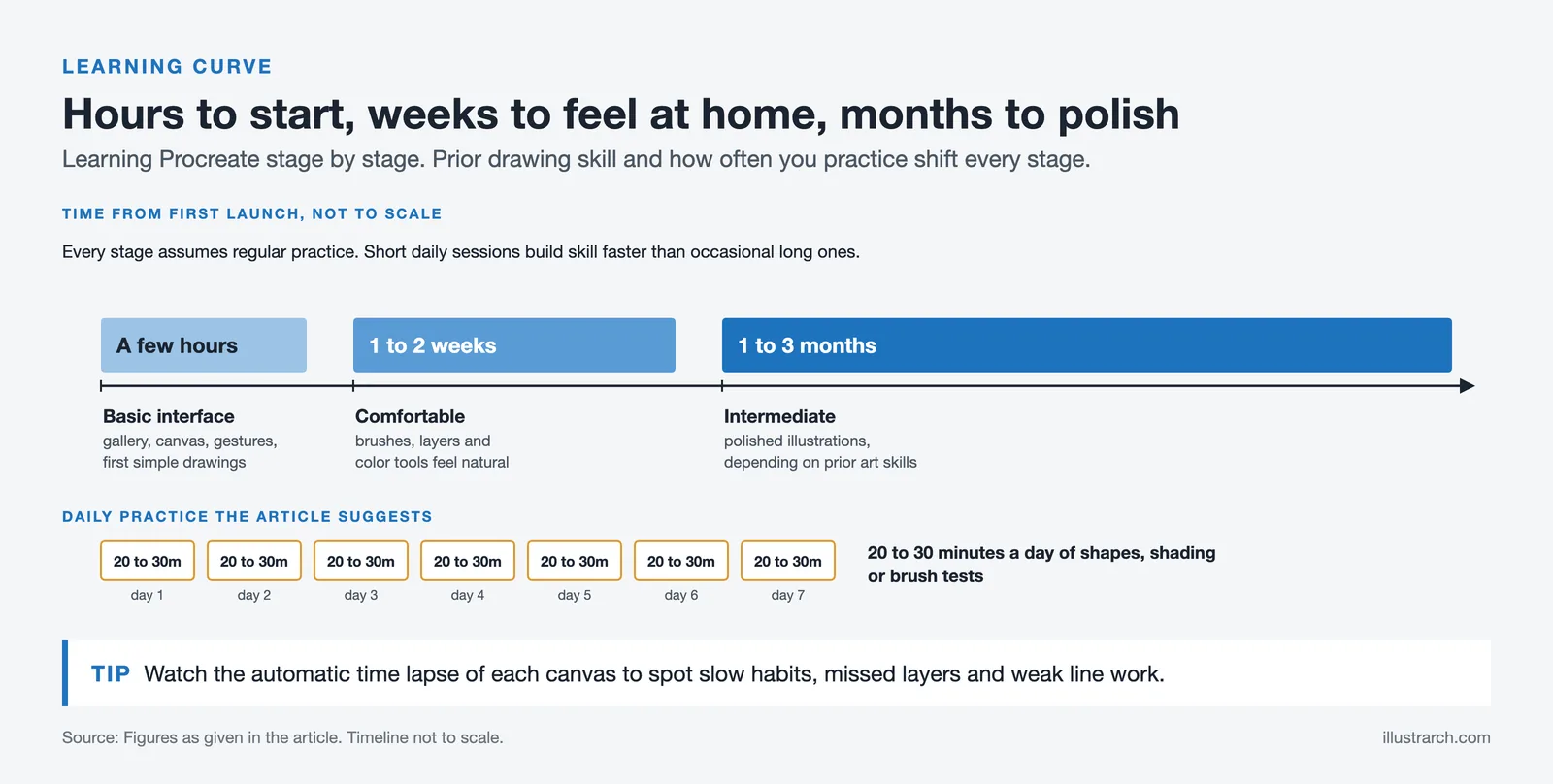
Most people can learn Procreate’s basic interface and start creating simple drawings within a few hours. Getting comfortable with brushes, layers, and color tools typically takes one to two weeks of regular practice. Reaching an intermediate level where you can create polished illustrations usually takes one to three months, depending on your existing art skills and how often you practice.
The app itself is considered one of the most beginner-friendly digital art tools available. Its gesture-based interface was specifically designed for touchscreen interaction, and the learning curve is significantly shorter than desktop software like Photoshop or Illustrator. Setting aside 20 to 30 minutes of daily practice, even with simple exercises like shape drawing, shading, or brush experimentation, will build your skills faster than occasional long sessions.
💡 Pro Tip
Use Procreate’s built-in time-lapse recording feature to review your own drawing process. Every canvas automatically records a time-lapse of your work from start to finish. Watching these replays helps you identify inefficient habits, missed opportunities for layering, and areas where your line quality could improve. Many professional illustrators also share their time-lapses on social media as portfolio pieces.
Procreate Alternatives Worth Considering
While Procreate is an excellent choice for iPad users, it is not available on Android or Windows devices. If you do not own an iPad, consider these alternatives:
Clip Studio Paint runs on iPad, Windows, macOS, Android, and Chromebook. It costs $49.99 (one-time) for the standard version and is especially popular among comic and manga artists for its specialized panel and speech bubble tools.
ibisPaint is a free app available on both iOS and Android with ad-supported access to most features. It offers over 15,000 brushes and is a strong option for beginners who want to try digital drawing before committing to a paid tool.
Krita is a free, open-source desktop application for Windows, macOS, and Linux. It is widely used by concept artists and illustrators and offers professional-grade brush engines, layer management, and animation tools at no cost.
For more on choosing the right digital art software, see our guide to digital art basics for beginners.
✅ Key Takeaways
- Procreate is a one-time $12.99 purchase for iPad with no subscription fees, making it one of the most affordable professional-grade digital art tools available.
- The app includes over 300 brushes, advanced layering, Apple Pencil support, perspective drawing guides, and Animation Assist.
- Domestika offers some of the best structured courses for learning Procreate, ranging from beginner illustration to architectural sketching.
- Procreate’s official Beginner Series and YouTube tutorials provide free alternatives for self-paced learning.
- Architects and designers can use Procreate for concept sketches, perspective drawings, site analysis diagrams, and presentation-quality illustrations.
- Most beginners can learn the basic interface within a few hours and produce polished work within one to three months of regular practice.
Final Thoughts
Learning Procreate opens up a world of creative possibilities, whether you are an aspiring illustrator, a design student building your portfolio, or an architect looking to speed up your concept sketching workflow. The combination of a low one-time cost, an intuitive touch-based interface, and a growing library of online courses makes Procreate one of the best investments you can make as a creative professional. Start with the beginner courses listed above, practice consistently, and you will see rapid improvement in your digital drawing skills. For more tools and resources related to digital sketching in architecture, explore our full collection of guides and tutorials on illustrarch.







Are Online Courses Worth It for Young Architects? Benefits, Challenges, and Success Stories
Are online courses worth it for young architects? Discover the benefits, drawbacks,...
 Sinan Ozen5 Mins read

Top 10 Free Online Architecture Courses for 2026
A Top 10 guide to free online architecture courses from Harvard, MIT,...
 Elif Ayse Sen5 Mins read

Evolution of Architectural Education in the Digital Age: The Role of Online Platforms in Preparing Students
Online platforms are transforming architectural education by providing students with access to...
 Bahattin Duran4 Mins read
Unlock the Benefits of Learning from Online Architecture Courses Today
Explore the transformative potential of online architecture courses, offering unmatched flexibility and...
 Muhammad Abdullatef - Tifa Studio4 Mins read


Leave a comment