

Architectural Visualization with Blender: Free Assets and PBR Materials Guide
This guide breaks down how free asset packs, PBR material libraries, and Blender's built-in render engines help architects produce realistic visualizations without paid software. Covers sourcing assets, setting up materials, lighting for architecture, and practical workflow tips for both beginners and experienced users.
 Elif Ayse Sen20 April 202613 Mins read302
Table of Contents Show
Architectural visualization with Blender has become a realistic option for architects and design students who want professional-quality renders without paying for expensive software licenses. By combining Blender’s Cycles and EEVEE render engines with free PBR material libraries and open-source asset packs, you can build photorealistic interior and exterior scenes at zero software cost.
Blender is a free, open-source 3D creation suite that includes modeling, texturing, lighting, and rendering tools in a single package. For architects, the real advantage is not just the price tag. It is the growing ecosystem of free asset packs and PBR (Physically Based Rendering) materials built specifically for architectural work. These resources eliminate hours of manual texture creation and let you focus on design decisions rather than technical setup. Combined with Blender’s two built-in render engines and a growing library of architecture-focused add-ons, the software now competes directly with paid tools like V-Ray, Lumion, and 3ds Max for many visualization tasks.
What Is Architectural Visualization and Why Does Blender Fit?
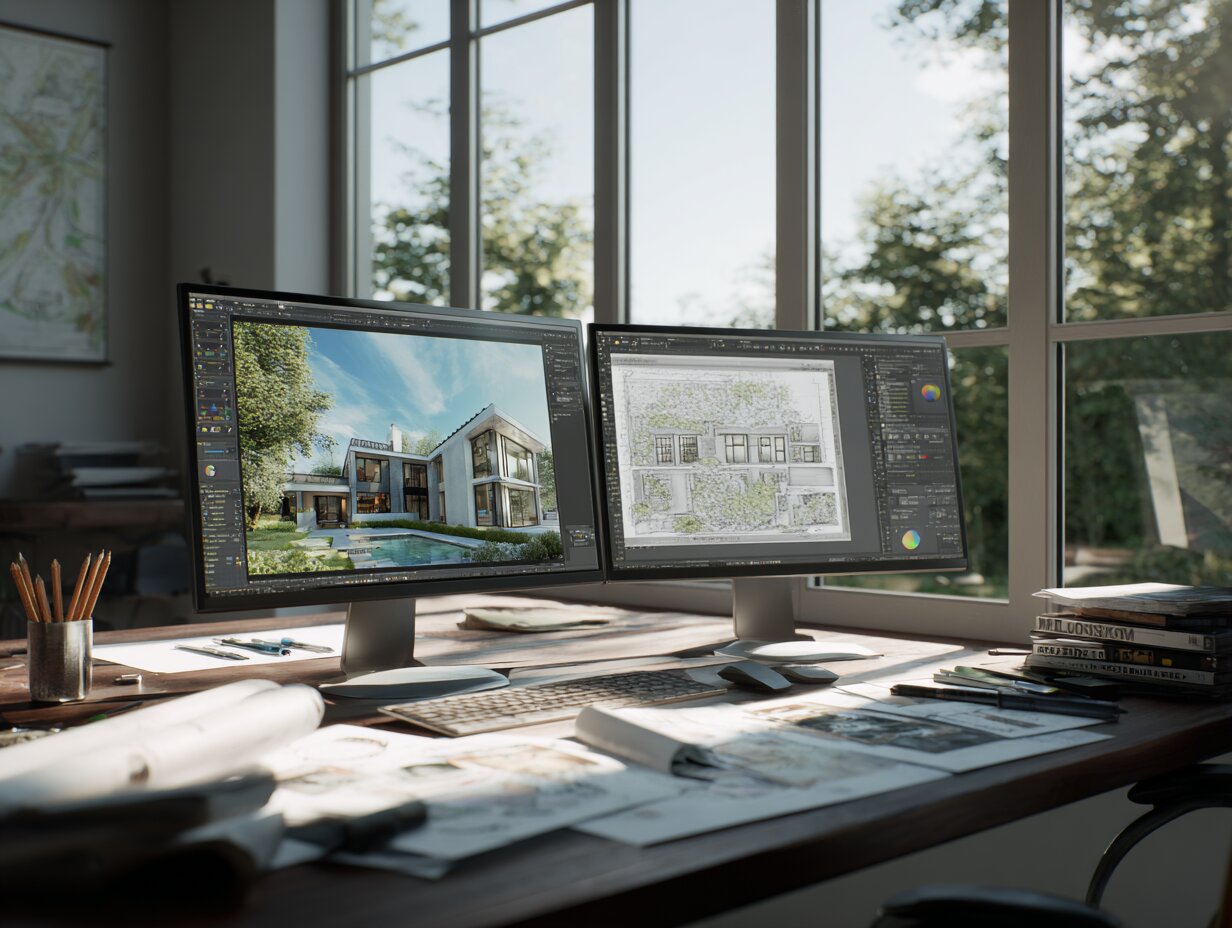
Architectural visualization is the process of creating 2D or 3D representations of a building design before construction begins. It covers everything from static exterior renders and interior walkthroughs to animated flyovers and VR experiences. The goal is to communicate spatial relationships, material choices, lighting conditions, and atmosphere to clients, investors, or planning authorities.
Blender fits this workflow because it handles the full pipeline in one application. You can import CAD files or floor plans, build 3D models using polygon or parametric tools, apply realistic materials through the Principled BSDF shader, set up natural or artificial lighting, and render final images or animations. The BlenderBIM add-on even brings IFC compliance and OpenBIM support into the same environment, making Blender viable for practices that need BIM interoperability alongside visualization.
Compared to commercial alternatives, the learning curve is steeper. Blender’s interface was designed for a broad range of 3D tasks, not specifically for architecture. But with consistent practice, most architecture students reach functional proficiency within four to six weeks. The payoff is access to a toolset that handles everything from early massing studies to final marketing renders.
💡 Pro Tip
If you are switching from SketchUp or Rhino, start by importing one of your existing models into Blender rather than building from scratch. This lets you learn the material and lighting workflow first, which is where Blender’s architectural strength really shows, without getting stuck on modeling conventions that differ between programs.
Understanding PBR Materials for 3D Architectural Visualization
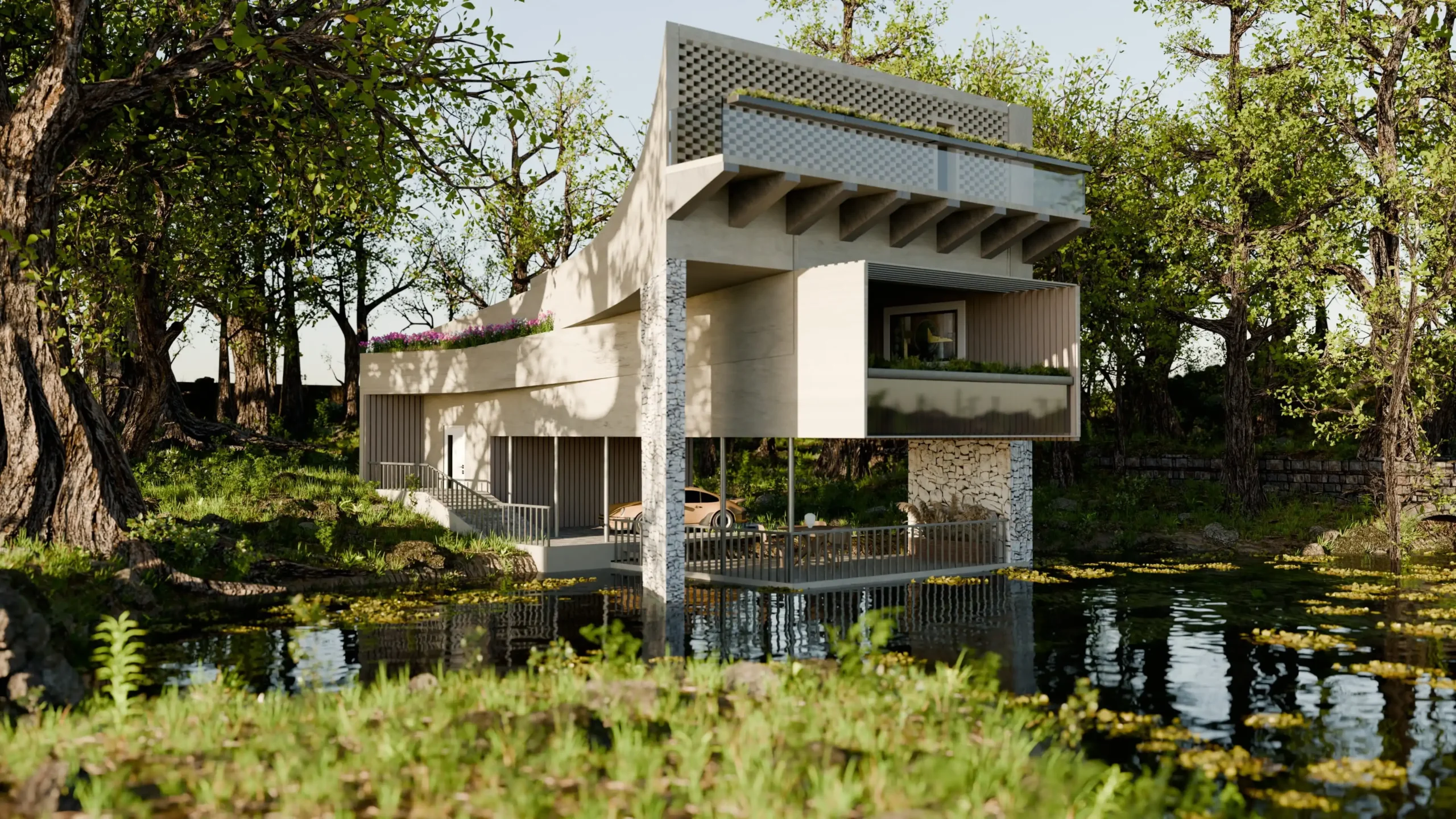
PBR stands for Physically Based Rendering, a shading method that simulates how light interacts with surfaces in the real world. Instead of manually adjusting color and shininess by eye, PBR materials use a set of texture maps (albedo, roughness, metallic, normal, displacement, and ambient occlusion) that describe the physical properties of a surface. When applied correctly, these maps produce materials that look accurate under any lighting condition.
For architecture visualization, PBR matters because building materials have very specific surface behaviors. Polished marble reflects light differently than brushed concrete. Oiled hardwood looks nothing like laminate flooring. PBR materials capture these differences through measured data rather than artistic guesswork, which means your renders will look correct whether the scene uses morning sunlight, overcast skies, or artificial interior lighting.
Blender’s Principled BSDF shader node is designed to accept standard PBR texture maps directly. You connect your albedo map to the Base Color input, your roughness map to the Roughness input, and your normal map through a Normal Map node. The shader handles the physics calculations automatically. This standardized approach also means that PBR materials downloaded from any library will work in Blender without conversion or modification.
📐 Technical Note
A standard PBR material set for architecture includes at minimum five maps: Albedo (base color), Normal (surface detail), Roughness (glossiness control), Displacement (geometry offset), and Ambient Occlusion (shadow detail in crevices). Resolutions typically range from 1K (1024px) for background objects to 4K (4096px) for close-up surfaces. Higher resolutions increase VRAM usage significantly, so use 2K as a default and reserve 4K for hero surfaces only.
Where to Find Free PBR Material Libraries for Blender Architecture Renders
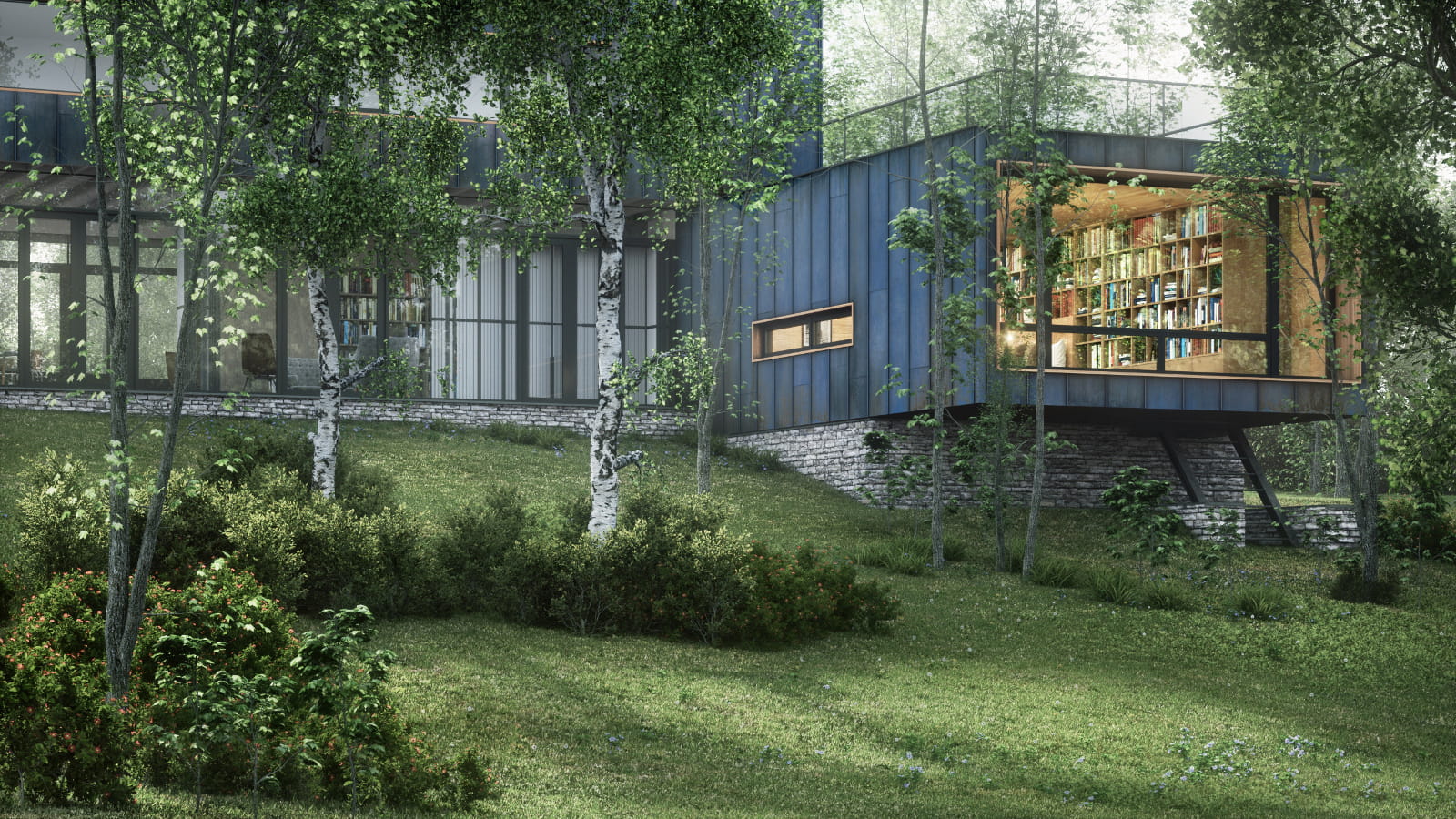
One of the biggest time-savers in any 3D architectural visualization workflow is having a ready-made library of materials. Building every wood, stone, metal, and fabric texture from scratch would take weeks per project. Free PBR libraries let you skip that step and go straight to applying realistic surfaces.
Here are the most useful free sources for architectural PBR materials:
ambientCG offers over 2,000 PBR materials, HDRIs, and 3D models under the CC0 public domain license. This means you can use them in any project, commercial or personal, without attribution. The library covers concrete, brick, wood, tiles, metal, fabric, and ground surfaces at resolutions up to 8K. For architectural work, the concrete and stone categories are particularly strong. Download materials at ambientcg.com.
Poliigon maintains a free tier alongside its paid library, with PBR textures specifically optimized for Blender, 3ds Max, Cinema 4D, and Maya. The free selection rotates, but typically includes wood flooring, brick walls, and basic metals. Poliigon also offers a Blender add-on that lets you browse and import textures directly inside the software. Visit poliigon.com/textures/free.
FreePBR provides over 600 material sets in both metalness/roughness and metallic/smoothness workflows. Textures are available at 2K resolution and work across Blender, Unreal Engine, and Unity. The site is ad-supported and all downloads are free. Browse the library at freepbr.com.
CGAxis Free Library includes over 100 free PBR textures and 3D models with no trials, watermarks, or time limits. All assets are cleared for commercial use. Check available materials at cgaxis.com/free.
Beyond dedicated material sites, the AMD MaterialX Library offers 294 free PBR materials with architecture-tagged filtering, available in PNG format at multiple resolutions. Websites that provide free 3D models often include material packs as well, so check sources like BlenderKit and Turbosquid for bundled options.
Comparison of Free PBR Material Libraries
The following table compares the key features of the most popular free PBR sources for Blender architectural rendering:
| Library | Free Materials | Max Resolution | License | Blender Add-on |
|---|---|---|---|---|
| ambientCG | 2,000+ | 8K | CC0 (Public Domain) | No |
| Poliigon (Free Tier) | 50+ (rotating) | 4K | Royalty-Free | Yes |
| FreePBR | 600+ | 2K | Free for all use | No |
| CGAxis Free | 100+ | 4K | Commercial OK | No |
| LotPixel (Free Tier) | 1,500+ | 8K | Commercial OK | No |
| BlenderKit | Varies (free plan) | 4K | Mixed (per asset) | Yes (built-in) |
Free Asset Packs That Speed Up Blender Architectural Rendering
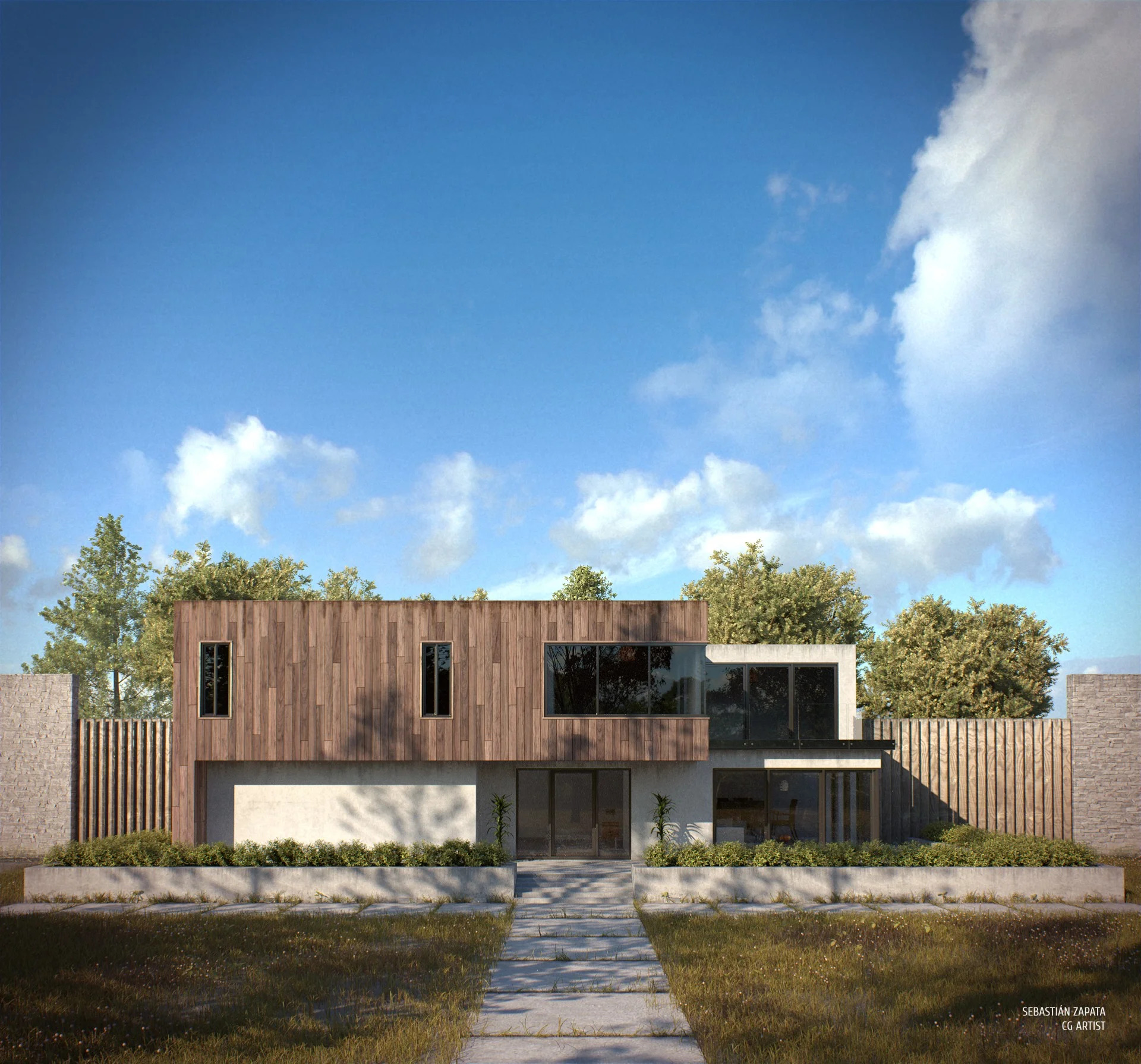
Materials alone do not make a convincing architectural render. You also need furniture, vegetation, lighting fixtures, people, and environmental objects. Sourcing these individually for every project is slow. Free asset packs bundle these elements together, often pre-configured with materials and correct scale for architectural scenes.
BlenderKit is an asset library integrated directly into Blender as a free add-on. It includes 3D models, materials, scenes, and brushes that you can browse and import without leaving the software. The free plan provides access to a rotating selection of community-contributed assets, including architecture-tagged models like furniture, windows, doors, and structural elements.
The Blender 3D Architect community at blender3darchitect.com regularly shares free asset packs specifically for architectural work. These include furniture collections, IES light profiles (over 80,000 available for free from various sources), vegetation billboards, and interior decoration sets. Most are provided in native Blender format, so you can append or link them directly into your project file.
For vegetation, the most efficient approach in architectural scenes is to use photo-based billboard cards for plants and shrubs, reserving full 3D geometry for trees that appear prominently in the composition. This technique reduces render times dramatically while maintaining visual quality at typical camera distances.
📌 Did You Know?
IES (Illuminating Engineering Society) light profiles are small text files that describe how real-world light fixtures distribute light. Tens of thousands of these files are available for free download, and when used in Blender, they produce accurate light patterns on walls and ceilings that significantly increase the realism of interior architectural renders. You can preview IES files with the free Photometric Viewer application before importing them.
Cycles vs. EEVEE: Which Render Engine for Architecture Visualization?
Blender includes two render engines, and choosing between them depends on your project stage and delivery requirements.
Cycles is a physically accurate, ray-tracing render engine. It simulates light bounces, caustics, and global illumination to produce photorealistic results. For final presentation renders, competition entries, and marketing materials, Cycles is the standard choice. The tradeoff is render time: a single high-resolution exterior image can take anywhere from 15 minutes to several hours depending on scene complexity and hardware. Cycles supports both CPU and GPU rendering, and GPU acceleration (especially with NVIDIA CUDA or OptiX) reduces render times substantially.
EEVEE is a real-time render engine that uses rasterization rather than ray tracing. It produces results in seconds rather than hours, making it ideal for design iteration, client presentations where you need to show changes on the fly, and animated walkthroughs where rendering thousands of frames with Cycles would be impractical. EEVEE’s quality has improved significantly in recent Blender versions, and for many interior scenes with controlled lighting, the visual difference from Cycles is minimal at typical presentation resolution.
Many architects use both engines in a single project. EEVEE handles rapid iteration during the design phase, and Cycles produces the final deliverables. Since both engines use the same Principled BSDF shader and the same PBR materials, switching between them requires only changing the render engine setting. No material rebuilding is needed.
🎓 Expert Insight
“Blender allows them to escape paid subscriptions and competes well with industry standards.” — Blender Foundation Feedback Survey 2025
The 2025 Blender user survey, with 5,102 participants, showed high satisfaction scores across modeling, rendering, and community support. Users frequently cited the ability to avoid subscription costs as a key reason for choosing Blender, with Cycles rendering quality receiving specific praise.
How to Set Up a Blender Architectural Visualization Scene Step by Step
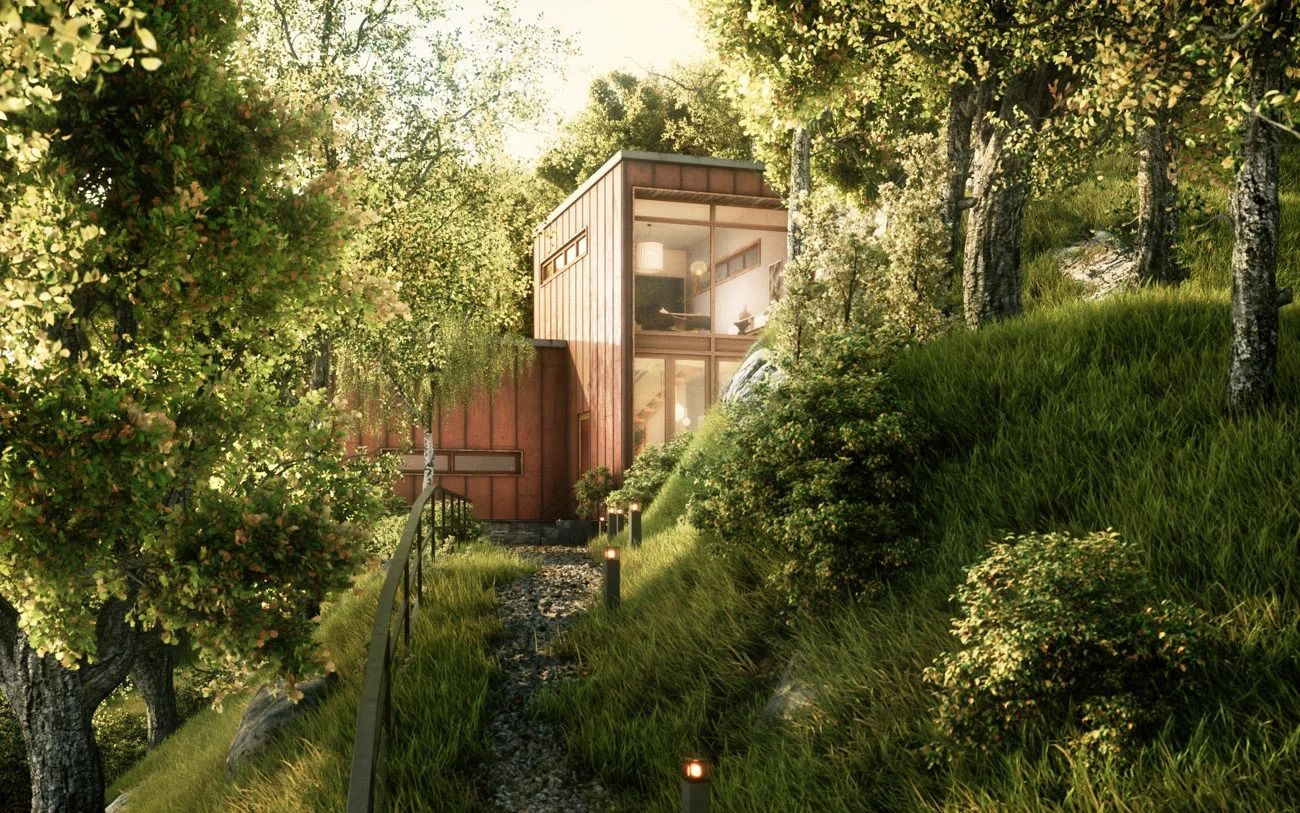
Setting up a scene for architectural rendering in Blender follows a logical sequence. Each stage builds on the previous one, and rushing through early steps usually means rework later.
Step 1: Import or Model Your Geometry
If you already have a 3D model from SketchUp, Rhino, Revit, or FreeCAD, import it using Blender’s built-in file format support (FBX, OBJ, DAE, IFC via BlenderBIM). Check scale immediately after import. Architectural models need to be at 1:1 real-world scale for lighting and material displacement to behave correctly. If you are modeling from scratch, start with your floor plan as a background reference image and extrude walls, floors, and ceilings from there.
Step 2: Apply PBR Materials
Open the Shader Editor and build material nodes using the Principled BSDF shader. For each surface, connect your downloaded PBR maps: albedo to Base Color, roughness map to Roughness, normal map through a Normal Map node to the Normal input. Add displacement maps through the Material Output’s Displacement socket if you want geometric surface detail (for close-up shots of brick, stone, or wood grain). Set your texture mapping scale using a Mapping node connected to Texture Coordinate to ensure patterns appear at the correct real-world size.
Step 3: Set Up Lighting
For exterior scenes, use an HDRI (High Dynamic Range Image) environment map. Free HDRIs from sites like ambientCG or Poly Haven provide realistic sky lighting with accurate sun position and color temperature. For interior scenes, combine an HDRI for window light with area lights or IES-profiled point lights for artificial fixtures. Avoid placing lights arbitrarily. Position them where real light sources would exist: ceiling recesses, floor lamps, window openings.
Step 4: Compose and Render
Set your camera at a realistic height (approximately 1.5 to 1.7 meters from ground level for standing eye height). Use focal lengths between 16mm and 50mm for interiors and 30mm to 100mm for exteriors. Enable depth of field sparingly to guide viewer attention. Render a low-resolution test first to check lighting balance and material appearance, then increase resolution for the final output.
💡 Pro Tip
When building your material library, organize textures into folders by category (wood, stone, metal, fabric, ground) and resolution (1K, 2K, 4K). Use Blender’s Asset Browser to mark frequently used materials as assets. This turns them into drag-and-drop resources you can apply across projects instantly, saving significant time on future scenes.
Essential Blender Add-ons for Architectural Visualization Software Workflows
Blender’s add-on ecosystem extends its capabilities well beyond the default installation. Several free and paid add-ons are particularly relevant for architectural rendering workflows.
BlenderBIM is the most significant architecture-focused add-on. It adds full IFC (Industry Foundation Classes) support, allowing Blender to function as a BIM authoring tool alongside its visualization capabilities. Studios across Europe and Asia already use BlenderBIM in professional practice for OpenBIM-compliant workflows.
Archimesh is included with Blender by default (activate it in Preferences > Add-ons). It generates parametric architectural elements like walls, doors, windows, stairs, and rooms from simple input parameters. This dramatically speeds up the modeling phase for standard residential and commercial spaces.
Archipack offers more advanced parametric architecture components, including slab tools, fence generators, and roof systems. It is available as both a free community version and a paid pro version with additional features.
Geometry Nodes, while not technically an add-on, deserve mention. This node-based system lets you create procedural and parametric models that adapt automatically when parameters change. For architecture, Geometry Nodes are useful for generating arrays of elements (balcony railings, facade panels, parking bay markings) that would be tedious to model individually.
⚠️ Common Mistake to Avoid
Many architects dismiss Blender because its interface looks like a VFX or animation tool rather than an architecture program. With the BlenderBIM add-on, Blender supports full IFC workflows and is used in professional BIM practice by studios worldwide. If your primary reason for avoiding Blender is that it does not look like “an architecture tool,” that assumption no longer applies.
How Does Blender Compare to Paid 3D Architectural Visualization Software?
The honest comparison depends on what stage of the visualization process you are evaluating. For modeling speed on standard architectural geometry, dedicated tools like Revit and ArchiCAD are faster because their interfaces are built specifically for walls, doors, and floor plans. Blender’s general-purpose modeling tools require more manual steps for the same tasks.
For rendering quality, Blender’s Cycles engine produces results that stand alongside V-Ray, Corona, and Lumion at the top end. Professional architectural visualization artists worldwide use Cycles for client-facing deliverables. The 2024-25 State of Architectural Visualization report by Chaos and Architizer found that 11% of firms actively use AI in their visualization workflows, and tools like Blender are increasingly part of hybrid pipelines that combine traditional rendering with AI-assisted visualization.
Where Blender genuinely excels over paid alternatives is total cost of ownership. A V-Ray license costs several hundred dollars per year. 3ds Max runs approximately $1,700 annually. Lumion’s annual license starts around $1,500. Blender, including all updates and features, costs nothing. For students, freelancers, and small practices, this difference is significant enough to build an entire visualization pipeline around.
The main areas where paid software still holds advantages are real-time presentation (Lumion and Twinmotion offer faster setup for walkthrough presentations), automated documentation generation (Revit and ArchiCAD), and specialized post-processing tools. For many practices, the practical solution is to use Blender alongside other tools rather than replacing everything.
🏗️ Real-World Example
BlendFX Studio (Germany): This small visualization studio uses Blender as its primary tool for creating interior and exterior architectural visualizations, VR experiences, and AR presentations for clients. By building their entire pipeline on Blender, they eliminated software licensing costs while producing work competitive with studios using commercial tools. Their workflow demonstrates that Blender can serve as the sole visualization platform for professional-level output.
Optimizing Render Quality and Speed in Blender for Architecture
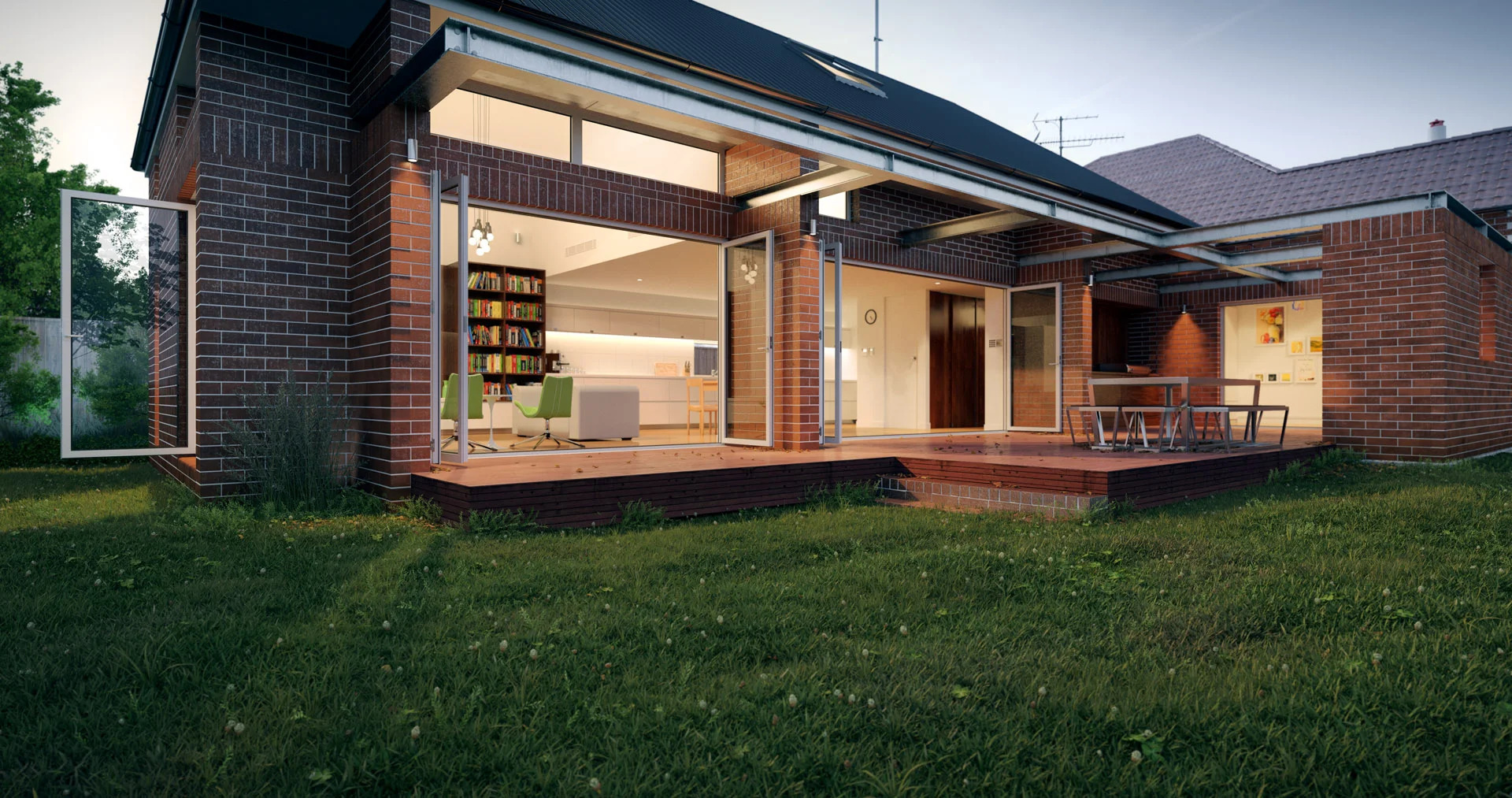
Getting the best visual quality from Blender does not mean maxing out every setting. Smart optimization produces better results in less time.
For Cycles renders, start with a sample count of 128 and enable the Denoiser (OpenImageDenoise or OptiX). This combination often produces clean images that look equivalent to renders at 512 or more samples without denoising, at a fraction of the render time. Adjust the denoising strength if fine material detail starts to blur.
Use Light Paths settings to limit unnecessary bounce calculations. For most architectural interiors, setting Total bounces to 8, Diffuse to 4, and Glossy to 4 provides realistic results. Reduce Transmission bounces to 2 unless you have complex glass-through-glass views. These settings cut render time by 20-40% compared to defaults with negligible visual difference.
Texture resolution directly affects VRAM usage. For scenes with many different materials, use 2K textures as a baseline and only apply 4K to surfaces that appear within 2 meters of the camera. Background elements can drop to 1K without visible quality loss at typical render resolutions. This approach lets you populate a scene with dozens of materials without running out of GPU memory.
If you are working on animation or need to render many frames, EEVEE with carefully set up screen-space reflections, ambient occlusion, and bloom can produce results that are “good enough” for social media, client review meetings, and early-stage design presentations. Reserve Cycles for the hero shots that will appear in portfolios, publications, or competition submissions.
Building a Complete Free Visualization Pipeline
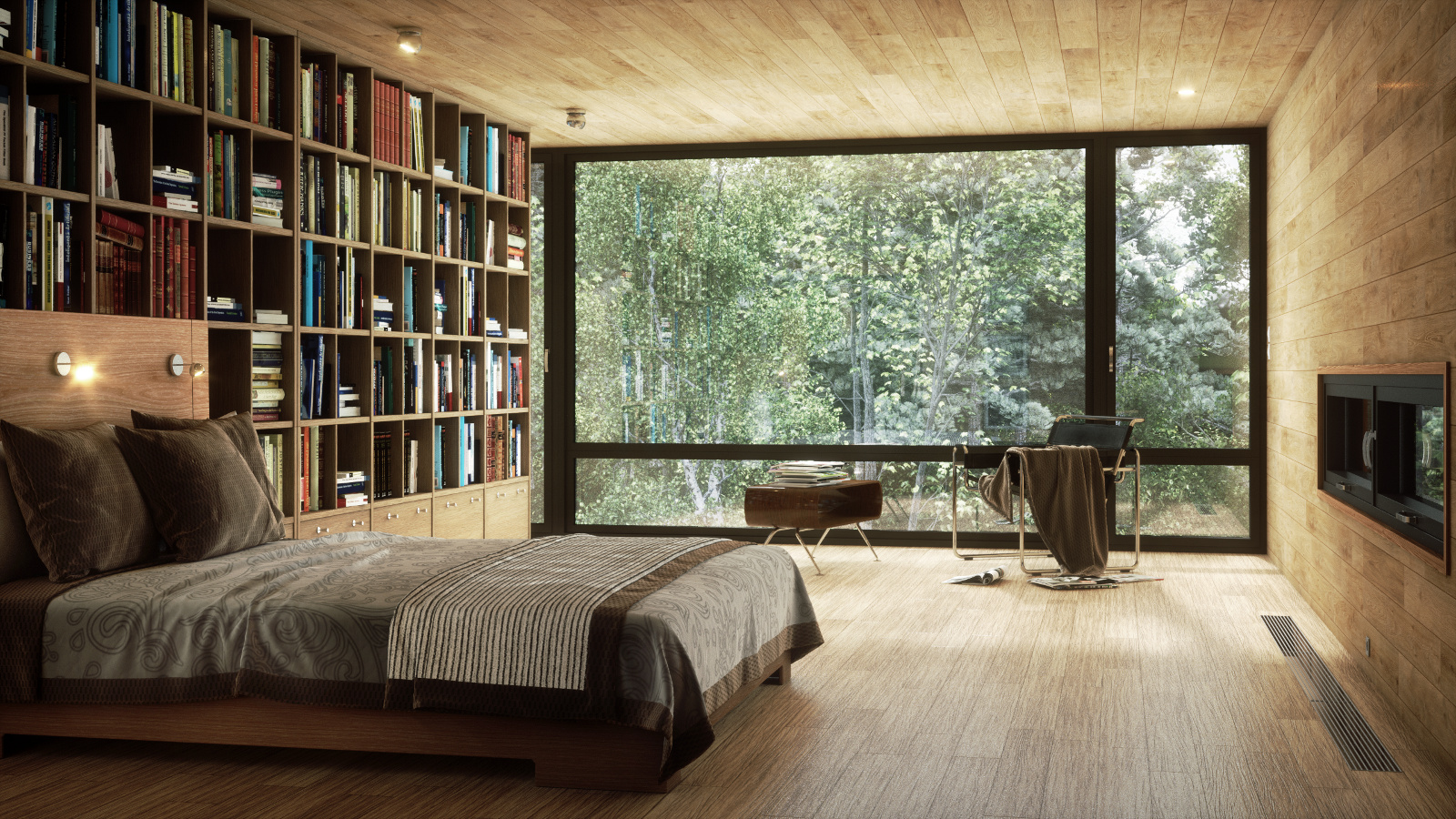
A fully functional architectural visualization pipeline using only free tools is now realistic. Here is a practical combination that covers the entire workflow from design to final delivery:
Pre-design and massing: SketchUp Free (browser-based) or FreeCAD for initial concept development and floor plan documentation.
3D modeling and BIM: Blender with BlenderBIM for detailed modeling, IFC compliance, and OpenBIM interoperability.
Materials and textures: ambientCG, FreePBR, and LotPixel for PBR material libraries. Poly Haven for free HDRIs.
Rendering: Blender Cycles for photorealistic stills, EEVEE for real-time iteration and animation.
Post-processing: GIMP or Photopea (browser-based Photoshop alternative) for final color correction, compositing, and presentation layout.
This pipeline costs nothing in software licenses and produces output quality that meets professional standards for client presentations, academic submissions, and online portfolio pieces. For practices that need to render large volumes of images, cloud render farm services like Fox Renderfarm or iRender provide GPU rendering at hourly rates, which can be more cost-effective than upgrading local hardware.
Blender’s growing role in architectural visualization reflects a broader shift in the industry. AI rendering tools are accelerating the conceptual phase, while open-source platforms handle the technical execution. The combination of free assets, community-maintained add-ons, and professional-grade rendering makes 3D architectural visualization more accessible than it has ever been.
✅ Key Takeaways
- Blender’s Cycles and EEVEE render engines handle both photorealistic and real-time architectural visualization at zero software cost.
- Free PBR material libraries like ambientCG, FreePBR, and LotPixel provide thousands of architecture-ready textures that work directly with Blender’s Principled BSDF shader.
- Asset packs, IES light profiles, and the BlenderKit add-on eliminate hours of manual asset creation per project.
- The BlenderBIM add-on brings full IFC and OpenBIM compliance, making Blender viable for professional BIM-integrated visualization workflows.
- A complete free visualization pipeline (SketchUp Free + Blender + ambientCG + GIMP) can produce professional-quality output suitable for client presentations, competitions, and portfolios.
Final Thoughts
Architectural visualization with Blender is no longer a workaround or a student-budget compromise. It is a legitimate production tool used by professionals worldwide. The combination of free PBR materials, community-built asset packs, and two capable render engines means the barrier to producing high-quality architectural renders has dropped to nothing more than time and skill investment. If you have been considering Blender for your architecture practice or studies, the ecosystem around it has matured to the point where the software itself is rarely the limiting factor. Your design ideas and visualization skills are.
Technical specifications and software features described in this article are based on Blender 4.x series releases. Features and interface details may vary between versions. Always verify add-on compatibility with your specific Blender version before installing.






Notion Alternatives for Architects: 7 Tools That Fit Studio Work
Notion works until a studio needs fee tracking, phase budgets and timesheets....
 Furkan Sen7 Mins read

Why Every Practice Ends Up With Five Versions of the Same Revit Family
Let’s learn why Revit family libraries accumulate duplicates, break schedules and slow...
 illustrarch Editoral Team5 Mins read
Visualizing Renovation Projects From Photographs: A Workflow for Existing-Building Work
Photo-based visualization turns a photograph of a building that already exists into...
illustrarch Editoral Team7 Mins read

Best Free CAD Blocks and Resources for Architects
A working guide to free CAD blocks for architects, covering ARCAT, CAD-Blocks.net,...
Furkan Sen7 Mins read



Leave a comment