

Architecture Setup Ideas: 10 Productive Desk Configurations for Small Dorm Rooms
Architecture students face unique desk challenges in small dorm rooms: large-format drawings, multiple software windows, physical models, and drafting tools all competing for limited surface space. These 10 setup ideas address the specific demands of architecture coursework while working within the tight constraints of a typical dorm room.
 Furkan Sen8 April 202615 Mins read243

Table of Contents Show
An architecture setup in a small dorm room is one of the most demanding spatial puzzles a student will face. Unlike other majors, architecture work requires large drawing surfaces, multiple open software applications, physical models, and a rotating collection of drafting tools, all crammed into roughly the same footprint as a twin bed. These 10 desk configurations tackle that challenge directly, giving you a productive workspace without sacrificing the floor space you need to actually move around.
Why Dorm Desk Setup Matters More for Architecture Students

Most college students need a laptop, a notebook, and decent lighting. Architecture students need significantly more. A typical studio week might involve switching between AutoCAD drafting, 3D modeling in SketchUp or Rhino, physical model cutting, freehand sketching, and printing large-format drawings, often in the same evening. When your workspace cannot support that workflow, the quality of your work suffers and so does your focus.
Dorm rooms in most universities range between 100 and 150 square feet for a single occupant and rise only to 120 to 180 square feet for shared doubles. That is not a lot of room for a disciplined architecture student setup. The good news: with the right desk layout and a few targeted accessories, you can build a workspace that competes with purpose-built studio desks.
💡 Pro Tip
Before buying any desk accessories, photograph your dorm room from both corners and measure the full desk surface. Architecture students often underestimate how quickly that surface fills up during a deadline push. Knowing your exact measurements lets you plan vertical storage and monitor positioning without ending up with accessories that fight each other for space.
What Makes an Architecture Student Desk Setup Different?
The demands of an architecture student desk setup differ from a standard study configuration in several concrete ways. First, you need more horizontal surface area than a typical desk provides. A minimum working surface of 48 inches wide and 24 inches deep is the baseline for comfortable architecture work. Second, you need a setup that transitions quickly between analog and digital work, from hand sketching to CAD software and back again. Third, physical model materials (foam board, balsa, cutting mats) need designated storage that keeps them organized but accessible.
Understanding these demands before you commit to any particular layout will save you money and frustration. The ten setups below reflect what actually works for architecture students in constrained dorm environments, not idealized studio spaces.
📌 Did You Know?
Many architecture students do a large share of their studio work from their personal living space rather than the school’s dedicated studio, particularly during late-night deadline sessions. This makes a well-organized home desk setup directly tied to academic performance for most students.
Setup 1: The Dual-Zone Split Desk

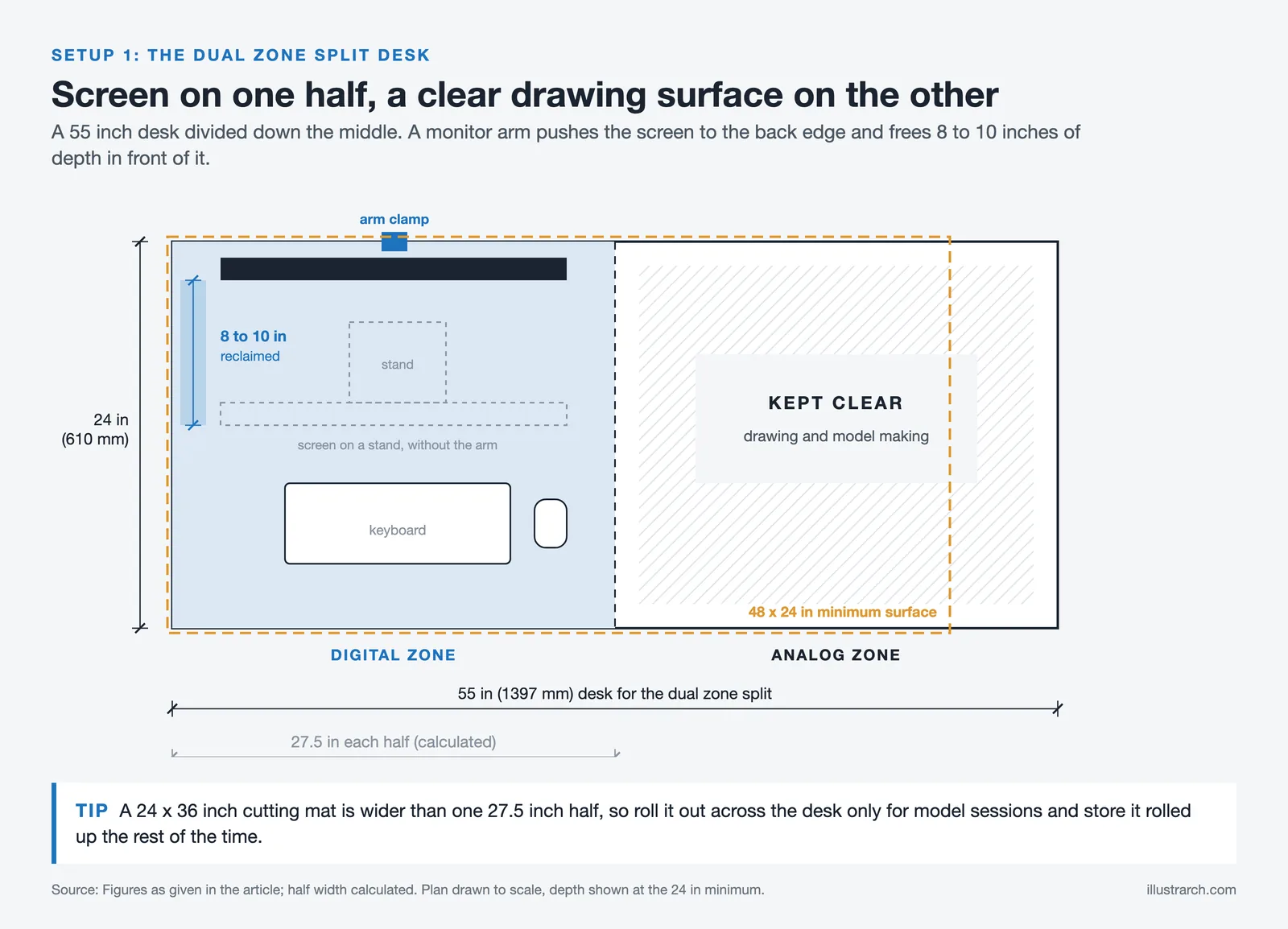
The dual-zone split desk is the most effective configuration for architecture students who need to move between analog and digital work regularly. Place your monitor and keyboard on one half of the desk surface, and keep the other half completely clear as a dedicated drawing and model-making zone. Use a monitor arm to push the screen back and up, which reclaims 8 to 10 inches of horizontal surface depth immediately.
For this setup, a desk of at least 55 inches wide works best. If your dorm desk is shorter, a simple IKEA Linnmon tabletop placed at the same height adjacent to your standard desk can extend the surface without requiring a new piece of furniture. Many students who follow our guide on architect desk setup ideas for a productive workspace have used this simple extension method to near-double their usable surface without replacing the provided dorm furniture.
Setup 2: The Vertical Wall System
When horizontal space is limited, work vertically. A pegboard mounted to the wall directly above your desk transforms unused wall space into functional storage. Architecture students can hang sketch rolls, drafting tools, small supply caddies, and even a small whiteboard for quick spatial calculations. The pegboard system from IKEA’s SKÅDIS line or a standard 2-foot by 4-foot pegboard from a hardware store works well in most dorms, as they can typically be mounted using removable adhesive strips that leave walls undamaged.
Above the pegboard, floating shelves can store reference books, model photography, and portfolio work in progress. The goal is to get everything that is not actively in use off the desk surface so that your working area stays clear. For architecture students, clutter on the desk is not just aesthetic, it physically prevents you from spreading out drawings or cutting models, which slows down your work in the most literal sense.
Setup 3: The Laptop-First Portable Setup

Not every architecture student has the budget or the dorm room space for a full desktop workstation. A well-configured laptop setup can handle most undergraduate architecture coursework, and when paired with the right accessories, it becomes significantly more productive than a bare laptop on a small desk surface.
The core accessories for a strong laptop-based architecture student desk setup include a laptop stand to elevate the screen to eye level, an external mechanical keyboard, an external mouse, and if the budget allows, a single external monitor positioned behind the laptop stand. This arrangement gives you a functional dual-screen setup without taking up much more desk space than a single laptop. For specific software recommendations that pair well with this configuration, the best online study tools for architecture students is worth reviewing before you purchase any subscriptions.
⚠️ Common Mistake to Avoid
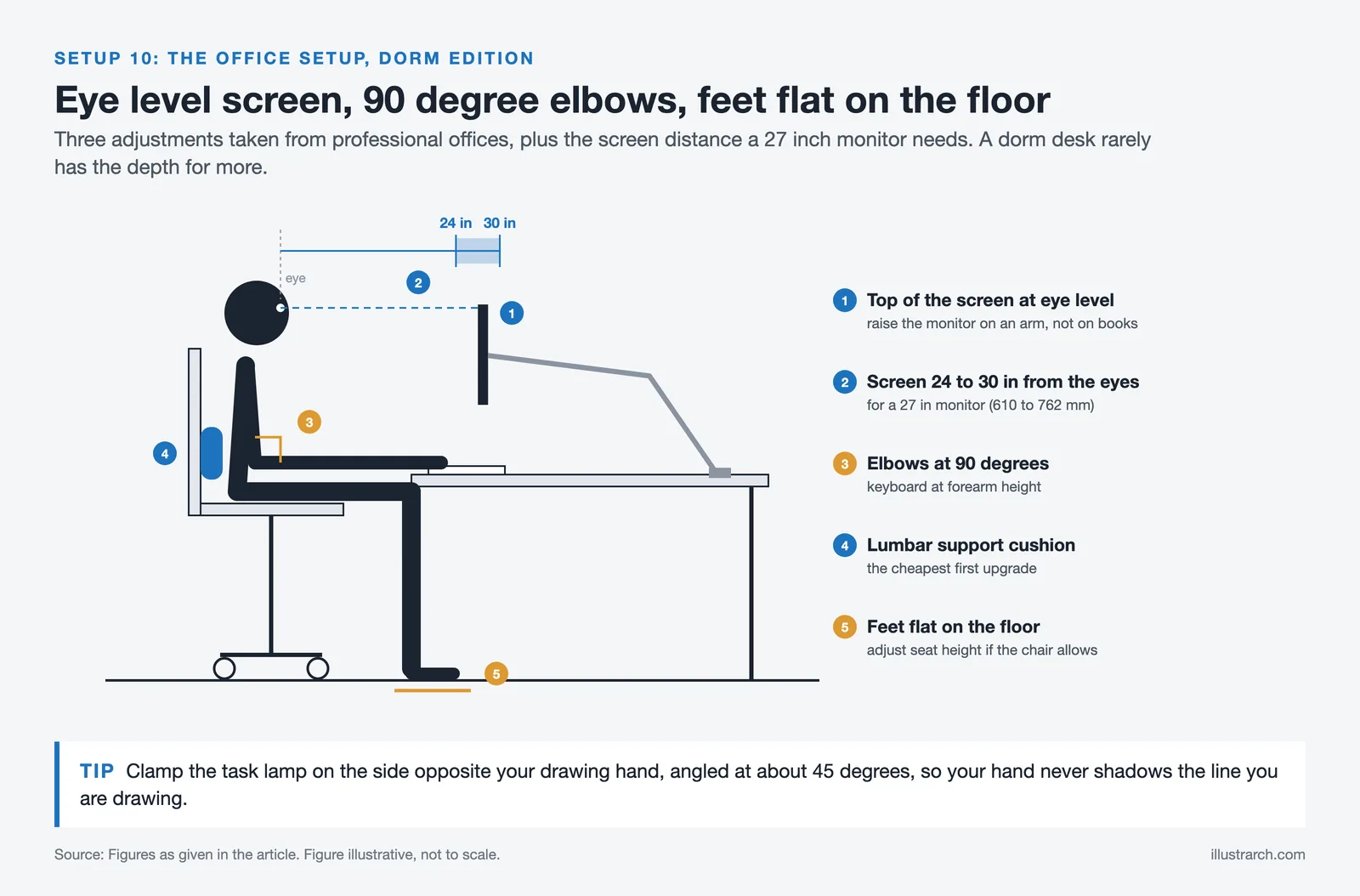
Many architecture students purchase large external monitors without accounting for the desk depth required to position them at a safe viewing distance. A 27-inch monitor needs to sit roughly 24 to 30 inches from your eyes for comfortable work. In a shallow dorm desk, this means the monitor occupies almost the entire depth of the surface. A 24-inch monitor at the correct distance is more practical for most dorm setups than a larger screen pushed too close.
Setup 4: The Drafting Table Replacement
A traditional drafting table will not fit in most dorm rooms, but an adjustable-angle desktop board achieves the same functional result. A portable A2 or A1 drawing board placed on the desk surface can be angled for comfortable hand drafting and laid flat for model work. When not in use, it leans against the wall and takes up no desk space at all.
Pair this with a reliable desk lamp positioned at a 45-degree angle on the side opposite your drawing hand to eliminate hand shadows, and you have a hand-drafting station that any first-year architecture student can use for orthographic drawings, site plans, and perspective sketches. The architect desk setup tools guide covers specific lamp recommendations worth checking before you buy.
Setup 5: The Minimalist Single-Monitor Build

For students who work primarily in digital tools, AutoCAD, Revit, SketchUp, or Rhino, a minimalist single-monitor setup focused on performance and screen clarity is often the most effective configuration for a small dorm room. The priority here is reducing cognitive noise: a single large, high-resolution monitor positioned correctly, a clean desk surface, and good task lighting.
This setup works especially well when paired with a good graphics tablet rather than a mouse. A mid-range Wacom Intuos tablet gives architecture students the precision needed for digital sketching and photo editing without requiring a second monitor for reference material. The tablet itself takes up a defined footprint that you can plan around, unlike the variable clutter of notebooks, sketch pads, and loose reference prints.
If you are deciding which software to prioritize in this kind of setup, the best architectural software for students article breaks down the options clearly for each stage of the undergraduate curriculum.
Setup 6: The Dual-Monitor Command Center
Architecture software works best with screen real estate. Autodesk’s own user experience research has consistently found that architects using dual monitors report significantly faster workflow completion for complex modeling tasks compared to single-screen setups. For a dorm room, a dual-monitor configuration is achievable without overwhelming the space if you approach it correctly.
Use a dual monitor arm that clamps to the desk edge rather than relying on monitor stands. This keeps the desk surface clear underneath both screens and allows you to push the monitors into a corner or swing one screen aside when you need the full desk surface for physical work. The two monitors should ideally be the same model, mixing screen sizes and color profiles creates visual inconsistency that slows down work in Photoshop, Illustrator, and rendering previews.
💡 Pro Tip
When running a dual-monitor architecture setup from a laptop in a dorm room, always connect your external monitors through a powered USB-C hub rather than directly from the laptop. Direct connections on most student laptops draw significantly more power from the battery and cause thermal throttling during long rendering sessions, slowing down your software noticeably. A powered hub keeps your laptop cooler and your frame rates consistent.
How to Set Up AutoCAD for Architecture in a Dorm Environment

Knowing how to set up AutoCAD for architecture in a space-limited environment involves both software configuration and physical workspace organization. On the software side, create and save custom workspaces in AutoCAD that match your most common workflow. Store your template files (.dwt) in a cloud-synced folder so they are accessible whether you are working on your dorm computer or using a lab machine.
On the physical side, a large mouse pad that covers most of your working surface provides consistent tracking and keeps your mouse, tablet, and desk surface organized as a single unit. Many architecture students find that replacing a standard mouse with a three-button trackball reduces the wrist movement required during long AutoCAD sessions, which matters when you are at the desk for five or six hours during a deadline push. For students exploring digital tools beyond drafting, online study tools for architecture students covers cloud-based CAD options that reduce the local storage burden on a dorm laptop.
Setup 7: The Corner Desk Maximizer
If your dorm room allows furniture rearrangement, positioning your desk in a corner is one of the most effective space-maximization strategies available to architecture students. A corner desk configuration creates an L-shape working surface that dramatically increases your total desktop area without requiring additional floor space. The two desk arms give you a natural separation between digital work on one side and physical drawing or model work on the other.
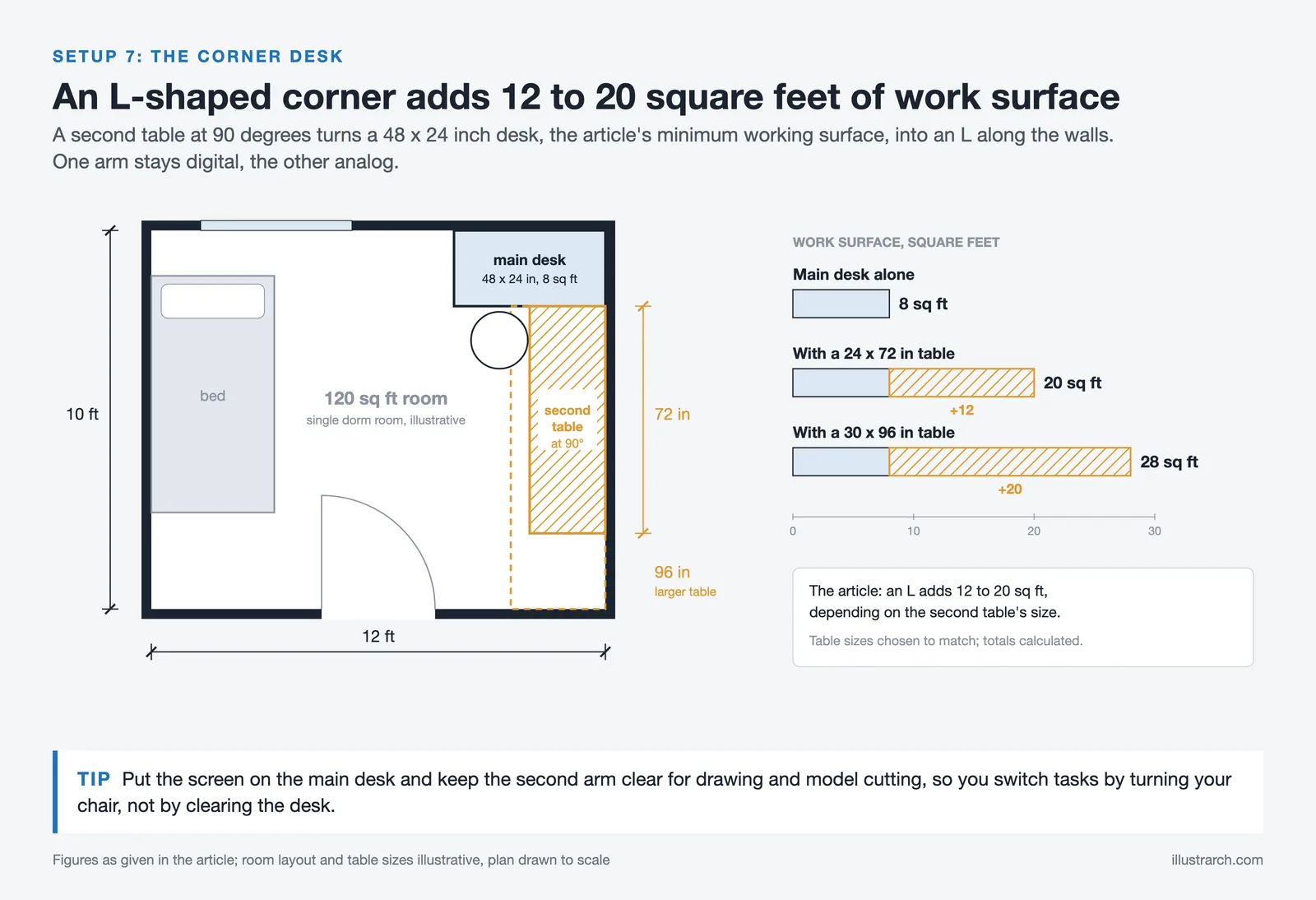
You can approximate a corner setup using the standard provided dorm desk supplemented by a smaller secondary table or folding worktable positioned at a 90-degree angle. The resulting L-shape typically adds 12 to 20 square feet of usable surface area depending on the secondary table size. This setup is one of the most popular configurations among students who have applied the advice in our tips on arranging a student room on a budget, which covers furniture placement strategies that work in typical dorm dimensions.
Setup 8: The Model-Making Station

Physical model-making is a core part of undergraduate architecture coursework, and it requires a dedicated, protected surface area. In a dorm room, the challenge is creating that surface without it permanently occupying prime desk real estate. The solution is a self-healing cutting mat that can be rolled up and stored when not in use, combined with a dedicated flat storage box for model materials kept under the bed or in a closet.
Set up your model-making station on the main desk surface only during active model work sessions. During these sessions, all digital equipment should be moved or covered to protect it from dust, foam board scraps, and adhesive. A cutting mat that matches your desk width, typically 24 by 36 inches, provides adequate space for most undergraduate architecture models while protecting the desk surface from X-Acto knife damage.
📐 Technical Note
Standard self-healing cutting mats are rated for blade thickness up to 0.5mm for clean cuts. Architecture model work typically uses X-Acto #11 blades (0.45mm) and snap-off utility knives. For foam core boards thicker than 5mm, a single clean pass with a fresh blade produces cleaner edges than multiple lighter passes, which cause compression deformation in the board. Replace blades frequently, a dull blade is the most common cause of ragged model edges in student work.
Setup 9: The PC Setup for Architecture: Performance-First Configuration
For students who need a full PC setup for architecture rather than a laptop-based configuration, a dorm room desktop requires careful planning. The most common mistake is prioritizing GPU power without considering the desk space the tower, monitor, and peripherals will actually occupy. A compact mini-ITX case or a small form factor PC gives you desktop-level performance while taking up a fraction of the horizontal surface area of a standard mid-tower case.
Position the compact PC tower on a small monitor riser or mount it underneath the desk using a CPU holder bracket. This removes it from the desk surface entirely and keeps your working area clear. A 27-inch IPS monitor with 4K resolution is the recommended display for architecture work, as it provides enough screen density to display fine drawing details in CAD software and photo editing at full quality. The top tech gadgets for architecture students article covers the specific hardware specifications worth prioritizing on a student budget.
You can also explore what specific software configurations work best with this kind of setup. The must-have tools for architects provides a current overview of both physical and digital tools that professionals use, which helps students understand which hardware investments will continue to pay off after graduation.
Setup 10: The Architectural Office Setup: Dorm Edition

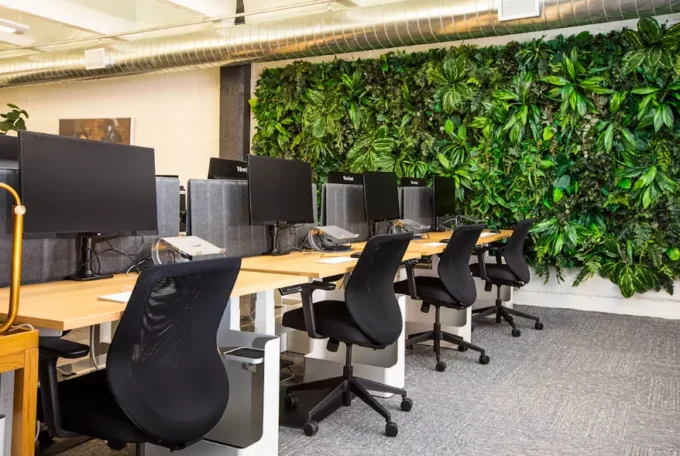
The tenth setup brings together the best elements of a professional architectural office setup scaled down to dorm dimensions. It combines a monitor arm-mounted display, a pegboard tool organization system, dedicated zones for digital and analog work, under-desk cable management, proper task lighting, and an ergonomic chair that replaces or supplements the standard dorm chair.
The key to this configuration is treating it like a professional workspace from the start. That means cable management is deliberate, lighting is layered (ambient overhead plus a focused task lamp), and the desk surface is kept clear by default rather than cleaned up reactively before deadlines. Architecture students who approach their dorm workspace with this level of intentionality consistently report better focus and less friction when starting work sessions.
For the ergonomic seating component, the chair provided in most dorm rooms is not designed for six-hour CAD sessions. A lumbar support cushion is the most cost-effective immediate upgrade, followed by seat height adjustment if the chair allows it. The positioning principle from professional architectural offices applies equally in a dorm: your monitor should sit at eye level, your keyboard should allow your elbows to form a 90-degree angle, and your feet should rest flat on the floor. These three adjustments alone eliminate most of the physical fatigue that drags down late-night studio sessions.
For students looking to round out their knowledge of desk organization principles beyond the physical setup, the 20 back-to-school tips for architecture students and the section on essential tools for architecture students are both worth bookmarking before the semester starts.
Lighting Your Architecture Desk Setup for Long Sessions

Lighting is one of the most underrated elements of any architecture student desk setup, and it is especially critical in dorm rooms where overhead lighting is usually poor and non-adjustable. The standard dorm overhead light produces flat, even illumination that creates significant glare on monitor screens and provides inadequate contrast for detailed hand drawing.
A layered lighting approach works best. Add a primary task lamp positioned on your non-dominant side to illuminate your drawing surface without casting hand shadows. A secondary LED bias light placed behind your monitor reduces eye strain during long CAD sessions by reducing the contrast between the bright screen and the dark surrounding wall. Both can be achieved affordably with clamp-on LED lamps that attach to the desk edge and take up no surface space. The top ideas for study room design expands on how lighting choices affect focus and productivity across different types of academic work.
Storage Solutions for Architecture Materials in a Small Dorm

Architecture students accumulate physical materials quickly: trace paper rolls, foam board sheets, model components, scale rulers, drafting triangles, and physical reference materials all need a home. In a dorm room, under-bed storage containers are the most efficient solution for large flat materials like foam board and drawing paper. Use shallow, lidded containers that slide easily under the bed and stack A1 or A2 sheets flat rather than rolling them.
A desktop organizer with deep vertical slots keeps scale rulers, triangles, and T-squares standing upright and accessible without lying flat across the desk surface. Small parts bins or magnetic organizer containers mounted to a pegboard hold blades, pencils, eraser blocks, and USB drives. The goal is to give every material a specific home so that setup time before a work session takes under two minutes rather than the ten or fifteen minutes of searching and clearing that disorganized dorm desks typically require.
✅ Key Takeaways
- A minimum desk surface of 48 inches wide and 24 inches deep is the practical baseline for comfortable architecture student work. Extend this using a secondary table in an L-configuration if your dorm allows it.
- A monitor arm is the single most impactful upgrade for any architecture desk setup in a small space, it reclaims 8 to 10 inches of desk depth and allows flexible repositioning during physical work sessions.
- Separate your desk into clear digital and analog zones. Mixing both workflows on the same surface area without defined boundaries creates constant friction and slows down transitions between tasks.
- Vertical storage through pegboards and floating shelves is the most efficient way to expand your effective storage capacity in a dorm without sacrificing floor space.
- Ergonomic basics, eye-level monitor, 90-degree elbow angle, flat feet, apply in dorm rooms exactly as they do in professional architectural offices. These adjustments reduce physical fatigue during long studio sessions.
Frequently Asked Questions
What is the best architecture desk setup for a small dorm room?
The most effective architecture desk setup for a small dorm room combines a monitor arm to free up desk depth, a vertical pegboard storage system for tools and supplies, and a clear separation between digital and analog working zones. A minimum desk surface of 48 inches wide allows simultaneous access to digital equipment on one side and a drawing or model-making surface on the other, which is the core functional requirement for architecture coursework.
How do I set up AutoCAD for architecture in a dorm room?
Setting up AutoCAD for architecture in a dorm room involves both software and workspace configuration. On the software side, create saved custom workspaces that match your most common workflow and store template files in a cloud-synced folder for access from multiple machines. Physically, a large mouse pad covering most of your desk surface organizes your input devices and provides consistent tracking, while a three-button mouse or graphics tablet reduces wrist strain during long drafting sessions.
What tech setup do architecture students need?
Architecture students need a setup that handles CAD software, 3D modeling, and rendering without slowing down. At minimum, this means a laptop or desktop with a dedicated GPU (NVIDIA GTX or RTX series), at least 16GB of RAM, and a high-resolution monitor of 24 inches or larger. A graphics tablet, external monitor, and ergonomic peripherals complete a student-grade architecture tech setup that covers the full range of undergraduate coursework from drafting through rendering and presentation.
How can I make my dorm desk suitable for architecture work on a budget?
The most budget-conscious approach to an architecture student desk setup in a dorm focuses on three upgrades that offer the most functional improvement per dollar: a monitor arm ($25 to $60) to reclaim desk surface, a pegboard with hooks ($20 to $40) for wall-mounted tool storage, and proper task lighting ($15 to $35 for an LED clamp lamp). Together, these three additions transform a standard dorm desk into a functional architecture workspace for under $150 in most cases.
What tips do architecture students have for organizing a small workspace?
Experienced architecture students consistently recommend three organizational habits for small dorm workspaces: give every tool and material a specific designated storage location so setup is fast, keep the desk surface clear by default rather than only cleaning it before deadlines, and separate model-making sessions from digital work sessions so you are not trying to manage both simultaneously on the same surface. Treating the workspace intentionally, the same way you would approach a professional studio, creates the kind of low-friction environment where deep work actually happens.






What Architecture Students Should Know About Structural Glass and Guardrail Code
Glass guards look minimal, but structural behavior, safety glazing, connections and guardrail...
 illustrarch Editoral Team6 Mins read

Futuro House Production Revived in Finland After Decades-Long Hiatus
A Facebook listing for abandoned moulds led to the first new Futuro...
illustrarch Editoral Team3 Mins read
Building Your Dream Home in NSW: What You Should Know About Montgomery Homes
Montgomery Homes has been building across Sydney, Newcastle, the Hunter, Wollongong and...
illustrarch Editoral Team4 Mins read
Designing a Home Theater: Where Drapery Fits Into the Plan
In a media room the curtains are a performance layer, not decoration....
illustrarch Editoral Team3 Mins read


Leave a comment