

ReRender AI Review: The Fastest AI Architecture Renderer for Revit, SketchUp and Rhino Users
An in-depth ReRender AI review examining its rendering speed, style options, pricing tiers, and integration with Revit, SketchUp, and Rhino. Find out how this AI architecture renderer stacks up against Midjourney and traditional tools like Enscape and Lumion for professional workflows.
 Sinan Ozen11 March 20267 Mins read413

Table of Contents Show
ReRender AI is a cloud-based AI architecture renderer that transforms sketches, 3D model exports, and photos into photorealistic visualizations in seconds. It works with image exports from Revit, SketchUp, and Rhino (with a dedicated SketchUp plugin), offers a range of predefined design styles, and positions itself as a faster, more affordable alternative to traditional rendering engines like Enscape and Lumion.
If you have been spending hours tweaking materials, adjusting lights, and waiting for render passes to finish, you already know the pain. The new wave of AI rendering tools promises to cut that process down to seconds. ReRender AI sits at the center of this shift, targeting architects who want client-ready visuals without the overhead of a full rendering pipeline. But does it actually deliver? This ReRender AI review breaks down its features, pricing, limitations, and how it compares to alternatives like Midjourney so you can decide whether it fits your workflow.

What Is ReRender AI and How Does It Work?
ReRender AI is an AI-powered architectural rendering platform developed by Stylefie, Inc. The core idea is straightforward: upload an image (a SketchUp viewport capture, a Revit export, a hand sketch, or even a photograph), select a design style, and the platform generates a photorealistic render using machine learning and neural network processing. The entire cycle typically takes a matter of seconds.
Unlike traditional rendering engines that require you to assign materials, set up lighting rigs, and configure render settings manually, ReRender AI handles all of that automatically. The platform runs entirely in the cloud, which means it does not tax your local hardware. You can work from a laptop, a tablet, or even your phone without worrying about GPU limitations. The RIBA’s coverage of AI in architectural practice highlights how cloud-based AI tools are reducing hardware barriers for smaller firms.
💡 Pro Tip
When uploading SketchUp exports to ReRender AI, use a clean white-background viewport with visible edges turned on. The AI interprets geometry more accurately when lines are crisp and there is minimal visual noise. Avoid exporting with SketchUp’s built-in styles like watercolor or sketchy edges, as these can confuse the AI and produce inconsistent results.
For the full picture, see our complete guide to the best AI architectural rendering tools.

Key Features of ReRender AI for Architecture
The platform bundles several tools that go beyond basic image-to-render conversion. Here is what you get access to:
Exterior and Interior Rendering allows you to upload any architectural image and receive a styled photorealistic output. The AI applies materials, lighting, landscaping, and atmospheric effects based on the style you select. You can choose from a range of predefined architectural styles including Modern, Industrial, Scandinavian, Neo-Gothic, Baroque, and more.
The Sketch to Image feature converts rough hand-drawn sketches into polished renders. This is particularly useful during early design phases when you need to communicate a concept to a client without investing hours in a 3D model. For more on AI-assisted architectural planning, see our dedicated guide.
An integrated Image Editor lets you make targeted modifications after the initial render. You can swap materials, add or remove landscape elements, adjust furniture layouts, and tweak lighting without regenerating the entire image.
The Render Enhance and 4x Upscale tools improve image quality and resolution after generation, pushing outputs closer to print-ready standards. Paid plans also include prompt-based customization, where you can describe specific changes in natural language.
ReRender AI also offers Video Generation Credits on paid plans, letting you create short animated walkthroughs from static renders. A SketchUp Plugin provides direct workflow integration, and a Multi-Angle Rendering feature generates consistent visualizations across different viewpoints of the same project.
How Does ReRender AI Handle Revit and SketchUp Exports?
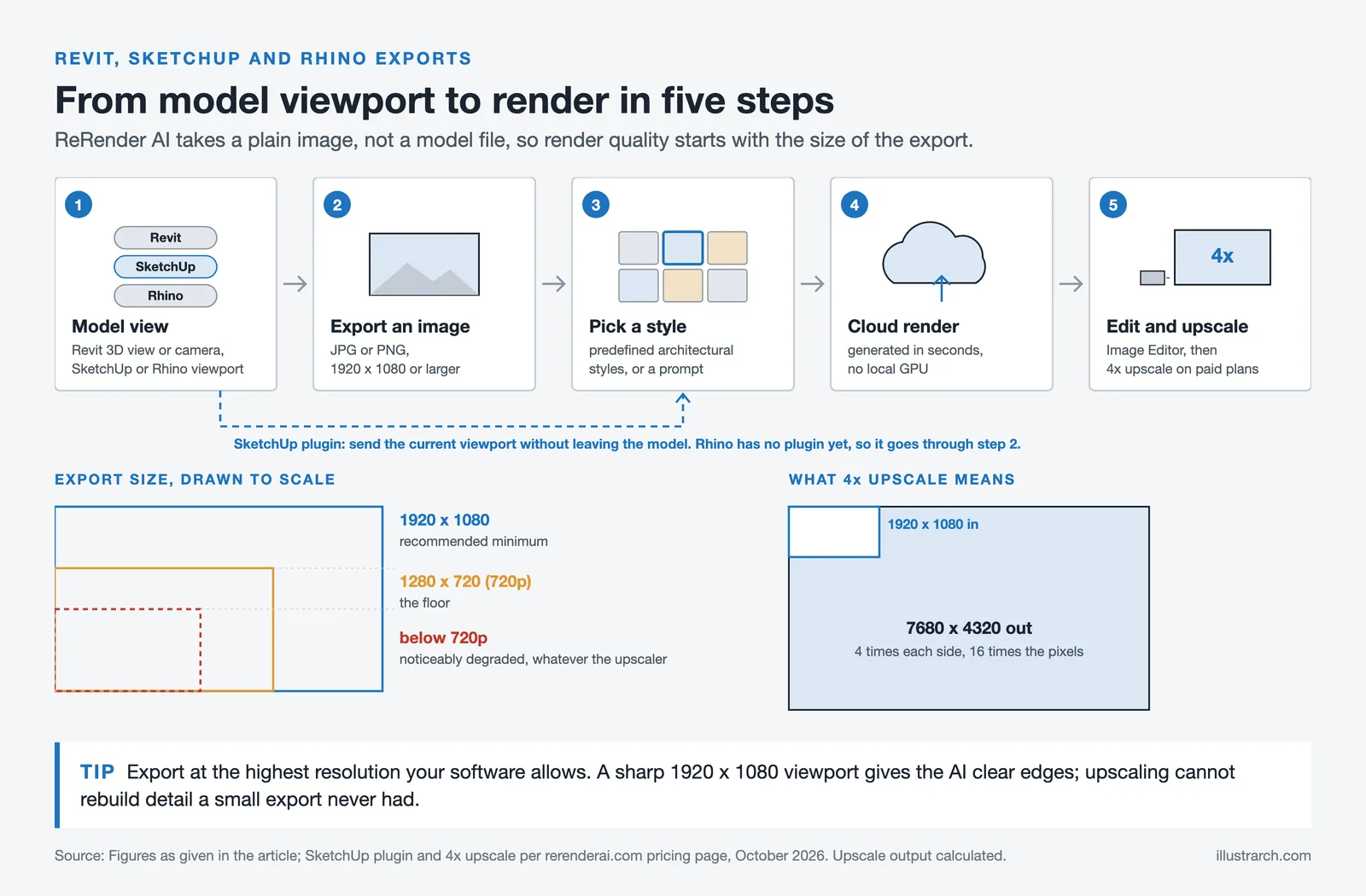
One of the strongest selling points of this AI architecture renderer is its compatibility with the tools architects already use. ReRender AI accepts standard image exports (JPG, PNG) from Revit, SketchUp, and Rhino. You do not need a special file format or a dedicated plugin (though the SketchUp plugin streamlines the process).
For Revit users, the workflow involves exporting a 3D view or a camera perspective as an image and uploading it directly to the platform. The AI then applies its rendering engine to produce a styled visualization. This is significantly faster than setting up a full Enscape or V-Ray render from within Revit. The shift toward cloud-based rendering workflows is a big reason tools like this are gaining traction.
For SketchUp users, the dedicated plugin means you can send your current viewport to ReRender AI without leaving your modeling environment. The platform handles AI exterior rendering from SketchUp screenshots particularly well, as the clean geometry of SketchUp exports gives the AI clear structural information to work with.
Rhino users follow a similar export-and-upload process. While there is no dedicated Rhino plugin yet, the platform recognizes Rhino’s viewport outputs and applies its rendering algorithms effectively.
⚠️ Common Mistake to Avoid
Many architects upload low-resolution viewport screenshots and then wonder why the AI output looks soft or lacks detail. Always export at the highest resolution your software allows before uploading to any AI renderer. A 1920×1080 minimum is recommended; anything below 720p will produce noticeably degraded results regardless of the upscaling tools available.

ReRender AI Pricing Plans: What Do You Actually Get?
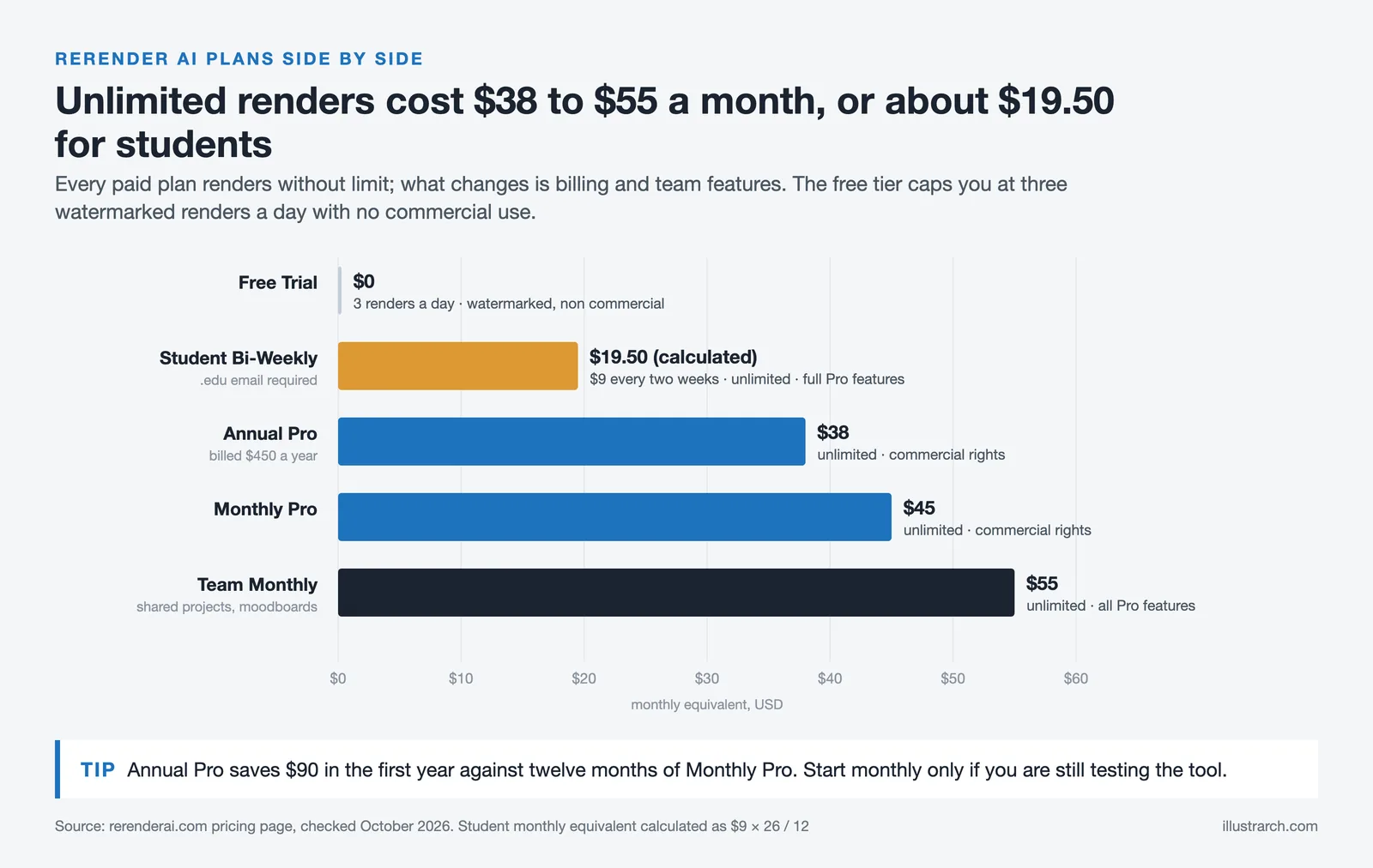
ReRender AI pricing plans are structured across four tiers, each targeting a different user profile. Here is how they break down:
Pricing Overview
The following table summarizes the available plans and their key features:
| Plan | Price | Renders | Key Features |
|---|---|---|---|
| Free Trial | $0 | 3 per day | Watermarked, non-commercial, standard quality |
| Monthly Pro | $45/month | Unlimited | Commercial rights, 4x upscale, private mode, prompts |
| Annual Pro | $38/month | Unlimited | Same as Monthly Pro, billed annually |
| Team Monthly | $55/month | Unlimited | Shared projects, moodboards, centralized billing |
| Student Bi-Weekly | $9/two weeks | Unlimited | Requires .edu email, full Pro features |
The free tier gives you enough to test the platform, but watermarks and non-commercial restrictions make it unsuitable for professional use. The $45/month plan is where most solo practitioners will land, offering unlimited renders with full commercial rights. Architecture students benefit from a discounted plan at $9 every two weeks with a valid education email.
📌 Did You Know?
ReRender AI offers 3 free renders per day on its trial plan, making it one of the most accessible entry points among AI rendering tools for architects. By comparison, most competitors either limit free access to a one-time credit allotment or require a paid subscription from the start.
ReRender AI vs Midjourney for Architecture: Which Should You Choose?
This is one of the most common comparisons architects make when evaluating AI rendering tools. Both platforms produce impressive visuals, but they serve fundamentally different purposes in an architectural workflow.
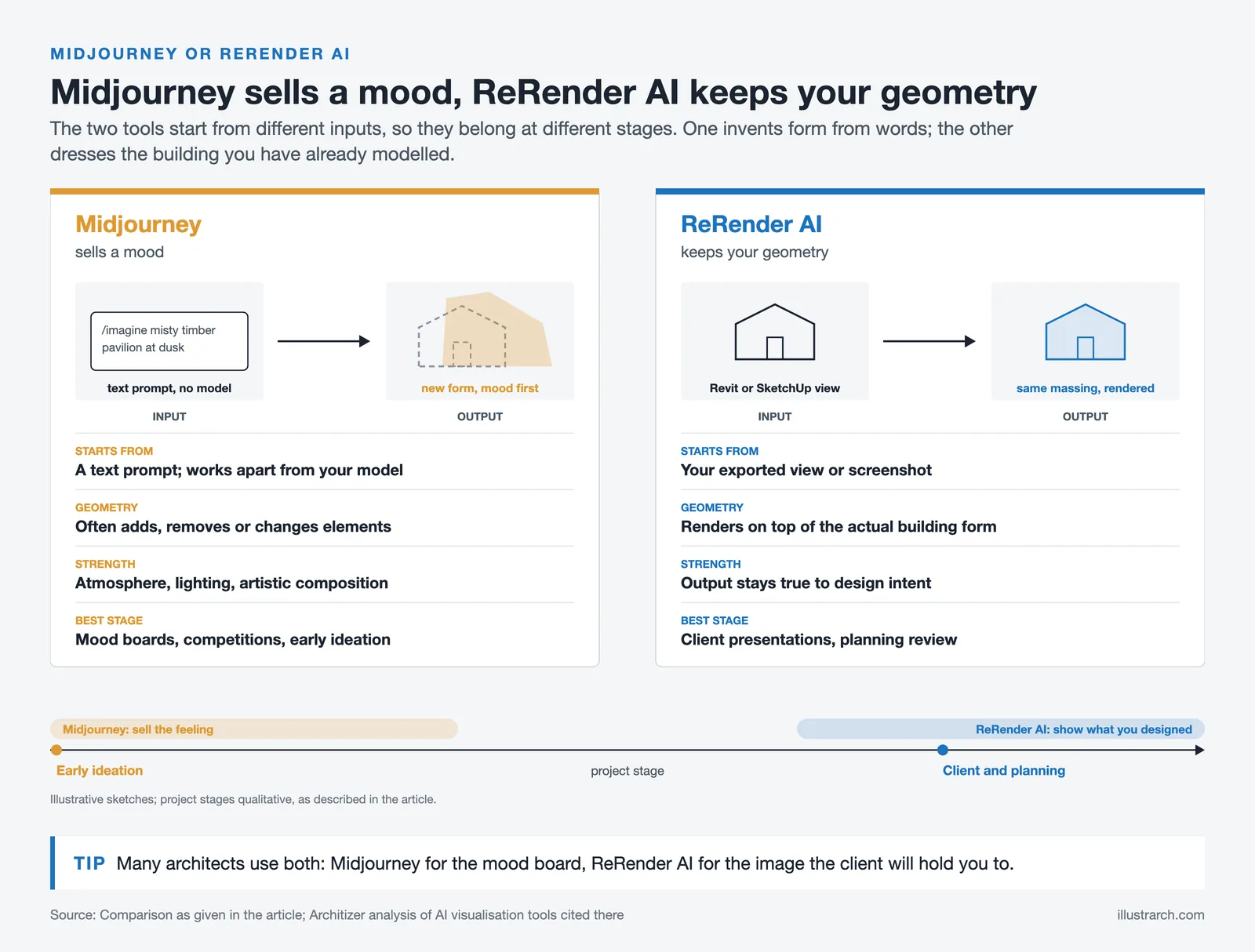
Midjourney excels at conceptual exploration. Its artistic quality, atmospheric lighting, and ability to generate evocative imagery from text prompts make it unmatched for mood boards, competition entries, and early-stage ideation. As Architizer’s analysis of AI visualization tools notes, Midjourney’s strength lies in artistic composition rather than geometric accuracy. However, it operates independently of your design model. You cannot upload a SketchUp file and expect Midjourney to respect your exact floor plan or massing. It frequently adds, removes, or modifies architectural elements unpredictably.
ReRender AI takes the opposite approach. It works directly from your existing design geometry. When you upload a Revit export or a SketchUp screenshot, the AI renders on top of your actual building form. This means the output stays true to your design intent, which matters enormously when presenting to clients or submitting for planning review.
In practical terms: use Midjourney when you need creative inspiration and atmospheric imagery that sells a feeling. Use ReRender AI when you need a deliverable that accurately represents what you have actually designed. Many architects use both tools at different project stages. For a broader overview of AI generators for architects, we have covered additional options as well.
⚖️ Pros & Cons at a Glance
✔️ Pros: Extremely fast renders (in seconds), respects input geometry, SketchUp plugin, unlimited renders on paid plans, student pricing available
✖️ Cons: Limited customization versus V-Ray or Enscape, cloud-dependent (needs stable internet), prompt interpretation can be inconsistent, no Rhino plugin yet

Is ReRender AI Worth It for Your Practice?
The answer depends on where rendering sits in your workflow. If you run a small practice or work as a freelance architect and need fast, presentable visuals for client meetings without maintaining expensive rendering software licenses and powerful hardware, ReRender AI is a strong option. At $38 to $45 per month, it costs a fraction of what traditional rendering setups demand.
For large firms producing competition-level photorealistic imagery with precise material control, ReRender AI will not replace a dedicated visualization team using V-Ray or Corona. It is not designed to. Its strength lies in speed and accessibility, not pixel-perfect control over every reflection and shadow.
The platform works best as a rapid iteration tool. Upload a SketchUp export, get a rendered visualization in seconds, show it to your client, collect feedback, adjust your model, and re-render. This feedback loop, which used to take days, now takes minutes. That alone makes it worth evaluating for any practice that values speed in client communication.
🎓 Expert Insight
Architects across the industry increasingly recognize that AI rendering tools fill a specific gap in the design process. As noted in a Chaos Group analysis, AI is best understood as a collaborative tool that enhances an architect’s capabilities rather than replacing the human creative process. The speed advantage is real, but the value comes from using that speed to iterate more and design better.
Final Verdict
ReRender AI delivers on its core promise: fast, accessible, and reasonably good-looking architectural renders from the software you already use. It is not a replacement for high-end visualization pipelines, and it does not pretend to be. What it offers is a practical tool that removes friction from the design-to-presentation workflow, especially for architects working with Revit, SketchUp, or Rhino.
The free tier is generous enough to test thoroughly before committing. If speed and cost-efficiency matter more to you than granular control over every render setting, this is one of the best AI rendering tools for architects available today. Try the 3 daily free renders, test it against your own project exports, and see if the output quality matches your presentation standards.
Pricing information in this article reflects data available as of October 2026 and may change. Visit ReRender AI’s official pricing page for the most current plans.




From SketchUp View to Client-Ready Render: A Hands-On Look at Vizbase
Vizbase co-founder Mikus Zarāns shows how the browser-based AI renderer turns SketchUp...
 illustrarch Editoral Team4 Mins read

Best 3D Rendering Companies for Quick Turnaround Time
Discover the top 3D rendering companies that excel in delivering fast, quality...
illustrarch Editoral Team5 Mins read
KeyShot Architectural Rendering: 7 Best Alternatives for Architects
KeyShot is built for product visualization, which leaves gaps for architectural work....
 Furkan Sen6 Mins read
Twinmotion Architectural Rendering: 7 Best Alternatives for Architects
Twinmotion is a strong free option for real-time architectural visualization, but not...
Furkan Sen8 Mins read


Leave a comment