

Lumion Asset Library: A Practical Guide to Free Assets and PBR Materials for Architects
A focused guide to the Lumion asset library covering its 7,500+ built-in 3D models, PBR material workflow, custom asset importing, and free third-party resources. Includes practical tips for organizing assets, applying textures, and getting the most from Lumion's content library in your architectural projects.
 Elif Ayse Sen6 May 202615 Mins read309
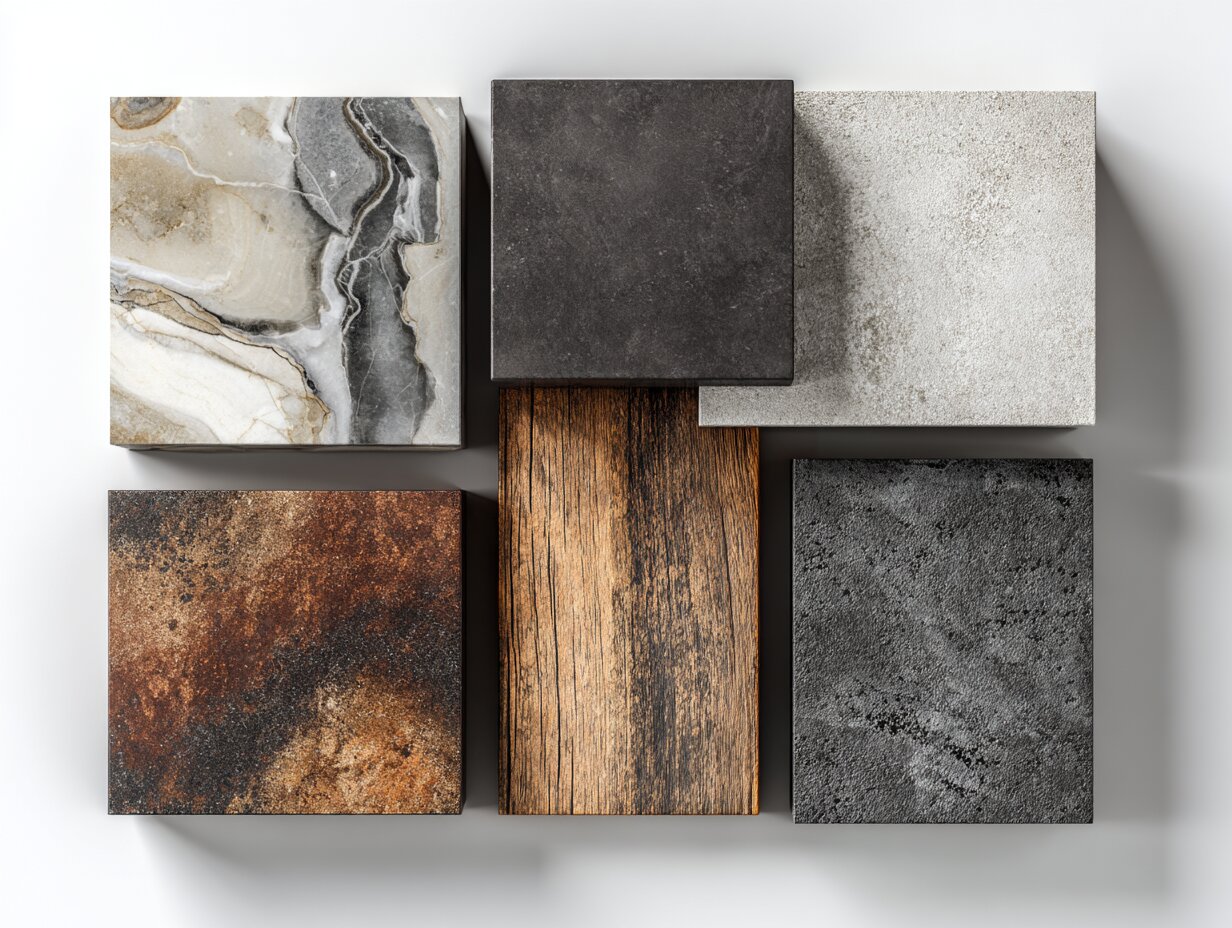
Table of Contents Show
The Lumion asset library gives architects and designers access to over 8,600 ready-to-use 3D models, PBR materials, lighting profiles, and special effects built directly into the software. From vegetation and furniture to vehicles and animated people, these assets speed up scene building and help produce realistic architectural visualizations without sourcing content from external platforms.
Lumion is a standalone real-time rendering application developed by Act-3D in the Netherlands, and it has become one of the most widely used architectural rendering tools among design professionals. A large part of its popularity comes from the built-in content library, which removes the friction of hunting for 3D objects and textures across the internet. This guide covers what the asset library contains, how to work with PBR materials, how to import your own custom assets, and where to find free resources that extend Lumion’s default collection.
What Is Inside the Lumion Asset Library?
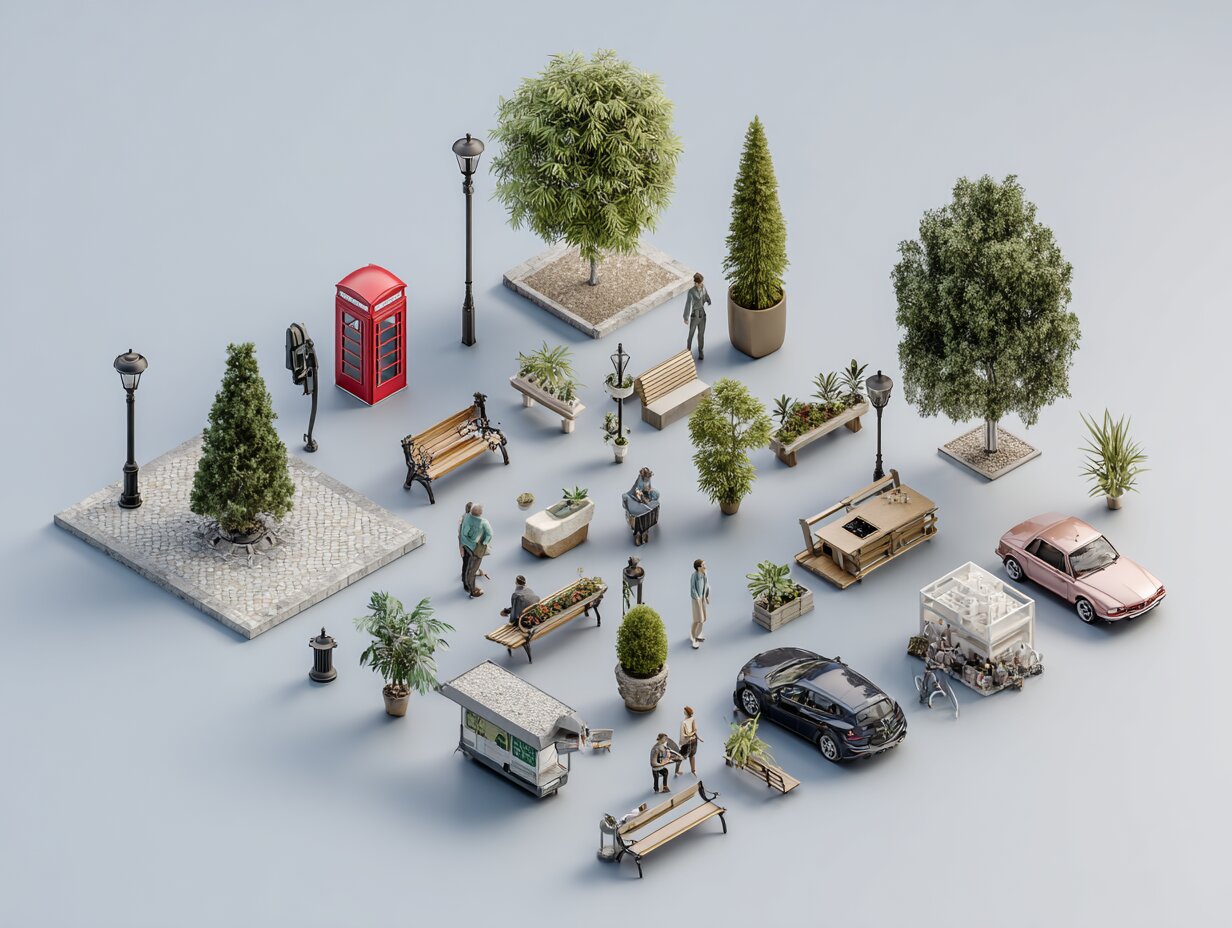
The Lumion asset library is organized into several main categories: Nature, Interior, Exterior, People, Vehicles, Sounds, Lights, and Utilities. Each category contains subcategories that make it faster to find specific items. Nature assets alone include trees, shrubs, flowers, grass patches, and ground cover, while the Interior section covers sofas, tables, kitchen appliances, bathroom fixtures, and decorative objects. Exterior items include benches, streetlights, bollards, bus stops, and playground equipment.
As of Lumion 2026, the library has grown to include photogrammetry-based vegetation, which produces far more realistic trees and plants than older polygon-based models. The 2025 release added 309 new objects including an education-themed content pack with 129 models, 68 fine-detail nature assets, and 14 new materials such as corten steel, terrazzo, and linoleum. The 2026 update brought 73 new photogrammetric nature assets, 31 growth-stage trees, and 165 refreshed outdoor and urban objects with improved geometry and PBR settings.
💡 Pro Tip
Use the search tags introduced in Lumion 2025 to filter assets by version. Typing “L24” or “Photogrammetry” in the library search bar instantly narrows results to specific content packs, saving you from scrolling through thousands of objects manually.
The library also includes ready-made templates and example scenes. Lumion 2026 ships with 5 new example scenes and 7 templates covering common workflows like suburban neighborhood contexts, shopping areas, macro nature compositions, and clean showcase backdrops. These templates act as starting points where you drop in your own model and begin refining, rather than building an entire environment from scratch.
For architects working on student projects or portfolio renders, the built-in library eliminates the need for expensive third-party asset subscriptions. Every object in the library is optimized for Lumion’s rendering engine, so performance stays consistent even in scenes with hundreds of placed items.
How PBR Materials Work in Lumion
PBR stands for Physically Based Rendering, a shading method that simulates how light interacts with real surfaces. Instead of adjusting color and shininess by trial and error, PBR materials rely on a set of texture maps (albedo, roughness, metallic, normal, displacement, and ambient occlusion) that describe measurable physical properties of a surface. When applied correctly, these maps produce materials that respond accurately to any lighting condition, whether the scene uses morning sunlight, overcast skies, or warm interior lamps.
Lumion adopted a full PBR material workflow starting with the 2023 release. The Material Library now includes over 1,580 pre-configured materials spanning categories like brick, concrete, wood, metal, fabric, stone, glass, and tile. Each material is built with proper PBR maps, so applying one to a surface immediately gives it realistic light behavior without manual map loading.
🎓 Expert Insight
“Lumion’s PBR material workflow gives you full creative freedom over how you dress your surfaces. You can choose from the thousands of high-quality materials on offer in the library, import your own, or personalize every aspect of your chosen textures.”
Lumion Official Guide, Act-3D
This statement from Lumion’s own documentation highlights the flexibility of the PBR system. You are not locked into preset looks; every map channel is accessible for fine-tuning or replacement with custom textures.
For architects who need materials that match specific real-world products, the ability to load custom PBR maps is critical. A polished marble floor reflects light differently than a honed finish, and brushed aluminum behaves nothing like powder-coated steel. PBR captures these differences through measured data, which means your renders stay accurate regardless of the lighting setup you choose. This is particularly valuable for client presentations where material accuracy influences design decisions.
How to Apply and Customize Materials in Lumion
Applying materials in Lumion starts with the Material Editor. Click the Materials tab, then select the surface you want to modify. Lumion highlights editable surfaces in your scene, and clicking one opens the editor panel. From here, you can browse the Material Library by category or search by name, or you can create a new material from scratch using the Standard Material template.
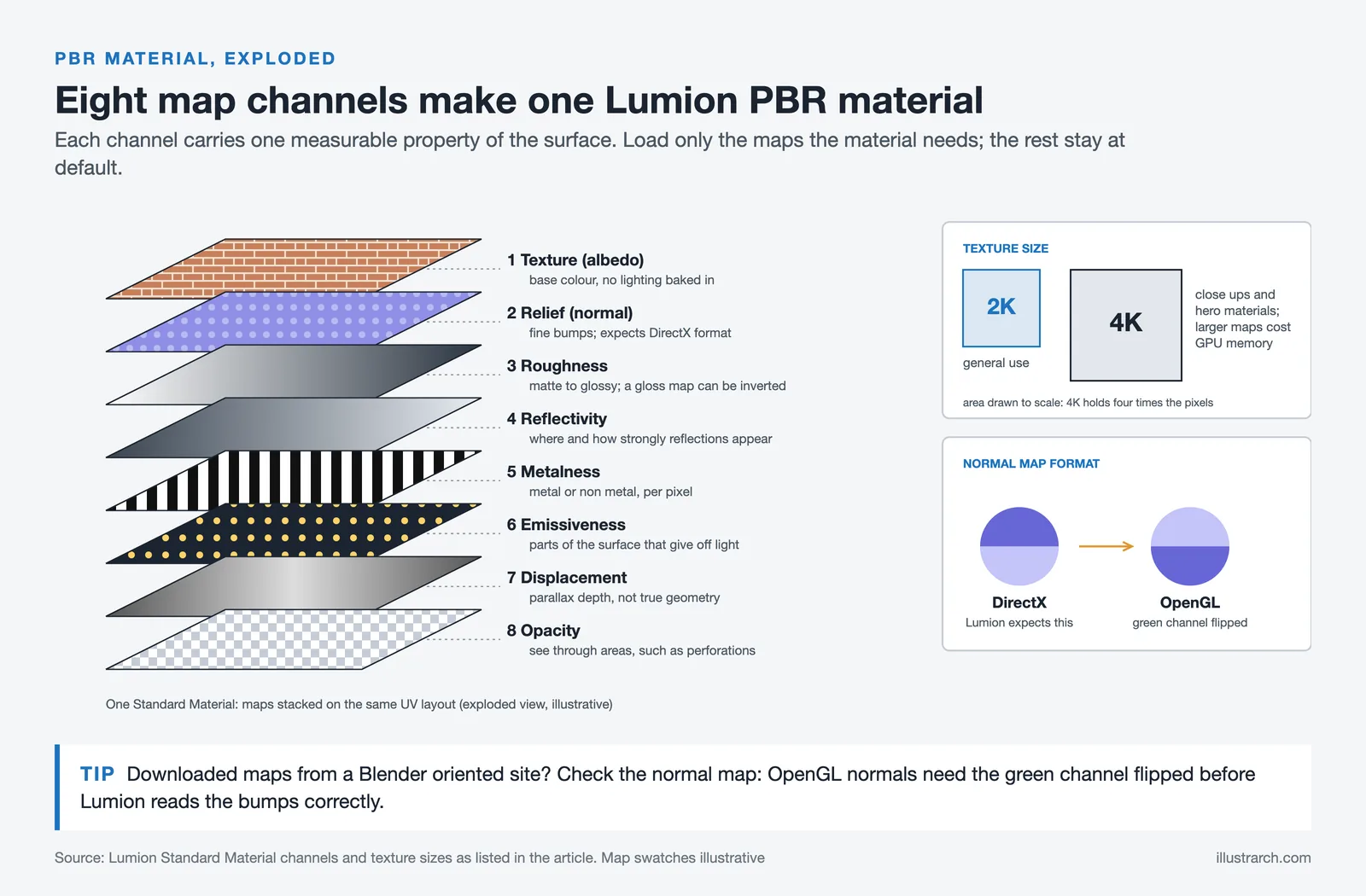
The Standard Material type is the foundation for PBR work in Lumion. It accepts texture maps for diffuse color, relief (normal), roughness, reflectivity, metalness, emissiveness, displacement, and opacity. Loading a map is straightforward: click the “Load map” button next to any channel and browse to your texture file. For best performance, Lumion recommends 2K resolution textures for general use and 4K for close-up hero shots.
Two settings deserve particular attention: Roughness and Reflectivity. Roughness controls how matte or glossy a surface appears. A polished concrete floor needs a low roughness value, while raw timber needs a high one. If you have a gloss map instead of a roughness map, Lumion lets you invert it with a single click. Reflectivity determines where and how strongly reflections appear on the surface, adding depth to materials like glazed tile, wet stone, or lacquered wood.
⚠️ Common Mistake to Avoid
Many users skip the Weathering option buried at the bottom of the Material Editor. Weathering adds aging effects like dirt, worn edges, moss, or rust to your surfaces. Even a subtle 10-15% weathering strength can remove the “too clean” look that makes renders feel artificial. Skipping this step is one of the most common reasons architectural scenes look like CGI rather than photographs.
Lumion also supports subsurface scattering and opacity controls for translucent materials. By increasing subsurface scattering and decreasing opacity, you can achieve effects like light spilling through curtains or thin stone panels. Glass materials have their own dedicated material type with separate controls for distortion, absorption, and color, which gives more accurate results than trying to simulate glass with a Standard Material.
Once you have configured a material the way you want it, save it to the Custom Materials folder for reuse across projects. You can also save entire Material Sets (.LMS files) that bundle all surface assignments for a model, making it fast to transfer your material work between different scenes.
How to Add Custom Assets to the Lumion Library
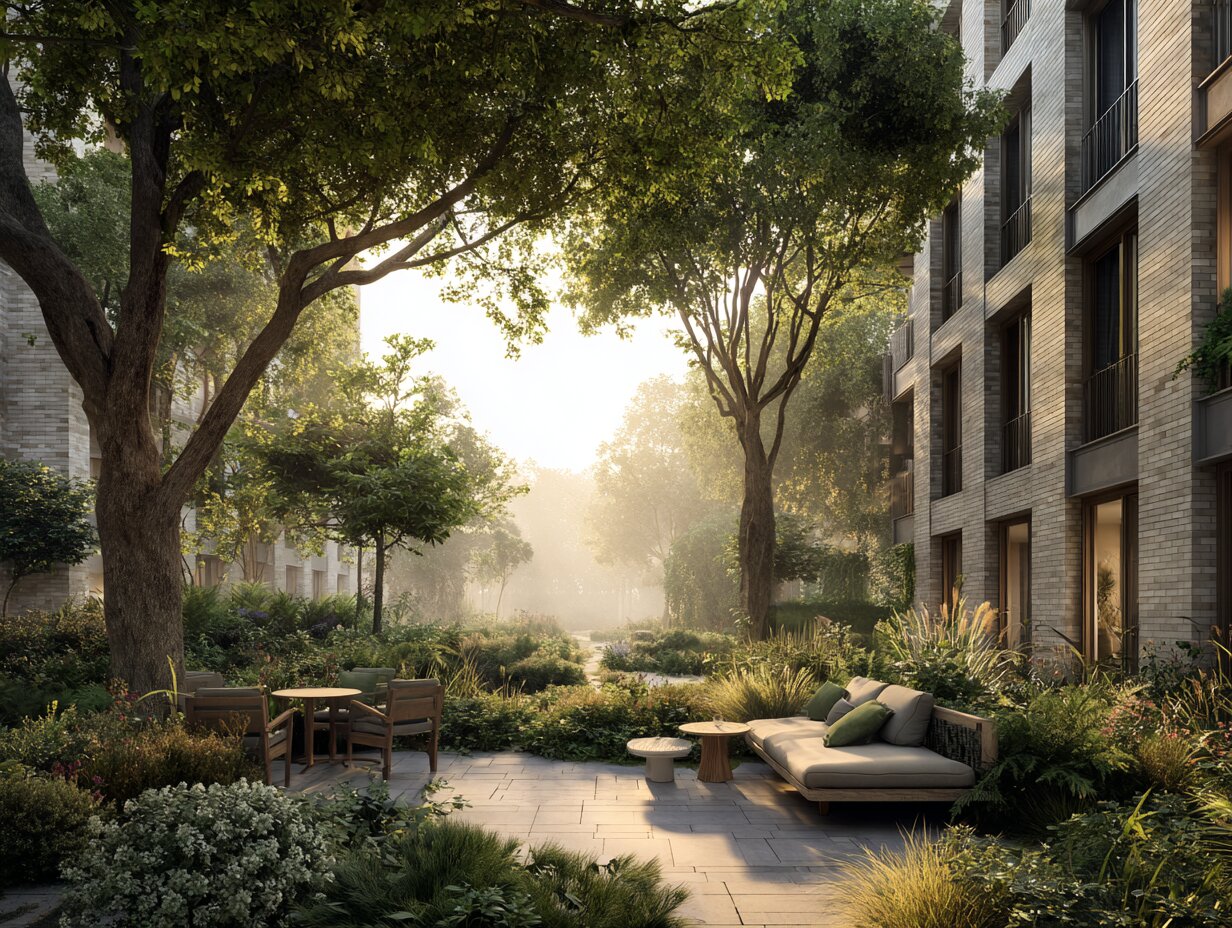
The built-in library covers most common scenarios, but architectural projects often require specific furniture, fixtures, or site elements that are not included. Lumion supports importing custom 3D models through its Imported Models section in the Content Library. Supported formats include .FBX, .DAE (Collada), .SKP (SketchUp), .DWG, .DXF, .3DS, .OBJ, and .glTF.
To import a custom asset, switch to Build Mode, open the Content Library, click “Imported Models,” then click “Place.” This opens a file browser where you select your 3D file. The model appears attached to your cursor in the viewport, ready for placement. After placing it, you can adjust materials using the Material Editor just like any built-in object.
For teams that reuse custom assets across multiple projects, it helps to maintain a standardized folder structure on your local drive with models organized by category (furniture, vegetation, fixtures, site elements). Name files clearly and embed textures into the model file where possible, since Lumion needs to locate texture files at import time. If texture paths break, materials will appear blank or default to a gray color.
💡 Pro Tip
When importing models from SketchUp or Revit, use Lumion’s LiveSync plugin instead of manual export-import. LiveSync 2026 now supports PBR material map synchronization from SketchUp, Revit, and ArchiCAD, which means your material assignments carry over automatically and update in real time as you edit the source model.
The glTF format deserves special mention. Introduced with broader support in Lumion 2024, glTF preserves PBR material properties during import more reliably than older formats like .OBJ or .3DS. If you are sourcing models from platforms that export glTF (many do now), this format gives you the cleanest material transfer into Lumion.
Where to Find Free Assets for Lumion
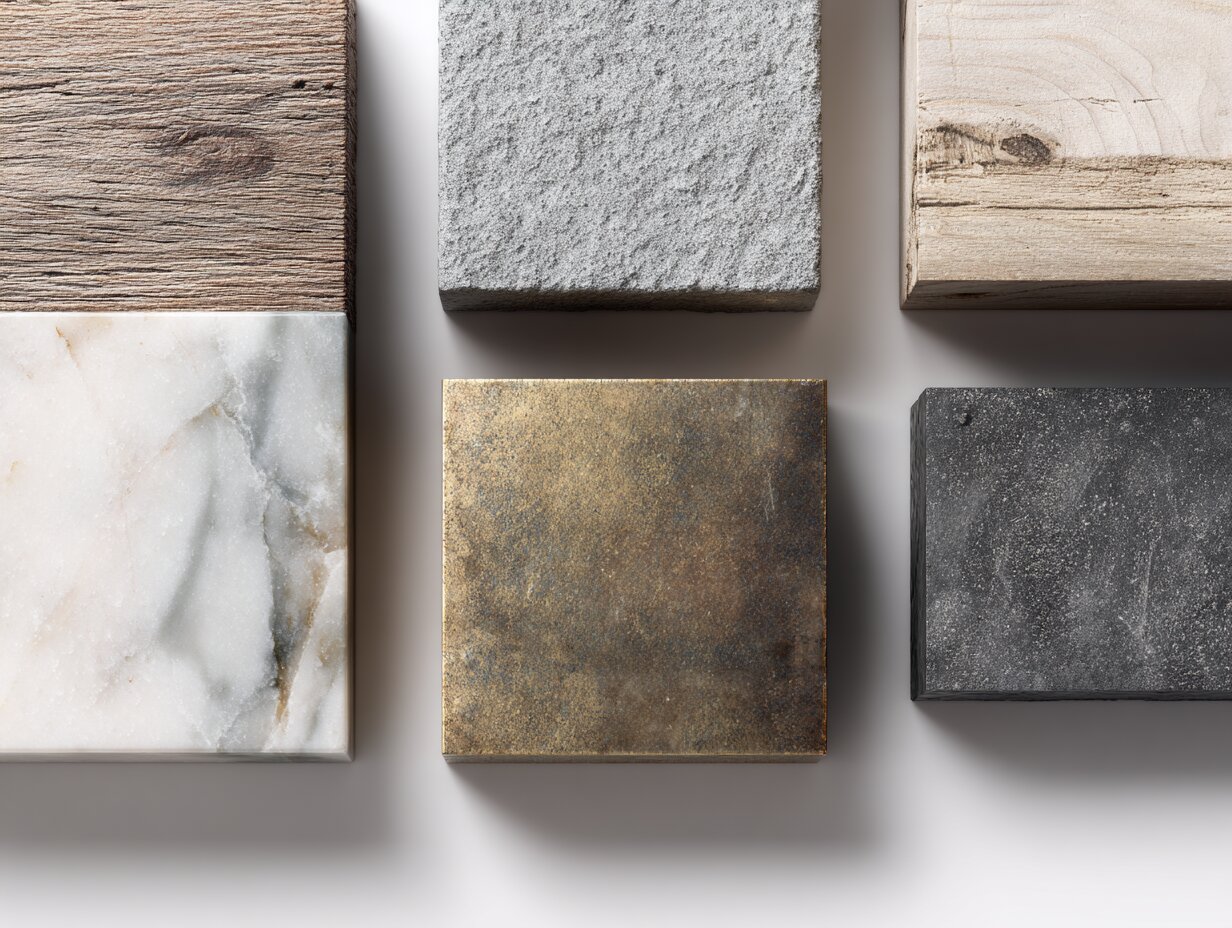
Several websites offer free 3D models and PBR textures compatible with Lumion. Knowing where to look saves hours of searching and avoids the quality inconsistencies that come with random downloads.
Free 3D Model Sources
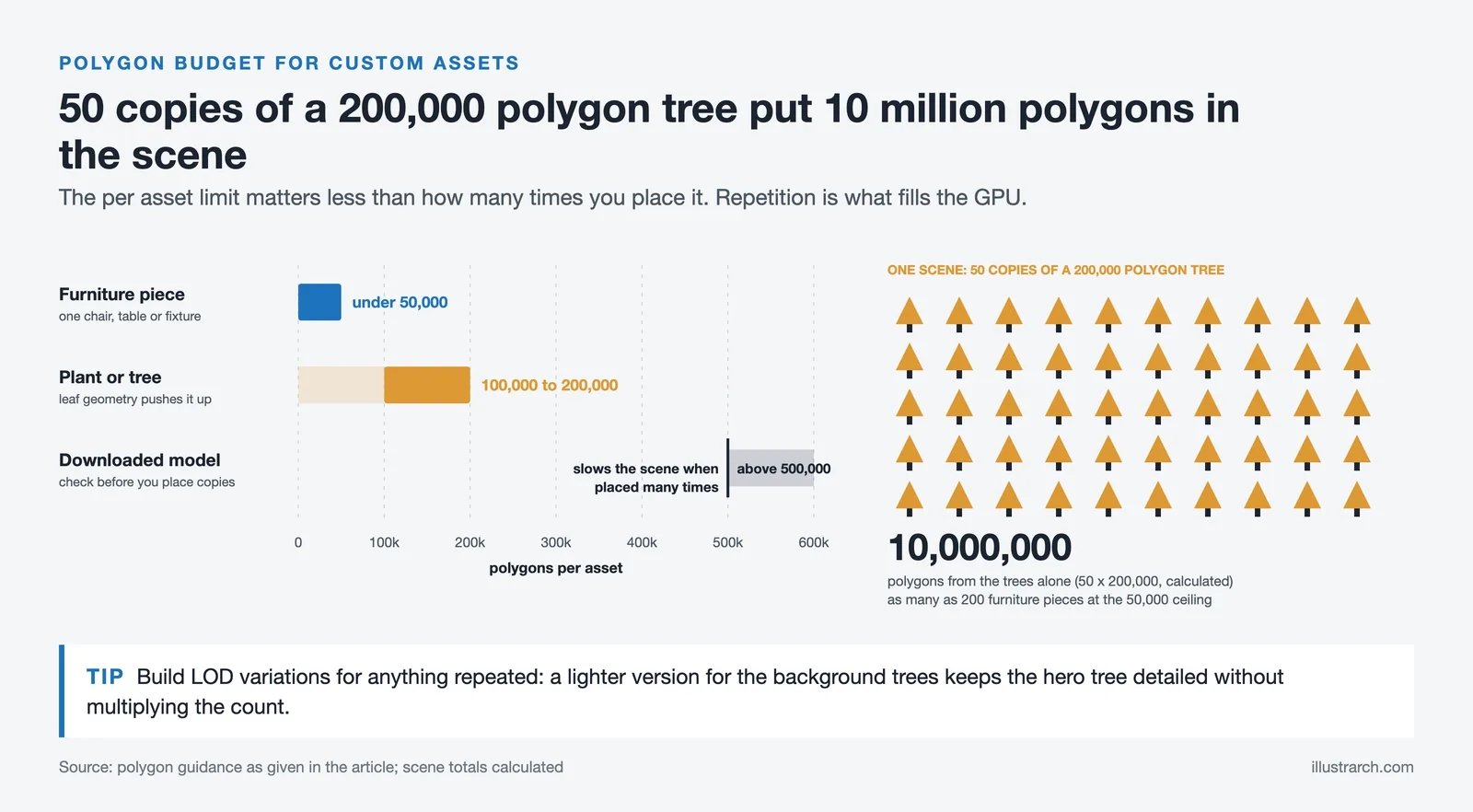
CGTrader and TurboSquid both have free sections with architecture-relevant models. Filter by format (.FBX or .OBJ for best Lumion compatibility) and check polygon counts before downloading. Models above 500,000 polygons can slow scene performance if placed multiple times. Poly Haven offers completely free CC0-licensed 3D assets and HDRIs, making it a reliable source for vegetation, rocks, and environmental objects.
Free PBR Texture and Material Sources
For free textures, several platforms stand out. AmbientCG (formerly CC0 Textures) provides thousands of PBR texture sets with albedo, normal, roughness, displacement, and ambient occlusion maps, all under a CC0 license. Poliigon offers a mix of free and premium architectural textures specifically formatted for rendering software including Lumion, with correct DirectX normal maps and proper PBR channels. 3D Textures is another solid option for free PBR texture sets with all required maps.
When downloading textures from third-party sites for use in Lumion, keep two things in mind. First, Lumion expects normal maps in DirectX format. If your source provides OpenGL normals (common with Blender-oriented sites), you will need to flip the green channel in Lumion’s material editor by clicking the three dots next to the Relief input. Second, stick to 2K or 4K resolution. Larger textures consume GPU memory without adding visible quality in most architectural scenes.
Comparison of Free Asset and Texture Sources for Lumion
The following table compares popular free sources for 3D assets and PBR materials compatible with Lumion:
| Source | Content Type | License | Best For |
|---|---|---|---|
| Poly Haven | 3D models, HDRIs, textures | CC0 (fully free) | Vegetation, rocks, HDR skies |
| AmbientCG | PBR texture sets | CC0 (fully free) | Architectural surface materials |
| Poliigon | Textures, models, HDRIs | Free tier + premium | High-res architectural textures |
| CGTrader | 3D models | Varies by model | Furniture, fixtures, interiors |
| 3D Textures | PBR texture sets | Free | Basic material maps with previews |
Organizing and Managing Assets in Large Projects
Scene management becomes critical once you place hundreds of assets. Lumion provides several tools to keep large scenes organized. The Layer system lets you assign objects to named layers that can be shown, hidden, or locked independently. This is useful when you want to isolate landscape elements from building objects, or when you need to hide entourage during early design reviews and show it only for final presentations.
The Scene Inspector, introduced in Lumion 2025, gives you a searchable, categorized overview of every object in your scene. You can locate hidden objects, select items by type or layer, and manage complex layouts without clicking through the viewport. For projects with multiple building phases or design options, this tool significantly reduces the time spent hunting for specific elements.
Grouping is another essential feature for asset management. Select multiple objects, group them, and then move, rotate, or duplicate the entire group as a single unit. This is particularly valuable for repeated elements like furniture arrangements, landscape clusters, or streetscape configurations. Groups also make it easy to replace one set of assets with another while maintaining spatial relationships.
Lumion 2026 introduced the Area Placement tool, which lets you populate large outdoor spaces with up to 5,000 nature items across 20 asset types in a single operation. You can either select a surface material to scatter objects onto (useful for lawns and planting beds) or draw a custom area boundary. Density, spacing, and orientation controls give you fine-grained results without placing each tree or shrub individually. This feature alone can save hours on landscape-heavy projects.
Lumion’s Asset Library Compared to Other Rendering Software
Architects often compare Lumion’s content library with those of Enscape and Twinmotion. Each tool takes a different approach to bundled assets. Enscape now draws its assets from Chaos Cosmos, a library shared across Chaos products with 30,000+ assets and 2,500+ scanned materials. Twinmotion benefits from Epic Games’ Quixel Megascans integration, giving access to a massive library of photogrammetry-scanned materials and objects used in film and game production. Lumion Pro offers 8,600+ models and 1,580+ materials, plus the advantage of regular library updates with each version release.
The practical difference often comes down to workflow. Enscape’s assets are accessible inside your CAD tool without leaving the modeling environment, which makes them faster for iterative design work. Twinmotion’s Megascans textures are extremely high quality but can be heavy on GPU resources. Lumion’s library is accessible only within its standalone application, but the assets are optimized specifically for its rendering engine, which means consistent performance across different hardware configurations. For a detailed side-by-side analysis, see our Lumion vs Enscape vs Twinmotion comparison.
⚖️ Pros & Cons at a Glance
✔️ Pros: Large built-in library (8,600+ models), regular content updates each release, optimized for Lumion’s engine, full PBR material workflow
✖️ Cons: Assets only usable within Lumion, no cross-software asset sharing, custom asset importing requires manual material reassignment, subscription cost for access

Video: Getting Started with Lumion’s Content Library
This official Lumion tutorial walks through the content library interface, asset placement tools, and organization features available in the current version.
How to Make Your Own Assets for the Lumion Library
Creating custom assets for Lumion involves modeling in a 3D application like SketchUp, Rhino, Revit, Blender, or 3ds Max, then exporting in a compatible format. The key to good custom Lumion assets is keeping geometry clean and efficient. Here are the practical steps:
Start by modeling your object at real-world scale. Lumion imports geometry at 1:1, so a chair modeled at 45 cm seat height will appear at 45 cm in Lumion. If your model appears tiny or enormous after import, check your export units. FBX export from most applications includes a unit conversion option.
Keep polygon counts reasonable. A single piece of furniture should generally stay under 50,000 polygons. Vegetation can go higher (100,000-200,000) because of leaf geometry, but remember that placing 50 copies of a 200,000-polygon tree adds 10 million polygons to your scene. Use LOD (Level of Detail) variations when possible, especially for assets that will appear at varying distances.
Apply textures before exporting. Lumion reads material assignments from your source file and maps them to surfaces in the Material Editor. If your model has unnamed or default materials, you will spend extra time identifying and reassigning them in Lumion. Name your materials descriptively (e.g., “oak_table_top,” “steel_legs,” “glass_insert”) so they are easy to locate in the editor.
For the best material transfer, export as .glTF or .FBX with embedded textures. These formats carry PBR material properties more reliably than .OBJ, which only supports basic diffuse color. If you work in Blender for architectural visualization, the glTF exporter preserves Principled BSDF shader settings directly into Lumion-compatible PBR channels.
📐 Technical Note
Lumion supports the following PBR map channels in the Standard Material: Texture (Albedo/Diffuse), Relief (Normal in DirectX format), Roughness, Reflectivity, Metalness, Emissiveness, Displacement (parallax-based, not true geometry), and Opacity. Texture resolution recommendations from Lumion’s documentation are 2K for general use and up to 4K for close-up or hero materials.
Tips for Getting Better Results from the Lumion Asset Library
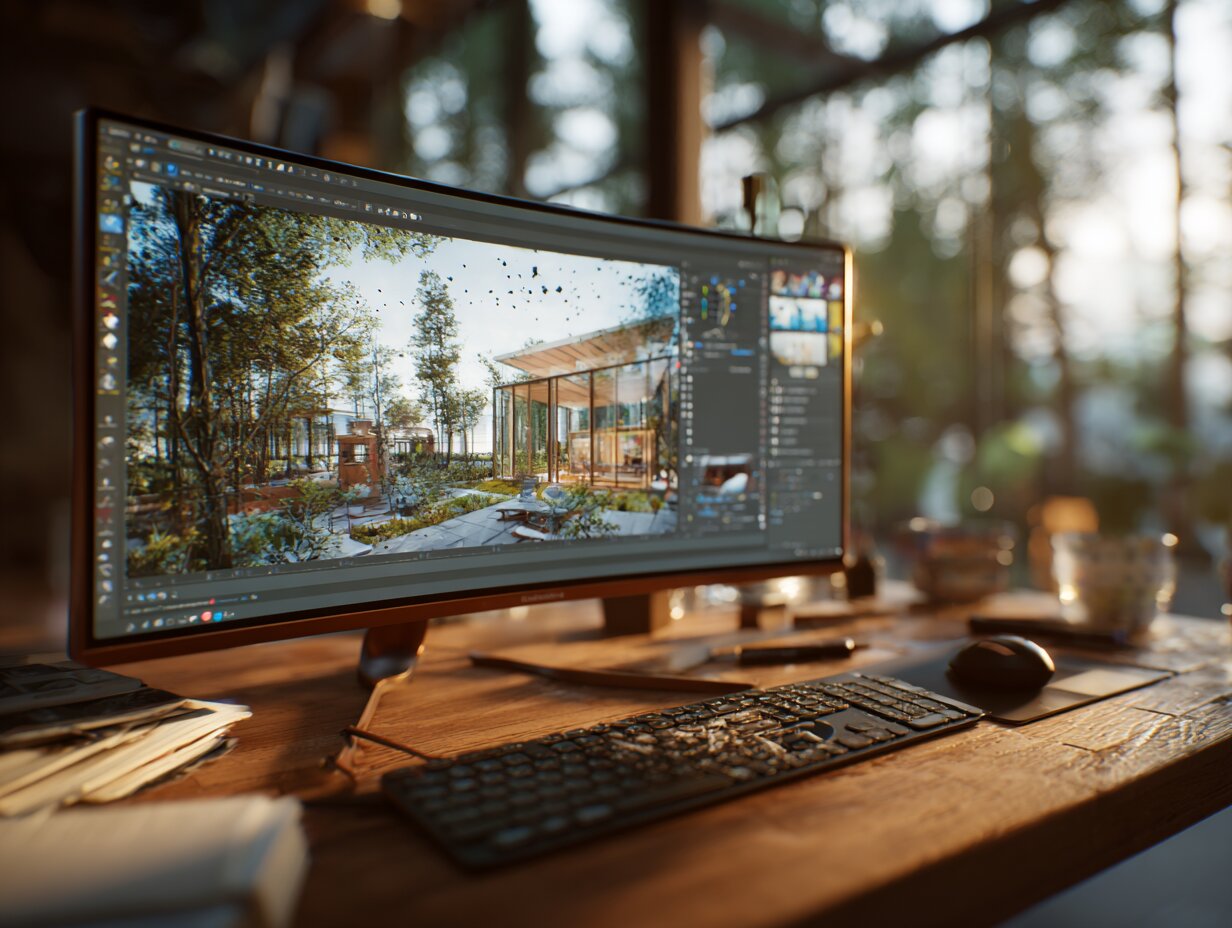
Placing assets well matters as much as choosing the right ones. A few practical habits make a noticeable difference in render quality.
Vary the scale of placed objects slightly. Real trees, shrubs, and ground cover are never identical in size. Select multiple instances of the same asset and adjust their scale by 5-15% in each direction to break the “copy-paste” pattern that makes scenes feel artificial. Rotate objects randomly as well; a row of identical trees facing the same direction looks mechanical.
Layer your vegetation. Start with large canopy trees for the background, add medium shrubs and ornamental trees for the midground, then place ground cover, grass patches, and flower clusters in the foreground. This creates depth that mimics how real landscapes are composed. The new Area Placement tool in Lumion 2026 automates much of this layering for large outdoor areas.
Pay attention to the contact point between objects and the ground. Floating furniture or trees hovering above the terrain break realism instantly. Use the Conform to Terrain option when placing objects outdoors, and manually adjust the vertical position of imported models that do not snap to the ground correctly.
For interior scenes, populate spaces with small-scale decorative objects: books, plants, tableware, light fixtures, and personal items. These details are what separate a “3D model” from a scene that looks lived in. Lumion’s Interior section includes many of these accessories, and the Parallax Interior Objects (interior decor shortcuts) added in recent versions can furnish rooms quickly by generating window views and wall art without building actual exterior geometry.
Combine Lumion’s built-in assets with imported custom models strategically. Use the built-in library for standard elements (trees, people, vehicles, generic furniture) and reserve custom imports for project-specific pieces like bespoke fixtures, signage, or branded products that need to match a client’s specifications exactly. This approach balances visual quality with scene performance.
📌 Did You Know?
Lumion’s library includes Real Skies HDRIs provided by Poliigon. These high-dynamic-range sky images replace the standard sky dome with photographed skies that include accurate sun positions, cloud formations, and atmospheric lighting. They are accessible through the Weather tab in Build Mode and the Real Skies effect in Photo Mode, and they contribute significantly to the realism of exterior renders without any extra setup.
Understanding Lumion Versions and Asset Access
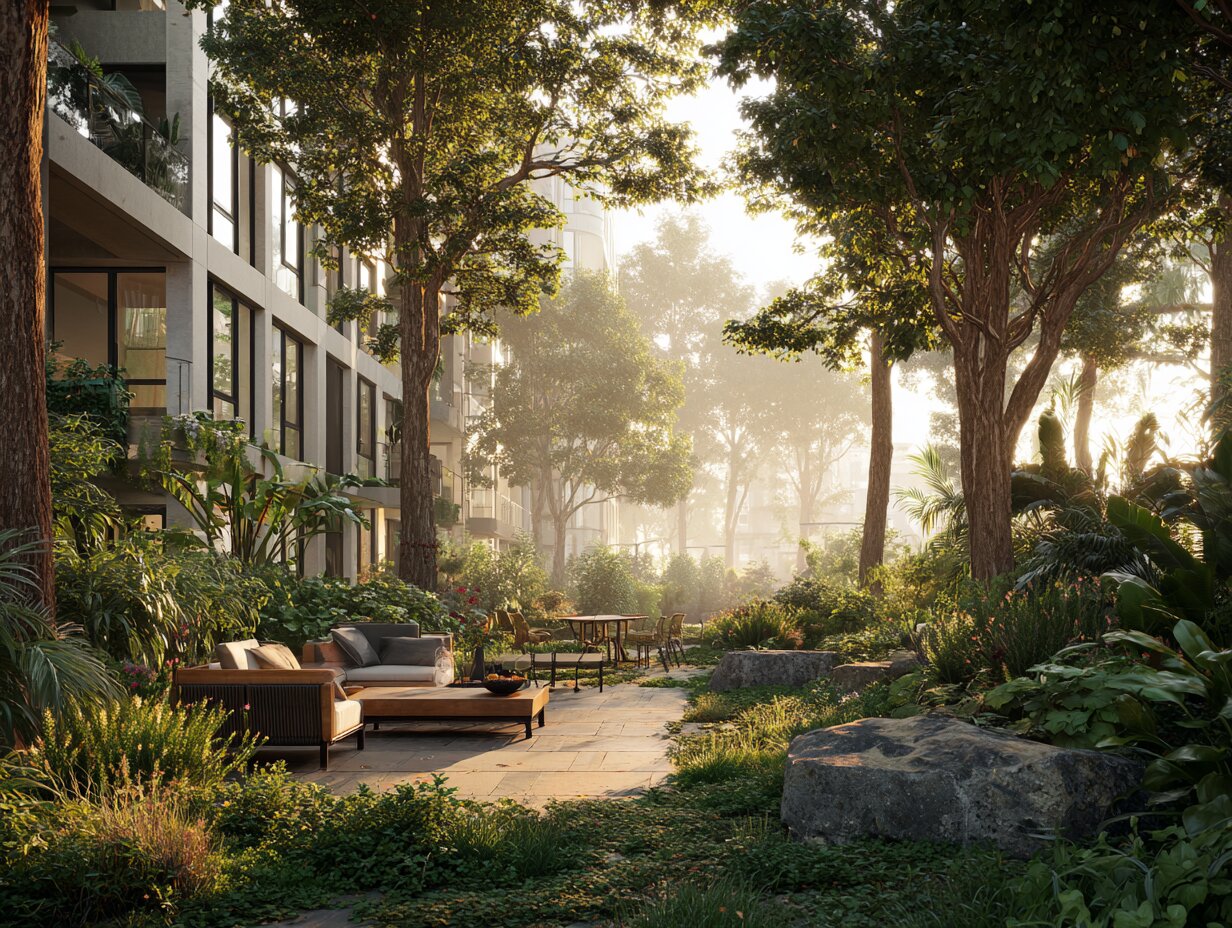
Lumion’s asset library is tied to your software version. Upgrading to a newer release (e.g., from 2025 to 2026) gives you access to all new assets added in that version. However, letting a subscription lapse means you can continue using your last installed version but will not receive new content updates. There is no separate “asset store” or a-la-carte purchase system for individual models; assets are bundled with the software license.
Lumion previously offered Standard and Pro editions with different library sizes, but since 2025, only Lumion Pro exists as the full product. Lumion View, a lightweight plugin for real-time previewing inside CAD tools, has a limited library compared to Pro. If your primary need is access to the full Lumion asset library for final renders and presentations, the Pro license is what you need.
As of October 2026, pricing is $1,149/year for a named-user Lumion Pro license and $1,499/year for a Lumion Pro Floating license. A free 14-day trial of Lumion Pro is available from lumion.com with full access to all features and assets, which is enough time to evaluate the library and test your workflow before committing.
Pricing figures are approximate as of 2026 and subject to change. Check Lumion’s official website for current subscription rates.
✅ Key Takeaways
- The Lumion asset library contains 8,600+ optimized 3D models, 1,580+ PBR materials, and grows with each software release.
- PBR materials in Lumion use texture maps (albedo, roughness, normal, metalness, displacement) that produce physically accurate surface behavior under any lighting.
- Custom assets can be imported in .FBX, .glTF, .SKP, .DAE, and other formats. Use glTF for the best PBR material transfer.
- Free asset sources like Poly Haven, AmbientCG, and Poliigon provide compatible models and textures that extend the built-in library.
- Scene management tools including Layers, Scene Inspector, Grouping, and Area Placement keep large projects organized and efficient.
Final Thoughts
The Lumion asset library is one of the strongest reasons architects choose Lumion for architectural visualization. It removes the time-consuming step of sourcing, converting, and troubleshooting third-party 3D content, and the PBR material system ensures that surfaces look correct under realistic lighting. By combining the built-in collection with selective custom imports and free resources from platforms like Poly Haven and AmbientCG, architects can build rich, detailed scenes that communicate design intent clearly to clients and stakeholders. The investment in learning the Material Editor and asset management tools pays off directly in faster production times and more convincing final renders.
FAQ
How do I download assets from the Lumion asset library?
The Lumion asset library is not downloaded separately. It installs automatically with the software and is accessible through the Content Library panel in Build Mode. New assets added in each version release become available when you update your Lumion installation. There is no separate download step for individual library items.
Can I use Lumion assets in other rendering software?
No. Lumion’s built-in library assets are licensed exclusively for use within Lumion and cannot be exported or transferred to other rendering tools like 3ds Max, Blender, or Twinmotion. If you need the same objects across multiple platforms, source them from third-party libraries that offer multi-format downloads.
Is the Lumion asset library available for free?
The full asset library requires a paid Lumion Pro subscription. However, Lumion offers a free 14-day trial that includes complete access to all assets and features. Architecture students can also access Lumion through free student licenses offered by many universities. The trial is available at lumion.com.
What file formats does Lumion support for importing custom assets?
Lumion supports .FBX, .DAE (Collada), .SKP (SketchUp), .DWG, .DXF, .3DS, .OBJ, and .glTF formats for model import. For the best PBR material preservation, .glTF and .FBX with embedded textures are recommended. Models should be created at real-world scale for correct sizing in Lumion scenes.
How many assets does Lumion include in its library?
As of Lumion 2026, the library includes over 8,600 assets covering 3D models, light profiles, special effects, and utilities. The material library contains over 1,580 PBR-ready materials. Both collections grow with each new version release, with Lumion 2026 adding 73 new photogrammetric nature assets and 165 refreshed urban and outdoor objects.
- adding assets to lumion library
- how to make own assets for lumion library
- lumion 3d architectural visualization software
- lumion architectural visualization software
- lumion architectural visualization software free download
- lumion asset library
- lumion asset library download
- lumion asset library free download
- lumion visualization






From SketchUp View to Client-Ready Render: A Hands-On Look at Vizbase
Vizbase co-founder Mikus Zarāns shows how the browser-based AI renderer turns SketchUp...
 illustrarch Editoral Team4 Mins read
Notion Alternatives for Architects: 7 Tools That Fit Studio Work
Notion works until a studio needs fee tracking, phase budgets and timesheets....
 Furkan Sen7 Mins read

Why Every Practice Ends Up With Five Versions of the Same Revit Family
Let’s learn why Revit family libraries accumulate duplicates, break schedules and slow...
illustrarch Editoral Team5 Mins read
Visualizing Renovation Projects From Photographs: A Workflow for Existing-Building Work
Photo-based visualization turns a photograph of a building that already exists into...
illustrarch Editoral Team7 Mins read


Leave a comment