

V-Ray Photorealistic Renders: Using Chaos Assets Library and PBR Materials
Getting consistent V-Ray photorealistic renders in SketchUp depends less on complex manual setup and more on understanding how Chaos Cosmos assets and PBR materials work together. This guide covers the full workflow, from material maps to render settings, with practical advice architects can apply immediately.
 Elif Ayse Sen16 March 202615 Mins read251

Table of Contents Show
V-Ray photorealistic renders depend on two things working together: a physically accurate lighting setup and materials that respond to light the way real surfaces do. When you add Chaos Cosmos assets and PBR (Physically Based Rendering) materials into a V-Ray for SketchUp workflow, the gap between a flat model and a convincing architectural visualization closes much faster than most people expect.
What Makes V-Ray the Go-To Engine for Photorealistic Rendering?
V-Ray has been the industry standard in architectural visualization for decades, and the reasons are mostly technical. It uses path tracing and global illumination algorithms to simulate how light actually bounces between surfaces, which is what separates a render v-ray scene from a simple shaded view. Diffuse interreflection, soft shadows, subsurface scattering in materials like marble or wood, and physically accurate glass refraction all come out of this one engine without needing third-party plugins.
For SketchUp users specifically, v-ray render for sketchup integrates directly into the modeling environment through the Asset Editor. You set up materials, lights, cameras, and render parameters without ever leaving SketchUp, which reduces friction in the workflow significantly. The interactive rendering mode updates your frame buffer in real time as you adjust any parameter, so you can dial in the look before committing to a final high-resolution pass.
💡 Pro Tip
Before running a final production render, always do a quick interactive render pass using Material Override. This replaces all materials with a neutral grey and lets you evaluate your lighting and shadows without texture noise distracting your eye. Once the lighting reads well in grey, your final textured render will almost always be stronger.
V-Ray works across 3ds Max, Rhino, Revit, Cinema 4D, and SketchUp, and asset files transfer between them using the .vrscene format. This matters for teams where modelers work in one application and visualization specialists render in another. The render pipeline stays consistent regardless of what software each person prefers.
Understanding PBR Materials in V-Ray

PBR stands for Physically Based Rendering. The core idea is that materials are described by the same physical properties they have in the real world: how much light they absorb (diffuse), how reflective they are (roughness and glossiness), whether they are metallic, how transparent they are. A PBR material is not a single texture image but a set of maps that together define this behavior.
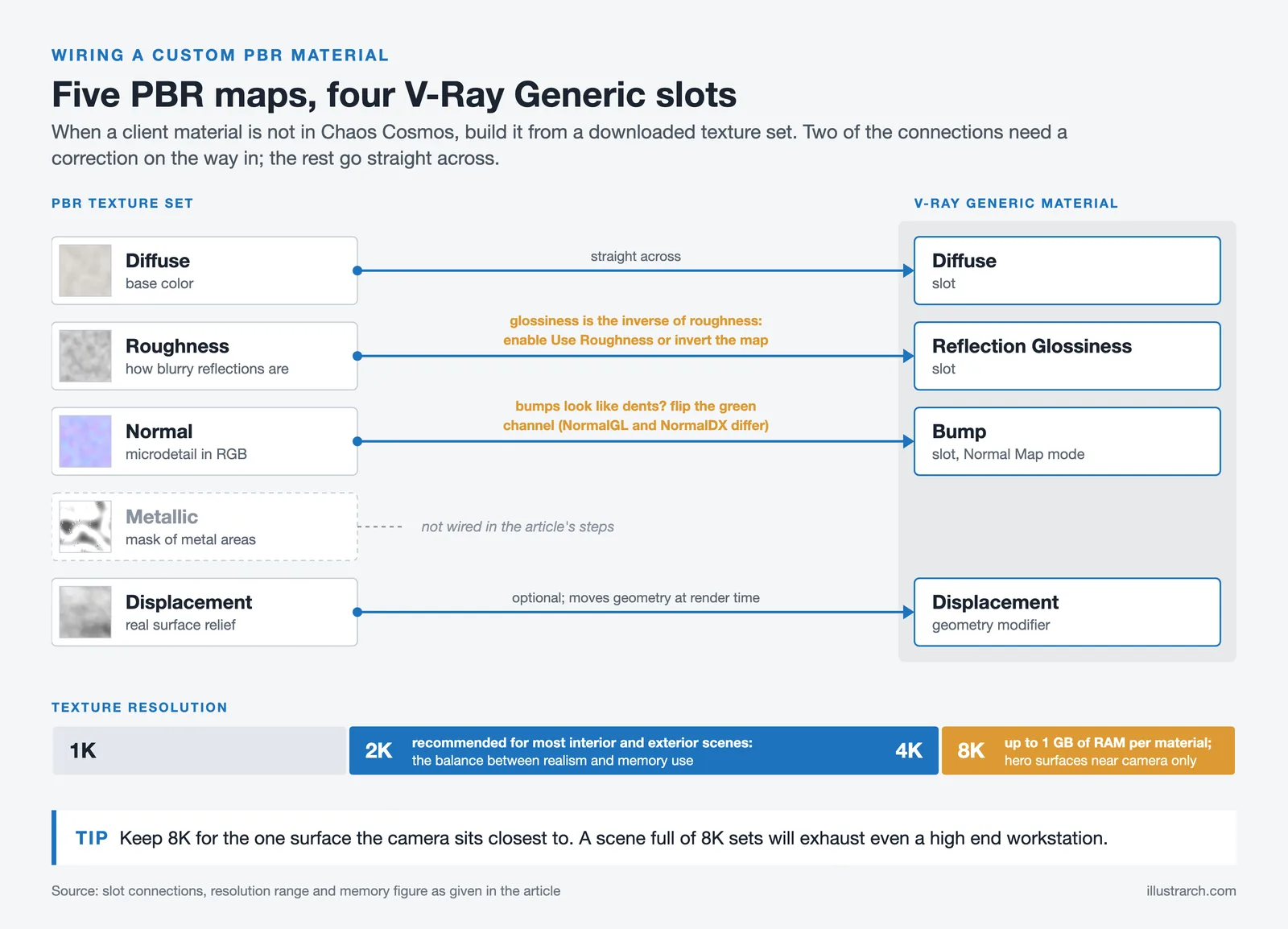
In V-Ray 5 and later, you apply PBR maps directly into the Generic material slots. The main maps you will work with are:
- Diffuse (Color) map: The base color and surface pattern, with no lighting baked in
- Roughness map: Controls how blurry or sharp reflections appear across the surface
- Normal map: Encodes surface microdetail (bumps, grooves, fabric weave) in RGB format without adding actual geometry, which keeps render times fast
- Metallic map: A greyscale mask defining which parts of a surface behave as metal
- Displacement map: Actually moves geometry at render time for deep surface relief, useful for stone, wood grain, and tile grout
📐 Technical Note
PBR materials range from 1K to 8K resolution. For most architectural interior and exterior scenes, 2K to 4K textures provide an acceptable balance between realism and memory usage. An 8K texture set can occupy up to 1 GB of system RAM per material, so using 8K across an entire scene will quickly exhaust even high-end workstation memory. Reserve 8K only for hero surfaces that appear close to camera.
One practical issue that comes up when working with downloaded PBR textures is the difference between NormalGL and NormalDX maps. NormalGL is the OpenGL convention used by Blender and most web texture libraries. NormalDX is the DirectX convention used by some game engines. In V-Ray, you typically use NormalGL maps. If a material looks like its surface normals are inverted (bumps appear as indentations), switch to the other normal map format or invert the green channel in V-Ray’s texture settings.
Chaos Cosmos: V-Ray’s Built-In Asset Collection

The Chaos Cosmos library is V-Ray’s integrated asset collection, accessible directly from the V-Ray toolbar inside SketchUp without any third-party downloads. As of 2025, Cosmos contains over 20,000 assets including furniture, vegetation, vehicles, people, light fixtures, HDRI sky environments, and a dedicated materials category covering tiles, wooden floors, brick walls, concrete, fabric, and more.
Every Cosmos asset is render-ready, meaning it already has V-Ray materials assigned, correctly calibrated for physical accuracy. When you drag a piece of furniture into your scene, the upholstery fabric already has a roughness map, the chrome legs already have correct reflectivity, and the wood veneer already has a bump map. You can use the asset as-is or open its material parameters and modify color, bump intensity, gloss level, or swap the texture entirely.
📌 Did You Know?
Chaos Cosmos materials include a batch download option: inside the Cosmos Browser, navigate to Collections > V-Ray Material Library > Download All. This lets you pull a large set of pre-configured materials with a single click rather than downloading them individually during a project, which is especially useful when setting up a new workstation or working on a deadline.
The Cosmos materials category added in recent V-Ray updates is particularly useful for fast scene shading. Instead of building a concrete material from scratch by importing and connecting separate texture maps, you select a preset from Cosmos, apply it to your surfaces, and then fine-tune the bump intensity or color tint to match your project. This can reduce material setup time by a significant margin on complex scenes.
Cosmos assets are compatible across V-Ray, Corona, Vantage, and Enscape, which matters for studios that use multiple Chaos products. A scene staged in Enscape for a quick real-time walkthrough can be opened in V-Ray for a final vray photorealistic render without rebuilding any assets from scratch. You can learn more about how these workflows interconnect on the official Chaos Cosmos page.
How to Render in High Resolution with V-Ray

Understanding how to render in high resolution with V-Ray requires separating two distinct settings: render resolution and render quality. Resolution controls the pixel dimensions of your output image. Quality controls how much calculation V-Ray does per pixel, which affects noise, shadow accuracy, and global illumination quality.
For a final production render, the typical workflow in V-Ray for SketchUp is:
- Set up your composition in a SketchUp scene using Two Point Perspective for vertical lines that read as true vertical in the final image
- Enable Material Override in the V-Ray Asset Editor to evaluate lighting in isolation before materials are applied
- Set the render resolution to your target output size, starting with something like 1920×1080 or 2560×1440 for presentations, and increasing to 4K or print-ready dimensions for final deliverables
- Run Interactive Rendering (IPR) at a lower resolution to fine-tune light placement, camera exposure, and white balance without waiting for full-quality passes
- Increase quality settings for the final pass, enable the V-Ray Denoiser to clean up remaining noise in shadows and reflections, and let the production render complete
💡 Pro Tip
Use V-Ray’s auto-exposure feature within the Camera settings, particularly when you are applying new materials mid-session. Darker material sets like concrete or dark wood absorb more light and will shift your scene’s perceived exposure. Auto-exposure compensates for this automatically, so you can keep iterating without manually adjusting your camera EV between material changes.
For scenes that are too complex to render on a local workstation, V-Ray Premium includes access to Chaos Cloud Rendering. You send the job to the cloud, and it renders there without tying up your local machine. The V-Ray Premium tier bundles 20 cloud rendering credits, and you can control how many credits a job uses by setting a credit limit before submission, which lets you generate lower-cost preview renders before committing to a full-resolution cloud pass.
Vray Photorealistic Render Settings That Actually Matter

Many architects get lost trying to optimize every slider in V-Ray’s settings panel. In practice, a small number of vray photorealistic render settings account for most of the quality difference between a mediocre render and a convincing one.
The most impactful settings are lighting quality, global illumination engine, and denoising. For lighting, the physical camera controls (ISO, shutter speed, aperture) produce more natural exposure than V-Ray’s older override mode. Using the Sun and Sky system for daylight, or HDRI image-based lighting for overcast or evening conditions, gives you physically accurate light distribution without manual adjustment of every light source.
For global illumination, the Brute Force + Light Cache combination is the most commonly recommended setting for final architectural renders because it handles complex indoor lighting and glass surfaces cleanly. Irradiance Map can be faster for static scenes but can produce blotchy results in scenes with detailed geometry or transparent materials.
⚠️ Common Mistake to Avoid
A very common mistake is increasing render resolution thinking it will reduce noise. Resolution and noise are separate problems. High noise at 1920×1080 will still be high noise at 4K, just at larger scale. Noise is reduced by increasing the render quality settings (sample count, noise threshold) or by using the V-Ray Denoiser, not by increasing pixel dimensions. Rendering at 4K with poor quality settings produces a large, noisy image, not a clean one.
The V-Ray Denoiser is worth enabling on almost every production render. It processes render elements individually rather than flattening the entire image, which preserves sharp edges and texture detail while removing the noise from shadows, reflections, and global illumination. The NVIDIA AI Denoiser variant provides near-instant noise-free feedback during interactive sessions if you have a compatible GPU.
Combining Cosmos Assets with Custom PBR Materials

A common workflow issue is that Cosmos provides ready-made assets but your specific project may need materials that are not in the library. A custom client-specified cladding material, a local stone that is only available from a regional supplier, or a proprietary paint color will not be in any asset library. This is where building custom PBR materials inside V-Ray’s Generic material becomes necessary.
The process is straightforward. You source your PBR texture set from a library like AmbientCG (which provides free CC0-licensed PBR textures across thousands of surfaces) or Chaos Scans (V-Ray’s own photogrammetry-based material library). You create a Generic material in V-Ray, load the Diffuse map into the Diffuse slot, connect the Roughness map to the Reflection Glossiness slot, the Normal map to the Bump slot with Normal Map mode selected, and optionally connect a Displacement map to the Displacement geometry modifier.
The illustrarch article on top textile and material libraries for 3D architectural modeling covers a range of PBR sources compatible with V-Ray, including options that provide displacement maps for truly three-dimensional surface relief.
🎓 Expert Insight
“The right material is the one that’s accurate, not necessarily complex. A concrete wall with a well-calibrated roughness map and a strong normal map will consistently outperform an elaborate material setup that loses sight of what concrete actually looks like in real light.” — Ricardo Ortiz, V-Ray Certified Professional (3ds Max, SketchUp, Rhino, Maya) and Chaos Community Educator
This observation holds for most architectural materials. The goal of PBR is physical accuracy, not visual complexity. A clean, well-sourced 4K roughness map does more for render quality than additional manual texture layers.
Lighting Strategies That Strengthen Photorealistic Renders

Accurate materials without accurate lighting still produce unconvincing results. V-Ray provides several lighting tools that directly affect how realistic an architectural render feels, and the choice between them depends on the type of scene.
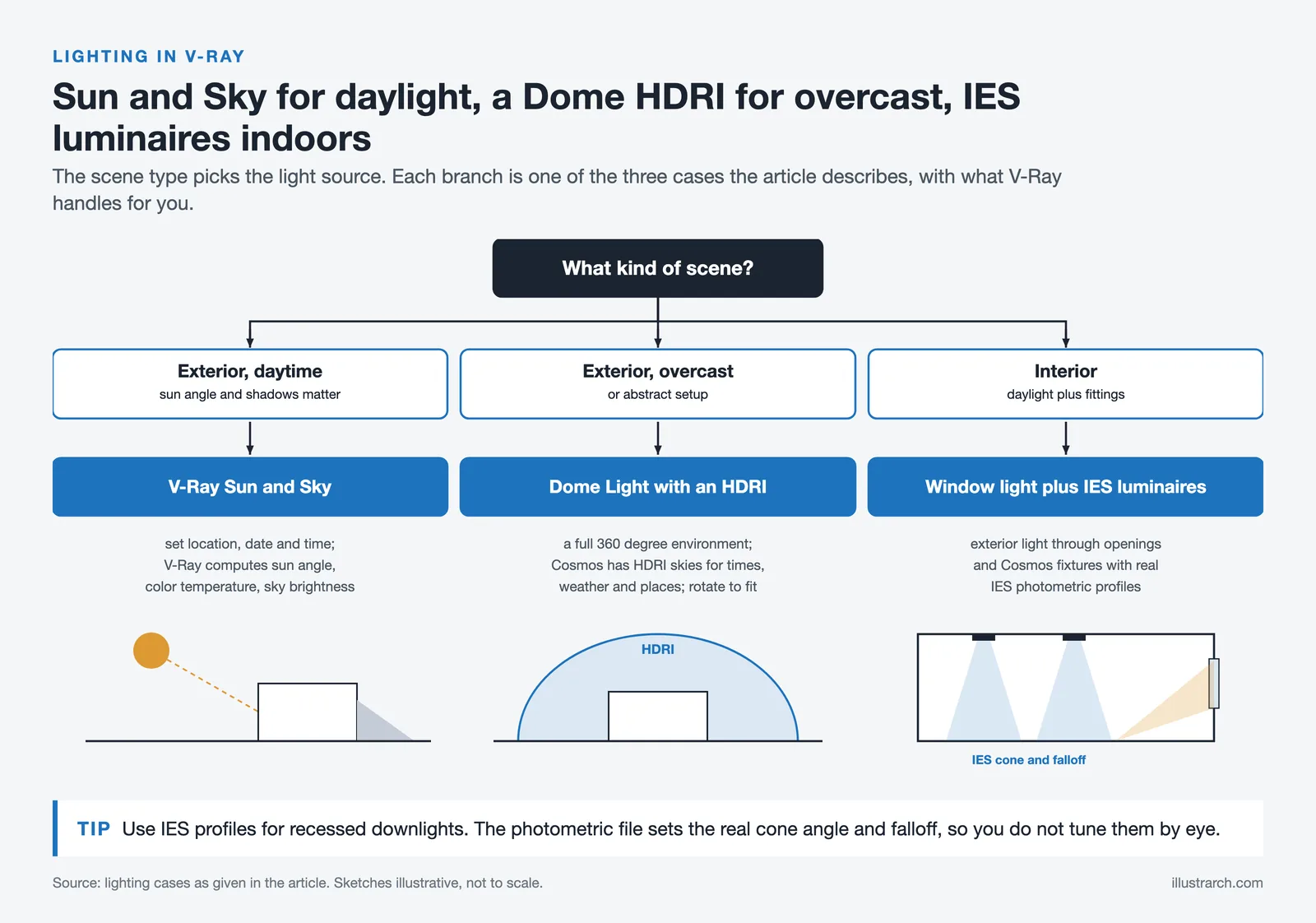
For exterior daytime renders, the V-Ray Sun and Sky system is the most direct approach. You set a geographic location, date, and time, and V-Ray calculates the sun angle, color temperature, and sky brightness for those conditions. The SketchUp sun animation feature is supported, so you can test how shadows fall across a facade at different times of day without manually repositioning the light.
For overcast conditions or abstract exterior setups, HDRI image-based lighting via a Dome Light gives you a full 360-degree environment map that wraps your scene in real-world light. Chaos Cosmos includes a library of HDRI skies at various times of day, weather conditions, and geographic contexts. The newer V-Ray Dome Light mode introduced improved HDRI placement controls so you can rotate and scale the sky environment relative to your model’s orientation with more precision than earlier versions.
Interior scenes typically require a combination of exterior natural light coming through windows and artificial light sources. V-Ray’s Luminaires technology, integrated with Chaos Cosmos light fixtures, lets you place physically accurate light sources based on real IES profiles. The photometric data embedded in an IES file describes the actual light distribution pattern of a specific fixture, which means a ceiling recessed downlight produces the correct cone angle and falloff without any guesswork.
For a deeper look at the broader rendering tool landscape including how V-Ray compares to real-time alternatives, the illustrarch piece on trending architectural rendering techniques provides useful context on where offline rendering fits in current visualization workflows.
Photorealistic SketchUp V-Ray Render: Scene Setup Best Practices

Getting a photorealistic sketchup vray render starts well before you open the Asset Editor. Scene organization in SketchUp directly affects both rendering speed and material workflow. Using Tags (formerly Layers) to group geometry by material type means you can apply V-Ray materials to entire categories at once rather than surface by surface.
Components and Groups should be used consistently for any repeated element. V-Ray renders repeated components as instances, which costs almost no additional memory beyond the first copy. A scene with 200 chairs using the same component takes barely more memory than a scene with one chair. Using unique geometry for every chair multiplies your scene’s polygon count by 200, which significantly increases render time for complex scenes.
Camera setup deserves more attention than it usually gets. The V-Ray physical camera controls mirror a real camera: ISO, aperture, shutter speed, white balance, depth of field, and vignette. Treating the camera as a photographic instrument rather than a simple framing device is what separates renders that look like renders from renders that look like photographs. Setting an aperture that produces natural depth of field blurring background elements, choosing a white balance matched to your dominant light source, and using a focal length appropriate to the scene scale all contribute to the final image reading as real.
See the illustrarch guide on the best features of V-Ray rendering for a broader overview of V-Ray’s capabilities in architectural contexts, and the guide to creating realistic 3D architectural renderings for a wider look at how V-Ray fits into the full architectural visualization software stack.
AI Tools in V-Ray: Where They Help and Where They Don’t

Recent V-Ray versions have added several AI-assisted features. The AI Material Generator converts a photo of any real-world surface into a seamless, render-ready PBR material automatically. You photograph a floor tile, a wall cladding sample, or a fabric swatch, feed it to the tool, and it outputs a V-Ray material with diffuse, roughness, normal, and displacement maps already connected. This is particularly useful for custom materials that are not in any library.
The AI Enhancer refines vegetation assets and people figures, adjusting traits like age, ethnicity, and clothing style. This reduces the homogeneity problem common in renders where all entourage figures came from the same small library. The AI Upscaler can increase render output resolution by 2x or 4x after the render is complete, which lets you render at a lower base resolution to save time and then upscale for a print-ready output.
These tools are useful but not transformative. They reduce manual work in specific tasks. The core of a good photorealistic render remains accurate lighting setup, physically correct materials, and thoughtful scene composition, none of which AI can currently automate from scratch. For the PBR textures themselves, Chaos Scans provides a photogrammetry-based material library captured from real-world surfaces, which complements both manual material building and the AI generator workflow.
Common Workflow for a Complete Render V-Ray Project

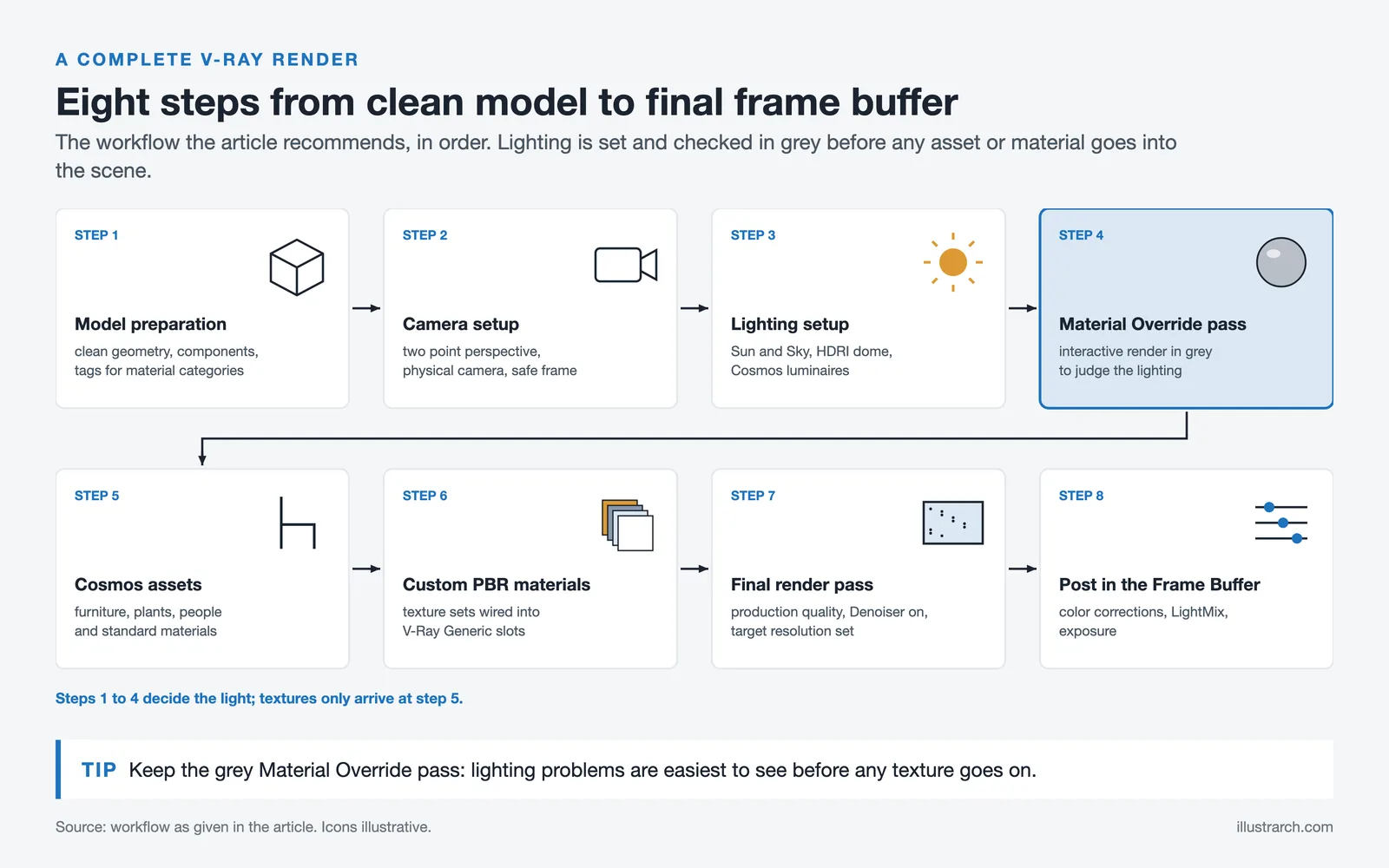
Pulling together everything covered above, here is how a typical render v-ray workflow looks from an organized starting point:
- Model preparation: Clean geometry, components for repeated elements, tags for material categories
- Camera setup: Two Point Perspective scene, physical camera settings, safe frame enabled
- Lighting setup: Sun and Sky for daylight, HDRI dome for overcast, Luminaires via Cosmos for artificial sources
- Material Override pass: Interactive render in grey to evaluate lighting before applying any textures
- Cosmos assets: Populate furniture, vegetation, people from Cosmos Browser; use Cosmos materials for standard architectural surfaces
- Custom PBR materials: Build project-specific materials using downloaded PBR texture sets connected to V-Ray Generic material slots
- Final render pass: Production quality settings, Denoiser enabled, target resolution set
- Post-processing: Color corrections, LightMix adjustments, and exposure fine-tuning directly in the V-Ray Frame Buffer
The full V-Ray for SketchUp tutorial series from Chaos, available on their official getting-started page, covers each of these steps with downloadable practice scenes. The V-Ray for SketchUp features page provides detailed documentation on every specific tool mentioned in this article.
For architects looking at how AI rendering tools sit alongside V-Ray in the current landscape, the illustrarch article on best texture websites to download is a practical resource for building a PBR texture library before starting a major project. The article on how 3D artists create realistic exterior renders that look like photographs covers the broader artistic and compositional principles that apply regardless of which rendering engine you use.
✅ Key Takeaways
- V-Ray photorealistic renders rely on path-traced global illumination, meaning accurate lighting setup is as important as material quality.
- PBR materials in V-Ray use multiple texture maps (Diffuse, Roughness, Normal, Metallic, Displacement) connected to the Generic material, not a single image texture.
- Chaos Cosmos provides over 20,000 render-ready assets that include furniture, vegetation, HDRI skies, and materials, all pre-configured for physical accuracy in V-Ray.
- Render noise is reduced through quality settings and the V-Ray Denoiser, not by increasing output resolution. These are separate controls.
- A Material Override pass in grey before applying any textures is the fastest way to identify and fix lighting problems before they become embedded in the final material setup.
- V-Ray’s AI tools (Material Generator, AI Enhancer, AI Upscaler) reduce manual work in specific tasks but do not replace the fundamental steps of scene setup, lighting, and composition.
Frequently Asked Questions
How do I get started with V-Ray photorealistic renders in SketchUp?
Download and install the V-Ray extension for SketchUp from the Chaos website, verify your system meets the recommended specifications, and open the Asset Editor from the V-Ray toolbar. The Chaos getting-started tutorial series walks through your first render step by step, starting with camera and lighting setup and progressing through material application and final render settings.
What is the difference between a Normal GL map and a Normal DX map in V-Ray?
Both store surface microdetail as RGB-encoded direction data, but they use opposite conventions for the green channel. NormalGL is the format used by most web texture libraries and Blender. NormalDX is used by some game engines. In V-Ray for SketchUp, NormalGL is the default. If your material’s surface relief looks inverted (bumps appear as dents), switch to the other format or invert the green channel in V-Ray’s texture settings.
How do I render in high resolution with V-Ray without very long render times?
Set your final resolution in the Render Output settings, then use the V-Ray Denoiser to remove noise rather than increasing sample counts to the point where render times become impractical. For very large outputs, render at half or two-thirds of your target resolution and use V-Ray’s AI Upscaler to enlarge the image after rendering. Chaos Cloud Rendering is also an option for high-resolution jobs that would take too long to run locally.
What is Chaos Cosmos and how do I access it in V-Ray for SketchUp?
Chaos Cosmos is V-Ray’s integrated asset library, containing over 20,000 render-ready models, materials, and HDRI skies. You access it directly from the V-Ray toolbar inside SketchUp through the Cosmos Browser. Assets can be searched by category, dragged directly into your scene, and customized by opening their material parameters in the Asset Editor. An internet connection is required to browse and download Cosmos assets.
Can I use PBR materials from external websites in V-Ray for SketchUp?
Yes. PBR texture sets from libraries like AmbientCG, Poliigon, and Chaos Scans are fully compatible with V-Ray. Create a Generic material in the V-Ray Asset Editor, then connect each map to its corresponding slot: Diffuse to Diffuse, Roughness to Reflection Glossiness (with Use Roughness enabled, or the map inverted, since roughness is the inverse of glossiness), Normal map to Bump (with Normal Map mode selected), and Displacement to the Displacement modifier. Most V-Ray users work with 2K to 4K resolution maps for a good balance between quality and system memory usage.



From SketchUp View to Client-Ready Render: A Hands-On Look at Vizbase
Vizbase co-founder Mikus Zarāns shows how the browser-based AI renderer turns SketchUp...
 illustrarch Editoral Team4 Mins read

Best 3D Rendering Companies for Quick Turnaround Time
Discover the top 3D rendering companies that excel in delivering fast, quality...
illustrarch Editoral Team5 Mins read
KeyShot Architectural Rendering: 7 Best Alternatives for Architects
KeyShot is built for product visualization, which leaves gaps for architectural work....
 Furkan Sen6 Mins read
Twinmotion Architectural Rendering: 7 Best Alternatives for Architects
Twinmotion is a strong free option for real-time architectural visualization, but not...
Furkan Sen8 Mins read


Leave a comment