

Graphic Tablets for Architecture Students
Graphic tablets have become essential tools for architecture students, offering a faster, more precise, and more intuitive way to sketch, model, and develop digital drawings. With pressure-sensitive pens, accurate control, and compatibility with design software like AutoCAD, SketchUp, and Revit, these tablets help students refine ideas efficiently while maintaining creative flow. This article explores their benefits, key features to look for, and the best tablet options for architecture school.
 Elif Ayse Sen8 March 202312 Mins read602
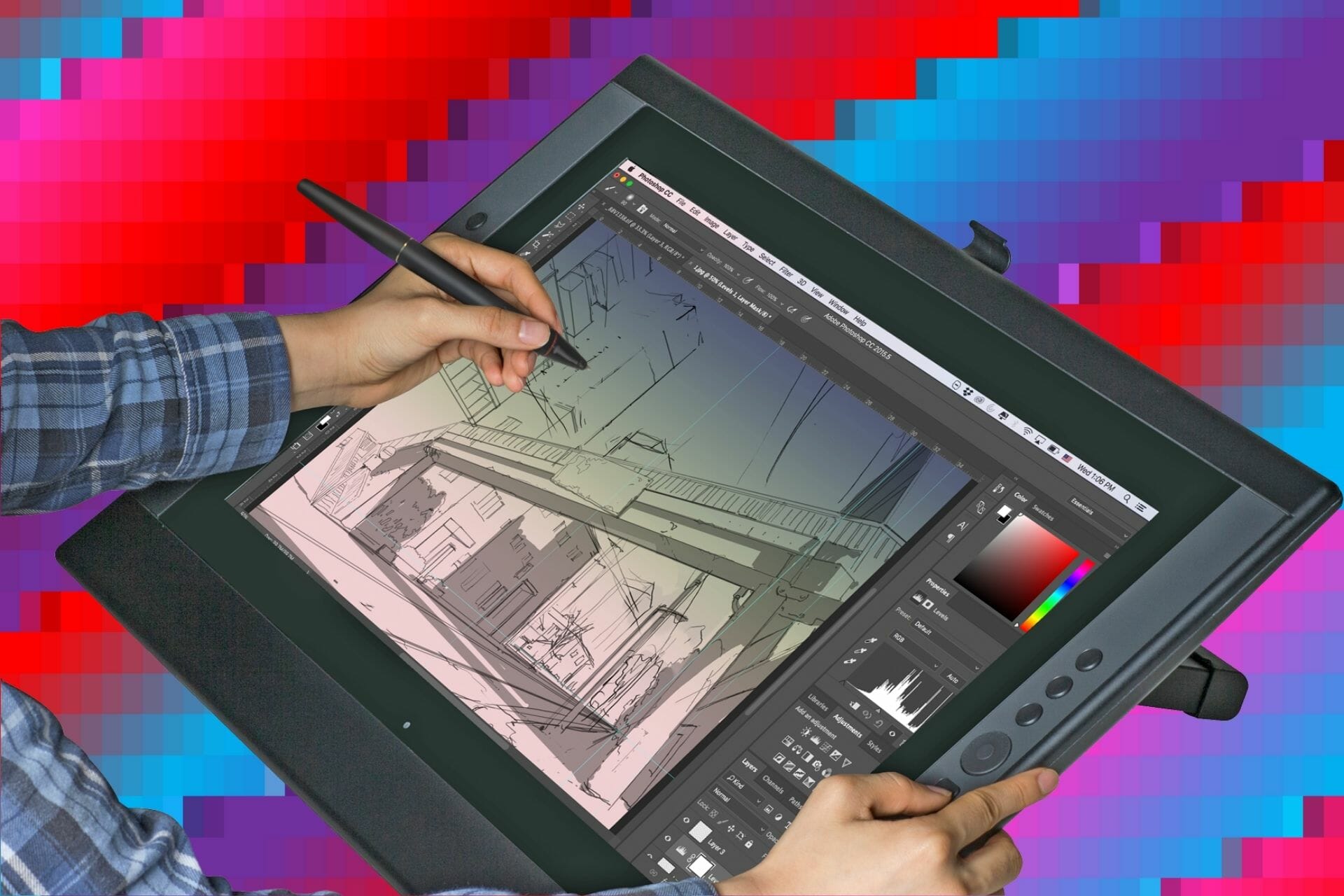
Table of Contents Show
What is a Graphic Tablet and How Can it Help Architecture Students?
A graphic tablet for architecture students is a digital input device with a pressure-sensitive pen that lets you sketch, draft, and annotate directly into design software like AutoCAD, SketchUp, Revit, and Photoshop. It replaces the mouse for creative tasks, gives you precise control over line weight and shading, and bridges hand-drawing instincts with the speed of digital workflows.
A graphic tablet is a powerful tool for architecture students who want to bring their work to life in a digital format. It allows them to draw, sketch, and paint digitally with the same ease and accuracy as if they were using traditional tools. A graphic tablet can help architecture students create detailed drawings of their designs quickly and easily, without having to worry about losing any of their work due to mistakes or erasing. With a digital drawing tablet, they can also edit and refine their designs while keeping the original idea intact. This makes it easier for them to create more accurate drawings that are ready for presentation or production.
Why Do Architecture Students Need a Graphic Tablet?
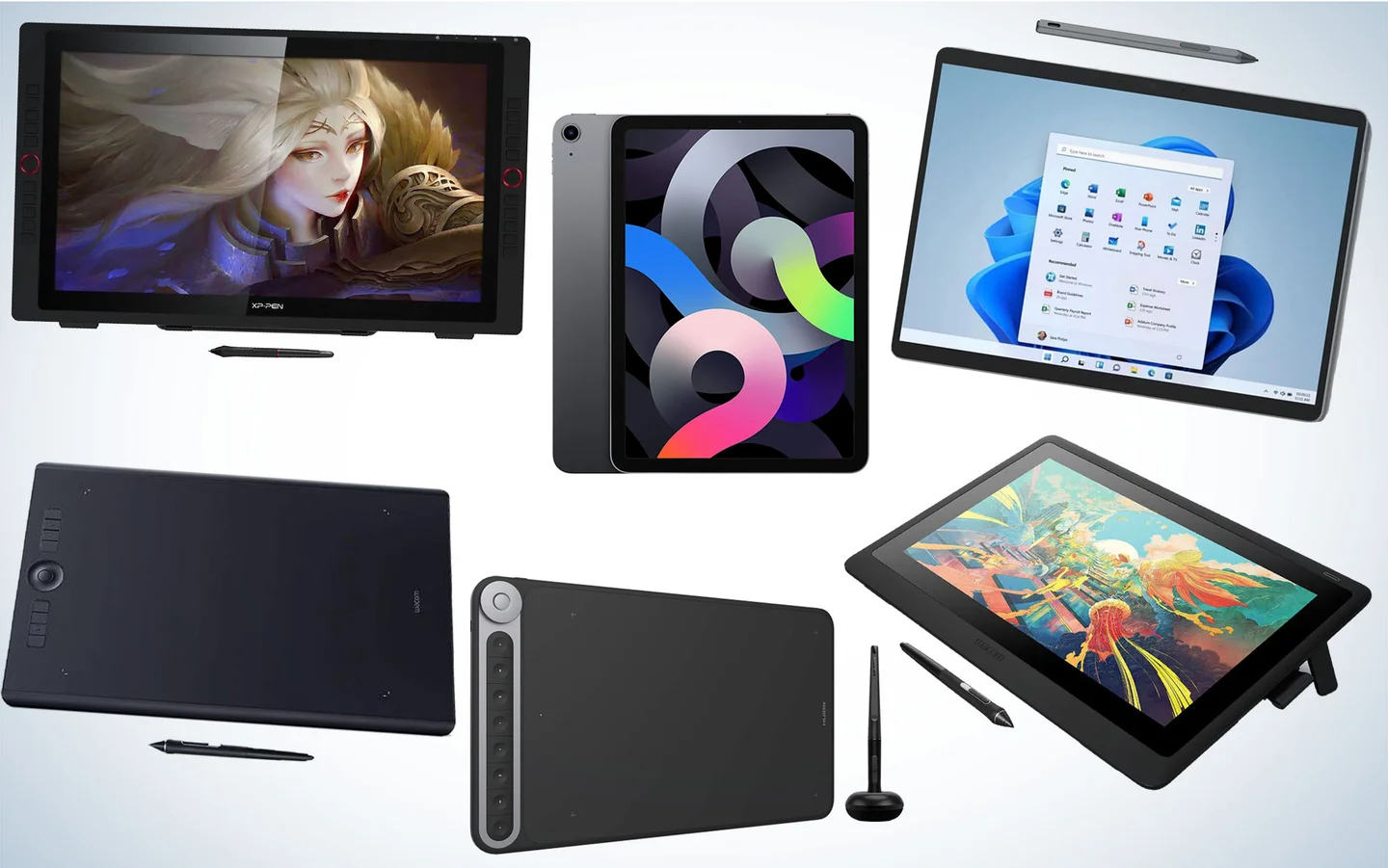
Architecture coursework moves between sketching, drafting, 3D modeling, and rendering, and a mouse is built for none of those things well. A graphic tablet matches the way the hand naturally draws, captures pressure and tilt for expressive linework, and shaves hours off tasks like Photoshop post-production, Revit annotation, and concept sketching.
Three concrete benefits stand out for students:
Faster iteration during design studio. Quick concept sketches in apps like Procreate, Concepts, or Morpholio Trace let you test five layouts in the time it takes to model one in CAD.
Better post-production for renders. Pressure-sensitive painting in Photoshop produces more atmospheric architectural visualizations than mouse work, especially for shadows, foliage, and entourage.
Reduced wrist strain. Long modeling sessions in Revit or Rhino take a toll, and a pen-style grip distributes load across the fingers rather than concentrating it in the wrist.
💡 Pro Tip
Before your first session with a screenless pen tablet, set the tablet’s drawing area to match your monitor’s aspect ratio in the driver settings. Mismatched ratios make every line feel slightly off and ruin the muscle memory you are trying to build. Most architecture students who quit pen tablets early do so because they skipped this single setting.
Video Guide: Graphic Tablets for Architecture Students
The Benefits of Using a Graphic Tablet for Architecture Students
For architecture students, the use of a graphic tablet has become increasingly important. With the help of these tablets, architecture students can draw and design with greater accuracy and speed than ever before. Not only do they provide a more efficient way to create designs, but also offer a wide range of benefits that can help in the overall design process.

Graphic tablets offer an intuitive interface for drawing and sketching, allowing for more precise control over shapes and lines than traditional methods. They also come with specialized tools specifically designed for architecture design tasks such as scaling, rotating and manipulating objects in 3D space. Furthermore, they are compatible with most software used by architects such as AutoCAD or SketchUp which makes them an invaluable asset for creating digital designs.
🔢 Quick Numbers
- Top professional pens deliver 8,192 levels of pressure sensitivity, with newer chips reaching 16,384 (Wacom and XP-Pen product specifications, 2025)

Graphic Tablet Types at a Glance
| Feature | Pen Tablet (Screenless) | Pen Display (With Screen) | Standalone Tablet (2-in-1) |
|---|---|---|---|
| Display | No built-in screen, requires external monitor | Built-in screen, draw directly on display | Full standalone screen, no PC required |
| Price Range | $30 to $500 | $200 to $2,700 | $450 to $2,400+ |
| Portability | Highly portable, lightweight | Moderate, needs PC connection | Fully portable, all-in-one |
| Learning Curve | Higher, hand-eye coordination needed | Low, natural pen-on-screen feel | Low, familiar tablet interface |
| Best For | Budget-conscious students, beginners | Intermediate to professional use | On-the-go architects, presentations |
| Software Compatibility | AutoCAD, SketchUp, Revit, Rhino, Photoshop | AutoCAD, SketchUp, Revit, Rhino, Photoshop | Varies by OS (iPadOS, Windows, Android apps) |
| Example Models | Wacom Intuos, XP-Pen Deco, Huion Inspiroy | Wacom Cintiq, Huion Kamvas, XP-Pen Artist | Microsoft Surface Pro, iPad Pro, Samsung Galaxy Tab |
⚠️ Common Mistake to Avoid
Many architecture students buy a pen display like the Huion Kamvas 22 or XP-Pen Artist Pro 24 expecting it to work on its own. These devices are displays with pen input, not standalone computers. They need a separate laptop or desktop to run any software. If you want a true all-in-one device for class and site visits, look at the iPad Pro, Microsoft Surface Pro, or Wacom MovinkPad instead.
What Features Should You Look For When Choosing a Graphic Tablet for Architecture Students?
Choosing the right graphic tablet for architecture students can be a daunting task. With so many options available, it can be hard to know which features are essential and which ones are unnecessary.
In the rest of the article, we will discuss the key features that you should look for when selecting a graphics tablet for architecture students. We will also compare different drawing tablets and provide tips on how to choose the best one for your needs. Finally, we will provide some recommendations on the best graphics tablets for architecture students. For a wider view of devices that suit studio and site work, our guide to the best tablets for architects and students in 2026 covers tablets beyond the graphic-tablet category.
Key Specifications to Consider
| Specification | Entry-Level | Mid-Range | Professional |
|---|---|---|---|
| Pressure Sensitivity | 4,096 levels | 8,192 levels | 8,192 to 16,384 levels |
| Active Area | 6 x 4 inches | 10 x 6 inches | 12 x 8 inches or larger |
| Tilt Sensitivity | None or ±40° | ±60° | ±60° |
| Resolution (LPI) | 2,540 LPI | 5,080 LPI | 5,080 LPI |
| Report Rate | 133 to 200 PPS | 200 to 300 PPS | 300+ PPS |
| Express Keys | 4 to 6 keys | 8 to 10 keys | 10+ keys with touch ring/dial |
| Connectivity | USB wired | USB / Bluetooth | USB-C / Bluetooth 5.3 / Wi-Fi |
| Approximate Price | $30 to $80 | $80 to $350 | $350 to $2,700+ |
Tablet Pens
A flat, rectangular pad on which to pull and a stylus used to detect shapes on the pad are its two major parts. Simple sketching pads with computer connections are frequently less costly than alternative solutions. In order to see how your drawing will look, you will need to look at the computer’s display. They’re ideal for newcomers or seasoned artists seeking a budget-friendly choice. These days, they frequently have an inbuilt battery and are wireless.

Best Pen Tablets (Screenless) for Architecture Students
| Model | Active Area | Pressure Levels | Tilt | Express Keys | Connectivity | Price (approx.) |
|---|---|---|---|---|---|---|
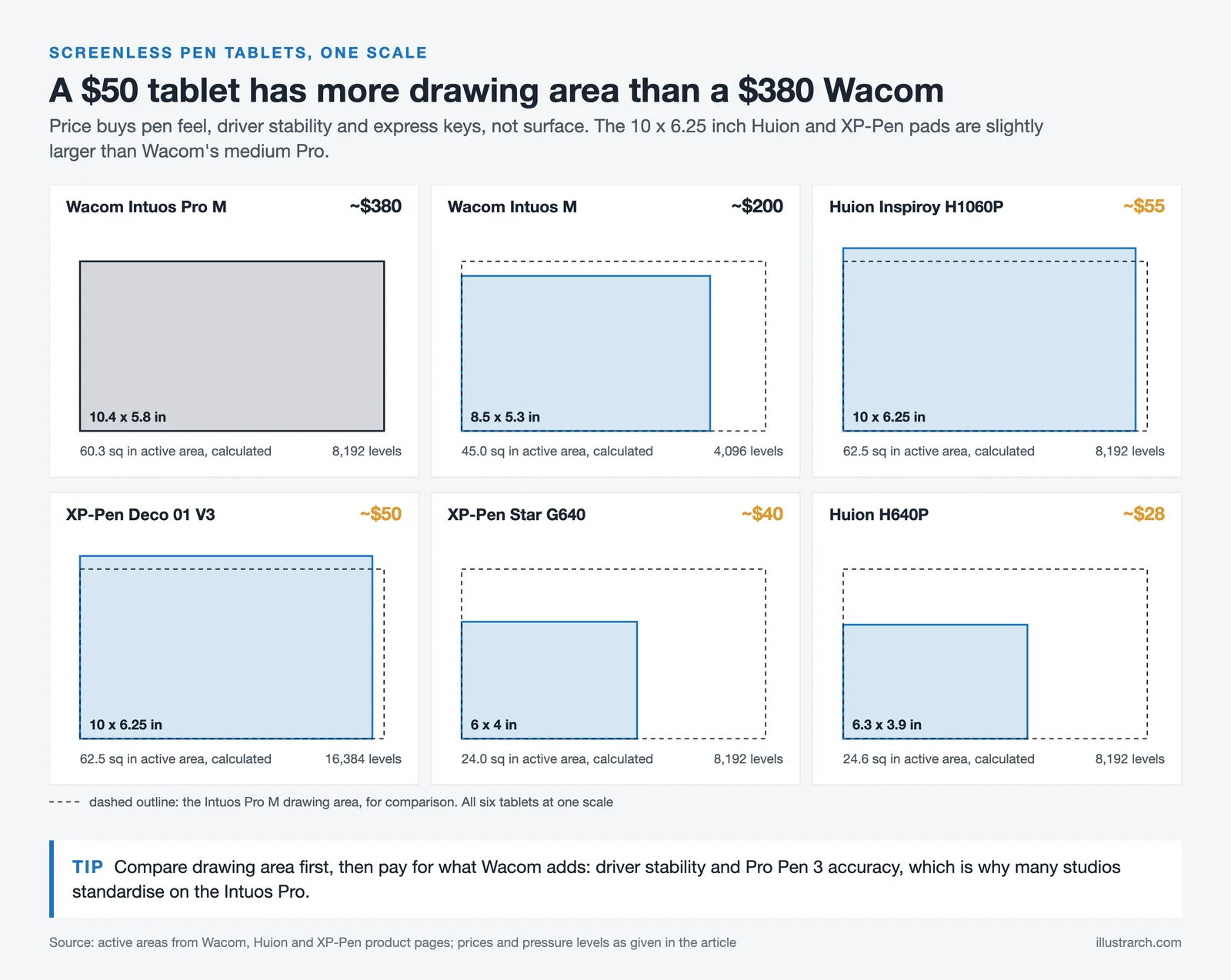
| Wacom Intuos Pro (M) | 10.4 x 5.8 in | 8,192 | ±60° | 10 keys + 2 dials | USB-C / Bluetooth 5.3 | ~$380 |
| Wacom Intuos (M) | 8.5 x 5.3 in | 4,096 | No | 4 keys | USB / Bluetooth | ~$200 |
| XP-Pen Deco 01 V3 | 10 x 6.25 in | 16,384 | ±60° | 8 keys | USB | ~$50 |
| Huion Inspiroy H1060P | 10 x 6.25 in | 8,192 | ±60° | 12 keys + 16 soft keys | USB | ~$55 |
| XP-Pen Star G640 | 6 x 4 in | 8,192 | No | None | USB | ~$40 |
| Huion H640P | 6.3 x 3.9 in | 8,192 | No | 6 keys | USB | ~$28 |
The flagship line for screenless work is the Wacom Intuos Pro, which most architecture studios standardize on for its driver stability and Pro Pen 3 accuracy. Budget-focused students looking for the same active area at a fraction of the price tend to pick from Huion or XP-Pen, both of which now match Wacom on pressure levels even if pen feel is a step behind.
Microsoft Surface Pro 9
The Microsoft Surface Pro 9 functions as both a tablet and a laptop. Thus, you benefit from the best of both worlds because it can be converted from a laptop to a tablet by separating the display from the keyboard, and vice versa.

The Microsoft Surface Pro 9 is a good pick for architecture unless you want to conduct some significant rendering. The various arrangements produce variations in performance. The most potent model contains a 1TB SSD, 32GB RAM, and a 12th generation Intel Core CPU, whereas the entry-level model comes with an Intel Core i5, 8GB of RAM, and a 128GB SSD. Newer Surface Pro 10 and 11 models extend the same form factor with Intel Core Ultra and Snapdragon X chips, useful for students who plan to run full Revit, AutoCAD, or Rhino on the device itself rather than streaming from a desktop. If you are weighing this against an Apple device, our breakdown of when to use an iPad for designing covers the trade-offs in more depth.
Best Standalone / 2-in-1 Tablets for Architecture Students
| Model | Display | Processor | RAM | Storage | Stylus | OS | Price (approx.) |
|---|---|---|---|---|---|---|---|
| Microsoft Surface Pro 9 | 13″ 2880×1920 PixelSense | Intel Core i5 / i7 (12th Gen) | 8 to 32 GB | 128 GB to 1 TB SSD | Surface Slim Pen 2 (sold separately) | Windows 11 | $999 to $2,400 |
| Microsoft Surface Pro 10 | 13″ 2880×1920 PixelSense | Intel Core Ultra / Snapdragon X | 8 to 32 GB | 256 GB to 1 TB SSD | Surface Slim Pen 2 (sold separately) | Windows 11 | $1,199 to $2,600 |
| Apple iPad Pro 13″ (M4) | 13″ Ultra Retina XDR OLED | Apple M4 | 8 to 16 GB | 256 GB to 2 TB | Apple Pencil Pro | iPadOS | $1,299 to $2,199 |
| Apple iPad Air 13″ (M3) | 13″ Liquid Retina IPS | Apple M3 | 8 GB | 128 GB to 1 TB | Apple Pencil Pro | iPadOS | $799 to $1,199 |
| Samsung Galaxy Tab S10 Ultra | 14.6″ Dynamic AMOLED 2X | Snapdragon 8 Gen 3 for Galaxy | 12 to 16 GB | 256 GB to 1 TB | S Pen (included) | Android | $1,199 to $1,659 |
Pen Displays
Since traditional painters like the feel of sketching on paper, designers have devised a method to mimic that sensation. Include a screen that you can draw on, but it has to be linked to a computer to provide the additional power needed. They are a little more expensive, but it is far more handy to be able to draw right on your artwork rather than placing your hand on a separate pen pad while gazing at a computer screen.

You may use a digital sketching tablet with a screen to combine creativity and technology. You can sketch more naturally if your screen has a texture similar to that of paper. Consider picking display tablets if your budget is a little greater. The current pen display category benchmark for student work is the Wacom Cintiq line, with the 16-inch model offering the best balance of screen size, color accuracy, and price for architecture coursework.
Best Pen Displays for Architecture Students
| Model | Screen Size | Resolution | Pressure Levels | Color Gamut | Price (approx.) |
|---|---|---|---|---|---|
| Wacom Cintiq 16 | 15.6″ | 1920 x 1080 (FHD) | 8,192 | 96% sRGB | ~$650 |
| Wacom Cintiq Pro 16 | 15.6″ | 3840 x 2160 (4K) | 8,192 | 98% DCI-P3 | ~$1,600 |
| Wacom One 13 Touch | 13.3″ | 1920 x 1080 (FHD) | 4,096 | 99% sRGB | ~$400 |
| XP-Pen Artist Pro 16 | 15.6″ | 1920 x 1080 (FHD) | 16,384 | 133% sRGB | ~$400 |
| Huion Kamvas Pro 16 (2.5K) | 15.8″ | 2560 x 1440 (QHD) | 8,192 | 145% sRGB | ~$600 |
| Huion Kamvas 13 (Gen 3) | 13.3″ | 1920 x 1080 (FHD) | 16,384 | 145% sRGB | ~$224 |
| XP-Pen Artist 13 (2nd Gen) | 13.3″ | 1920 x 1080 (FHD) | 16,384 | 127% sRGB | ~$230 |
Graphic Tablet Brands: Wacom vs Huion vs XP-Pen
| Criteria | Wacom | Huion | XP-Pen |
|---|---|---|---|
| Pen Quality | ⭐⭐⭐⭐⭐ Industry gold standard (Pro Pen 3) | ⭐⭐⭐⭐ PenTech 4.0 with 16K levels | ⭐⭐⭐⭐ X3 Pro Smart Chip, 16K levels |
| Driver Reliability | ⭐⭐⭐⭐⭐ Most stable and compatible | ⭐⭐⭐⭐ Greatly improved in recent years | ⭐⭐⭐⭐ Solid, occasional minor issues |
| Build Quality | ⭐⭐⭐⭐⭐ Premium, long-lasting | ⭐⭐⭐⭐ Good build, competitive | ⭐⭐⭐½ Decent, lightweight plastic |
| Price / Value | ⭐⭐⭐ Premium pricing | ⭐⭐⭐⭐⭐ Excellent value for money | ⭐⭐⭐⭐⭐ Best budget options |
| Software Compatibility | ⭐⭐⭐⭐⭐ Universal support | ⭐⭐⭐⭐ Win, Mac, Linux, Android | ⭐⭐⭐⭐ Win, Mac, Linux, Android |
| Best For | Professional architects, long-term investment | Students wanting pro features on a budget | Beginners and budget-conscious students |
Architecture Software Compatibility with Graphic Tablets
Most architecture programs work fine with any modern graphic tablet, but pressure sensitivity behaves differently across them. Photoshop and Illustrator use it for natural brush dynamics, while CAD tools like AutoCAD or Revit only register pen position and clicks. Match the tablet to the software you actually use most. For a wider look at the digital toolkit, our overview of the best architectural software for students covers each program’s stylus support in more depth.
| Software | Pen Tablet Support | Pen Display Support | Pressure Sensitivity | Key Use for Architecture |
|---|---|---|---|---|
| AutoCAD | ✅ Full | ✅ Full | ✅ Yes | 2D drafting, floor plans, technical drawings |
| SketchUp | ✅ Full | ✅ Full | ⚠️ Limited | 3D modeling, conceptual design |
| Revit | ✅ Full | ✅ Full | ⚠️ Limited | BIM modeling, construction documents |
| Rhino | ✅ Full | ✅ Full | ✅ Yes | Complex 3D surfaces, parametric design |
| Adobe Photoshop | ✅ Full | ✅ Full | ✅ Full | Rendering, post-production, visualization |
| Adobe Illustrator | ✅ Full | ✅ Full | ✅ Full | Vector diagrams, site plans, presentations |
| Procreate (iPad) | ❌ N/A | ❌ N/A | ✅ Full (Apple Pencil) | Concept sketching, hand-drawn visuals |
| Blender | ✅ Full | ✅ Full | ✅ Yes | 3D visualization, sculpting, rendering |

How to Choose the Right Graphic Tablet for Your Workflow
The best graphic tablet for architecture students is the one that matches the way you actually work, not the highest-spec one in the comparison tables. Three workflow questions cut through most of the noise.
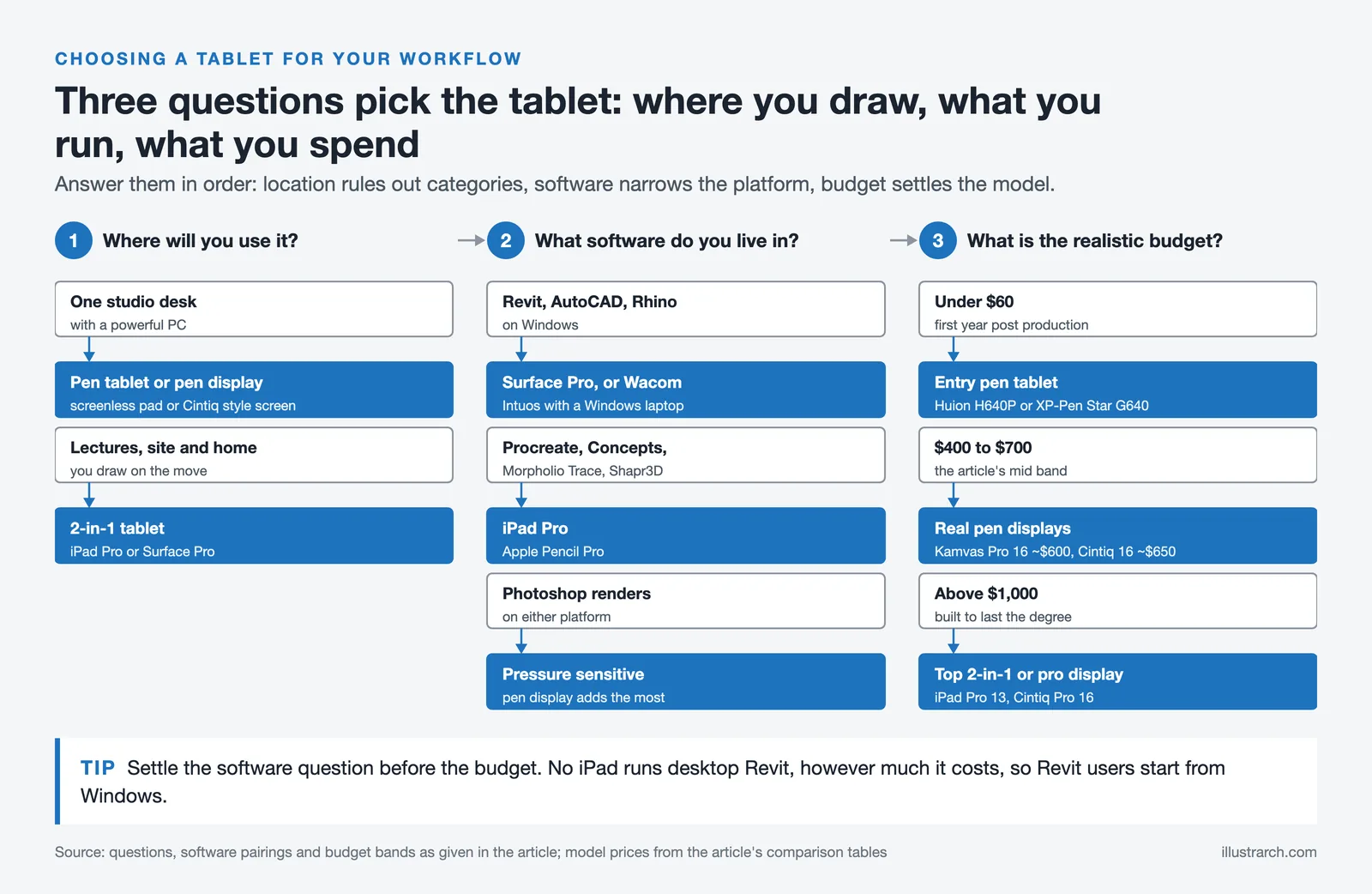
1. Where will you use it? If your work happens at one studio desk with a powerful PC, a screenless pen tablet or pen display is fine. If you sketch in lectures, on site, and at home, a 2-in-1 like the iPad Pro or Surface Pro pays for itself in flexibility.
2. What software do you live in? Revit, AutoCAD, and Rhino on Windows favor a Surface Pro or a Wacom Intuos paired with a Windows laptop. Procreate, Concepts, Morpholio Trace, and Shapr3D push you toward iPad Pro. Photoshop-heavy renders work well on either, but pressure-sensitive pen displays add the most value here.
3. What is the realistic budget? An entry-level pen tablet under $60 (Huion H640P or XP-Pen Star G640) covers Photoshop post-production for a first-year student. Entry pen displays start at around $224 (Huion Kamvas 13), and the $400 to $700 range opens up larger 16 inch pen displays. Above $1,000, you are choosing between a top-tier 2-in-1 and a professional pen display, both of which last through your degree and beyond. For supporting hardware that pairs well with whichever tablet you pick, our list of tech gadgets that make architecture school easier covers ergonomic mice, monitors, and accessories worth budgeting alongside the tablet.
Frequently Asked Questions About Graphic Tablets for Architecture Students
Do architecture students really need a graphic tablet?
Not strictly required, but a graphic tablet pays back its cost in time saved on Photoshop renders, concept sketches, and digital markups. First-year students can get by without one. From second year onward, when post-production and presentation drawings start eating evenings, most students who buy one wish they had bought it sooner.
What is the best budget graphic tablet for architecture students?
The Huion H640P at around $28 and the XP-Pen Star G640 at around $40 are the strongest under-$50 picks. Both deliver 8,192 pressure levels and full driver support for AutoCAD, SketchUp, Photoshop, and Illustrator. They are screenless, so you draw on the pad while watching the laptop screen, but for first-year studio work that is enough.
Is an iPad Pro better than a Wacom tablet for architecture?
They solve different problems. An iPad Pro is a portable, all-in-one device that runs Procreate, Morpholio Trace, Shapr3D, and AutoCAD Mobile, ideal for sketching anywhere. A Wacom Cintiq or Intuos pairs with a desktop or laptop to give you a precision input device for desktop software like Revit, Rhino, and full Photoshop. Most students who can afford both end up using each for what it is best at.
How much pressure sensitivity does an architecture student need?
8,192 levels is the practical sweet spot. Anything below 4,096 feels stepped during shading, and the jump from 8,192 to 16,384 is barely noticeable in real architectural work. Spend the marginal money on screen quality, build, or active area instead.
Can you run AutoCAD or Revit on a graphic tablet?
You can run them on a 2-in-1 like the Surface Pro that has Windows and the right hardware. Pen tablets and most pen displays are input devices that need a separate computer to actually run the software. The iPad has AutoCAD Mobile but not full desktop AutoCAD, and no native Revit at all.
✅ Key Takeaways
- Pick the tablet category that fits your workflow first: screenless pen tablets for budget Photoshop work, pen displays for studio precision, 2-in-1 tablets for portability across studio, lecture, and site.
- 8,192 pressure levels and ±60° tilt cover any real architectural use, beyond that is marketing.
- Wacom is the long-term investment, Huion and XP-Pen are the budget plays that no longer feel like compromises.
- Match active area to your monitor’s aspect ratio in the driver before your first session, this saves weeks of frustration.
- Software dictates platform: Revit and AutoCAD on Windows favor Surface Pro or Wacom plus PC, Procreate and Shapr3D favor iPad Pro.
Final Thoughts
A graphic tablet for architecture students is one of the few pieces of hardware that actually changes how you work, not just how fast you work. The right pick depends less on the spec sheet and more on what you draw, where you draw it, and which software your school standardizes on. Start with a budget pen tablet if you are uncertain, and upgrade to a pen display or 2-in-1 once you know exactly which parts of the workflow you want to push further.
- architecture concept sketching tablet
- architecture visualization tools
- Best Graphic Tablets for Students
- digital studio tools for students
- graphic tablet buying guide
- Graphic Tablets for Architects
- Surface Pro for architecture design
- tablet specs for architecture students
- tablets for SketchUp and Revit
- top tablets for architecture majors







Foster + Partners to Test Robot Swarms Building Timber from the Top Down
Foster + Partners wins €4m EU grant to build robot and drone...
 illustrarch Editoral Team2 Mins read
PLNAR Review: Does AR Measurement Hold Up on a Real Site Visit?
PLNAR began as a consumer AR tape measure and now runs as...
 Sinan Ozen5 Mins read
ArchiSnapper Review: Is This Field Report App Worth It for Architects?
A hands-on look at Deltek ArchiSnapper, the mobile app built for field...
Sinan Ozen5 Mins read

Gross Internal Area and Net Internal Area: What’s the Difference?
The difference between Gross Internal Area and Net Internal Area shapes how...
Sinan Ozen5 Mins read


Leave a comment