

Why Captions Belong in Every Architecture and Design Video
Most people watch design reels with the sound off. Captions make architecture and design videos accessible, easier to follow and readable on silent feeds, and automatic tools now add them in minutes.
 illustrarch Editoral Team25 October 20264 Mins read1
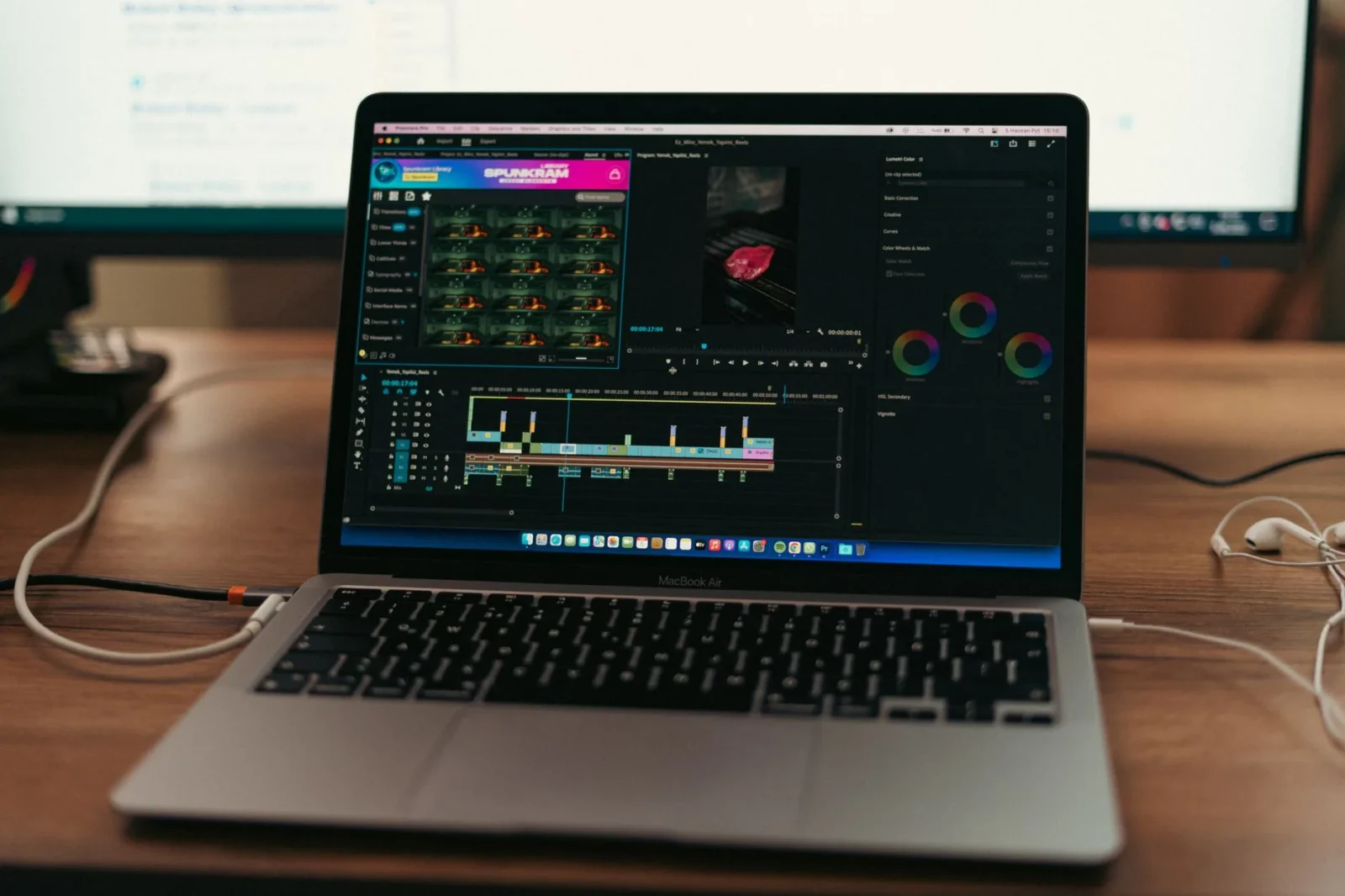
Table of Contents Show
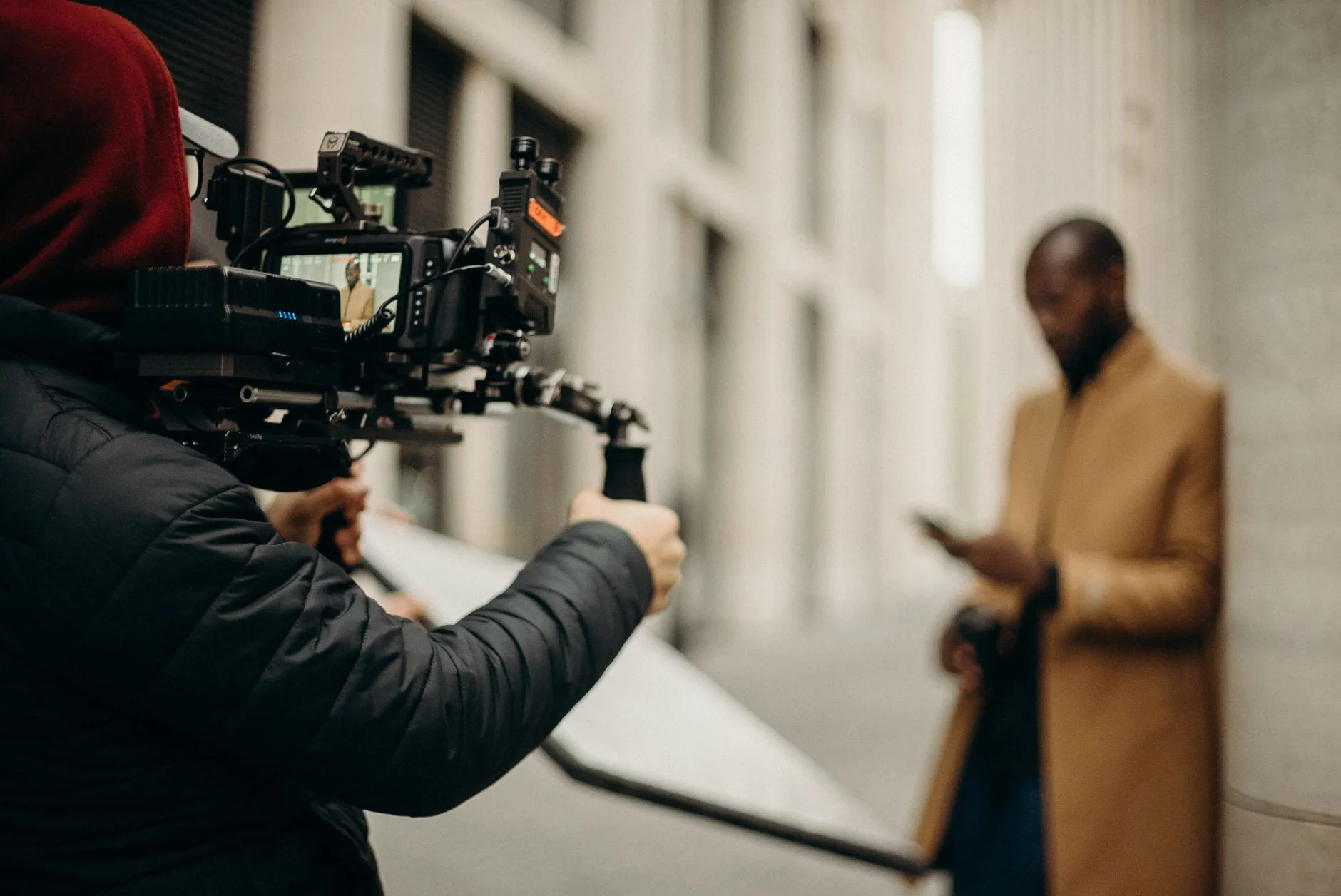
Architects and visualization artists now spend as much time on motion as on stills. A project walkthrough, a time-lapse of a build, a studio process reel, or a short talk about a competition entry all end up on platforms where most people watch with the sound off. If your video has no readable text, a large part of your audience will scroll past it.
Captions are one of the simplest ways to fix that, and the tools have become fast enough that adding them no longer takes an afternoon.
Why captions matter for design content
Accessibility comes first. Captions make your work available to viewers who are deaf or hard of hearing, and to people who find spoken language easier to follow in writing. For firms presenting to public bodies, universities, or international clients, this is often a practical requirement rather than a courtesy.

Silent viewing is the default. People watch on trains, in open-plan offices, and in waiting rooms. A design reel with a spoken explanation of the concept is wasted if nobody can hear it. On-screen text carries the idea for them.
Language barriers are real in this field. Architecture is international. A lecture recorded in English may be useful to students in Lahore, Madrid, or Seoul, and translated captions open it to them.
Captions help people retain technical terms. Words like “cantilever,” “rainscreen,” or “passive stack ventilation” are easier to absorb when seen as well as heard.
Where captions fit in a typical workflow
Think about the videos a design practice or a freelance visualizer actually produces:
- Client presentations. A recorded walkthrough sent ahead of a meeting, so stakeholders can review it on their own time.
- Portfolio reels. Short clips on social media or a personal site, where captions replace a voiceover.
- Educational content. Tutorials on modeling, rendering, or drawing techniques, where terminology matters.
- Site documentation. Progress videos with a narrator explaining what is happening on site.
- Interviews and talks. Conversations with designers, engineers, or clients that you want to repurpose into shorter clips.
In each case, the speech is already there. The job is turning it into accurate, well-timed text without transcribing every sentence by hand.
How automatic captioning works
Automatic captioning relies on speech recognition. The software listens to the audio track, identifies the language, converts the speech into text, and places each line on the timeline so it appears in sync with the speaker. You then correct mistakes and style the text.
Tools of this kind differ mainly in how much they let you do afterward. A basic transcript is useful, but design work is visual, so how the captions look matters nearly as much as what they say.
A practical example
The CapCut caption generator is one option worth looking at if you want to caption video without a heavy editing setup. According to its page, the workflow is straightforward. You upload a clip, open the Text panel, choose auto captions, and generate. The tool detects the spoken language and produces synchronized text that you can then edit line by line. It also offers translation into other languages, along with a range of fonts, colors, effects, and motion options for the captions themselves. Finished videos can be exported in your chosen resolution and shared directly to social platforms.
Two other features are relevant to design teams. First, projects can be shared with teammates so a colleague or a client can review the wording. Second, caption styling can be adjusted to match a studio’s visual identity, so the text does not look like an afterthought.
As with any automated tool, treat the first pass as a draft rather than a finished product.
Tips for better captions on design videos
Check technical vocabulary. Speech recognition often stumbles on specialist terms, material names, and architects’ surnames. Read through the full transcript before exporting, especially proper nouns such as project names and building codes.
Review timing, not just text. A line that appears a second late or lingers too long feels sloppy. Scrub through the video and confirm the text follows the speaker naturally.
Keep lines short. Two lines at a comfortable size usually read better than long blocks that cover the drawing or render you are talking about.
Protect your visuals. In design videos, the image is the point. Position captions so they avoid key details such as a facade, a section cut, or an annotated plan. A semi-transparent background or a simple outline can help legibility without blocking the view.
Match the style to the project. A minimalist residential film suits a clean sans-serif in a neutral color. A playful student project might handle something bolder. Consistency across a series of videos builds recognition.
Verify translations. If you translate captions, ask someone fluent to review names and technical terms before publishing. Automated translation is a good starting point but can misread context.
Captions versus subtitles
The two terms are often used interchangeably, but they differ slightly. Subtitles generally present spoken dialogue, often as a translation. Captions aim to convey the spoken words and, where useful, other relevant audio such as sound cues. For most design videos, subtitle-style text covering the narration is enough, though full captions are worth considering for public-facing or accessibility-focused work.
Final thoughts
Good design communication depends on being understood, and that includes people watching without sound or in a second language. Adding captions takes modest effort now that speech recognition handles the first draft, and it makes your work more accessible and easier to follow. Whichever tool you choose, build a short review step into your routine so the finished text matches the quality of the visuals it accompanies.





Architecture Crit Presentation: How to Present Your Project With Confidence
The crit is where a good project can fall apart and an...
 Sinan Ozen6 Mins read
Why Do Architects Use Architectural Models Instead of Just Drawings?
Physical architectural models remain a core tool even in a digital studio....
 Furkan Sen6 Mins read
How to Make an Architecture Mood Board: A Step-by-Step Guide
A practical walkthrough for building an architecture mood board, covering how to...
Furkan Sen6 Mins read
How to Build an Architecture Physical Model From Scratch
Building an architecture physical model from scratch takes the right scale, tools,...
Furkan Sen6 Mins read


Leave a comment