

iPad Pro M4 for Architects: Site Documentation and Markup Workflow Tested
A hands-on look at how the iPad Pro M4 performs for architects during site visits, construction documentation, and design markup. Covers LiDAR scanning accuracy, Apple Pencil Pro responsiveness, app recommendations, and a tested workflow from field photo capture to annotated PDF delivery.
 Furkan Sen2 June 202612 Mins read331
Table of Contents Show
The iPad Pro M4 for architects is a field-ready device that pairs a 10-core GPU, LiDAR scanner, and Apple Pencil Pro support to handle site documentation, PDF markup, and 3D scanning at speeds that keep up with fast-moving construction schedules. Combined with the right apps and accessories, it replaces the clipboard-and-camera routine with a single, pocket-sized workflow.
If you have been weighing whether the M4 iPad Pro actually holds up during real site visits or just looks good in Apple’s marketing materials, this article puts it through a practical test. We walked through an active residential renovation project with the iPad Pro 13 inch M4, documented conditions, marked up drawing sets, scanned two rooms with LiDAR, and delivered annotated PDFs to a contractor the same afternoon. Below is everything we learned, organized into a step-by-step workflow you can adapt to your own projects.
Why the M4 Chip Changes the On-Site Experience
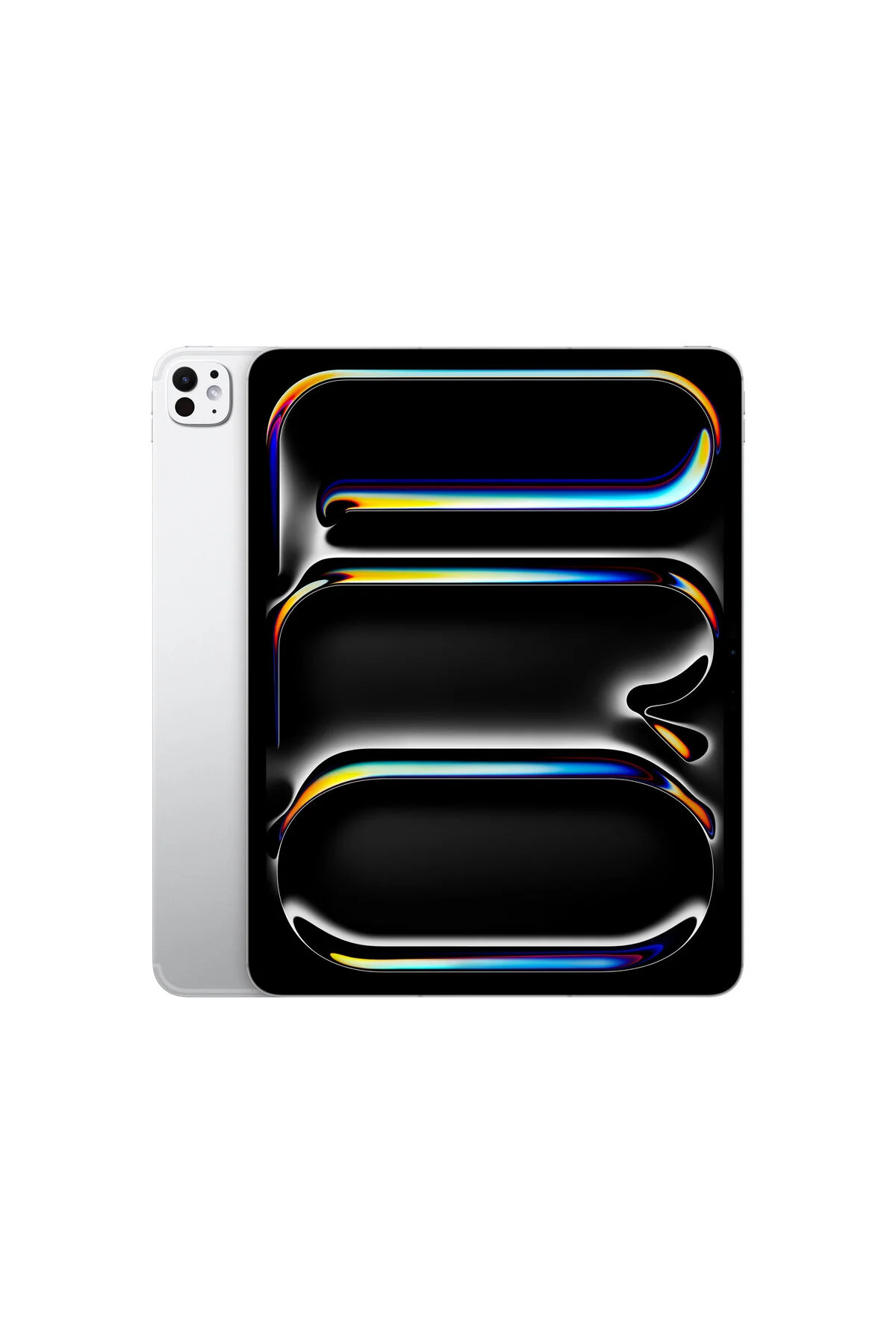
Earlier iPad Pro models could run architecture apps, but the M4 chip removes the performance ceiling that made previous generations stutter under heavy files. Apple’s M4 is built on a second-generation 3-nanometer process, with up to four performance cores and six efficiency cores, delivering roughly 1.5x faster CPU performance over the M2 generation. For architects, that translates directly into quicker PDF rendering, faster layer manipulation in markup apps, and smoother 3D model navigation on site.
The 10-core GPU with hardware-accelerated ray tracing and mesh shading means apps like Shapr3D and SketchUp Viewer can display complex geometry without dropping frames. During our test, a 180-page construction document set opened and scrolled without lag in Bluebeam, while Morpholio Trace handled a 42-layer plan overlay without any stutter. The M4’s 120 GB/s memory bandwidth keeps large files flowing into active memory, which matters when you are switching between a 3D scan, a marked-up elevation, and a photo log within the same ten-minute site walk.
💡 Pro Tip
Before heading to a job site, pre-load your full drawing set into your markup app while still on Wi-Fi. The M4 chip indexes and caches pages quickly, but downloading a 200 MB PDF over spotty cellular on an active construction site wastes time you could spend documenting.
iPad Pro 13 Inch M4 vs 11 Inch: Which Size Works Better on Site?
Both the iPad Pro 11 inch M4 and the iPad Pro 13 inch M4 share identical internals. Same chip, same LiDAR scanner, same camera. The difference comes down to screen real estate and weight. Having tested both on job sites, the 13-inch model wins for markup work. You can see an entire sheet at readable scale without constant pinch-zooming, and the Apple Pencil Pro feels less cramped when annotating details at 1/4-inch scale. The 13-inch model measures just 5.1 mm thin, making it lighter than the previous generation despite the larger display.
The iPad Pro 11 M4 is easier to hold with one hand while walking a site, and it fits into most messenger bags without a second thought. If your work leans more toward photo documentation and quick annotations rather than full sheet markup, the 11-inch is plenty. For construction administration where you review and redline multi-page drawing sets, the 13-inch screen pays for itself within the first week.
Comparison: iPad Pro M4 13-Inch vs 11-Inch for Architects
The table below breaks down the practical differences between the two sizes for on-site architectural work:
| Feature | iPad Pro M4 13-Inch | iPad Pro M4 11-Inch |
|---|---|---|
| Display Size | 13-inch Ultra Retina XDR | 11-inch Ultra Retina XDR |
| Thickness | 5.1 mm | 5.3 mm |
| Sheet Markup Comfort | Full sheet visible at readable scale | Frequent pinch-zooming required |
| One-Handed Portability | Manageable but less comfortable | Easy to hold and carry |
| Best For | CA markup, client presentations | Photo logs, quick annotations |
| LiDAR Scanner | Yes | Yes |
For a broader hardware comparison that includes non-Apple options, our best tablets for architects guide covers the Surface Pro, Wacom, and Samsung alternatives alongside both iPad Pro sizes.
LiDAR Scanning for Existing Conditions: Accuracy and Limits

The LiDAR scanner on the apple iPad Pro M4 measures depth at up to five meters using direct time-of-flight laser pulses. For architects documenting existing conditions, this turns the iPad into a quick-capture tool for room dimensions, ceiling heights, and spatial layouts. Apps like Polycam and Scaniverse convert these scans into 3D point clouds or textured meshes that can be exported as OBJ, PLY, or LAS files for use in Revit, Rhino, or SketchUp.
During our renovation site test, we scanned a 4.5 x 6 meter living room in under three minutes with Polycam. The resulting mesh captured wall positions, window openings, and a fireplace surround with an accuracy of roughly 1 to 2 centimeters, consistent with findings from a 2024 peer-reviewed study published in Applied Sciences (MDPI) that evaluated iPad Pro LiDAR precision across multiple heritage and architectural survey scenarios. That level of accuracy is sufficient for schematic design and preliminary layout verification, though not for construction-grade dimensioning where tolerances below 5 mm matter.
📐 Technical Note
Apple’s iPad Pro LiDAR scanner operates at up to 5 meters range with millimeter-level pulse timing. According to research published by MDPI in 2024, scanning precision typically falls between 1 and 2 centimeters for architectural surveys, with accuracy influenced by scanning speed, sensor angle, and surface material rather than ambient lighting conditions. For best results, maintain a steady walking pace and keep the iPad 1 to 3 meters from the target surfaces.
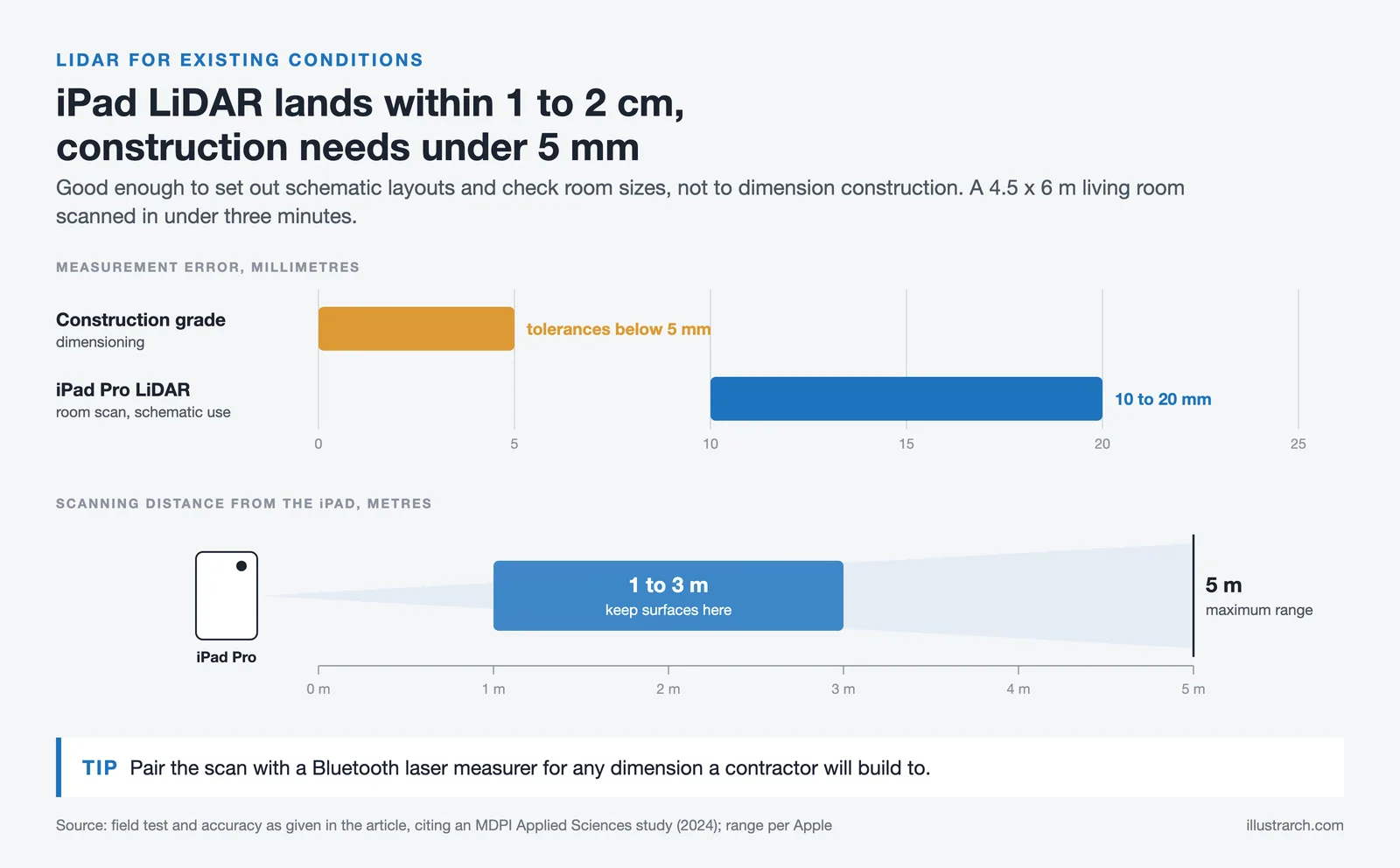
Where the iPad LiDAR falls short is complex geometry and fine detail. Ornate moldings, thin steel members, and glossy surfaces produce noisy data that requires cleanup. Professional-grade terrestrial laser scanners from Leica or Faro still outperform the iPad by a wide margin for large-scale or high-precision documentation. But for the cost of zero additional hardware, the iPad Pro M4’s built-in LiDAR handles quick existing-condition captures that would otherwise require scheduling a survey team.
Apple Pencil Pro and Markup: How It Performs on Drawing Sets
The Apple Pencil Pro, introduced alongside the M4 iPad Pro, adds haptic feedback, barrel roll, and a squeeze gesture that were not available on earlier pencil generations. For architects doing redline markup on construction documents, the squeeze gesture is the standout feature. A quick squeeze switches between pen and highlighter (or any two tools you assign) without lifting your hand from the screen or tapping through menus. Over a full day of CA markup, that shortcut saves a surprising amount of time.
Barrel roll adjusts the orientation of shaped brush tips, which matters for calligraphy-style markup or when you want angled hatching on a detail sketch. Haptic feedback gives a subtle click when you squeeze or double-tap, confirming the tool switch without looking away from the drawing. These additions do not change what the pencil can do at a fundamental level, but they reduce friction during fast-paced site review sessions where every second counts.
We tested markup performance in Morpholio Trace, Bluebeam, and GoodNotes. All three apps recognized the Apple Pencil Pro’s pressure and tilt inputs without configuration. Morpholio Trace stood out for architectural use because it supports scaled drawing, intelligent layering, and direct DXF export, making it easy to send marked-up plans back to the CAD team. For a full breakdown of markup and design apps, see our guide on the best architecture apps for iPad.
🎓 Expert Insight
“Drawing markups are done really simply, and shop drawings can be reviewed and returned completely electronically in a streamlined process.” — BVN Architecture (Paperless Architect case study)
BVN, one of Australia’s largest architecture practices, documented their transition to iPad-based construction administration. Their experience confirms that tablet markup workflows can eliminate paper from shop drawing review entirely, provided the right apps and a reliable stylus are in place.
Step-by-Step: A Tested Site Documentation Workflow

Theory is useful, but a concrete workflow is more valuable. Here is the exact process we used during our test project, a two-story residential renovation with active demolition and framing in progress.
Step 1: Pre-Load Drawing Sets
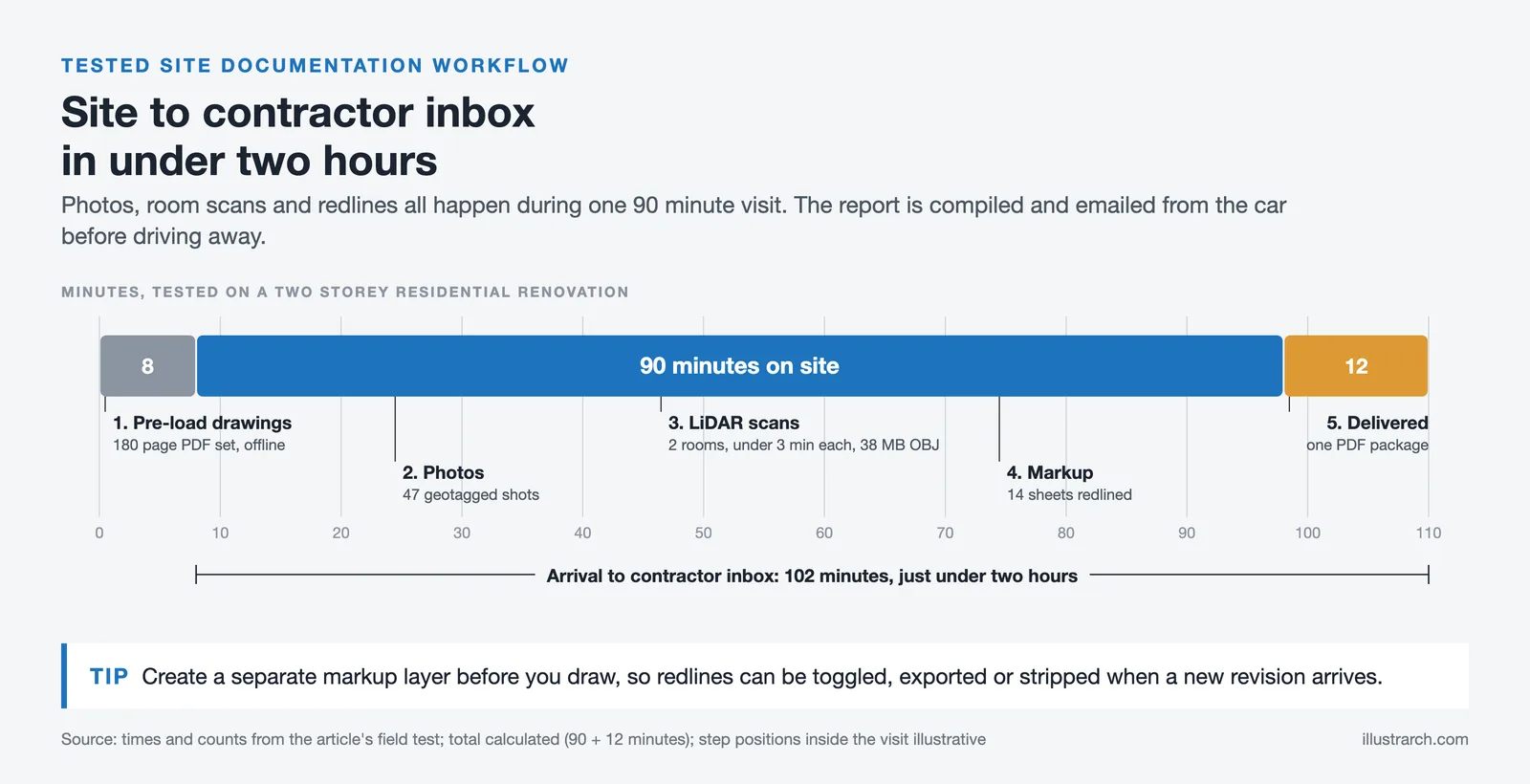
Before leaving the office, we loaded the current construction document set (PDF, 180 pages) into Morpholio Trace and a backup copy into GoodNotes. We also synced the project folder from iCloud so all reference photos and spec sheets were available offline. Total prep time: about eight minutes.
Step 2: Photo Documentation on Arrival
The iPad Pro M4’s 12-megapixel wide camera captures detailed site photos. We used the built-in Camera app for general conditions and Morpholio Trace’s photo import feature to shoot directly into a project layer. Each photo was geotagged and timestamped automatically. Over 90 minutes on site, we captured 47 photos covering structural framing, mechanical rough-ins, and waterproofing conditions.
Step 3: LiDAR Room Scans
We scanned two rooms (a kitchen and adjacent dining area) using Polycam. Each scan took under three minutes. The combined mesh exported as an OBJ file totaling 38 MB, small enough to email or share through a cloud link. These scans will serve as the baseline for casework design and millwork detailing later in the project.
Step 4: Drawing Markup and Redlines
With the Apple Pencil Pro, we marked up 14 sheets across structural, architectural, and MEP disciplines. Common annotations included RFI references, dimension verifications, field condition notes, and photo references. The squeeze gesture for tool switching and the pencil’s pressure sensitivity made redlining feel close to working with a physical red pen on paper. Each marked sheet was exported as a flattened PDF.
Step 5: Delivery to Contractor
Back in the car, we compiled marked-up sheets and site photos into a single PDF package using GoodNotes’ export function, then emailed it to the general contractor and project engineer. Total time from leaving the site to sending the deliverable: 12 minutes. The entire site visit, from arrival to email delivery, took just under two hours.
⚠️ Common Mistake to Avoid
Many architects annotate directly on the base PDF layer instead of creating a separate markup layer. This makes it impossible to isolate your redlines later or revert to a clean sheet. Always create a dedicated annotation layer in your markup app before you start drawing, so your notes can be toggled, exported independently, or stripped out when a new revision arrives.
Best Apps for Site Documentation on iPad Pro M4
The M4 chip runs every current iPad architecture app without performance issues, but some apps are better suited for site documentation than others. Here are the ones we relied on during testing:
Morpholio Trace is the top pick for architects who need scaled drawing, layered markup, and export to CAD formats. Its RoomPlan integration with the LiDAR scanner lets you scan a room and immediately sketch over a scaled 3D model. The free tier covers core markup tools, brushes, and PDF export.
Bluebeam Revu (iPad version) is the industry standard for construction document markup. It supports cloud-based collaboration, custom stamps, and real-time markup sharing with team members who are working on desktop. If your firm already uses Bluebeam on Windows, the iPad companion app keeps your workflow consistent across devices.
Polycam handles LiDAR scanning and photogrammetry. Its free tier provides enough functionality for quick room scans and basic 3D export. For architects who need higher-resolution meshes or direct CAD format output, the Pro subscription adds those capabilities.
GoodNotes works well as a general-purpose notebook and PDF annotator. It lacks architecture-specific features like scale and dimensioning, but its organizational tools (notebooks, folders, tags) make it excellent for maintaining structured field notes and meeting records across multiple projects. For more options, our list of free architecture apps for iPad covers additional tools you can try without a subscription.
How Does the Display Handle Outdoor Conditions?

The Ultra Retina XDR display on the M4 iPad Pro uses tandem OLED technology, stacking two OLED panels for brighter highlights and deeper blacks. Peak HDR brightness reaches 1,600 nits, and full-screen sustained brightness sits at 1,000 nits. In practical terms, the screen remains readable in direct sunlight, though you will still cup your hand over it occasionally when reviewing fine line weights on a bright afternoon.
Apple offers a nano-texture glass option on the 13-inch model that reduces glare significantly. If your work involves regular outdoor site visits, the nano-texture upgrade is worth considering. Matte screen protectors from third-party brands offer a cheaper alternative, and they add the bonus of a paper-like texture that improves Apple Pencil friction during sketching.
Color accuracy matters for architects who review material samples, renderings, or finish selections on the tablet. The tandem OLED panel supports the P3 wide color gamut and True Tone, which adjusts white balance based on ambient lighting. Compared to the mini-LED display on the previous M2 iPad Pro, the OLED panel shows more accurate shadow detail and eliminates the blooming artifact that sometimes appeared around bright UI elements on dark backgrounds.
📌 Did You Know?
The iPad Pro M4 is the thinnest Apple product ever made, at just 5.1 mm for the 13-inch model. That is thinner than the original iPod nano. Despite this reduction in thickness, Apple maintained the same 10-hour battery life and structural rigidity as the previous generation, thanks in part to the power efficiency gains from the second-generation 3-nanometer M4 chip.
Battery Life During a Full Day of Site Visits
Apple rates the iPad Pro M4 at up to 10 hours of battery life. During our test day, which included two site visits totaling about three hours of active screen time (PDF markup, camera use, LiDAR scanning, and email), the battery dropped from 100% to 54%. Extrapolating, a full day of intermittent site use with breaks in between should comfortably last without charging.
Heavy LiDAR scanning drains the battery faster than standard markup work. Each three-minute room scan consumed roughly 3 to 4% of the battery. If you plan to scan five or more rooms in a single visit, bring a compact USB-C power bank. The iPad Pro charges quickly over USB-C, and even 15 minutes of charging during a lunch break can recover enough power for an afternoon session.
Accessories That Complete the On-Site Kit
The iPad Pro M4 alone is not a complete site documentation kit. A few accessories make the workflow practical:
A protective case with a hand strap keeps the tablet secure on active construction sites. The Magic Keyboard is excellent for office use but too bulky and fragile for job sites. A rugged folio case from brands like OtterBox or UAG provides drop protection without adding much weight.
The Apple Pencil Pro attaches magnetically to the iPad’s edge and charges wirelessly while attached. Keep a spare Apple Pencil tip in your bag. Tips wear down faster when sketching on matte screen protectors, and a worn tip reduces line precision.
A compact Bluetooth laser measurer (like the Bosch GLM 50-27 CG or Leica Disto D2) pairs with measurement apps to provide verified dimensions alongside your LiDAR scans. The iPad’s LiDAR gives you speed; a dedicated measurer gives you the accuracy needed for construction-grade dimensions. For a full rundown of measurement and sketching gear, our must-have tools for architects article covers both digital and physical options.
💡 Pro Tip
Set up a dedicated Shortcut on iPadOS that automatically creates a date-stamped folder, opens your markup app to the current drawing set, and launches the camera in quick succession. Automating the first 60 seconds of every site visit removes setup friction and ensures consistent file organization across projects.
What the iPad Pro M4 Cannot Replace
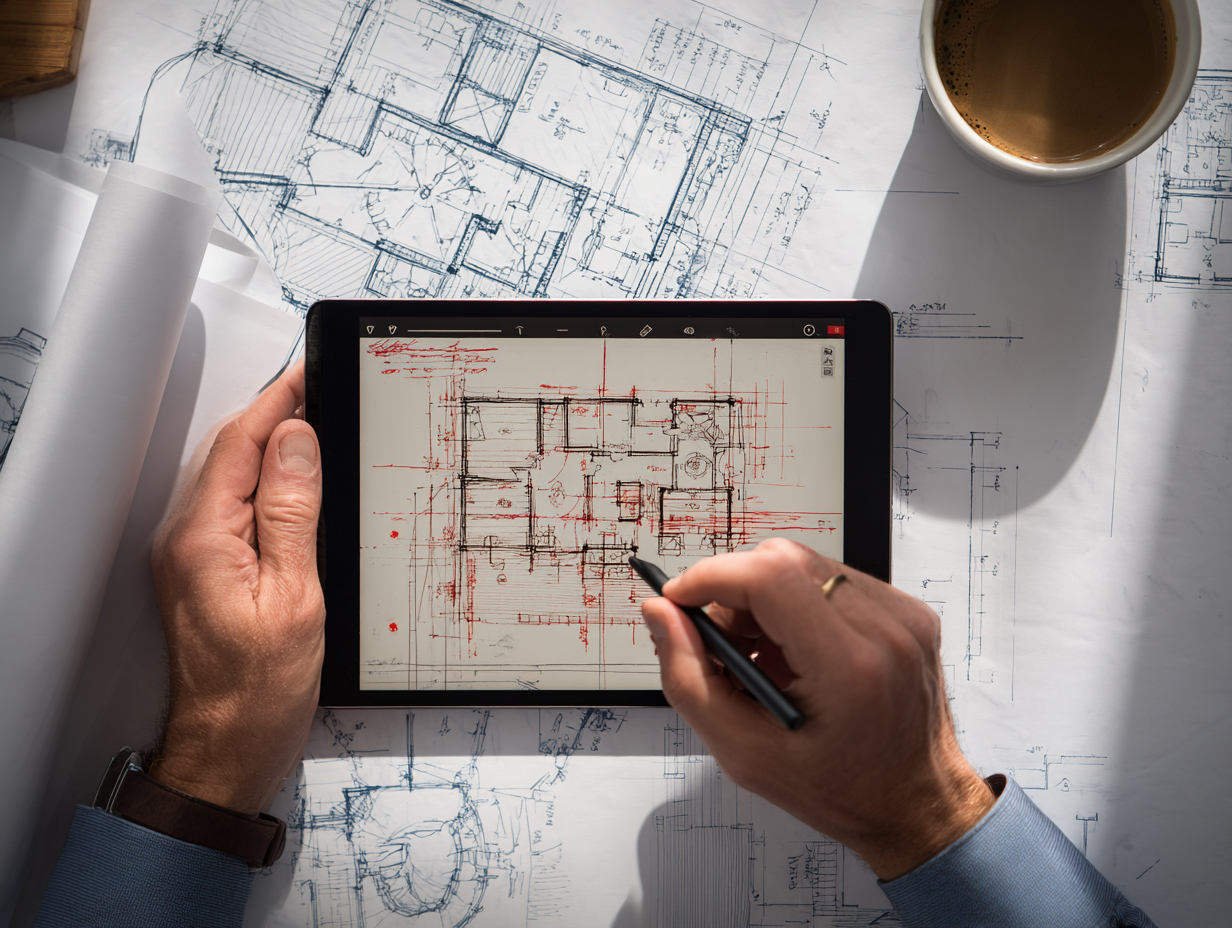
The M4 iPad Pro is a powerful field tool, but it does not replace a workstation. iPadOS cannot run desktop versions of Revit, ArchiCAD, or Rhino. If your workflow depends on full BIM authoring, the iPad serves as a review and markup companion, not a replacement for your primary machine. The same applies to rendering: while apps like Shapr3D perform well for conceptual modeling, production-level rendering and complex parametric work still require a desktop or laptop with macOS or Windows.
File management on iPadOS has improved, but it still lacks the flexibility of a desktop operating system. Organizing thousands of project files, running batch operations on PDFs, or managing complex folder hierarchies is clunkier on iPad than on a Mac or PC. Treat the iPad as the capture and review device in your toolkit, and let your workstation handle production.
For architects considering how the iPad fits into a larger technology stack, our article on whether architects should use iPad for designing covers the broader question of workflow integration, including how to pair the iPad with desktop CAD and BIM software.
🏗️ Real-World Example
BVN Architecture (Sydney, ongoing): BVN, one of Australia’s largest architecture firms, transitioned their construction administration workflow to iPad Pro. Their paperless system uses Morpholio Trace for redlines, the Files app for document management, and Aconex for drawing distribution. The firm reported that shop drawing review and return cycles dropped significantly after eliminating paper printouts, with architects completing markups and returning stamped drawings electronically from the job site within hours rather than days.
Final Thoughts
The iPad Pro M4 is the strongest tablet an architect can carry to a job site right now. The M4 chip handles heavy PDF sets and 3D scans without slowing down, the LiDAR scanner captures existing conditions in minutes, and the Apple Pencil Pro makes redline markup feel natural. The 13-inch model is the better choice for serious construction administration work, while the 11-inch model fits architects who prioritize portability and quick annotations.
Where the iPad Pro M4 shines is in compressing the gap between site observation and deliverable. Instead of returning to the office to compile notes, print photos, and scan redlines, you can produce a complete site report in the car before you drive away. That speed is not just convenient; it reduces the risk of lost observations and keeps the project team aligned with same-day documentation.
✅ Key Takeaways
- The M4 chip delivers 1.5x faster CPU performance over the M2, eliminating lag when rendering large PDF drawing sets and running LiDAR scans simultaneously.
- The built-in LiDAR scanner captures room dimensions with 1 to 2 cm accuracy, sufficient for schematic design and preliminary verification but not for construction-grade tolerancing.
- Apple Pencil Pro’s squeeze gesture and haptic feedback reduce tool-switching friction during fast-paced markup sessions on site.
- The 13-inch model is better for full-sheet markup and construction administration, while the 11-inch model suits photo documentation and quick annotations.
- The iPad Pro M4 is a powerful field companion for review and capture, but it does not replace desktop BIM authoring software like Revit or ArchiCAD.
For architects ready to build out their iPad app library, start with our best architecture apps for iPad list, and for broader hardware options, check the best drawing tablets for architects guide. If you are a student evaluating whether the investment makes sense, our iPad Pro for architecture students article breaks down the practical considerations.




Futuro House Production Revived in Finland After Decades-Long Hiatus
A Facebook listing for abandoned moulds led to the first new Futuro...
 illustrarch Editoral Team3 Mins read
Building Your Dream Home in NSW: What You Should Know About Montgomery Homes
Montgomery Homes has been building across Sydney, Newcastle, the Hunter, Wollongong and...
illustrarch Editoral Team4 Mins read
Designing a Home Theater: Where Drapery Fits Into the Plan
In a media room the curtains are a performance layer, not decoration....
illustrarch Editoral Team3 Mins read

Oscar Niemeyer’s Cathedral of Brasília: The Hyperboloid Concrete Hymn
The Cathedral of Brasília reads as a single gesture, yet it stood...
Furkan Sen7 Mins read


Leave a comment