

Best 3D Mouse for Architects: The 2026 SpaceMouse Buyer’s Guide
Architects spend hours rotating and panning 3D models, and a dedicated 3D mouse shifts that work to your other hand. This guide compares all five 3Dconnexion SpaceMouse models by price, features, and software support to help you match one to your workflow.
 Sinan Ozen1 July 20268 Mins read319

Table of Contents Show
The best 3D mouse for architects is 3Dconnexion’s SpaceMouse line, a small family of dedicated 6DoF controllers you operate with your non-dominant hand. The SpaceMouse Wireless fits most architects, the Compact is the budget entry point, and the Enterprise suits full-time CAD professionals who want every command sitting on the device.
If you spend your day rotating, panning, and zooming through 3D models, your regular mouse is doing two jobs at once. A 3D mouse splits that work in two, so one hand moves the model while the other selects and edits. This guide compares every current SpaceMouse model by price, buttons, and software support, and shows where a 3D mouse for architects actually pays off.

What Is a 3D Mouse, and Do Architects Actually Need One?
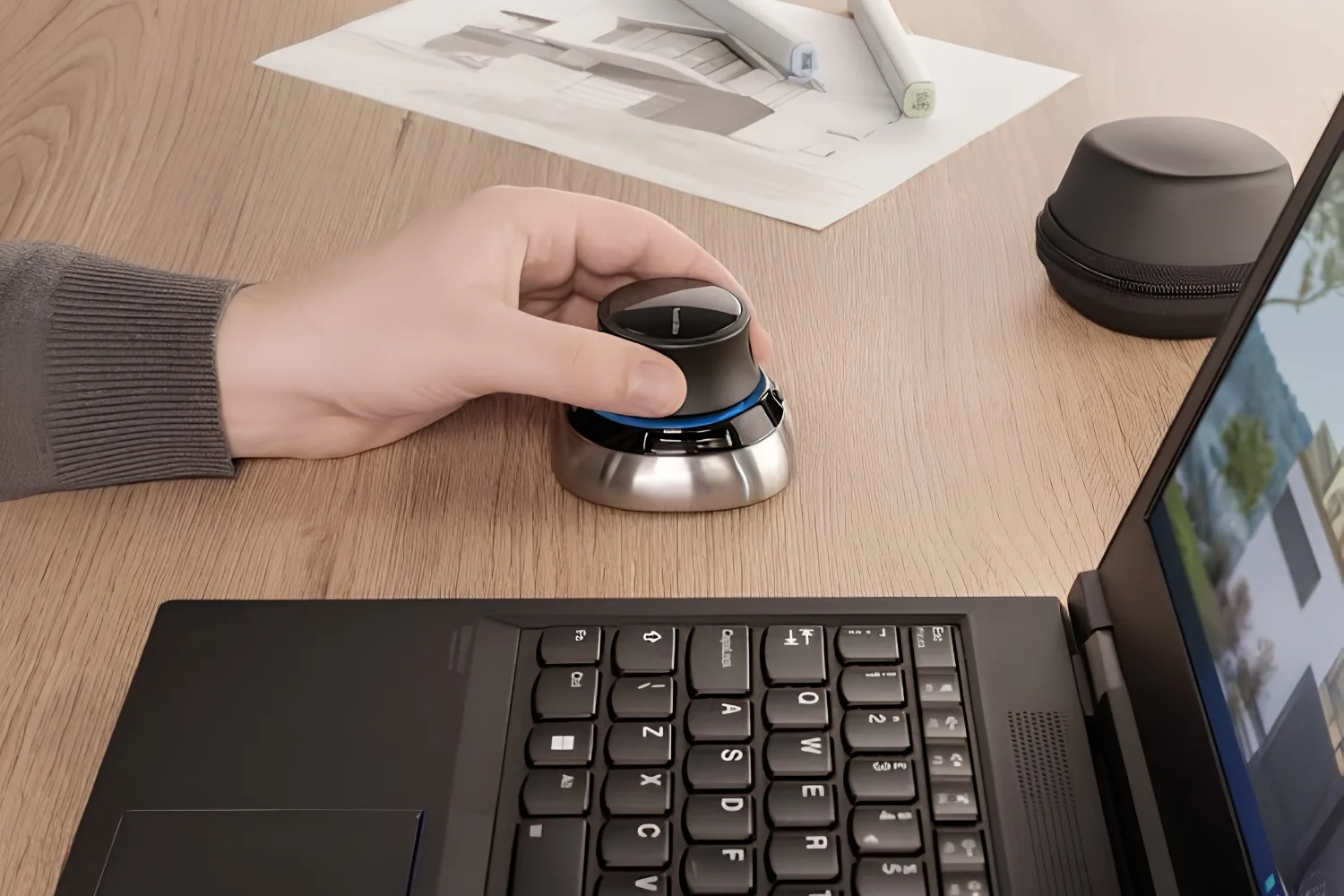
A 3D mouse is an input device with a pressure-sensitive controller cap that reads six degrees of freedom (6DoF), so you push, pull, twist, and tilt to pan, zoom, and rotate a model all at once. You hold it in your non-dominant hand and keep your normal mouse in the other, which lets view control and editing happen in parallel instead of in turns. The same setup works for CAD users in any discipline, not just architecture.
For architects in Revit, Rhino, or SketchUp, that parallel workflow matters because so much of the day goes into orbiting around massing studies, checking sections, and walking clients through a model. 3Dconnexion, the company behind the SpaceMouse, even maintains a dedicated page for the architecture and construction audience. A 3D mouse is also just one of several tools that quietly speed up studio work, alongside the rest of the tech gadgets for architects worth a spot on your desk.
Is it worth the desk space and the learning curve? The figures cited by 3Dconnexion, the maker of the SpaceMouse, are hard to argue with.
🔢 Quick Numbers
- A laboratory study by the Fraunhofer Institute for Industrial Engineering (IAO) cut task completion time by about 29%, from 96 to 68 minutes per task, when designers added a 3D mouse (cited by 3Dconnexion).
- More than 84% of CAD design engineers reported better design quality and easier error detection after adopting a SpaceMouse (3Dconnexion).
- Research cited by 3Dconnexion shows finger movements drop by up to 28.6% with a two-handed setup, which eases repetitive strain.


Best 3D Mouse for Architects: The Top 5 SpaceMouse Models
Here is the part that surprises people shopping for their first 3D mouse: there is really only one mainstream brand. 3Dconnexion makes every model worth recommending, so picking the best 3D mouse for architects is less about brand and more about matching one of five SpaceMouse models to your workflow and budget. Open-source hobbyist builds exist, but they are not practical for daily professional use. The prices below are 3Dconnexion’s US list prices and exclude tax.
📌 Did You Know?
The SpaceMouse is older than most of the software it controls. Its 6DoF sensor began at the German Aerospace Center (DLR) in the late 1970s as a way to control robotic arms, and the first commercial SpaceMouse shipped in 1993 after the technology was tested on the Space Shuttle Columbia.

SpaceMouse Compact ($179): Best Budget Pick
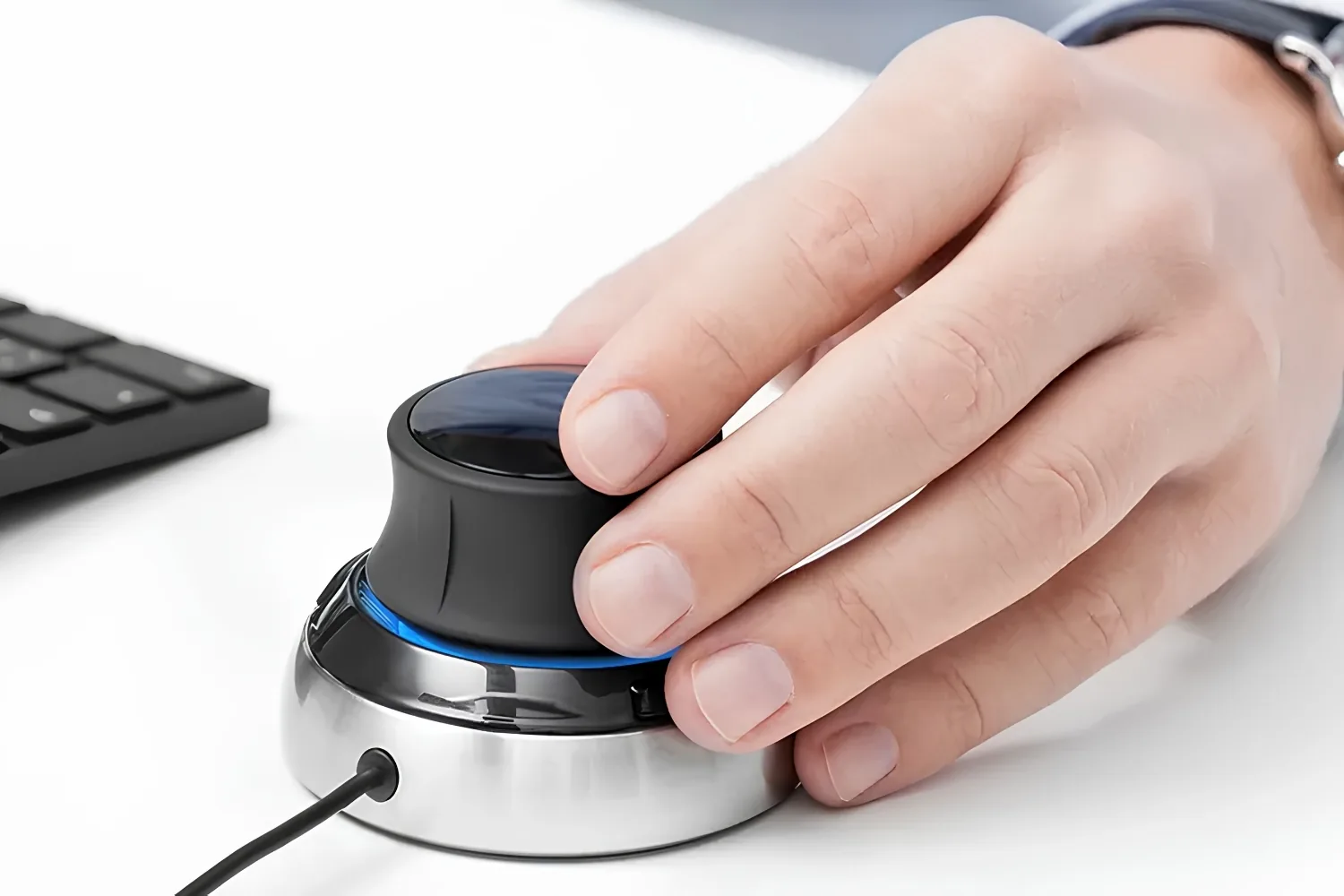
The SpaceMouse Compact is the smallest wired model and the easiest entry point. You get the same 6DoF cap as the pricier models plus two programmable buttons that open radial menus, which covers the basics for students and occasional 3D work. There is no hand rest or extra button bank, so heavy customization is off the table.
SpaceMouse Wireless ($199): Best for Most Architects
For most working architects, the SpaceMouse Wireless is the model to buy. It adds Bluetooth, a 2.4 GHz receiver, and a USB-C cable that charges while you work, with up to a month of battery life per charge. The two-button layout stays minimal, but losing the cable and the weighted base make it the easiest one to live with day to day.
SpaceMouse Pro ($299): Best Wired Workhorse
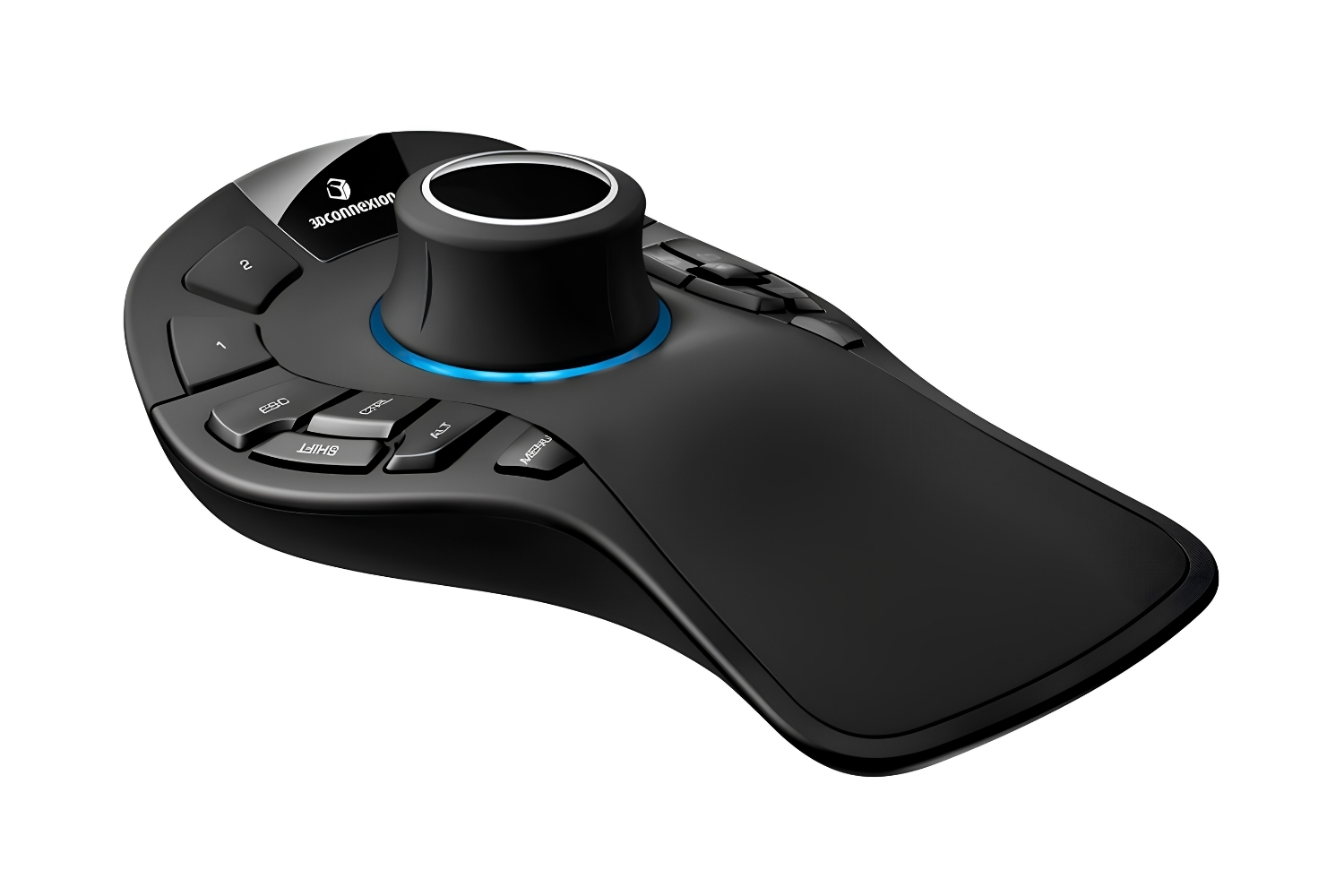
The SpaceMouse Pro is where the button count jumps. A full-size soft hand rest, four QuickView keys, keyboard modifiers for Ctrl, Alt, Shift, and Esc, and an on-screen display add up to 15 programmable keys, so you can fire commands without reaching for the keyboard. It stays wired, which some people prefer for a permanent desk setup.
SpaceMouse Pro Wireless ($329): Best for Flexible Setups
The SpaceMouse Pro Wireless is the Pro with the cable cut. You keep the 15-button layout and the hand rest, and gain Bluetooth, the Universal Receiver, and USB-C charging with up to a month of battery life. The 30 dollar gap over the wired Pro is small enough that most buyers who want the extra buttons go wireless anyway.
SpaceMouse Enterprise ($399): Best for Full-Time CAD Pros
The SpaceMouse Enterprise is the top of the line. Its 31 programmable keys, including 12 intelligent function keys with a color LCD that shows what each key does, plus custom view keys, mean almost any command can live on the device. If CAD is your whole day and you want dozens of shortcuts within reach, this is the one. For lighter use, it is more device than you need.
💡 Pro Tip
A 3D mouse only pays off as a two-handed setup. Put it on your non-dominant side, keep your regular mouse on the other, and resist the urge to grab it for clicking. One more habit worth keeping: after every SketchUp or Revit update, reinstall the latest 3DxWare driver, since version updates are the most common reason a SpaceMouse suddenly stops responding.
Quick Comparison of SpaceMouse Models
The table below lines up the five models on the specs that affect daily use:
| Model | Price (excl. tax) | Connection | Programmable Buttons | Best For |
|---|---|---|---|---|
| SpaceMouse Compact | $179 | Wired (USB) | 2 | Students, budget setups |
| SpaceMouse Wireless | $199 | Wireless + USB-C | 2 | Most architects |
| SpaceMouse Pro | $299 | Wired (USB) | 15 | Wired power users |
| SpaceMouse Pro Wireless | $329 | Wireless + USB-C | 15 | Flexible desks |
| SpaceMouse Enterprise | $399 | Wired (USB) | 31 (12 intelligent function keys, color LCD) | Full-time CAD pros |
3D Mouse Support in Revit, SketchUp, and Other Tools
Every SpaceMouse runs on one driver, 3DxWare 10, which 3Dconnexion lists as supporting hundreds of applications. For architects, the ones that matter are well covered. In Autodesk Revit, the SpaceMouse menu sits in the navigation bar, and the device is genuinely useful in 2D documentation views, not only 3D, which is where Revit users spend most of their time.
SketchUp support is solid in both the desktop and web versions, and many modelers consider the SpaceMouse for architects the smoothest way to move through a model. The one recurring annoyance: new SketchUp releases sometimes drop the 3Dconnexion extension during migration, so a driver reinstall is part of every upgrade.
Rhino, AutoCAD, ArchiCAD, Vectorworks, Enscape, Twinmotion, and Blender are all supported too, so a 3D mouse for Revit and SketchUp carries over to the rest of a typical architecture stack. Raw performance still depends on your machine, not the puck, so if a heavy model stutters, the fix is usually a laptop built for Revit and Rhino rather than a new mouse. If you also want a better 2D mouse for your dominant hand, 3Dconnexion’s CadMouse line is built for CAD, with a dedicated middle button and smooth scroll, and it is a common pairing for the best mouse for CAD work overall.

How to Choose the Right SpaceMouse for Your Workflow
A few questions sort out which model fits, and the best 3D mouse for CAD usually comes down to two of them.

Wired or wireless? Wireless costs about 20 to 30 dollars more per tier and clears a cable off a crowded desk. For a fixed workstation, wired is fine and slightly cheaper.
How many buttons? If you barely touch keyboard shortcuts, the two-button Compact or Wireless is plenty. If you live in shortcuts, the Pro or Enterprise earns its price by keeping your hand off the keyboard.
Student or just testing the idea? Start with the Compact or Wireless, and check 3Dconnexion’s academic program for student pricing while you build the muscle memory. If your real bottleneck is hardware, our picks for the best laptops for architects, a workstation-class laptop for heavy rendering, and the best tablets for architects cover the rest of the setup. Expect a week or two before the device feels natural, and a few months before it feels fast.
Prices are 3Dconnexion US list prices, exclude tax, and vary by region and retailer.
Where to Go From Here
Your Next Step: If you are not sure which model fits, start with the SpaceMouse Wireless. It is the easiest to get along with, works across every major architecture app, and you can always move up to a Pro or Enterprise once two-handed modeling becomes second nature.
Frequently Asked Questions
Do architects really need a 3D mouse?
No tool is mandatory, but if you spend hours each day in 3D models, a 3D mouse removes a lot of repeated switching between mouse and keyboard. Research cited by 3Dconnexion links it to faster task times and fewer finger movements, and most architects who adopt one stop wanting to model without it.
Does a SpaceMouse work with SketchUp and Revit?
Yes. Both are officially supported through the 3DxWare 10 driver, in 3D and 2D views. With SketchUp, reinstall the driver after each version update, since the extension sometimes drops out during the upgrade.
Which SpaceMouse is best for beginners?
The SpaceMouse Compact or Wireless. Both use the same core controller as the high-end models without the extra buttons you will not touch early on. The Wireless is worth the small premium for a cable-free desk.
Is a 3D mouse worth it for architecture students?
It can be, especially if your program leans on Rhino, Revit, or SketchUp. Start with a budget model and check 3Dconnexion’s academic pricing. Give yourself a couple of weeks to adjust before deciding whether it fits how you work.
Can a 3D mouse replace a regular mouse?
Not really. It is designed as a second device for your non-dominant hand to handle view control while your standard mouse selects and edits. The two work together, which is the whole point of the setup.








Foster + Partners to Test Robot Swarms Building Timber from the Top Down
Foster + Partners wins €4m EU grant to build robot and drone...
 illustrarch Editoral Team2 Mins read
PLNAR Review: Does AR Measurement Hold Up on a Real Site Visit?
PLNAR began as a consumer AR tape measure and now runs as...
Sinan Ozen5 Mins read
ArchiSnapper Review: Is This Field Report App Worth It for Architects?
A hands-on look at Deltek ArchiSnapper, the mobile app built for field...
Sinan Ozen5 Mins read

Gross Internal Area and Net Internal Area: What’s the Difference?
The difference between Gross Internal Area and Net Internal Area shapes how...
Sinan Ozen5 Mins read


Leave a comment