

SketchUp AI Render: 6 Best Tools and Plugins for Architects in 2026
A practical comparison of the seven best SketchUp AI render tools and plugins available in 2026, covering native AI Render, Veras, D5 Lite, ReRender AI, ArchiVinci, ArchFine, and mnml.ai with pricing, workflow fit, output quality, and real limitations for each platform.
 Elif Ayse Sen5 May 202614 Mins read339
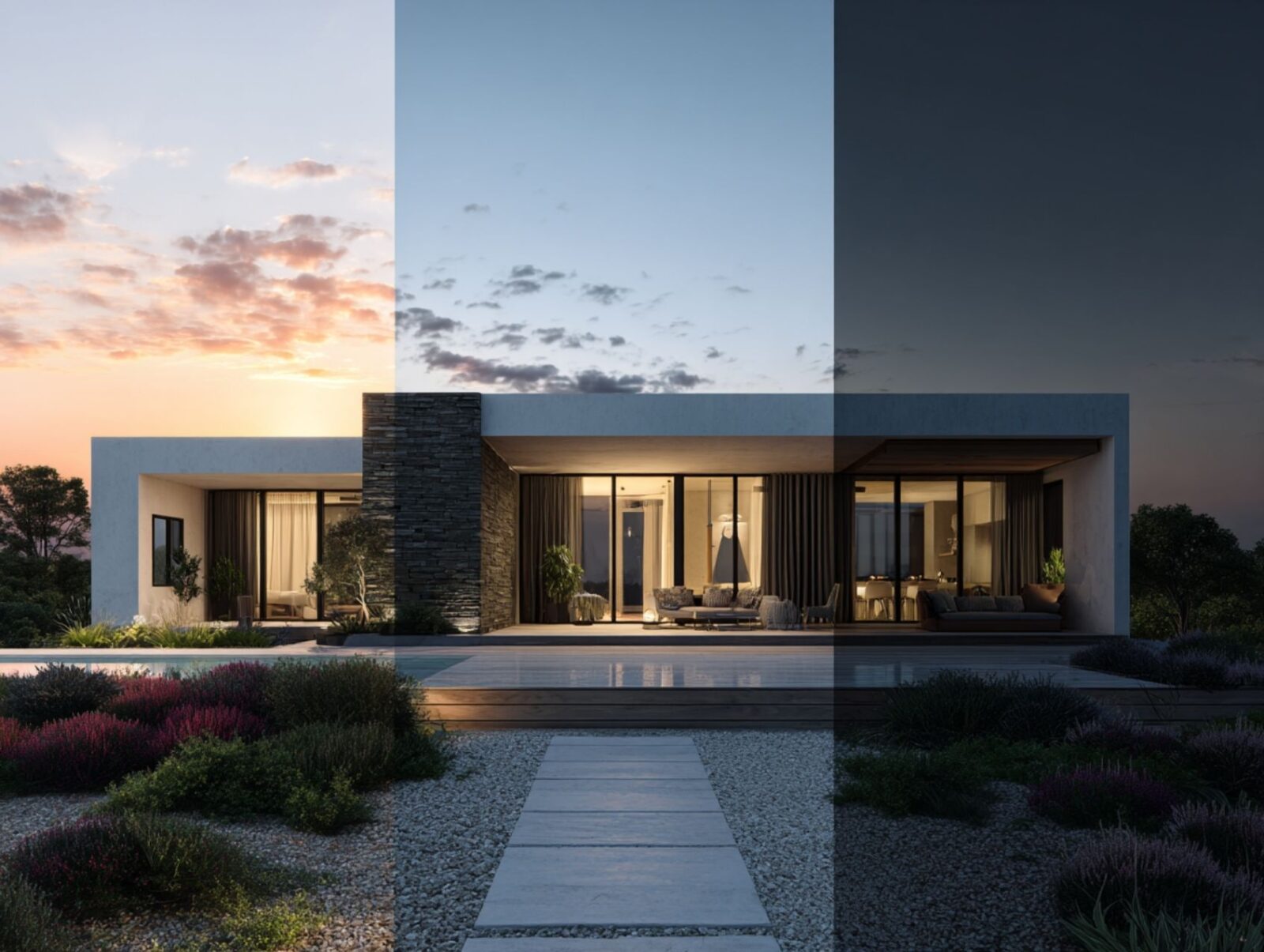
Table of Contents Show
A SketchUp AI render tool takes a standard viewport export or screenshot from your model and generates a photorealistic visualization in seconds, removing the need for manual material assignment, lighting setup, and hours-long render queues. The best tools available in 2026 range from SketchUp’s own built-in AI Render extension to third-party plugins like Veras and D5 Lite that plug directly into your modeling environment.
SketchUp remains one of the most widely used 3D modeling tools in architecture, and its rendering pipeline has historically been its weakest link. V-Ray, Enscape, and Lumion have filled that gap for years, but each comes with setup time, hardware requirements, and a learning curve. AI rendering changes the equation by converting a raw SketchUp viewport into a styled, client-ready image without touching a single material setting. The 2025 CGarchitect Rendering Engine Survey found that 56% of architectural visualization professionals are already using AI tools in their rendering workflows. For SketchUp users specifically, the options have expanded from a single experimental plugin to a full ecosystem of purpose-built platforms.
This article breaks down the seven best SketchUp AI render tools available right now, comparing what each one does well, where it falls short, and which workflow stage it fits best. Every tool listed here was evaluated based on output quality, SketchUp integration, pricing, and practical usefulness for architects working on real projects.
How Does AI Rendering Work with SketchUp?
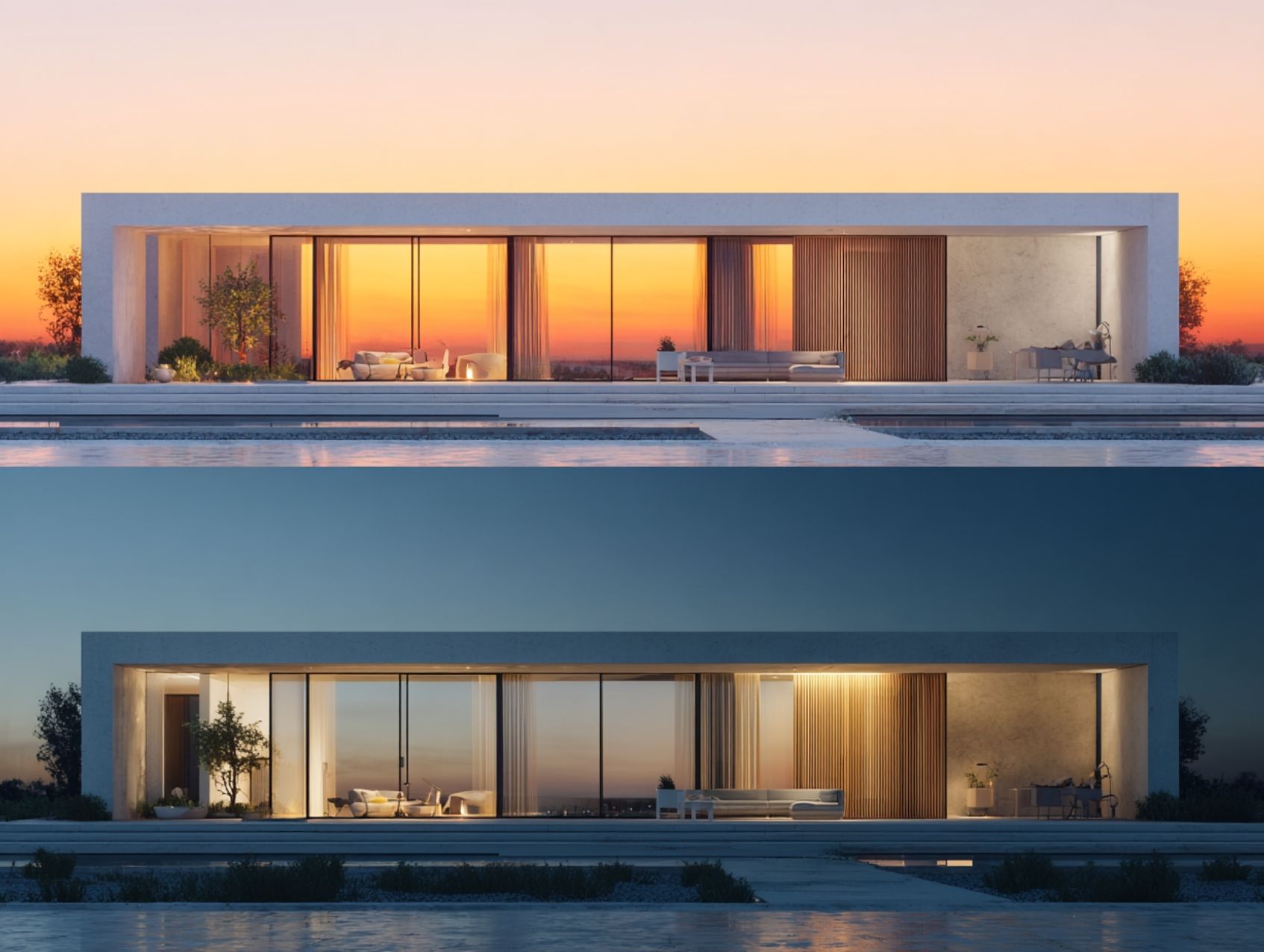
AI rendering for SketchUp follows a straightforward pattern regardless of which tool you pick. You export a viewport screenshot (JPG or PNG) from your model, upload it to the AI platform or trigger the plugin from within SketchUp, add a text prompt describing the desired style and materials, and receive a rendered image within 10 to 60 seconds. Some tools like Veras and SketchUp’s native AI Render work as direct plugins, meaning you never leave the SketchUp interface. Others like ArchiVinci and mnml.ai are browser-based and accept uploaded screenshots.
The underlying technology varies between platforms, but most use diffusion-based image generation models trained on architectural datasets. The AI reads the geometric edges and depth information from your viewport, interprets the prompt you provide, and applies realistic materials, lighting, shadows, and environmental context. The result is a concept-quality image that communicates design intent far more effectively than a raw SketchUp model view.
⚠️ Common Mistake to Avoid
Many architects treat AI renders as direct replacements for V-Ray or Lumion final deliverables. AI rendering tools produce their best results during concept and design development phases, where speed and variation matter more than pixel-perfect accuracy. For competition submissions, planning applications, or high-end marketing imagery, physics-based renderers still deliver more reliable and controllable output. The strongest workflow uses AI for early stages and switches to traditional rendering only for final hero images.
The key distinction between these tools is whether they preserve your model geometry or reinterpret it. Plugin-based tools like Veras and SketchUp AI Render read your actual 3D geometry and apply AI styling on top of it, which keeps proportions and spatial relationships intact. Browser-based tools work from a flat 2D screenshot, which gives the AI more creative freedom but less geometric accuracy. Both approaches have clear use cases depending on where you are in the design process.
The 7 Best SketchUp AI Render Tools in 2026
The following tools represent the most practical options for architects working in SketchUp who want to add AI rendering to their daily workflow. Each tool was selected based on its direct compatibility with SketchUp exports, the quality of its architectural output, and its real-world adoption among design professionals.
1. SketchUp AI Render (Built-In)
SketchUp’s own AI Render (formerly known as SketchUp Diffusion) is built directly into the SketchUp ecosystem. It launched as a Labs beta in December 2023 and was officially integrated into SketchUp 2026.1 as a renamed, more capable tool. The extension is available on Desktop, iPad, and Web versions of SketchUp.
AI Render works by capturing your current viewport, combining it with a text prompt or style preset, and generating an image in 13 to 20 seconds. The toolset includes four generative functions: Text Prompt for describing your desired output, Erase for removing artifacts, Paint for modifying specific areas with a targeted prompt, and Sketch for adding elements by drawing directly on the generated image. A geometry fidelity slider lets you control how closely the AI follows your model.
The tool is included with paid SketchUp subscriptions (Go at $129/year, Pro at $349/year, and Studio at $819/year). Each plan comes with monthly AI credits: Go gets 100, Pro gets 150, and Studio gets 200. Additional credits can be purchased as a $11.99/month add-on providing 1,500 credits, with each image costing 5 credits. The main limitation is output quality. Colors and materials are not reliably preserved, and the results tend toward stylized rather than photorealistic. Forum feedback consistently points to inconsistent material interpretation as the biggest frustration.
💡 Pro Tip
When using SketchUp’s native AI Render, export your viewport with visible edges turned on and a clean white background. The AI reads edge lines as architectural geometry, so removing SketchUp’s stylized display modes (watercolor, sketchy edges) produces more accurate and consistent results. Also, resize the AI Render dialog window larger before generating, as the output resolution scales with the window size.
2. Veras by Chaos (EvolveLAB)
Veras is the most widely adopted AI render plugin for SketchUp among professional firms. Originally developed by EvolveLAB, it was acquired by Chaos (the company behind V-Ray and Enscape) in early 2025. It works as a direct plugin for SketchUp 2021 through 2025, plus Revit, Rhino, ArchiCAD, and Vectorworks, making it the only AI rendering tool that follows architects across multiple design platforms without changing workflow.
What separates Veras from most competitors is that it uses your actual 3D model geometry as a foundation. You type a prompt describing materials, mood, and style (“modern concrete tower, warm dusk lighting, Japanese garden”), and the AI applies those qualities onto your existing form. A Geometry Slider controls how much the AI can deviate from your model, ranging from strict adherence to full creative reinterpretation. The Render Selection feature lets you isolate a portion of the image and apply a different prompt to just that area, which is useful for swapping facade materials or adjusting landscape elements without regenerating the full image.
Pricing starts at around $35/month for individual licenses, with educational discounts available. A free trial includes 30 renders over 15 days. Results generate in under 10 seconds for most viewport sizes. You can download it and review current pricing at evolvelab.io/veras.
3. D5 Lite for SketchUp
D5 Lite is an AI-powered real-time rendering plugin that runs directly inside SketchUp, developed by D5 Render. It operates in two modes. In Render Mode, the D5 engine provides physically based real-time rendering feedback on lighting, materials, and atmosphere directly in your viewport as you model. In AI Mode, you describe the mood or direction you want, and the plugin generates styled concept variations based on your current geometry.
The plugin is compatible with SketchUp versions from 2021.1 through 2026. D5 Lite’s core visualization features are available at no cost, which makes it the lowest-barrier entry point for architects testing AI rendering within SketchUp. The D5 Pro subscription covers the full ecosystem (D5 Lite, D5 Render, and D5 Works asset library) for architects who want to take projects from early AI concepts through production-quality final renders in a single toolchain.
D5 Lite is especially practical for firms that already use D5 Render as their primary visualization tool. Scenes started in Lite can be opened directly in D5 Render for higher-end deliverables, so the transition between concept and production is continuous rather than requiring a full re-export. The current limitation is that D5 Lite focuses on still visualization and concept exploration, with animation and advanced post-production handled in the companion D5 Render application.
4. ReRender AI
ReRender AI is a cloud-based platform that converts SketchUp viewport exports, Revit screenshots, Rhino captures, hand sketches, and photographs into styled renders in roughly 15 seconds. It offers direct SketchUp plugin integration alongside its browser-based workflow, and supports over 20 predefined architectural styles from Modern and Scandinavian to Neo-Gothic and Baroque.
The platform runs entirely in the cloud, which means it does not require local GPU power. You can work from a laptop, tablet, or phone. Features include exterior and interior rendering, sketch-to-image conversion, an integrated image editor for post-generation adjustments, 4x upscaling, and video generation credits on paid plans. The Multi-Angle Rendering feature generates consistent visualizations across different viewpoints of the same project, which is useful for client presentations where you need matching style across multiple views.
Pricing starts at $45/month with a free plan available for testing. ReRender AI sits in the mid-range for both quality and price, making it a reasonable option for small studios that want cloud-based convenience without the cost of Veras or the limited credits of SketchUp’s native tool.
5. ArchFine AI
ArchFine is an AI architectural rendering platform trained specifically on architectural datasets. Unlike general-purpose image generators, ArchFine is designed to understand spatial relationships, material properties, lighting behavior, and design language specific to buildings. A simple sketch, rough SketchUp massing, or low-resolution site photo can be turned into a photorealistic render within seconds.
The platform’s strength is in its ability to maintain proportion, depth, spatial logic, and material consistency across generated images. For architects comparing AI render tools, ArchFine fills the gap between general-purpose generators like Midjourney and plugin-based tools like Veras. It accepts reference images alongside text prompts, which lets you anchor the output to an existing design language rather than generating disconnected visuals. This makes it particularly effective for firms that want consistency across project presentations.
6. mnml.ai
mnml.ai is a browser-based platform offering 12+ AI-powered rendering tools, 40+ architectural styles, and support for SketchUp, Revit, Blender, 3ds Max, Lumion, V-Ray, and Twinmotion exports. The platform has been used by over 2 million architects and designers. Its SketchUp AI rendering module converts viewport captures into photorealistic visualizations with style transfer, negative prompting, and high-resolution upscaling up to 8K.
Additional tools include a Render Enhancer (for improving renders from Lumion, V-Ray, and Enscape), an interior design generator, an exterior AI module, and a one-click video generation feature that converts static renders into cinematic 10-second animations in 1080p. The breadth of tools makes mnml.ai a practical all-in-one platform for studios that work across multiple software packages and need a single AI rendering solution that handles everything.
SketchUp AI Render Tools: Feature Comparison
The following table compares the seven tools across the factors that matter most when choosing an AI rendering solution for SketchUp.
| Tool | Integration | Speed | Price | Best For |
|---|---|---|---|---|
| SketchUp AI Render | Native plugin | 13-20 sec | Included in subscription | Quick concept exploration |
| Veras (Chaos) | Plugin (SU, Revit, Rhino) | Under 10 sec | From ~$35/mo | Multi-platform studios |
| D5 Lite | Plugin (SU 2021-2026) | Real-time + AI mode | Free (Pro from ~$30/mo) | Hybrid real-time + AI |
| ReRender AI | Browser + SU plugin | ~15 sec | From $45/mo (free tier) | Cloud-based small studios |
| ArchiVinci | Browser (upload) | Under 30 sec | Varies by plan | High-res client presentations |
| ArchFine AI | Browser (upload) | Under 30 sec | Varies by plan | Architecture-specific accuracy |
| mnml.ai | Browser (upload) | Under 30 sec | Varies by plan | All-in-one multi-software |
🔢 Quick Numbers
- 56% of archviz professionals already use AI tools in their rendering workflows (CGarchitect Rendering Engine Survey, 2025)
- 60% of architecture firms have integrated AI into daily workflows, a 38% increase since 2023 (Chaos and Architizer, 2026)
- 86% of architects using AI tools report measurable time savings on projects (Chaos and Architizer State of AI in Architecture Report, 2026)
- AI-assisted rendering reduces image generation time from 2-4 hours to under 10 minutes for concept-phase outputs (Autodesk State of Design and Make Report, 2024)
How to Choose the Right SketchUp AI Render Tool
The right tool depends on three factors: where you are in the design process, how many software platforms your studio uses, and your budget for visualization tools. No single platform covers every workflow stage equally well.
For early-stage concept exploration, SketchUp’s built-in AI Render is the simplest starting point because it requires no additional installation and is included in your subscription. Its output quality is lower than dedicated tools, but the speed and zero-friction workflow make it useful for generating quick mood-board variations during a client meeting. D5 Lite fills a similar role with better output quality, and its free tier removes budget concerns entirely.
For design development and client presentations, Veras and ArchiVinci produce the most consistently professional results. Veras has the advantage of reading your actual 3D geometry, which keeps architectural proportions accurate. ArchiVinci handles high-resolution output well for external presentations. If your studio works across SketchUp, Revit, and Rhino, Veras is the only option that covers all three without switching tools.
For studios needing a single platform that handles multiple input types and output formats, mnml.ai offers the widest tool range. Its render enhancer works on outputs from V-Ray, Lumion, and Enscape, which means you can use it both as a primary AI renderer and as a post-processing layer for traditional renders.
💡 Pro Tip
Before committing to any paid AI rendering subscription, run a two-week pilot on a live project rather than a test file. Most tools look capable in demo conditions but behave differently with real geometry, real material requirements, and a client deadline attached. Export five to ten actual SketchUp viewports from a current project, run them through your shortlisted tools, and compare the results side by side. This will reveal integration gaps, prompt limitations, and output consistency issues that product demos never show.
What Are the Limitations of AI Rendering for SketchUp?
AI rendering tools have clear boundaries that architects should understand before relying on them. The 2026 Chaos and Architizer survey found that 48% of designers cite unreliable results as their main barrier to full adoption, and 70% of architects say AI outputs still require human supervision before client delivery.
The most consistent limitation across all tools is material accuracy. You might prompt “exposed concrete with warm wood cladding,” and the AI will produce something that looks broadly correct, but the specific concrete finish, wood species, or joint pattern will differ between each generation. This is acceptable for concept-phase work where you are communicating direction, not specification. It becomes a problem when clients interpret AI renders as literal material commitments.
Geometric fidelity is another concern. Plugin-based tools like Veras and SketchUp AI Render maintain your model’s proportions better than browser-based platforms that work from flat screenshots. But even plugin-based tools can introduce unwanted geometric changes, especially around window mullions, structural columns, or repetitive facade patterns. The AI tends to “hallucinate” details that were not in the original model, adding balconies, changing roof profiles, or altering floor-to-floor heights.
Consistency across multiple images is also difficult. If you need five matching views of the same project in the same style for a client presentation, most AI tools will produce five variations that look slightly different in material treatment, landscaping, and atmospheric quality. Veras addresses this partially with its “Render from Same Seed” feature, and some tools allow reference-image-based style transfer, but true multi-view consistency remains a limitation across the category.
🎓 Expert Insight
“AI visualizations reflect design intent ‘somewhat well’ but still require human supervision.” — Chaos and Architizer, State of AI in Architecture Report, 2026
This finding from a survey of over 1,000 architecture professionals confirms that AI rendering is a productivity accelerator, not an autonomous replacement. Only 17% of respondents felt AI outputs were controlled enough to use without professional oversight. The practical takeaway is to treat AI renders as starting points that need architectural judgment applied before they reach a client.
Best Workflow: Combining SketchUp AI Render with Traditional Tools
The highest-performing visualization workflows in 2026 use a hybrid approach, applying AI tools where they save the most time and switching to physics-based renderers where precision matters. The split point is design development: AI handles everything before it, and traditional rendering handles everything after.
A typical hybrid day looks like this. A morning design session starts with five SketchUp screenshots uploaded to an AI platform, returning five style variants within two minutes. The architect picks two directions, sends both to the client before 10am, and receives feedback by midday. The model gets updated, a new screenshot gets uploaded, and a revised render comes back before the afternoon meeting. That entire revision cycle takes 15 minutes instead of 3 hours. At the end of the week, three or four projects running this pattern can recover 14 or more hours of visualization time.
For final deliverables and production renders, Enscape, V-Ray, or Lumion take over. These tools give you exact control over material assignments, lighting rigs, camera settings, and resolution. AI-generated renders from the concept phase serve as visual references for the final render setup, which makes the traditional rendering process faster because the design direction is already confirmed by the client.
D5 Render’s ecosystem makes this transition particularly smooth. Scenes started in D5 Lite (the free SketchUp plugin) can be opened directly in D5 Render for final production, carrying over geometry, camera positions, and basic material assignments. This continuity between AI concept work and physics-based final rendering is where AI tools for architectural design deliver their greatest practical value.
SketchUp AI Render for Interior vs. Exterior Projects
AI rendering performance differs between interior and exterior projects, and understanding the distinction helps you pick the right tool for each scenario.
Exterior renders are where most SketchUp AI render tools perform their best. Building massing, facade patterns, landscaping, sky conditions, and urban context are well-represented in the architectural training data that these models learned from. Prompts like “modern residential, warm sunset, stone facade, mature landscaping” reliably produce usable concept images across nearly all seven tools listed above.
Interior renders are more variable. Furniture placement, material detailing on small-scale elements (cabinet handles, light fixtures, tile grout patterns), and artificial lighting behavior are harder for AI models to handle accurately. AI Render Studio and ArchFine handle interior scenes more reliably than general-purpose tools because their training data includes interior-specific material and lighting patterns. For interiors, providing a more detailed prompt with specific material callouts and lighting descriptions produces better results than relying on style presets alone.
For firms working primarily on 3D rendering for architectural visualization, the practical recommendation is to test your chosen AI tool on both an exterior and an interior scene from a current project before committing to a subscription. The quality gap between these two categories is significant enough that some studios use different tools for each.
🏗️ Real-World Example
AI for Architects: Small Studio Competitive Advantage: According to a detailed analysis of AI tools for small architecture studios, a two-person office can now deliver three concept render variations in a single client meeting, run a shadow study before lunch, and submit a full-massing feasibility analysis within 48 hours. That output level used to require a team of six. The combination of SketchUp AI render tools with a structured hybrid workflow has functionally closed the visualization gap between small and large practices.
Prompt Writing Tips for Better SketchUp AI Renders
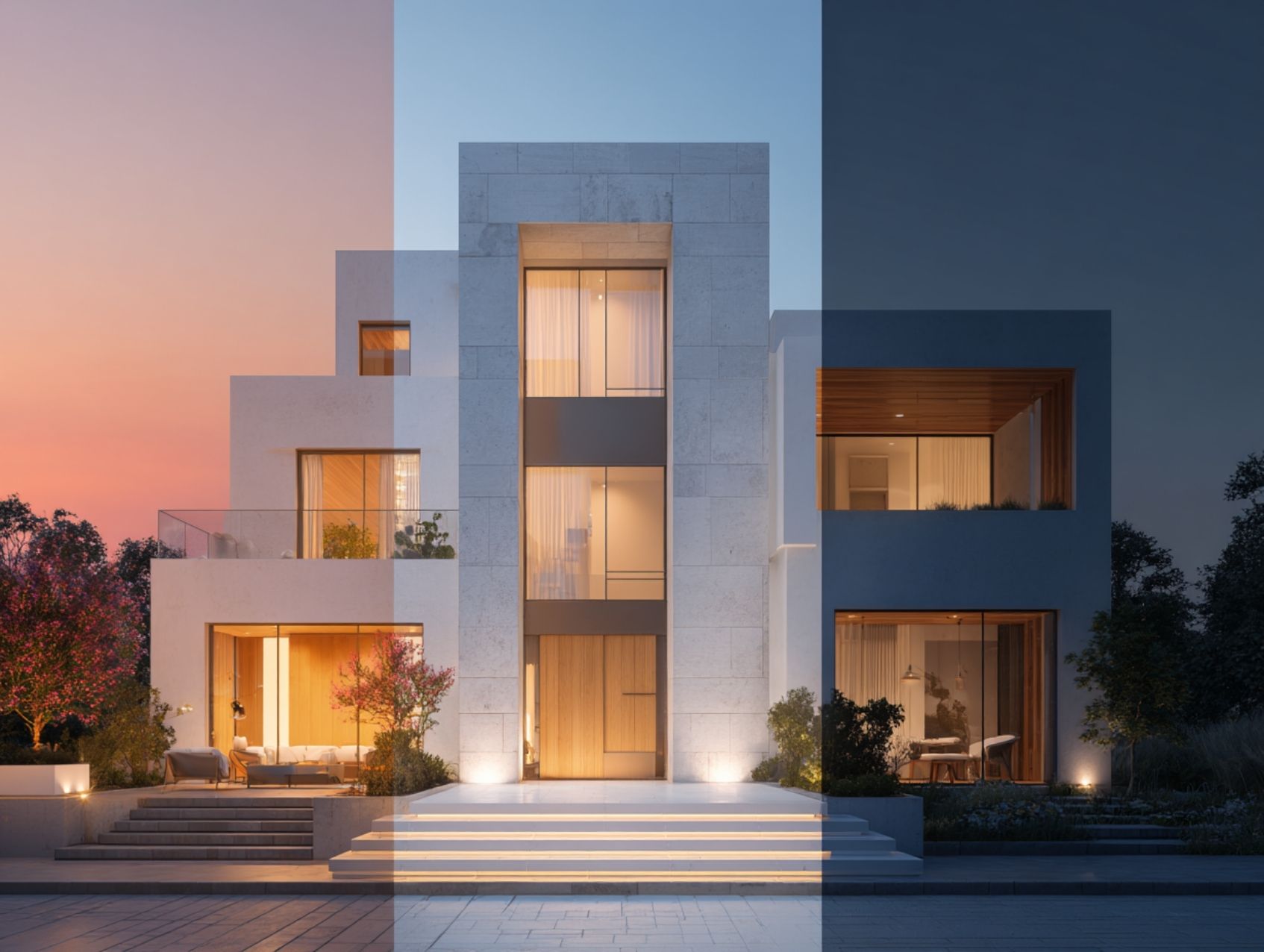
The quality of your AI render depends as much on how you write the prompt as it does on which tool you use. A vague prompt like “make this look realistic” produces generic, often unusable results. A structured prompt with specific material, lighting, and atmospheric instructions produces client-ready images on the first or second attempt.
Effective architecture prompts follow a consistent structure: subject (building type and style), materials (specific finishes like “white-washed concrete, dark timber cladding, floor-to-ceiling glass”), lighting (time of day, weather conditions, light direction), environment (landscaping type, urban or rural context, season), and mood (warm, minimal, dramatic, editorial). Including a negative prompt (“no people, no cars, no text”) removes common artifacts that clutter the output.
For SketchUp-specific workflows, the viewport setup matters as much as the text prompt. Clean edge lines, a deliberate camera angle, and removing unnecessary SketchUp geometry from the view all improve the AI’s ability to interpret your design correctly. Turning off section cuts, hiding construction geometry, and using a simple white or gray background before exporting gives the AI a cleaner starting point and reduces misinterpretation.
If your chosen tool supports reference images (Veras, ArchFine, and mnml.ai all do), uploading a photograph or render that matches your intended style is the single most effective way to improve output consistency. The AI uses the reference as a style anchor, which reduces the guesswork inherent in text-only prompting. This is especially useful for maintaining a consistent visual language across a multi-image client presentation.
Video: SketchUp’s New AI Render in 2026.1 Overview
This walkthrough by SketchUp for Design covers the updated AI Render interface in SketchUp 2026.1, demonstrating prompt setup, style presets, the geometry fidelity slider, and practical output examples for both interior and exterior scenes.
✅ Key Takeaways
- SketchUp’s native AI Render is the simplest entry point but produces lower-quality output than dedicated tools like Veras or D5 Lite.
- Veras (Chaos) is the strongest option for studios working across SketchUp, Revit, and Rhino because it follows your actual model geometry and works natively across all three platforms.
- D5 Lite offers the best free option with both real-time rendering and AI concept generation built into the SketchUp viewport.
- AI render tools work best during concept and design development phases. Physics-based renderers (V-Ray, Enscape, Lumion) remain necessary for final production deliverables.
- The hybrid workflow (AI for early stages, traditional rendering for final images) can recover 14+ hours per week by eliminating repeated material setup, lighting configuration, and iteration cycles.
- Prompt quality and viewport preparation matter as much as tool selection. Clean edges, deliberate camera angles, and structured prompts with specific material and lighting descriptions produce reliably better results.
Final Thoughts
The SketchUp AI render ecosystem has matured from a single experimental feature into a full category of tools covering every budget and workflow need. The choice is no longer whether to add AI rendering to your SketchUp pipeline, but which tool fits your project types, your team size, and the stage of design where you lose the most time to visualization overhead.
For architects starting fresh, the recommendation is straightforward: begin with SketchUp’s built-in AI Render or D5 Lite (both free or included in your subscription), test them on two or three live projects, and then evaluate whether a dedicated tool like Veras or a browser-based platform like ArchFine, ArchiVinci, or mnml.ai fills the gaps you encounter. The tools will continue to improve rapidly, but the workflow habits you build now, specifically learning to write effective prompts and knowing when to switch from AI to traditional rendering, will remain valuable regardless of which platform you settle on.
Software pricing and feature availability are subject to change. Verify current subscription costs and capabilities directly with each platform before making purchasing decisions.







Best 3D Rendering Companies for Quick Turnaround Time
Table of Contents Show 1. NoTriangle Studio2. Render 3D Quick3. Rapid Renders4....
 illustrarch Editoral Team5 Mins read

Best Productivity Apps for Architects in 2026
A focused breakdown of the best productivity apps for architects, comparing Notion,...
Elif Ayse Sen6 Mins read

Free and Paid Architecture Tools: A Student’s Guide
A student-focused look at free and paid architecture tools, comparing SketchUp, Blender,...
Elif Ayse Sen6 Mins read
KeyShot Architectural Rendering: 7 Best Alternatives for Architects
KeyShot is built for product visualization, which leaves gaps for architectural work....
 Furkan Sen6 Mins read



Leave a comment