

MSI Titan 18 HX Review for Architects: Specs, Performance, and Limitations
A detailed MSI Titan 18 HX review through the lens of architectural work. Covers CPU and GPU specs, display quality for CAD and rendering, Blender and V-Ray performance, battery life, portability trade-offs, and whether this laptop can replace a desktop workstation for architects running Revit, SketchUp, Lumion, and other design tools.
 Furkan Sen1 June 202615 Mins read0
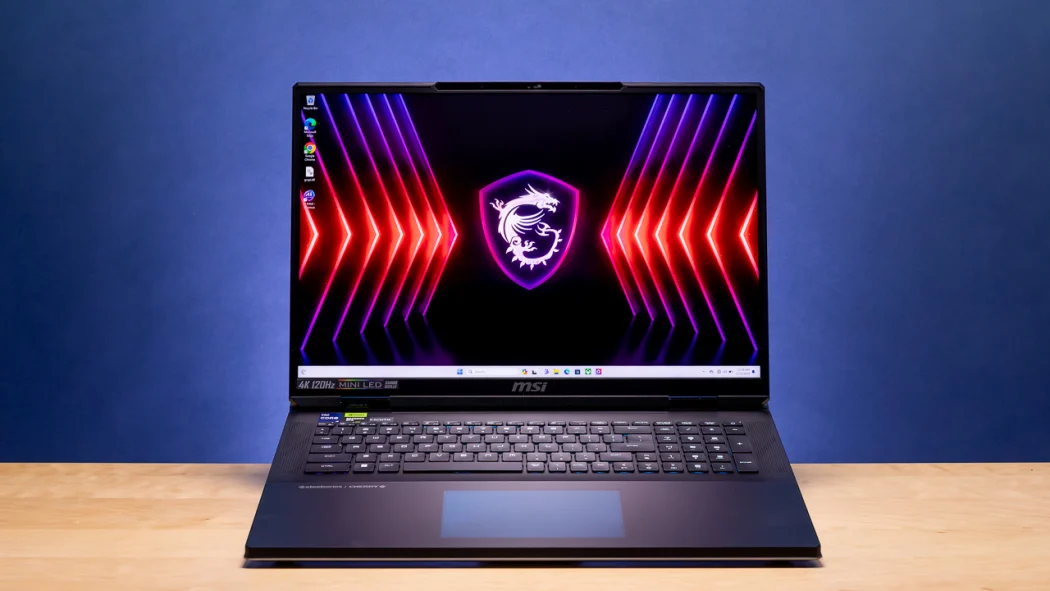
Table of Contents Show
The MSI Titan 18 HX is a desktop-replacement laptop built around an Intel Core Ultra 9 285HX processor and NVIDIA GeForce RTX 5090 GPU with 24GB of GDDR7 VRAM. For architects considering it as a mobile workstation for 3D rendering, BIM modeling, and design visualization, this MSI Titan 18 HX review breaks down the specs that matter, the performance you can expect in real architectural workflows, and the practical compromises you need to accept.
The MSI Titan 18 HX AI gaming laptop sits at the very top of the mobile performance ladder. It pairs Intel’s flagship Arrow Lake-HX processor with NVIDIA’s most powerful laptop GPU, wraps both in a magnesium-aluminum alloy chassis, and pairs them with a stunning 18-inch 4K Mini LED display. On paper, it reads like the ultimate portable workstation for architecture professionals who need to run Revit, 3ds Max, Lumion, and V-Ray on the move. But the reality of using it day-to-day as an architect is more complicated than the spec sheet suggests. This review evaluates the MSI Titan 18 HX from the perspective of someone who needs to model, render, document, and present architectural projects, not just hit high frame rates in games.
Core Hardware Specs of the MSI Titan 18 HX
The MSI Titan 18 HX laptop ships in several configurations, but the flagship model (A2XWJG) includes the Intel Core Ultra 9 285HX with 24 cores (8 Performance, 16 Efficiency) and a boost clock up to 5.5 GHz. The GPU is the NVIDIA GeForce RTX 5090 with 24GB GDDR7 running at up to 175W TGP, with total CPU-GPU combined power reaching 270W through MSI’s OverBoost Ultra technology. Memory is 64GB DDR5-6400 across two SODIMM slots, upgradeable to 96GB. Storage in the top configuration includes a 2TB PCIe Gen 5 NVMe SSD plus two 2TB Gen 4 SSDs, totaling 6TB across four M.2 slots.
For architects, the key numbers here are the 24GB of VRAM (which matters for GPU-accelerated rendering in Blender Cycles, V-Ray GPU, and Enscape), the 64-96GB RAM ceiling (adequate for large Revit models but below the 128GB some previous-generation Titan models supported), and the quad-SSD storage capacity (useful for keeping multiple project archives locally accessible). The Arrow Lake-HX architecture drops Hyper-Threading in favor of improved per-core efficiency, which means the 24-core/24-thread setup handles single-threaded BIM tasks well while still offering strong multi-threaded rendering throughput.
MSI Titan 18 HX Specifications Table
The table below summarizes the hardware specifications that are most relevant to architectural workflows:
| Component | Specification | Relevance for Architects |
|---|---|---|
| CPU | Intel Core Ultra 9 285HX, 24 cores, up to 5.5 GHz | Strong single-thread for Revit; good multi-thread for CPU rendering |
| GPU | NVIDIA RTX 5090 Laptop, 24GB GDDR7, 175W TGP | Top-tier for GPU rendering (V-Ray, Blender Cycles, Enscape) |
| RAM | 64GB DDR5-6400 (max 96GB, 2 SODIMM slots) | Enough for most Revit projects; large BIM models may need 96GB |
| Display | 18″ 3840×2400 Mini LED, 120Hz, 100% DCI-P3, HDR 1000 | Excellent for render review, visualization, and color-critical work |
| Storage | Up to 6TB (1x Gen5 + 3x Gen4 M.2 NVMe) | Fast project loading; enough space for large BIM and render archives |
| Connectivity | 2x Thunderbolt 5, 3x USB-A 3.2, HDMI 2.1, SD Express, 2.5G Ethernet | Thunderbolt 5 supports dual 4K monitors; full desktop connectivity |
| Battery | 99.9 Wh (FAA flight maximum) | Roughly 2-4 hours for light tasks; under load, closer to 1-2 hours |
| Weight | 3.6 kg (7.9 lbs) + 400W power adapter | Not portable for daily carry; suited for desk-to-desk moves |
📐 Technical Note
The 2025 MSI Titan 18 HX AI reduces maximum RAM from 128GB (4 SODIMM slots in the 2024 model) to 96GB (2 SODIMM slots). For architects running very large Revit central models or Navisworks coordination files that regularly exceed 40-50GB of RAM usage, this is a meaningful downgrade. Autodesk recommends a minimum of 32GB for Revit 2026, but complex multi-discipline BIM projects with linked models and point clouds often push well past 64GB.
Display Quality: Does the 4K Mini LED Work for Architecture?
The 18-inch 3840×2400 Mini LED panel is one of the strongest reasons to consider the MSI Titan 18 HX 5090 as an architecture machine. The 16:10 aspect ratio gives you more vertical space than traditional 16:9 displays, which is useful when working on building sections, multi-story elevations, or long plan layouts in Revit or AutoCAD. The 100% DCI-P3 color gamut coverage and VESA DisplayHDR 1000 certification mean that render previews in Enscape, Lumion, or V-Ray will display with accurate, wide-gamut color and strong contrast. You can review material colors, interior lighting simulations, and exterior atmosphere with confidence that the display is representing your work faithfully.
The 120Hz refresh rate adds smoothness to real-time 3D navigation in SketchUp, Rhino viewport shading, and Enscape walkthroughs. While not essential for architecture in the way it is for gaming, it does reduce the visual fatigue that comes from spending 8+ hours panning and orbiting models on screen. One important gap: the panel lacks any form of adaptive sync (neither G-Sync nor FreeSync), which means you may notice occasional screen tearing during fast viewport movements. For detailed CAD work, this is rarely an issue, but during real-time rendering walkthroughs it can be briefly distracting.
If you are pairing the Titan 18 HX with an external monitor for architecture work, the dual Thunderbolt 5 ports and HDMI 2.1 output make it straightforward to drive two additional 4K displays. This effectively turns the laptop into a triple-screen workstation at your desk.
💡 Pro Tip
When using the Titan 18 HX for Revit or AutoCAD, switch to the laptop’s hybrid graphics mode (integrated + discrete) for 2D drafting sessions. This drops the RTX 5090 to idle, reduces fan noise substantially, and extends battery life from roughly 1 hour to 3-4 hours. Save the dedicated GPU mode for rendering and 3D visualization sessions where you need full power.
How Does the MSI Titan 18 HX Perform for 3D Rendering?
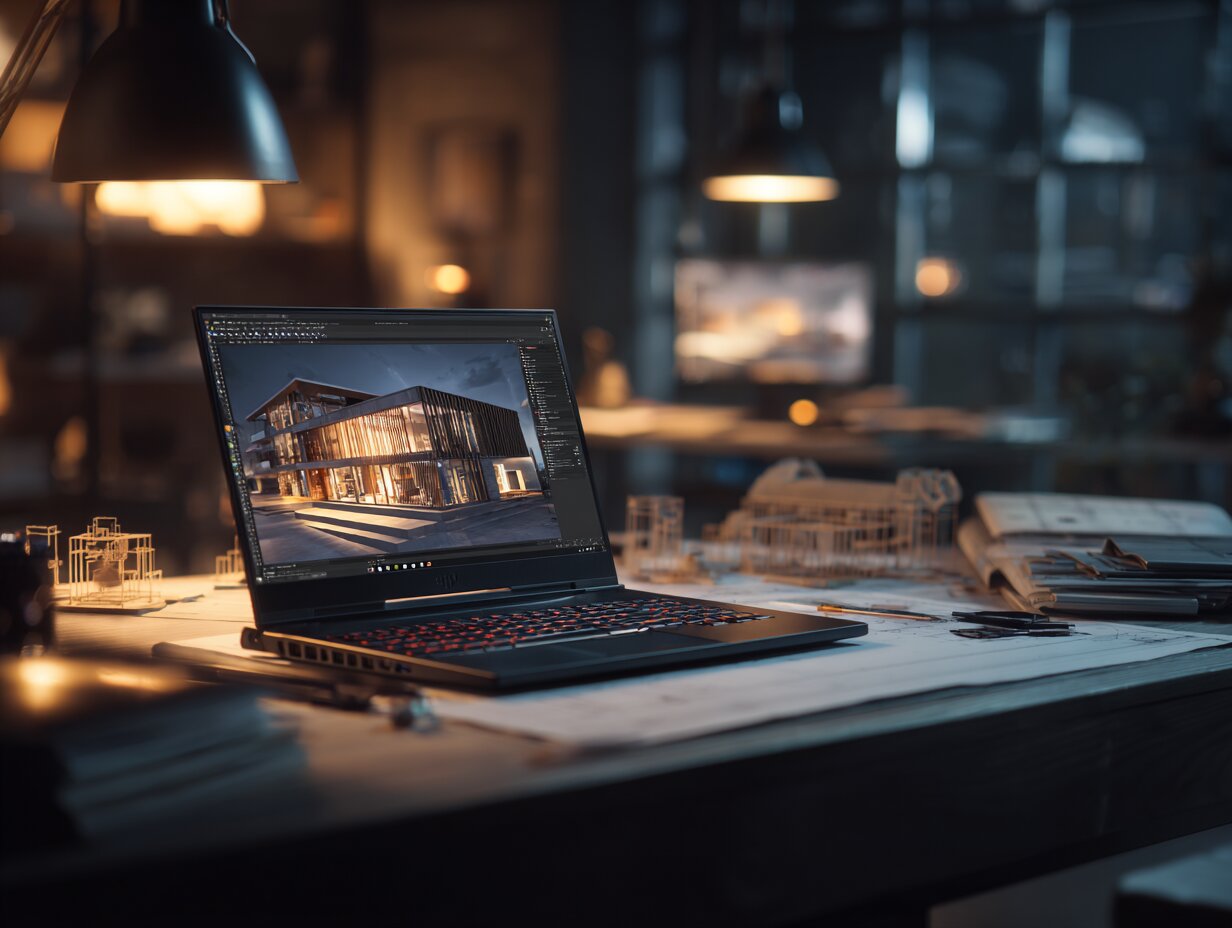
GPU-accelerated rendering is where the MSI Titan 18 HX AI laptop earns its price tag. The RTX 5090’s 24GB of GDDR7 memory and Blackwell architecture deliver a significant jump in rendering throughput compared to the previous-generation RTX 4090 laptop GPU. In Blender benchmark tests, the RTX 5090 laptop GPU posts scores around 8,000, and the standard BMW scene completes in roughly 8 seconds. OctaneBench scores for the RTX 5090 in this chassis have been reported at 859, which places it firmly above any other mobile GPU currently available.
For architecture-specific rendering tools, the performance picture is equally strong. PugetBench scores for Adobe Premiere Pro and After Effects exceed 15,000, which means editing 4K walkthrough animations with multi-layer compositions is handled without dropped frames. V-Ray GPU rendering sees major benefits from the 24GB VRAM pool, allowing complex architectural scenes with high-resolution textures, displacement maps, and proxy vegetation to fit entirely in GPU memory without falling back to slower CPU-assisted processing.
If you work with 3D rendering software for architects like Enscape or Lumion, the RTX 5090 pushes real-time viewport quality noticeably higher than even the RTX 4090, especially when enabling full ray tracing and high-quality global illumination. Enscape scenes at 4K resolution with maximum quality settings run at fluid frame rates, which makes design iteration faster during the critical middle stages of a project when you are still exploring material and lighting options. For a deeper look at how Enscape integrates into architectural workflows, our dedicated review covers the rendering pipeline in detail.
🔢 Quick Numbers
- Blender BMW render scene: approximately 8 seconds (Skynexttech, 2026)
- OctaneBench score: 859 on RTX 5090 laptop GPU (OTOY Forums, 2025)
- PugetBench Premiere Pro: 15,000+ (Skynexttech, 2026)
- Combined CPU-GPU power draw: up to 261W sustained under full load (Notebookcheck, 2025)
Revit, SketchUp, and BIM Workflow Performance
BIM software like Revit is historically CPU-bound and single-threaded for most modeling and documentation tasks. The Core Ultra 9 285HX’s P-core boost of 5.5 GHz delivers strong single-thread performance, matching or slightly exceeding the previous-generation Core i9-14900HX in Revit-specific workloads. Model opening times, view regeneration, and Dynamo script execution all benefit from the high clock speeds. The 16 Efficiency cores handle background processes (syncing workshared models, running Navisworks clash detection in parallel) without pulling clock speed from the Performance cores you need for active design work.
SketchUp remains a single-threaded application at its core, so the Titan’s high per-core speed translates directly into smoother orbiting, faster geometry operations, and snappier inference snapping on complex models. Rhino 8 with Grasshopper takes better advantage of multi-threading, and the 24-core setup handles parametric definition solving and mesh-heavy operations with room to spare.
The 64GB of DDR5-6400 RAM will serve most mid-size architectural projects without issues. Revit models under 500MB with linked consultant files, point clouds under 10GB, and typical presentation-grade Enscape scenes will run comfortably within this memory envelope. For firms working on large hospital, airport, or campus projects where the combined BIM model size exceeds 1GB and linked coordination models push total RAM usage above 60GB, upgrading to 96GB is advisable. The reduction from four to two SODIMM slots in this generation is a practical limitation that architects managing very large multi-discipline models should factor into their purchasing decision.
If you are evaluating different laptops for architects, the Titan 18 HX occupies the extreme top end of the market. Architects working on smaller residential and commercial projects may find that laptops with RTX 5080 GPUs and 32-64GB RAM deliver 80-90% of the performance at half the cost. The MSI Titan 18 HX 5090 configuration makes the most financial sense for professionals who actively render locally, produce walkthrough animations in-house, or handle GPU-intensive visualization tasks daily rather than occasionally.
⚠️ Common Mistake to Avoid
Many architects assume that more GPU VRAM always means faster Revit performance. Revit’s modeling and documentation engine is CPU-bound and barely touches the discrete GPU during normal use. The RTX 5090’s 24GB of VRAM benefits rendering and visualization tools (Enscape, V-Ray GPU, Lumion), not Revit’s own interface speed. If your primary bottleneck is slow view regeneration in Revit, a faster CPU clock matters far more than upgrading the GPU.
Build Quality, Keyboard, and Daily Usability
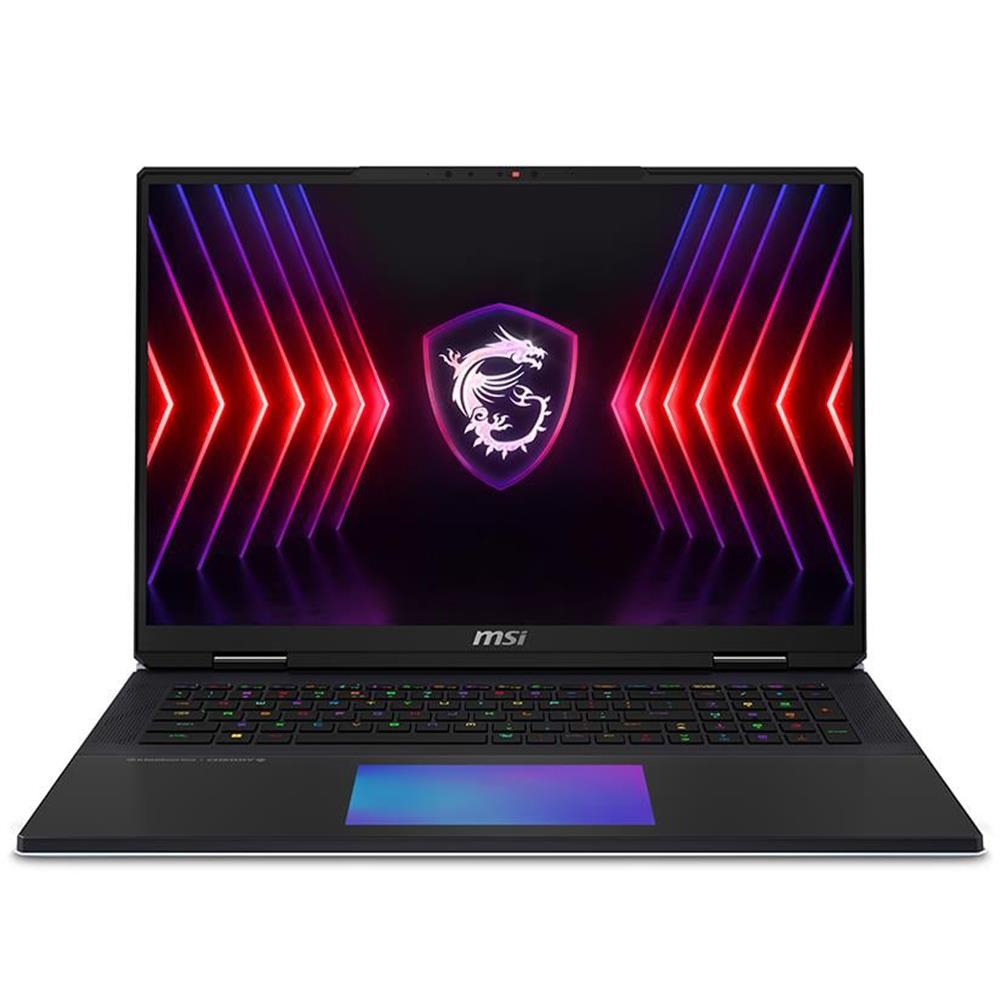
The chassis is constructed from magnesium-aluminum alloy on the lid and high-quality polycarbonate on the keyboard deck. There is minimal flex in the lid and virtually none in the keyboard tray, giving the laptop a rigid, premium feel that matches its price point. The overall design is surprisingly understated for a gaming-branded product, with a single backlit MSI dragon logo on the lid and clean, dark-toned surfaces. Architects who need to present work to clients or bring the laptop to project meetings will not feel out of place pulling this machine out, unlike some of the more aggressive gaming laptop designs on the market.
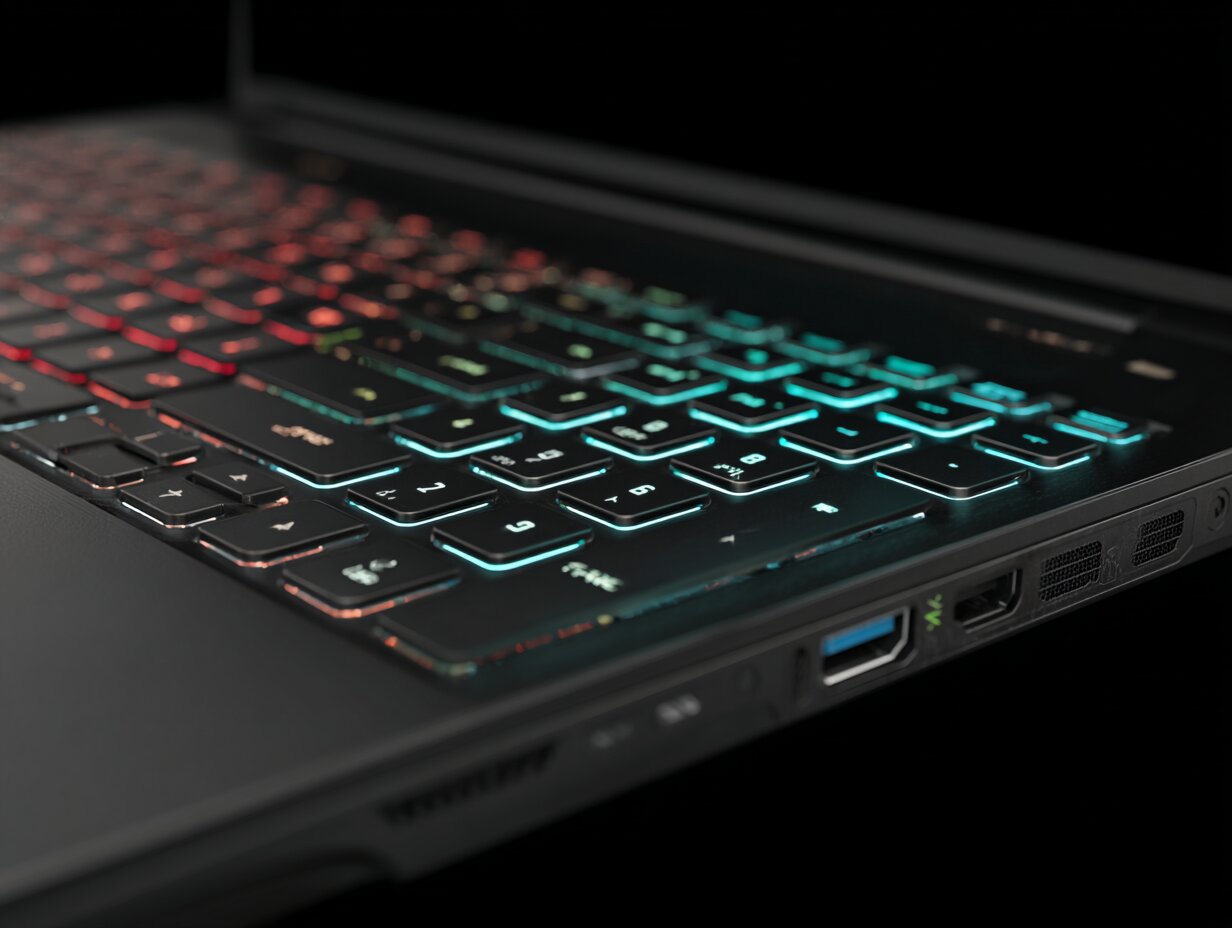
The Cherry MX Ultra-Low Profile mechanical keyboard is a genuine standout. Architectural work involves hours of typing specifications, emails, and drawing annotations alongside the usual modeling and rendering. The mechanical switches provide tactile feedback and a satisfying keystroke that conventional membrane laptop keyboards cannot match. The SteelSeries per-key RGB backlighting is fully customizable, and while architects probably will not set up rainbow wave patterns, the ability to set a single static white or warm backlight for low-light studio sessions is practical. One weakness noted by multiple reviewers is the touchpad, which feels slightly sluggish in click response and inconsistent with multi-finger gestures. For architecture work, most users will pair the laptop with an external mouse anyway, so this is a minor inconvenience rather than a deal-breaker.
Connectivity is thorough: two Thunderbolt 5 ports (supporting DisplayPort 2.1 output and USB Power Delivery), three USB-A 3.2 Gen 2 ports, HDMI 2.1, an SD Express card reader, 2.5G Ethernet, and Wi-Fi 7. This port selection means the Titan 18 HX can function as a docked workstation without any port replicator. You can run dual external 4K monitors, connect a wired network for reliable BIM server access, and still have USB ports free for a mouse, external SSD, and 3D scanner. For architects who travel between office, home, and site, this eliminates the need for a separate docking station.
Is the MSI Titan 18 HX Portable Enough for Architects?
At 3.6 kg (7.9 lbs) for the laptop alone, plus a 400W power brick that adds significant weight and bulk, the MSI Titan 18 HX is not a machine you carry casually. Its footprint measures 404 x 307.5 mm, which means it will not fit in most standard laptop compartments of backpacks or messenger bags. You will need a bag designed for 18-inch laptops or a padded sleeve inside a larger bag.
The 99.9 Wh battery is the legal maximum for commercial flights. Despite this, battery life under any kind of workload is severely limited. Tom’s Hardware measured just 2 hours and 16 minutes in a mixed web browsing and video streaming test, and real-world use during a coffee shop session yielded only 1 hour and 15 minutes with screen brightness turned up. Under rendering or modeling load, expect the battery to drain in under an hour. This is not a laptop for untethered work on a construction site or during a long flight. You need access to a power outlet for any serious use.
Portability is further affected by the cooling system’s noise output. Under sustained GPU load (rendering, real-time visualization), the dual-fan system pushes warm air through four exhaust vents and generates noticeable noise. Multiple reviewers describe the fans as loud enough to require headphones during intensive work sessions. In a quiet studio or shared office space, this noise level may be disruptive to colleagues. During lighter workloads like 2D drafting in AutoCAD or document editing, fan noise drops to manageable levels.
💡 Pro Tip
If you plan to use the Titan 18 HX at client presentations, switch MSI Center to “Silent” mode before the meeting. This caps power and fan speed, keeping noise low enough for conversation. The performance drop is significant for rendering, but for running through a prepared Enscape walkthrough or flipping between presentation slides, Silent mode provides enough GPU headroom while keeping the room quiet.
Cooling, Thermals, and Noise Under Sustained Load
MSI uses a vapor chamber cooling system with dedicated heat pipes for both the CPU and GPU, plus a separate cooling pipe for the Gen 5 SSD. Under a full Prime95 stress test at 32-35°C ambient room temperature, CPU temperatures peak around 96°C while maintaining stable power delivery. GPU temperatures sit close to 80°C, briefly touching 81.5°C under maximum load. These temperatures are within safe operating ranges for sustained use, though they indicate that the cooling system is running near its limits.
Surface temperatures during heavy workloads measure around 40°C (105°F) on the keyboard between the G and H keys, 25°C (77°F) on the touchpad, and 43°C (109°F) on the underside near the exhaust vents. The keyboard area warmth is noticeable during long rendering sessions but not uncomfortable for typing. The underside temperature means lap use during any kind of workload is impractical.
The combined CPU-GPU power draw can sustain 261W in MSI’s Extreme Performance mode. This is a remarkable amount of thermal energy to manage inside a laptop chassis, and it explains why the fans spin aggressively. For architects who intend to use this machine primarily at a desk as a desktop replacement (with the lid open and good ambient airflow), the thermals are well-managed. For those hoping to use it as a truly mobile device, the heat and noise will be constant companions during any rendering or visualization task.
Video: MSI Titan 18 HX AI Full Review
This review from Jarrod’s Tech covers the MSI Titan 18 HX AI’s performance benchmarks, thermal management, and real-world testing in detail, giving a clear picture of what to expect from the hardware in demanding workloads.
What Are the Limitations for Architectural Use?
Despite its raw power, the MSI Titan 18 HX has several characteristics that limit its appeal specifically for architecture professionals:
The 96GB maximum RAM ceiling is a downgrade from the 128GB (or even 192GB) supported by some competing workstation-class laptops and the previous Titan generation. For firms running large-scale BIM coordination with linked Revit, ArchiCAD, or Navisworks models, this ceiling could become a bottleneck sooner than expected.
Battery life is essentially irrelevant for professional work. You will always need to be plugged in for any task beyond reading emails or reviewing PDFs. Architects who work on construction sites, attend long meetings, or travel frequently will find this frustrating. The machine is powerful but it is tethered to an outlet.
The weight and size rule it out as a daily commuter laptop. At nearly 8 pounds before you add the power brick, cables, and a mouse, your bag weight quickly exceeds 5 kg. Architects who split time between multiple offices, project sites, and home should consider whether this weight is realistic for their routine.
MSI’s one-year warranty feels short for a laptop in the $5,000-$6,500 price range. Professional mobile workstations from Lenovo (ThinkPad P series) and Dell (Precision series) typically include three-year warranties with next-business-day service, which matters for architects who depend on their machine daily for billable project work.
The speakers are underwhelming for a flagship product. While this has no impact on CAD or rendering, architects who present walkthroughs with ambient sound or use the laptop for video calls during design reviews may want external speakers or headphones. For a broader look at what architects need from laptops suited for architecture workflows, our guide covers machines across all price points.
⚖️ Pros & Cons at a Glance
✔️ Pros: Desktop-class GPU rendering performance, stunning 4K Mini LED display, excellent port selection with Thunderbolt 5, Cherry MX mechanical keyboard, up to 6TB SSD storage
✖️ Cons: Very short battery life (1-2 hours under load), heavy at 3.6 kg plus 400W adapter, loud fans under sustained workload, 96GB RAM maximum is lower than predecessor, only one-year warranty
How Does It Compare to Professional Workstation Laptops?
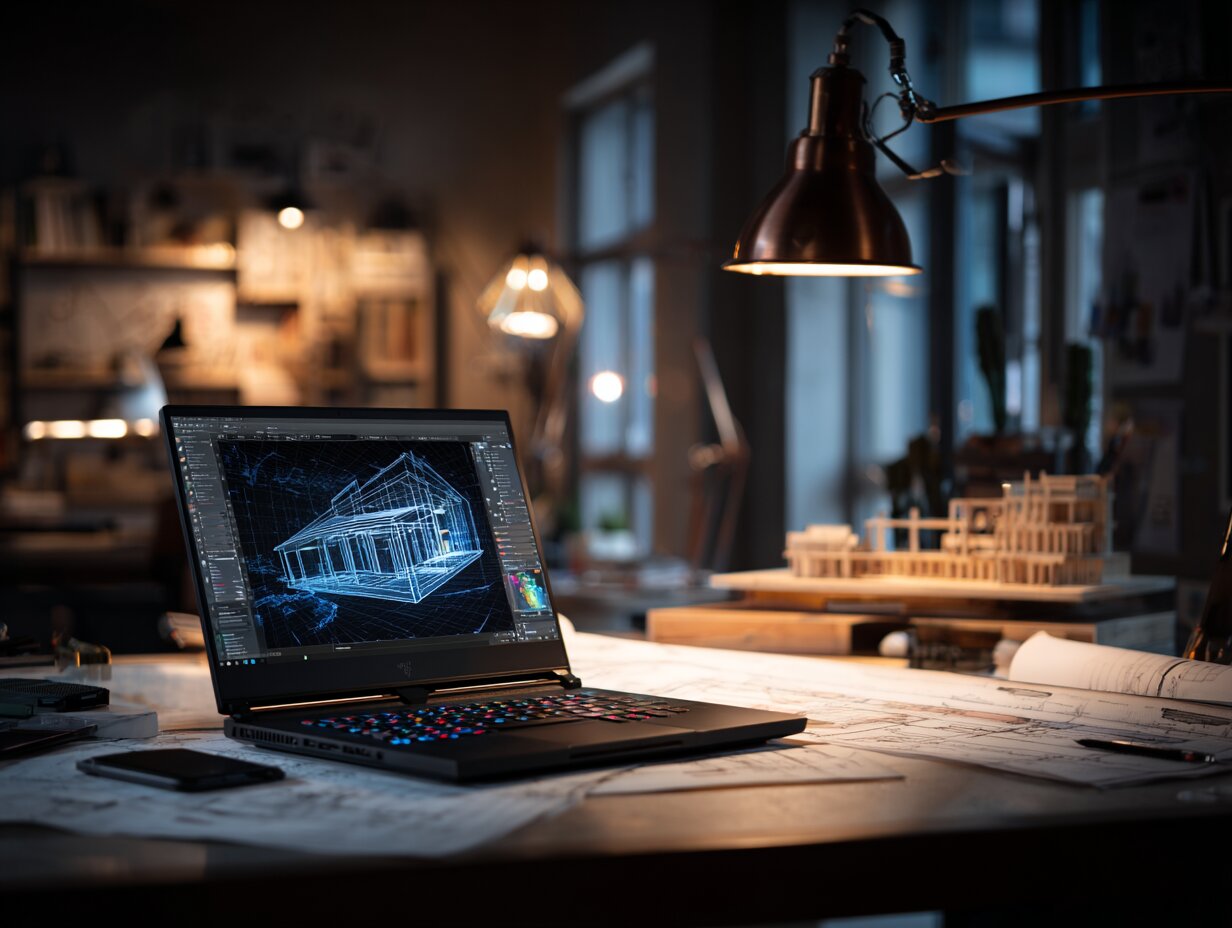
Architects evaluating the MSI Titan 18 HX will naturally compare it against certified mobile workstations like the Lenovo ThinkPad P16 Gen 3 or Dell Precision 7780. These machines run NVIDIA RTX A-series (Ada Lovelace) professional GPUs, carry ISV certifications for Revit, AutoCAD, and Rhino, and come with 3-year on-site warranties. They also support up to 128GB of ECC RAM, which offers error-correction for mission-critical BIM data integrity.
The Titan 18 HX outperforms these workstation laptops in raw GPU rendering speed. The consumer RTX 5090 significantly outpaces the RTX A5500 or RTX 5000 Ada in Blender, V-Ray, and real-time rendering benchmarks. However, ISV certification matters for architects: it means that Autodesk and McNeel (Rhino’s developer) have tested and validated driver stability on that specific hardware and GPU driver combination. Consumer GeForce GPUs occasionally have driver-level glitches with professional CAD software that Quadro/RTX Pro drivers are specifically tuned to avoid. In practice, most architects using GeForce GPUs report minimal issues with current software versions, but firms with strict IT compliance requirements may prefer the certified workstation path.
The display is another area where the Titan 18 HX has an advantage. No current ThinkPad or Precision model offers a Mini LED panel at the same brightness and color gamut level. For architects whose workflow includes frequent render review, material color evaluation, and client-facing visualization work, the display quality alone is a compelling reason to consider the Titan over a traditional workstation. If you are choosing between local rendering and cloud rendering, the Titan’s GPU power tips the balance toward keeping renders in-house rather than paying per-job cloud fees.
🎓 Expert Insight
“The right choice is to match your software challenges in hardware. Revit’s demands on a workstation are fundamentally different from 3ds Max’s or Lumion’s, and buying the most expensive GPU does not solve a CPU-bound problem.” — Matthew Stachoni, BIM Specialist, Microsol Resources (Autodesk University 2016)
This principle still holds in 2026. The Titan 18 HX is the right machine for architects whose daily work is GPU-intensive (rendering, visualization, VR). For architects who spend 90% of their time in Revit’s modeling and documentation views, a less expensive laptop with a fast CPU and modest GPU may deliver a better return on investment.
Who Should Buy the MSI Titan 18 HX?
The MSI Titan 18 HX makes practical sense for a specific type of architecture professional. If you produce renderings, animations, or VR walkthroughs as a regular part of your project delivery workflow, and you need a single machine that can travel between your office and home (or between two offices), the Titan offers desktop-class visualization performance in a portable form factor. Solo practitioners and small-firm principals who handle both design and visualization in-house will benefit from keeping all their work on one powerful machine rather than maintaining separate workstation and laptop setups.
Architecture visualization specialists working at firms that produce high-end marketing imagery will find that the RTX 5090’s rendering speed and 24GB VRAM pool remove the bottleneck of waiting for GPU renders to complete. The 4K Mini LED display means you can evaluate final render quality directly on the laptop screen without connecting to a calibrated desktop monitor.
Students and early-career architects should look elsewhere. The $5,000-$6,500 price range is difficult to justify when laptops in the $1,500-$2,500 range (with RTX 4070 or RTX 5070 Ti GPUs) handle Revit, SketchUp, and Enscape at perfectly adequate performance levels. Our guide to the best laptops for architects covers options at every budget point. For students specifically, graphic tablets for architecture and mid-range laptops are a more balanced investment.
Firms with dedicated IT infrastructure, render farms, or cloud rendering subscriptions should also think carefully. If your heavy rendering happens on server-side hardware and your laptop is primarily a modeling and documentation tool, the Titan’s GPU power is wasted overhead. A software-first approach to selecting architecture tools often reveals that hardware needs are lower than expected when the right rendering platform is in place.
✅ Key Takeaways
- The MSI Titan 18 HX delivers the fastest laptop GPU rendering performance available, with the RTX 5090 completing a Blender BMW scene in 8 seconds and posting OctaneBench scores of 859.
- The 4K Mini LED display with 100% DCI-P3 and HDR 1000 is excellent for architectural visualization review and color-accurate render evaluation.
- Battery life is extremely limited (1-2 hours under workload), making this a desk-bound machine that needs constant AC power for productive architecture work.
- Maximum RAM of 96GB is a step down from the previous generation and may limit architects working on very large BIM coordination models.
- The Titan 18 HX is best suited for architects who actively render locally, produce walkthroughs, and need a single machine for both design and visualization. Budget-conscious architects and those with cloud rendering infrastructure will get better value elsewhere.
Final Thoughts
The MSI Titan 18 HX review comes down to a question of workflow fit. This is the most powerful laptop you can buy for GPU-accelerated rendering, real-time visualization, and heavyweight 3D modeling. The display is among the best available in any laptop category. The build quality is solid, the keyboard is genuinely enjoyable to type on, and the port selection covers every connectivity need an architect might have.
But it is also heavy, loud under load, tied to a wall outlet, and expensive. It carries a gaming brand identity that may or may not suit a professional context. And the one-year warranty offers less peace of mind than competitors in the mobile workstation category.
For the right architect, one who produces visualization-heavy project deliverables and needs desktop power in a machine that can move between locations, the MSI Titan 18 HX is the most capable tool currently available. For everyone else, there are lighter, cheaper, and more practical alternatives that will handle Revit, AutoCAD, and rendering software with less compromise on portability and battery life.
Pricing and configurations discussed in this article are based on U.S. retail pricing as of early 2026 and may vary by region and retailer. Always verify current specifications and availability directly on MSI’s official Titan 18 HX product page before purchasing.







Top 10 Architecture in the USA: Ranked by Revenue, Awards, and Specialty
A ranked breakdown of the top architecture firms in the USA covering...
Furkan Sen13 Mins read

Kingdom Centre Tower: Riyadh’s Inverted Parabolic Arch and Sky Bridge Explained
A detailed look at Kingdom Centre Tower in Riyadh, Saudi Arabia, covering...
 Sinan Ozen9 Mins read

Architecture Precedent Study: How to Analyze a Building Step by Step
Learn how to conduct an architecture precedent study with a structured, step-by-step...
 Elif Ayse Sen12 Mins read

Reichstag Building: How Norman Foster Turned a War-Scarred Landmark into a Green Parliament
A detailed look at the Reichstag Building in Berlin, covering its turbulent...
Sinan Ozen7 Mins read


Leave a comment