

Best Keyboards for CAD and BIM Software: 7 Picks for Architects and Designers
Choosing the right keyboard for CAD and BIM work affects shortcut speed, comfort during long drafting sessions, and overall productivity. This guide ranks seven keyboards across mechanical, ergonomic, and CAD-specific categories, with detailed comparisons for architects and designers working in AutoCAD, Revit, SketchUp, and ArchiCAD.
 Elif Ayse Sen14 June 202616 Mins read298

Table of Contents Show
The best keyboard for CAD and BIM software combines tactile key feedback, a full-size layout with a dedicated number pad, programmable shortcut keys, and an ergonomic form factor that reduces strain during long drafting sessions. The top pick for most architects is the 3Dconnexion Keyboard Pro with Numpad, which was built specifically for CAD workflows and includes 12 app-aware programmable keys.
If you spend eight or more hours a day switching between AutoCAD command lines, Revit family editors, and ArchiCAD’s navigator, your keyboard is doing more work than almost any other piece of hardware on your desk. A standard office keyboard technically works, but it forces compromises: slower shortcut execution, uncomfortable wrist angles, and constant reaching for functions that a better layout would put right under your fingers. Choosing the right keyboard for architects is not about flashy features. It is about finding a tool that matches the way CAD and BIM software actually operates, where keyboard shortcuts account for a significant portion of daily input and number entry is a constant requirement.
This guide covers seven keyboards that fit different budgets, switch preferences, and workspace setups. Each recommendation targets a specific use case within architectural design workflows, from dedicated CAD-specific boards to ergonomic options for professionals dealing with wrist fatigue.
What Makes a Keyboard Good for CAD and BIM Work?

Before looking at individual models, it helps to understand what separates a keyboard that works well for CAD and BIM from a general-purpose office keyboard. The differences are practical, not cosmetic, and they directly affect how quickly and comfortably you can work in programs like AutoCAD and Revit.
The number pad is the first consideration. Most CAD software relies heavily on numerical coordinate entry, dimension input, and command-line values. A tenkeyless keyboard (one without a number pad) might look clean on a desk, but it slows down anyone who regularly types coordinates, angles, or distances. For BIM software like Revit, where parameter editing involves constant number entry, a full-size layout or a detached numpad is close to non-negotiable.
Key switch type matters more than many architects realize. Membrane keyboards require bottoming out each key to register a press, which increases finger fatigue over long sessions. Mechanical switches register input at a midpoint in the keystroke, reducing the force needed and providing tactile feedback that confirms each press without looking at the screen. For CAD work, tactile (non-clicky) mechanical switches like Cherry MX Brown or equivalent are the most common choice because they give feedback without producing loud noise in shared offices.
💡 Pro Tip
See also our guide to the best tablets for architects.
If you share an open-plan studio, avoid clicky mechanical switches (Cherry MX Blue or equivalents). Tactile switches like Cherry MX Brown or Gateron Brown give you the same midpoint feedback without the audible click, keeping your workflow fast without disrupting colleagues during crits or phone calls.
Programmable macro keys are the third factor. CAD-specific keyboards like the 3Dconnexion Keyboard Pro assign frequently used commands (Undo, Escape, Layer Manager, Trim, Offset) to dedicated keys that sit above the standard function row. In AutoCAD alone, experienced users rely on dozens of keyboard shortcuts daily. Having a second row of app-aware keys that automatically adapt to whichever program is active can save significant time across a full workday.
Ergonomics rounds out the list. Architecture professionals regularly spend 8 to 12 hours at their desks. A keyboard with negative tilt, a split layout, or an integrated wrist rest positions the hands and forearms more naturally, reducing the risk of repetitive strain injury over months and years of use. This matters more in CAD work than in general typing because the left hand often holds modifier keys (Ctrl, Shift, Alt) in fixed positions for extended periods while the right hand operates the mouse.
7 Best Keyboards for Architects and CAD Professionals

The following picks cover dedicated CAD keyboards, mechanical options, ergonomic designs, and budget-friendly choices. Each recommendation includes its strongest use case so you can match the keyboard to your specific workflow.
Comparison of the Best Keyboards for CAD and BIM
The table below summarizes the key differences across all seven picks:
| Keyboard | Type | Numpad | Programmable Keys | Best For |
|---|---|---|---|---|
| 3Dconnexion Keyboard Pro | Scissor (low-profile) | Detached wireless | 12 + 4 on numpad | Dedicated CAD/BIM users |
| Logitech MX Keys S | Scissor (low-profile) | Integrated | Fn row customizable | Multi-device workflows |
| Logitech ERGO K860 | Membrane (split) | Integrated | Fn row customizable | Wrist and forearm comfort |
| Corsair K100 Air | Mechanical (Cherry MX ULP) | Integrated | Macro keys + iCUE | Premium mechanical feel |
| Keychron Q6 Pro | Mechanical (hot-swappable) | Integrated | Full QMK/VIA support | Customization enthusiasts |
| Microsoft Sculpt Ergonomic (discontinued) | Membrane (split dome) | Separate wireless | None | Budget ergonomic option |
| Logitech K120 | Membrane | Integrated | None | Budget/student use |
1. 3Dconnexion Keyboard Pro with Numpad
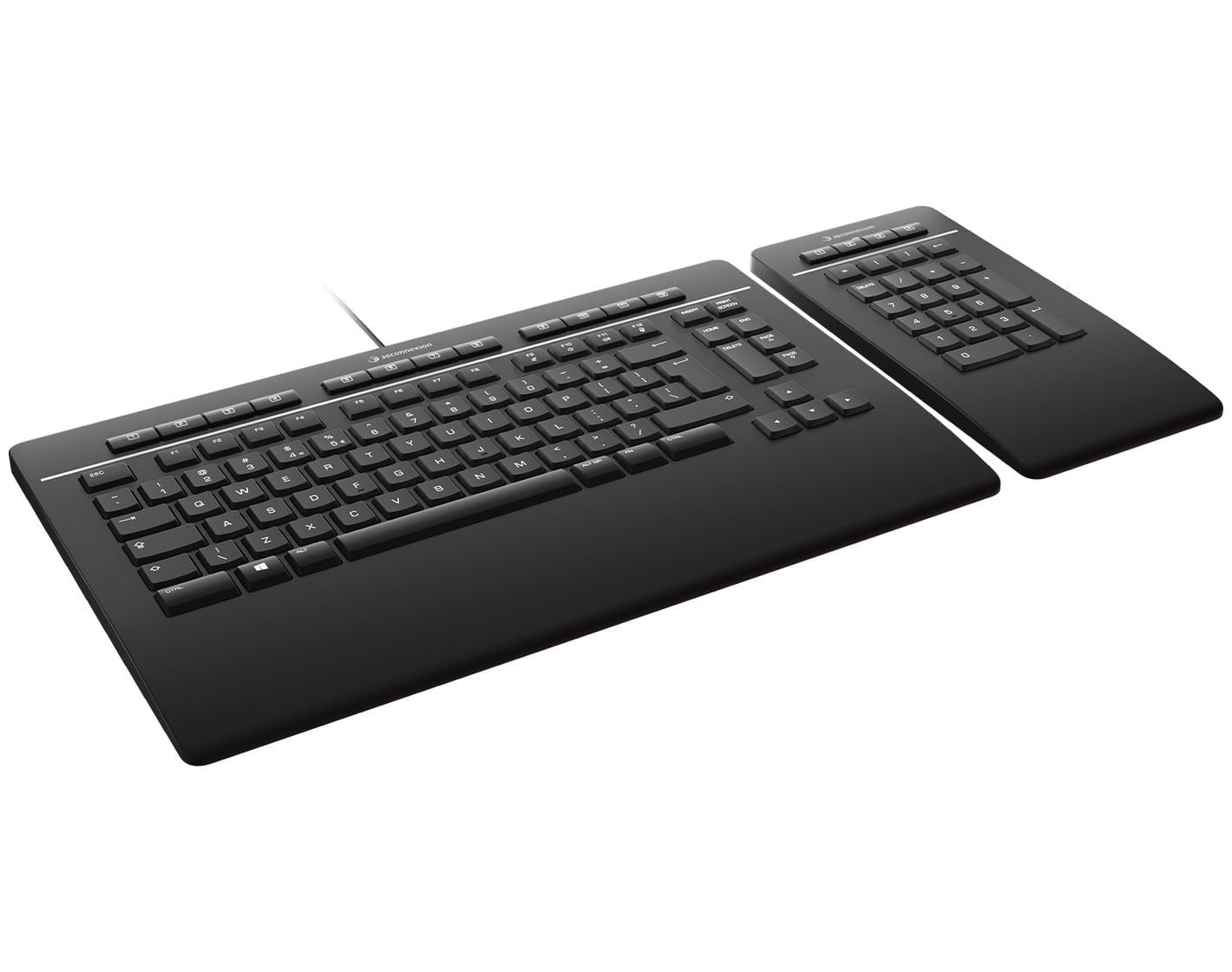
The 3Dconnexion Keyboard Pro is the only keyboard on the market designed specifically for CAD and 3D design professionals. Its most distinctive feature is the set of 12 programmable keys above the function row that automatically recognize whichever application you are using and assign the most relevant commands. When you switch from AutoCAD to Revit, the key assignments update without any manual configuration. An on-screen display confirms the current mapping so you always know what each key does.
The layout separates the numpad into a wireless module that connects through the keyboard’s integrated receiver. This means the main keyboard section stays compact, letting you position your mouse closer to the keyboard for reduced shoulder strain. During heavy number entry (inputting coordinates, editing Revit parameters), you can use the numpad and mouse simultaneously without moving your hand back and forth across the desk.
The keys use scissor-switch technology with concave keycaps shaped to fit fingertips. The travel is shallow compared to mechanical keyboards, which some users prefer for rapid shortcut execution. A full-size palm rest supports the wrists during extended sessions. The keyboard connects via USB cable, while the numpad communicates wirelessly through encrypted Bluetooth with a battery life rated at over six months of daily use.
The main limitation is price. It sits in the premium bracket for a scissor-switch keyboard, and 3Dconnexion runs frequent discounts, so check the official store for the current price before you buy. It also lacks mechanical switches, which some CAD professionals prefer for the more defined tactile response. But for architects who want a keyboard that integrates directly into their CAD workflow out of the box, it remains the strongest option available.
2. Logitech MX Keys S

The Logitech MX Keys S is a full-size wireless keyboard that works well for architects who split their time across multiple devices and applications. It supports pairing with up to three devices simultaneously via Bluetooth or the included Logi Bolt USB receiver, with a dedicated button to switch between them. If you work between a desktop workstation running Revit and a laptop for site visits, this eliminates the need for a second keyboard.
The low-profile scissor keys have a satisfying feel with a quiet keystroke, and each keycap is scooped to guide fingertip placement. Smart backlighting detects your hands approaching and adjusts brightness automatically, which is useful for architects who work late hours. The Fn row is customizable through Logitech Options+ software, letting you assign CAD-specific shortcuts to keys you already reach for instinctively.
Compared to the 3Dconnexion, it lacks dedicated CAD-aware programmable keys and does not auto-detect software environments. You need to set up custom mappings manually. But at $129.99 list (as of October 2026), it offers strong build quality, reliable wireless performance, and a comfortable typing experience at a lower price point. It pairs well with the multi-monitor setups that many architects run.
3. Logitech ERGO K860
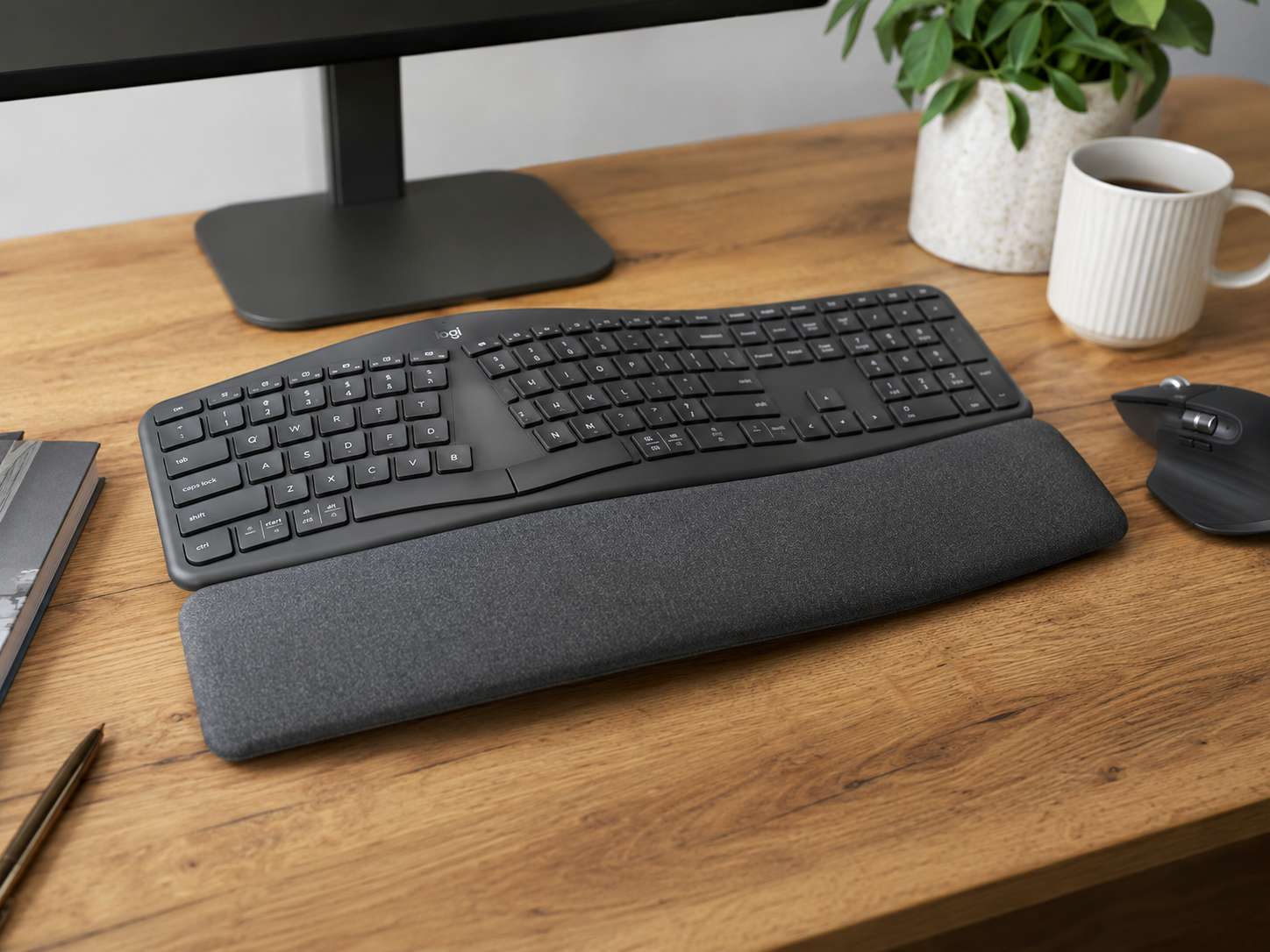
The Logitech ERGO K860 targets professionals who experience wrist or forearm discomfort during long work sessions. Its curved, split keyframe positions each hand at a natural angle rather than forcing the flat, parallel wrist position that standard keyboards require. Logitech reports that this design reduces muscle strain in the upper trapezius muscle by 21%, based on third-party ergonomic testing.
The integrated pillowed wrist rest provides 54% more support than a standard keyboard without a rest, according to Logitech’s own testing against their traditional models, and reduces wrist bending by 25%. Three adjustable tilt positions (0, -4, and -7 degrees) allow you to fine-tune the angle for sitting or standing desk configurations.
For CAD work specifically, the K860 includes a full-size layout with an integrated number pad, which keeps coordinate and dimension entry fast. Connectivity options include Bluetooth and the Logi Bolt USB receiver, with battery life rated at up to two years on two AAA batteries.
⚠️ Common Mistake to Avoid
Many architects buy a split or ergonomic keyboard and expect immediate comfort. The adjustment period for a split layout typically lasts one to three weeks. Your typing speed will drop initially as muscle memory recalibrates to the angled key positions. Plan to switch during a period with lighter deadlines rather than in the middle of a major project submission.

The trade-off is that the K860 uses membrane switches rather than mechanical or scissor mechanisms, so the key feel is softer and less defined than the MX Keys S or the 3Dconnexion. It also lacks programmable macro keys beyond basic Fn-row customization. For architects whose priority is reducing physical strain, though, this is the strongest keyboard on the list.
4. Corsair K100 Air Wireless
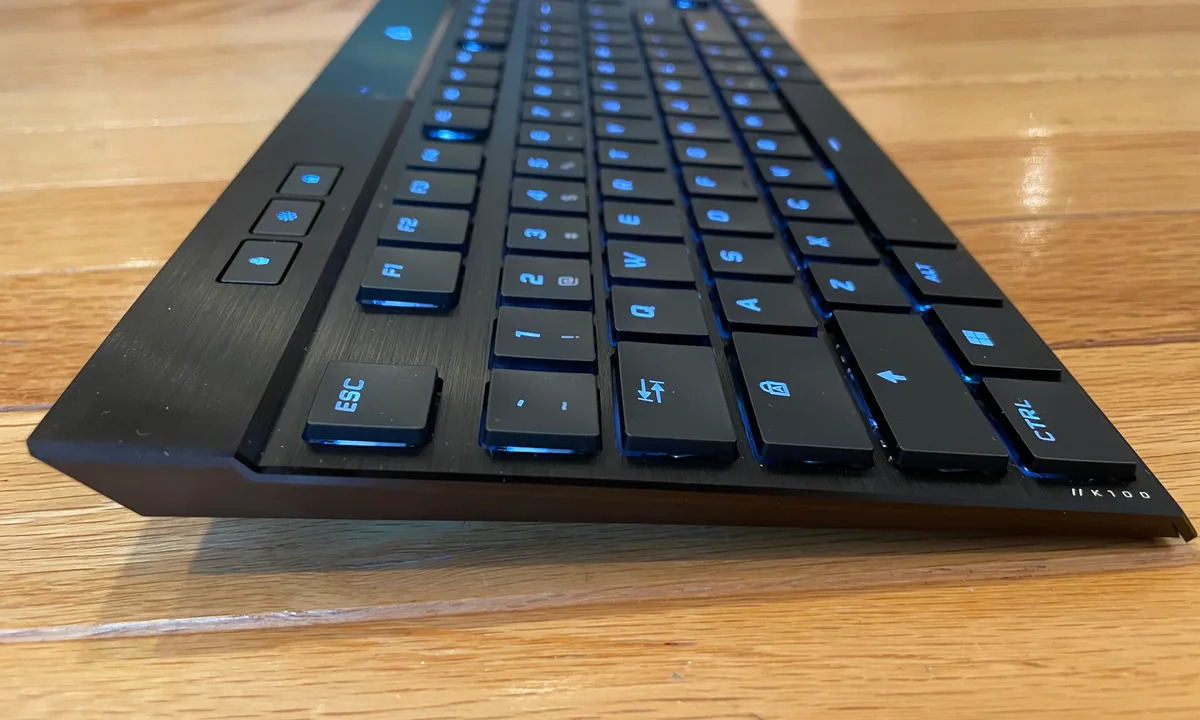
The Corsair K100 Air brings mechanical switch quality into a thin, wireless form factor. It uses Cherry MX Ultra Low Profile Tactile switches, which offer a defined actuation point and tactile bump in a slim housing that sits closer to the desk surface than traditional mechanical keyboards. For CAD users who want the responsiveness of mechanical switches without the height and bulk of a standard mechanical board, this is a strong option.
Its G macro keys, which double as the wireless function keys, can be programmed through Corsair’s iCUE software to store AutoCAD or Revit commands. The full-size layout includes a numpad, and the aluminum frame gives the keyboard stability on the desk during fast shortcut sequences. Wireless connectivity works through both Bluetooth and Corsair’s Slipstream USB receiver, with a battery life of roughly 200 hours with backlighting off.
At $329.99 on Corsair’s store (as of October 2026), this is the most expensive option on the list. Its macro functionality is not CAD-aware like the 3Dconnexion (you need to set up profiles manually), and the ultra-low-profile switches may feel unfamiliar to users accustomed to standard mechanical keyboards. But for architects who want a premium typing experience with wireless freedom and dedicated macro keys, the K100 Air delivers.
5. Keychron Q6 Pro
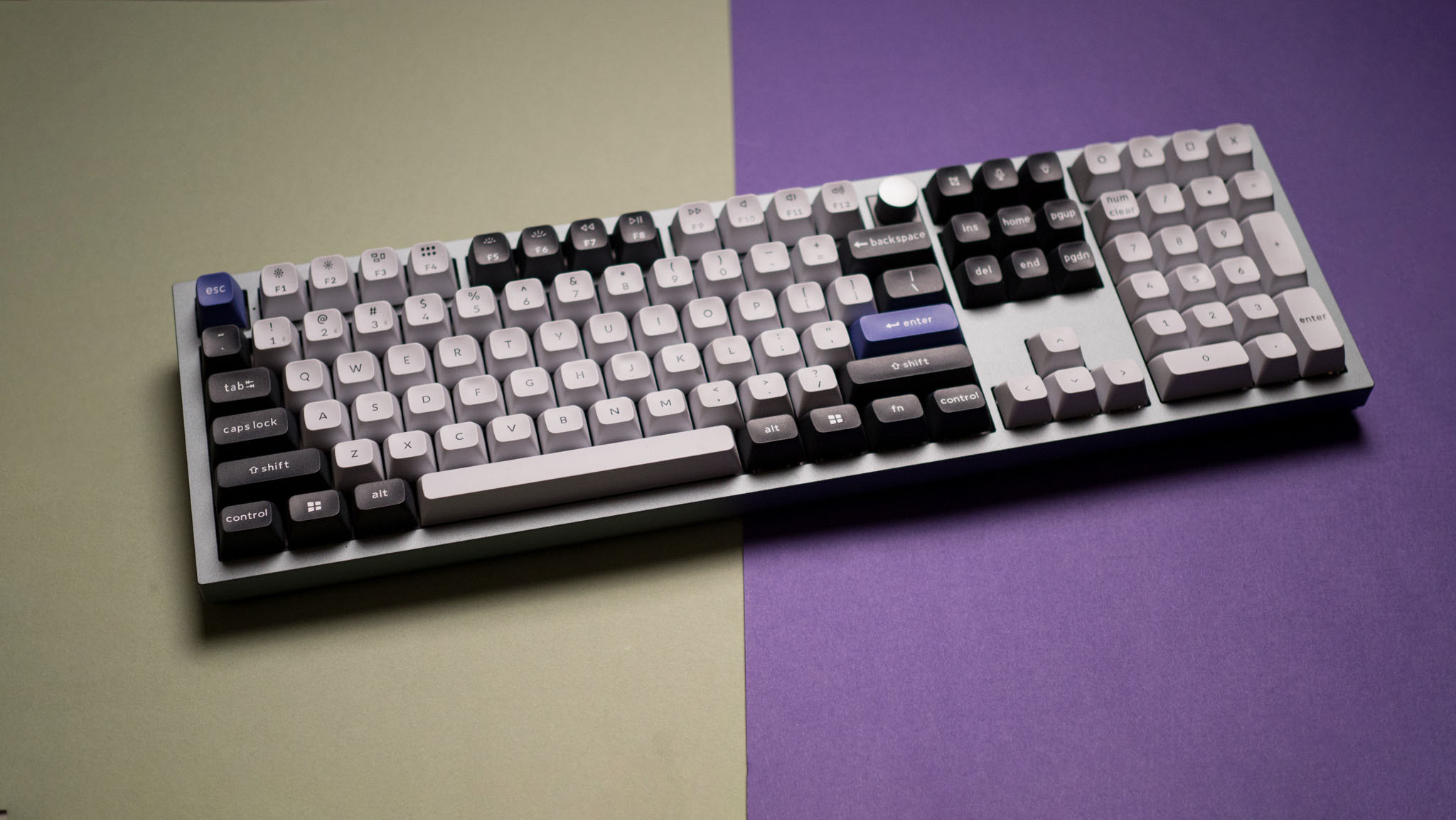
The Keychron Q6 Pro is a full-size mechanical keyboard with hot-swappable switches and full QMK/VIA firmware support. This means you can physically swap out the key switches without soldering and remap every single key on the board through open-source software. For architects who want total control over their keyboard layout and switch feel, no other option on this list comes close.
The aluminum CNC-machined body is heavy and stable, with sound-dampening foam layers that reduce the hollow sound common in cheaper mechanical boards. It ships with Gateron Jupiter switches (available in Brown tactile, Red linear, or Banana tactile variants) and supports both Bluetooth 5.1 and USB-C wired connections.
The QMK/VIA firmware compatibility is what sets the Q6 Pro apart for CAD users. Through VIA’s browser-based interface, you can create dedicated layers where specific keys trigger AutoCAD command aliases, Revit keyboard shortcuts, or ArchiCAD favorites. You can set up one layer for drafting, another for 3D modeling, and switch between them with a key combination. At $159.99 to $174.99 on Keychron’s store (as of October 2026), it costs about half as much as the Corsair K100 Air and offers a completely different (and more customizable) approach to keyboard optimization.
💡 Pro Tip
When setting up a QMK/VIA keyboard for CAD work, map your most-used commands to a secondary layer activated by holding a key near your thumb. For example, hold the right Alt key and press “L” to trigger the Line command, “O” for Offset, and “T” for Trim. This keeps your hands in home position while accessing dozens of shortcuts without reaching for distant function keys.
6. Microsoft Sculpt Ergonomic Keyboard (Discontinued)
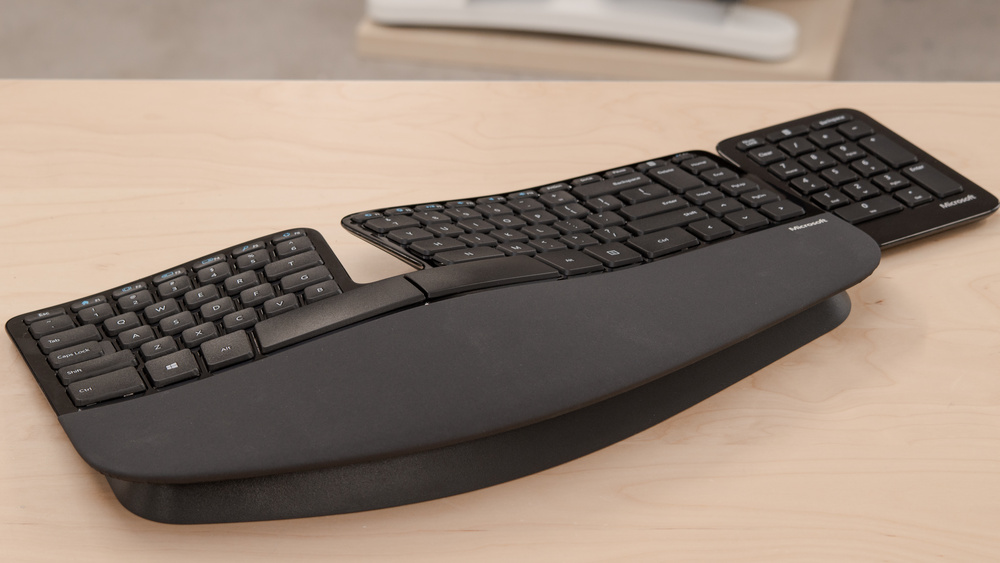
The Microsoft Sculpt Ergonomic Keyboard is an older design that remains popular among architects on a budget who want a split-layout ergonomic option. Microsoft stopped making its own keyboards in 2023, and Incase, which took over Microsoft-designed accessories, does not list the Sculpt in its store as of October 2026, so what you can buy today is mostly remaining retail stock. It features a domed, split keyframe with a cushioned palm rest and a separate wireless number pad, similar in concept to the 3Dconnexion’s detached numpad approach but usually at a lower price when you can still find one.
The split design angles each hand naturally, reducing ulnar deviation (the outward wrist bend that causes strain over time). A reverse-tilt riser at the front of the keyboard creates a slight negative slope, positioning the wrists above the fingers for a more neutral posture. The separate numpad connects via a shared USB receiver and can be placed on either side of the keyboard or moved out of the way when not needed.
The limitations are significant for professional CAD use. The membrane switches feel mushy compared to every other keyboard on this list, the wireless connection uses an older 2.4 GHz receiver (no Bluetooth), and the key feel has degraded in newer production runs compared to earlier batches. There are no programmable macro keys and no software customization beyond basic Windows keyboard settings. For students or architects who need ergonomic relief on a tight budget, a remaining Sculpt can still fill a gap, but it is a compromise in every area except price and ergonomic layout, and spare parts or warranty support will only get harder to find.
7. Logitech K120
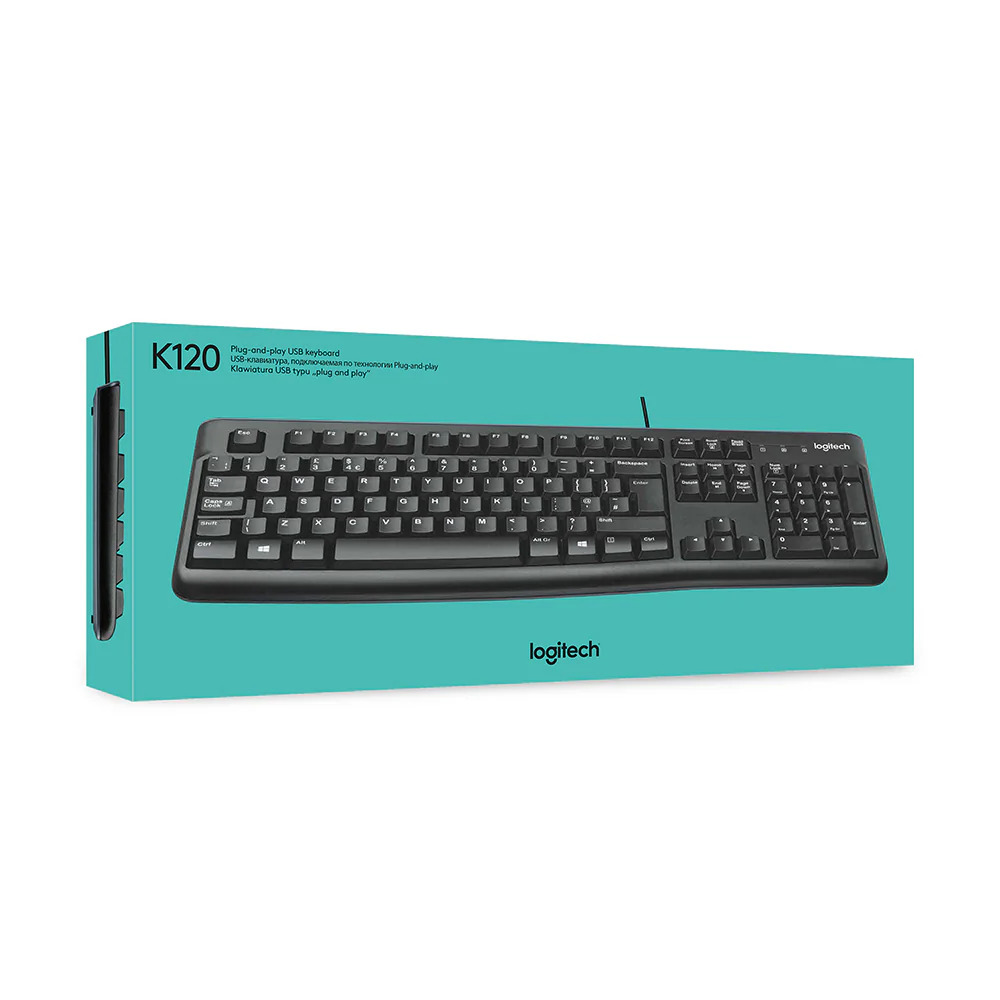
The Logitech K120 is a basic, full-size wired keyboard that costs roughly $15 to $20. It appears on this list because it is the most reliable and durable budget option for architects and architecture students who need a functional keyboard with a number pad and do not want to invest in a premium model yet.
The K120 uses membrane switches with a rated lifespan of 10 million keystrokes per key. It is spill-resistant, has a simple full-size layout with 12 function keys, and connects via USB-A. There is nothing to configure or customize, and that is part of its appeal for users who simply need a dependable keyboard that works without fuss while running free architectural design tools or student-licensed CAD software.
The K120 is not a long-term solution for heavy CAD work. The flat membrane keys cause more finger fatigue than any other keyboard here, and the lack of ergonomic features makes it unsuitable for 10-plus-hour sessions. But for a first workstation on a tight budget, it does the job without breaking.
How to Choose the Right Keyboard for Your CAD Workflow
Picking from seven options still requires narrowing the choice to your specific needs. The decision comes down to four factors: the software you use most, your physical comfort requirements, whether you work at a fixed desk or move between stations, and your budget.
If your primary tools are AutoCAD and Revit, and you already use or plan to use a 3Dconnexion SpaceMouse, the Keyboard Pro with Numpad integrates into the same driver ecosystem. All 3Dconnexion devices share one unified receiver, keeping the desk clean and ensuring consistent shortcut behavior across hardware.
If you work across Mac and Windows (which is increasingly common in firms that use ArchiCAD on Mac and Revit on Windows), the Logitech MX Keys S and K860 both support dual-OS layouts and multi-device pairing. The Keychron Q6 Pro also handles both operating systems through its firmware.
For architects who prioritize typing comfort above all else, the Logitech ERGO K860 or Microsoft Sculpt Ergonomic are the two split-layout options. The K860 is the better product overall and is still in production, while the discontinued Sculpt usually costs less and still provides the fundamental ergonomic benefit of angled hand positioning.
🎓 Expert Insight
“The keyboard shortcut is still the fastest way to execute a command in any CAD application. A mouse click requires visual confirmation of a toolbar location. A keyboard shortcut is muscle memory, and muscle memory is always faster.” – Licensed architect with 20+ years of AutoCAD and Revit experience
This observation explains why keyboard selection matters more than many architects assume. The faster and more reliably you can execute shortcuts, the more time you save across thousands of commands per day.
Keyboard Shortcuts That Shape the Hardware Choice

Understanding which shortcuts you use most helps clarify which keyboard features matter for your workflow. Below are the most common keyboard-heavy actions across the three dominant CAD and BIM platforms:
In AutoCAD, the command line is the center of the workflow. Users type command aliases (L for Line, C for Circle, TR for Trim, O for Offset, M for Move, CO for Copy) hundreds of times daily. Modifier keys (Ctrl, Shift, Alt) combine with function keys for operations like Ctrl+Z (Undo), Ctrl+S (Save), and F8 (Ortho toggle). A keyboard that places function keys within easy reach and provides responsive tactile feedback on the letter keys directly affects drafting speed.
In Revit, keyboard shortcuts follow a two-letter pattern (WA for Wall, DR for Door, WN for Window, DL for Detail Line). The Tab key is heavily used for cycling through selection options, and the Escape key sees constant use for canceling commands. A keyboard where Escape and Tab are easy to hit without repositioning the left hand improves the Revit workflow noticeably.
In ArchiCAD, the keyboard shortcut map is highly customizable, and experienced users often build extensive custom shortcut sets. A keyboard with programmable layers (like the Keychron Q6 Pro with QMK/VIA) or app-aware keys (like the 3Dconnexion Keyboard Pro) pairs well with ArchiCAD’s flexibility.
For all three platforms, the number pad is critical. Coordinate entry in AutoCAD, parameter editing in Revit, and dimension input in ArchiCAD all rely on fast, accurate numerical typing. Any keyboard without a full number pad creates friction in these workflows.
Ergonomics and Long-Term Health for Keyboard-Heavy CAD Work
Architects frequently work at their desks for extended stretches, especially during deadline-driven phases of schematic design and construction documentation. The keyboard, along with the mouse, is the primary physical interface during these hours. Poor keyboard ergonomics contribute to conditions like carpal tunnel syndrome, tendinitis, and upper back tension.
Negative tilt (where the front of the keyboard is higher than the back, or the keyboard lies flat without raising the rear feet) keeps the wrists in a more neutral position. Many users instinctively flip out the rear kickstand feet on their keyboards, which actually increases wrist extension and can worsen discomfort over time. The Logitech ERGO K860’s adjustable negative tilt and the 3Dconnexion Keyboard Pro’s flat-desk design both address this.
📌 Did You Know?
The United States Ergonomics certification awarded to the Logitech ERGO K860 is based on independent testing that measured a 21% reduction in upper trapezius muscle activity compared to a standard Logitech keyboard. The upper trapezius is the muscle most commonly associated with neck and shoulder tension during desk work.
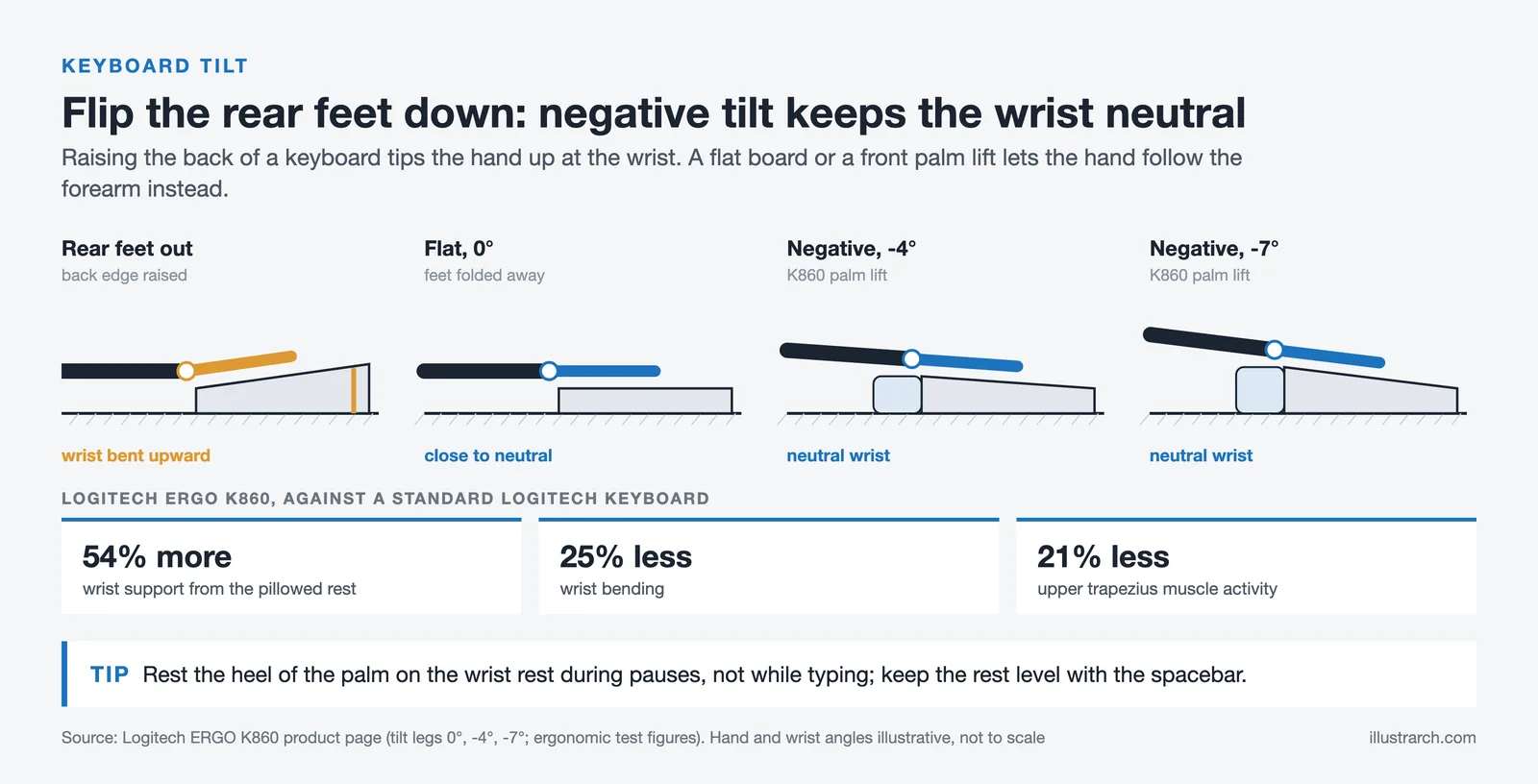
Wrist rests help, but only if used correctly. The rest should support the heel of the palm during pauses, not while actively typing. Resting the wrist on a pad while pressing keys forces the fingers to reach upward, which increases tendon strain. Keyboards with a built-in rest (K860, 3Dconnexion Keyboard Pro) work best when the rest sits at the same height as the spacebar, allowing the hands to hover over the keys during active typing and rest naturally during breaks.
Pairing the right keyboard with the right mouse also matters. Many architects working in CAD and BIM use a standard mouse alongside a drawing tablet or a 3Dconnexion SpaceMouse for 3D navigation. The keyboard’s width determines how far the mouse sits from the body’s center line. Narrower keyboards or detached numpad designs (3Dconnexion Keyboard Pro, Microsoft Sculpt) reduce this reach and help keep the shoulder in a more relaxed position.
How to Set Up Your Keyboard for Maximum CAD Efficiency

Buying the right keyboard is half the process. Setting it up to match your workflow is the other half. Here are practical steps that apply regardless of which keyboard you choose.
Start by auditing your most-used commands. Open your CAD software and work normally for one or two days, keeping a tally (mental or written) of the commands you execute most frequently. Most users discover that 10 to 15 commands account for the majority of their keystrokes. These are the commands that should be assigned to the most accessible keys or macro positions on your keyboard.
If your keyboard supports multiple profiles (3Dconnexion, Corsair, Keychron via QMK), create one profile per application. Your AutoCAD macro set will differ from your Revit set and from your SketchUp set. Application-specific profiles prevent conflicts and ensure each key does exactly what you expect in the active program.
Consider pairing your keyboard with a high-resolution monitor and a properly configured laptop or workstation to get the full benefit of faster shortcut execution. A fast keyboard paired with slow hardware still results in a slow workflow.
📐 Technical Note
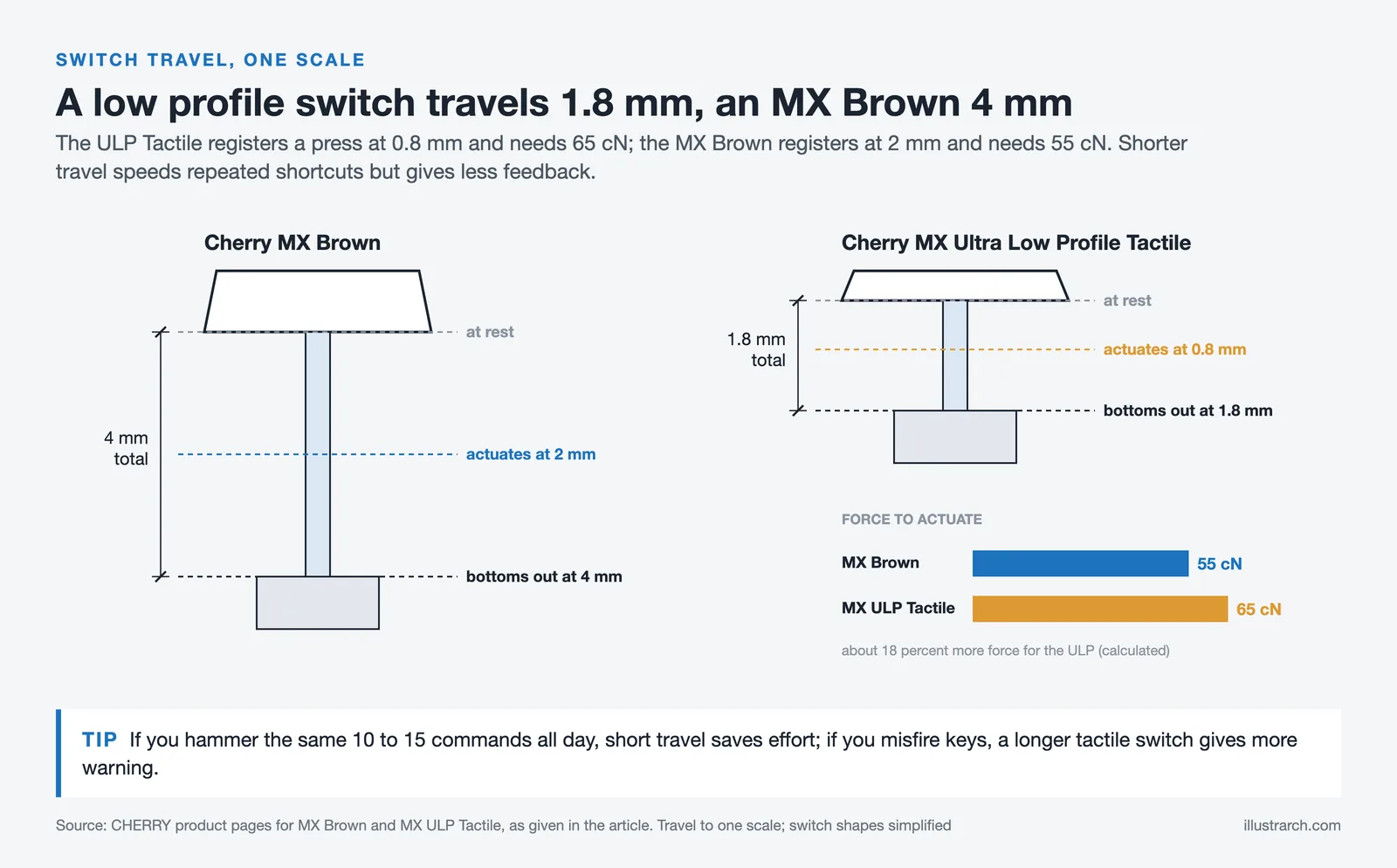
Mechanical keyboard actuation force is measured in centinewtons (cN) or grams-force (gf). Cherry MX Brown switches actuate at 55 cN (approximately 55 gf) with a 2mm actuation point in a 4mm total travel. Cherry MX Ultra Low Profile Tactile switches (used in the Corsair K100 Air) actuate at 65 cN with a 0.8mm actuation point in a 1.8mm total travel. Lower total travel generally means faster repeated keystrokes but less tactile feedback per press.
Finally, maintain your keyboard. Dust and debris accumulate under keycaps, especially in architecture offices where physical models, material samples, and printed drawings share desk space with computers. A weekly compressed-air cleaning and a monthly keycap removal (on mechanical keyboards) keeps switches responsive. For membrane and scissor-switch keyboards, a damp cloth over the key surfaces is usually sufficient.
✅ Key Takeaways
- A full-size keyboard with a number pad is essential for CAD and BIM work due to constant coordinate and parameter entry.
- The 3Dconnexion Keyboard Pro with Numpad is the top choice for dedicated CAD users, offering 12 app-aware programmable keys and a detached wireless numpad.
- Mechanical or scissor switches reduce finger fatigue compared to membrane keyboards during long drafting sessions, with tactile (non-clicky) switches being the best fit for shared offices.
- Ergonomic keyboards like the Logitech ERGO K860 address wrist and forearm strain, but expect a one-to-three-week adjustment period when switching to a split layout.
- Setting up application-specific shortcut profiles and macro layers is as important as the keyboard hardware itself for maximizing CAD productivity.
Final Thoughts
The best keyboard for CAD and BIM software depends on where you spend most of your working hours and what slows you down right now. If shortcut speed and CAD integration are the priority, the 3Dconnexion Keyboard Pro is the clear winner. If typing comfort and wrist health matter most, the Logitech ERGO K860 is the better investment. If you want total control over every key and switch on your board, the Keychron Q6 Pro gives you that flexibility. And if you need a reliable keyboard that simply works while you focus on learning architecture software, the Logitech K120 does the job at a fraction of the cost.
Your keyboard and mouse are the two pieces of CAD architecture equipment you physically touch for every minute of your workday. The time spent choosing the right one pays back across thousands of hours of use.
Prices mentioned are approximate and may vary by region and retailer. Check manufacturer websites for current pricing and availability in your area.







Futuro House Production Revived in Finland After Decades-Long Hiatus
A Facebook listing for abandoned moulds led to the first new Futuro...
 illustrarch Editoral Team3 Mins read
Building Your Dream Home in NSW: What You Should Know About Montgomery Homes
Montgomery Homes has been building across Sydney, Newcastle, the Hunter, Wollongong and...
illustrarch Editoral Team4 Mins read

Designing a Home Theater: Where Drapery Fits Into the Plan
In a media room the curtains are a performance layer, not decoration....
illustrarch Editoral Team3 Mins read

Oscar Niemeyer’s Cathedral of Brasília: The Hyperboloid Concrete Hymn
The Cathedral of Brasília reads as a single gesture, yet it stood...
 Furkan Sen7 Mins read


Leave a comment