

Best Monitors for Architects: Complete Buying Guide with 15 Expert-Reviewed Picks
A comprehensive monitor buying guide built for architects, from students to senior professionals. Covers 15 expert-reviewed displays across every budget, with in-depth analysis of panel types, color accuracy, DPI scaling, dual vs. ultrawide setups, and software-specific recommendations for CAD, BIM, and architectural rendering workflows.
 Furkan Sen23 February 202540 Mins read1.8k

Table of Contents Show
Quick Answer: The best monitors for architects offer a large, high-resolution screen (4K or ultrawide), accurate colour and an ergonomic stand for long sessions. Aim for at least 27 inches, an IPS panel and good connectivity for CAD, BIM and rendering work. Dual-monitor or ultrawide setups boost productivity when multitasking across software.
Architects rely on precision and visual clarity to bring their designs to life, making the best monitor for architects an indispensable tool in every design workflow. Whether drafting technical drawings in CAD software, rendering photorealistic 3D models, or presenting designs to clients, the right monitor can significantly impact productivity, creativity, and overall project success. Architectural work demands exceptional screen resolution to reveal intricate details, superior color accuracy to ensure true-to-life renderings, and ample screen real estate to facilitate multitasking between design software and reference materials.
What Is the Best Monitor for Architects?
The best monitor for architects is a professional-grade display that combines high resolution, precise color accuracy, and a large, well-balanced screen size to support complex design workflows. Architectural work involves reading dense technical drawings, modeling three-dimensional spaces, and evaluating materials, lighting, and textures in detail. For this reason, an ideal monitor should offer at least 4K resolution, wide color gamut support (sRGB and AdobeRGB), and consistent brightness across the screen. Engineers and CAD professionals share many of these same requirements, which is why the best computer monitor for engineering often overlaps with what architects need.
For the full picture, see our complete guide to best tablets for architects.
Beyond visual quality, the best monitor for architects also supports productivity and comfort during long working hours. Features such as ergonomic height and tilt adjustment, low blue light modes, and modern connectivity options like USB-C or Thunderbolt help streamline daily workflows. In short, the best monitor is not just the sharpest screen available; it is the one that accurately translates architectural intent into clear, reliable visuals.
What Are the Latest Monitor Trends for Architects?
Today, monitors designed for architects are increasingly optimized for hybrid workflows that combine CAD, BIM, and real-time rendering. High-refresh 4K and 5K displays are no longer limited to creative studios; they are becoming standard tools for architectural offices and freelance designers alike. OLED and QD-OLED panels are also gaining ground in the professional space, offering superior contrast ratios that benefit 3D rendering and visualization tasks.
Another notable trend is the rise of factory-calibrated color accuracy and USB-C / Thunderbolt connectivity, allowing architects to connect laptops, tablets, and workstations through a single cable. This shift reflects the growing demand for portable yet powerful design setups, especially among architects working remotely or across multiple devices. If you are looking for a portable companion to pair with your desktop display, check out our guide to the best laptops for architects.

Additionally, features like ergonomic design and advanced connectivity enhance the user experience, allowing architects to focus on their work without distractions. With a wide array of monitors available, finding the perfect one requires balancing performance, features, and budget. In this guide, we explore the best monitors tailored to the specific needs of architects, helping you choose the ideal display to elevate your creative process.
Best Monitors for Architects: Top 15 Picks
We selected these monitors based on their color accuracy, resolution, connectivity, and overall suitability for architectural design workflows. Each one serves a different budget and use case, from premium color-critical work to affordable secondary displays, ultrawide panoramic setups, and OLED options for rendering-heavy workflows.
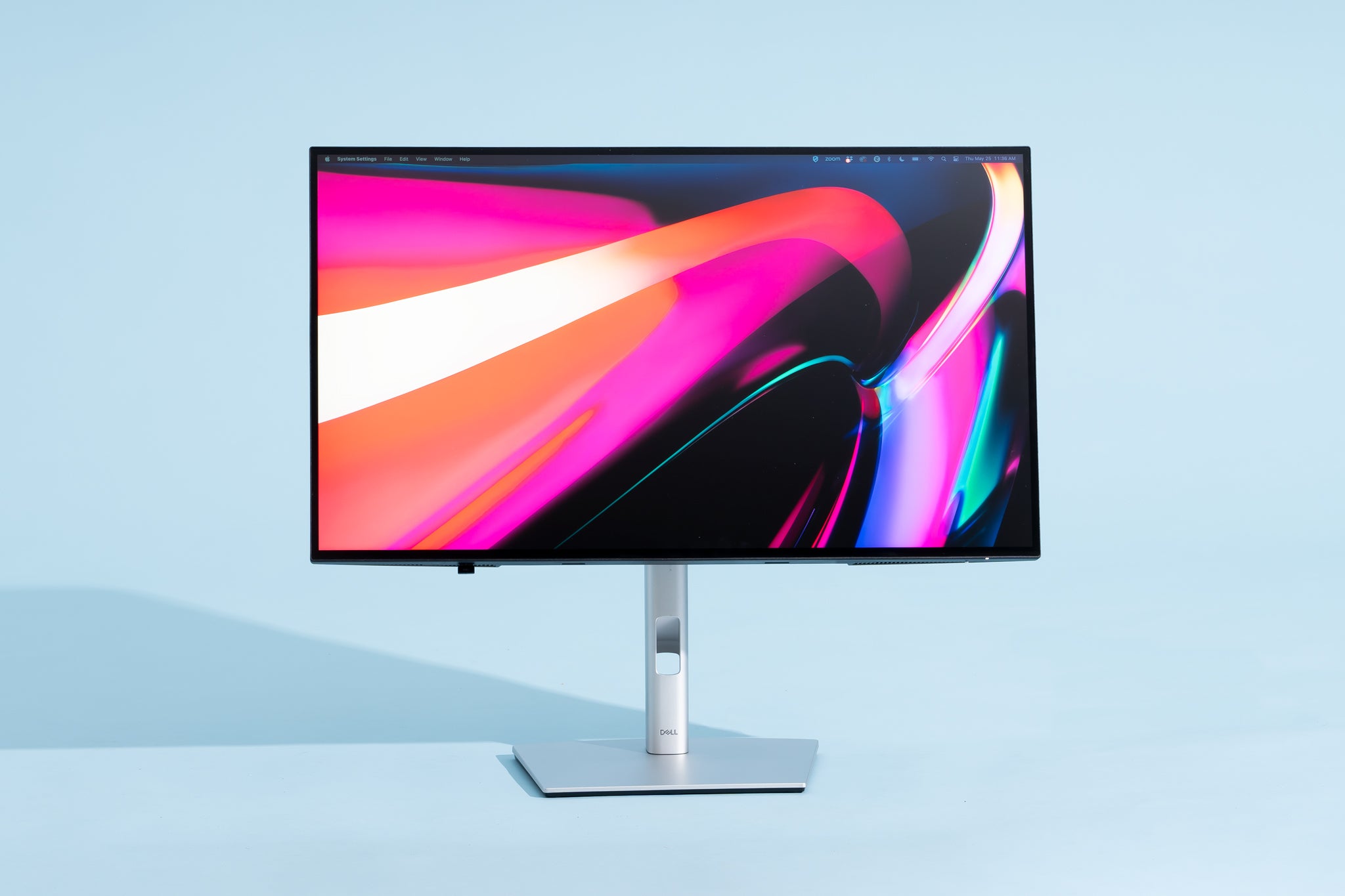
1. Dell UltraSharp U3223QE
The Dell UltraSharp U3223QE is our top overall pick for architects because it strikes the ideal balance between screen size, resolution, color accuracy, and connectivity that architectural workflows demand. Its 32-inch 4K UHD panel provides a comfortable pixel density of approximately 138 PPI, sharp enough to display thin CAD lines and 6-point annotation text crisply, yet large enough that you will not need to increase DPI scaling aggressively in software like AutoCAD or Revit. The IPS Black panel with PremierColor technology covers 99% of AdobeRGB and 98% of DCI-P3, which means the warm oak flooring in your rendering will look like warm oak, not washed-out beige, and the cool grey of an exposed concrete finish will render faithfully without color shifting.
For architects, the practical standout is the USB-C hub with 90W power delivery and an integrated RJ45 Ethernet port. This effectively turns the monitor into a docking station: you arrive at your desk, plug in one cable to your laptop, and instantly get 4K video, data, network, and charging. The ComfortView Plus low blue light technology works without distorting screen colors, an important distinction for architects who need accurate color during long drafting sessions. The 2000:1 contrast ratio from IPS Black technology produces deeper blacks than standard IPS panels, which improves the legibility of dark background CAD themes and gives rendered shadows more depth. With its fully adjustable ergonomic stand (height, tilt, swivel, pivot) and VESA compatibility, this is the monitor that fits the largest number of architectural workflows without compromise.
| Screen Size | 32 inches (31.5″ viewable) |
| Resolution | 4K UHD (3840 × 2160) |
| Panel Type | IPS Black |
| Color Gamut | 99% AdobeRGB, 98% DCI-P3, 100% sRGB |
| Color Accuracy | Delta E < 2 (factory calibrated) |
| Contrast Ratio | 2000:1 |
| Brightness | 400 nits |
| Refresh Rate | 60 Hz |
| Response Time | 8 ms (GtG) |
| HDR | VESA DisplayHDR 400 |
| Connectivity | USB-C (90W PD), DisplayPort 1.4, HDMI 2.0, RJ45 Ethernet, USB-A ×4 |
| Ergonomics | Height, tilt, swivel, pivot, VESA 100×100 mm |
| Special Features | IPS Black technology, ComfortView Plus low blue light, built-in USB-C/KVM hub |
| Approx. Price | $700-$900 |
| Amazon Rating | ⭐ 4.5 / 5 |
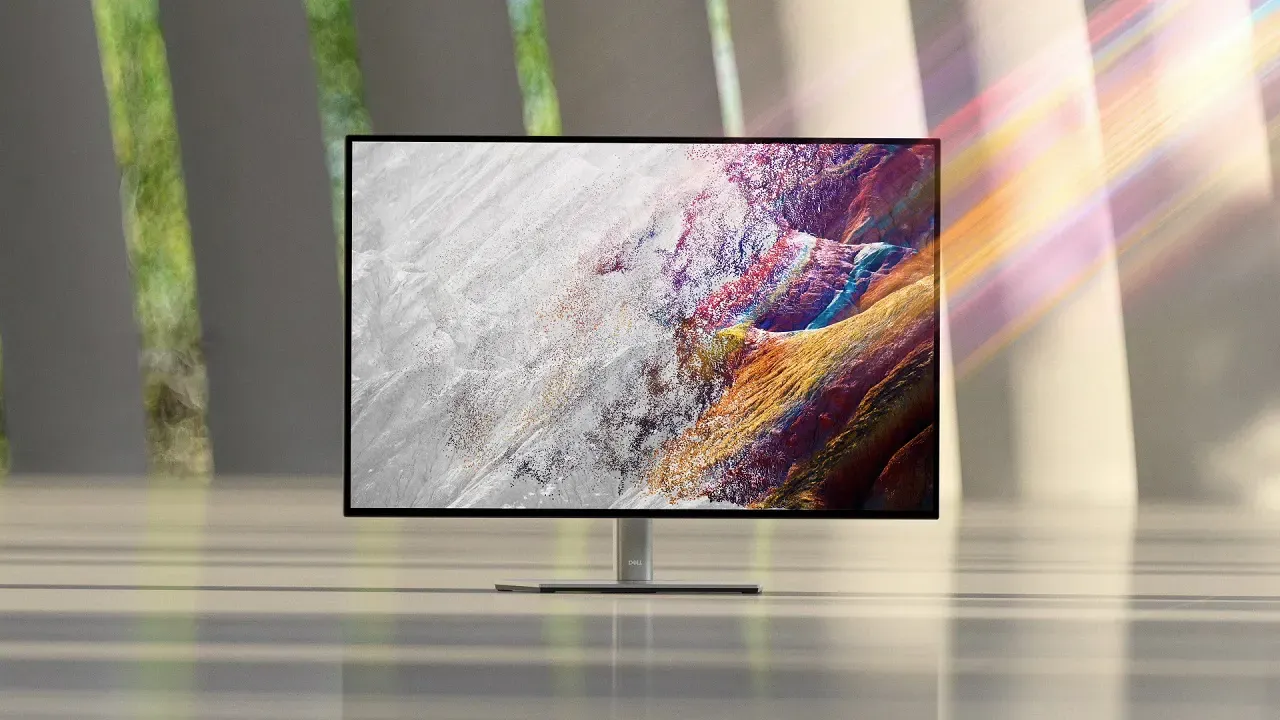
2. Eizo ColorEdge CG319X
The Eizo ColorEdge CG319X is the gold standard for architects and visualization specialists who cannot afford any margin of error in color representation. Its 31.1-inch IPS panel displays a true 4K+ resolution (4096 x 2160), providing 7% more horizontal pixels than standard 4K: which translates to noticeably more room for tool palettes and property panels alongside your model viewport in Revit or ArchiCAD. The 99% AdobeRGB and 98% DCI-P3 coverage means that when you place a physical Pantone swatch next to this screen, the on-screen color will be virtually indistinguishable from the physical sample.
What makes this monitor exceptional for architectural practice is its built-in hardware color calibration sensor. Unlike external calibration devices that require manual intervention, the CG319X can self-calibrate on a scheduled basis, even when you are not at your desk, ensuring that the terra cotta tile you selected in a render three months ago still looks identical today. The 10-bit panel and 24-bit LUT deliver over one billion displayable colors with smooth tonal gradients, which matters when evaluating subtle material differences: the distinction between a brushed aluminum and a polished stainless steel, for example, depends on precise gradient rendering. The 350-nit brightness with HDR support allows architects to preview realistic lighting conditions, from the harsh midday sun on a south-facing facade to the soft ambient glow of recessed interior lighting. This is the monitor for firms where color-critical client presentations and print-matched material boards are non-negotiable.
| Screen Size | 31.1 inches |
| Resolution | 4K+ DCI (4096 × 2160) |
| Panel Type | IPS (wide gamut) |
| Color Gamut | 99% AdobeRGB, 98% DCI-P3 |
| Color Accuracy | Delta E < 1 (self-calibrating) |
| Contrast Ratio | 1500:1 |
| Brightness | 350 nits (HDR: 750 nits peak) |
| Refresh Rate | 60 Hz |
| Response Time | 9 ms (GtG) |
| HDR | HLG / PQ curve support |
| Connectivity | DisplayPort 1.2 ×2, HDMI 2.0 ×2, USB-B upstream |
| Ergonomics | Height, tilt, swivel, VESA 100×100 mm |
| Special Features | Built-in hardware calibration sensor, 10-bit panel, 24-bit 3D LUT, shading hood included |
| Approx. Price | $4,500-$5,500 |
| Amazon Rating | ⭐ 4.0 / 5 |
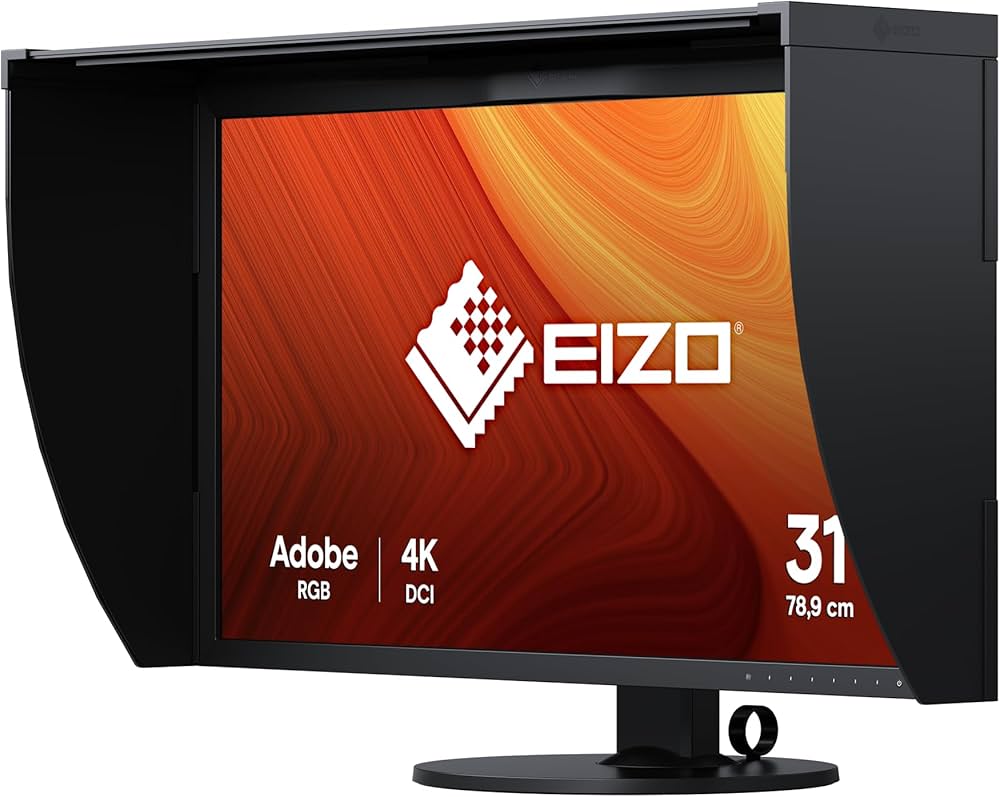
3. LG UltraFine 5K (27MD5KL-B)
For architects who work within macOS-based workflows using tools like Vectorworks, ArchiCAD, or Cinema 4D, the LG UltraFine 5K monitor delivers an experience that no standard 4K display can match at this screen size. Its 27-inch 5K resolution (5120 x 2880) produces a pixel density of 218 PPI, dense enough that individual pixels become invisible at normal viewing distances, making thin CAD linework, dimension text, and hatch patterns appear printed rather than pixelated. The IPS panel supports a wide P3 color gamut with up to 500 nits of brightness, ensuring that your renders maintain vibrancy even in well-lit studio environments with large windows.
This monitor is purpose-built for seamless integration with Apple devices, including the MacBook Pro. A single Thunderbolt 3 cable handles 5K video, data transfer, and fast charging simultaneously, you connect one cable and your entire workstation is live. The macOS Display Scaling feature lets you choose between more screen real estate (displaying content as if on a larger monitor) or larger text (for comfortable reading during long specification review sessions), which gives you control over how dense your workspace appears. For architects who value Retina-quality text rendering that makes building code annotations and specification callouts razor-sharp, the UltraFine 5K sets the standard in its size class as a 3D modeling monitor. The downside is that this is strictly a 27-inch panel with no ergonomic stand adjustment, you will likely want a VESA arm to position it properly in your architecture desk setup.
| Screen Size | 27 inches |
| Resolution | 5K (5120 × 2880) |
| Panel Type | IPS |
| Color Gamut | Wide P3 color gamut |
| Color Accuracy | Factory calibrated |
| Contrast Ratio | 1200:1 |
| Brightness | 500 nits |
| Refresh Rate | 60 Hz |
| Response Time | 12 ms (GtG) |
| HDR | No |
| Connectivity | Thunderbolt 3 (upstream + downstream), USB-C ×3 |
| Ergonomics | Tilt only: VESA not natively supported |
| Special Features | 218 PPI Retina density, macOS optimized, single-cable 5K + charging, built-in speakers and camera |
| Approx. Price | $1,100-$1,400 |
| Amazon Rating | ⭐ 4.3 / 5 |
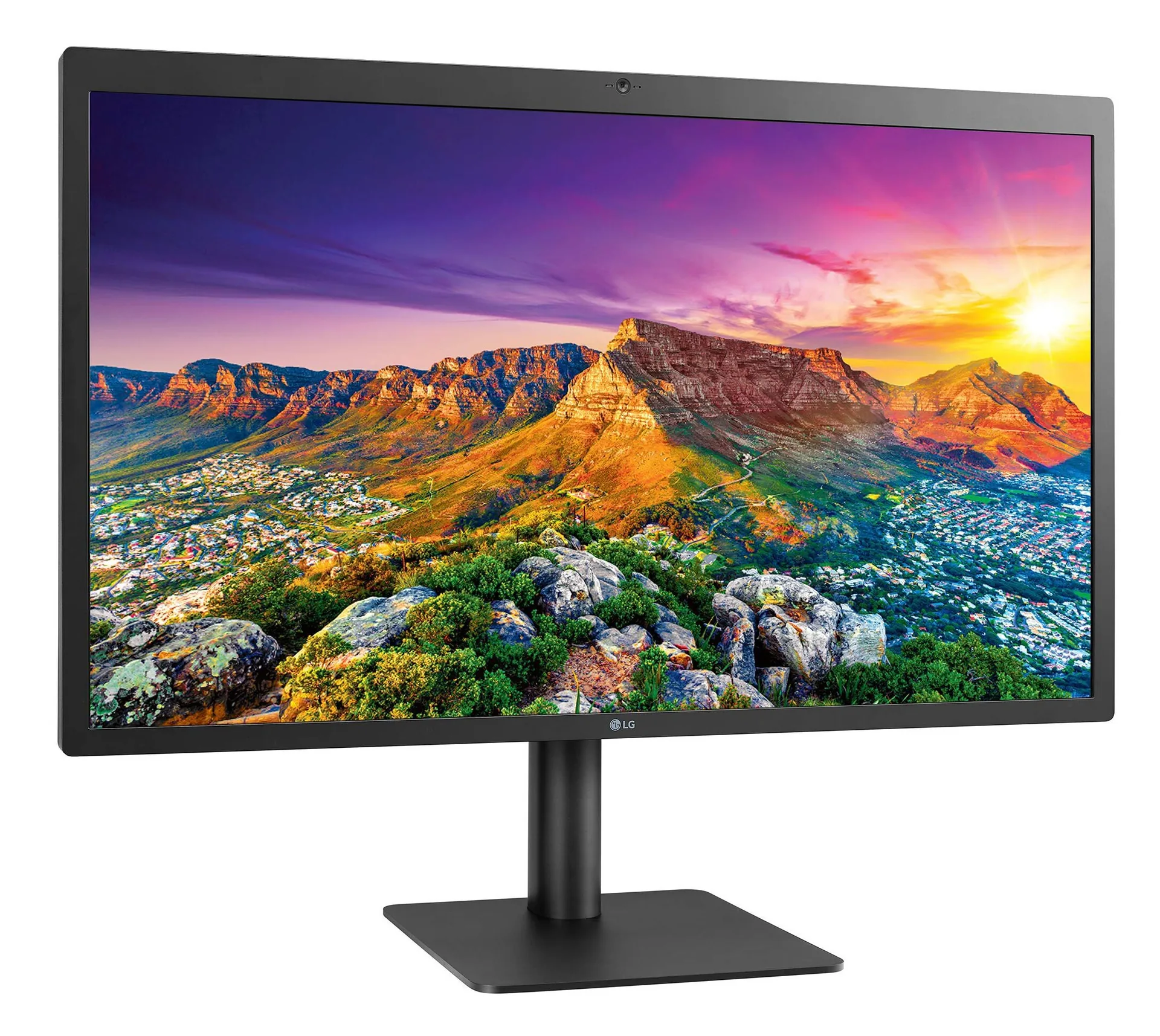
4. BenQ PD3220U
The BenQ PD3220U is the monitor for architects who need one display that adapts to every stage of the design process, from early conceptual wireframes to final rendered presentations. Its 32-inch 4K UHD panel provides a generous workspace where you can keep Revit’s project browser, properties panel, and a full model viewport open simultaneously without feeling cramped. Factory-calibrated for color accuracy at 95% DCI-P3 with HDR10 support, it renders material textures and daylight simulations with enough fidelity for client review, even if it falls slightly behind the 99% DCI-P3 coverage of more expensive competitors.
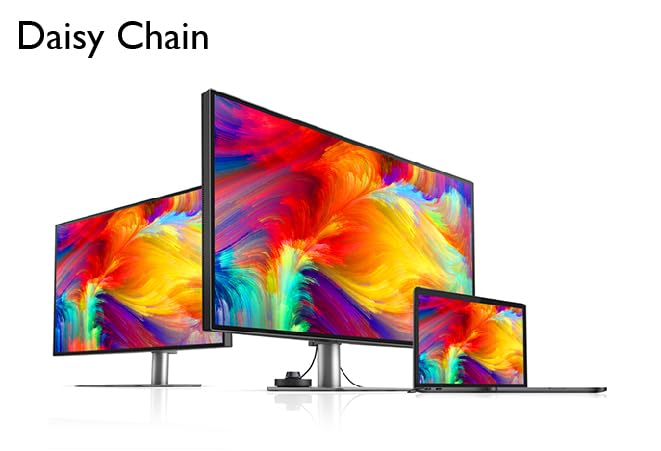
What makes the PD3220U uniquely practical for architectural workflows is its specialized display modes. CAD/CAM mode increases contrast between fine lines and background surfaces, making wireframe models, hatching patterns, and thin dimension lines pop with greater visibility, particularly useful when reviewing dense construction drawings at reduced zoom levels. Animation mode brightens shadow regions to reveal detail in underexposed areas of your 3D models, which helps when evaluating interior spaces before committing to a formal render. The physical Hotkey Puck controller lets you switch between these modes instantly without navigating on-screen menus, saving time when your workflow jumps between drafting and visualization throughout the day. The anti-glare coating handles bright studio environments well, and Thunderbolt 3 daisy-chaining means you can expand to a dual display setup later without adding new cables to your workstation.
| Screen Size | 32 inches (31.5″ viewable) |
| Resolution | 4K UHD (3840 × 2160) |
| Panel Type | IPS |
| Color Gamut | 95% DCI-P3, 100% sRGB, 100% Rec. 709 |
| Color Accuracy | Delta E ≤ 3 (factory calibrated) |
| Contrast Ratio | 1000:1 |
| Brightness | 300 nits |
| Refresh Rate | 60 Hz |
| Response Time | 5 ms (GtG) |
| HDR | HDR10 |
| Connectivity | Thunderbolt 3 (daisy-chain), USB-C (85W PD), DisplayPort 1.4, HDMI 2.0 ×2 |
| Ergonomics | Height, tilt, swivel, pivot, VESA 100×100 mm |
| Special Features | Hotkey Puck G2 controller, CAD/CAM & Animation display modes, anti-glare coating, KVM switch |
| Approx. Price | $800-$1,100 |
| Amazon Rating | ⭐ 4.1 / 5 |
5. ASUS ProArt Display PA32UCX
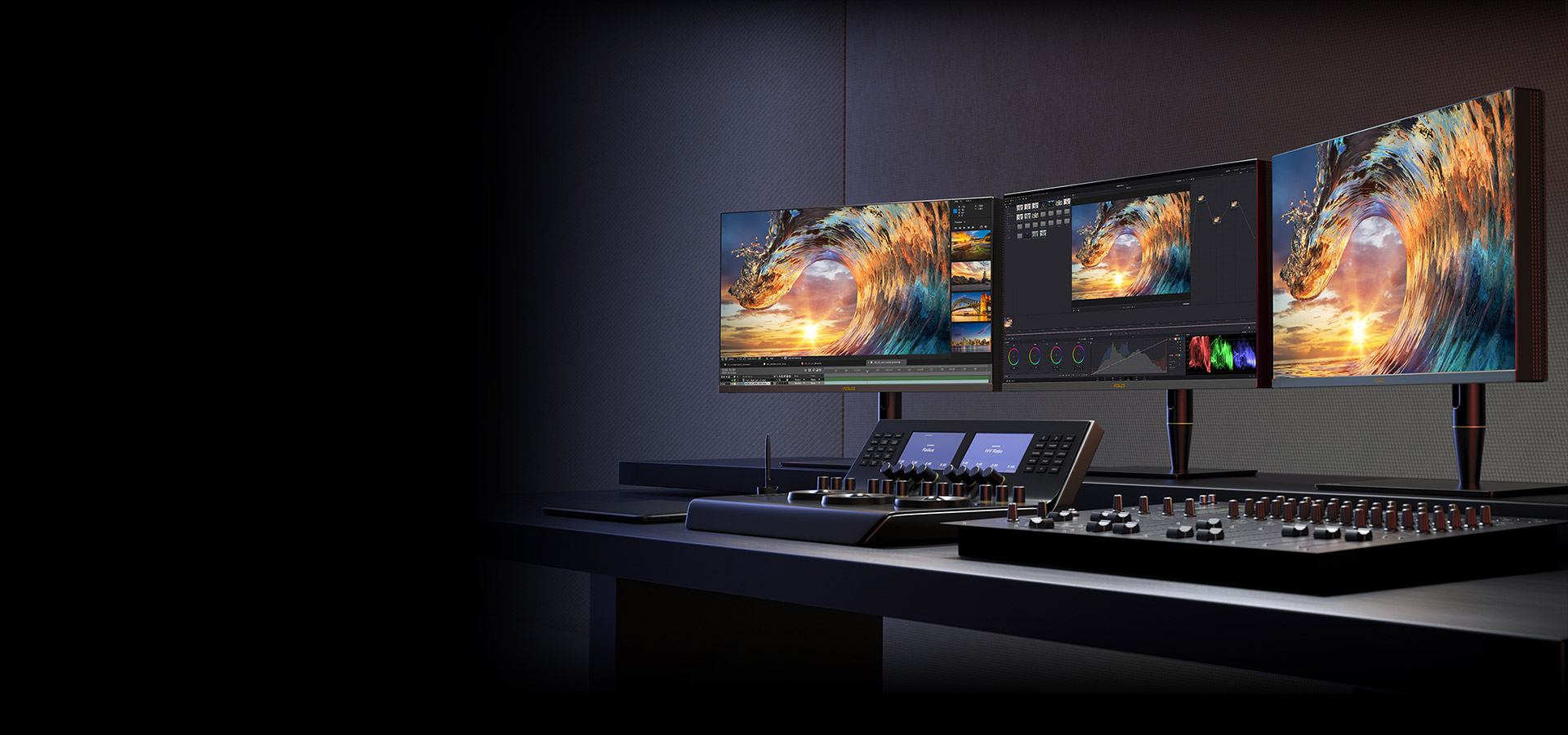
The ASUS ProArt Display PA32UCX is the monitor for architects whose work lives or dies by the quality of their renderings and visualizations. Its 32-inch 4K UHD display features true 10-bit color depth and a peak brightness of 1000 nits, bright enough to simulate how a sunlit facade would actually appear to the human eye, rather than the compressed, dimmer version most monitors show. With 97% DCI-P3 and 99% AdobeRGB coverage, the color accuracy is studio-grade: when you render a Corten steel facade in V-Ray, the subtle shift from fresh orange-brown to weathered deep rust will display with all its nuance intact.
The HDR capability is where this monitor truly separates itself for architectural visualization. Dolby Vision, HDR10, and HLG compatibility allow architects to preview how their rendered interiors and exteriors will look under realistic dynamic range conditions, bright window light flooding into a dark corridor, the glow of landscape lighting against a twilight sky, or the interplay of direct and bounced light in a double-height atrium. Multiple connectivity options, including Thunderbolt 3, HDMI, and DisplayPort, make it versatile for connecting to both Mac workstations and PC-based rendering rigs. The built-in color calibration technology ensures that accuracy is maintained over time. For pure CAD drafting this monitor is overkill, the HDR brightness and premium price are unnecessary for black-and-white line drawings, but for architects whose revenue depends on photorealistic client presentations, this is a top-tier investment.
| Screen Size | 32 inches |
| Resolution | 4K UHD (3840 × 2160) |
| Panel Type | IPS (mini-LED backlight) |
| Color Gamut | 99% AdobeRGB, 97% DCI-P3, 99.5% sRGB |
| Color Accuracy | Delta E < 1 (Calman Verified) |
| Contrast Ratio | 1000:1 (native), local dimming enhanced |
| Brightness | 1000 nits peak (VESA DisplayHDR 1000) |
| Refresh Rate | 60 Hz |
| Response Time | 5 ms (GtG) |
| HDR | Dolby Vision, HDR10, HLG |
| Connectivity | Thunderbolt 3, HDMI 2.0 ×3, DisplayPort 1.2 |
| Ergonomics | Height, tilt, swivel, pivot, VESA 100×100 mm |
| Special Features | True 10-bit color, 1152-zone mini-LED local dimming, ProArt Calibration software, hardware calibration |
| Approx. Price | $2,500-$3,500 |
| Amazon Rating | ⭐ 4.3 / 5 |
6. Samsung Smart Monitor M8
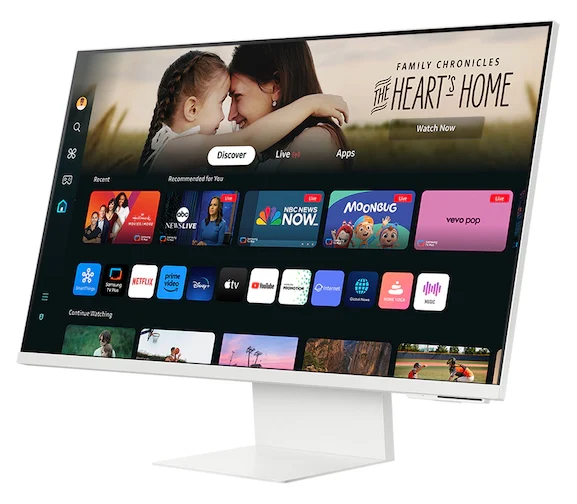
The Samsung Smart Monitor M8 is the best option for architects who need a functional 4K display without the premium price tag, particularly useful as a secondary monitor for reference materials, email, and project management tools while your primary screen handles CAD or BIM work. This 32-inch 4K UHD panel features a sleek, minimalist design available in multiple color options that blend naturally into a modern studio aesthetic. The image quality is surprisingly capable for its price point, delivering sharp text and clear plan details for day-to-day drafting and document review.
The M8 is not a color-critical monitor, its narrower color gamut and lack of hardware calibration make it unsuitable as a primary display for rendering evaluation or client presentation work where precise material colors matter. However, for the practical realities of architectural production, reviewing redlined PDFs, managing Bluebeam sessions, running Zoom calls with consultants, and keeping a schedule or Gantt chart visible, this monitor performs its role admirably. The adaptive picture mode adjusts brightness based on ambient light, reducing eye strain during long coordination sessions. Built-in smart features including streaming apps and productivity tools add versatility, and the remote control is a convenience during informal design presentations. At $350-$500, it is an accessible entry point for architecture students equipping their first workstation or professionals who want to add screen real estate without a significant investment.
| Screen Size | 32 inches |
| Resolution | 4K UHD (3840 × 2160) |
| Panel Type | VA |
| Color Gamut | 99% sRGB, ~80% DCI-P3 |
| Color Accuracy | Not factory calibrated for professional use |
| Contrast Ratio | 3000:1 |
| Brightness | 400 nits (adaptive) |
| Refresh Rate | 60 Hz |
| Response Time | 4 ms (GtG) |
| HDR | HDR10+ |
| Connectivity | USB-C (65W PD), Micro HDMI, Wi-Fi, Bluetooth |
| Ergonomics | Tilt only: VESA 100×100 mm |
| Special Features | Built-in Tizen smart TV OS, streaming apps, SlimFit camera, remote control, adaptive picture mode |
| Approx. Price | $350-$500 |
| Amazon Rating | ⭐ 4.2 / 5 |
7. Dell UltraSharp U2723QE
The Dell UltraSharp U2723QE is the ideal monitor for architects who either prefer a compact workstation or need a sharp, color-accurate second display for a dual-monitor setup. As the 27-inch sibling of our top pick, it shares the same IPS Black panel technology with a 2000:1 contrast ratio, but packs 4K UHD resolution into a smaller surface, resulting in an impressive 163 PPI pixel density. For architects, this means that even the thinnest dimension lines, 1mm-weight object lines, and 6-point text in title blocks render with exceptional crispness, though you may need to increase Windows DPI scaling to 150% for comfortable reading.
The 98% DCI-P3 coverage with factory-calibrated Delta E below 2 means this is a genuinely professional display, ready for color-sensitive work from the first day. The integrated USB-C hub with 90W power delivery, RJ45 Ethernet port, and multiple USB-A downstream ports effectively transforms this monitor into a complete docking solution, plug in your laptop with one cable and you have network, power, peripherals, and 4K output running instantly. This is particularly valuable for architects who move between home offices and studio locations regularly. The 27-inch form factor also makes it the best candidate for portrait-mode rotation in a dual setup: mount it vertically on a VESA arm and you gain a full-page view of specification documents, building codes, and A4/letter-sized PDFs without scrolling.
| Screen Size | 27 inches |
| Resolution | 4K UHD (3840 × 2160) |
| Panel Type | IPS Black |
| Color Gamut | 98% DCI-P3, 100% sRGB |
| Color Accuracy | Delta E < 2 (factory calibrated) |
| Contrast Ratio | 2000:1 |
| Brightness | 350 nits |
| Refresh Rate | 60 Hz |
| Response Time | 8 ms (GtG) |
| HDR | No |
| Connectivity | USB-C (90W PD), DisplayPort 1.4, HDMI 2.0, RJ45 Ethernet, USB-A ×4 |
| Ergonomics | Height, tilt, swivel, pivot, VESA 100×100 mm |
| Special Features | 163 PPI pixel density, IPS Black technology, built-in USB-C hub with Ethernet, ideal for portrait-mode dual setup |
| Approx. Price | $500-$650 |
| Amazon Rating | ⭐ 4.4 / 5 |

8. LG UltraWide 40WP95C-W (Thunderbolt 4)
The LG UltraWide 40WP95C-W is the monitor for architects who want to eliminate the bezel gap that splits a dual-monitor setup and replace it with a single, panoramic workspace. Its 40-inch curved display with 5K2K resolution (5120 x 2160) provides the equivalent workspace of two 27-inch monitors placed side by side, but without the interruption that a bezel creates across a continuous floor plan or a long building elevation. The Nano IPS panel covers 98% of DCI-P3 and delivers consistent color accuracy across the entire wide surface, which matters when you are comparing material colors between two drawings positioned on opposite halves of the screen.
For architectural professionals, the most practical benefit is workspace organization. With Picture-by-Picture mode, you can display your Revit model at full 4K resolution on one half while keeping your construction document, specification, or a Bluebeam session open at native resolution on the other half, each fed from separate input sources if needed. The Thunderbolt 4 connectivity with 96W power delivery means a single cable connects your MacBook Pro or Windows ultrabook for video, data, and charging simultaneously. However, architects should note two trade-offs: the curved panel can introduce slight distortion in straight-line CAD work (less problematic for 3D modeling), and the 40-inch footprint requires a deep desk. If your primary work involves reviewing large-format drawings without constant zooming and panning, this ultrawide format can significantly streamline your daily workflow.
| Screen Size | 40 inches (ultrawide 21:9) |
| Resolution | 5K2K (5120 × 2160) |
| Panel Type | Nano IPS (curved, 2300R) |
| Color Gamut | 98% DCI-P3, 100% sRGB |
| Color Accuracy | Delta E < 2 (factory calibrated) |
| Contrast Ratio | 1000:1 |
| Brightness | 300 nits |
| Refresh Rate | 72 Hz |
| Response Time | 5 ms (GtG) |
| HDR | VESA DisplayHDR 400 |
| Connectivity | Thunderbolt 4 (96W PD, daisy-chain), USB-C, HDMI 2.0 ×2 |
| Ergonomics | Height, tilt, swivel, VESA 100×100 mm |
| Special Features | Replaces dual-monitor setup, PBP / PIP mode, Nano IPS wide viewing angles, KVM switch |
| Approx. Price | $1,600-$2,000 |
| Amazon Rating | ⭐ 4.3 / 5 |

9. ViewSonic VP3268a-4K
The ViewSonic VP3268a-4K is a compelling mid-range choice for architectural offices that need to equip multiple workstations with reliable, color-accurate displays without the per-unit cost of premium monitors. Its 32-inch 4K panel covers 100% of sRGB with a Delta E below 2 out of the box, which is more than sufficient for day-to-day CAD work, BIM coordination, and rendering previews that do not require cinema-grade DCI-P3 coverage. The SuperClear IPS panel provides wide 178-degree viewing angles, a practical advantage during desk-side design reviews where a project manager and two consultants are all looking at the same screen from different positions.
What makes the VP3268a-4K particularly valuable for architectural practice is ViewSonic’s Colorbration+ software, which allows you to schedule automatic color calibration routines using a compatible colorimeter. For offices that cycle through dozens of projects with varying material palettes, this ensures that the monitor’s color output remains consistent over months and years without requiring manual recalibration. Connectivity includes USB-C with 90W power delivery, HDMI 2.0, and DisplayPort 1.4, providing the flexibility to connect to both modern laptops and legacy workstation towers common in many architectural firms. At $600-$800, it delivers roughly 85% of the performance of the Dell U3223QE at a meaningfully lower price, making it the best value proposition for firms outfitting multiple desks.
| Screen Size | 32 inches |
| Resolution | 4K UHD (3840 × 2160) |
| Panel Type | SuperClear IPS |
| Color Gamut | 100% sRGB, 80% DCI-P3 |
| Color Accuracy | Delta E < 2 (factory calibrated) |
| Contrast Ratio | 1300:1 |
| Brightness | 350 nits |
| Refresh Rate | 60 Hz |
| Response Time | 5 ms (GtG) |
| HDR | No |
| Connectivity | USB-C (90W PD), DisplayPort 1.4, HDMI 2.0 ×2, USB-A ×4 |
| Ergonomics | Height, tilt, swivel, pivot, VESA 100×100 mm |
| Special Features | Colorbration+ auto-calibration software, 178° viewing angles, hardware calibration compatible |
| Approx. Price | $600-$800 |
| Amazon Rating | ⭐ 4.5 / 5 |

10. HP Z32k G3
The HP Z32k G3 is purpose-built for enterprise architectural environments where IT standardization and multi-device workflows are as important as visual quality. Its 31.5-inch IPS panel delivers factory-calibrated color accuracy covering 98% of DCI-P3 and 100% of sRGB, with a Delta E below 1.5 that places it among the most color-precise displays in its price range, rivaling monitors that cost significantly more. The 10-bit color depth (8-bit + FRC) produces smoother gradients in rendered visualizations, which makes a noticeable difference when evaluating subtle lighting transitions across curved surfaces or glazing reflections in your architectural models.
The distinguishing feature for architectural firms is the Thunderbolt 4 hub architecture. The monitor offers a Thunderbolt 4 upstream port with 100W power delivery, a Thunderbolt 4 downstream port for daisy-chaining a second monitor, and multiple USB-A and USB-C ports, essentially serving as a complete workstation docking hub that replaces a separate dock. HP’s Device Bridge technology goes further by letting you control two separate PCs from a single keyboard and mouse through the monitor, which is useful for architects who run BIM software on a dedicated workstation tower while keeping a laptop connected for email and project management. For firms that deploy standardized HP workstation infrastructure across offices, the Z32k G3 integrates seamlessly into IT management systems while delivering the visual quality needed for serious design work.
| Screen Size | 31.5 inches |
| Resolution | 4K UHD (3840 × 2160) |
| Panel Type | IPS |
| Color Gamut | 98% DCI-P3, 100% sRGB |
| Color Accuracy | Delta E < 1.5 (factory calibrated) |
| Contrast Ratio | 1000:1 |
| Brightness | 400 nits |
| Refresh Rate | 60 Hz |
| Response Time | 5 ms (GtG) |
| HDR | VESA DisplayHDR 400 |
| Connectivity | Thunderbolt 4 (100W PD, daisy-chain), USB-C, DisplayPort 1.4, HDMI 2.0, USB-A ×4 |
| Ergonomics | Height, tilt, swivel, pivot, VESA 100×100 mm |
| Special Features | Thunderbolt 4 hub, Device Bridge dual-PC control, 10-bit color (8-bit + FRC), enterprise IT management |
| Approx. Price | $1,200-$1,500 |
| Amazon Rating | ⭐ 4.2 / 5 |

11. ASUS ProArt Display PA279CRV
The ASUS ProArt PA279CRV is the best value-for-money professional monitor for architects who want studio-grade color accuracy without the premium pricing of larger displays. At 27 inches with 4K resolution, it packs a pixel density of 163 PPI, sharp enough for detailed CAD annotation work, and covers 99% of the DCI-P3 color gamut with Calman Verified certification and a factory-calibrated Delta E below 2. In practical terms, this means your rendered brick textures, timber grain patterns, and painted surface colors will display accurately enough for internal design reviews and client presentations.
The PA279CRV’s killer feature for architectural professionals is the combination of USB-C with 96W power delivery and ASUS ProArt Calibration software that stores color profiles directly on the monitor’s internal chip. This chip-level calibration means that when you disconnect from one workstation and connect to another, a common scenario for architects who use a desktop in the office and a laptop at home, the monitor displays identical colors regardless of the computer’s operating system or graphics driver settings. The ergonomic stand with full height, tilt, swivel, and pivot adjustability (plus VESA mount compatibility) rounds out a package that delivers roughly 90% of the performance of the ASUS ProArt PA32UCX at less than a quarter of the price. For junior architects and freelancers who need a serious professional display on a realistic budget, this is the monitor to buy.
| Screen Size | 27 inches |
| Resolution | 4K UHD (3840 × 2160) |
| Panel Type | IPS |
| Color Gamut | 99% DCI-P3, 100% sRGB, 99% AdobeRGB |
| Color Accuracy | Delta E < 2 (Calman Verified) |
| Contrast Ratio | 1000:1 |
| Brightness | 350 nits |
| Refresh Rate | 60 Hz |
| Response Time | 5 ms (GtG) |
| HDR | VESA DisplayHDR 400 |
| Connectivity | USB-C (96W PD), DisplayPort 1.4, HDMI 2.0 ×2, USB-A ×2 |
| Ergonomics | Height, tilt, swivel, pivot, VESA 100×100 mm |
| Special Features | On-chip ProArt Calibration, Calman Verified, 163 PPI, best value professional monitor |
| Approx. Price | $450-$600 |
| Amazon Rating | ⭐ 4.5 / 5 |

12. BenQ SW272U (PhotoVue)
The BenQ SW272U is the specialist choice for architects whose deliverables include printed material boards, physical presentation panels, and color-matched document sets where on-screen and printed colors must align precisely. Its 27-inch 4K IPS panel covers 100% of sRGB, 99% of AdobeRGB, and 99% of DCI-P3, with a hardware-calibrated Delta E below 1.5 and a 16-bit 3D LUT that produces over 4.3 trillion color calculations. In architectural terms, this means the difference between a warm white (RAL 9010) and a pure white (RAL 9016) will be clearly distinguishable on screen, a distinction that matters when selecting interior paint finishes for a design presentation.
The included shading hood is a rare and genuinely useful accessory that blocks ambient light reflections from windows and overhead fixtures, ensuring that what you see on screen remains consistent regardless of whether you are working under morning daylight or evening studio lighting. The Pantone and Calman certifications provide traceable color accuracy that architectural offices can reference when clients question whether the rendered facade color matches the physical sample. For architects who split their time between 3D rendering evaluation and preparing printed presentation boards or competition panels, this monitor bridges the gap between digital visualization and physical output more reliably than any other display in the 27-inch segment.
| Screen Size | 27 inches |
| Resolution | 4K UHD (3840 × 2160) |
| Panel Type | IPS (10-bit native) |
| Color Gamut | 99% AdobeRGB, 99% DCI-P3, 100% sRGB |
| Color Accuracy | Delta E < 1.5 (hardware calibrated) |
| Contrast Ratio | 1000:1 |
| Brightness | 300 nits |
| Refresh Rate | 60 Hz |
| Response Time | 5 ms (GtG) |
| HDR | No |
| Connectivity | HDMI 2.0, DisplayPort 1.4, USB-C (no PD), USB-B upstream, USB-A ×2 |
| Ergonomics | Height, tilt, swivel, pivot, VESA 100×100 mm |
| Special Features | 16-bit 3D LUT, shading hood included, Pantone & Calman certified, AQcolor technology |
| Approx. Price | $1,200-$1,500 |
| Amazon Rating | ⭐ 4.6 / 5 |

13. Samsung ViewFinity S9 (S90PC)
The Samsung ViewFinity S9 is a strong alternative to the Apple Studio Display for architects who want 5K clarity with cross-platform flexibility and a superior matte coating. Its 27-inch 5K resolution (5120 x 2880) produces a pixel density of 218 PPI, high enough that thin linework in technical drawings appears as clean and continuous as a plotted print, and small annotation text remains perfectly legible without zooming. The IPS panel covers 99% of DCI-P3 with a factory-calibrated Delta E below 2, meeting the color-fidelity requirements of professional architectural visualization.
Samsung’s matte display coating deserves specific attention from architects. Unlike standard anti-glare treatments that can introduce a slight haze or graininess to the image, Samsung’s coating minimizes reflections while preserving image sharpness and color saturation. For architects working in offices with large windows, exposed ceiling lighting, or glass-partitioned meeting rooms, environments where glare is an everyday nuisance, this matte surface makes a meaningful difference in daily comfort and visual accuracy. The built-in 4K SlimFit camera with auto-framing also positions this monitor as a practical all-in-one solution for remote client presentations and consultant coordination calls, reducing desk clutter from external webcams. The Thunderbolt 4 port delivers up to 90W of power, enough to charge most laptops through a single cable. Note that availability varies by region: as of October 2026, Samsung no longer lists the S9 in its US online store, while it remains listed on Samsung’s Canadian and European sites, so check local stock before planning around it.
| Screen Size | 27 inches |
| Resolution | 5K (5120 × 2880) |
| Panel Type | IPS (matte coating) |
| Color Gamut | 99% DCI-P3, 100% sRGB |
| Color Accuracy | Delta E < 2 (factory calibrated) |
| Contrast Ratio | 1000:1 |
| Brightness | 600 nits |
| Refresh Rate | 60 Hz |
| Response Time | 5 ms (GtG) |
| HDR | VESA DisplayHDR 600 |
| Connectivity | Thunderbolt 4 (90W PD), Mini DisplayPort, 3x USB-C, Wi-Fi 5, Bluetooth |
| Ergonomics | Height (120 mm), tilt, pivot, VESA 100×100 mm |
| Special Features | 218 PPI, anti-reflective matte display, built-in 4K SlimFit camera, Tizen smart OS, 90W PD |
| Approx. Price | $1,100-$1,400 |
| Amazon Rating | ⭐ 4.1 / 5 |

14. LG UltraGear 32GS95UE (OLED)
The LG UltraGear 32GS95UE is technically a gaming monitor, but its OLED panel technology offers something that no IPS display on this list can replicate: true black levels with infinite contrast ratio. For architects who work heavily with 3D rendering and visualization, this is not a superficial advantage, it fundamentally changes how you evaluate interior lighting studies, nighttime exterior renders, and spaces with dramatic light-dark contrast. When you render a museum gallery with controlled spotlighting against dark walls, or a residential living room at dusk with warm interior lighting glowing against deep twilight, the OLED panel displays these scenarios with a realism that IPS monitors simply cannot achieve. The 32-inch 4K WOLED panel covers 98.5% of DCI-P3 with per-pixel dimming, and the 0.03ms response time provides fluid viewport navigation when orbiting complex 3D models in Rhino, SketchUp, or Revit.
The 240Hz refresh rate, while designed for gaming, provides buttery-smooth viewport interaction during real-time rendering sessions in Enscape or Twinmotion, the difference between 60Hz and 240Hz when orbiting a detailed architectural model is immediately noticeable and reduces the visual fatigue of extended 3D navigation. However, architects must consider the burn-in risk honestly. Static CAD interface elements, toolbars, ribbon menus, property panels, and status bars, are displayed in the same position for hours on end, which is exactly the usage pattern that accelerates OLED burn-in. LG’s pixel maintenance features mitigate this, but architects who spend eight or more hours daily in AutoCAD should consider using this as a dedicated rendering preview display alongside a primary IPS panel for drafting. The hybrid approach, IPS for CAD, OLED for rendering evaluation, is becoming a popular setup among visualization specialists.
| Screen Size | 32 inches |
| Resolution | 4K UHD (3840 × 2160) |
| Panel Type | WOLED |
| Color Gamut | 98.5% DCI-P3, 100% sRGB |
| Color Accuracy | Factory calibrated (DCI-P3 native) |
| Contrast Ratio | ∞:1 (infinite, per-pixel dimming) |
| Brightness | 275 nits (typical), 1300 nits peak |
| Refresh Rate | 240 Hz |
| Response Time | 0.03 ms (GtG) |
| HDR | VESA DisplayHDR True Black 400 |
| Connectivity | HDMI 2.1 ×2, DisplayPort 1.4, USB-C (90W PD) |
| Ergonomics | Height, tilt, pivot, VESA 100×100 mm |
| Special Features | OLED infinite contrast, 240Hz for smooth 3D navigation, anti-glare & low reflection coating, pixel maintenance for burn-in prevention |
| Approx. Price | $1,100-$1,400 |
| Amazon Rating | ⭐ 4.6 / 5 |

15. Apple Studio Display
The Apple Studio Display is the definitive choice for architects who work entirely within the Apple ecosystem and value the seamless integration, build quality, and aesthetic refinement that Apple products deliver. Its 27-inch 5K Retina panel (5120 x 2880) with P3 wide color gamut and 600 nits of brightness produces visuals that are exceptionally sharp, vibrant, and consistent, CAD drawings and architectural renderings look remarkably detailed, with fine text and thin lines rendered at a quality that makes lower-resolution monitors feel noticeably inferior once you have experienced Retina density.
For architects using macOS-based tools such as Vectorworks, ArchiCAD, or Cinema 4D, the Studio Display offers plug-and-play simplicity: a single Thunderbolt 3 cable handles 5K video, data, and 96W charging. True Tone technology automatically adjusts the color temperature based on ambient lighting, which reduces eye strain when moving between a naturally lit studio during the day and artificial lighting in the evening, a subtle but meaningful comfort improvement during deadline-driven all-night production sessions. The built-in six-speaker sound system with spatial audio and a 12MP ultrawide camera with Center Stage make it the most complete all-in-one display for architects who regularly participate in remote client presentations and collaborative design reviews. The main limitations are the lack of ergonomic stand adjustability (height adjustment requires the optional $400 VESA mount adapter or the $1,599 tilt-adjustable stand configuration), no Windows or Linux compatibility, and no HDR support. For Mac-centric architectural offices that prioritize workflow elegance and are willing to accept these trade-offs, the Studio Display remains one of the most refined professional monitors available.
| Screen Size | 27 inches |
| Resolution | 5K Retina (5120 × 2880) |
| Panel Type | IPS |
| Color Gamut | Wide P3 color gamut |
| Color Accuracy | Factory calibrated |
| Contrast Ratio | 1200:1 |
| Brightness | 600 nits |
| Refresh Rate | 60 Hz |
| Response Time | 12 ms (GtG) |
| HDR | No |
| Connectivity | Thunderbolt 3 (96W PD), USB-C ×3 |
| Ergonomics | Tilt only (standard): VESA adapter optional ($400) |
| Special Features | True Tone, 12MP ultrawide camera with Center Stage, six-speaker spatial audio, 218 PPI Retina |
| Approx. Price | $1,599-$2,299 |
| Amazon Rating | ⭐ 4.7 / 5 |

Monitor Comparison Table: Best Monitors for Architects at a Glance
To help you quickly compare the top picks, we have assembled the following side-by-side overview of each recommended monitor’s core specifications.

| Monitor | Size | Resolution | Color Gamut | Best For |
|---|---|---|---|---|
| Dell UltraSharp U3223QE | 32″ | 4K UHD | 99% AdobeRGB, 98% DCI-P3 | All-round CAD and multitasking |
| Eizo ColorEdge CG319X | 31.1″ | 4K+ (4096×2160) | 99% AdobeRGB, 98% DCI-P3 | Color-critical rendering |
| LG UltraFine 5K | 27″ | 5K (5120×2880) | Wide P3 | macOS-based workflows |
| BenQ PD3220U | 32″ | 4K UHD | 95% DCI-P3, HDR10 | CAD/CAM mode, versatile design |
| ASUS ProArt PA32UCX | 32″ | 4K UHD | 97% DCI-P3, 99% AdobeRGB | HDR and advanced rendering |
| Samsung Smart M8 | 32″ | 4K UHD | Standard sRGB | Budget-friendly secondary display |
| Dell UltraSharp U2723QE | 27″ | 4K UHD | 98% DCI-P3 | Compact desk / dual-monitor setup |
| LG UltraWide 40WP95C-W | 40″ | 5K2K (5120×2160) | 98% DCI-P3 | Ultrawide dual-monitor replacement |
| ViewSonic VP3268a-4K | 32″ | 4K UHD | 100% sRGB, Delta E < 2 | Mid-range value pick |
| HP Z32k G3 | 31.5″ | 4K UHD | 98% DCI-P3, Delta E < 1.5 | Enterprise workstation hub |
| ASUS ProArt PA279CRV | 27″ | 4K UHD | 99% DCI-P3, Calman Verified | Affordable ProArt color accuracy |
| BenQ SW272U | 27″ | 4K UHD | 99% AdobeRGB, 99% DCI-P3 | Print-accurate rendering work |
| Samsung ViewFinity S9 | 27″ | 5K (5120×2880) | 99% DCI-P3 | 5K Apple Studio Display alternative |
| LG UltraGear 32GS95UE | 32″ | 4K UHD OLED | 98.5% DCI-P3 | OLED rendering and visualization |
| Apple Studio Display | 27″ | 5K Retina (5120×2880) | Wide P3, 600 nits | Premium macOS integration |
How to Choose the Best Monitor for Architectural Design: Key Features Explained
Before selecting a monitor for architectural work, you should evaluate several factors that directly affect how you draft, model, render, and present your projects. A good monitor for architecture goes beyond resolution alone; it involves a careful balance of panel technology, screen size, color coverage, and connectivity that matches the specific demands of architectural production, from reading fine 1:50 scale annotations in AutoCAD to evaluating the warm tones of a timber cladding render in V-Ray. Here is what matters most for architects working with CAD, BIM, 3D modeling, and visualization software.
Resolution and Screen Size
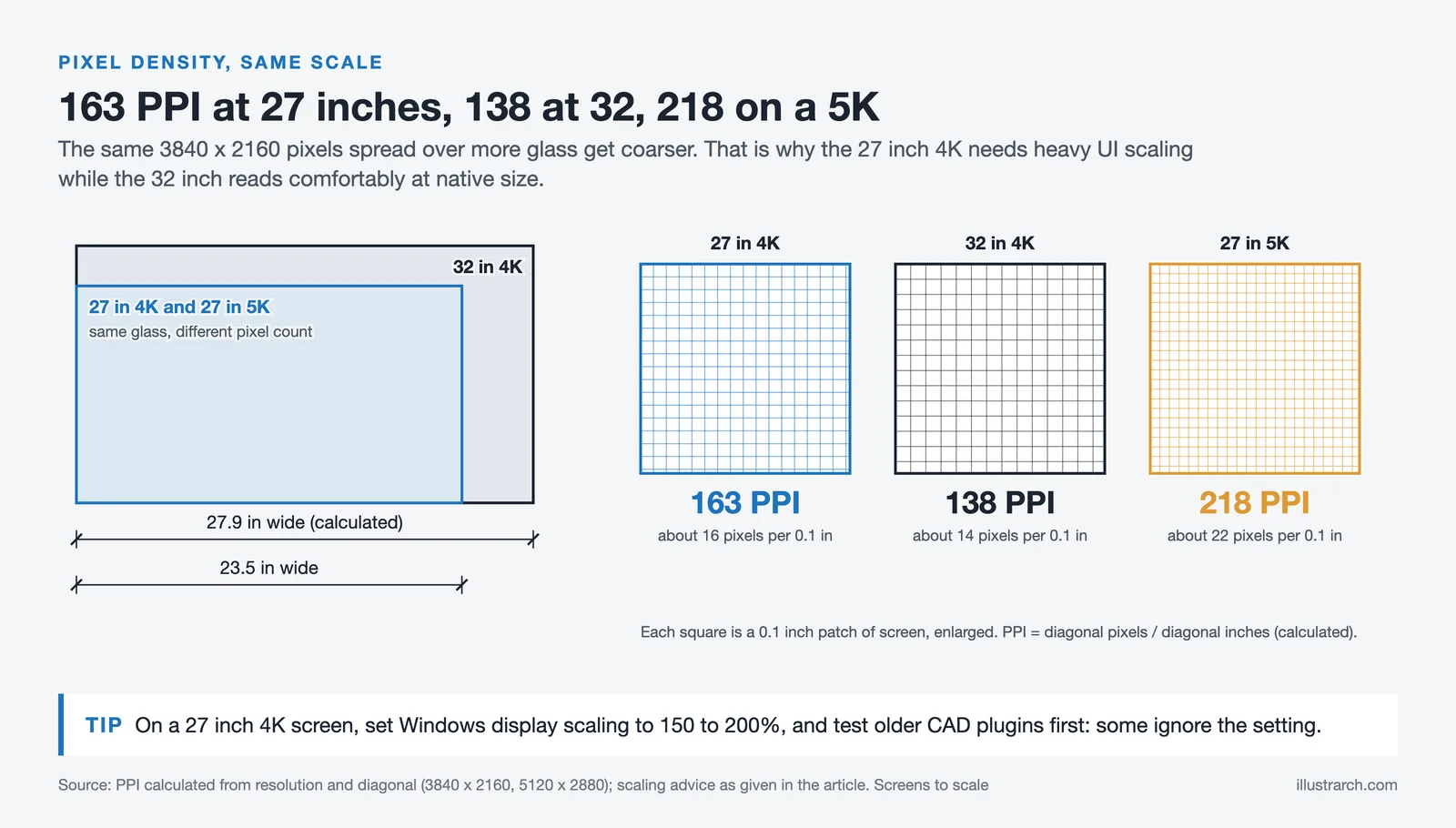
For architectural work, a 4K UHD resolution (3840 x 2160) at 27 inches or larger is the current sweet spot. Higher pixel density allows you to see fine lines, dimensions, and annotations clearly without constant zooming, a daily necessity when reviewing construction documents or checking dimension strings across a floor plan. If you work frequently with BIM software like Revit or ArchiCAD, a 32-inch display provides ample space for tool palettes, model views, and documentation panels side by side, reducing the need to constantly minimize and maximize windows during coordination sessions. Ultrawide monitors (21:9 aspect ratio) have also become popular among architects who want to view an entire building elevation or a long site section without scrolling, while avoiding dual-monitor bezels that interrupt continuous drawings.
⚠️ Watch Out: DPI Scaling Issues with 4K at 27 Inches
One of the most frequently reported issues by architects in online communities is DPI scaling problems on 27-inch 4K monitors. At this size, the native pixel density is extremely high (approximately 163 PPI), which causes many CAD applications, especially older versions of AutoCAD and certain Revit add-ins, to display UI elements, menus, and toolbars at uncomfortably small sizes. Windows DPI scaling set to 150-200% can fix this for most modern software, but some legacy plugins and third-party tools do not respect these settings, resulting in tiny icons and unreadable text. If you primarily use software that struggles with high-DPI scaling, a 32-inch 4K display offers a more comfortable native pixel density (around 138 PPI) that reduces the need for aggressive scaling adjustments. Always test your specific software stack on a 4K display before committing to a purchase.
Color Accuracy and Gamut Coverage
Color accuracy is essential for architects who present renderings and material selections to clients. When you are comparing brick samples against a rendered facade or presenting interior finish options, the colors on screen need to reflect reality, a warm terracotta should not appear as a washed-out orange, and a cool grey concrete must not shift toward blue. Look for monitors that cover at least 99% of the sRGB color space and ideally 95% or more of DCI-P3. A Delta E value below 2 indicates color accuracy that is nearly indistinguishable from the target, which matters for architectural visualization, material boards, and presentation work. Factory calibration saves time and ensures consistent results straight out of the box, so you can trust what you see from day one without investing in external calibration hardware.
Panel Type: IPS, OLED, or VA?
IPS (In-Plane Switching) panels remain the standard recommendation for architects because they deliver consistent colors at wide viewing angles, critical when a project team gathers around a single screen to review a model or when you tilt the display during a client presentation. OLED panels offer exceptional contrast and deeper blacks, which can be transformative for architects evaluating interior lighting studies or nighttime exterior renders where shadow gradation defines spatial quality. VA panels provide higher contrast ratios than IPS at a lower price, but their color accuracy and viewing angles are typically narrower, making them less reliable for collaborative design reviews. For most architectural professionals, an IPS or OLED panel is the safest choice.
| Feature | IPS | OLED | VA |
|---|---|---|---|
| Color Accuracy | ⭐⭐⭐⭐⭐ Excellent | ⭐⭐⭐⭐⭐ Excellent | ⭐⭐⭐ Good |
| Viewing Angles | ⭐⭐⭐⭐⭐ 178° | ⭐⭐⭐⭐⭐ 178° | ⭐⭐⭐ Narrower |
| Contrast Ratio | 1000:1-2000:1 | ∞:1 (Infinite) | 3000:1-5000:1 |
| Black Levels | Good (slight glow) | Perfect (true black) | Very Good |
| Response Time | 5-8 ms | 0.03-1 ms | 4-8 ms |
| Burn-in Risk | None | Possible with static UI | None |
| Price Range | $$ Mid-range | $$$ Premium | $ Budget-friendly |
| Best Architectural Use | CAD drafting, BIM coordination, general design, safest all-rounder | 3D rendering preview, interior lighting studies, material evaluation | Budget secondary display, black-and-white plan review |
| Architect Verdict | ✅ Recommended for most architects | ✅ Ideal for visualization specialists | ⚠️ Acceptable on a budget |
🗣️ What Architects Are Saying: Curved Monitors and CAD Work
A common debate among practicing architects is whether curved monitors are suitable for technical drafting. Many professionals report that curved panels can slightly distort the appearance of straight lines in orthographic CAD views, which becomes a concern when reviewing scaled plans, elevations, and section drawings. Experienced CAD drafters tend to prefer flat panels for precision work, noting that the curvature, while visually immersive, introduces subtle perspective distortion that flat monitors avoid entirely. However, architects who focus primarily on 3D modeling and visualization find curved ultrawide monitors more comfortable for orbiting models and navigating large viewports. The consensus among the architectural community is clear: if your workflow is mostly 2D drafting and technical documentation, choose a flat panel; if 3D modeling and rendering dominate your day, a curved display is a strong option.

Connectivity and Ergonomics
Modern best computer monitors for designers feature USB-C with power delivery, allowing you to charge your tablet or laptop while using the display through a single cable, a practical advantage for architects who move between their office desk and a client meeting room. Thunderbolt 3 and 4 ports support daisy-chaining multiple monitors and high-speed data transfer, which simplifies cabling when running dual or triple display setups common in BIM-heavy offices. Ergonomic stands with height, tilt, swivel, and pivot adjustments reduce neck and back strain during long sessions; this matters more than most architects realize, since a typical production day can involve eight or more continuous hours in front of the screen. VESA mount compatibility adds flexibility for multi-monitor setups common in architectural offices.
💡 Pro Tip: Monitor Arms Beat Built-in Stands
Architects who spend eight or more hours daily at their workstations frequently recommend investing in a dedicated monitor arm (VESA mount) rather than relying on the default stand that ships with the monitor. A quality monitor arm provides far greater flexibility in height, depth, and angle adjustment compared to even the best built-in stands. This is especially valuable in dual-monitor setups where precise vertical alignment between two panels can be difficult with stock stands. Many architects note that monitor arms also free up valuable desk space for drawings, material samples, and input devices. When purchasing a monitor, always confirm VESA compatibility (typically 100x100mm or 75x75mm) and ensure the arm you choose supports the weight of your display.
Touch Screen Monitors for 3D Design Drafting
Touch screen monitors have gained traction among architects who work with 3D design drafting and digital sketching. These displays let you rotate models, pinch-to-zoom on plans, and annotate drawings directly on screen, replicating the intuitive feel of sketching on trace paper during concept development. Products like the Wacom Cintiq Pro and Microsoft Surface Studio offer pen and touch input that pairs well with CAD and BIM applications. If you value a hands-on approach to digital design, a 3D design drafting monitor with touch screen capability can speed up concept development and client review sessions. For related drawing tools, explore our article on graphic tablets for architecture students.
Quick Comparison: What to Look for in a Monitor for Architects
The table below summarizes the key specifications architects and designers should prioritize when shopping for a new display.
| Feature | Recommended Spec | Why It Matters |
|---|---|---|
| Resolution | 4K UHD (3840 x 2160) or higher | Sharp lines and readable annotations in CAD |
| Screen Size | 27″ to 32″ (or ultrawide 34″+) | Space for palettes, model views, documentation |
| Color Gamut | 99% sRGB, 95%+ DCI-P3 | Accurate material and lighting representation |
| Panel Type | IPS or OLED | Wide viewing angles, consistent color |
| Connectivity | USB-C (PD), Thunderbolt, DisplayPort, HDMI | Single-cable setup, multi-monitor support |
| Ergonomics | Height, tilt, swivel, pivot adjustable stand | Comfort during long design sessions |
| Calibration | Factory calibrated, Delta E < 2 | Ready for professional use out of the box |
Which Monitor Setup Fits Your Budget and Experience Level?
One of the most common questions architects ask is not just which monitor to buy, but how many and in what configuration. The ideal setup varies significantly depending on your budget, career stage, and primary software. Below is a detailed breakdown of recommended configurations based on real-world usage patterns from architectural professionals.

| Profile | Recommended Setup | Approx. Budget | Best For |
|---|---|---|---|
| Architecture Student / Intern | Single 27″ 1440p IPS monitor | $200-$350 | General CAD drafting, studio projects, presentations. A 1440p display is sufficient for most student workflows and avoids DPI scaling headaches. |
| Junior Architect / Freelancer | Single 32″ 4K IPS or 34″ ultrawide 1440p IPS | $450-$800 | Revit, AutoCAD, and SketchUp workflows. A 32″ 4K provides comfortable pixel density, while a 34″ ultrawide gives panoramic workspace for multitasking. |
| Mid-Level Architect | Dual 27″ 4K IPS monitors (one in portrait mode for documents and specs) | $900-$1,400 | BIM coordination, rendering previews alongside documentation. The portrait-mode secondary screen is ideal for scrolling through specifications, PDFs, and email. |
| Senior Architect / Project Lead | 32″ 4K primary + 27″ 4K portrait secondary, or 40″ 5K2K ultrawide | $1,500-$2,500 | Complex BIM models, client presentations, and multi-software workflows. The larger primary display handles model views and rendering while the secondary serves as a reference hub. |
| Visualization Specialist | 32″ 4K OLED or HDR IPS primary + color-calibrated 27″ IPS secondary | $2,000-$4,000 | V-Ray, Lumion, Enscape, and Unreal Engine workflows where HDR preview and true black levels significantly improve rendering evaluation. |
| Large Firm (Gensler / ZHA style) | Triple 27″ 4K IPS array with color-matched panels, or ultrawide + pen display (Wacom Cintiq) | $3,000-$6,000+ | BIM collaboration across teams, parametric design with Grasshopper, and immersive design reviews. KVM switches and VESA mounts are standard. |
💡 Pro Tip: Match Your Monitor to Your Software
Experienced architects recommend prioritizing different monitor specs based on the software you use most. AutoCAD and Revit users should focus on resolution and pixel density for crisp linework and annotations. V-Ray, Lumion, and Enscape users benefit most from HDR support and wide color gamut (DCI-P3) for realistic material and lighting previews. Rhino + Grasshopper users working in parametric design report that 5K displays help reveal subtle curve distortions that can be missed on standard 4K panels. If you split your time evenly between 2D drafting and 3D visualization, a factory-calibrated 32″ 4K IPS monitor with at least 95% DCI-P3 coverage is the safest all-rounder.
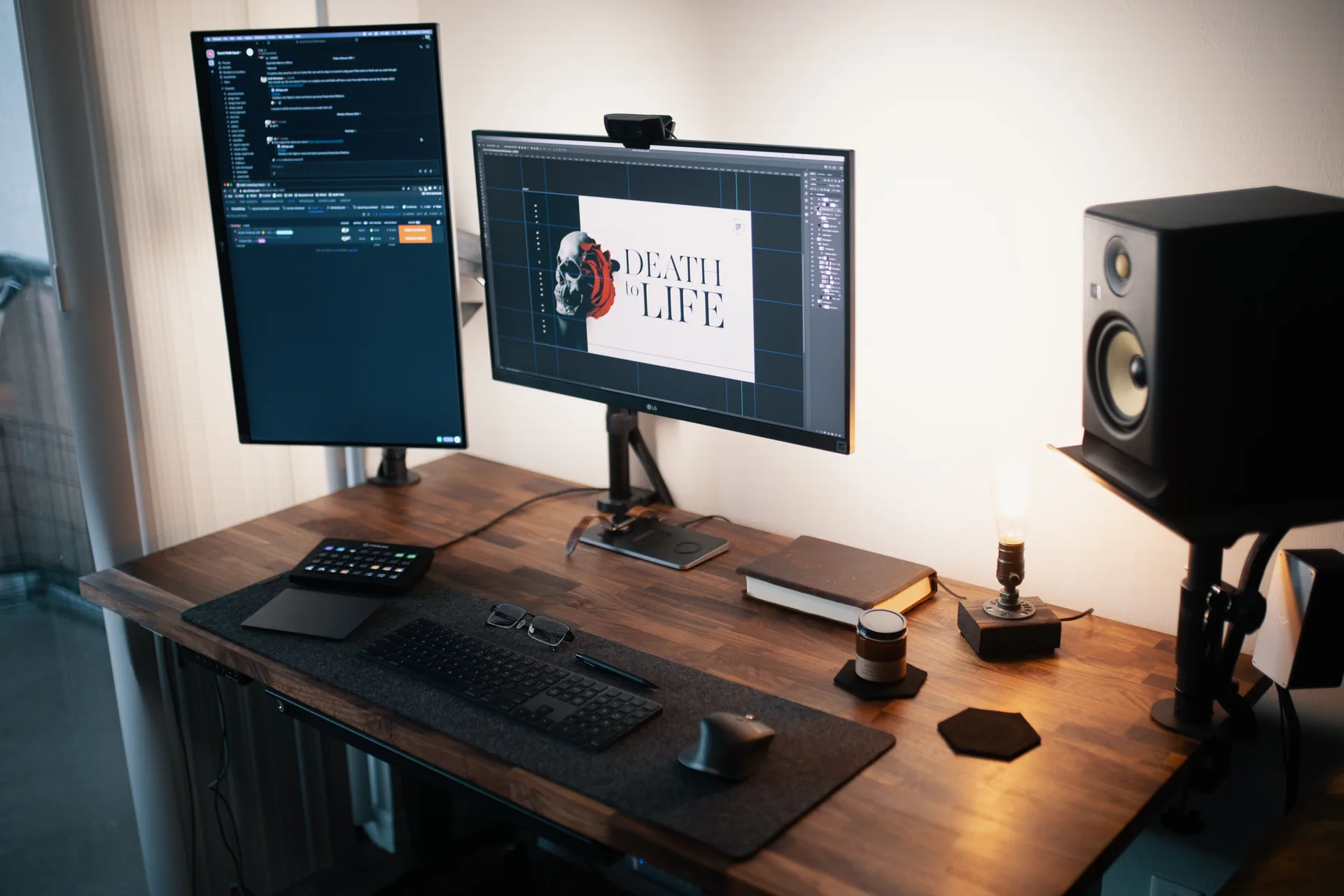
Finding Quality Monitors on a Budget: The Ex-Corporate Route
Not every architect needs to buy brand-new to get a professional-grade display. One of the most popular budget strategies shared within the architecture community is purchasing ex-corporate or refurbished monitors, particularly Dell UltraSharp and HP Z-series models that large companies replace in bulk upgrade cycles. These monitors are often only two to three years old, come with factory IPS panels that still perform excellently, and can be found at 40-60% below their original retail price.
Dell UltraSharp monitors in particular hold their calibration and build quality remarkably well over time, making them one of the best second-hand values in the market. Many refurbished units ship without the original stand, but this is easily solved with an aftermarket VESA monitor arm: which most architects prefer anyway for the added ergonomic flexibility. When shopping for refurbished displays, look for sellers that offer at least a 90-day warranty and check for dead pixels and backlight bleed before committing. For architecture students and freelancers building their first serious workstation, this approach can save hundreds of dollars while still delivering professional-level color accuracy and resolution.
What Is the Best Monitor Setup for Different Architectural Workflows?
Not every architect has the same workflow. Your choice of monitor should align with the software you use and the tasks you perform most often. Below are recommendations tailored to specific architectural use cases.
Monitor for CAD Design and Technical Drafting
If your primary work involves CAD software like AutoCAD, a monitor with high pixel density and a matte finish is your priority. Fine linework and annotation text need to remain legible at normal viewing distances. A 32-inch 4K display provides the right balance between workspace and pixel sharpness. Consider the Dell UltraSharp U3223QE, BenQ PD3220U, or ViewSonic VP3268a-4K for their dedicated CAD display modes and reliable color accuracy.
Top picks for CAD drafting: Dell UltraSharp U3223QE · BenQ PD3220U · ViewSonic VP3268a-4K · Dell UltraSharp U2723QE
Monitor for 3D Modeling and Rendering
For 3D modeling in software like Rhino, SketchUp, or Revit, you need a monitor that handles both geometric detail and realistic material previews. Wide color gamut coverage (DCI-P3 and AdobeRGB) helps ensure that textures and lighting look accurate before you produce final renders. The ASUS ProArt PA32UCX, Eizo CG319X, and BenQ SW272U excel here because of their HDR support and hardware calibration features. For architects who want the most realistic shadow and lighting previews, the LG UltraGear 32GS95UE OLED offers infinite contrast that IPS panels cannot match. A strong 3D modeling monitor makes the difference between guessing at materials and seeing them as they will actually appear.
Top picks for 3D modeling & rendering: ASUS ProArt PA32UCX · Eizo ColorEdge CG319X · BenQ SW272U · LG UltraGear 32GS95UE (OLED)
Monitor for Animation and Motion Graphics
Architects who produce animated walkthroughs or motion graphics benefit from monitors with higher refresh rates and low response times. While 60Hz is fine for static CAD work, a 120Hz or higher display provides smoother viewport navigation when orbiting complex models. The LG UltraGear 32GS95UE with its 240Hz OLED panel is particularly well-suited for animation workflows, while the LG UltraWide 40WP95C-W offers a panoramic timeline view ideal for video editing. Look for monitors that combine color accuracy with at least a 75Hz refresh rate for a noticeable improvement in viewport fluidity. The best monitors for animation also pair well with AI-assisted rendering tools that produce real-time previews.
Top picks for animation & walkthroughs: LG UltraGear 32GS95UE (OLED) · LG UltraWide 40WP95C-W · ASUS ProArt PA32UCX
Monitor for macOS-Based Architectural Workflows
Architects working primarily within the Apple ecosystem should consider the LG UltraFine 5K, Apple Studio Display, or Samsung ViewFinity S9, all of which offer 5K resolution with Thunderbolt connectivity optimized for macOS. These monitors provide Retina-quality text rendering that makes CAD annotations and specification notes exceptionally clear. The Apple Studio Display and Samsung ViewFinity S9 both include built-in cameras and speakers, reducing desktop clutter for professionals who frequently participate in remote client meetings.
Top picks for macOS architects: Apple Studio Display · LG UltraFine 5K · Samsung ViewFinity S9
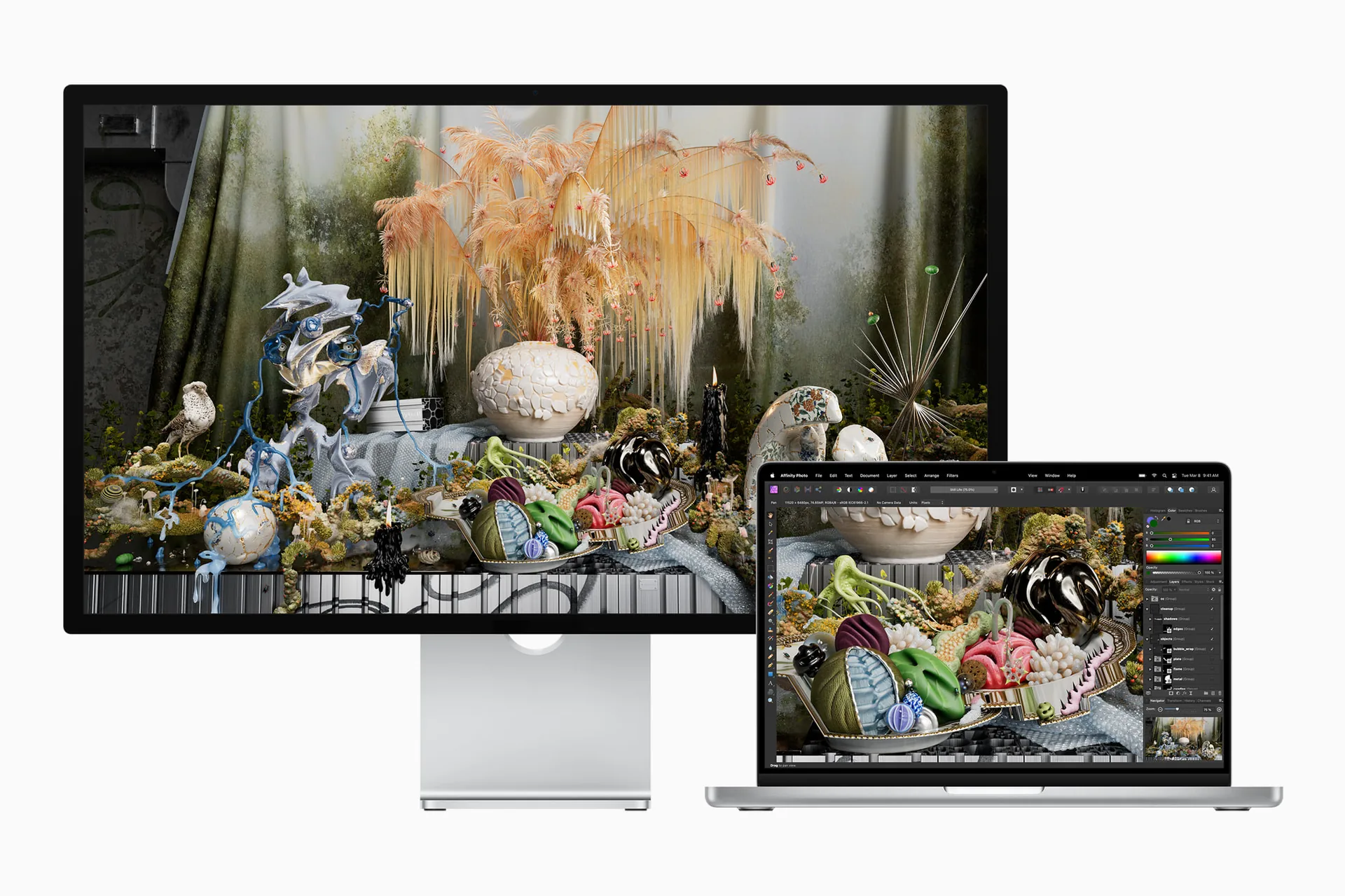
Dual Monitor vs. Ultrawide: Which Setup Is Better for Architects?
One of the most debated topics among architects when setting up their workstations is whether to invest in a dual-monitor configuration or a single ultrawide display. Both approaches have strong advocates, and the right choice depends heavily on your specific workflow, desk space, and the type of architectural work you do most frequently. Here is how the two setups compare based on feedback from practicing architects.
The Case for Dual Monitors
Many architects prefer a dual-monitor setup because it offers clear physical separation between tasks. With two displays, you can dedicate one screen entirely to your active model or drawing and keep reference materials, specifications, email, or a project management tool open on the second screen. This physical boundary creates a mental distinction between your primary work and supporting information, which many architects find improves focus and reduces the distraction of constant window switching.
A significant advantage of dual monitors is the ability to rotate one display into portrait (vertical) orientation. Architects regularly work with long specification documents, contract PDFs, building codes, and detailed schedules that benefit enormously from vertical scrolling space. A 27-inch 4K monitor in portrait mode provides a full-page view of A4 or letter-sized documents without the need to scroll, which accelerates document review workflows substantially. This is something that ultrawide monitors simply cannot replicate, as their extra width comes at the cost of reduced vertical screen height.
Dual setups also offer more flexibility for future upgrades. You can start with one monitor and add a second later, or replace one panel without losing your entire display setup. If one monitor fails, you still have a working display to continue your work, a practical consideration for architects facing project deadlines.
The Case for Ultrawide Monitors
Ultrawide monitors eliminate the bezel gap that splits a dual-monitor setup, providing a seamless panoramic workspace. For architects who frequently work with wide floor plans, long building elevations, or panoramic site sections, having one uninterrupted horizontal canvas is genuinely beneficial. Window snapping tools (such as Windows PowerToys FancyZones or macOS built-in split view) allow you to divide the ultrawide into virtual zones that mimic a multi-monitor layout without any physical interruption.
Cable management is simpler with a single ultrawide, one power cable, one video cable, and you’re done. Desk aesthetics also improve, as a single clean display creates a more streamlined workspace compared to two monitors on separate stands.
However, ultrawide monitors do have notable drawbacks that architects should consider. The reduced vertical resolution compared to a standard 16:9 display means less space for tall documents and vertical content. Architects who work extensively with section drawings, elevation details, or multi-story building plans may find the limited vertical height frustrating. Some ultrawide users also report increased neck fatigue from frequently looking at the far edges of very wide screens, particularly with 49-inch super-ultrawide models.
🗣️ What Architects Are Saying: The Dual vs. Ultrawide Debate
The consensus among the architectural community is nuanced. Architects who primarily work in 2D CAD and documentation tend to favor dual monitors, especially with one screen in portrait mode for specifications and PDFs. Architects who focus on 3D modeling, real-time rendering, and visualization lean toward ultrawide displays for the immersive, bezel-free experience. A popular compromise among senior architects is a hybrid setup: a 32-inch or 34-inch ultrawide as the primary display, paired with a smaller 24-inch or 27-inch monitor in portrait orientation as a secondary reference screen. This combines the best of both approaches without the compromises of either.

Pros and Cons: Comparing the Top 15 Monitors for Architects
Every monitor involves trade-offs. The table below breaks down the main advantages and disadvantages of each recommended model to help you decide which display best fits your architectural workflow and budget.
| Monitor | Pros | Cons | Approx. Price Range |
|---|---|---|---|
| Dell UltraSharp U3223QE | IPS Black for deeper contrast, USB-C hub with 90W PD, excellent all-round CAD performance | 60Hz refresh rate, no HDR peak brightness | $700-$900 |
| Eizo ColorEdge CG319X | Built-in hardware calibration, 4K+ resolution, studio-grade color accuracy | Very high price, limited connectivity options | $4,500-$5,500 |
| LG UltraFine 5K | 5K Retina resolution, P3 color, seamless macOS integration | Only 27″, limited to Thunderbolt/USB-C, no ergonomic stand | $1,100-$1,400 |
| BenQ PD3220U | CAD/CAM and Animation modes, Hotkey Puck, Thunderbolt 3 daisy-chain | Lower DCI-P3 coverage (95%), slightly dated panel vs newer models | $800-$1,100 |
| ASUS ProArt PA32UCX | 1000-nit peak HDR, Dolby Vision, 99% AdobeRGB, 10-bit color | Premium price, heavier build, may be overkill for pure CAD work | $2,500-$3,500 |
| Samsung Smart M8 | Very affordable, built-in smart TV apps, sleek modern design | Narrower color gamut, no hardware calibration, VA panel viewing angles | $350-$500 |
| Dell UltraSharp U2723QE | IPS Black in 27″, USB-C hub with Ethernet, high PPI for CAD | Smaller workspace than 32″ models, 60Hz only | $500-$650 |
| LG UltraWide 40WP95C-W | 5K2K ultrawide replaces dual monitors, Thunderbolt 4 with 96W PD, panoramic view | Large desk footprint, curved panel may distort straight lines slightly, premium price | $1,600-$2,000 |
| ViewSonic VP3268a-4K | Reliable color accuracy, USB-C 90W PD, Colorbration+ auto-calibration software | Narrower DCI-P3 gamut than competitors, basic stand design | $600-$800 |
| HP Z32k G3 | Thunderbolt 4 hub with 100W PD, Delta E < 1.5, enterprise-ready, daisy-chain support | Higher price than similar IPS panels, limited availability outside business channels | $1,200-$1,500 |
| ASUS ProArt PA279CRV | 99% DCI-P3, Calman Verified, on-chip calibration, USB-C 96W PD, affordable | 27″ may feel small for complex BIM layouts, 350-nit brightness not ideal for HDR | $450-$600 |
| BenQ SW272U | 99% AdobeRGB, shading hood included, Pantone/Calman certified, hardware calibration | No USB-C power delivery, 27″ screen size, higher price for its size class | $1,200-$1,500 |
| Samsung ViewFinity S9 | 5K resolution, matte display, built-in 4K camera, Thunderbolt 4, smart features | No longer sold in Samsung’s US online store, 60Hz only, no HDMI input | $1,100-$1,400 |
| LG UltraGear 32GS95UE | OLED infinite contrast, 98.5% DCI-P3, 240Hz, incredible rendering previews | Burn-in risk from static CAD UI, gaming-oriented design, no hardware calibration tool | $1,100-$1,400 |
| Apple Studio Display | 5K Retina, True Tone, built-in speakers and camera, seamless macOS experience | No Windows/Linux support, no HDR, limited stand adjustability, premium Apple pricing | $1,599-$2,299 |
Video: How to Choose the Best Monitor for Design and Architecture
Watch the video below for a visual breakdown of how to pick the right 4K monitor for architectural design, CAD work, and 3D rendering. The review covers color accuracy, panel types, connectivity, and real-world performance tests that help you compare the monitors listed in this guide.
Key Takeaways: Matching a Monitor to Your Needs
Choosing the best monitor for architectural work is not just about picking a display with the highest resolution or largest size; it is about selecting a tool that enhances your workflow and aligns with your professional needs. A monitor with excellent color accuracy, high resolution, and ergonomic adjustability can make a significant difference in how you visualize and present your designs. Whether you’re an architect who requires premium features like HDR support and wide color gamut coverage, as offered by the ASUS ProArt PA32UCX, or someone looking for an affordable yet reliable option like the Samsung Smart Monitor M8 or the ASUS ProArt PA279CRV, there is a solution to suit every preference and budget. For ultrawide enthusiasts, the LG 40WP95C-W eliminates the need for dual monitors, while OLED fans can explore the LG UltraGear 32GS95UE for unmatched rendering contrast. And if you’re shopping for a new monitor online, don’t forget to check for deals through trusted coupon platforms like Shopper.com, where you can find verified discounts from top retailers like Walmart.

Investing in a top-tier monitor is a decision that pays off in the long run, ensuring your designs are displayed with precision and clarity while reducing eye strain during long working hours. By carefully considering factors such as resolution, color performance, and connectivity, architects can create a workstation that fosters creativity and efficiency. The right monitor is more than a display; it is a critical partner in the creative journey, enabling architects to turn their visions into reality with confidence and precision.
Final Thoughts: Choosing the Right Monitor for Architectural Work
Choosing the right monitor is one of the most underestimated yet critical decisions in an architect’s digital workspace. A monitor is not simply a viewing surface; it is the primary interface through which ideas are developed, tested, refined, and ultimately communicated. From early concept sketches to detailed construction drawings and final renderings, every design decision passes through the screen.
A high-quality monitor improves more than visual clarity. It enhances precision, reduces visual fatigue, and supports consistency across different stages of a project. Poor resolution or inaccurate colors can distort proportions, materials, and lighting, leading to misjudgments that affect both design quality and client presentations. Over time, this can slow down workflows and negatively impact creative confidence.
As architectural practice continues to evolve toward real-time rendering, collaborative cloud-based tools, and AI-assisted design processes, monitors are becoming long-term investments rather than short-term accessories. Architects who prioritize resolution, color fidelity, and ergonomic performance will not only work more efficiently but also produce clearer, more convincing architectural outcomes. In a profession where detail defines quality, the right monitor becomes an essential design tool, not an optional upgrade. For a broader look at equipping your workspace, explore our overview of beneficial architectural gadgets.
FAQ: Monitors for Architects and Designers
What size monitor is best for architectural CAD work?
A 27-inch to 32-inch display at 4K resolution offers the best balance between screen real estate and pixel density for CAD work. Larger monitors give you room for tool palettes and multiple panels. If desk space allows, a 34-inch or 40-inch ultrawide monitor can replace a dual-monitor setup, providing a seamless panoramic view of your drawings and models.
Do architects need a 4K monitor?
While a 4K monitor is not strictly mandatory, it significantly improves the clarity of fine lines, text annotations, and detailed renderings. Most architects working with Revit, AutoCAD, or similar software find that the jump from 1080p or 1440p to 4K makes a noticeable difference in daily comfort and accuracy. If budget is a concern, a high-quality 1440p display can still serve well for general drafting. In fact, many practicing architects note that a well-calibrated 27-inch 1440p IPS monitor handles approximately 90% of typical CAD tasks without issue, 4K becomes most beneficial on screens 32 inches and larger where the pixel density advantage is clearly visible.
Is an OLED monitor worth it for architecture?
OLED monitors offer superior contrast ratios and deeper blacks compared to IPS panels. This benefits architects who work heavily in 3D rendering and visualization because shadows and dark materials appear more realistic. Models like the LG UltraGear 32GS95UE demonstrate how OLED can enhance rendering previews. The main drawbacks are higher cost and the risk of burn-in from static UI elements common in CAD software. For mixed workflows that include both drafting and rendering, an IPS panel remains a safer long-term choice, or consider using an OLED as a secondary rendering display alongside a primary IPS drafting monitor.
Can I use a gaming monitor for architectural design?
Gaming monitors often prioritize refresh rate over color accuracy, which is the opposite of what most architects need. That said, some gaming monitors, particularly those with IPS or OLED panels and wide color gamut coverage, can work well for design tasks. Just make sure the monitor you choose offers at least 95% sRGB coverage and a Delta E below 3. Color-accurate gaming monitors like the ASUS ROG Swift PG32UCDM blur the line between gaming and professional use. However, be cautious with heavily curved gaming monitors, many architects report that steep curvatures designed for immersive gaming can distort the perception of straight lines in technical drawings, making them less suitable for precision CAD work.
What is the best monitor for Mac-based architects?
Architects working within the Apple ecosystem should consider 5K displays with Thunderbolt connectivity, such as the Apple Studio Display, LG UltraFine 5K, or Samsung ViewFinity S9. These monitors provide Retina-quality text rendering that makes CAD annotations exceptionally sharp, along with single-cable connectivity for video, data, and charging. The Apple Studio Display offers the tightest macOS integration, while the Samsung ViewFinity S9 provides similar 5K quality with a matte display coating and built-in smart features at a lower price.
What is the best desktop setup for architects?
The best desktop for architects typically combines a powerful workstation (with a dedicated GPU, 32GB or more RAM, and fast SSD storage) with a high-resolution, color-accurate monitor. Pair your display with an ergonomic chair, adjustable desk, and a graphics tablet for sketching. A dual-monitor configuration or a single ultrawide display like the LG 40WP95C-W provides enough workspace for CAD, BIM, and rendering tasks without constant window switching.
Should I choose dual monitors or an ultrawide for architectural work?
This depends on your primary workflow. Dual monitors offer the advantage of dedicating each screen to different tasks and the option to rotate one into portrait mode for documents and specifications. Ultrawide monitors provide a seamless, bezel-free workspace that benefits panoramic views of floor plans and 3D model navigation. Many experienced architects recommend a hybrid approach: a primary ultrawide or 32-inch display combined with a smaller secondary monitor in portrait orientation. This gives you the best of both setups without sacrificing either workspace continuity or vertical document viewing space.
Last updated:


1 Comment



Foster + Partners to Test Robot Swarms Building Timber from the Top Down
Foster + Partners wins €4m EU grant to build robot and drone...
 illustrarch Editoral Team2 Mins read
PLNAR Review: Does AR Measurement Hold Up on a Real Site Visit?
PLNAR began as a consumer AR tape measure and now runs as...
 Sinan Ozen5 Mins read
ArchiSnapper Review: Is This Field Report App Worth It for Architects?
A hands-on look at Deltek ArchiSnapper, the mobile app built for field...
Sinan Ozen5 Mins read

Gross Internal Area and Net Internal Area: What’s the Difference?
The difference between Gross Internal Area and Net Internal Area shapes how...
Sinan Ozen5 Mins read


I appreciate the emphasis on color accuracy in choosing monitors for architects. It makes sense that colors need to match reality, especially when presenting to clients. The mention of Delta E values below 2 is really helpful; I didn’t realize how important that is for ensuring the fidelity of renderings. I’m curious about how the calibration process works for these monitors—do you need special equipment, or can they do it automatically?