

Best Portable Monitors for Architects: 2026 Buying Guide
Portable monitors let architects keep a dual-screen workflow on site visits, in client meetings, and while traveling. This guide compares color-accurate and high-resolution picks, from the ASUS ProArt to OLED options, and how to choose.
 Furkan Sen1 July 20267 Mins read205

Table of Contents Show
The best portable monitors for architects pair accurate color, sharp resolution, and single-cable USB-C power in a screen light enough for a backpack. Strong picks like the ASUS ProArt PA148CTV, ViewSonic ColorPro VP16-OLED, and LG gram +view give you a near studio-grade second display for site offices, client meetings, and travel. Most architectural work still happens on a large desktop display, but design rarely stays at the desk. You review drawings in a site trailer, mark up a model in a hotel room, or present a concept across a meeting table on a laptop with a cramped screen. A portable monitor gives back the second-screen workflow you rely on, and the right one holds color and detail close enough to your studio setup that you can trust what you see. This guide covers what to look for and the displays worth carrying.
Do Architects Really Need a Portable Monitor?
Yes, if your work moves between locations. A portable monitor turns a single-screen laptop into a dual-display workstation, so you can keep a Revit or AutoCAD model open on one screen and reference drawings, a PDF set, or an email thread on the other. For site visits, a 2-pound screen fits next to a laptop in the same bag you already carry. For presentations, it gives clients a larger, color-true view than a laptop lid angled across a table. If you mostly work at a fixed desk, a desktop display is the better spend, and our guide to the best monitors for architects covers those options in depth.
What to Look for in a Portable Monitor for Architecture Work

Four things separate a screen you will actually use from one that stays in a drawer: resolution, color, connectivity, and the stand. The same fundamentals our guide on choosing a monitor for architectural design applies to desktop displays carry over here, just scaled down. Here is how each maps to working on the go.
Screen Size and Resolution
For drafting and model review, aim for a 15 to 16 inch panel. Smaller 14 inch screens travel well but feel tight for detailed plans. Full HD (1920 by 1080) is the practical floor, and it reads cleanly at this size for general work and presentations. If you spend long hours in CAD or BIM where thin lines and dense annotation matter, a WQXGA (2560 by 1600) or 4K panel shows more detail without constant zooming. Higher resolution also lets you scale the interface and still keep a usable drawing area. For pen-based sketching on the go, a drawing tablet for architects is a better tool than a touch monitor.
Color Accuracy for Renderings and Materials
Color is where architectural work gets demanding. Material boards, renderings, and presentation graphics all depend on the screen showing the colors you actually specified. Look for full sRGB coverage at a minimum, and ideally wide DCI-P3 coverage for richer renders. Factory calibration and a stated Delta E under 2 mean the panel ships close to reference out of the box, which matters when you are away from your calibrated studio display. Certifications such as Calman Verified or Pantone Validated are useful shorthand for displays built for color-critical use.
Connectivity and Power
The ideal setup is one USB-C cable carrying video, touch, and power together. That keeps your bag light and your desk clean. Check the wattage too: a screen drawing power from your laptop battery will drain it faster, so a model that accepts its own USB-C charger lets you power both at once. A mini or micro HDMI port is worth having for connecting to devices that do not output video over USB-C, such as some cameras or older machines.
💡 Pro Tip
Before buying, confirm your laptop’s USB-C port supports DisplayPort Alt Mode and enough Power Delivery to drive the screen. Many thin laptops route video through only one specific port, and a USB-C port without DP Alt Mode will charge the monitor but show no image. A short labeled cable kept in your travel bag saves a lot of on-site guesswork.
Portability, Stand, and Build
Weight and the stand decide how often the screen leaves your desk. The lightest panels sit near 1.5 to 2 pounds. A folio cover that doubles as a kickstand is fine for quick use, but an articulating stand that adjusts height and tilt is far steadier for a full day in a site office, and it lets you work in portrait orientation for tall elevations. A magnetic cover also protects the panel in transit, which matters more for fragile OLED screens.
Best Portable Monitors for Architects (Top Picks)
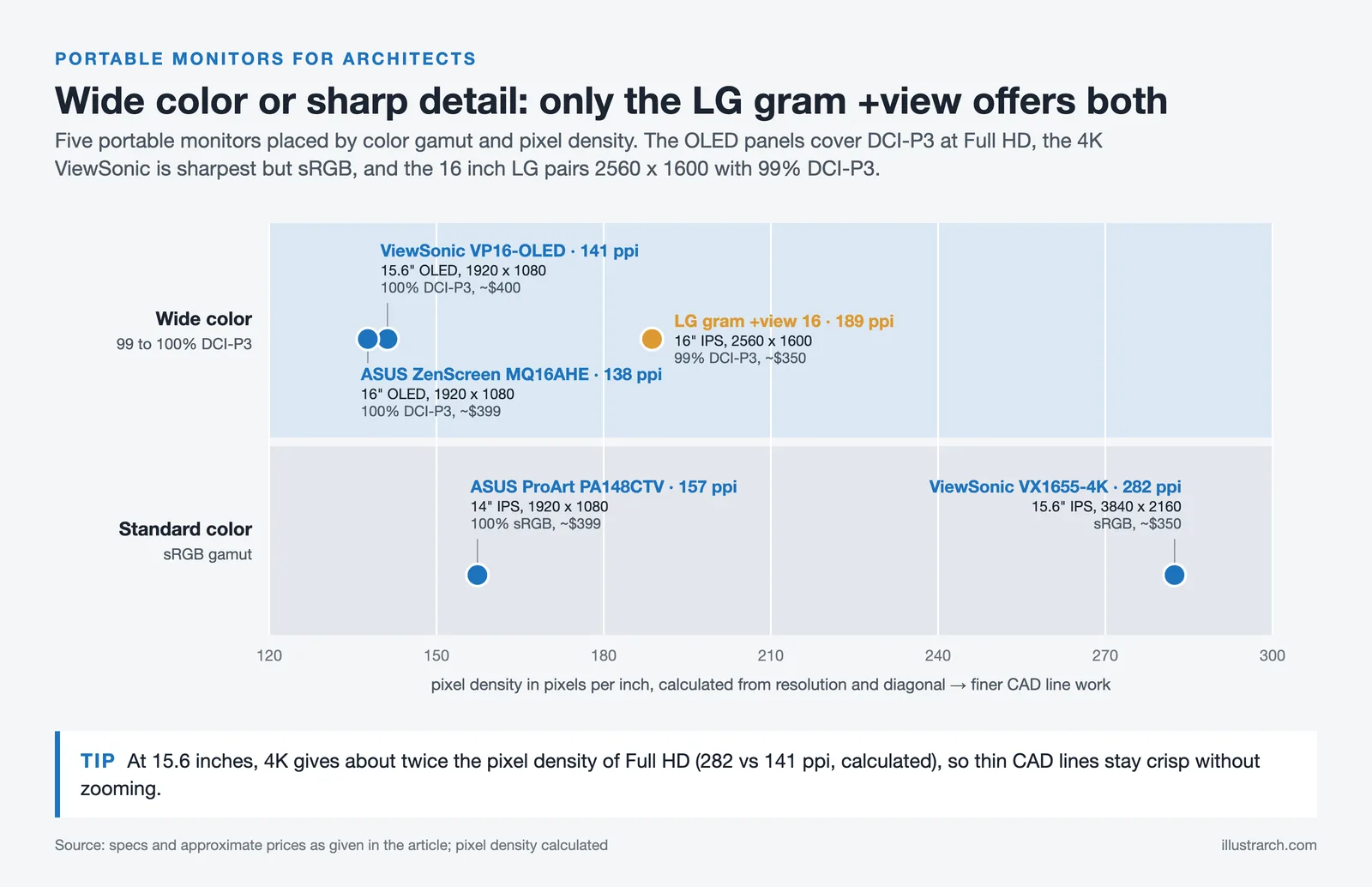
The best portable monitors for architects below cover color-critical work, high-detail CAD, and maximum portability. The table compares the core specs, and the notes after it explain where each one fits.
Portable Monitor Comparison at a Glance
The following table summarizes the main options side by side:
| Monitor | Size & Panel | Resolution | Color | Approx. Price | Best For |
|---|---|---|---|---|---|
| ASUS ProArt PA148CTV | 14″ IPS, touch | 1920 x 1080 | 100% sRGB, Delta E < 2 | ~$399 | Color-critical render review |
| ViewSonic ColorPro VP16-OLED | 15.6″ OLED | 1920 x 1080 | 100% DCI-P3, Pantone | ~$400 | True-black contrast, desk stand |
| LG gram +view 16 | 16″ IPS | 2560 x 1600 | 99% DCI-P3 | ~$350 | Lightweight laptop pairing |
| ASUS ZenScreen OLED MQ16AHE | 16″ OLED | 1920 x 1080 | 100% DCI-P3, HDR-10 | ~$399 | 16″ OLED all-rounder |
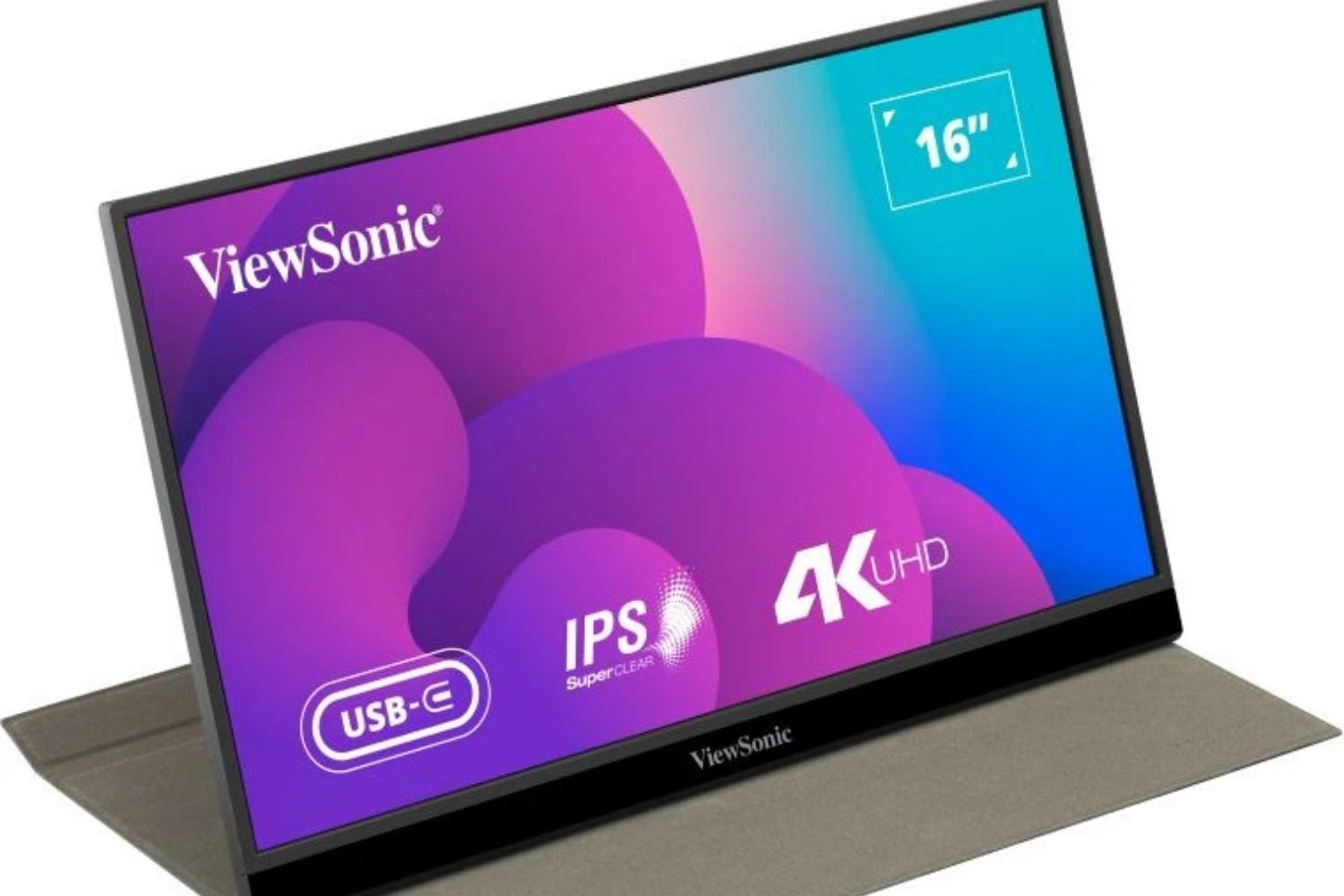
| ViewSonic VX1655-4K | 15.6″ IPS | 3840 x 2160 | sRGB (IPS) | ~$350 | High-detail CAD line work |
ASUS ProArt PA148CTV: Best for Color-Critical Work
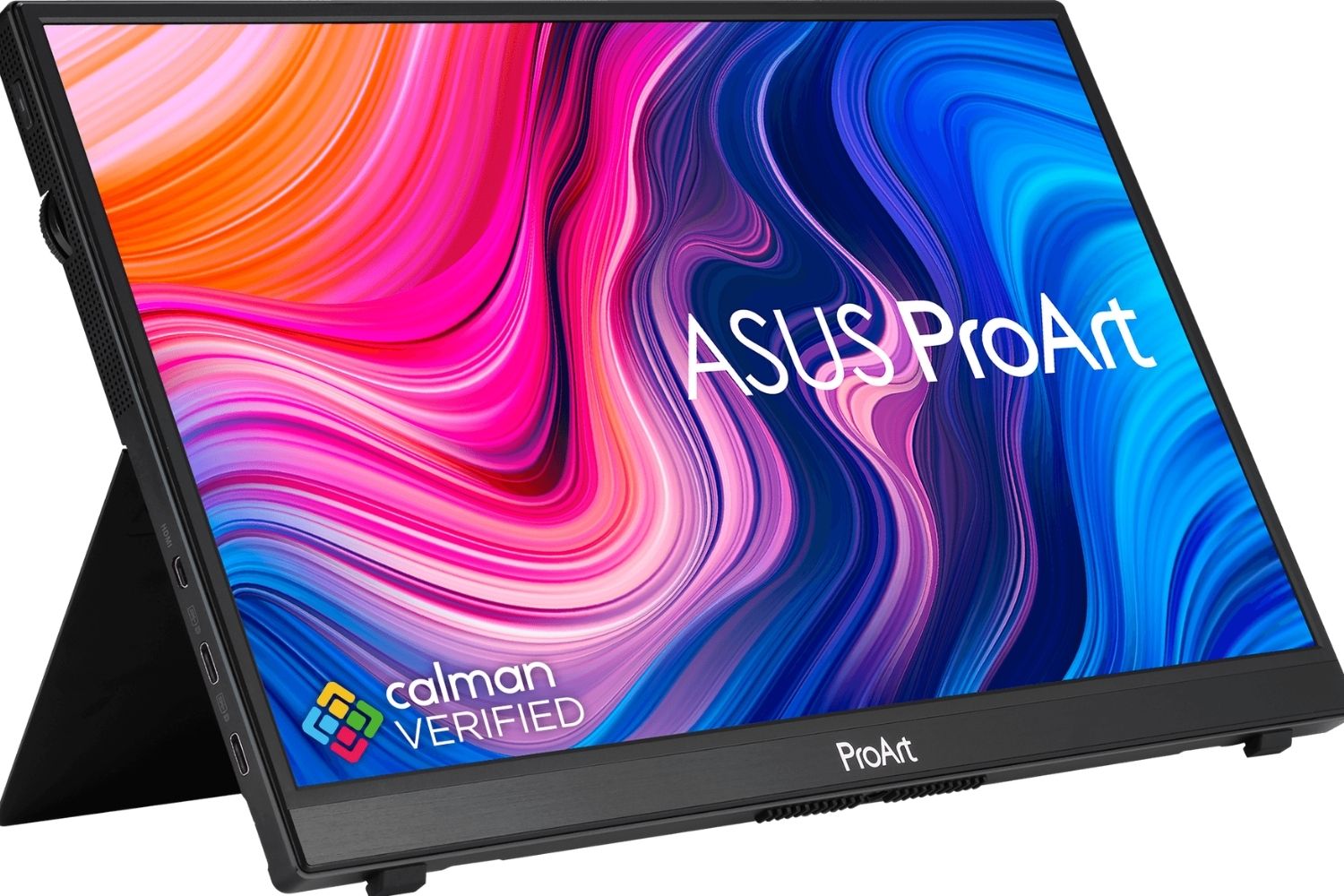
The ASUS ProArt PA148CTV is built for creators who cannot compromise on color. It is a 14 inch Full HD IPS panel with 100% sRGB and 100% Rec. 709 coverage, factory pre-calibrated to a Delta E under 2 and Calman Verified, so renders and material studies read true without setup. Two USB-C ports and a micro HDMI handle most devices, a metal kickstand and tripod socket give you working angles, and 10-point touch helps when marking up. The trade-off is the smaller screen and Full HD resolution, so it suits color review more than dense CAD detail.
ViewSonic ColorPro VP16-OLED: Best OLED Display and Stand
The ViewSonic ColorPro VP16-OLED brings OLED to a 15.6 inch portable, with 100% DCI-P3 coverage, Pantone Validated factory calibration, and 400 nits of brightness. Its advantage for architects is two-fold: OLED true blacks make shadow detail in dark renderings easy to read, and the double-hinged stand adjusts height and tilt and rotates to portrait, which a basic kickstand cannot match. A protective cover doubles as a shading hood for working in bright light. The OLED panel is fragile, so the included case earns its place in transit.
📌 Did You Know?
OLED portable panels like the ViewSonic ColorPro VP16-OLED reach a 100,000:1 contrast ratio for true blacks, while a typical IPS portable such as the ASUS ProArt PA148CTV sits near 700:1 static contrast. That gap is why dark renderings and night scenes are far easier to read on OLED, where deep shadows hold detail instead of washing out to gray.
LG gram +view 16: Best Lightweight Laptop Companion
If portability is the priority, the LG gram +view is hard to beat at roughly 0.67 kg for the panel alone (0.99 kg with the folio cover). It is a 16 inch WQXGA (2560 by 1600) IPS panel with 99% DCI-P3 coverage, so you get both higher pixel density for CAD detail and wide color in a screen barely heavier than a tablet. USB-C ports sit on both sides for flexible cable routing, and a folio cover acts as the stand. Note that it draws power from the connected laptop and uses USB-C only, with no HDMI, so it pairs best with a modern laptop rather than mixed devices.
Other Strong Options
The ASUS ZenScreen OLED MQ16AHE is a 16 inch OLED with 100% DCI-P3, HDR-10, and a 360 degree kickstand, a solid all-rounder when you want OLED color in a larger panel. For the sharpest CAD line work, the ViewSonic VX1655-4K packs 4K resolution into 15.6 inches with 60W USB-C and a built-in stand, trading wide color for detail. Budget panels from brands like Arzopa or KYY cost far less and work for presentations and a second email screen, but they rarely hold color well enough for material or render review. For desktop alternatives to keep at the studio, see our roundup of the top computer monitors for architects and designers.
How to Choose the Right Portable Monitor for Your Workflow

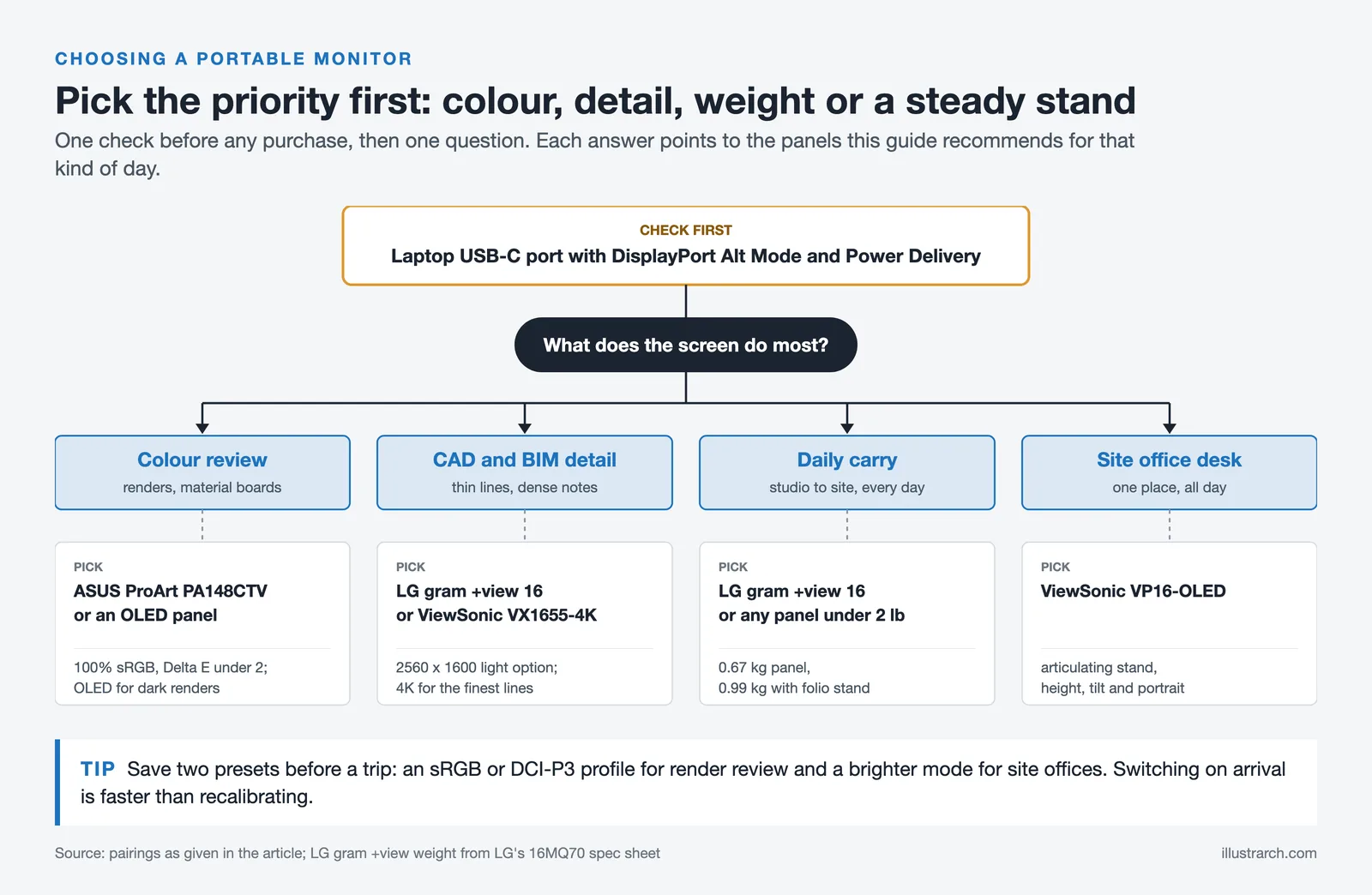
Match the screen to how you work. If you review renderings and material palettes away from the studio, prioritize color and pick the ProArt or an OLED panel. If you spend the day in CAD or BIM, choose resolution, either the LG gram +view for a light WQXGA option or a 4K panel for maximum detail. If you carry your kit between sites daily, weight wins, and the LG gram +view or a sub-2-pound screen makes the difference. If the monitor lives mostly on a site-office desk, a sturdy articulating stand like the ViewSonic VP16-OLED matters more than shaving grams.
💡 Pro Tip
Set up two color presets before a trip: an sRGB or DCI-P3 profile for reviewing renders and presentations, and a higher-brightness mode for working in bright site offices or daylight. Switching presets on arrival is faster than recalibrating, and it keeps client-facing visuals consistent with what you approved back at the studio.
A portable monitor also works alongside the rest of your mobile kit. Pairing it with one of the best laptops for architects and the right tech gadgets for architects keeps a full workflow running from a single bag.
Where to Go From Here
Your Next Step: Before you buy, check your main laptop’s USB-C port for DisplayPort Alt Mode and its power output, then decide whether color review or CAD detail drives your choice. That single check rules out half the guesswork and points you straight to the right panel. Cost figures are approximate and vary by region, retailer, and configuration.
Frequently Asked Questions
Do architects really need a portable monitor?
If your work moves between the studio, sites, and travel, a portable monitor restores the dual-screen setup that speeds up drawing and review. It turns a single-screen laptop into a two-display workstation. Architects who work only at a fixed desk are better served by a larger desktop display.
What screen size is best for a portable monitor for CAD work?
A 15 to 16 inch panel is the sweet spot for CAD and BIM. It gives enough room for detailed plans and dense annotation while still fitting in a laptop bag. Smaller 14 inch screens travel lighter but feel cramped for technical drawing over long sessions.
Should an architect’s portable monitor be OLED or IPS?
OLED panels offer deeper blacks and higher contrast, which helps when reading shadow detail in dark renderings. IPS panels are more durable, often brighter for daylight use, and usually cheaper. For color-critical render review, OLED has an edge; for rough handling on site, IPS is the safer choice.
Can a portable monitor run from a single USB-C cable?
Yes, if your laptop’s USB-C port supports DisplayPort Alt Mode and enough Power Delivery. One cable then carries both video and power. If the port lacks DP Alt Mode, you will need a separate HDMI connection and a power source, so confirm this before buying.
What resolution should an architect’s portable monitor have?
Full HD (1920 by 1080) is the minimum and works well for presentations and general review at 14 to 16 inches. For detailed CAD or BIM work, WQXGA (2560 by 1600) or 4K shows finer lines and lets you scale the interface while keeping a usable drawing area.








Futuro House Production Revived in Finland After Decades-Long Hiatus
A Facebook listing for abandoned moulds led to the first new Futuro...
 illustrarch Editoral Team3 Mins read

Building Your Dream Home in NSW: What You Should Know About Montgomery Homes
Montgomery Homes has been building across Sydney, Newcastle, the Hunter, Wollongong and...
illustrarch Editoral Team4 Mins read

Designing a Home Theater: Where Drapery Fits Into the Plan
In a media room the curtains are a performance layer, not decoration....
illustrarch Editoral Team3 Mins read

Oscar Niemeyer’s Cathedral of Brasília: The Hyperboloid Concrete Hymn
The Cathedral of Brasília reads as a single gesture, yet it stood...
Furkan Sen7 Mins read


Leave a comment