

How to Select the Perfect Monitor for Architectural Design
Selecting the right monitor for architectural design requires understanding how resolution, color accuracy, panel type, screen size, and connectivity each affect your daily workflow across CAD drafting, BIM modeling, rendering, and client presentations. This guide breaks down every specification that matters.
 Elif Ayse Sen1 April 202616 Mins read296

Table of Contents Show
A monitor for architectural design needs to do far more than display sharp images. It must render fine linework without aliasing in AutoCAD, reproduce material colors faithfully in rendering previews, maintain consistent brightness across large floor plans in Revit, and stay comfortable through eight-hour work sessions. Getting this choice wrong affects every stage of your workflow. Getting it right is one of the highest-return investments an architect can make in their workspace.
Why a Standard Monitor Falls Short for Architecture Work

General-purpose monitors are built around a different set of priorities. They optimize for contrast in dark gaming scenes, high refresh rates for fast motion, and price efficiency for broad consumer appeal. Architectural work demands something else entirely.
When you are reviewing a construction document with 6-point annotation text and 0.1mm line weights, pixel density matters at the technical level, not just visually. When you are evaluating a concrete render against a warm timber ceiling in Enscape or Twinmotion, color accuracy affects whether you can trust the preview. When your monitor is slightly off in white balance, your specification sheets will read differently on your screen than on your client’s printed output.
The software side adds another layer. AutoCAD and Revit are resource-intensive applications that stress both your graphics card and your display’s rendering pipeline differently from gaming or video. Rendering tools like Enscape benefit from high refresh rates and accurate color gamut. Presentation workflows require reliable output that matches what your client will actually see printed or projected.
⚠️ Common Mistake to Avoid
See also our guide to the best tablets for architects.
Many architects choose a monitor based on resolution alone and overlook color gamut coverage. A 4K monitor with only 72% NTSC color coverage will display washed-out material textures and inaccurate lighting in rendering previews, even though the resolution looks sharp. Always check both DPI and DCI-P3 or Adobe RGB coverage before purchasing.
Resolution: What Does an Architect Actually Need?

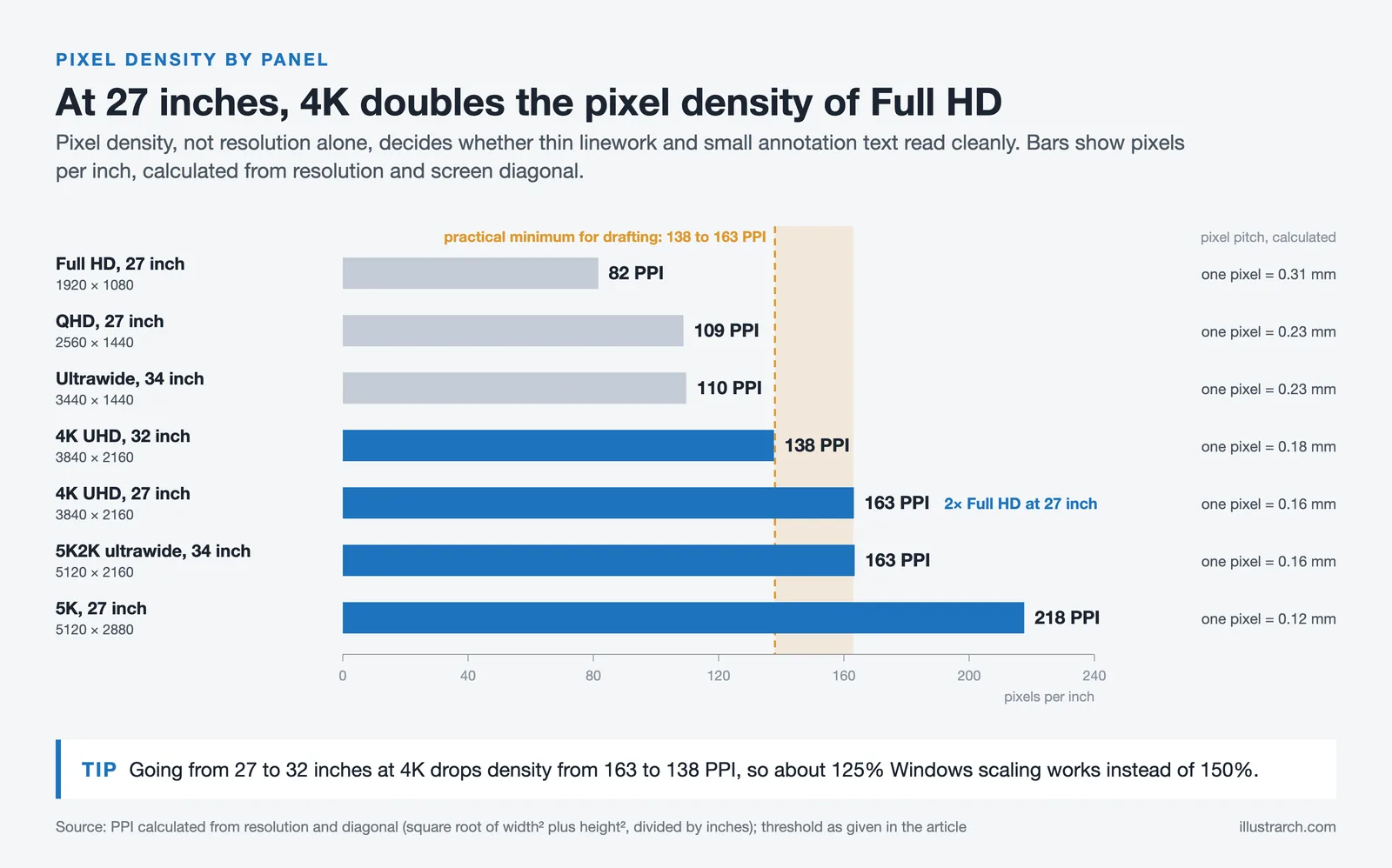
Resolution is where most architects start their search, and it is the right place to begin. For architectural work, the practical minimum in 2026 is 4K UHD (3840 x 2160 pixels) on a 27-inch or 32-inch panel. This gives you a pixel density of around 138 to 163 PPI, which is sufficient to display 6-point annotation text in AutoCAD without antialiasing artifacts and to render thin construction lines crisply without apparent stairstepping.
Full HD (1920 x 1080) at 27 inches produces only 82 PPI, which is noticeably soft for detailed drafting. QHD (2560 x 1440) is a better option on a budget, but the difference between QHD and 4K becomes immediately visible once you open a densely annotated section drawing or a detailed BIM model view. The best 4K monitor for architects provides the combination of size and density that makes fine linework genuinely legible at normal viewing distance.
For ultrawide configurations, the calculation changes. A 34-inch ultrawide at 5K2K resolution (5120 x 2160) is the minimum that preserves vertical pixel density comparable to a standard 4K 27-inch display. Many ultrawide models ship at 3440 x 1440, which gives you only about 110 PPI on a 34-inch panel. That resolution drop is visible in detailed drawing work. If you are considering the best ultrawide monitor for architects, verify the exact resolution and calculate the resulting PPI before deciding.
📐 Technical Note
AutoCAD and Revit both scale their interface elements using Windows DPI scaling. At 4K on a 27-inch display, a 150% DPI scaling setting is typically recommended to keep toolbars and text readable without shrinking the effective viewport. At 32 inches with 4K, 125% scaling often works better, preserving more usable canvas area. Verify your GPU driver and CAD software version support the scaling mode before purchasing.
Color Accuracy: Panel Type and Gamut Coverage Explained

Color accuracy in architectural work serves two distinct purposes. For design development, it ensures that material samples, render previews, and visualizations accurately represent the actual appearance of finishes, lighting, and spatial qualities. For documentation, it ensures that what you see on screen matches what prints and what your consultants see on their displays.
Three panel technologies dominate the market: IPS, VA, and TN. For architectural workflows, IPS (In-Plane Switching) is almost always the correct choice. IPS panels maintain color accuracy across wide viewing angles, which matters when presenting work to a client sitting beside you or reviewing drawings at an oblique angle. VA panels offer superior contrast ratios that can benefit visualization review work, but color accuracy degrades at off-axis angles. TN panels are not suitable for professional architectural work.
Color gamut coverage tells you how wide a range of colors the monitor can reproduce. The two relevant standards for architectural work are sRGB and DCI-P3. For CAD and drafting work, 99% sRGB coverage is the minimum useful threshold. For rendering review and visualization work, DCI-P3 coverage becomes important because rendering engines like V-Ray and Enscape produce output in wider color spaces. A monitor covering 95% or more of DCI-P3 will display those renders without visible color compression. The best monitor for architecture rendering typically targets 98-99% DCI-P3.
💡 Pro Tip
Factory-calibrated monitors arrive with a hardware calibration report in the box. This report confirms the actual measured Delta-E value of your specific unit. A Delta-E below 2 is considered imperceptible to the human eye. If you are reviewing material specifications or producing printed presentations that must match screen previews, request a factory calibration report or budget for a hardware calibration tool like the X-Rite i1Display after purchase. Calibrating monthly maintains consistent output as the panel ages.

Screen Size: Finding the Right Balance for Your Desk

Screen size is one of those decisions where bigger is not automatically better. The right size depends on your viewing distance, desk depth, and the nature of your primary tasks.
A 27-inch display at 4K is the most versatile configuration for architectural work. It provides a pixel density that makes fine linework sharp without aggressive DPI scaling, fits comfortably at a standard desk depth of 60 to 70 cm, and works well in multi-monitor configurations. For the best monitor for architectural drafting that will be used at a typical studio desk, 27 inches is the most balanced starting point.
A 32-inch display at 4K trades some pixel density for workspace. At this size, you gain real estate for keeping multiple Revit views open simultaneously or laying out a full-size A1 drawing without constant panning, while the panel remains manageable at a standard desk depth. This size is particularly well-suited as the best monitor for CAD and Revit workflows where you regularly work with multiple panels open in the same session.
Ultrawide displays in the 34-inch to 40-inch range serve a specific use case well: parallel workflows where you need two application windows side by side. Reviewing a rendered elevation alongside its Revit model view, or keeping a specification sheet open beside a construction document, works naturally on an ultrawide without a second monitor taking up separate desk space. The trade-off is that ultrawide panels require a large, deep desk and can cause neck strain if not positioned carefully.
What About Monitors for Architecture Students?

The best monitor for architecture students involves a different calculation than professional studio displays. Budget matters more, portability sometimes matters, and the range of software used is broader since students move between CAD drafting, rendering, presentation design, and academic research in a single session.
A 27-inch 4K IPS display in the mid-range segment, covering at least 95% sRGB and offering USB-C connectivity, represents the best value proposition. Brands like BenQ, Dell UltraSharp, and LG frequently hit this specification range at prices suitable for student budgets. Avoid compromising on panel type: an IPS panel at 1080p is worse for architectural work than a QHD or 4K IPS panel, even if the 1080p display costs less.
Portable external monitors have become genuinely useful for students who need flexibility across studio, library, and home work environments. Modern portable displays connect via a single USB-C cable and deliver adequate resolution for most academic workflows. Our guide to tech gadgets for architecture school covers portable monitor options in more detail.
📌 Did You Know?
The American Institute of Architects (AIA) Technology in Architectural Practice survey found that architects who work on large BIM projects spend an average of 7 to 9 hours per day actively in front of monitors. At that usage level, ergonomic factors including screen flicker, blue light output, and display height adjustability have measurable effects on eye fatigue and neck strain over a working career.
How to Choose a Monitor for CAD and Revit Specifically

CAD and Revit impose specific display demands that differ from rendering or general-purpose use. Fine linework is the primary concern. In both Revit and ArchiCAD, you are routinely working with lines as thin as 0.05mm at 1:100 scale, dimension annotations in small type sizes, and densely layered hatching patterns. All of this requires a monitor with high pixel density and good sub-pixel rendering.
Some monitors include a dedicated CAD/CAM display mode, which adjusts the panel’s tone curve and backlight to increase perceived contrast along fine line edges. The BenQ PD series uses this feature effectively. If you regularly work in wireframe or 2D drafting views, a monitor with a verified CAD mode can meaningfully improve drawing legibility without requiring software adjustments.
Refresh rate matters less for CAD than for rendering or gaming work. 60Hz is adequate for 2D drafting and most BIM modeling. If you use real-time rendering tools like Enscape alongside your modeling software, a 120Hz or higher refresh rate improves the smoothness of viewport navigation in the rendering preview window, which reduces visual fatigue during extended sessions. The best monitor for CAD and Revit does not need to exceed 60Hz, but refresh rate headroom is useful if your workflow includes real-time 3D.
Connectivity: USB-C, Thunderbolt, and Why It Matters
Modern architectural workflows frequently involve laptops, mobile workstations, or switching between a personal laptop and a studio desktop. Connectivity choices determine how smoothly that transition works in practice.
USB-C with Power Delivery has become the most practical single-cable solution for architects working with laptops. A monitor that accepts a USB-C connection and delivers 65W or more of power delivery allows you to connect your laptop with a single cable, receive video, data, and charging simultaneously, and disconnect in one step. For architects who present frequently or work from multiple locations, this reduces the friction of the physical workspace setup considerably.
Thunderbolt 4 connectivity, found on higher-end displays, adds daisy-chaining capability. You can connect a Thunderbolt 4 monitor to a laptop and then connect a second display or external drive to the monitor’s downstream Thunderbolt port, keeping your desk clean and your laptop’s ports available. For multi-display setups in a professional architect desk setup, this simplifies cable management.
🎓 Expert Insight
“Display technology is the interface between the architect’s intent and the physical screen. Every decision about how you present your work to yourself first affects the quality of the work itself.”
BenQ Design Monitor Division, Professional Display White Paper, 2024
This framing reflects something experienced architects understand practically: the monitor is not a passive output device. It actively shapes design decisions about material, lighting, and proportion during the design process itself.
Single Monitor vs. Dual Monitor vs. Ultrawide: Which Setup Is Right for You?

Each configuration serves a different working style. Understanding the actual workflow tradeoffs helps more than general advice about “more screen space is better.”
A single 32-inch 4K display is the most space-efficient setup for architects with limited desk depth or who frequently present from their workstation. The single coherent display surface avoids the visual interruption of a bezel gap in the middle of a drawing or model view. It is the right choice for architects who primarily work in one application at a time and use a second device or printed references for supporting material.
A dual 27-inch 4K display configuration is the highest-productivity setup for most professional architectural workflows. One screen holds the primary modeling or drafting application, the other holds supporting applications: specification windows, email, reference drawings, rendered previews, or BIM coordination views. This matches how architects actually work through a project day. The combined cost of two 27-inch 4K displays often comes in below a single high-end 34-inch ultrawide, with more total resolution and more flexible arrangement.
An ultrawide monitor is most useful for architects who need panoramic views of large drawings or who work with timeline-based tools, wide spreadsheets, or side-by-side application comparisons. For standard CAD and BIM work, the productivity benefit of an ultrawide is meaningful but less consistent than dual displays. The optimal ultrawide format for architectural work is 34 to 40 inches at 5K2K resolution.
Ergonomics: The Specification That Affects You Every Day

Ergonomic features tend to be overlooked in monitor buying decisions focused on technical specifications, but they determine your comfort over years of daily use. For architectural work involving long hours of focused screen time, this is a real-world priority.
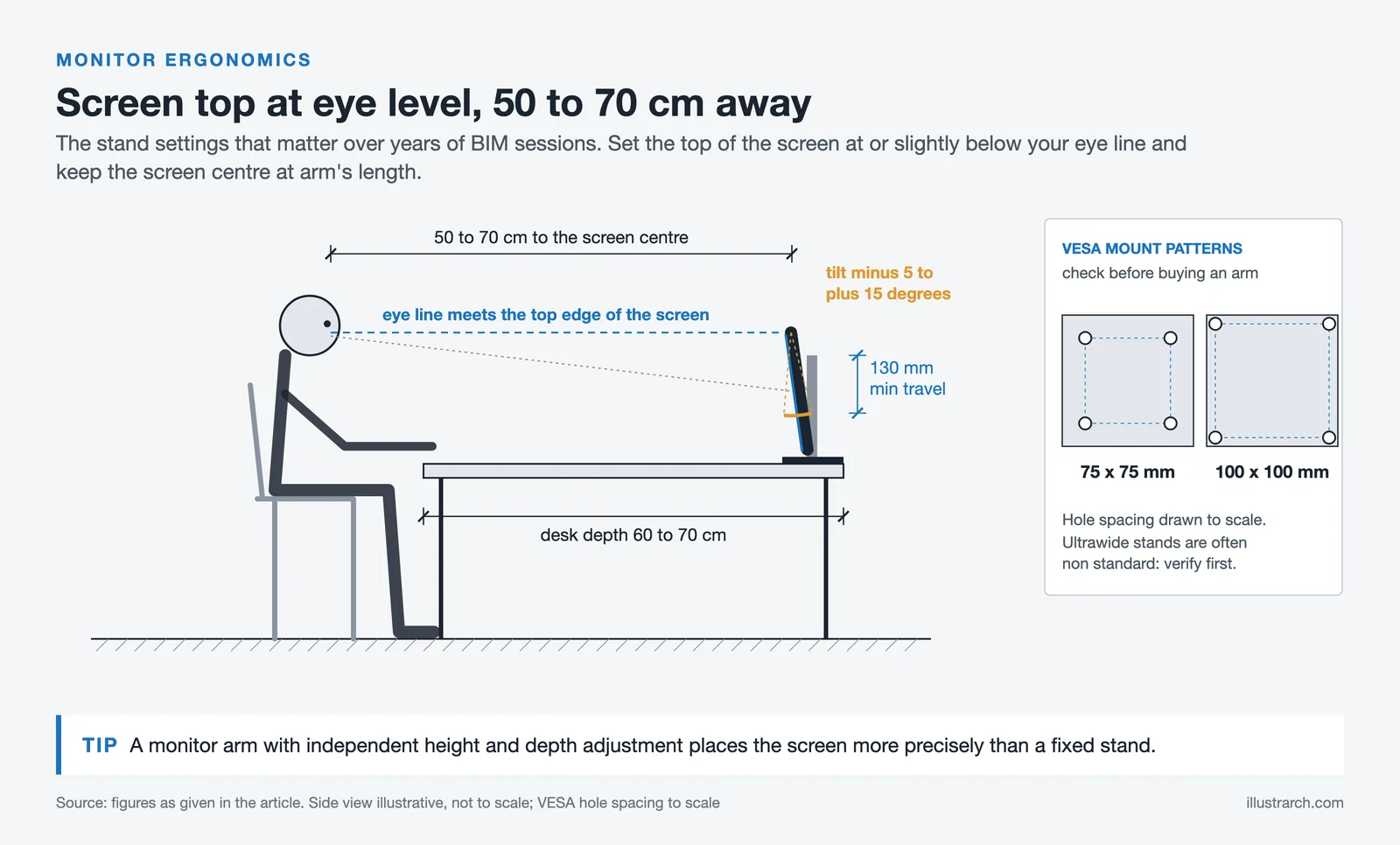
Height adjustment range matters because monitor eye level should sit at or just below your natural eye line. Monitors without height-adjustable stands require aftermarket arms or risers, which add cost and complexity. A height adjustment range of at least 130mm covers most desk and chair combinations. Tilt adjustment of minus 5 to plus 15 degrees allows fine-tuning for viewing angle and glare reduction. Pivot capability (rotating to portrait orientation) is occasionally useful for reviewing tall elevation drawings without scrolling, though most architectural software does not default to portrait-friendly layouts.
VESA mount compatibility (75x75mm or 100x100mm) is important if you plan to use a monitor arm, which allows more flexible positioning and frees desk surface space. Most professional-tier monitors include VESA compatibility, but verify before purchasing, especially with ultrawide formats where the stand design can be non-standard.
Anti-glare coating quality varies between manufacturers. In studio environments with overhead fluorescent lighting or windows behind the viewer, a high-quality anti-glare coating prevents distracting reflections without significantly softening the display. Matte anti-glare surfaces are standard on professional architectural monitors; glossy panels are better suited to controlled lighting environments and are less practical in open-plan studios.
💡 Pro Tip
When evaluating an architect desk monitor setup, position your primary display so the top edge of the screen is at or slightly below eye level and the screen center is roughly 50 to 70 cm from your face. This reduces the upward gaze angle that causes neck strain during extended BIM sessions. A monitor arm that allows height and depth adjustment independently gives you far more precise positioning than a fixed stand.
How Monitor Choice Affects Architectural Rendering Workflows
For architects who use AI rendering tools or traditional rendering engines, monitor selection directly affects the quality of output review. When you evaluate a rendered image for client presentation, you need to trust that what you are seeing on screen will match how the client experiences it in print or on a standard display.
AI-powered rendering tools like those reviewed in ReRender AI and other AI tools for architecture produce output optimized for sRGB display. A monitor with accurate sRGB coverage and good gamma curve calibration will display these renders close to their intended appearance. Where this breaks down is when monitors are either out of calibration or use software color management that introduces a shift between what rendering engines produce and what reaches the display hardware.
For serious rendering review work, a monitor covering 99% DCI-P3 with hardware calibration support is worth the investment. The Eizo ColorEdge series and BenQ SW series target this segment specifically. For architects using rendering primarily for design development rather than final deliverable review, a well-calibrated 95% DCI-P3 IPS display is entirely adequate and available at much lower cost.
Recommended Display Specifications by Workflow Type

The following table summarizes recommended minimum specifications by primary workflow to help narrow your search based on what you actually do most.
Monitor Specifications by Architectural Workflow
Specifications represent practical minimums, not necessarily the ideal. Upgrading beyond the minimum in the categories most relevant to your workflow delivers the clearest productivity benefit.
| Primary Workflow | Min. Resolution | Color Coverage | Panel Type | Refresh Rate |
|---|---|---|---|---|
| CAD / 2D Drafting | 4K UHD 27″ | 99% sRGB | IPS | 60Hz |
| BIM / Revit Modeling | 4K UHD 32″ | 95% DCI-P3 | IPS | 60Hz+ |
| Rendering / Visualization | 4K UHD 32″ | 99% DCI-P3 | IPS / OLED | 60-120Hz |
| Architecture Student | QHD or 4K 27″ | 95% sRGB | IPS | 60Hz |
| Presentation / Client Review | 4K UHD 27-32″ | 95% DCI-P3 | IPS | 60Hz |
Brand and Product Landscape: Where to Start Your Search

Several monitor brands consistently appear in professional architectural workflow evaluations. Understanding their positioning helps filter options faster.
BenQ PD series targets design professionals with factory-calibrated panels, dedicated CAD/CAM display modes, and competitive pricing relative to specification. The PD3220U and PD2700U are frequently cited as reliable choices for the best monitor for architects at mid-range price points. BenQ’s AQCOLOR technology and Pantone Validated certification make the PD lineup particularly well-suited for workflows where color fidelity affects specification and material selection decisions.
Dell UltraSharp offers consistent IPS Black panel quality, good build reliability, and strong USB-C connectivity options across its U-series lineup. Models like the U2725QE (27-inch, 4K, Thunderbolt 4) and U3225QE (32-inch, 4K, Thunderbolt 4) are well-positioned for architectural offices that need reliable factory calibration, ergonomic adjustability, and clean laptop integration without premium-segment pricing.
LG UltraFine panels serve architects particularly well in Mac-centric workflows, with strong Thunderbolt 3 connectivity, 99% DCI-P3 color coverage, and Retina-quality scaling at 218 PPI. The 27-inch 5K UltraFine remains the benchmark choice for architects working primarily on Apple Silicon hardware who need single-cable simplicity and a calibrated display without configuring third-party color management software.

Eizo ColorEdge represents the professional-calibration segment. These monitors arrive hardware-calibrated from the factory, include built-in self-calibration sensors in the CG series, and maintain color accuracy specifications over years of daily use. EIZO’s ColorNavigator 7 software enables scheduled automatic recalibration, which is useful for architectural firms where multiple workstations need consistent color output for shared rendering review or client presentation workflows. They are priced at a premium, and for most architectural practices that premium is justified only when rendering accuracy has direct commercial value.
For a deeper look at specific models across all budget ranges, our dedicated guide to best monitors for architects reviews 15 displays with hands-on analysis of each.
✅ Key Takeaways
- 4K UHD resolution at 27 to 32 inches is the practical standard for professional architectural workflows in 2026. Full HD and QHD are adequate for students and budget setups but fall short for detailed BIM and CAD work.
- IPS panel technology is the correct choice for most architectural applications. It delivers color consistency at wide viewing angles, which matters for both solo work and collaborative review sessions.
- Color gamut coverage should match your primary task: 99% sRGB for CAD and drafting, 95% or higher DCI-P3 for rendering review and visualization work.
- USB-C with Power Delivery is the most practical connectivity feature for architects who work with laptops or move between studio and site. It simplifies setup and reduces desk clutter.
- Ergonomic adjustability, including height range of at least 130mm and VESA mount compatibility, affects your physical comfort over years of daily use. Do not skip this evaluation.
- Factory calibration or a hardware calibration workflow is worth the investment for any architect whose work involves material specification, rendering review, or printed presentation output that must match screen previews.
Frequently Asked Questions
What resolution do architects need in a monitor?
Architects need at minimum 4K UHD (3840 x 2160) resolution on a 27-inch or 32-inch panel for professional CAD, BIM, and rendering work. This provides pixel density of 138 to 163 PPI, which is sufficient to display fine linework, annotation text, and hatching patterns without visible aliasing. Students and those on tighter budgets can start with QHD (2560 x 1440) on a 27-inch panel as a minimum acceptable threshold.
Is a 4K monitor worth it for Revit and AutoCAD?
Yes, for professional use. A 4K monitor for Revit and AutoCAD gives you noticeably sharper thin-line rendering, more screen real estate for keeping multiple views and panels open simultaneously, and better scalability for detailed construction documents. The meaningful difference between QHD and 4K becomes most apparent when working with dense annotation layers and 1:50 or finer scale drawings where line weights are very fine.
Should architects use an ultrawide or dual monitor setup?
Both configurations work well for architectural workflows, but they serve different working styles. A dual 27-inch 4K setup gives more total resolution, more flexibility in layout, and typically a lower total cost than a comparable ultrawide. An ultrawide is preferable if you work with panoramic elevation views, side-by-side application comparison, or prefer a single-display setup without a bezel interrupting the middle of your workspace. The best ultrawide monitor for architects is typically a 34-inch 5K2K panel to maintain adequate vertical resolution.
How important is color accuracy for architectural monitors?
Color accuracy is important for any architectural work involving material specification, rendering review, or client presentations that will be reproduced in print or on other displays. For pure CAD and drafting work in black-and-white line drawings, color accuracy is less critical. For rendering and visualization workflows, a monitor covering 95% or more of DCI-P3 with factory calibration provides reliable color reproduction that you can trust when approving materials and finishes digitally.
What connectivity should an architect look for in a monitor?
USB-C with at least 65W Power Delivery is the most practical feature for architects who use laptops. It allows a single-cable connection for video, data, and charging. Thunderbolt 4 adds daisy-chaining capability for clean multi-display setups. For desktop workstations, DisplayPort 1.4 or 2.0 supports 4K at 144Hz and above. Verify that your GPU’s output ports match the monitor’s input before purchasing.
Display pricing and specifications referenced in this article reflect publicly available data as of early 2026 and may change. Always verify current specifications with the manufacturer before purchasing.
- best 4k monitor for architects
- best monitor for architects
- best monitor for architectural drafting
- best monitor for architecture
- best monitor for architecture students
- best monitor for cad and revit
- best ultrawide monitor for architects
- monitor for architects
- monitor for architectural design
- monitor for architecture rendering







Futuro House Production Revived in Finland After Decades-Long Hiatus
A Facebook listing for abandoned moulds led to the first new Futuro...
 illustrarch Editoral Team3 Mins read
Building Your Dream Home in NSW: What You Should Know About Montgomery Homes
Montgomery Homes has been building across Sydney, Newcastle, the Hunter, Wollongong and...
illustrarch Editoral Team4 Mins read

Designing a Home Theater: Where Drapery Fits Into the Plan
In a media room the curtains are a performance layer, not decoration....
illustrarch Editoral Team3 Mins read

Oscar Niemeyer’s Cathedral of Brasília: The Hyperboloid Concrete Hymn
The Cathedral of Brasília reads as a single gesture, yet it stood...
 Furkan Sen7 Mins read


Leave a comment