

Wacom Intuos Pro (2025) for Architects: CAD Workflow Integration Tested
We put the redesigned 2025 Wacom Intuos Pro through weeks of real CAD work in AutoCAD, Revit, and SketchUp. This hands-on review covers Pro Pen 3 accuracy, ExpressKey mapping for architectural commands, driver quirks to watch for, and how the medium tablet size handles everything from plan annotation to 3D model navigation.
 Furkan Sen10 June 20267 Mins read232

Table of Contents Show
The Wacom Intuos Pro is a screenless pen tablet built for creative professionals who want precise, pressure-sensitive input without looking down at a display. The 2025 redesign brings a new Pro Pen 3 stylus, repositioned ExpressKeys, and a slimmer magnesium body available in small, medium, and large sizes. For architects working in AutoCAD, Revit, or SketchUp, it promises faster command access and reduced wrist strain compared to a standard mouse, but real-world CAD performance depends heavily on driver configuration and software-specific tuning.
What Changed in the 2025 Redesign

Wacom last refreshed the Intuos Pro line in 2017, so eight years of changes arrived at once. The most visible difference is the ExpressKey placement. Previous models grouped shortcut buttons along the left side of the tablet. The 2025 version moves them to the top edge alongside two new mechanical dials, making the layout ambidextrous by default. Left-handed architects no longer need to flip the tablet and remap everything in software.
The body itself is thinner. At its narrowest point the tablet measures just 4 mm, constructed from magnesium alloy instead of the older fiberglass composite. Weight dropped across all sizes: the medium model comes in at roughly 700 g, light enough to slip into a laptop bag for site visits. Bluetooth 5.3 replaced the older 4.2 standard, and Wacom claims up to 16 hours of wireless battery life per charge. USB-C handles both wired connection and charging.
One feature that did not survive the redesign is multi-touch. Wacom removed touch input entirely, citing internal user surveys showing that most professionals turned it off. For architects who relied on pinch-to-zoom gestures in SketchUp, this is a meaningful loss. For those who found accidental palm touches disruptive during drafting, it is a welcome simplification.
📐 Technical Note
The 2025 Intuos Pro active area uses a 16:9 aspect ratio across all three sizes (Small: 187 x 105 mm, Medium: 224 x 148 mm, Large: 311 x 216 mm). Matching the tablet’s aspect ratio to your monitor reduces coordinate distortion when drawing diagonal lines or circles in CAD. If your monitor runs 16:10 or 3:2, use the Wacom Center’s “Force Proportions” setting to avoid subtle stretching in your strokes.
Pro Pen 3: Accuracy and Customization
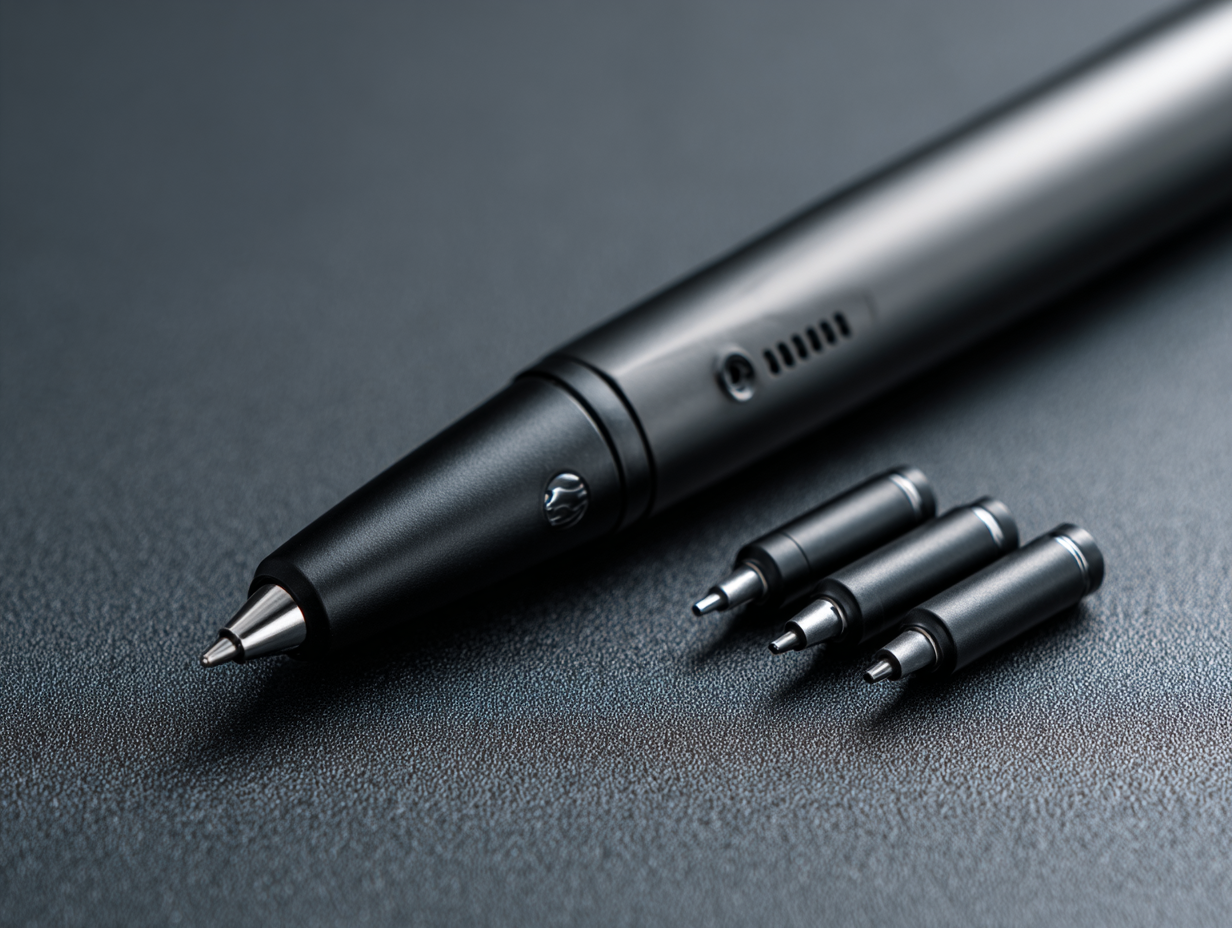
The Wacom Intuos Pro pen, now in its third generation, ships battery-free and uses electromagnetic resonance to draw power from the tablet surface. It registers 8,192 levels of pressure sensitivity and supports tilt recognition, which matters more for rendering and hatching than for straight CAD linework. What sets the Pro Pen 3 apart from its predecessor is physical modularity: you can swap grip sections, adjust internal weight with included inserts, and reconfigure the two side buttons. Three nib types ship in the box: standard, felt, and rubber. The felt nib adds drag that mimics tracing paper, which some architects prefer for freehand annotation over plans.
In our testing with AutoCAD 2025, pen accuracy tracked well at normal zoom levels. Snap points registered on the first tap roughly 95% of the time, which is comparable to a good mouse. At extreme zoom levels on dense floor plans, we occasionally needed a second tap to confirm a node, likely a driver timing issue rather than hardware precision. Tilt sensitivity had no practical use in AutoCAD but became genuinely helpful when switching to Photoshop for post-processing presentation boards. For a broader look at digital sketching tools used by architects, our dedicated guide covers additional software and hardware pairings.
💡 Pro Tip
Set one of the Pro Pen 3’s side buttons to “Middle Click” rather than a keyboard shortcut. In AutoCAD, Revit, and SketchUp, middle-click controls orbit and pan. Having it directly on the pen eliminates the need to reach for a mouse or keyboard modifier every time you reposition the view, which adds up to significant time savings over a full workday.
How the Wacom Intuos Pro Medium Tablet Handles CAD Software
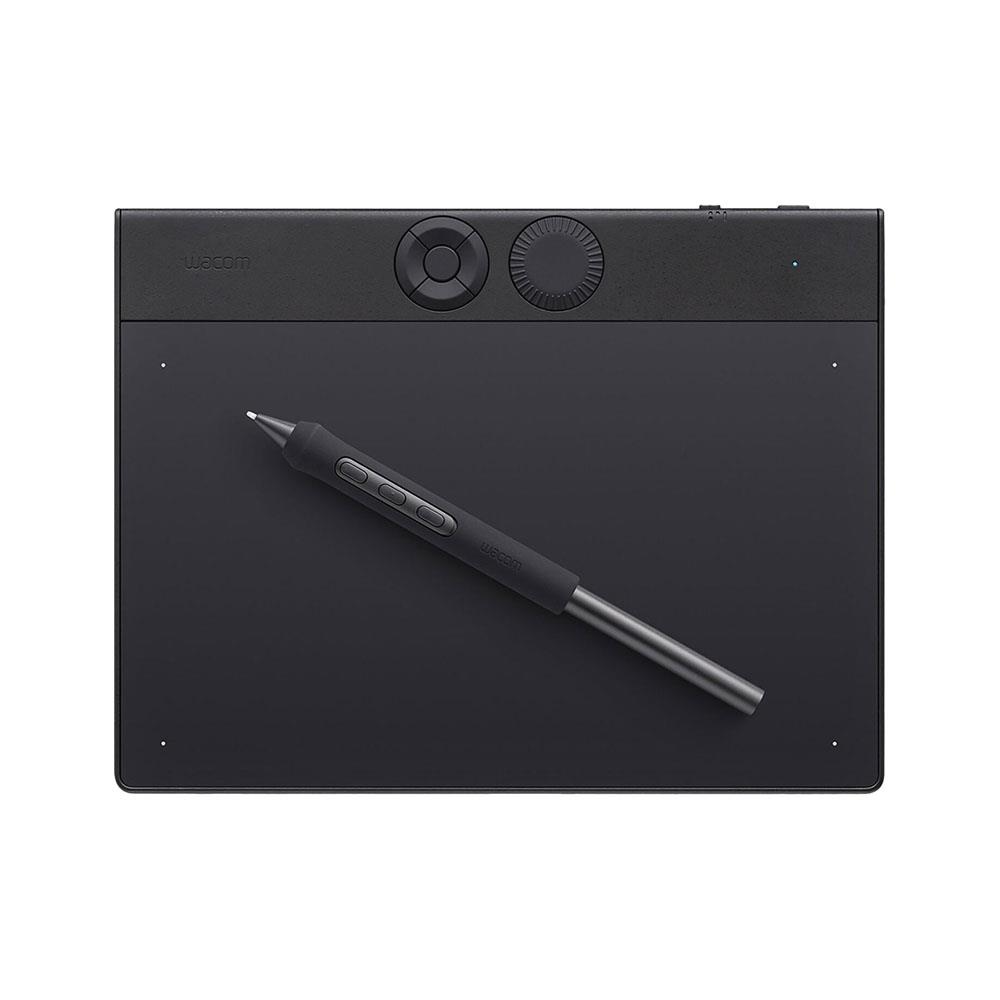
We focused our testing on the Wacom Intuos Pro medium drawing tablet (PTK-670) because it offers the best balance between active area and desk footprint for a typical architecture workstation. The small model felt cramped during full-sheet plan navigation, while the large model required arm movements wide enough to slow down precise detail work.
AutoCAD Performance
AutoCAD responded well to pen input after initial driver setup. The critical adjustment was disabling Windows Ink in the Wacom Center settings. With Windows Ink enabled, AutoCAD’s right-click menus behaved unpredictably, and polyline drawing occasionally registered phantom clicks at stroke endpoints. Once disabled, line drawing, dimensioning, and block insertion all worked as expected. ExpressKeys mapped to common commands (Trim, Copy, Mirror, Undo) reduced keyboard dependency noticeably during drafting sessions.
Revit Workflow
Revit presented more friction. The software’s property palettes and Project Browser rely on scrollable list panels, and the Wacom pen does not always scroll these panels smoothly. Some users on the Autodesk community forums have reported this issue across multiple Intuos generations. The workaround is mapping one ExpressKey to a scroll macro, but it adds a setup step that mouse users never face. Model navigation (orbit, zoom, section cuts) worked well with pen input, and element selection felt natural. If you are still learning Revit fundamentals, our guide on Revit for architecture students covers the core BIM concepts you need before adding tablet input to the mix.
SketchUp Integration
SketchUp was the strongest match for the Wacom Intuos Pro tablet. The software’s push-pull modeling and orbit navigation translated naturally to pen gestures. Without multi-touch on the 2025 model, zooming required a scroll shortcut or the mechanical dial, but the dial’s tactile click detents made this surprisingly precise. Concept sketching over 3D models in SketchUp felt closer to drawing on trace than any mouse-based workflow. For practices exploring additional free and paid architectural design tools, pen input compatibility is worth checking before committing to a software stack.
⚠️ Common Mistake to Avoid
Many architects install the Wacom driver and immediately start drafting without adjusting the pen’s pressure curve. The factory default is calibrated for illustration work, where light strokes matter. For CAD, set the pressure curve to “Firm” in Wacom Center so that accidental light touches do not register as clicks. This single change eliminates most phantom click complaints in AutoCAD and Revit.
Wacom Intuos Pro Size Comparison for Architects
Choosing the right tablet size depends on your primary CAD work and desk layout. The table below summarizes how each size performed in our architecture-specific testing.
| Feature | Small (PTK-470) | Medium (PTK-670) | Large (PTK-870) |
|---|---|---|---|
| Active Area | 187 x 105 mm | 224 x 148 mm | 311 x 216 mm |
| Weight | 240 g | 700 g | 1.3 kg |
| Best Use in Architecture | Detail annotation, markups on a laptop | General CAD drafting, model navigation | Full-sheet plan work, presentation sketching |
| Portability | Excellent for site visits | Good with a laptop bag | Studio-bound |
| Approx. Price (USD) | $249 | $379 | $499 |
ExpressKey and Dial Configuration for Architectural Workflows

The redesigned top-edge ExpressKeys include eight programmable buttons and two mechanical dials. For architectural CAD, the most effective mapping we found paired the left dial with zoom (matching scroll wheel behavior) and the right dial with layer switching in AutoCAD or level switching in Revit. Buttons mapped to Undo, Esc, Trim, and Measure covered the commands we reached for most during plan production.
Wacom Center, the companion software, allows application-specific profiles. This means your ExpressKey layout can change automatically when you switch from AutoCAD to Photoshop, which is valuable for architects who move between drafting and presentation work throughout the day. Setting up these profiles takes about 20 minutes per application, but the time investment pays off quickly. For a comparison of how different drawing tablets for architects handle shortcut customization, our buyer’s guide breaks down the options across brands.
💡 Pro Tip
Export your Wacom Center settings as a backup file after configuring profiles for each application. Wacom driver updates occasionally reset custom mappings to factory defaults. Having a saved profile means you can restore your entire setup in under a minute instead of rebuilding it from scratch.
Ergonomics and Long-Session Comfort
One reason architects consider a pen tablet is wrist health. Repetitive mouse clicking during long drafting sessions contributes to strain injuries over time. A pen grip distributes force differently, engaging the hand and forearm in a motion closer to writing than clicking. After two weeks of full-day use, the Wacom Intuos Pro graphic tablet noticeably reduced the wrist tension that typically builds during eight-hour AutoCAD sessions. The pen’s weight (roughly 12 g without the grip sleeve) kept hand fatigue low.
The learning curve is real, though. Expect three to five days of reduced productivity while your hand-eye coordination adjusts to looking at the screen while drawing on a surface below your line of sight. This is the fundamental difference between a screenless tablet like the Intuos Pro and a pen display like the Wacom MobileStudio Pro or Cintiq line. Architects who tried a Wacom tablet years ago and gave up often did so before the adjustment period ended.
Video: 2025 Wacom Intuos Pro Review
Aaron Rutten’s hands-on review covers the physical redesign, Pro Pen 3 performance, and day-to-day workflow integration in detail.
Is the Wacom Intuos Pro Worth It for Architects?
The honest answer depends on your software mix. If your daily workflow centers on SketchUp and Adobe Creative Suite, the Intuos Pro Wacom tablet integrates smoothly and will likely speed up both modeling and presentation production. If you spend most of your time in Revit, the scrolling and palette interaction issues add friction that a mouse handles without fuss. AutoCAD sits in the middle: solid performance once drivers are configured correctly, but it requires deliberate setup that plug-and-play mouse users never deal with.
At $379 for the medium model, the Wacom Intuos Pro is not cheap for an input device, but it is a tool designed to last years. The magnesium build, replaceable nibs, and software-agnostic driver support mean it will outlast several mice. Architects who split their time between technical drafting and visual presentation will get the most value from it. Those who work exclusively in BIM documentation may find a standard mouse and keyboard more practical. For a wider comparison of tablets across different budgets, our overview of the best tablets for architects and students covers standalone and screenless options side by side. Wacom’s official CAD workflow page also details how pen input integrates with industry-standard engineering and design applications.
Where to Go From Here
Your Next Step: Before buying, download the Wacom Center software and review the driver setup guides for your primary CAD application. Knowing which settings to change on day one (disable Windows Ink, set pressure to Firm, map middle-click to a pen button) will cut your adjustment period in half and give you a fair test of whether pen input actually fits your workflow.








Foster + Partners to Test Robot Swarms Building Timber from the Top Down
Foster + Partners wins €4m EU grant to build robot and drone...
 illustrarch Editoral Team2 Mins read

PLNAR Review: Does AR Measurement Hold Up on a Real Site Visit?
PLNAR began as a consumer AR tape measure and now runs as...
 Sinan Ozen5 Mins read
ArchiSnapper Review: Is This Field Report App Worth It for Architects?
A hands-on look at Deltek ArchiSnapper, the mobile app built for field...
Sinan Ozen5 Mins read

Gross Internal Area and Net Internal Area: What’s the Difference?
The difference between Gross Internal Area and Net Internal Area shapes how...
Sinan Ozen5 Mins read


Leave a comment