

Samsung Galaxy Tab S10+ for Architecture: A Field Use Assessment
A field-tested assessment of the Samsung Galaxy Tab S10+ for architectural workflows, covering S Pen accuracy, CAD app performance, DeX mode productivity, display quality for plan review, and how the tablet holds up during real site visits and client presentations.
 Furkan Sen27 May 20269 Mins read3
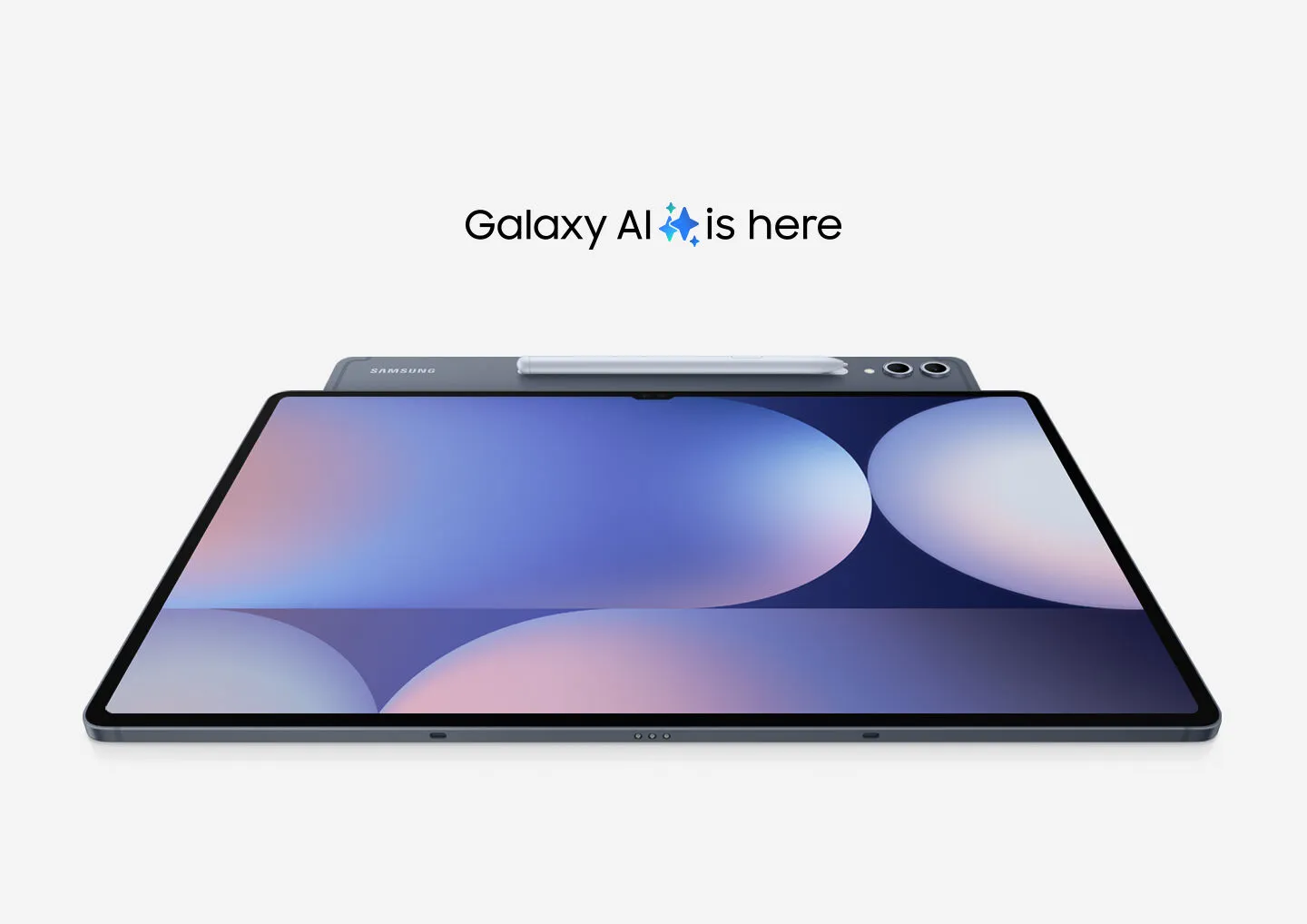
Table of Contents Show
The Samsung Galaxy Tab S10+ for architecture offers a 12.4-inch Dynamic AMOLED 2X display, the MediaTek Dimensity 9300+ processor, 12 GB of RAM, and a bundled S Pen with low-latency input. For architects who need a portable device for site documentation, plan markup, sketching, and client presentations, this tablet sits between casual note-taking slates and full desktop workstations.
Tablets have earned a permanent place in architecture workflows. Between site visits, studio reviews, and client meetings, architects need a device that can handle plan annotation, quick sketches, PDF markups, and light CAD viewing without dragging along a full laptop. The Samsung Galaxy Tab S10+ targets exactly that space. Released in October 2024 with a starting price of $999.99, it pairs Samsung’s flagship Android hardware with the S Pen stylus, DeX desktop mode, and Galaxy AI features. But how does it actually perform when an architect picks it up on a job site or during a design review? This assessment breaks down the tablet’s strengths and limitations across real architectural tasks.
Samsung Galaxy Tab S10+ Display and Visual Accuracy for Architects

The 12.4-inch Dynamic AMOLED 2X panel runs at 2800 x 1752 resolution with a 120 Hz refresh rate. For reviewing construction documents, floor plans, and rendered images, the screen delivers sharp detail and strong color accuracy. Samsung claims over 120% sRGB coverage with a Delta E below 2.0, which means colors on screen closely match what you would see in a calibrated print or rendering output.
One practical upgrade over the Tab S9+ is the anti-reflective coating. On outdoor site visits or in brightly lit meeting rooms, glare has traditionally been a pain point with glossy tablet screens. The new coating reduces reflections noticeably, and Samsung’s Vision Booster adjusts brightness and contrast automatically based on ambient light. During a midday site walk, plan markups remain legible without cupping your hand over the screen.
💡 Pro Tip
Before using the Tab S10+ for color-critical work like material selection boards or rendering reviews, switch the display profile to “Natural” in Settings > Display. The default “Vivid” mode oversaturates colors, which can mislead your judgment on finish tones and material palettes.
The 12.4-inch size strikes a workable balance. It is large enough to view a full A3 drawing sheet at readable scale, yet compact enough to hold in one hand while marking up details with the S Pen in the other. For architects who find the 14.6-inch Tab S10 Ultra too bulky for field carry, the Tab S10+ offers most of the same screen quality in a lighter 571-gram body.
S Pen Performance for Architectural Sketching and Markup
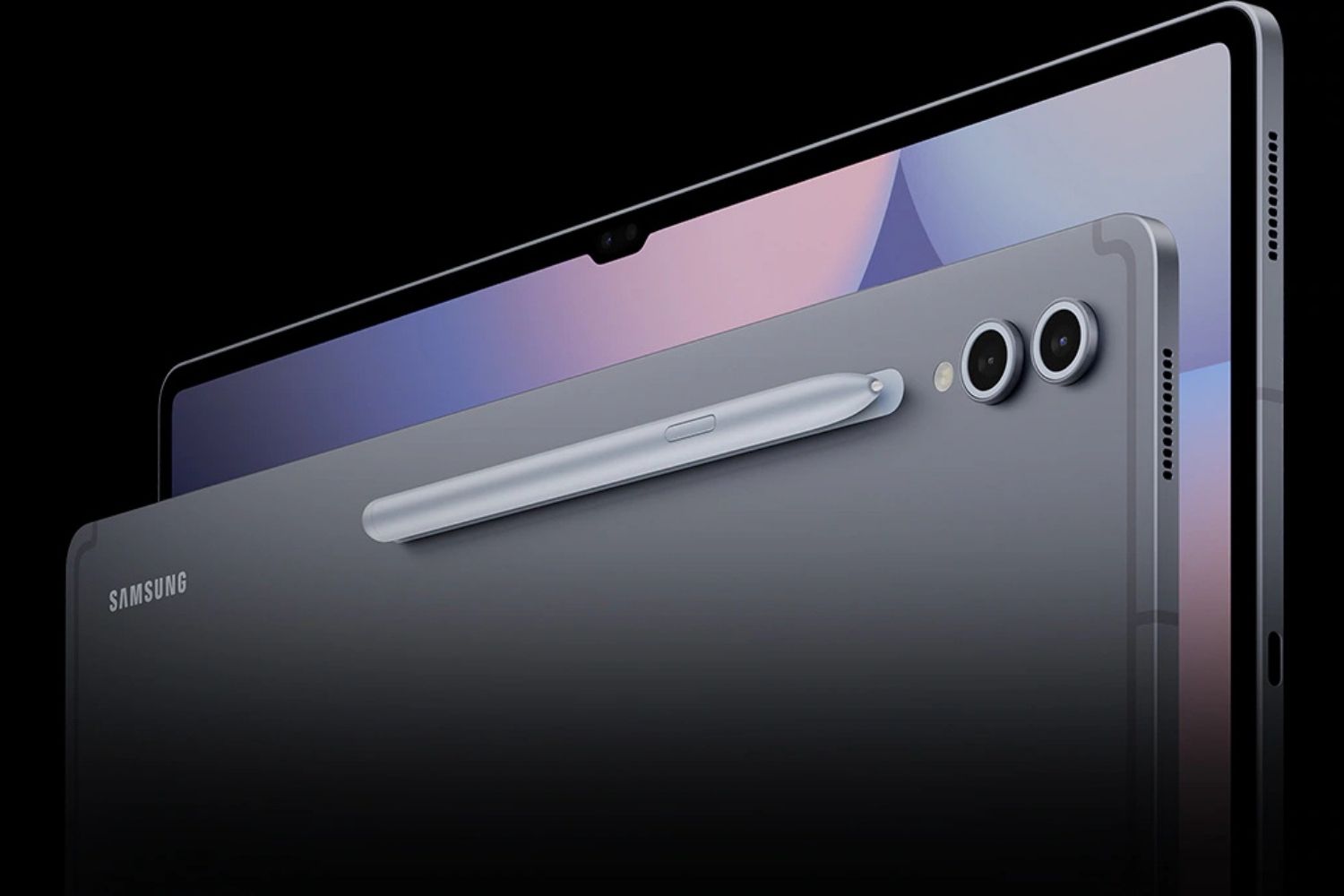
The S Pen ships inside the box, magnetically attached to the tablet’s back for charging and storage. It supports 4,096 levels of pressure sensitivity, tilt recognition, and Bluetooth-based Air Actions for remote control during presentations. For architectural sketching, the pen tracks accurately across the screen with minimal parallax at the edges, a common weak point on cheaper stylus-equipped tablets.
In apps like Concepts and Morpholio Trace, the S Pen handles both quick concept diagrams and detailed section sketches. Line weight responds predictably to pressure changes, and the palm rejection works reliably even when resting your hand heavily on the display. Samsung’s Sketch to Image AI feature, introduced with the Tab S10 series, converts rough doodles into more polished visual options. For early-stage design ideation, this can speed up the jump from napkin sketch to presentable concept, though the AI-generated results still need manual refinement for anything beyond massing studies.
Where the S Pen falls short compared to the Apple Pencil Pro is in latency. Apple’s latest stylus maintains sub-9ms response times, while the S Pen hovers closer to 15-20ms in most drawing apps. For fast, confident strokes during concept sketching, this difference is barely noticeable. For slow, deliberate linework on technical sections or construction details, some architects may feel a slight lag between pen movement and ink appearance.
⚠️ Common Mistake to Avoid
Many architects assume the S Pen pressure sensitivity (4,096 levels) is lower quality than the Apple Pencil’s reported levels. In practice, pressure sensitivity above 2,048 levels produces negligible differences in line control for architectural work. What matters more is latency and palm rejection accuracy, both of which the Tab S10+ handles well for plan markup and sketching tasks.
Samsung Galaxy Tab S10+ CAD Performance and App Compatibility
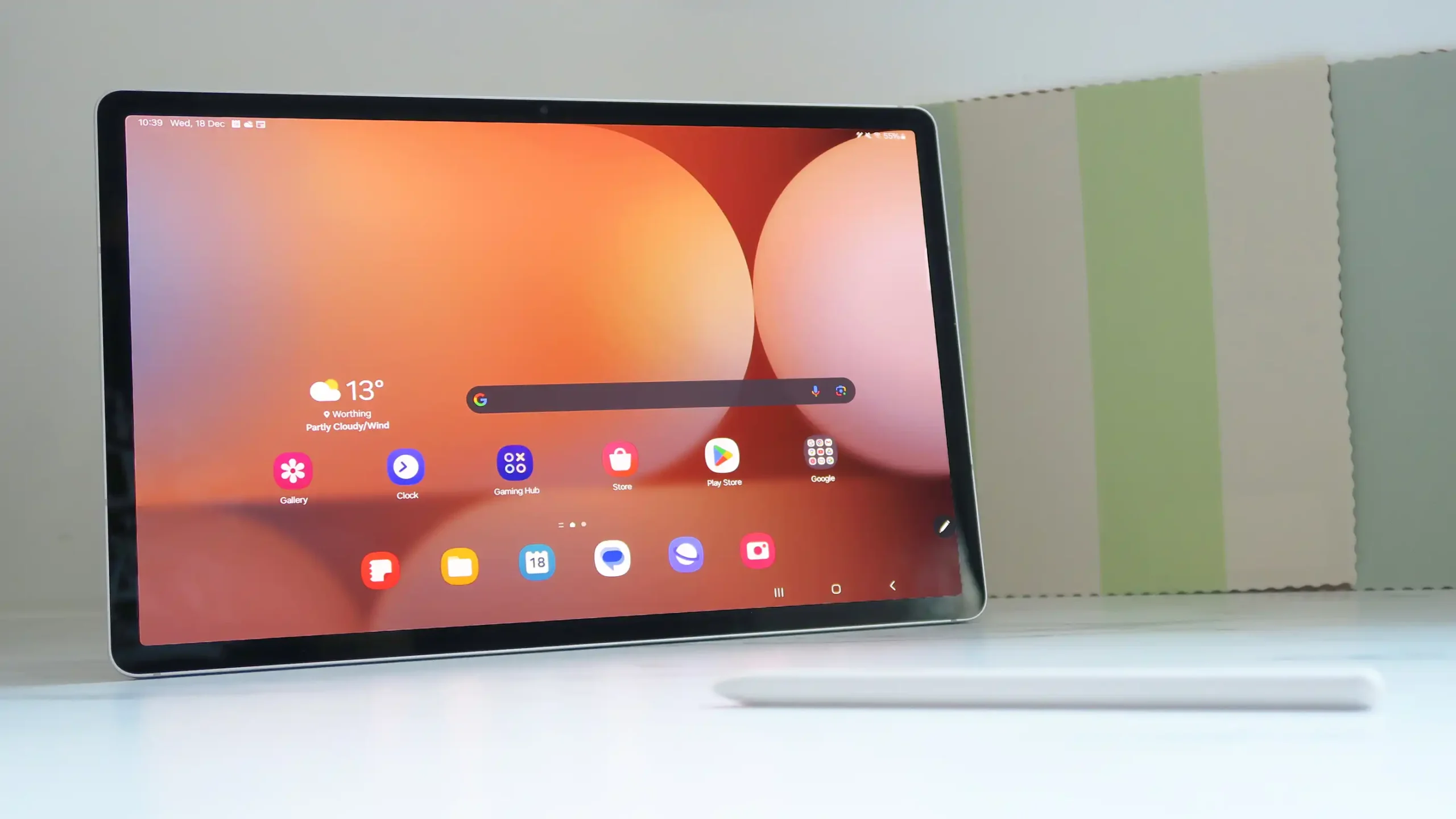
The MediaTek Dimensity 9300+ chipset, paired with 12 GB of LPDDR5X RAM, handles Android-based design apps without noticeable slowdown. AutoCAD mobile, SketchUp for Android, and Shapr3D all run smoothly for viewing, annotating, and light editing tasks. The Immortalis-G720 MC12 GPU manages 3D model navigation in SketchUp with consistent frame rates on moderately complex residential and small commercial models.
However, the Samsung Galaxy Tab S10+ CAD performance has clear boundaries. Android versions of professional CAD and BIM software remain simplified compared to their desktop counterparts. You will not run full Revit, ArchiCAD, or Rhino on this tablet. The desktop versions of these programs require Windows or macOS, and no amount of processing power changes the fact that Android apps offer a subset of features. The Tab S10+ excels at plan viewing, redlining, and light 3D model inspection rather than production-level drafting.
For architects who use cloud-based platforms like BIM 360 or Procore, the tablet performs well as a review and coordination tool. Loading large PDF sets, navigating multi-sheet construction documents, and adding field markup through apps like Bluebeam Revu (mobile version) or PlanGrid works without frustrating delays. The 256 GB and 512 GB storage options, plus microSD card expansion, mean you can carry entire project document sets locally for sites with poor connectivity.
How Does DeX Mode Help Architectural Workflows?
Samsung DeX transforms the tablet interface into a desktop-like environment with resizable app windows, a taskbar, and mouse/keyboard support. For architects, this feature is more useful than it first appears. Connect the Tab S10+ to an external monitor via USB-C or wirelessly through Miracast, and you can run a drawing review app on the large screen while keeping notes or a checklist open on the tablet itself.
In a studio setting, DeX mode allows the tablet to function as a lightweight desktop replacement for tasks like email, document editing, spreadsheet work, and web-based project management. The productivity gains from digital tools are real, and DeX pushes the Tab S10+ beyond a simple consumption device into a genuine work tool. You can open up to five apps simultaneously across four workspaces, which is enough for a typical review session combining a PDF viewer, a notes app, a browser, and a communication tool.
📐 Technical Note
The Tab S10+ supports external display output at up to 1920×1080 (FHD) through DeX mode, with WQHD (2560×1440) available on compatible monitors. When connecting to a projector for client presentations, verify that your HDMI or USB-C adapter supports at least 1080p passthrough to avoid resolution scaling issues that blur plan details.
Samsung Galaxy Tab S10+ Field Use: Battery, Durability, and Portability
The 10,090 mAh battery delivers roughly 10 to 13 hours of mixed use, depending on screen brightness and whether you are running demanding apps. A full day of intermittent site documentation, photo capture, PDF annotation, and note-taking fits comfortably within a single charge. Samsung’s 45W fast charging brings the battery from empty to around 60% in about 45 minutes, which is practical for topping up during a lunch break on a long site day.
The IP68 water and dust resistance rating is a genuine advantage for field use. Construction sites are dusty, and unexpected rain during an outdoor review can panic anyone holding an unprotected tablet. The Tab S10+ can handle brief submersion in up to 1.5 meters of water for 30 minutes, and the enhanced Armor Aluminum frame adds structural rigidity. A protective case is still recommended for daily site carry, but the baseline durability exceeds most competing tablets.
At 571 grams and 5.6mm thick, the Tab S10+ travels easily in a standard architecture field bag alongside a laser measurer, notebook, and phone. The magnetic S Pen attachment prevents the stylus from disappearing into bag pockets, a small detail that saves frustration over time.
🎓 Expert Insight
“The best device for an architect is the one that’s actually with them when they need it.” — Licensed architect with 20+ years of practice
This observation highlights why the Tab S10+’s portability matters. A powerful workstation left at the office adds zero value during a site visit. The Tab S10+ is light and durable enough to carry daily, which means it is available when unexpected documentation needs arise.
Samsung Galaxy Tab S10+ Design Workflow: Where It Fits and Where It Falls Short

The Tab S10+ performs best as a companion device rather than a primary production tool. It fits naturally into these architectural workflows:
Site documentation is where the tablet shines. The dual rear cameras (13 MP wide + 8 MP ultrawide) capture site conditions, and Samsung Notes allows instant annotation over photos. The Galaxy AI Note Assist feature can summarize handwritten meeting notes into organized text, saving time on post-visit report writing.
Client presentations benefit from the vivid AMOLED display and DeX mode. Connecting to a conference room monitor, you can walk through rendered views, floor plans, and material boards without carrying a laptop. The S Pen doubles as a wireless presentation clicker through Air Actions.
Plan review and redlining works efficiently. PDF markup apps run well, and the S Pen’s precision allows accurate dimensioning notes and detail callouts directly on construction documents. For coordination meetings where consultants share DWG or PDF sets, the tablet handles file navigation and annotation without the boot-up time and weight of a laptop.
Where the Tab S10+ falls short is production work. You cannot run full Revit, ArchiCAD, or Vectorworks on Android. If your workflow depends on heavy 3D modeling, parametric design, or BIM authoring, the tablet supplements but does not replace a desktop or laptop workstation. The Android app ecosystem for professional architecture software still trails iPadOS and Windows in depth and optimization.
Samsung Galaxy Tab S10+ vs iPad Pro for Architects
The most common comparison architects face is between Samsung’s flagship and Apple’s iPad Pro. Both are premium tablets with excellent displays and stylus support. The key differences come down to ecosystem and specific workflow needs.
| Feature | Samsung Galaxy Tab S10+ | iPad Pro 13″ (M4/M5) |
|---|---|---|
| Display | 12.4″ AMOLED, 2800×1752, 120Hz | 13″ Ultra Retina XDR, 2752×2064, 120Hz |
| Stylus | S Pen included (4,096 pressure levels) | Apple Pencil Pro sold separately |
| Storage expansion | microSD card slot (up to 1.5 TB) | No expansion |
| Desktop mode | Samsung DeX (multi-window, external display) | Stage Manager |
| CAD app ecosystem | Android (growing, limited pro apps) | iPadOS (stronger selection, Shapr3D, Morpholio) |
| Water/dust resistance | IP68 | Not rated |
| Starting price | $999.99 (S Pen included) | $1,299 (Pencil Pro ~$129 extra) |
The Tab S10+ wins on value (S Pen included, expandable storage, IP68 rating) and flexibility (DeX mode, Samsung ecosystem integration). The iPad Pro wins on app ecosystem depth, stylus latency, and raw processing power for creative apps. Architects already embedded in Apple’s ecosystem will find the iPad Pro more natural, while those using Android phones or seeking a more open file management system will appreciate the Tab S10+. For a broader look at options, see our best tablets for architects guide.
⚖️ Pros & Cons at a Glance
✔️ Pros: S Pen included in box, IP68 dust/water resistance, expandable storage via microSD, DeX desktop mode, strong battery life
✖️ Cons: Android CAD app ecosystem trails iPadOS, higher S Pen latency than Apple Pencil, no full desktop CAD/BIM software support, keyboard cover sold separately
Galaxy AI Features for Architectural Work
Samsung’s Galaxy AI additions on the Tab S10+ include Circle to Search, Note Assist, and Sketch to Image. For architects, the most practical of these is Note Assist. After a site meeting, handwritten notes captured in Samsung Notes can be automatically summarized, formatted, and organized into action items. This reduces the gap between raw field notes and polished meeting minutes that get shared with project teams.
Circle to Search is useful for quick material identification. During a site visit, circling a product label, fixture, or finish sample on screen triggers a Google search that can pull up specifications, supplier information, and pricing. For specifying unfamiliar products encountered in existing buildings during renovation surveys, this feature saves time compared to manual searches.
Sketch to Image, while still early in its development, shows potential for concept-stage work. Drawing a rough building massing or facade composition and letting the AI generate a more polished visual can speed up early client conversations. The results are not production-ready, and a visible AI watermark is applied to all generated images, but for internal brainstorming or quick visual options during a meeting, it adds a new speed layer to the digital sketching workflow.
💡 Pro Tip
Set up Samsung Notes with project-specific notebooks before heading to a site visit. Create templates with pre-loaded checklists for common inspection items (structural, MEP, finishes) so your field notes are already organized by category when you return to the office. Note Assist can then summarize each section separately, producing a near-ready site report.
Final Thoughts
✅ Key Takeaways
- The Samsung Galaxy Tab S10+ for architecture works best as a field companion for site documentation, plan review, client presentations, and sketching rather than as a production CAD workstation.
- The 12.4-inch AMOLED display with anti-reflective coating and the included S Pen make it immediately useful for markup and annotation tasks on site.
- DeX mode adds genuine productivity value by turning the tablet into a lightweight desktop environment for multi-app workflows.
- Android’s architecture app ecosystem remains the tablet’s biggest limitation compared to iPadOS, particularly for specialized CAD and BIM tools.
- IP68 water and dust resistance, expandable storage, and the bundled S Pen offer practical advantages over the iPad Pro for field-heavy workflows.
The Samsung Galaxy Tab S10+ for architects fills a specific and valuable role. It is not a desktop replacement, and architects expecting full BIM authoring on a tablet will be disappointed regardless of which platform they choose. Where the Tab S10+ delivers real value is in the daily, unglamorous work that occupies a large portion of architectural practice: reviewing documents on site, capturing conditions, marking up plans, presenting to clients, and keeping project communication organized while away from the office.
For architects already in Samsung’s ecosystem, or those who prioritize durability, expandable storage, and an included stylus over app ecosystem depth, the Tab S10+ is a strong field tool. Pair it with a broader toolkit of digital architecture tools and it earns its place in the daily carry. For a wider comparison of Android options, our guide to the best tablets for architects in 2026 covers additional models and use cases.









Architectural Technology and Design: How Modern Tools Are Reshaping Buildings
Architectural technology and design are reshaping how buildings are imagined and built....
Furkan Sen9 Mins read

10 Tech Gadgets For Architects That Make Architecture School Easier
Architecture school is intense, but the right tools can lighten the load....
 Elif Ayse Sen11 Mins read

Magicplan Review: Can Your Phone Really Replace a Tape Measure?
Magicplan lets contractors, realtors, and architects create dimensioned floor plans by scanning...
 Sinan Ozen7 Mins read

8 Innovative HVAC Solutions for Modern Architecture
Modern architecture demands intelligent climate control. Explore 8 innovative HVAC solutions combining...
 Begum Gumusel4 Mins read


Leave a comment