

5 Best SketchUp Extensions Every Architect Should Use
A practical look at five SketchUp extensions that speed up architectural modeling, covering FlexTools, Profile Builder, Instant Stair, PlaceMaker, and Artisan, plus more plugins for rendering, cleanup, and site context.
 Elif Ayse Sen11 December 20215 Mins read619
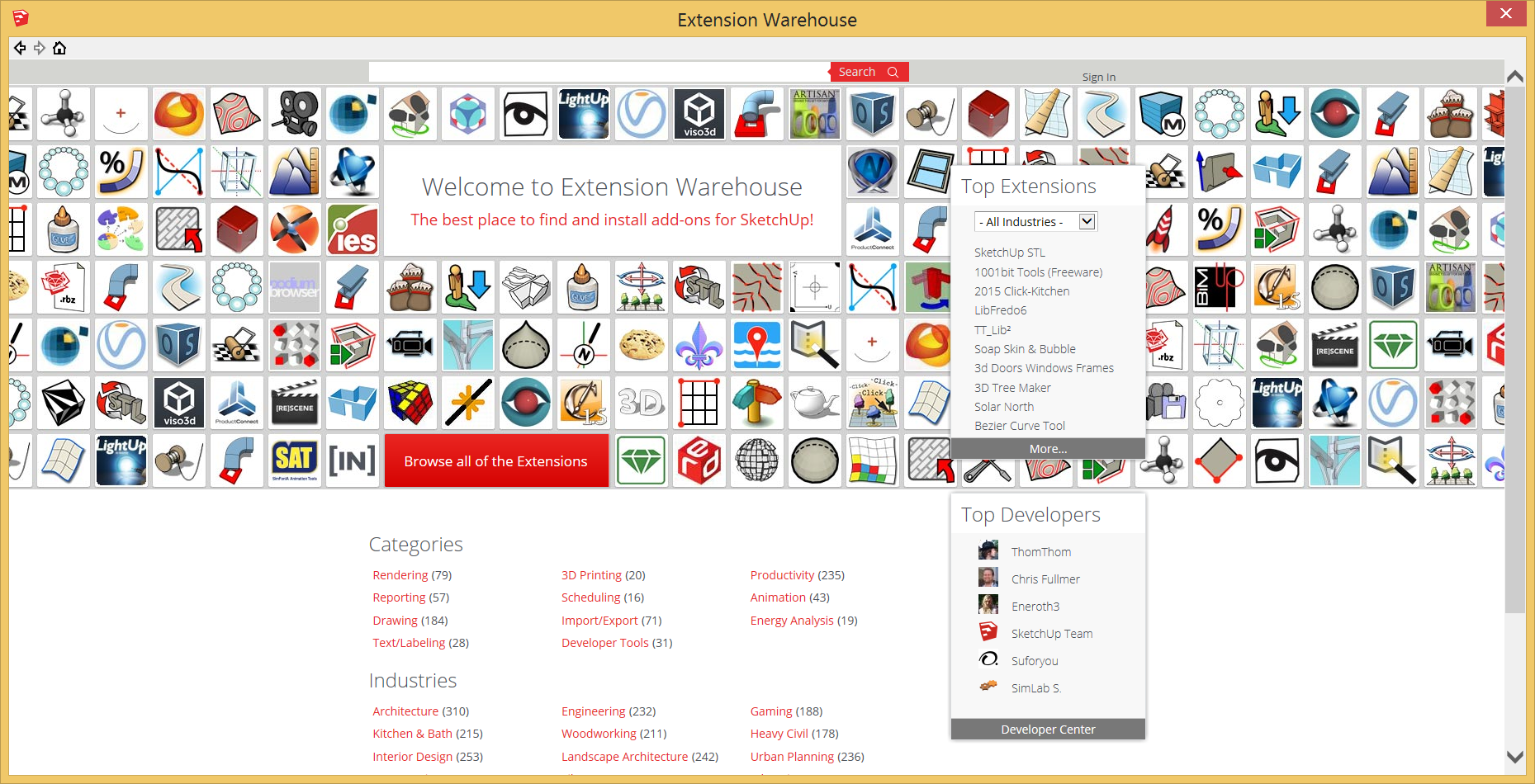
Table of Contents Show
SketchUp extensions are add-on tools that plug into SketchUp to automate modeling, add specialized geometry, and speed up detailing work. The best SketchUp plugins handle stairs, profiles, terrain, organic shapes, and site context, letting architects and designers finish complex models in minutes rather than hours of manual pushing and pulling.
If you open SketchUp every day, the right add-ons change how fast you work. The core toolset is strong for quick massing and concept design, but the software becomes far more capable once you install extensions built for a specific job. This guide covers five plugins worth adding to your setup, explains what each one does best, and points you to a few more plugins that many architectural offices keep installed by default.

What are SketchUp extensions and why use them?
These add-ons are small programs, written mostly in Ruby, that add new commands and toolbars to the modeling environment. Some create geometry you would otherwise build by hand, such as parametric stairs or railings. Others clean up messy models, import real-world site data, or connect SketchUp to a rendering engine. Most are distributed through the official Extension Warehouse, while a large community library lives on the SketchUcation Plugin Store.
The value is simple. A task that takes twenty repetitive clicks with native tools often drops to one or two with the right plugin. For anyone producing construction detail, competition boards, or fast client visuals, that time adds up across a project. The same logic drives plugin use in other modelers, which is why we also keep a list of Rhino extensions every architect should use for teams that work across both programs.
📌 Did You Know?
SketchUp started as a product of @Last Software in 2000, was bought by Google in 2006, and has been owned by Trimble since 2012. The Extension Warehouse launched under Trimble and remains the main channel for verified, developer-signed plugins today.
The 5 SketchUp extensions you should use
These five plugins cover the tasks that come up most often in architectural modeling: repetitive building elements, profiles, stairs, site context, and organic form. Each one is actively maintained and available through its developer, and together they show how much extra range a few well-chosen plugins can add.
1. FlexTools

Architects and 3D artists reach for FlexTools to build doors, windows, staircases, and other parametric components quickly and precisely. The extension cuts openings in walls, adds frames and glazing, and keeps each element editable, so you can change a window width or a door swing without rebuilding the geometry. That parametric behavior is what separates it from static component libraries and makes it a strong pick for facade and interior work. To see how it handles wall openings and stair solutions, visit the developer and watch the tutorial:
2. Profile Builder

Profile Builder lets you draw a path and extrude a defined profile along it, which is ideal for railings, trim, mullions, gutters, and structural members. You can build assemblies from many materials, including wood and steel, and reuse them as smart building parts across a model. Because profiles update when you edit the path, it is well suited to stairs, facades, and any repeating linear element indoors or outdoors. The Quantifier add-on in the same package also reports lengths and quantities, which helps with early takeoffs.
3. Instant Stair

Part of the Vali Architects Instant Scripts family, Instant Stair generates stairs and ramps from a simple shape, a center line, or a 2D plan sketch of a single tread. You get options for closed and open stringers, treads only, and more, and materials stay aligned with the stair components as you edit them. The tool also produces lines and curves that other Vali scripts can turn into railings and fences. It supports metric and imperial units and needs an internet connection to run.
Instant Stair by Vali Architects
4. PlaceMaker


PlaceMaker pulls real site context into SketchUp. It imports aerial imagery, terrain, roads, paths, building footprints, railways, and trees for locations around the world, so you can set a project in its actual surroundings instead of modeling the site by hand. What might take days of tracing maps drops to minutes, which makes it useful for early massing studies and context views. Good site context also strengthens your facade design decisions, since you can test how a building reads against its neighbors.
5. Artisan

Artisan adds organic modeling to SketchUp through subdivision surfaces, soft selection, and sculpting. It handles terrain, furniture, fabric, curtains, cushions, plants, tree trunks, and rocks, plus a subdivision algorithm that copes with dense geometry. You can crease edges and vertices, use a knife tool to cut new detail, and smooth or refine forms that native SketchUp tools struggle with. For landscape features and free-form design work, it fills a real gap in the standard toolset.
Artisan Organic Toolset for SketchUp
💡 Pro Tip
Before you install a new extension, check the developer page for the SketchUp versions it supports. A common cause of missing toolbars and Ruby errors is a plugin built for an older release running on the newest SketchUp. Match versions first, then restart SketchUp so the toolbar loads cleanly.
Quick comparison of these SketchUp extensions
The table below sums up what each plugin does and the work it suits best, so you can decide which to install first.
| Extension | What it does | Best for |
|---|---|---|
| FlexTools | Parametric doors, windows, and stairs with wall openings | Facades and interiors |
| Profile Builder | Extrudes custom profiles along paths as smart parts | Railings, trim, structure |
| Instant Stair | Builds stairs and ramps from a line or plan sketch | Circulation and access |
| PlaceMaker | Imports terrain, imagery, roads, and buildings by location | Site context and massing |
| Artisan | Subdivision surfaces, sculpting, and organic form | Terrain and free-form design |
More SketchUp extensions worth installing
The five above cover geometry and site work, but a full setup usually adds tools for rendering, file cleanup, and repetitive edits. These SketchUp plugins are popular in architectural offices and are all available through their developers or the Extension Warehouse:
- V-Ray for SketchUp: a full rendering engine from Chaos for photoreal lighting, materials, and camera control. See Chaos V-Ray for SketchUp.
- Enscape: a real-time renderer and walkthrough tool that updates the view as you model, useful for live client reviews. See Enscape.
- Skimp: reduces heavy imported models and high-poly furniture so scenes stay light. See Mind.Sight.Studios.
- Curic tools: a set of productivity plugins for mirroring, arrays, dividing, and section cuts. See Curic.
- CleanUp3, S4U tools, and Fredo6 plugins: widely used cleanup, drawing, and modeling utilities available on the SketchUcation Plugin Store.
If you want more picks that focus on speed, our roundup of lifesaver SketchUp extensions lists further tools that trim repetitive steps out of everyday modeling. For workflow ideas across tools, the software coverage on ArchDaily is a good reference for how firms combine modeling and rendering.
⚖️ Pros & Cons at a Glance
✔️ Pros: faster detailing, specialized tools the core lacks, automation of repetitive edits, editable parametric parts.
✖️ Cons: version-compatibility breaks after updates, extra licensing cost for paid plugins, heavier models can slow performance.
How to install and manage SketchUp extensions
Installation is straightforward once you know where files come from. Signed extensions from the Extension Warehouse install directly through the Extension Manager inside SketchUp. Plugins downloaded as .rbz files, common on the SketchUcation store, install through Window then Extension Manager then Install Extension, where you point to the downloaded file. After install, restart SketchUp so new toolbars register.
Keep the list lean. Every active plugin loads at startup and consumes memory, so disable the ones you are not using through the Extension Manager rather than leaving everything on. Review your set after each major SketchUp release, since a plugin that has not been updated for the current version is the usual reason a tool stops appearing. Treat a small, current set of trusted SketchUp extensions as part of your standard project setup.
What This Means for Your Next Project
Your Next Step: pick one plugin from the five above that matches a task you repeat most, install it through the Extension Manager, and rebuild a recent detail with it to feel the time difference before adding the rest to your setup.







Notion Alternatives for Architects: 7 Tools That Fit Studio Work
Notion works until a studio needs fee tracking, phase budgets and timesheets....
 Furkan Sen7 Mins read

Why Every Practice Ends Up With Five Versions of the Same Revit Family
Let’s learn why Revit family libraries accumulate duplicates, break schedules and slow...
 illustrarch Editoral Team5 Mins read

Visualizing Renovation Projects From Photographs: A Workflow for Existing-Building Work
Photo-based visualization turns a photograph of a building that already exists into...
illustrarch Editoral Team7 Mins read

Best Free CAD Blocks and Resources for Architects
A working guide to free CAD blocks for architects, covering ARCAT, CAD-Blocks.net,...
Furkan Sen7 Mins read


Leave a comment