

Linea Link Review: Fast Sketching From iPad to Mac Without the Clutter
A practical Linea Link review for architects and designers, looking at how the free Mac companion app syncs Linea Sketch iPad drawings to desktop editors, what it costs, and how the Linea Sketch app stacks up against Procreate.
 Sinan Ozen12 July 20268 Mins read153

Table of Contents Show
Linea Link is a free Mac companion app from The Iconfactory that pulls sketches drawn in Linea Sketch on your iPad into desktop editors through iCloud. It browses your synced drawings, previews them with Quick Look, and sends each one to a Mac editor as a layered PNG, PSD, or TIFF file.
For architects and designers who think with a pencil before they touch CAD, the Linea family solves a small but persistent problem: the gap between a quick concept sketched on the iPad and the polished file you need open on your Mac. This review looks at what Linea Link actually does, how it pairs with the Linea Sketch app, where it fits an architectural workflow, and where it falls short. Because Linea Link is a bridge rather than a drawing tool, most of its value depends on how you already sketch, so this covers both halves of the system.

What Is Linea Link and How Does It Work?
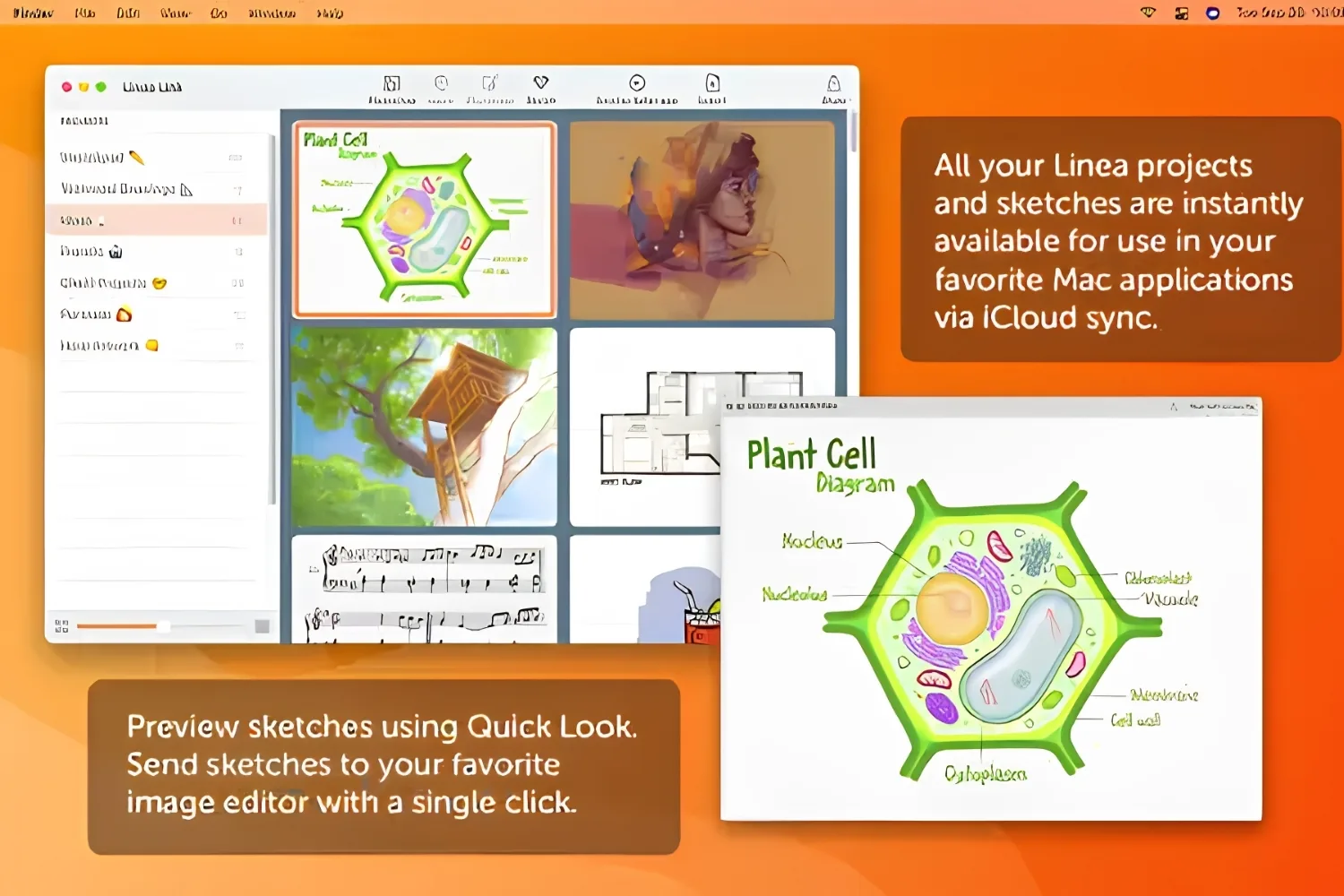
Linea Link is a small macOS utility, not a sketching canvas. You draw on the iPad in Linea Sketch, those files sync through iCloud, and Linea Link gives you a desktop window to browse, preview, and hand them off. On the official Linea Link page on the Mac App Store, The Iconfactory describes it as the easiest way to get iPad sketches onto your Mac, and that framing is honest. The app does one job and stays out of the way.
The mechanics are simple. Every project you sync from the iPad shows up as a thumbnail you can resize. Click one and you can preview it with Quick Look, share it through iMessage or email, or push it straight into a desktop image editor. The export keeps your layers and blending modes intact, which matters if you plan to keep working on the drawing rather than treat it as a flat picture.
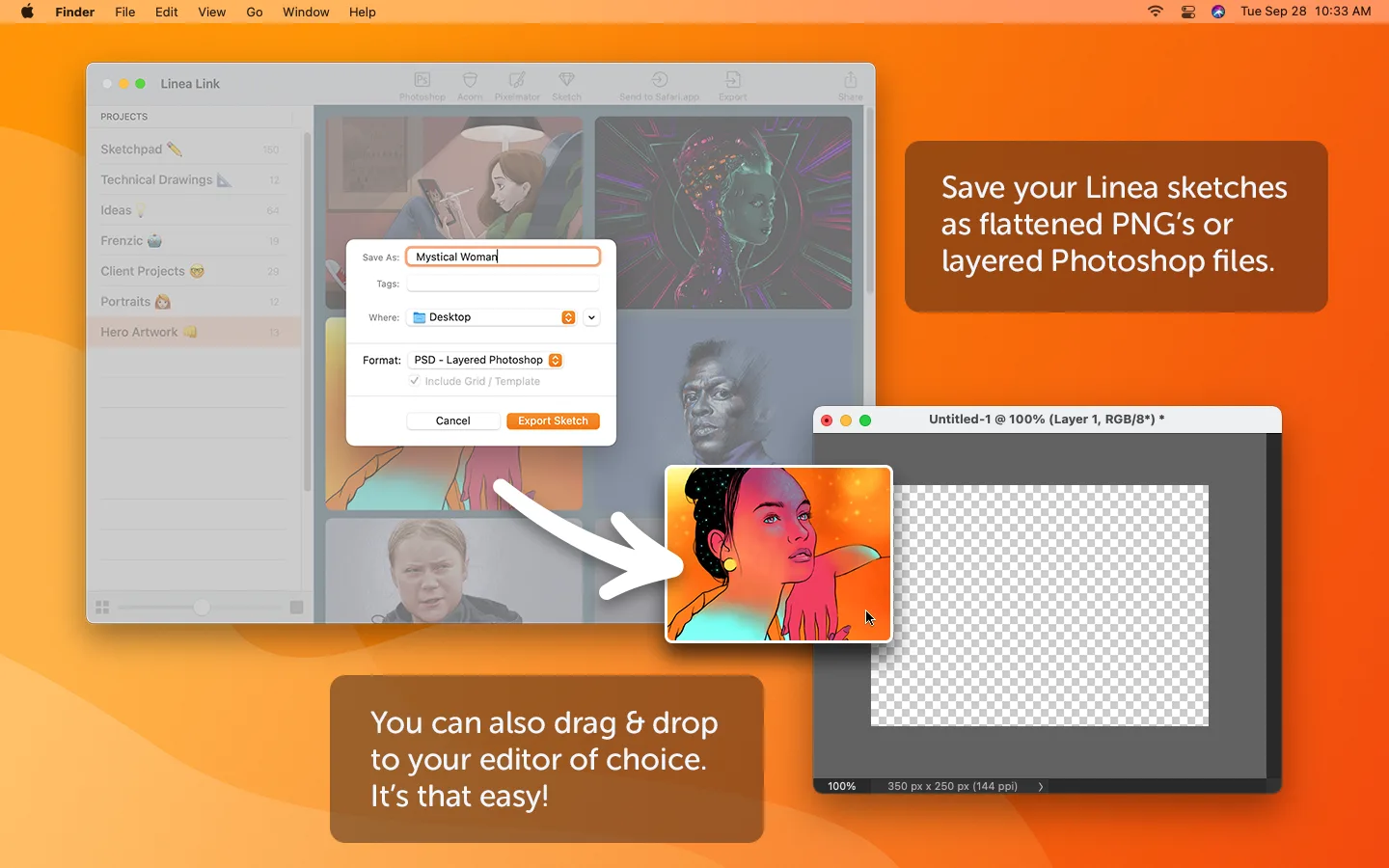
Supported editors on the receiving end include Adobe Photoshop, Affinity Designer, Affinity Photo, Pixelmator, Sketch, and Acorn. So a markup you start on the train becomes an editable PSD on your studio Mac without manual AirDrop juggling or email-to-self routines. The app requires macOS 11.5 or later and costs nothing.
💡 Pro Tip
Before you rely on Linea Link, confirm that iCloud Drive is switched on for Linea Sketch on the iPad and signed into the same Apple ID on the Mac. The desktop app only ever sees what iCloud has finished syncing, so a sketch that looks missing is usually a drawing that has not uploaded yet rather than a bug.
Linea Sketch: The iPad App Behind Linea Link
Linea Link is only as useful as the sketches feeding it, so the Linea Sketch app deserves most of the attention. It is a deliberately stripped-back drawing app for iPad and iPhone, built around the idea that the interface should disappear and leave you with the drawing. MacStories, in its long-running coverage, called it an elegant sketching app that keeps the focus on your creations rather than the toolset, and that summary still holds.
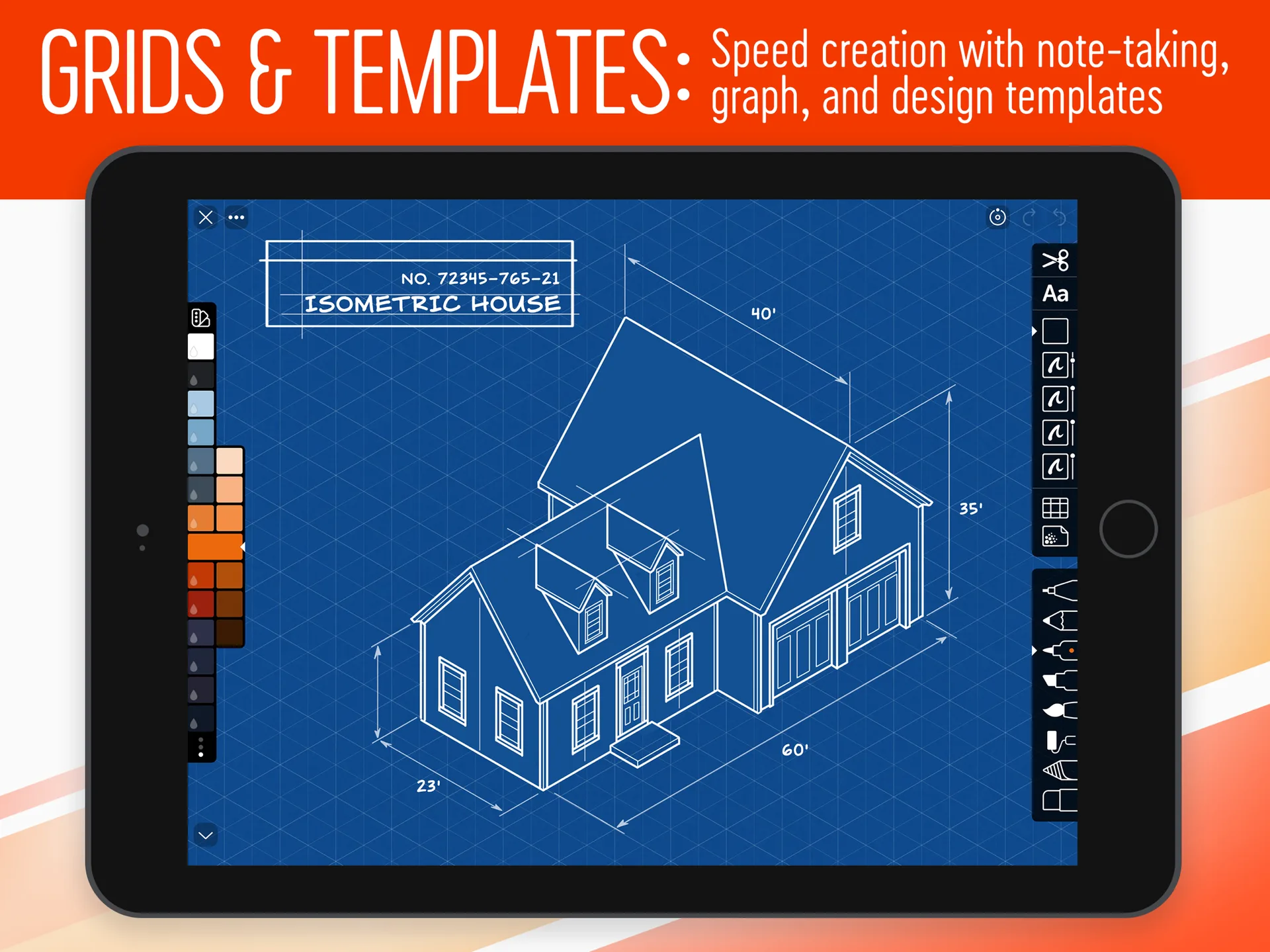
The tool set is small on purpose: a technical pencil, an art pencil, a felt tip pen, a marker, and a watercolor brush, plus annotation text, fills, selection, and transform tools. You also get grids, templates, and time-lapse recording. If you have ever felt slowed down by a crowded interface, the appeal of a deliberately simple canvas is obvious, and it is one reason Linea keeps appearing in roundups of the best tools for digital architectural sketching.
Why Architects Like the Stripped-Back Interface
Early design thinking rewards speed. When an idea arrives, you want to be drawing within a second, not configuring a workspace. Linea Sketch removes that friction, which is exactly why it earns a place among practical iPad apps for architects who sketch on site or in studio reviews. For loose plan diagrams, massing studies, and quick markups over a photo, a simple canvas is an advantage rather than a limitation.
There is a tradeoff. Linea is a sketching app, not a full painting suite, and it does not pretend otherwise. If your work needs deep brush customization, large canvases, or heavy rendering, the simplicity that helps a fast concept sketch will feel restrictive on a finished illustration. Knowing which side of that line your project sits on is the single most useful thing to settle before you commit.
ZipShapes, ZipLines, and Layers
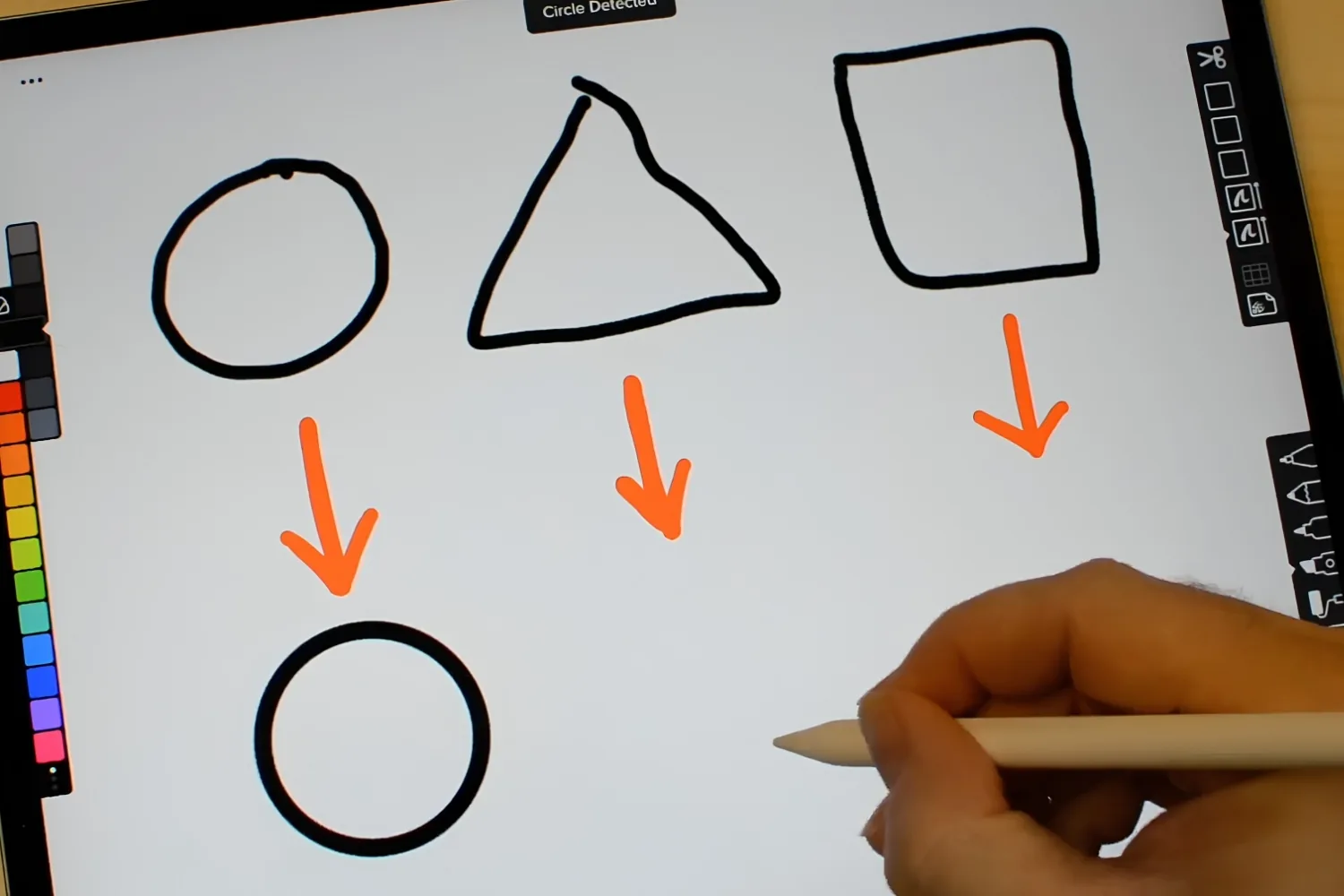
The clever part of Linea Sketch is how it handles precision without menus. Draw a rough line and hold the endpoint still for a moment, and the ZipLine feature straightens it. Sketch a loose square, circle, or triangle and pause, and ZipShapes snaps it into a clean form. For architectural diagrams, where straight edges and tidy geometry read as professional, this turns a freehand gesture into a usable line in one motion.
Layers work the way you would expect, with the option to lock a layer so a reference image stays put while you trace or annotate over it. You can import a photo, a plan export, or a render, drop it on its own layer, and draw on top. That import-and-trace pattern is the same habit many architects already use in Procreate for architects, and Linea handles it with less ceremony.
Linea Link as a Mac Companion: What It Adds
The reason Linea Link exists is that a sketch trapped on an iPad is only half finished for most professional pipelines. You still need it in a desktop editor for cleanup, on a layout for a presentation board, or in a shared folder for the rest of the team. Linea Link closes that gap so the iPad becomes a true input device for your Mac.
Three things make the Mac companion worth installing. First, the file format support: exporting as PSD with layers preserved means a sketch lands in Photoshop or Affinity ready to refine, not flattened into a dead image. Second, Quick Look previews let you scan a folder of concepts fast without opening each one. Third, the one-click send to an editor removes the repetitive export-and-transfer steps that quietly eat time across a week.
💡 Pro Tip
Export to PSD rather than PNG whenever you expect to keep editing. A flat PNG forces you to mask and rebuild structure by hand in Photoshop, while a layered PSD from Linea Link keeps your line work, fills, and reference image on separate layers so you can adjust each one independently.
For an architectural team, the payoff shows up at handoff. A concept a designer roughs out during a client walkthrough can be on the studio Mac, opened in a layout, and dropped onto a presentation board within minutes of getting back to the desk. Because the layered file arrives editable, a colleague can adjust line weights, recolor a fill, or composite the sketch over a site plan without redrawing anything. That continuity, from a thirty-second iPad gesture to a board-ready asset, is the quiet productivity gain that justifies keeping the app installed even if you only reach for it a few times a week.
What Linea Link does not do is just as important. It is not an editor, so you cannot retouch or paint inside it. It is not a sync engine you control, since the heavy lifting belongs to iCloud, and it only mirrors the Linea Sketch app on iPad. If your sketches live in another drawing app, Linea Link has nothing to show. Treat it as a focused handoff tool and it delivers, which is also where many of the Photoshop alternatives for architects pick up the editing work once the file lands.
How Much Do Linea Sketch and Linea Link Cost?
Pricing on the Linea side has shifted over the years, so verify the current numbers before you plan a workflow around them. As listed on the App Store at the time of writing, Linea Sketch is a free download with optional paid upgrades, while Linea Link is free.
🔢 Quick Numbers
- Linea Link: free, requires macOS 11.5 or later (Mac App Store listing, October 2026)
- Linea Sketch: free download with in-app options of $1.99 per month, $19.99 per year or a $59.99 one-time full purchase (US App Store listing, October 2026)
- Export formats from Linea Link: PNG, PSD, and TIFF, with layers and blending modes retained (Apple App Store listing, 2026)
The practical reading is that you can test the entire pipeline for nothing. Download Linea Sketch, draw a few studies, install Linea Link on the Mac, and see whether the handoff fits how you work before any money changes hands. That low barrier is rare for a creative toolchain and makes the system easy to trial alongside the free architecture apps for iPad you may already keep on your home screen.
Linea Sketch vs Procreate: Which Fits Your Workflow?
The most common comparison architects raise is Linea Sketch versus Procreate, since both are popular iPad drawing apps with Apple Pencil support. They aim at different jobs. Linea is a fast sketching app built for clarity and speed, while Procreate is a deeper painting and illustration tool. The table below sets the two side by side on the points that matter most for design work.
Comparison of Linea Sketch vs Procreate
The following table summarizes the key practical differences:
| Feature | Linea Sketch | Procreate |
|---|---|---|
| Main purpose | Fast, minimal sketching and markup | Full digital painting and illustration |
| Interface | Deliberately small tool set, low clutter | Large brush library and deep options |
| Devices | iPad and iPhone (universal) | iPad only |
| Mac handoff | Linea Link companion app for desktop | No dedicated Mac companion app |
| Pricing model | Free with optional paid upgrade | One-time purchase (around $12.99) |
| Best for | Quick concepts, diagrams, notes | Detailed renders and presentation art |
If you mostly need speed for early ideas and a clean route to your Mac, the Linea Sketch app with Linea Link is the lighter, friendlier choice and arguably the best simple sketching app on the iPad for that narrow job. If you produce finished, painterly visuals, Procreate’s deeper toolbox earns its place. Plenty of architects keep both and switch by task, and that pairing shows up often in guides comparing drawing tools for design work.
Pros and Cons of Linea Link
After weighing what Linea Link does against its limits, the balance is clear. It is a focused, free, and reliable bridge that excels at one job and makes no attempt to be more. The review table below lays out the strengths and the gaps so you can decide whether it suits your setup.
Linea Link Review: Pros and Cons at a Glance
The table below summarizes the main advantages and drawbacks:
| Pros | Cons |
|---|---|
| Free, with no subscription required | Only works with the Linea Sketch app |
| Keeps layers and blending modes on export | Not an editor, so no in-app drawing or cleanup |
| One-click send to Photoshop, Affinity, and more | Depends entirely on iCloud sync working |
| Quick Look previews speed up file browsing | Narrow use case with no broader features |
| Clean PNG, PSD, and TIFF output | Tied to the Apple ecosystem only |
The verdict depends on a single question: do you already sketch in Linea Sketch, or are you willing to? If yes, Linea Link is an easy install that quietly removes a repetitive chore, and the price makes the decision simple. If your sketches live elsewhere, it has nothing to offer, and that is fine, because The Iconfactory built it for one audience and served that audience well. You can confirm the latest details directly from Linea Sketch on the App Store or on The Iconfactory website before committing your workflow to it.
Final Thoughts
Linea Link will never be the headline app in your toolkit, and it is not trying to be. It is the quiet connective piece that makes a fast iPad sketch feel like a natural first step in a Mac workflow rather than a dead end. For architects who sketch to think, that reliability is worth more than another bloated feature list. The smartest move is to trial the whole free pipeline on a real project this week and judge it on how little you have to think about it, because the best handoff tool is the one you stop noticing.





Notion Alternatives for Architects: 7 Tools That Fit Studio Work
Notion works until a studio needs fee tracking, phase budgets and timesheets....
 Furkan Sen7 Mins read

Why Every Practice Ends Up With Five Versions of the Same Revit Family
Let’s learn why Revit family libraries accumulate duplicates, break schedules and slow...
 illustrarch Editoral Team5 Mins read

Visualizing Renovation Projects From Photographs: A Workflow for Existing-Building Work
Photo-based visualization turns a photograph of a building that already exists into...
illustrarch Editoral Team7 Mins read

Best Free CAD Blocks and Resources for Architects
A working guide to free CAD blocks for architects, covering ARCAT, CAD-Blocks.net,...
Furkan Sen7 Mins read


Leave a comment