

Adobe Fresco Review: Is It Built for Design Professionals and Architects?
A practical Adobe Fresco review for architects and designers, weighing its Live Brushes, vector and raster canvas, platform limits, free pricing, and where it earns a spot in a professional concept and presentation workflow.
 Sinan Ozen9 July 20267 Mins read224
Table of Contents Show
Adobe Fresco is a free drawing and painting app that brings vector, pixel, and AI powered Live Brushes together on a single canvas. For design professionals and architects, it fits best at the concept stage: quick sketches, presentation rendering, and texture studies on iPad, iPhone, or Windows, rather than acting as a full CAD or final production tool.
The question most architects and designers ask is simple. Does a painting app built for illustrators have a real place in a professional design workflow, or is it just another consumer drawing tool with a familiar logo? This review looks at how Fresco actually performs for design work, where it earns its spot, and where you will still reach for something else.
What Is Adobe Fresco?
What is Adobe Fresco at its core? It is a digital painting and drawing application from Adobe, first released in November 2019 at Adobe MAX and built around Apple Pencil input. The app pairs a large brush library with Adobe Sensei, the company’s machine learning engine, to drive its signature Live Brushes that mimic real oil and watercolor behavior.
Unlike a heavyweight desktop tool, Fresco is touch first. You draw directly on the screen, and the interface stays out of the way. That makes it closer in spirit to a sketchbook than to a traditional production suite, which is exactly why it appeals to people who think and design by hand.
The engine behind the painting feel is Adobe Sensei, the same machine learning layer used across Creative Cloud. In Fresco it does the quiet work of simulating how pigment spreads, dries, and mixes, so a watercolor stroke behaves differently from an oil one. For a designer, that means less time fighting the tool and more time judging the result, which is the whole point of a fast concept app.
🔢 Quick Numbers
- Adobe Fresco holds a 4.7 out of 5 rating from roughly 59,000 reviews on the Apple App Store (Apple App Store, 2026)
- The app launched in November 2019 at Adobe MAX (Adobe)
- The free plan includes 5 GB of cloud storage, with paid plans adding Adobe Fonts and 100 GB (Adobe)
- Fresco ships with more than 1,000 pixel brushes plus the option to import Photoshop brushes (Adobe)
Adobe Fresco for Architects and Designers: Where It Fits
Architecture and design work rarely starts in a polished render. It starts with loose massing, a perspective sketch, or a quick study of how light falls across a facade. This early phase is where Fresco does its best work for a professional audience.
Concept Sketching and Presentation Work
Fresco gives you pressure sensitive brushes, layers, and clean export without the friction of a desktop license. You can trace over a screenshot of a SketchUp model, add atmosphere with a watercolor wash, or annotate a plan during a site visit. For loose concept passes, the experience compares well with how many architects already use Procreate for architects on iPad.
Presentation work benefits too. A flat render straight out of a modeling engine often looks cold, and a few minutes of hand finishing in Fresco can warm it up. Painted skies, soft entourage figures, and a light texture pass read as human effort, which clients notice even when they cannot name why a board feels more considered. Because layers stay separate, you can produce several mood variants from one base without redrawing anything.
💡 Pro Tip
Export a flattened grayscale base from your modeling app, drop it onto a Fresco layer set to Multiply, then paint shadows and entourage on a separate layer above it. This keeps your line work editable and lets you swap material studies in seconds without repainting the whole board.
Vector and Raster on the Same Canvas
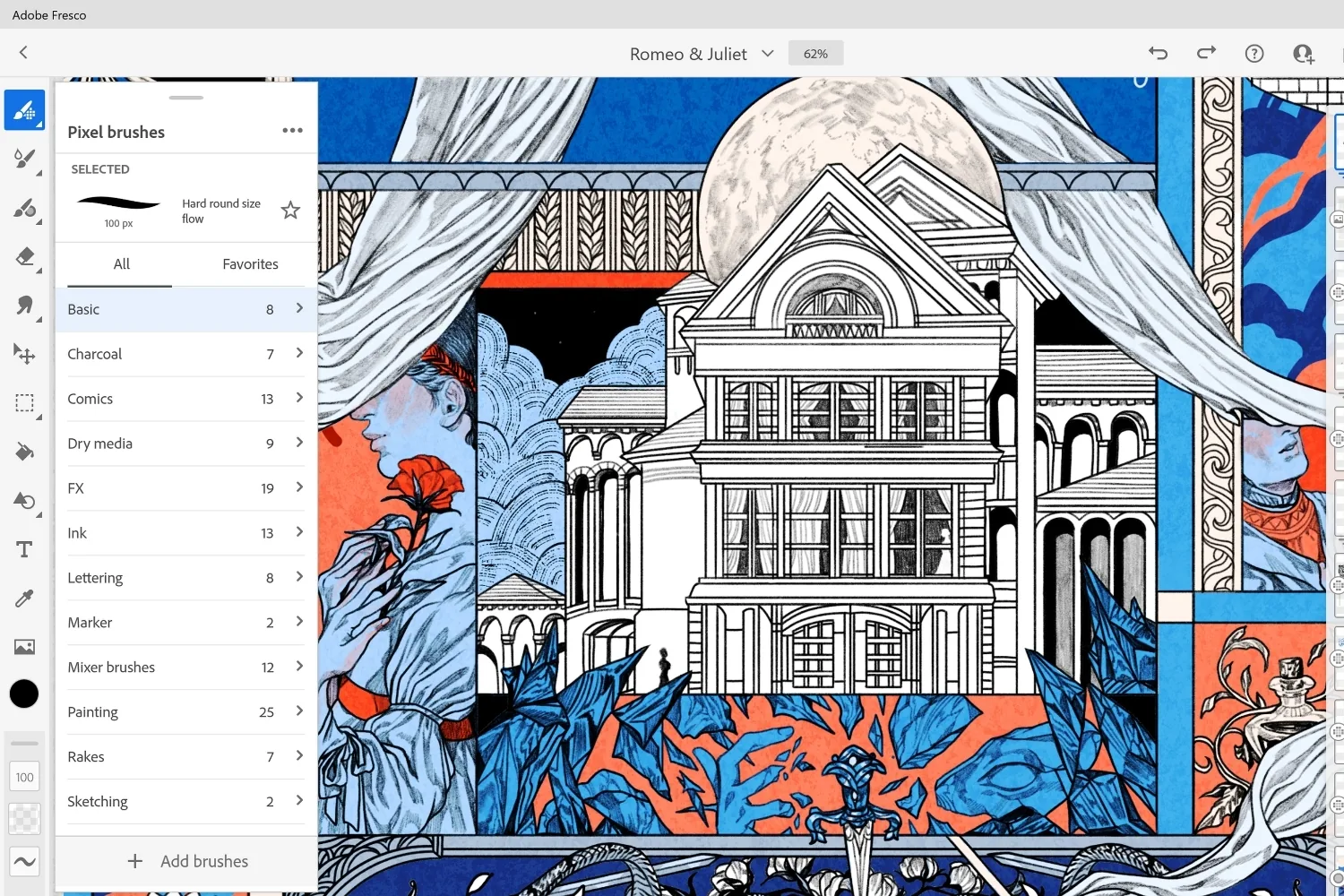
The detail that sets Fresco apart for design work is that it handles vector and raster brushes in the same document. You can rough in a perspective with pixel brushes, then lay clean, scalable vector linework on top for diagrams or callouts, all without switching apps. For diagram heavy presentation boards, that hybrid behavior saves a round trip to Illustrator.
Live Brushes and the Feature Set That Matters
The headline feature is Live Brushes. Powered by Adobe Sensei, the oil brushes pile up pigment and blend wet edges, while the watercolor brushes bleed and pool across the canvas as you work. For anyone producing loose, painterly visuals, this is the closest a tablet has come to real media without a steep learning curve.
Beyond the painting engine, Fresco includes a symmetry tool, a vector trimmer for cleaning up stray paths, motion features for frame by frame or motion path animation, and a paint inside option that acts like a quick clipping mask. The brush set runs deep, and you can import your own Photoshop brushes if you already have a library you trust. This range is part of why Fresco shows up in roundups of tools for digital architectural sketching.
The trade off is honest. Live Brushes are processing heavy, so on an older iPad you may feel lag once a canvas fills with wet media and many layers. On current hardware the response stays smooth, but anyone buying a tablet mainly for this app should aim for a recent model rather than the cheapest one. The brush realism is the draw, and it asks for the silicon to back it up.
💡 Pro Tip
Reserve Live Brushes for the final paint pass and block in your composition with standard pixel brushes first. Wet media layers grow heavy fast, so committing to them early can slow the canvas and make late edits painful. Lay the structure, then add the watercolor and oil flourishes on top.
Adobe Fresco App: Platforms, Apple Pencil, and Animation
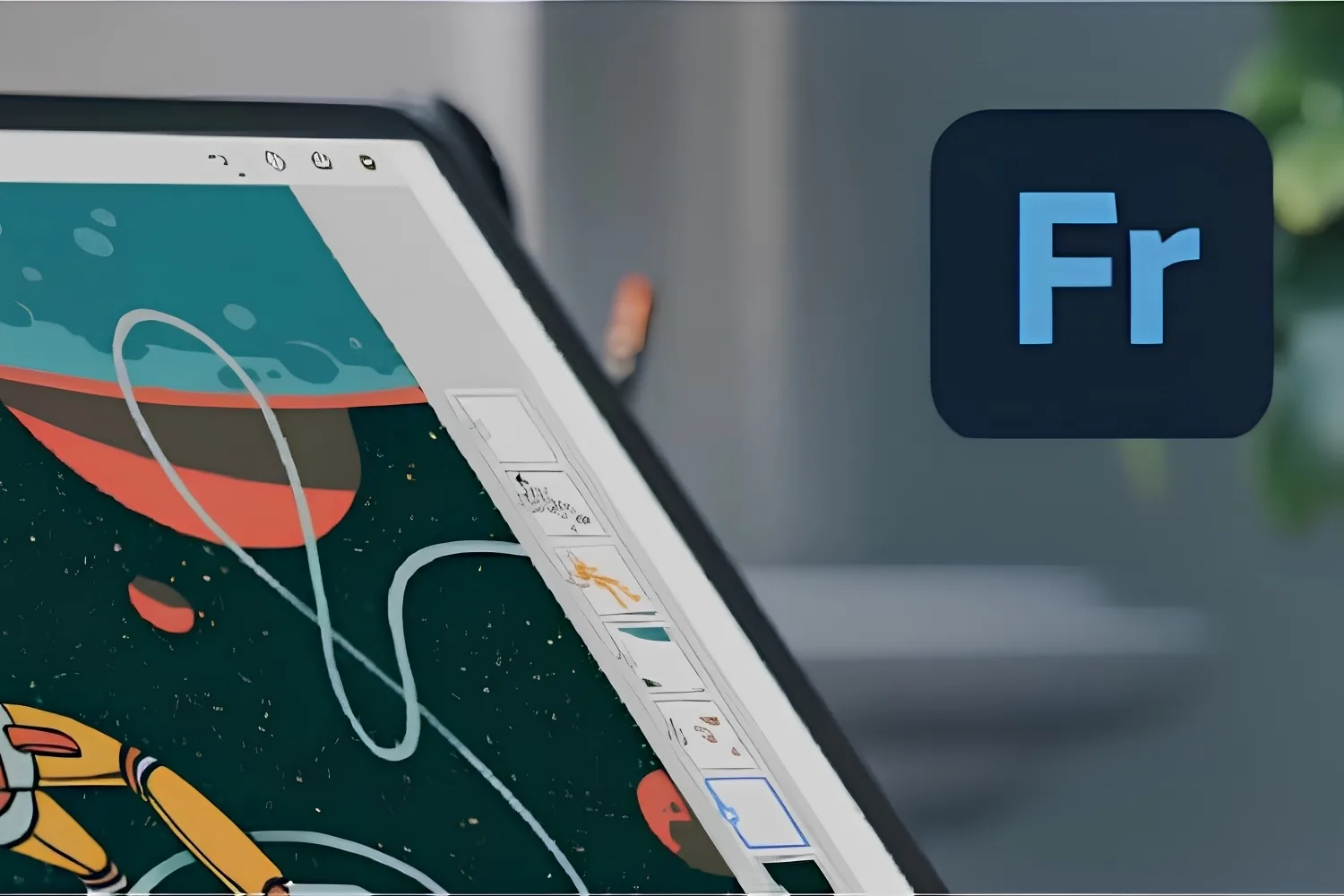
The Adobe Fresco app runs on iPad, iPhone, and Windows. On Apple hardware it supports the latest Pencil features, including tilt, barrel roll, squeeze, and haptic feedback, so brush response feels close to working on paper. The iPhone version is handy for capturing an idea on the move, though serious painting still belongs on a larger screen.
One honest limit matters for buyers comparing options. There is no Adobe Fresco Android version. If you search for Adobe Fresco Android hoping to run it on a Samsung tablet or a Pixel, you will not find a native app, since fresco Adobe support is limited to iPadOS, iOS, and Windows. Android based designers will need a different tool, which is worth knowing before you commit to an iPad just for this app. For a wider view of what runs well on tablets, the rundown of the best architecture apps for iPad puts Fresco in context next to CAD and modeling options.
The animation tools deserve a mention too. Frame by frame and motion path animation let you turn a static sketch into a short looping study, which can add life to a portfolio piece or a concept reel. It is not a substitute for dedicated motion software, but for an architect making Adobe Fresco art for a presentation, it is a welcome extra.
Adobe Fresco vs Procreate: Which Suits Professionals?
The Adobe Fresco vs Procreate question comes up constantly, because the two apps overlap heavily on iPad. Procreate is a one time purchase with a famously fast canvas and a huge community library. Fresco is free, leans on Live Brushes and true vector support, and plugs directly into Photoshop and Illustrator through Creative Cloud.
For a professional already inside Adobe’s ecosystem, that round trip is the deciding factor. A Fresco file opens in Photoshop with layers intact, which keeps a presentation pipeline clean. Procreate tends to win on raw speed and animation polish. If you want a deeper breakdown of when each tool earns its place, the comparison of Procreate versus Photoshop for architecture work maps the same logic onto the wider Adobe stack.
The choice often comes down to where your files end up. If your final boards live in Creative Cloud and pass through Photoshop and Illustrator, Fresco removes export friction and keeps everything in one format family. If you work mostly inside Procreate already and rarely touch Adobe, switching for a few brush types may not be worth the disruption. Many designers simply keep both installed and reach for whichever opens fastest on the day.
Adobe Fresco Pricing: Is the Free Plan Enough?
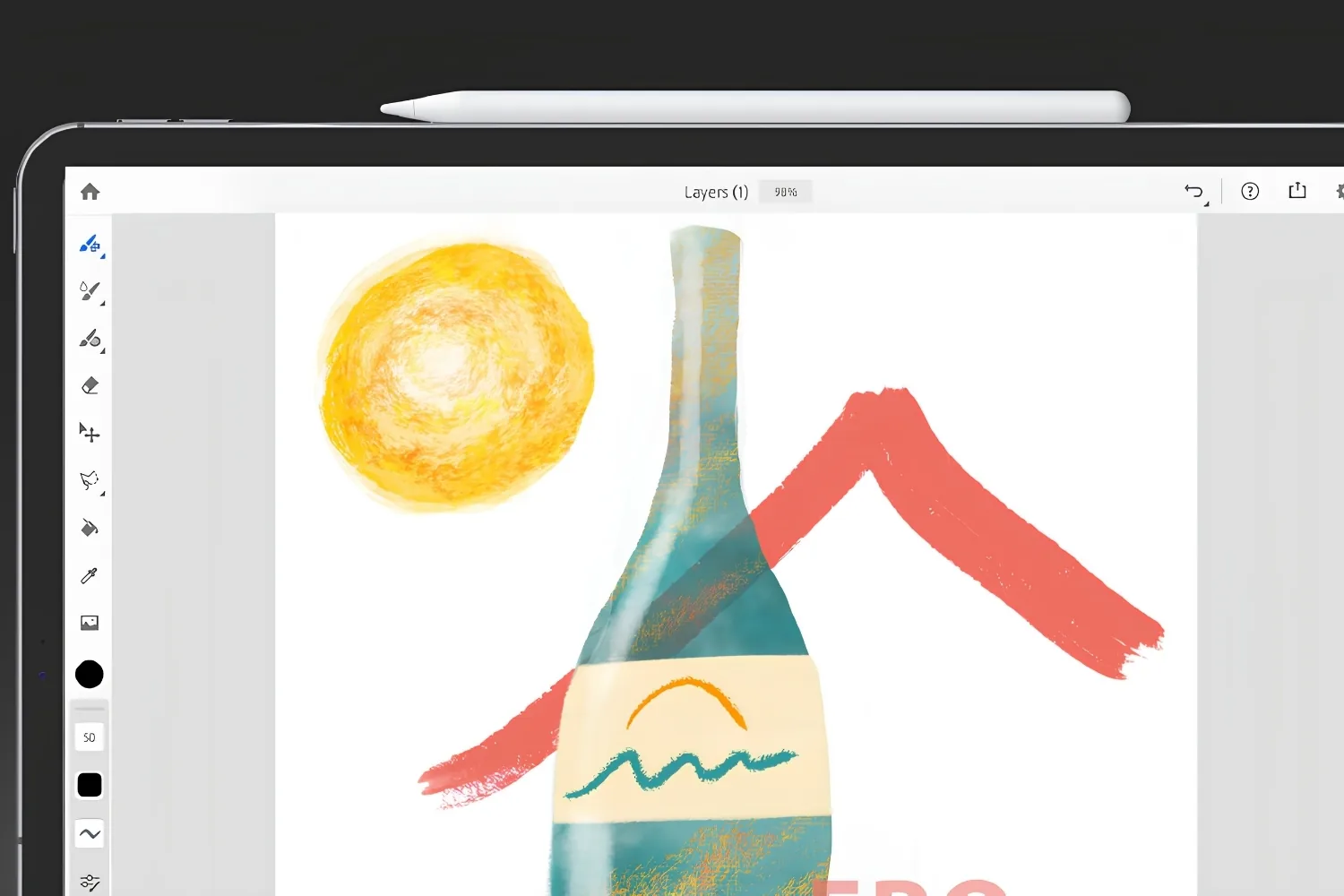
Adobe Fresco is free to download and use, and the free plan covers the core painting and drawing experience along with 5 GB of cloud storage. The paid tier mainly adds premium Adobe Fonts and 100 GB of storage, plus tighter Creative Cloud integration for people already paying for the suite.
For most architects and designers, the free version is genuinely usable for real client work, not a crippled demo. The main reason to pay is bundling, since Fresco is included with several Creative Cloud plans you may already hold. That makes the practical cost question less about Fresco itself and more about your existing Adobe commitment. If cost is the sticking point, the guide to Photoshop alternatives for architects covers cheaper editing routes worth weighing.
Pricing and plan details are approximate and can change by region and over time. Confirm current terms on Adobe’s official site before purchasing.
Adobe Fresco Alternatives Worth Considering
No single app fits every workflow, and the right Adobe Fresco alternative depends on what you are missing. If you want a faster canvas and a one time price, Procreate is the obvious rival. If you need true CAD precision rather than painterly visuals, a modeling or drafting app will serve you better. For pure raster editing and compositing, Photoshop or a free editor covers ground Fresco does not.
Where Fresco stays ahead is the combination of free access, real vector brushes, and the painterly Live Brush engine in one package. Few alternatives match all three at once, which is the practical case for keeping it on your iPad even if it is not your only tool.
Think in roles rather than winners. Drafting and modeling apps own the precise work, a full raster editor owns final compositing, and Fresco owns the expressive middle ground where a design still feels drawn rather than rendered. Slotting it into that specific gap, instead of asking it to do everything, is how most professionals get value out of it without disrupting the rest of their stack.
Pros and Cons of Adobe Fresco
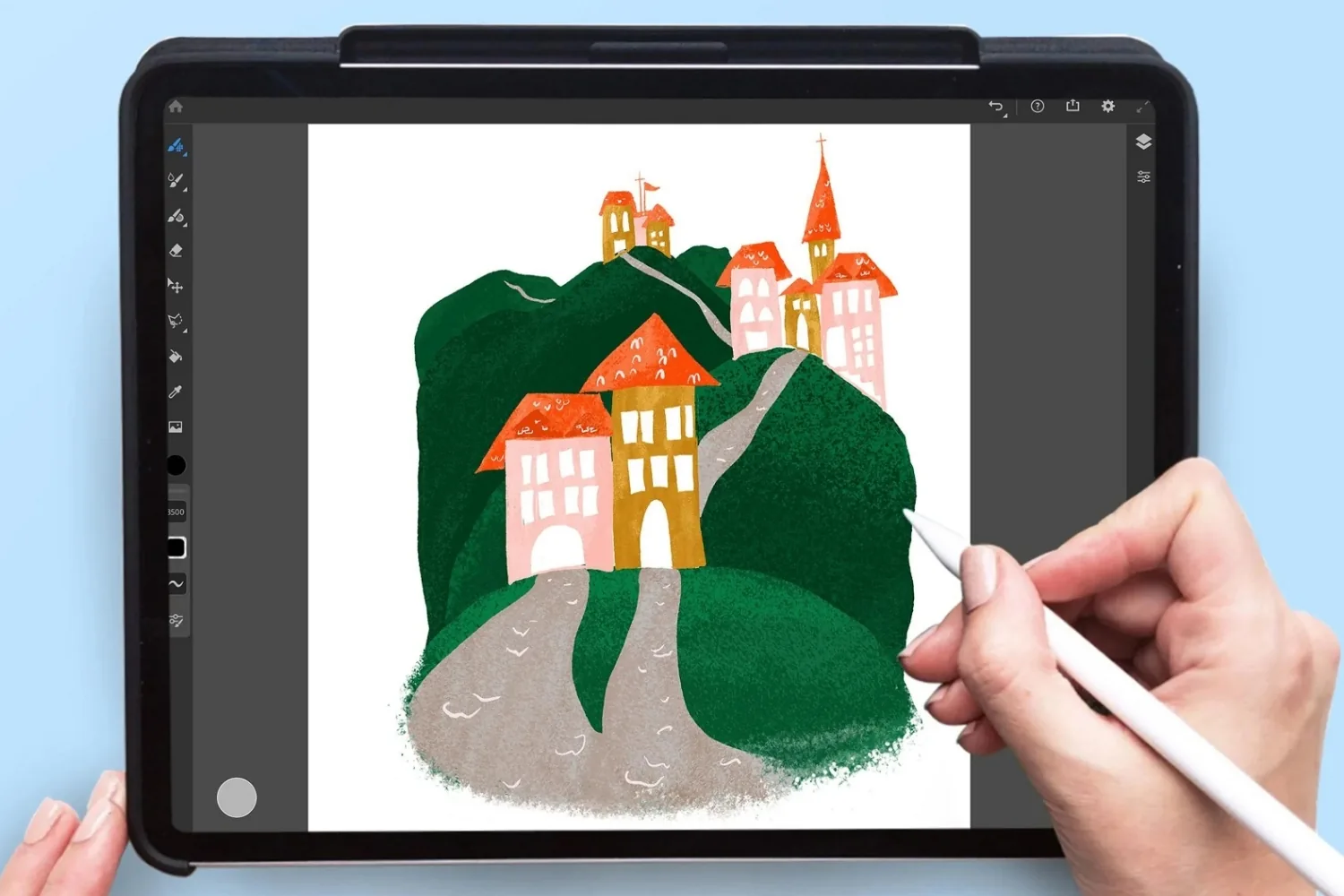
The table below sums up where Fresco delivers for a professional design audience and where it falls short, based on its current feature set and platform support.
| Pros | Cons |
|---|---|
| Free core app with a usable 5 GB plan | No native Android version, Apple and Windows only |
| Vector and pixel brushes in one document | Not a CAD or precision drafting tool |
| Live Brushes that mimic real oil and watercolor | Live Brushes can tax older tablet hardware |
| Direct Photoshop and Illustrator file handoff | Best value is tied to a Creative Cloud plan |
| Strong Apple Pencil support and animation tools | Slower canvas than some dedicated rivals |
Final Thoughts
Bottom Line: Adobe Fresco is not built to replace your CAD or BIM software, and it was never meant to. As a free, Pencil driven sketch and presentation tool that hands files cleanly back to Photoshop and Illustrator, it earns a real spot in a professional design workflow. Treat it as your concept and rendering companion rather than a production engine, and it pays for itself quickly.
For most architects and designers, the smarter move is to test it on a live project board this week. Pull a model screenshot, paint one presentation study in Fresco, and judge it against your current process before deciding where it belongs. The official details and download sit on the Adobe Fresco product page, with the iPad build on the Apple App Store, background on its history in the Adobe Fresco overview on Wikipedia, and feature documentation in the official Adobe Fresco help pages.




Notion Alternatives for Architects: 7 Tools That Fit Studio Work
Notion works until a studio needs fee tracking, phase budgets and timesheets....
 Furkan Sen7 Mins read

Why Every Practice Ends Up With Five Versions of the Same Revit Family
Let’s learn why Revit family libraries accumulate duplicates, break schedules and slow...
 illustrarch Editoral Team5 Mins read
Visualizing Renovation Projects From Photographs: A Workflow for Existing-Building Work
Photo-based visualization turns a photograph of a building that already exists into...
illustrarch Editoral Team7 Mins read

Best Free CAD Blocks and Resources for Architects
A working guide to free CAD blocks for architects, covering ARCAT, CAD-Blocks.net,...
Furkan Sen7 Mins read


Leave a comment