
Best Stylus and Pen for Architectural Sketching: Top Picks for 2026
A tested breakdown of the top stylus pens and traditional pens for architectural sketching in 2026. Covers Apple Pencil Pro, Surface Slim Pen, Samsung S Pen, and classic fine-liners from Rotring, Sakura, and Staedtler, with pressure sensitivity specs, software compatibility, and practical buying advice for architects and students.
 Elif Ayse Sen28 May 202611 Mins read315
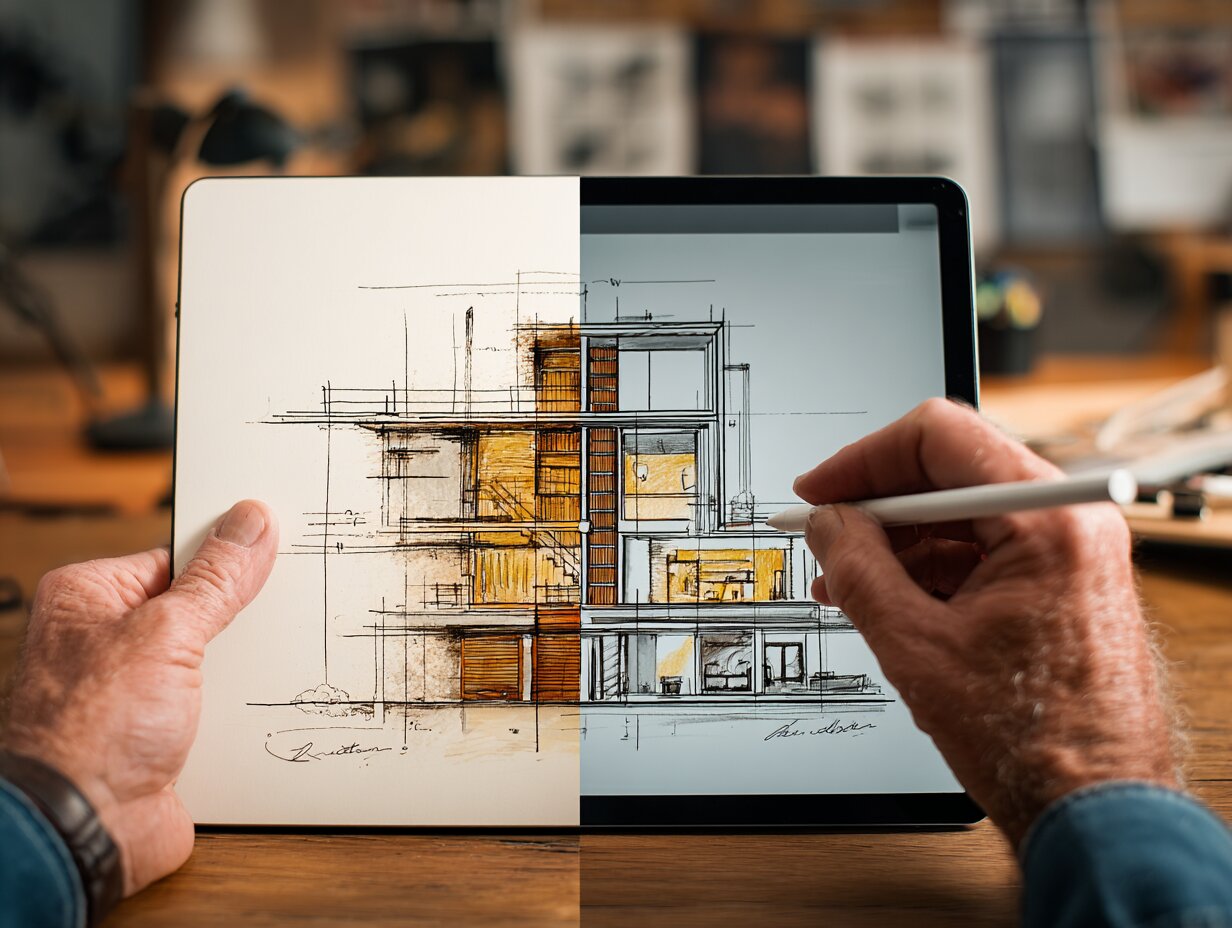
Table of Contents Show
The best stylus for architects depends on your device, your workflow, and whether you sketch on screen or on paper. Apple Pencil Pro leads iPad-based workflows with pressure sensitivity and tilt detection, while the Surface Slim Pen and Samsung S Pen serve Windows and Android users. For traditional hand sketching, Rotring, Sakura Pigma Micron, and Staedtler Pigment Liner remain the go-to fine-liners among professionals.
Choosing the right stylus pen for sketching can shape how quickly you move from a rough concept to a refined drawing. Architects work across scales, from broad massing studies to tight construction details, and the pen you pick needs to keep up with both. A poor stylus adds friction to your process. A good one disappears in your hand and lets you focus on the design. This guide covers the top digital stylus options alongside the best traditional pens for architectural sketching, with tested specs, software compatibility notes, and practical advice for students and working professionals.
Best Digital Stylus Options for Architectural Sketching
Digital stylus pens have become a daily tool for architects who sketch on tablets. Pressure sensitivity, tilt detection, palm rejection, and latency all affect how natural the drawing experience feels. Below are the top picks across the three major tablet ecosystems.
Apple Pencil Pro (iPad)
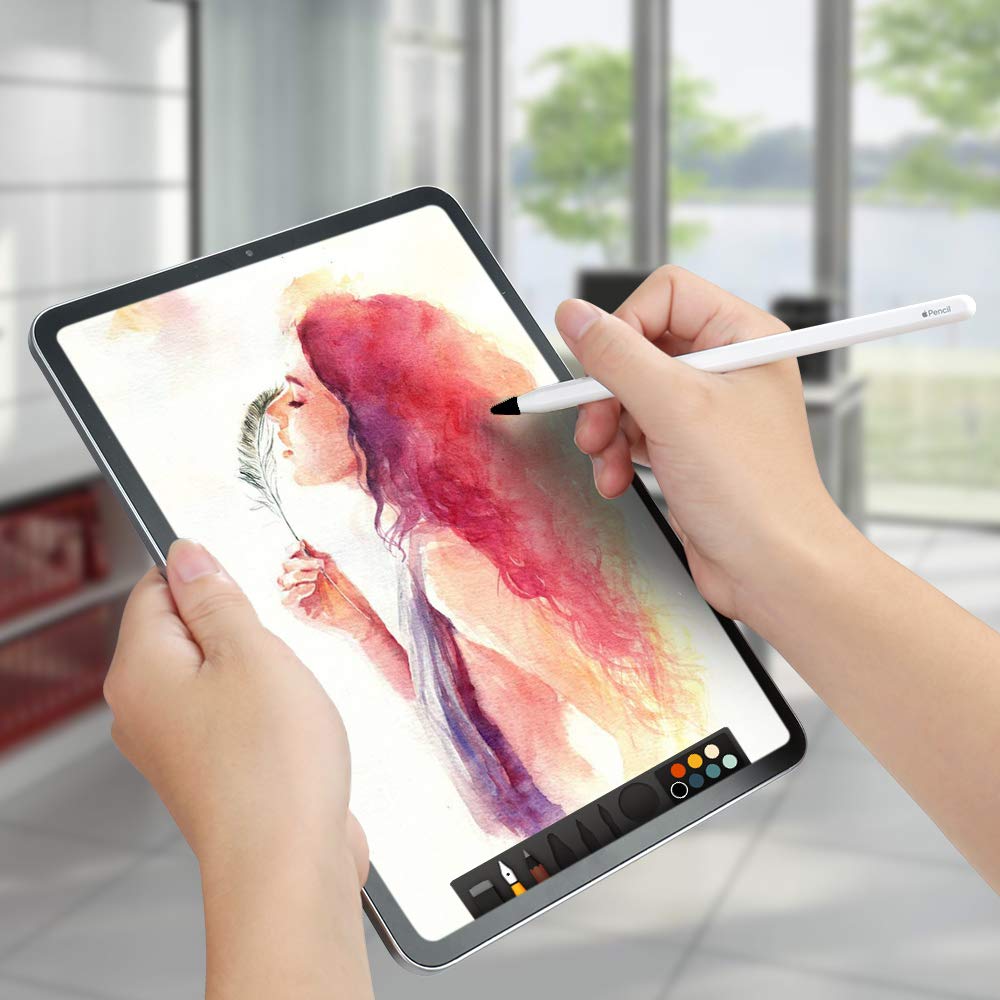
The Apple Pencil Pro is widely considered the best stylus pen for sketching on iPad. It delivers 4,096 levels of pressure sensitivity, tilt detection for natural shading, and barrel roll for rotating brush angles without lifting your hand. A squeeze gesture lets you switch tools mid-stroke, and haptic feedback confirms each action. Latency sits at around 9ms on iPad Pro models with ProMotion displays, which means the line appears almost directly under the tip as you draw.
For architects, the Apple Pencil Pro pairs well with apps like Morpholio Trace, Procreate, Shapr3D, and Concepts. Morpholio Trace is built specifically for architects and supports scaled plans, PDF markup, and DXF export. Procreate handles concept sketching and presentation renderings with a massive brush library. If you already work within the Apple ecosystem and use an iPad for architecture, the Apple Pencil Pro is the strongest choice available.
The Apple Pencil USB-C is a more affordable option at roughly half the price. It keeps tilt sensitivity and low latency but drops pressure sensitivity and the squeeze gesture. For note-taking and casual sketching, many architects find it sufficient. If you spend 20 or more hours per week drawing digitally, the Pro model pays for itself through workflow speed.
💡 Pro Tip
When testing any stylus pen for sketching in a store, draw slow diagonal lines near the corners of the screen. This is where line wobble and jitter are most visible. If the stylus struggles with smooth diagonals, it will cause problems when you sketch perspective lines and building edges.
Microsoft Surface Slim Pen (Windows)

Sketching with a pen on a Surface tablet has come a long way since the Surface Pro 6 and the Surface Pen of that generation. The current Surface Slim Pen offers 4,096 pressure points, tilt support for shading, and a flat design that charges wirelessly inside compatible Surface Pro keyboard covers. Its biggest advantage for architects is access to full desktop software: AutoCAD, Revit, Rhino, and SketchUp all run natively on Surface Pro devices, not mobile-limited versions.
The Slim Pen’s haptic feedback simulates the feel of pen on paper, which helps during long sketching sessions. However, independent reviews from artists have noted diagonal line jitter on Surface devices, a known issue that affects accuracy when drawing angular subjects like buildings and furniture. For graphic design, annotation, and CAD markup, the Surface Slim Pen works well. For freehand architectural illustration requiring smooth, precise strokes, the Apple Pencil Pro currently performs better.
Third-party alternatives like the Metapen M2 and RENAISSER Raphael 520 offer compatible 4,096 pressure sensitivity at lower prices. These are solid backup options for students on a budget.
Samsung S Pen (Android)

Samsung’s S Pen ships included with the Galaxy Tab S9 Ultra and S10 Ultra, which means no separate purchase is needed. It provides ultra-low latency, 4,096 pressure levels, and tilt recognition for shading. The S Pen does not require charging, which removes one variable from your workflow.
For architects on Android, the S Pen pairs well with Concepts (infinite-canvas vector sketching), Infinite Painter, and Samsung Notes for quick site documentation. The Galaxy Tab S9 Ultra’s 14.6-inch Super AMOLED display is one of the largest tablet screens available, giving you room to work on detailed floor plans and section drawings. If you want a deeper look at Android tablet options, our guide to the best Android tablets for architects covers the full range.
Comparison of Top Digital Stylus Pens for Architects
The table below summarizes the key specifications across the three major stylus options for architectural sketching.
| Feature | Apple Pencil Pro | Surface Slim Pen | Samsung S Pen |
|---|---|---|---|
| Pressure Levels | 4,096 (Apple proprietary) | 4,096 | 4,096 |
| Tilt Support | Yes | Yes | Yes |
| Palm Rejection | Yes | Yes | Yes |
| Charging | Magnetic wireless | Wireless (keyboard cradle) | No charging required |
| Barrel Roll | Yes | No | No |
| Desktop CAD Support | Mobile apps only (iPadOS) | Full desktop (AutoCAD, Revit, Rhino) | Mobile apps only (Android) |
| Approximate Price (2026) | $129 | $130 (often bundled) | Included with tablet |
Budget-Friendly Stylus Alternatives Worth Considering

Not every architect needs a $130 stylus. Third-party active stylus pens have closed the gap in recent years, and several options now match the major brands on core features like palm rejection and tilt detection.
The Logitech Crayon is an Apple-certified iPad accessory that connects instantly, supports tilt, and works reliably for note-taking and plan markup. It lacks pressure sensitivity, so it is not ideal for detailed illustration, but it handles everyday annotation and quick sketches well. The Adonit Note+ 2 adds programmable buttons and tilt detection for around $60, making it a practical option for students who sketch and annotate daily but do not need pro-grade brush control.
One important detail: Apple does not license its proprietary pressure-sensing technology to third-party manufacturers. Budget iPad stylus pens offer palm rejection and tilt-based shading, but they cannot match the genuine pressure sensitivity of the Apple Pencil. For note-taking, annotation, plan markup, and casual sketching, budget alternatives work well. For professional digital illustration and rendering, the Apple Pencil Pro remains the better investment.
⚠️ Common Mistake to Avoid
Many architecture students buy a pastel sketch active stylus pen or generic capacitive stylus from online marketplaces, expecting it to work like an Apple Pencil. Passive capacitive styluses have rubber tips with zero pressure sensitivity, no palm rejection, and no tilt detection. They are designed for basic screen navigation, not for sketching. Always confirm that a stylus is “active” with Bluetooth connectivity before purchasing it for drawing work.
Best Traditional Pens for Architectural Sketching

Digital tools have not replaced the pencil and fine-liner. Many architects still prefer hand sketching for early concept work, site visits, and client conversations. The tactile feedback of pen on paper can generate ideas faster than any screen, and a pocket-sized sketchbook requires no battery or software updates. These are the best pens for architectural sketching based on ink quality, line consistency, and durability in professional use.
Sakura Pigma Micron
Sakura Pigma Micron pens are a long-time favorite among architects and illustrators. They use archival-quality pigment ink that is waterproof, fade-resistant, and pH-neutral, so lines stay sharp over time without yellowing the paper. The ink dries quickly and resists smudging, which matters when you work with rulers or overlay watercolor washes.
Microns come in tip sizes from 0.05mm up to 0.5mm, plus a brush tip. For architectural sketching, most professionals keep a 0.1mm for fine detail, a 0.3mm for medium linework, and a 0.5mm for bold outlines. This three-pen setup covers everything from dimensioned plan annotations to freehand perspective sketches.
Staedtler Pigment Liner
Staedtler Pigment Liners are the workhorse of many architecture studios. Their standout feature is durability: according to Staedtler, these pens can be left uncapped for up to 18 hours without drying out, which is useful when you are switching between multiple tip sizes during a long drafting session. The pigment ink is waterproof and lightfast, and the metal-clad tip works cleanly with rulers and stencils.
Available in sizes from 0.05mm to 0.8mm, the Pigment Liner range provides enough variety for both fine technical drawing and expressive sketch work. The polypropylene barrel is lightweight and comfortable for extended use. For students who need a reliable and affordable set of pens for architectural sketching, Staedtler is one of the most consistent choices on the market.
Rotring Rapidograph and Isograph

Rotring technical pens are the professional standard for precision linework. The Rapidograph uses replaceable capillary cartridges, while the Isograph can be filled with bottled ink, allowing you to experiment with different ink densities or colors. Both models feature tubular nibs that produce perfectly consistent line widths, which is critical for technical drawings and measured plans.
The Rotring 600 mechanical pencil deserves mention here too. Its full-metal hexagonal body and knurled grip make it one of the most durable drafting pencils available, and many architects have used the same unit for a decade or more. Pair it with a set of Rapidograph pens in 0.1mm, 0.3mm, and 0.5mm for a complete hand-drafting toolkit.
🎓 Expert Insight
“The pencil is not a tool of the past. It is a tool of thought.”
Renzo Piano
Piano’s emphasis on hand drawing as a thinking process reflects a broader reality in architectural practice. The best architects treat sketching as a design method, not just a documentation step. Choosing a pen that responds well to your hand reinforces that connection between idea and line.
Faber-Castell Pitt Artist Pens
Faber-Castell Pitt Artist Pens use India ink that is both waterproof and lightfast once dry. They come in a wide range of nib sizes and types, including superfine, fine, medium, and brush tips. The brush-tipped versions are especially popular for rendering and adding tonal variation to architectural perspectives.
These pens work well with watercolor and marker overlays because the ink does not bleed or lift when wet media is applied on top. For architects who combine hand-drawn linework with washes or marker rendering, the Pitt Artist Pens offer a practical middle ground between a technical liner and an expressive brush pen.
How to Choose Between a Digital Stylus and Traditional Pens
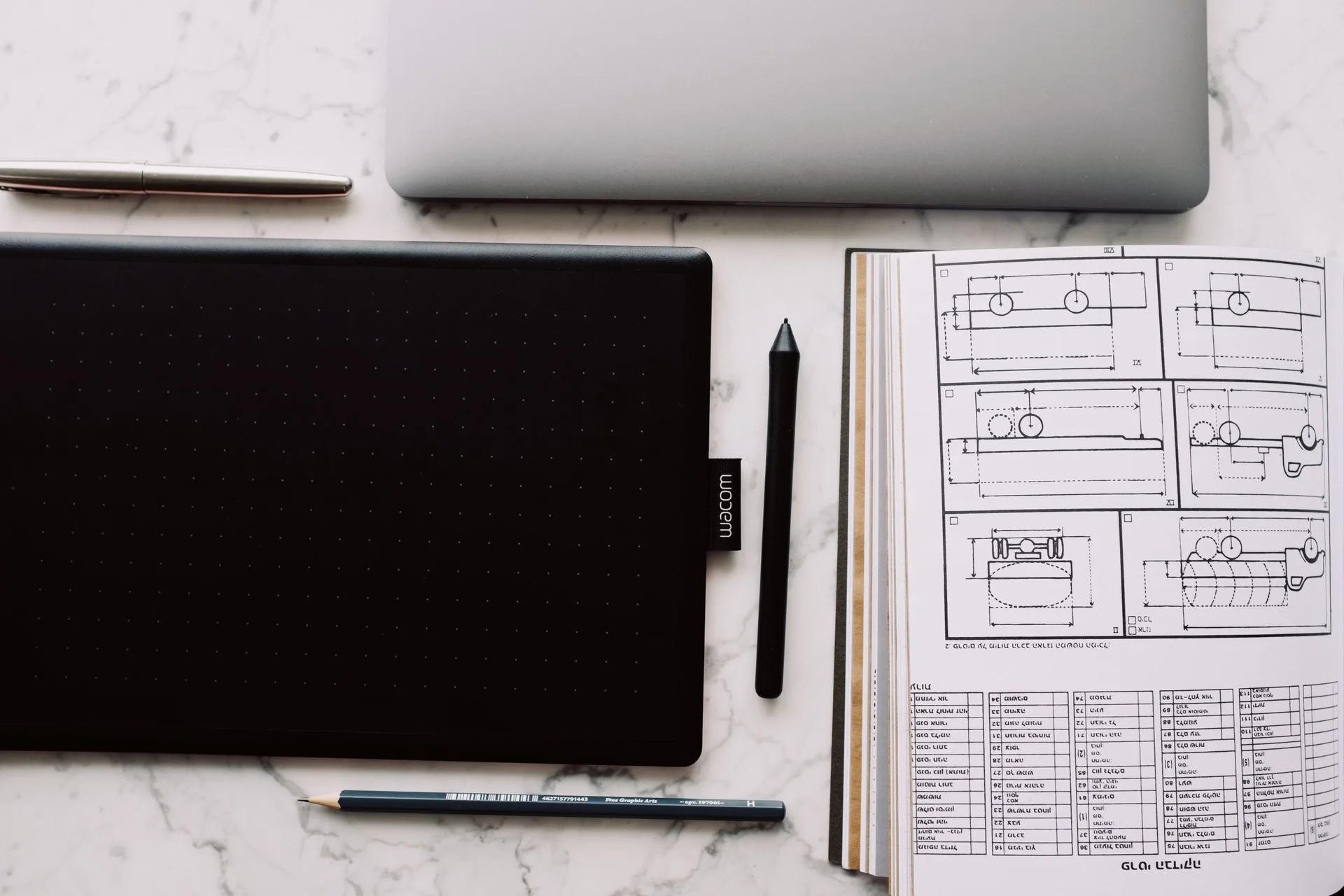
The answer depends on where you sketch and what you do with the sketch afterward. If your drawings need to feed directly into a CAD or BIM pipeline, a stylus sketch pen for iPad or Surface tablet eliminates the scanning step and keeps your work in editable digital layers. Apps like Morpholio Trace export to DXF, and Shapr3D produces full parametric 3D models from pen input.
If you sketch on site, during meetings, or in the early stages of design when speed matters more than precision, a traditional pen and sketchbook is still faster. There is no boot time, no battery to manage, and no screen glare in sunlight. Many experienced architects carry both: a fine-liner kit for site visits and concept sketching, and a tablet with stylus for refined digital work back in the studio.
For a deeper look at how digital sketching fits into the broader design process, our article on the best tools for digital architectural sketching covers each app’s stylus support and workflow integration.
📐 Technical Note
Professional-grade stylus pens deliver a minimum of 4,096 levels of pressure sensitivity, which is the current industry standard set by Apple, Wacom, and Microsoft. Newer Wacom and XP-Pen models reach 8,192 or even 16,384 levels, though the practical difference above 4,096 is subtle for most architectural work. For comparison, passive capacitive styluses offer zero pressure levels, and most entry-level active pens top out at 1,024.
Best Sketching Apps That Pair With a Stylus for Architects

A stylus is only as useful as the software behind it. Here are the apps that architects use most frequently for stylus-based design work:
Morpholio Trace is built by architects for architects. It supports scaled plans, smart layers, PDF and image import, and DXF export. The 2026 update includes AI-powered scale detection that automatically calibrates imported drawings, removing one of the most tedious setup steps in digital sketching. Visit morpholio.com for the latest feature list.
Procreate offers the largest brush library and the most flexible rendering environment for presentation-quality sketches. It works exclusively on iPad and pairs tightly with Apple Pencil. Architects use it for concept sketching, perspective illustrations, and competition boards.
Concepts is a vector-based infinite-canvas app available on iPad, Windows, and Android. Its scale grid and measurement tools make it practical for early design work, and vector export means your sketches can scale to any size without quality loss.
SketchBook by Autodesk provides a clean, distraction-free interface for quick freehand work. It supports pressure and tilt on all major stylus types, and predictive stroke smoothing helps clean up rough lines in real time. For those exploring broader drawing tablet options for architects, software compatibility should be the first filter.
💡 Pro Tip
Before committing to a stylus, download Morpholio Trace or Concepts (both have free tiers) and test the stylus with your actual workflow: import a floor plan PDF, sketch over it, and export. This 10-minute test reveals more about compatibility and feel than any spec sheet can.
What to Look for When Buying a Stylus for Architecture Work

Specifications matter, but so does comfort. A stylus that cramps your hand after 30 minutes of sketching will slow you down regardless of its pressure sensitivity rating. Here are the factors that make the biggest practical difference.
Pressure sensitivity: 4,096 levels is the baseline for professional work. This gives you enough range to produce hair-thin construction lines and bold section cuts within the same drawing, just by varying your hand pressure.
Tilt detection: Tilt lets you shade by angling the stylus, mimicking how you would tilt a graphite pencil on its side. This is valuable for quick tonal studies and adding depth to perspective sketches.
Latency: Lower is better. Apple Pencil on ProMotion iPads sits at around 9ms. Most Surface and Samsung pens land between 12ms and 20ms. Anything above 30ms creates a visible gap between your hand movement and the drawn line, which breaks the natural feel of sketching.
Weight and grip: Some architects prefer a heavier stylus for control (similar to a Rotring 600 mechanical pencil), while others want something light for fast gesture sketches. If possible, hold the stylus for several minutes before buying. Look for a textured or knurled grip section that prevents slipping during long sessions.
Battery and charging: Magnetic wireless charging (Apple Pencil, Surface Slim Pen) is the most convenient option. The Samsung S Pen requires no charging at all. Budget stylus pens with USB-C charging typically offer 8 to 12 hours of battery life, which is enough for a full workday.
Stylus and Pen Recommendations by Use Case

Different workflows call for different tools. Here is a quick summary based on how you actually work.
For full-time digital sketching on iPad, the Apple Pencil Pro paired with Morpholio Trace or Procreate is the strongest combination. The pressure sensitivity, barrel roll, and squeeze gesture create a workflow that no other ecosystem matches right now.
For architects who need desktop CAD on a tablet, the Surface Slim Pen with a Surface Pro gives you access to full AutoCAD, Revit, and Rhino in tablet form. No other tablet platform runs these desktop applications natively.
For site visits and quick concept sketches, a set of Sakura Pigma Micron or Staedtler Pigment Liner pens in three sizes (0.1mm, 0.3mm, 0.5mm) fits in a shirt pocket and requires zero setup time.
For students on a budget, the Samsung S Pen (included with Galaxy Tab) or a Logitech Crayon (for iPad) paired with a set of Sakura Pigma Micron pens covers both digital and analog needs without a large upfront cost. Our guide to architectural sketching for beginners walks through the basics of building a sketchbook practice alongside digital tools.
✅ Key Takeaways
- Apple Pencil Pro is the top digital stylus for iPad-based architectural sketching, with the best pressure sensitivity and app ecosystem.
- Surface Slim Pen is the strongest option for architects who need full desktop CAD software (AutoCAD, Revit, Rhino) on a tablet device.
- Samsung S Pen comes included with Galaxy Tab models and offers a solid drawing experience without a separate purchase.
- Traditional pens like Sakura Pigma Micron, Staedtler Pigment Liner, and Rotring Rapidograph remain essential for hand sketching, site work, and early concept development.
- Always test a stylus with your actual sketching app and workflow before committing. Specs on paper do not always match real-world performance in architectural drawing tasks.
Final Thoughts
The best stylus for architects is the one that fits your workflow, your device, and your budget. Digital stylus pens have reached a level where pressure sensitivity, tilt detection, and latency all perform at a professional standard across the Apple, Microsoft, and Samsung ecosystems. Traditional fine-liners from Rotring, Sakura, and Staedtler continue to hold their place because speed, portability, and the direct feel of ink on paper still matter in architectural practice.
If you are building out a broader digital toolkit, our overview of the best tablets for architects and students pairs well with this guide. Match the right stylus to the right device, pair it with the right software, and the tool will get out of your way so you can focus on the design.
Technical specifications and prices referenced in this article are based on manufacturer data available as of 2026 and may vary by region or retailer.






Architectural Drawings: A Student’s Guide to 8 Essential Types
A clear introduction to the eight architectural drawing types every student meets...
 Sinan Ozen6 Mins read

Procreate for Architects: A Practical Review Beyond Illustration
A practical look at Procreate for architects, covering concept sketching, perspective guides,...
 Furkan Sen5 Mins read
How to Draw Architectural Plans by Hand: A Step-by-Step Guide
A practical, step-by-step breakdown of drawing architectural plans by hand, from choosing...
Elif Ayse Sen14 Mins read

Digital Art Basics: Beginner’s Guide to Tools & Techniques
Digital art basics cover everything beginners need to know, from essential hardware...
 illustrarch Editoral Team16 Mins read


Leave a comment