

PhotoRoom Review for Architects: Cleaning Up Renders on Your Phone
The app ecommerce sellers use for product cutouts has found a second life with architects. This review tests PhotoRoom on real renders, covering background removal, sky replacement, and the foliage and glass edges where it still needs a manual hand.
 Sinan Ozen13 August 20265 Mins read215

Table of Contents Show
This PhotoRoom review for architects looks at how well the mobile app cleans up renders on a phone. PhotoRoom removes backgrounds, swaps skies, and retouches stray objects in seconds, which makes it useful for quick client edits away from the workstation. It handles clean cutouts well, but foliage, glass, and thin railings still need a manual pass before export.
The render is finished, the client wants it within the hour, and you are nowhere near your desk. That is the moment a phone editor earns its place. PhotoRoom has become a common pick for architects who need a fast render fix on the move, and this PhotoRoom review for architects breaks down where it delivers and where it does not.

Why Architects Use PhotoRoom to Fix Renders on a Phone
Most rendering happens at a desk, but review and delivery rarely do. Feedback lands during a site visit, a consultant flags the sky in a group chat, or a client asks for a cleaner version while you are on the train. Editing architecture renders on a phone used to mean fighting a general photo app or waiting until you were back at the office. PhotoRoom changed that by putting fast AI background removal in your pocket.
The app was not built for buildings. It started as an ecommerce tool for cutting product photos out of busy backgrounds, and that heritage shows in both directions. The automatic cutout is quick and the interface is simple, which suits architects who want one clean edit rather than a full editing suite. If you already run a stack of mobile apps built for architects, PhotoRoom slots in as the retouching layer that sits after your 3D rendering software has done the heavy lifting.
📌 Did You Know?
Photoroom was founded in Paris in 2019 and now reports more than 300 million users, backed by $64 million in funding and clients including Depop, Decathlon, and DoorDash (G2, 2026). It was built for ecommerce product photography rather than architecture, which explains both its speed on clean cutouts and its trouble with trees and glazing.
How Do You Remove a Render Background on Your Phone?
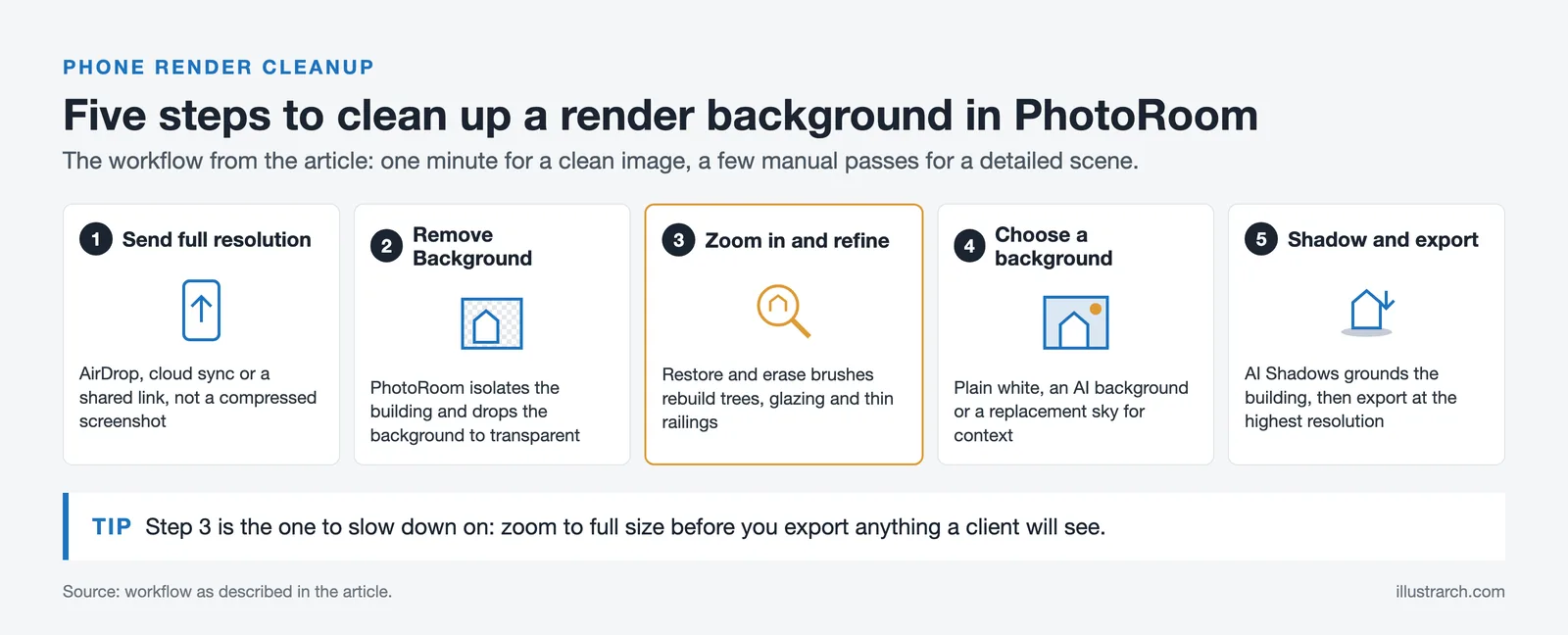
Open your render in PhotoRoom, tap Remove Background, refine the edges around foliage and railings, then place the cutout on a white or new background and export. A clean image takes under a minute. A detailed scene needs a few manual passes before it is ready to send.
Many of the renders that reach a phone start as AI render exports from SketchUp or a quick massing screenshot, so the source quality varies. Here is the workflow that holds up across most of them:
- Send the render to your phone at full resolution using AirDrop, cloud sync, or a shared link. A compressed screenshot gives the AI far less to work with.
- Open PhotoRoom, load the image, and tap Remove Background. The app isolates the building in a few seconds and drops the background to transparent.
- Zoom in and refine. Trees, glazing, and thin railings are where the cutout slips, so use the restore and erase brushes to rebuild what the AI clipped. This is the step that separates a usable edit from an obvious one.
- Choose a background. Drop the building onto plain white for a catalogue look, or use an AI background or a replacement sky to add context. This is where PhotoRoom works as a clean up render background app rather than a simple eraser.
- Add a shadow and export. AI Shadows grounds the building so it does not float, then export at the highest resolution your plan allows.
💡 Pro Tip
When you remove the background from an architectural photo or render, feed PhotoRoom the largest file your phone can handle instead of a screenshot. The edge detection has far more detail to lock onto on a clean 2000-pixel image, so you spend less time repairing jagged cutouts along roof lines and balustrades.
The auto cutout is a starting point, not a finished edit. On a phone screen the result looks convincing at a glance, and that is exactly where quick edits go wrong.
⚠️ Common Mistake to Avoid
The cutout looks clean at thumbnail size, so it is tempting to export straight after tapping Remove Background. On architectural renders the AI often clips thin balustrades, merges tree canopies into the sky, and leaves a halo around reflective glass. Zoom to full size and correct those edges by hand before you export anything a client will see.
Features That Help, and the Edges That Trip It Up
PhotoRoom for architects is really a handful of tools doing specific jobs. Background removal is the headline. Beyond it, batch mode pushes several renders through the same cutout at once, AI Backgrounds and sky replacement add context, the Retouch brush wipes out stray entourage or a leftover watermark, and the image enhancer sharpens a soft export. As a render background removal app it is fast and forgiving on simple scenes.
The pattern across this PhotoRoom review for architects is consistent: fast on clean cutouts, fussy on detailed edges. Foliage is the classic failure, since dense canopies blur into whatever sits behind them and the fine branches disappear. Glass is the second, because reflective curtain walls confuse the cutout and leave halos or gaps where you wanted a clean pane. Thin elements like mullions and pergola slats get clipped or thickened. The 2026 edge refinement is better than older versions, but architectural images stress an ecommerce cutout in ways a handbag never will. On G2, reviewers repeat the same point, praising the speed while noting that detailed edges need manual correction. If your renders arrive soft in the first place, the fix belongs upstream in your rendering setup, not in a phone editor.
📐 Technical Note
PhotoRoom accepts JPG, PNG, and WebP files, and standard app exports top out around 2K resolution (Photoroom, 2026). For a hero render headed to a large print or a competition board, that ceiling matters. Check your export resolution before you rely on a phone edit for final delivery.

PhotoRoom Pricing for Architects
PhotoRoom is free to install on the App Store and Google Play, and runs on a freemium model with three paid consumer tiers, plus a separate API aimed at developers. For most architects the real choice sits between the free plan and Pro.
PhotoRoom Plans at a Glance
The table below maps the main tiers to what each one gives an architect cleaning up renders.
| Plan | Price (billed monthly) | Best for architectural work |
|---|---|---|
| Free | $0 | Testing cutout quality on your own renders, with capped exports and limited AI credits |
| Pro | $7.99 | Watermark-free HD exports and small batch runs for regular use |
| Max | $26.99 | Larger batches, higher-resolution output, and video tools |
| Ultra | From $99 | High-volume studios needing the largest batch and credit limits |
One quirk to watch: the API is billed separately from these subscriptions, so an app plan does not include automated calls. PhotoRoom also runs frequent pricing experiments, so the number at checkout can differ by region and session (PhotoRoom pricing). If cost is the deciding factor, weigh it against the free tools already in your workflow before you subscribe.
Pricing figures are approximate and vary by region, billing cycle, platform, and ongoing promotions. Confirm the current rate on PhotoRoom’s official site before subscribing.

Wrapping Up
Bottom Line: PhotoRoom is a capable phone tool for architects who need a fast, clean render edit between the desk and the client, and the free tier is worth installing just to test the cutout on your own images. It will not replace Photoshop or a proper compositing pass for hero shots, and foliage, glass, and thin details still demand manual cleanup. Treat it as a speed tool for quick fixes, not a finishing tool for final delivery.







Notion Alternatives for Architects: 7 Tools That Fit Studio Work
Notion works until a studio needs fee tracking, phase budgets and timesheets....
 Furkan Sen7 Mins read

Why Every Practice Ends Up With Five Versions of the Same Revit Family
Let’s learn why Revit family libraries accumulate duplicates, break schedules and slow...
 illustrarch Editoral Team5 Mins read
Visualizing Renovation Projects From Photographs: A Workflow for Existing-Building Work
Photo-based visualization turns a photograph of a building that already exists into...
illustrarch Editoral Team7 Mins read

Best Free CAD Blocks and Resources for Architects
A working guide to free CAD blocks for architects, covering ARCAT, CAD-Blocks.net,...
Furkan Sen7 Mins read


Leave a comment