

What Technology Does a Modern Workplace Need?
A modern workplace needs more than fast computers. A framework covering network, cloud collaboration, meeting rooms, digital screens, audio and device security.
 illustrarch Editoral Team30 August 20268 Mins read30
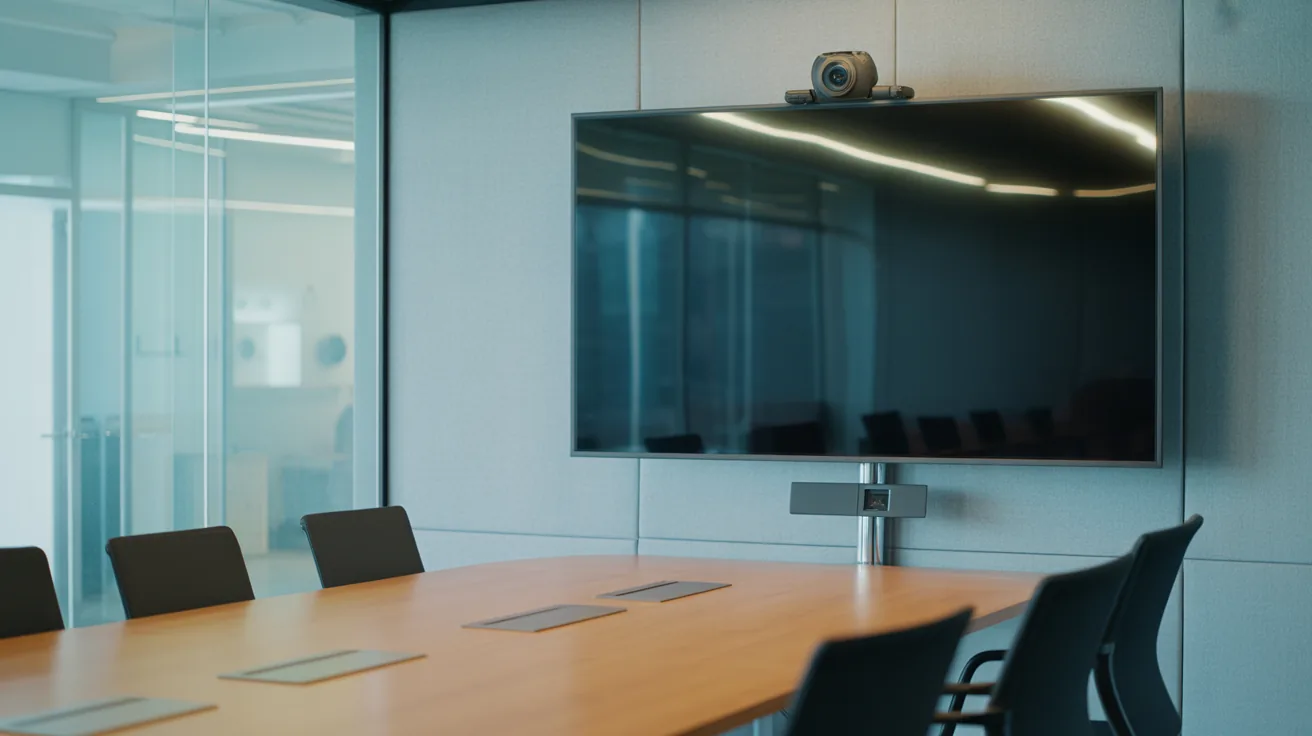
Table of Contents Show
A few years ago, I attended a meeting where the first 15 minutes disappeared into a tangle of cables, missing adaptors and repeated calls of “Can you hear us?” By the time the remote participants appeared, the room had lost its energy. That experience showed how workplace technology can either support productive communication or become an obstacle between people and their work.
A modern workplace needs more than fast computers and an internet connection. It requires a connected technology system that supports collaboration, communication, security, room management and clear information sharing. Whether employees work from one office or across several locations, each tool should make everyday tasks simpler, faster and more consistent.
What Defines a Modern Technology-Enabled Workplace?
A modern workplace is built around how people actually work. Employees may move between meeting rooms, home offices, shared desks and client locations during the same week. Technology must follow them without forcing them to learn a different process at every step.
The strongest workplace systems connect hardware, software and physical spaces. Meeting-room displays should work with collaboration platforms, booking panels should reflect live room availability, and business content should be easy to update across multiple screens. When these components operate together, technology becomes the quiet engine behind the working day.
A practical workplace technology framework usually includes:
- Reliable wired and wireless network infrastructure
- Cloud-based productivity and file-sharing platforms
- Meeting-room displays and presentation systems
- Professional cameras, microphones and speakers
- Digital signage for internal and visitor communication
- Cybersecurity and access-management tools
- Room-booking and workspace-management systems
- Technical support, monitoring and maintenance
- Accessible controls for users with different needs
Business leaders should begin with staff behaviour rather than product catalogues. A system that looks impressive in a demonstration may provide little value if it adds unnecessary steps to common tasks.
Reliable Connectivity and Cloud-Based Collaboration
Every connected workplace depends on stable network performance. Video calls, cloud applications, digital signage and wireless presentations all compete for bandwidth. Weak coverage or overloaded access points can cause frozen meetings, slow file access and frustration in busy office areas.
Network planning should examine the number of users, connected devices, floor layout and peak activity periods. Guest access should be separated from business systems, while critical audiovisual equipment may benefit from dedicated network settings. Redundant internet connections can also help organisations where even a short outage would disrupt customer service or operations.
Cloud-based platforms support work across different locations by giving authorised employees access to shared files, messages and project information. Useful capabilities include:
- Real-time document editing
- Controlled file sharing and version history
- Team messaging and project channels
- Calendar and meeting integration
- Secure access from approved devices
- Automated backup and recovery options
- Centralised user permissions
A clear platform policy prevents information from becoming scattered across personal drives, email attachments and unapproved applications. Staff training is equally valuable because even well-designed tools fail when employees do not know where information belongs.
How Do Digital Advertising Screens Support Workplace Communication?
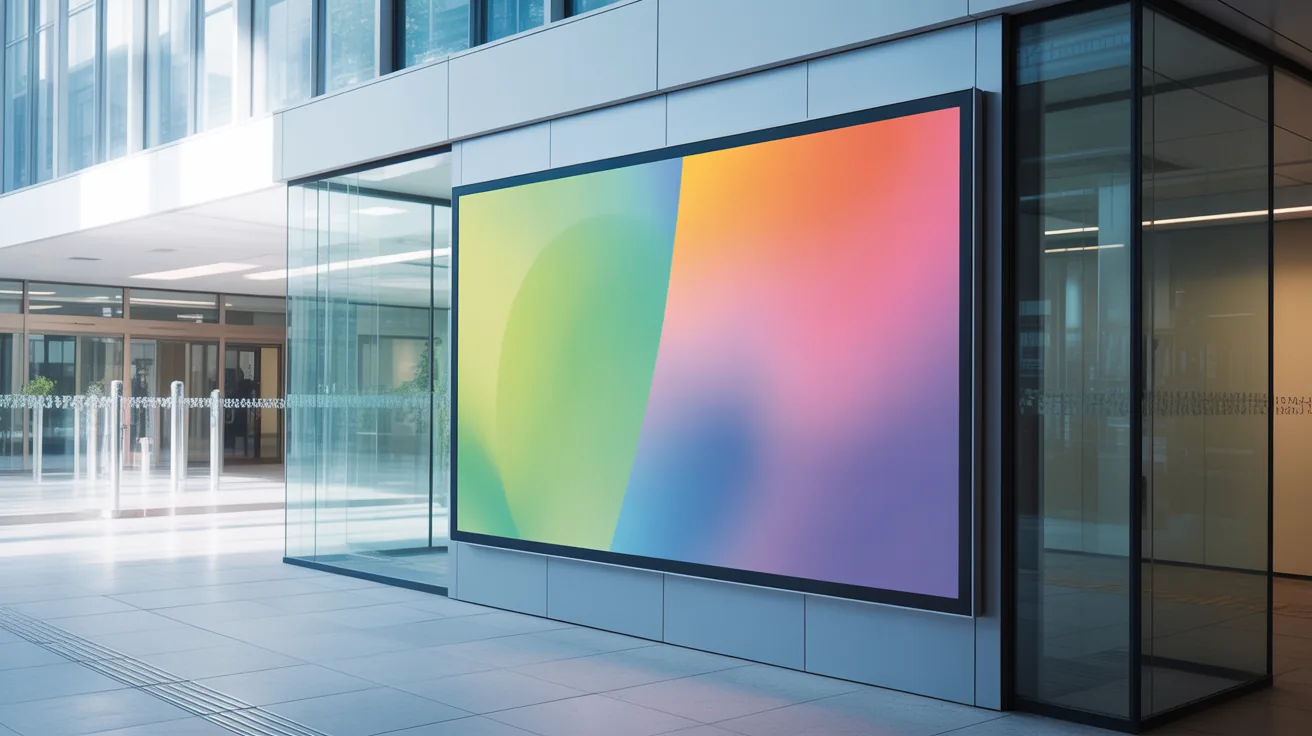
Digital advertising screens are not limited to retail promotions. In offices, they can distribute live information across reception areas, staff kitchens, production floors, waiting rooms and shared workspaces. Instead of relying on printed notices or crowded email inboxes, organisations can place relevant messages where people will naturally see them.
A central content-management platform allows authorised staff to schedule and update material across one or many displays. A national business might show company-wide announcements on every screen while publishing local transport updates, safety messages or visitor information at individual sites.
Workplace screen content can include:
- Company news and leadership announcements
- Safety reminders and emergency instructions
- Reception greetings and visitor directions
- Performance dashboards and project milestones
- Training notices and event schedules
- Recognition for employee achievements
- Meeting-room availability
- Cafeteria menus and wellbeing campaigns
- Live news, weather or transport information
Content should be short, readable and relevant to the screen’s location. A person walking through reception may only have a few seconds to absorb a message, while employees in a breakout area may have time to read a longer update. Font size, colour contrast and viewing distance all affect readability.
Screens should also support a defined communication purpose. Installing displays without a publishing plan often leads to stale content, inconsistent branding or blank screens. Assigning content owners and setting an update schedule helps the system remain useful after installation.
Video Conferencing for Hybrid Teams
Hybrid work has made meeting equity a central part of office design. Remote participants should be able to see faces, hear conversations and contribute without fighting against echoes or poorly positioned cameras. A laptop placed at the end of a long table rarely provides that experience.
Professional video conferencing equipment combines cameras, microphones, speakers, displays and room controls into one coordinated system. The configuration should match the size and shape of the room. A small huddle space has different acoustic and viewing requirements from a boardroom or training facility.
Effective meeting spaces may use:
- Wide-angle or speaker-tracking cameras
- Ceiling, table or wall-mounted microphones
- Echo-cancelling audio processors
- One or two commercial displays
- Wireless content-sharing technology
- Touchscreen meeting controls
- Room-booking panels
- Hearing-assistance systems
- Consistent controls across multiple rooms
Simplicity matters. Employees should be able to enter a room, join a scheduled call and share content with minimal instruction. Standardising the user experience across meeting spaces reduces delays and lowers the demand placed on internal support teams.
Presentation and Wireless Content-Sharing Systems
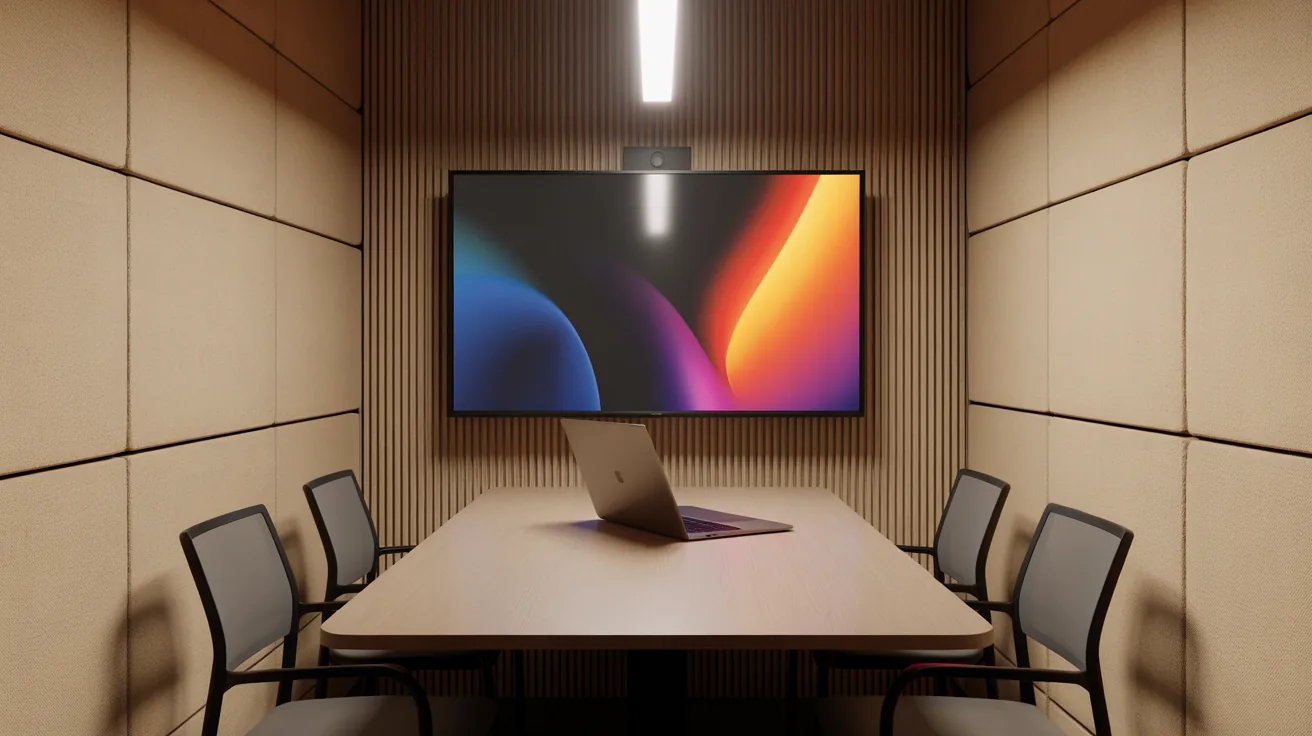
Modern meetings often involve several contributors using different devices. Passing one cable around the table slows the discussion and may create compatibility problems. Wireless presentation systems allow approved users to share content without repeatedly changing physical connections.
The right setup can support laptops, tablets and mobile devices while giving a meeting host control over what appears on screen. Some systems allow several sources to be displayed at once, which is useful for comparing designs, reviewing dashboards or running collaborative workshops.
When selecting a presentation system, review:
- Compatibility with company-issued devices
- Support for guest presenters
- Screen resolution and content quality
- Connection speed and stability
- Security and network requirements
- Moderator controls
- Integration with conferencing platforms
- Availability of wired backup connections
Wireless convenience should not come at the cost of security. Business-grade systems can provide controlled access and network separation, while consumer screen-mirroring tools may lack the management features required in corporate environments.
Room Booking and Workspace Management
A meeting room that appears available but is occupied creates friction between teams. The opposite problem is just as common, with rooms booked for hours even though nobody arrives. Room-booking technology provides real-time visibility and can help organisations use limited office space more effectively.
Booking panels outside rooms can show availability, upcoming meetings and room capacity. Sensors may provide anonymous occupancy data, helping facility managers identify spaces that are overused, underused or regularly booked for groups larger than the room can comfortably hold.
Workspace-management tools can support:
- Meeting-room reservations
- Desk and quiet-space bookings
- Automatic release of unused rooms
- Visitor and contractor check-in
- Equipment and room-feature filters
- Occupancy reporting
- Cleaning and maintenance schedules
- Integration with employee calendars
Data should guide practical decisions rather than become an exercise in collecting numbers. If a 12-person boardroom is repeatedly used by two people, smaller collaboration areas may be needed. If certain rooms receive few bookings, acoustic problems or difficult controls may be discouraging employees from using them.
Audio Systems, Acoustics and Speech Clarity
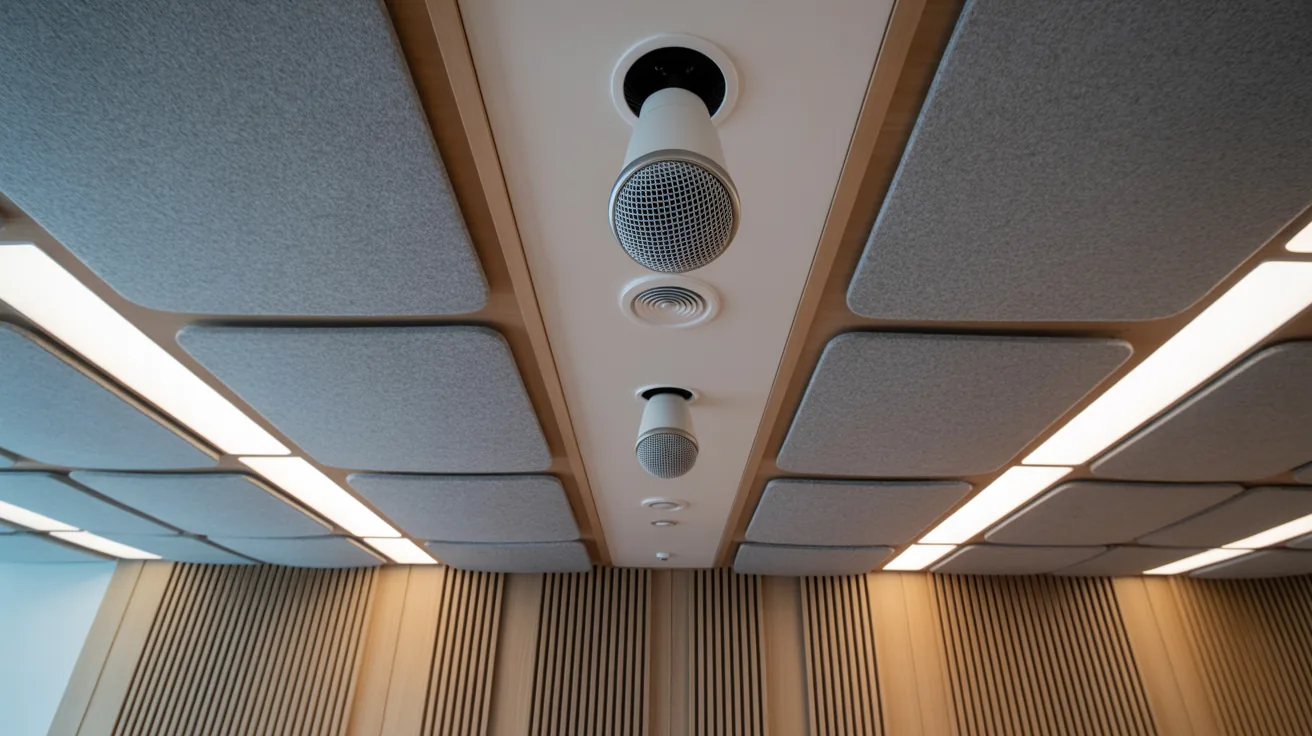
A sharp display cannot rescue a meeting when speech is difficult to hear. Hard walls, glass partitions and open ceilings can reflect sound around a room, creating echoes that reduce clarity for both in-room and remote participants.
Acoustic treatment and audio technology should be planned together. Sound-absorbing panels, ceiling materials, carpets and soft furnishings can reduce reflections, while suitable microphones and speakers distribute speech more evenly. Larger areas may require digital signal processing so that audio levels remain controlled across different uses.
Good audio planning is valuable in:
- Boardrooms and conference rooms
- Training and presentation spaces
- Flexible event areas
- Reception and waiting zones
- Town-hall meeting rooms
- Open-plan collaboration areas
- Hospitality and staff breakout spaces
The system should also support accessibility. Hearing-assistance technology, clear captions and suitable volume control can help more people participate. These features are easier to incorporate during the design stage than after a room is completed.
Cybersecurity and Device Management
Every network-connected screen, conferencing unit and booking panel becomes part of the organisation’s technology environment. Default passwords, delayed software updates and poorly controlled user permissions can create avoidable security gaps.
Workplace audiovisual systems should be included in wider cybersecurity policies. IT and audiovisual specialists need to coordinate device configuration, network access, software updates and ongoing monitoring. Equipment should also be sourced with long-term support in mind, since unsupported products may become difficult to maintain safely.
A sound management plan includes:
- Strong, unique administrator credentials
- Role-based access to settings and content
- Regular firmware and software updates
- Segmented networks where appropriate
- Secure remote-support procedures
- Device inventories and warranty records
- Backup configurations
- Removal of access when staff leave
- Documented incident-response processes
Physical security also matters. Ports, equipment racks and control panels should not provide unrestricted access to visitors. For screens displaying business information, content permissions should limit who can publish, approve or remove messages.
Choosing Technology That Can Grow with the Business
Workplace technology should serve current needs while allowing practical expansion. A business may begin with two meeting rooms and one reception screen, then add another office, training room or customer-facing display network. Systems built around recognised standards are often easier to expand than isolated products with limited integration options.
Scalability does not mean buying every available feature from the start. It means selecting infrastructure, cabling and platforms that can support later additions. Spare network capacity, suitable equipment-rack space and flexible control programming can reduce disruption during future upgrades.
Before approving a workplace technology project, ask:
- What problems are employees experiencing now?
- Which tasks should become faster or easier?
- How many rooms and locations may be added?
- Who will manage content and user access?
- What support response does the business require?
- Can equipment be monitored remotely?
- How will performance be measured?
- What training will employees receive?
- What is the replacement cycle for each component?
A pilot installation can reveal issues before a wider rollout. Testing one meeting room or screen location allows the business to collect user feedback, refine controls and create a repeatable standard for other spaces.
Building a Workplace Where Technology Feels Natural
The best workplace technology is rarely the equipment people notice most. It is the system that starts quickly, responds consistently and allows employees to focus on the conversation rather than the controls. Connectivity, audiovisual equipment, cybersecurity and workspace management should work like parts of one instrument rather than separate pieces making competing sounds.
Begin by documenting how employees meet, share information and use physical spaces. From there, an experienced audiovisual specialist can help plan displays, conferencing tools, control systems and network requirements around real working patterns. A thoughtful design can create a workplace that communicates clearly today and remains ready for future growth.
Frequently Asked Questions About Digital Advertising Screens
What are digital advertising screens used for in a workplace?
Digital advertising screens can display company announcements, safety notices, performance dashboards, visitor directions, event reminders and staff recognition. They provide a visible communication channel in reception areas, kitchens, corridors and shared spaces.
Content can be managed centrally and scheduled for selected times, locations or audiences. This makes screens useful for organisations that need to share timely information across several floors, departments or offices without continually printing and replacing physical signage.
Can digital advertising screens display different content at each location?
Yes. A centrally managed screen network can publish shared material across the organisation while allowing location-specific content. A head office might receive corporate updates, for example, while a warehouse screen displays safety information and a reception screen welcomes scheduled visitors.
Screens can also be grouped by site, department or purpose. Clear publishing permissions help local teams update relevant information without changing content assigned to other areas of the business.
How often should content on digital advertising screens be updated?
The update frequency should match the type of information displayed. News, room availability and operational notices may change daily, while brand messages or workplace guidelines may remain relevant for several weeks.
A content calendar helps prevent screens from becoming repetitive or outdated. Businesses should review all active material regularly, remove expired notices and monitor whether employees are responding to the messages. Clear ownership makes ongoing updates more reliable.
Where should digital advertising screens be installed?
Screens work best in areas with regular foot traffic and enough viewing time for the intended message. Common locations include receptions, staff kitchens, lift lobbies, waiting areas, production floors and shared collaboration zones.
Placement should account for viewing distance, screen height, lighting and glare. Content in a busy corridor should be brief and highly visible, while a screen in a seated waiting area can carry more detailed information or a longer content sequence.
How do businesses measure the value of digital advertising screens?
Businesses can track engagement through QR code scans, internal survey responses, event attendance and reductions in repeated enquiries. Content-management systems may also report screen activity, publishing frequency and device status.
The most useful measures relate to the screen’s purpose. A safety campaign may be judged through staff awareness, while reception signage may be measured by fewer requests for directions. Setting a clear objective before installation makes performance easier to evaluate.






How Do You Choose Durable Shutters That Suit Your Budget?
Shutters can look identical in a showroom and perform very differently after...
illustrarch Editoral Team8 Mins read
How Can Window Coverings Improve Indoor and Outdoor Comfort?
Window coverings work as a home’s adjustable climate layer. A practical guide...
illustrarch Editoral Team9 Mins read
Peter Zumthor Therme Vals: Inside the Stone and Water Sanctuary
Peter Zumthor's thermal baths in Vals are usually described through atmosphere alone....
 Furkan Sen8 Mins read

Flooring Rentals Los Angeles vs Permanent Event Flooring When a Flooring Rental in Los Angeles Makes More Sense
Creating a memorable event starts from the ground up—literally. Whether you're planning...
illustrarch Editoral Team3 Mins read




Leave a comment