

Turn Your Architectural Photos into Hand-Drawn Sketches with AI: A Tool for Stunning Visuals
AI-powered photo to sketch converters transform architectural photos into hand-drawn sketches, enhancing presentations and portfolios with artistic visuals.
 Bahattin Duran30 May 20253 Mins read441

Table of Contents Show
Architectural photos capture the beauty of buildings and spaces, but sometimes a photo just doesn’t fully express the artistic vision behind a design. What if you could easily turn your photos into hand-drawn sketches that add that unique, creative touch? Thanks to AI-powered photo to sketch converters, this is now super simple, even if you’re not an artist.
Why Turn Architectural Photos into Sketches?
Sketches have always been a key part of architecture, they highlight the structure’s lines and details in a way photos often can’t. A hand-drawn look brings warmth and personality to presentations, portfolios, and marketing materials. But making those sketches by hand takes time and skill.
That’s where AI tools come in. With just a few clicks, you can convert your architectural photos into beautiful sketches that look like they were drawn by hand.
How Does AI Create These Sketches?
AI algorithms have been trained on thousands of photos and hand-drawn sketches. They analyze the edges, shading, and textures in your photo, then recreate it with a pencil or ink style. The process usually includes:
- Finding the key lines and outlines
- Adding shading and texture that mimics pencil strokes
- Applying different sketch styles (like charcoal, ink, or pencil)
Many photo to sketch converters let you tweak the style and detail level, so you get just the right look.
Why Use an AI Photo to Sketch Converter?
- Fast results: No need to spend hours drawing.
- Consistent style: Perfect for creating a series of sketches with the same feel.
- Creative options: Easily experiment with different sketch styles.
- Budget-friendly: Avoid paying for custom illustrations.
- User-friendly: No drawing skills required.
How Architects Benefit from AI Sketch Tools
- Impress clients with creative, hand-drawn style visuals
- Make marketing materials stand out with unique artwork
- Enhance your portfolio with artistic versions of your projects
- Quickly explore design ideas in sketch form

How to Choose the Right Photo to Sketch Tool
Look for tools that are easy to use, offer style customization, and produce high-quality results. It’s also handy if the tool fits smoothly into your workflow.
A great option is Image Upscaler’s Photo to Sketch Converter. It’s a simple yet powerful AI tool that turns your architectural photos into stunning sketches in seconds.
Final Thoughts
Using AI to convert your architectural photos into hand-drawn sketches is a smart way to add creativity and personality to your work. Whether you need visuals for clients, marketing, or your portfolio, an AI photo to sketch converter gives you professional-looking sketches without the hassle. Give it a try and watch your photos transform into beautiful artwork!
Best Photos to Use for Sketch Conversion
Not every photo translates well into a sketch, so the source image matters. Pictures with clear edges, strong contrast, and a well-defined subject produce the cleanest results, since the AI relies on outlines to build the drawing. Images shot in soft, even light tend to convert better than harshly backlit ones, where detail can be lost in shadow. A clean facade or a single building against an uncluttered sky usually works better than a busy street scene packed with overlapping elements.
Matching the Sketch Style to Your Purpose
Different sketch styles serve different goals. A light pencil look feels gentle and conceptual, which suits early-stage idea boards and mood pages. Bold ink lines read clearly at small sizes and work well for icons, social posts, and thumbnails. Charcoal and heavier shading add drama and depth, which can elevate a hero image on a portfolio cover. Experiment with detail levels too, since a higher detail setting keeps fine elements while a lower one creates a looser, more handmade feel.
Practical Uses Beyond the Portfolio
Converted sketches have many uses across a practice. They make distinctive cover images for proposals and competition boards, give a unified look to a series of project pages, and provide friendly visuals for client emails and newsletters. Sketch versions are also useful when you want to share a concept without revealing a fully finished render. Many architects use them as a quick way to communicate design intent during early meetings, where a polished photo might feel too final.
Limitations and How to Work Around Them
AI sketch tools are fast but not flawless. They can flatten subtle materials, misread reflective glass, or add noise in cluttered areas. The fix is usually simple: crop tightly, increase contrast before uploading, or try a different style preset. For important deliverables, a quick pass in an image editor lets you clean stray lines or strengthen key edges. Treat the AI output as a strong starting point rather than a final artwork, and you will get consistently better results.
A Quick Workflow Checklist
To get reliable results every time, follow a short routine. Choose a high-resolution photo with a clear subject, crop out distractions, and adjust brightness and contrast if needed. Upload the image, test two or three style presets, and compare them side by side. Pick the version that best fits the medium where it will appear, then export at the resolution your project requires. Keeping the original photo means you can always re-run the conversion later in a new style.

Interior Design for Commercial Spaces: Enhancing Functionality and Brand Identity
Commercial interior design has to serve brand, function and regulation at once....
 Begum Gumusel4 Mins read

From SketchUp View to Client-Ready Render: A Hands-On Look at Vizbase
Vizbase co-founder Mikus Zarāns shows how the browser-based AI renderer turns SketchUp...
 illustrarch Editoral Team4 Mins read
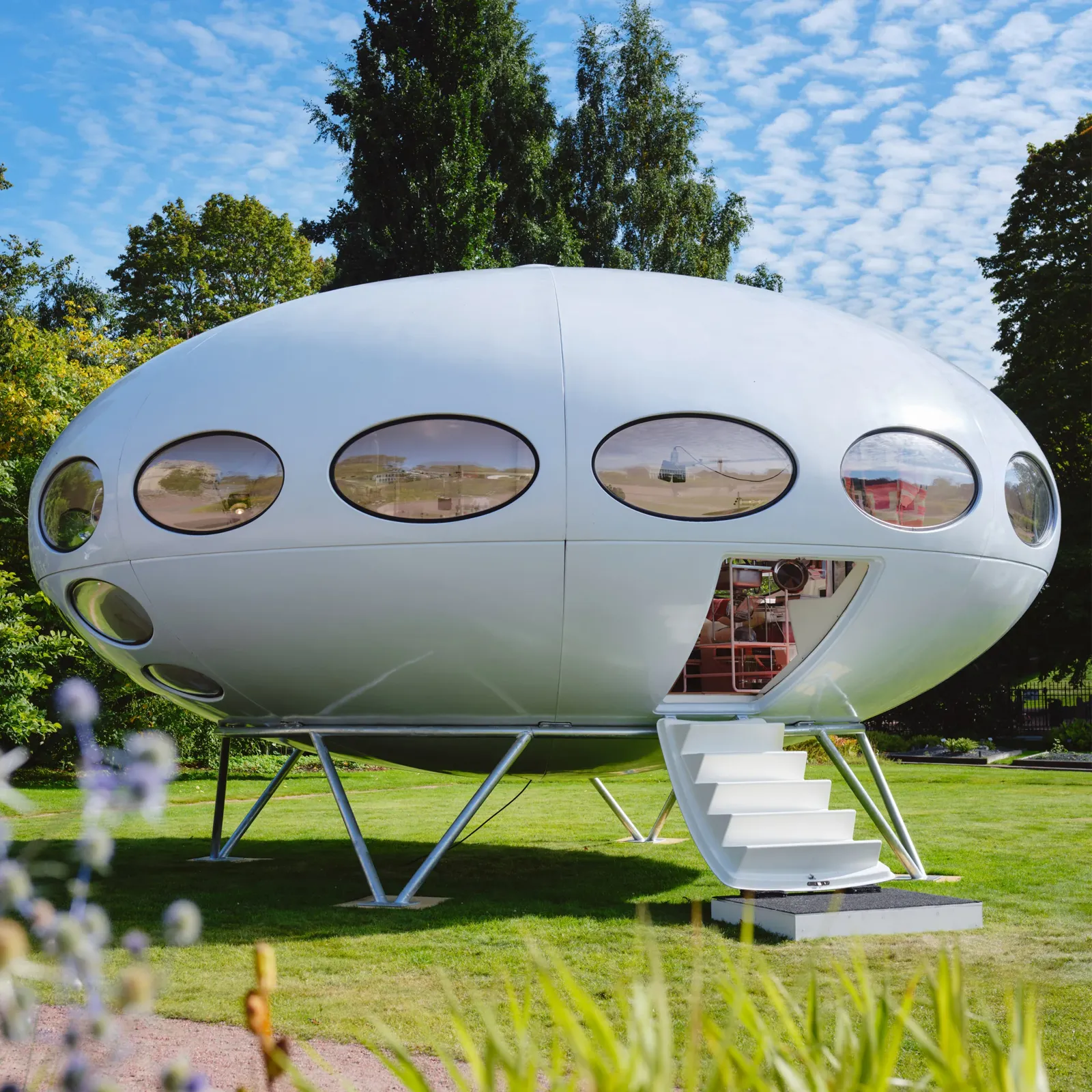
Futuro House Production Revived in Finland After Decades-Long Hiatus
A Facebook listing for abandoned moulds led to the first new Futuro...
illustrarch Editoral Team3 Mins read
Building Your Dream Home in NSW: What You Should Know About Montgomery Homes
Montgomery Homes has been building across Sydney, Newcastle, the Hunter, Wollongong and...
illustrarch Editoral Team4 Mins read


Leave a comment