

Dynamo vs Grasshopper: Which Visual Programming Tool Should Architects Use?
Dynamo automates BIM data inside Revit, while Grasshopper drives complex geometry in Rhino. This comparison covers setup, data model, scripting, plug-ins, cost and Rhino.Inside.Revit, and ends with a simple rule for choosing.
 illustrarch Editoral Team8 November 20268 Mins read1

Table of Contents Show
Dynamo vs Grasshopper comes down to where your work has to end up. Dynamo is Autodesk’s open source visual programming tool built into Revit, so it is strongest at automating BIM data and documentation. Grasshopper ships with Rhino and is strongest at generating and rationalizing complex geometry for design and fabrication.
Both tools let you build programs by wiring boxes together instead of typing code, and both have large user communities in architecture. That surface similarity hides a real split in purpose. The Dynamo vs Grasshopper question is less about which tool is “better” and more about which host application your office already depends on, and what kind of problem you want to automate. This breakdown compares them on setup, data model, geometry, scripting, add-ons, cost and learning curve, then gives a simple way to choose.
What Are Dynamo and Grasshopper?
Both are node-based visual programming environments. You drag components (Grasshopper) or nodes (Dynamo) onto a canvas, connect outputs to inputs, and the graph recalculates when an input changes. If you are new to the idea, our primer on what computational design means for architecture sets out the background.
Dynamo in brief
Dynamo started outside Autodesk. According to the Dynamo team’s own history page, Ian Keough created it while working at Buro Happold in New York to smooth out workflows between Rhino and Revit, showed it at ACADIA in 2009, and joined Autodesk full time in early 2013. Today the Dynamo download page lists separate “flavors” for Revit, Civil 3D, Forma, Alias, FormIt and Advance Steel, plus a standalone Dynamo Sandbox for testing new features. Dynamo for Revit has been installed automatically with Revit since Revit 2020.
The core engine, the DesignScript language and the out-of-the-box nodes are open source. The DynamoDS repository on GitHub is published under the Apache 2.0 licence, which means anyone can read the code, fork it and build host integrations.
Grasshopper in brief
Grasshopper was written by David Rutten at Robert McNeel & Associates and spent years as a free beta plug-in. McNeel’s Rhino 6 release notes announced that Grasshopper was finally bundled into Rhino, and since then it installs with every copy and receives updates through Rhino service releases. It runs on both Windows and Mac. Our complete guide to Grasshopper 3D covers the interface and component families in depth, so here the focus stays on the comparison.
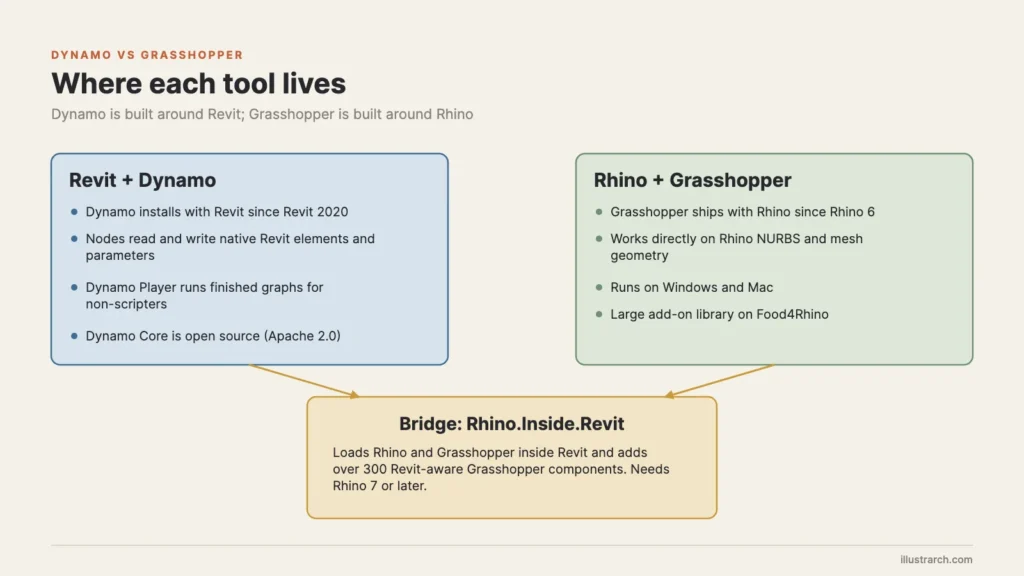
Dynamo vs Grasshopper: The Core Difference
The single most useful idea is this: Dynamo thinks in Revit elements, Grasshopper thinks in geometry. A Dynamo graph typically selects walls, rooms, sheets or family instances, reads and writes their parameters, and creates new native Revit elements. A Grasshopper definition typically starts from points, curves and surfaces, transforms them through dozens of operations, and “bakes” the result into Rhino as NURBS or mesh objects.
That difference shapes everything else. Dynamo inherits Revit’s strengths (a single coordinated model, schedules, views, sheets) and Revit’s constraints (Windows only, families, categories, a heavier file). Grasshopper inherits Rhino’s freeform modeling engine, its speed with large geometry sets and its huge plug-in ecosystem, but it has no native notion of a door, a level or a sheet unless you add one.
A practical consequence: a Grasshopper facade study that generates 4,000 unique panels is natural work, while doing the same in Dynamo means creating 4,000 Revit family instances, which is slower and makes the model heavier. In the other direction, renumbering 400 rooms by level and wing, or pushing door hardware data from Excel into Revit parameters, is a ten-node Dynamo graph and an awkward detour in Grasshopper.
🔢 Quick Numbers
- Dynamo for Revit has been installed automatically with Revit since Revit 2020 (dynamobim.org download page).
- Grasshopper has been bundled with Rhino since Rhino 6 (McNeel, Rhino 6 release notes).
- Rhino.Inside.Revit adds over 300 Revit-aware components to Grasshopper (McNeel, Rhino.Inside.Revit site).
- A single commercial Rhino 8 licence lists at US$995 in North America, with the educational licence at US$195 (rhino3d.com, as of October 2026).
Side-by-Side Comparison
The table below sets the two tools against each other on the points that matter most when an office picks a standard. Prices change, so treat them as a snapshot.
Dynamo vs Grasshopper at a glance
| Feature | Dynamo | Grasshopper |
|---|---|---|
| Host application | Revit, Civil 3D, Forma, Alias, FormIt, Advance Steel; standalone Sandbox | Rhino; Revit through Rhino.Inside.Revit |
| Included since | Revit 2020 (auto installed) | Rhino 6 |
| Operating system | Windows (follows Revit) | Windows and Mac |
| Native data | Revit elements, parameters, views, sheets | Points, curves, NURBS surfaces, meshes |
| Text scripting inside graphs | DesignScript code blocks, Python nodes | Python 3 and C# script components (Rhino 8) |
| Add-on source | Dynamo Package Manager | Food4Rhino |
| Licence of the tool | Open source core (Apache 2.0) | Proprietary, included with Rhino |
| Strongest at | BIM data, documentation, repetitive model tasks | Form-finding, panelization, analysis, fabrication |
What each one costs
Neither tool is sold on its own. Dynamo comes at no extra cost with a Revit subscription, and Dynamo Sandbox is a free download, although Sandbox needs other Autodesk products to access its full geometry features. Grasshopper comes at no extra cost with Rhino, which McNeel still sells as a licence you buy once and upgrade later: the Rhino price list shows US$995 for a commercial Rhino 8 licence, US$595 to upgrade an older version and US$195 for students and faculty in North America. So the real cost question is which host your office already pays for, not which plug-in to buy.
Where Dynamo Wins
Dynamo’s advantage is that it sits inside the model your office already delivers. Nothing has to be exported, re-linked or rebuilt. For teams whose production work is in Revit, that removes a whole class of coordination problems. If you are still deciding on the BIM side, see our comparison of BIM and CAD workflows.
Data and documentation tasks
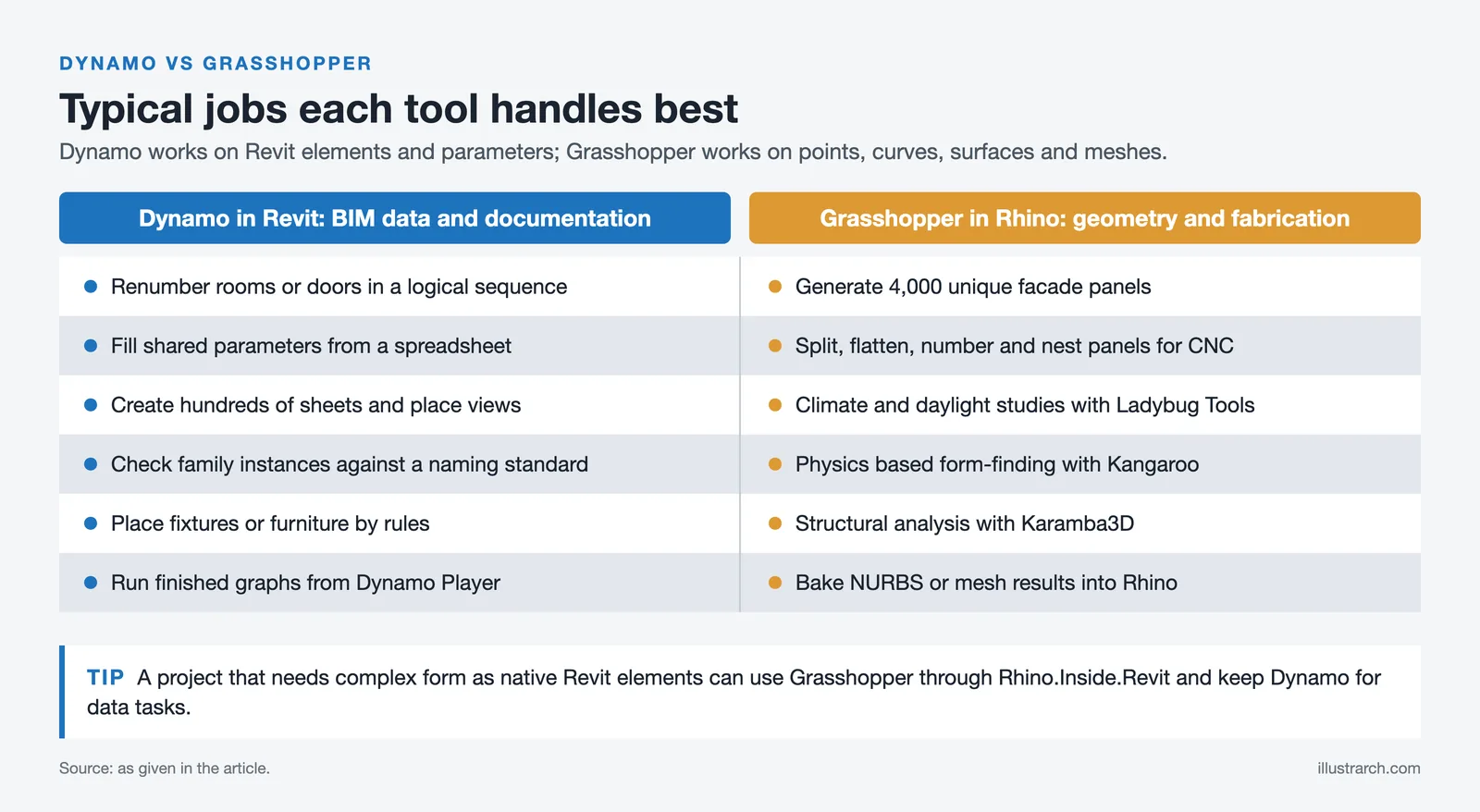
The jobs where Dynamo pays back fastest are rarely glamorous. Typical examples are renumbering rooms or doors in a logical sequence, filling shared parameters from a spreadsheet, creating hundreds of sheets and placing views on them, checking every family instance against a naming standard, and placing elements such as light fixtures or furniture according to rules. Each of these is a task a person would otherwise do by hand, one click at a time.
Sharing graphs with non-scripters
Revit ships with Dynamo Player, which lets a team member run a finished graph from a list and change a few exposed inputs without ever opening the canvas. That turns one computational designer’s work into a button the whole studio can use. It is also why many offices keep a shared, version-controlled folder of approved graphs.
💡 Pro Tip
Before you publish a graph to Dynamo Player, rename every input node with a plain-English label and set sensible default values. A graph that runs safely with its defaults on a copy of the model will be trusted; one that needs the author standing behind the user will be abandoned after the first deadline.
Open source and the Autodesk ecosystem
Because the core is open, Dynamo is also a development platform. Autodesk’s Dynamo Core 4.0 release notes (November 2025) describe a move to .NET 10, PythonNet3 as the default Python engine and large speed gains on common geometry nodes, for example about 10 times faster on Solid.ByUnion. The same graph logic can travel to Civil 3D or Forma when your projects reach into infrastructure or early massing, which matters given the debate over whether Forma will replace Revit.
Where Grasshopper Wins
Grasshopper is the default choice when geometry itself is the design problem. Long, branching definitions that would bog down a BIM model are routine in Rhino, and the canvas gives fast, visual feedback as sliders move. Our review of parametric design with Grasshopper for Rhino walks through data trees, facade panelization and form-finding in detail.

Freeform geometry and fabrication
Rhino’s NURBS engine handles doubly curved surfaces, offsets and intersections with a precision that fabrication shops rely on. Grasshopper adds rules on top: split a surface into panels, flatten each one, number it, nest it for CNC cutting and export the toolpaths. That chain from concept to cut file is why so many pavilions, complex roofs and facade systems start in Grasshopper even when the building is documented elsewhere.
The plug-in ecosystem
McNeel’s Rhino 6 notes describe Grasshopper as “the foundation for many third-party components”, from environmental analysis to robotic control. Ladybug Tools for climate and daylight studies, Kangaroo for physics-based form-finding, Karamba3D for structural analysis and dozens of fabrication tools all plug into the same canvas. Dynamo has a healthy package ecosystem too, but for geometry, analysis and robotics the Grasshopper side is deeper.
Scripting and cross-platform work
When a visual graph gets too large, both tools let you drop into code. Rhino 8 introduced a new script editor for Python 3 and C# that works in both Rhino and Grasshopper. Grasshopper also runs on Mac, which matters in schools and small studios where Revit, and therefore Dynamo, is not an option. If you are weighing code against nodes, our piece on whether to learn Python or Grasshopper first goes further.
⚖️ Pros & Cons at a Glance
✔️ Dynamo: works on native Revit data, free with Revit, open source core, Dynamo Player for non-scripters. Downsides: Windows only, slows down with very large geometry sets, weaker for freeform and fabrication work.
✔️ Grasshopper: fast and precise with complex geometry, deep plug-in ecosystem, Windows and Mac, Python 3 and C# in Rhino 8. Downsides: needs a Rhino licence, no native BIM objects without Rhino.Inside.Revit, large definitions can become hard for others to read.
Can You Use Both? Rhino.Inside.Revit
For many offices the honest answer to Dynamo vs Grasshopper is “both”. McNeel’s Rhino.Inside.Revit getting started guide explains that the add-on loads Rhino into Revit’s memory like any other Revit add-in, so Grasshopper definitions can query, modify and create native Revit elements directly. It requires Rhino 7 or later and supports Revit 2018 through 2027.
This bridge changes the decision. A design team can keep its form-finding and panelization in Grasshopper, then generate real Revit walls, floors, adaptive components or direct shapes that the documentation team can schedule and annotate. Dynamo remains useful on the same project for model housekeeping and data tasks, where its nodes are simpler and where colleagues can run graphs from Dynamo Player.
One habit to avoid: pushing every Grasshopper result into Revit as native elements. Thousands of unique panels as individual families will slow the model for everyone. Bring across only what the drawings and schedules actually need, and keep the full fabrication geometry in Rhino as the reference.
Which Should You Learn First?
Start with the tool that lives in the software you use every day. If your office documents in Revit, Dynamo gives you value from the first week: you can automate a tedious task on a live project and see the result in drawings straight away. If you work in Rhino, study in a school that teaches it, or want to explore form and fabrication, Grasshopper is the natural first step.
The concepts transfer well. Lists, data matching (lacing in Dynamo, data trees in Grasshopper), ranges, conditional logic and the habit of breaking a problem into small steps are the same in both. Someone who knows one tool can usually build simple graphs in the other within a few days. The free Dynamo Primer and McNeel’s Grasshopper learning resources are both good starting points, and our overview of parametric design tools for architects places both alongside Houdini and other options.
A simple decision rule
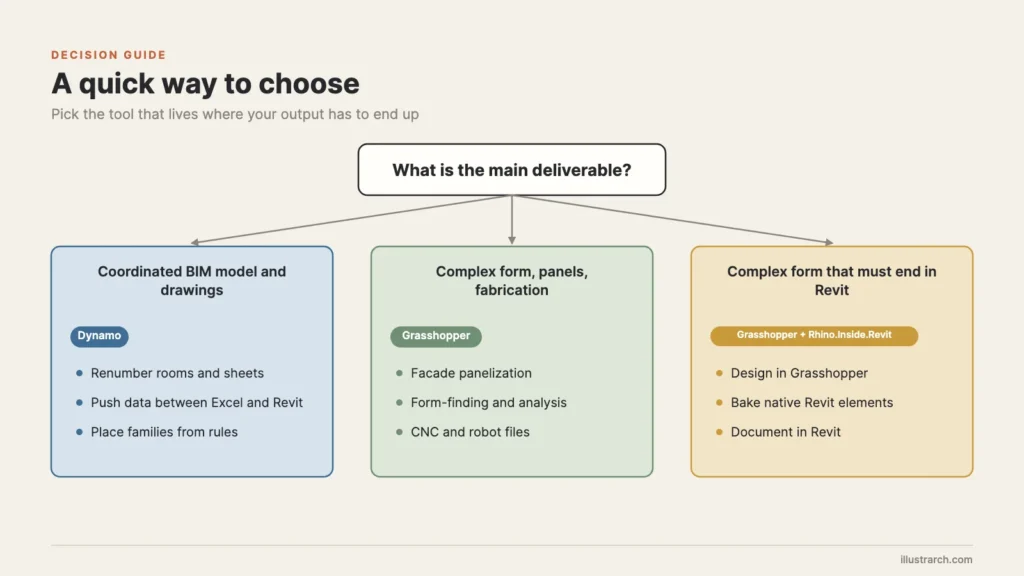
- Your deliverable is a coordinated BIM model and drawing set: choose Dynamo.
- Your deliverable is form, panels, analysis or fabrication data: choose Grasshopper.
- You need complex form that must end up as native Revit elements: use Grasshopper with Rhino.Inside.Revit, and keep Dynamo for data housekeeping.
- You work on a Mac: Grasshopper is the only one of the two that runs natively.
Final Thoughts
Bottom Line: Dynamo and Grasshopper are not rivals so much as specialists for two different hosts. Pick Dynamo when the job is BIM data and documentation inside Revit, pick Grasshopper when the job is geometry, analysis and fabrication, and use Rhino.Inside.Revit when a project needs both. Learning one makes the other much easier, so the first choice matters less than starting on a real task.




Notion Alternatives for Architects: 7 Tools That Fit Studio Work
Notion works until a studio needs fee tracking, phase budgets and timesheets....
 Furkan Sen7 Mins read

Why Every Practice Ends Up With Five Versions of the Same Revit Family
Let’s learn why Revit family libraries accumulate duplicates, break schedules and slow...
illustrarch Editoral Team5 Mins read

Visualizing Renovation Projects From Photographs: A Workflow for Existing-Building Work
Photo-based visualization turns a photograph of a building that already exists into...
illustrarch Editoral Team7 Mins read

Best Free CAD Blocks and Resources for Architects
A working guide to free CAD blocks for architects, covering ARCAT, CAD-Blocks.net,...
Furkan Sen7 Mins read






Leave a comment